
10 Best Partition Recovery Software for Windows, Mac & Linux

Lost a partition? Maybe an existing one has turned RAW, or perhaps you simply deleted the wrong partition by mistake. No matter the case, you’ll need partition recovery software to get your data back. Our team of recovery experts has tested the best free and paid solutions out there for Windows, macOS, and Linux, and we’ve included them below, along with our unique insights and findings.

| Platform |
|
| Distributed as | Freemium |
| Limitations | Recover up to 100 MB for free |
| Price range | $89...$149 |

| Platform |
|
| Distributed as | Free |
| Limitations | None |
| Price range | Free |

| Platform |
|
| Distributed as | Freemium |
| Limitations | Free version limited to files 64 KB or smaller |
| Price range | $69.9...$699.9 |
What Is Partition Recovery Software (And Why Do You Need It)?
Partition recovery software is a category of tools that have the ability to restore partitions after they’ve become lost or deleted, or otherwise the data that was on them. You see, in most cases, it’s relatively easy to restore a partition when there’s nothing physically wrong. The same is true for data; it’s recoverable so long as it hasn’t been overwritten or wiped.
You’ll need a reliable partition recovery tool if:
- You accidentally deleted the wrong partition.
- An existing partition has become RAW.
- The partition was formatted by mistake.
- Partition resizing was interrupted.
- The drive was disconnected during a read/write operation.
- A partition has simply stopped showing up.
The true value of high-quality partition recovery software is that it doesn’t just focus on data recovery. It also provides functionality for repairing partition-related issues. This means that you can not only get back your lost data but also restore your system to a healthy state.
Our Method For Choosing The Best Partition Recovery Software
We approached the task of choosing the best partition recovery software with the goal of putting together a selection of the most effective programs for Windows, Mac, and Linux users—not just another run-of-the-mill ranking. Here’s an insider’s look at the criteria we valued in our quest:
- Operating system compatibility
Compatibility with a variety of operating systems was a quality we prioritized in the rankings. Tools that worked with several operating systems were more favorable due to the range of scenarios they can address. Tools exclusive to one operating system just aren’t as adaptable.
- Recovery capabilities
We looked for software that could handle various file systems, demonstrating proficiency when recovering both missing files and entire folders. We prioritized tools that could repair corrupted partition filesystems and fix errors. The ability to work seamlessly with RAID arrays, clone, backup, reconstruct or reformat file systems without losing data were significant factors in our selection process.
- Usability
Usability was at the forefront of our priorities because we strongly prefer tools that are user-friendly and make the task of partition recovery less daunting for the user. After all, who wants to wrestle with a confusing GUI in the middle of a data crisis?
- Price
We evaluated the balance between the price of the software and the functions it offered, taking into account the amount of free data recovery offered. Unsurprisingly, neither the most expensive nor completely free partition repair tools with data recovery capabilities are guaranteed to offer the best value for money.
We've put together comprehensive reviews that dive into the best partition recovery tools for Windows and Mac platforms, including solutions that also support Linux. We encourage you to read them for more information about each recommended option. All of our reviews and rankings follow a strict, multi-stage testing process to ensure all of our findings are backed by data.
Top 10 Best Partition Recovery Tools
#Let’s take a look at the best partition recovery tools available across major platforms. Note that our rankings highlight both specialized tools and comprehensive, all-in-one solutions. A lower placement doesn’t necessarily mean a tool is inferior but reflects its specific strengths and focus areas. To get the most out of this list, pay attention to the labels next to each tool’s name.

1. Disk Drill
WindowsmacOS
Freemium Some features are provided free of charge, but money is required to unlock the rest
Recover up to 100 MB for free
$89...$149
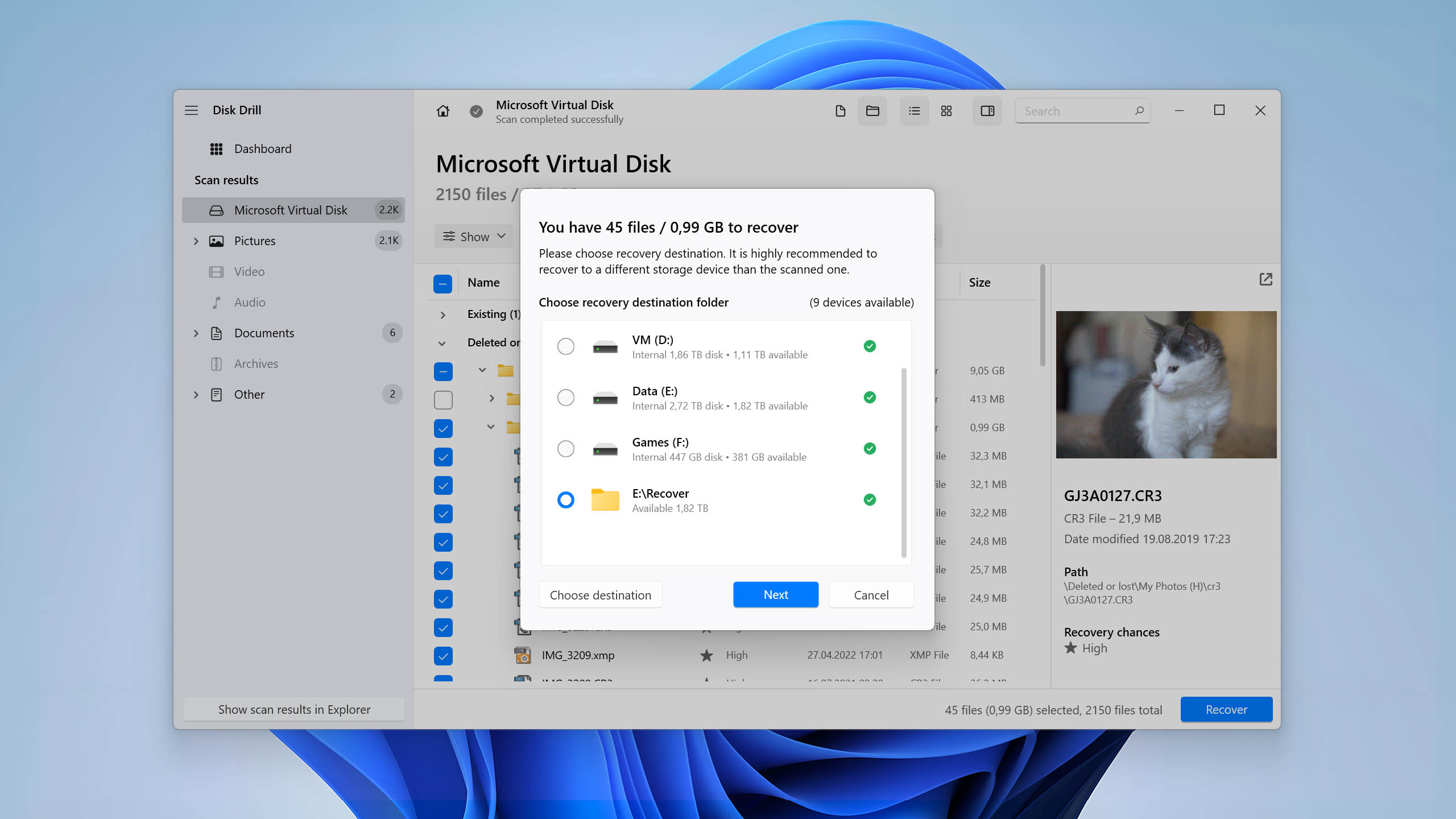
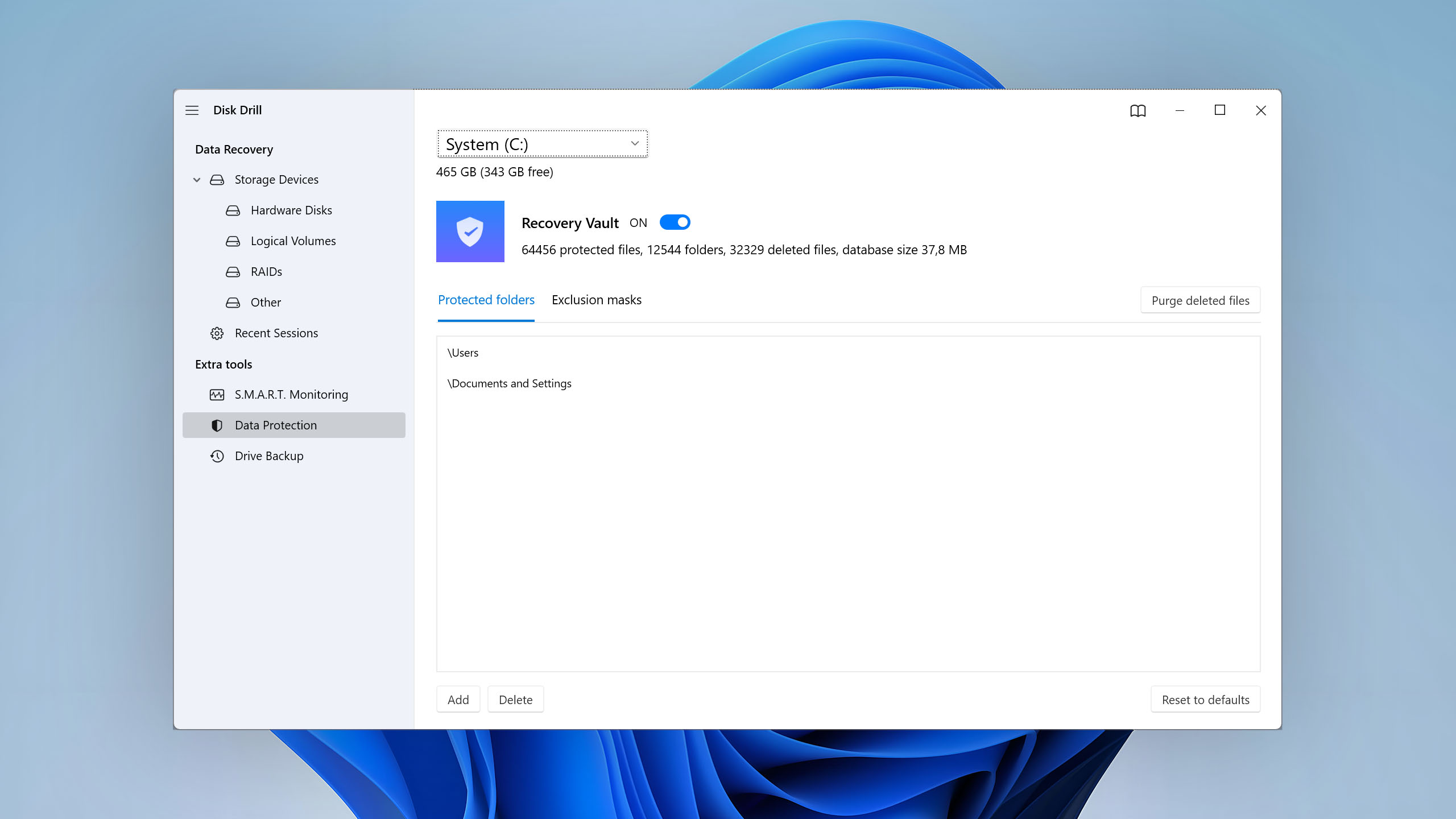
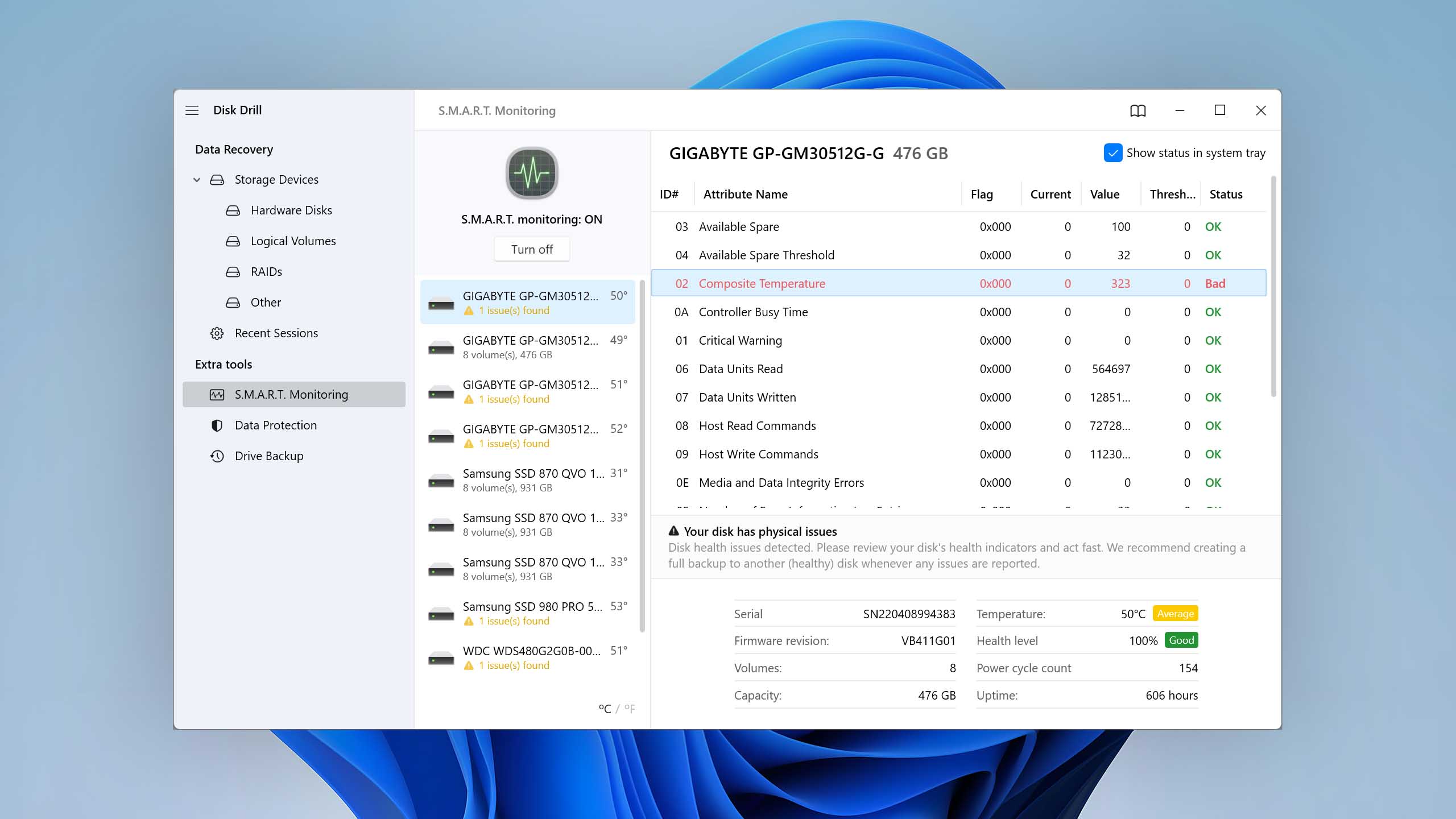
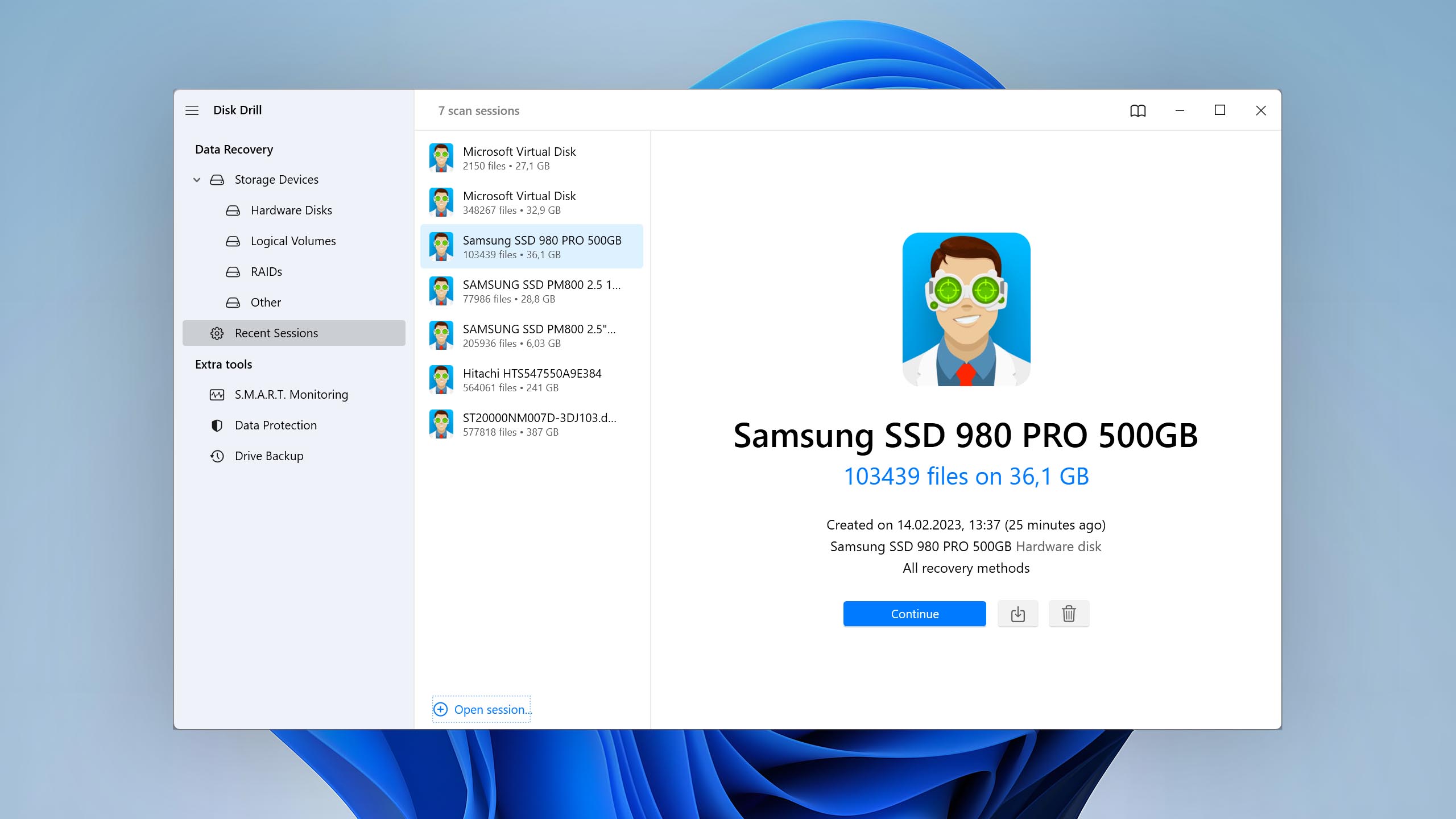
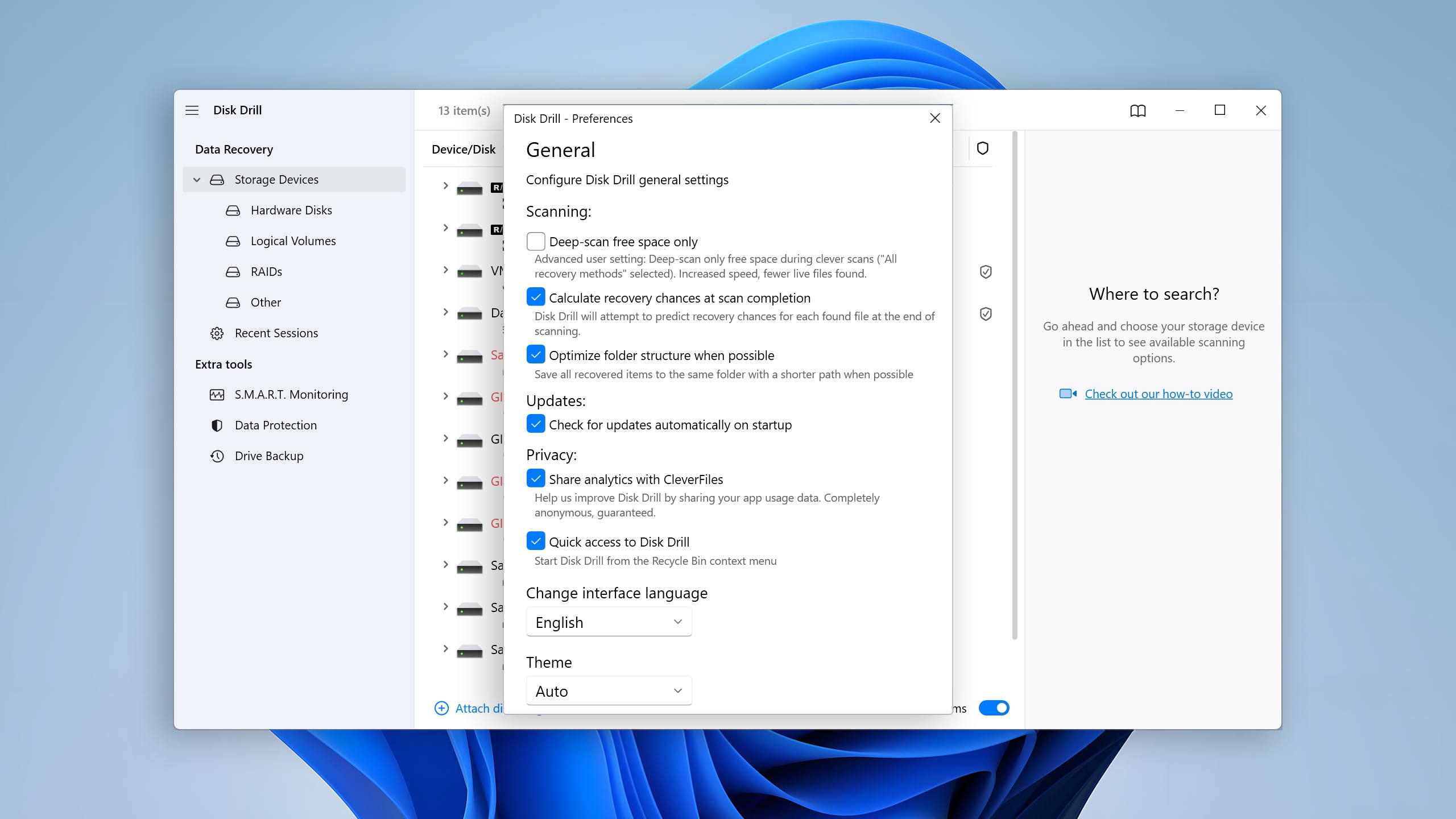
Disk Drill is our favorite lost partition recovery software tool because it gives regular home users the power to solve some of the most stress-inducing data loss situations with a few simple clicks and for a price that doesn’t make one’s wallet cry.
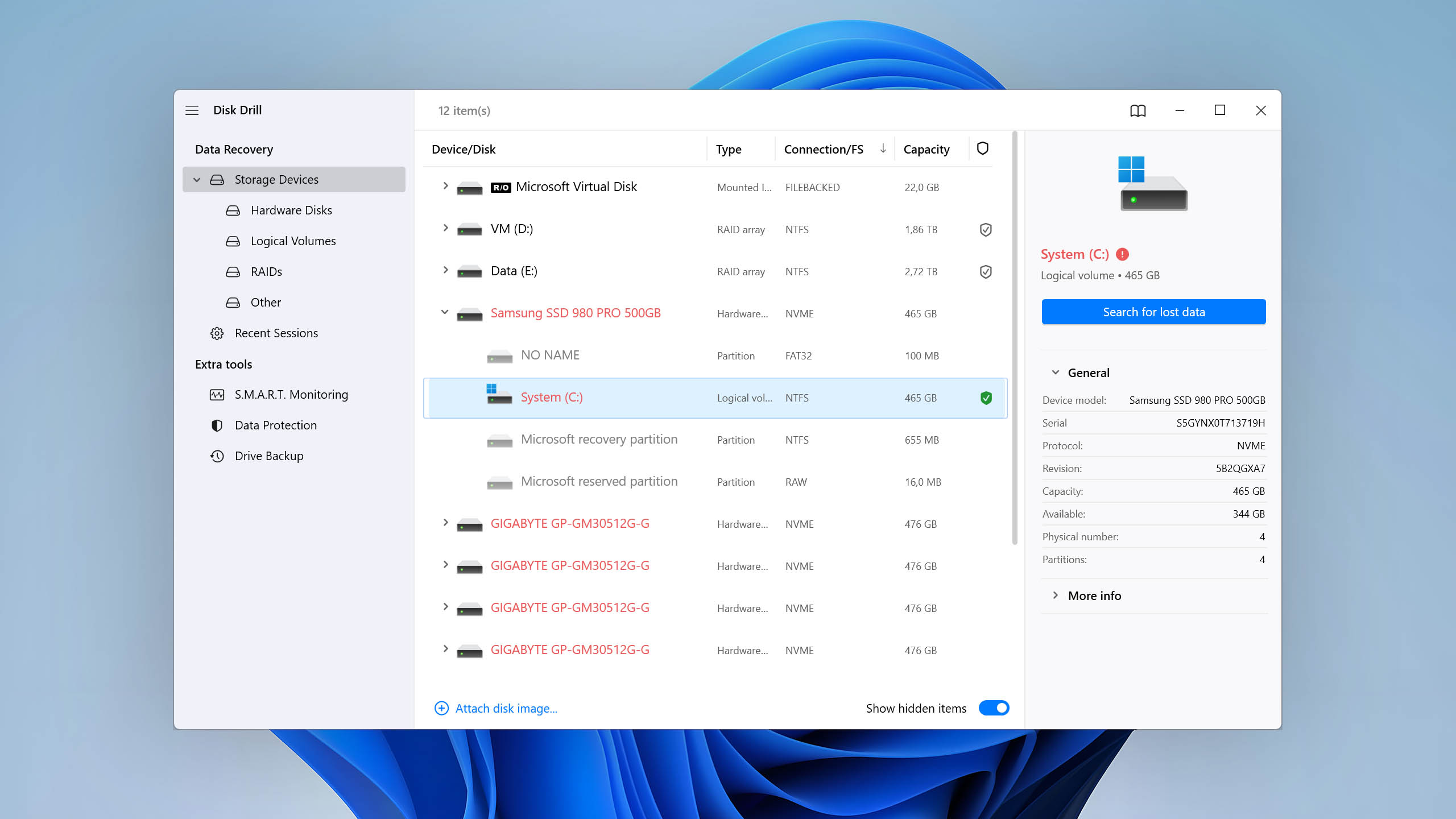
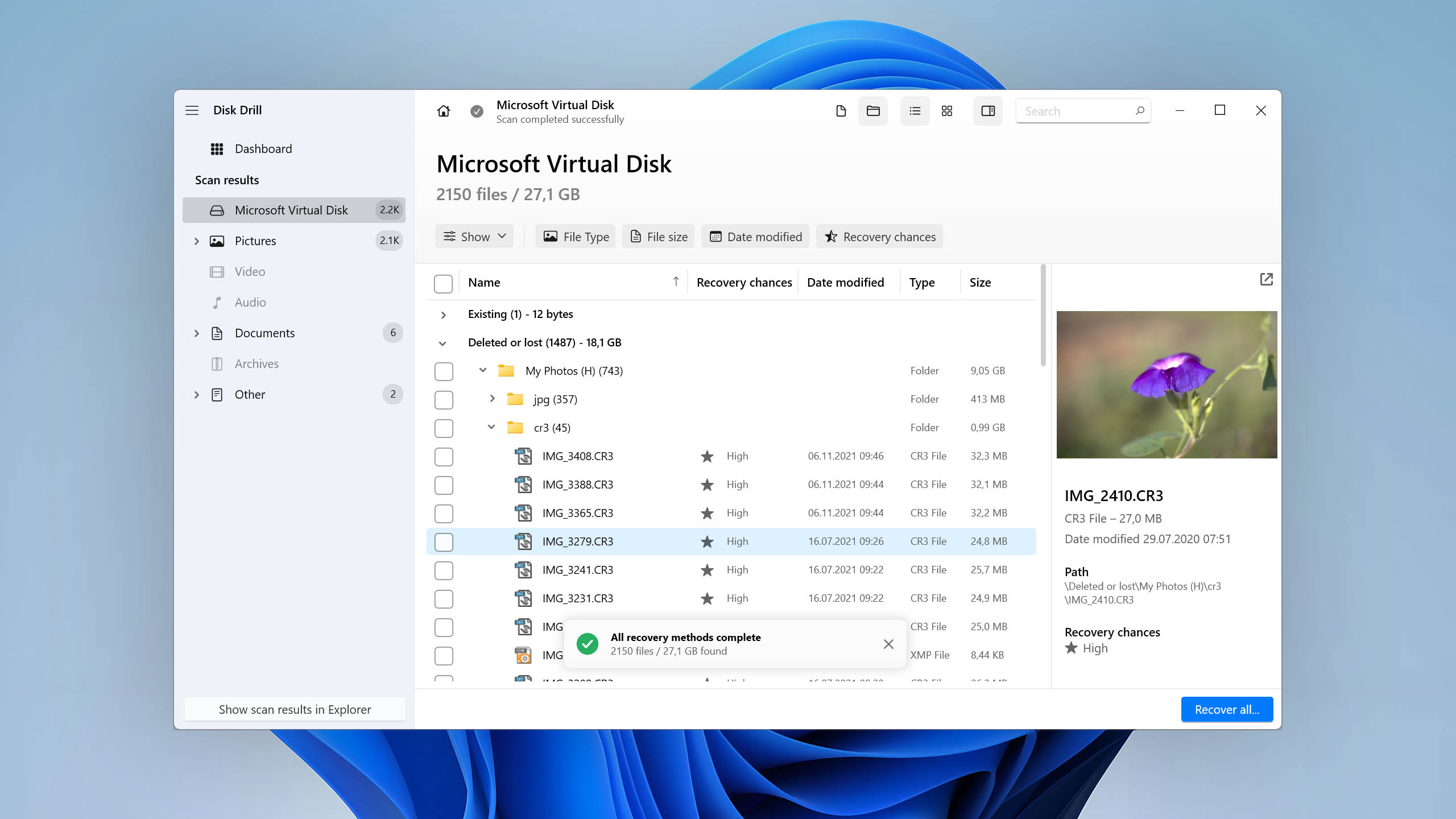
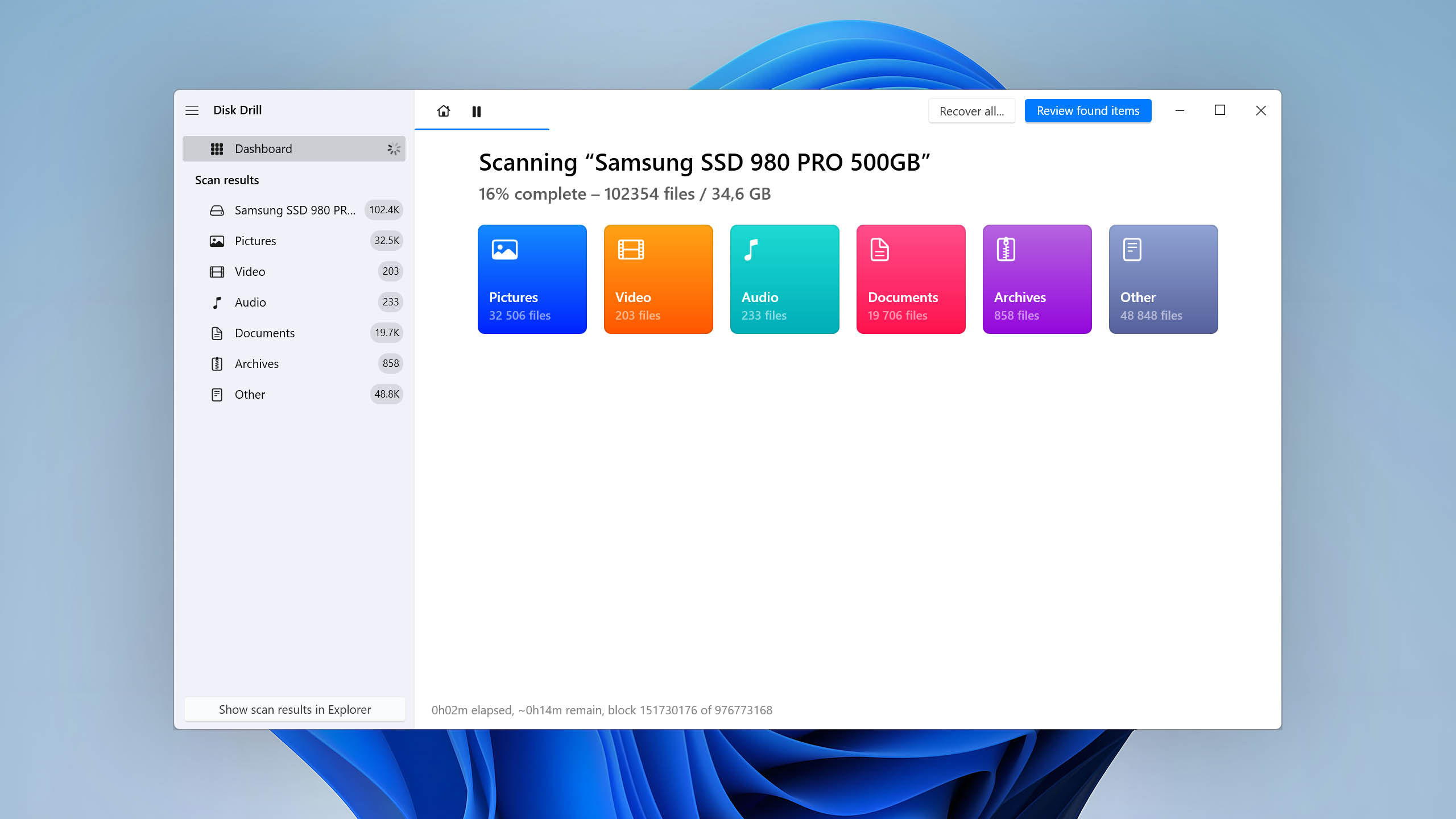

Usability
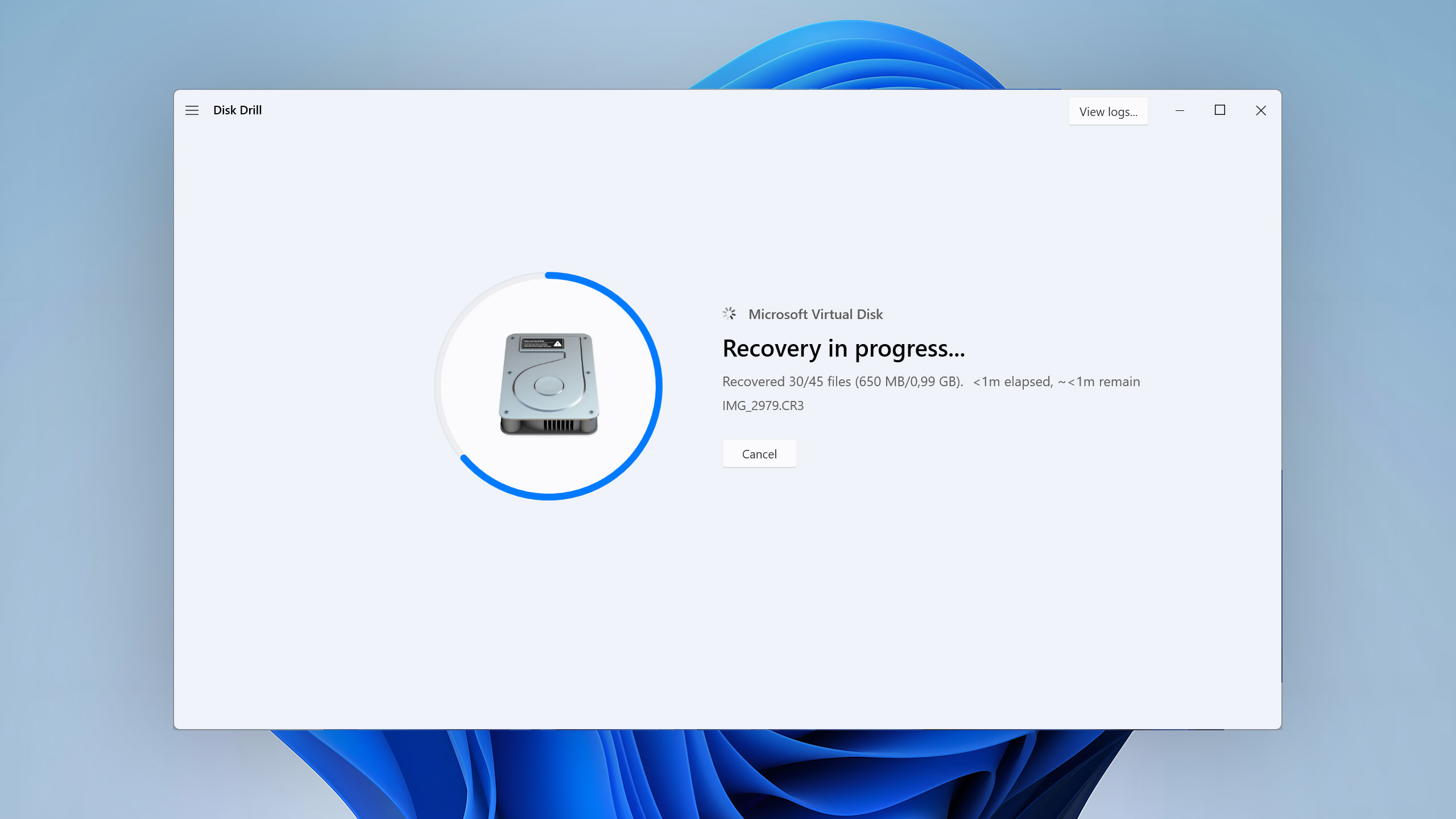
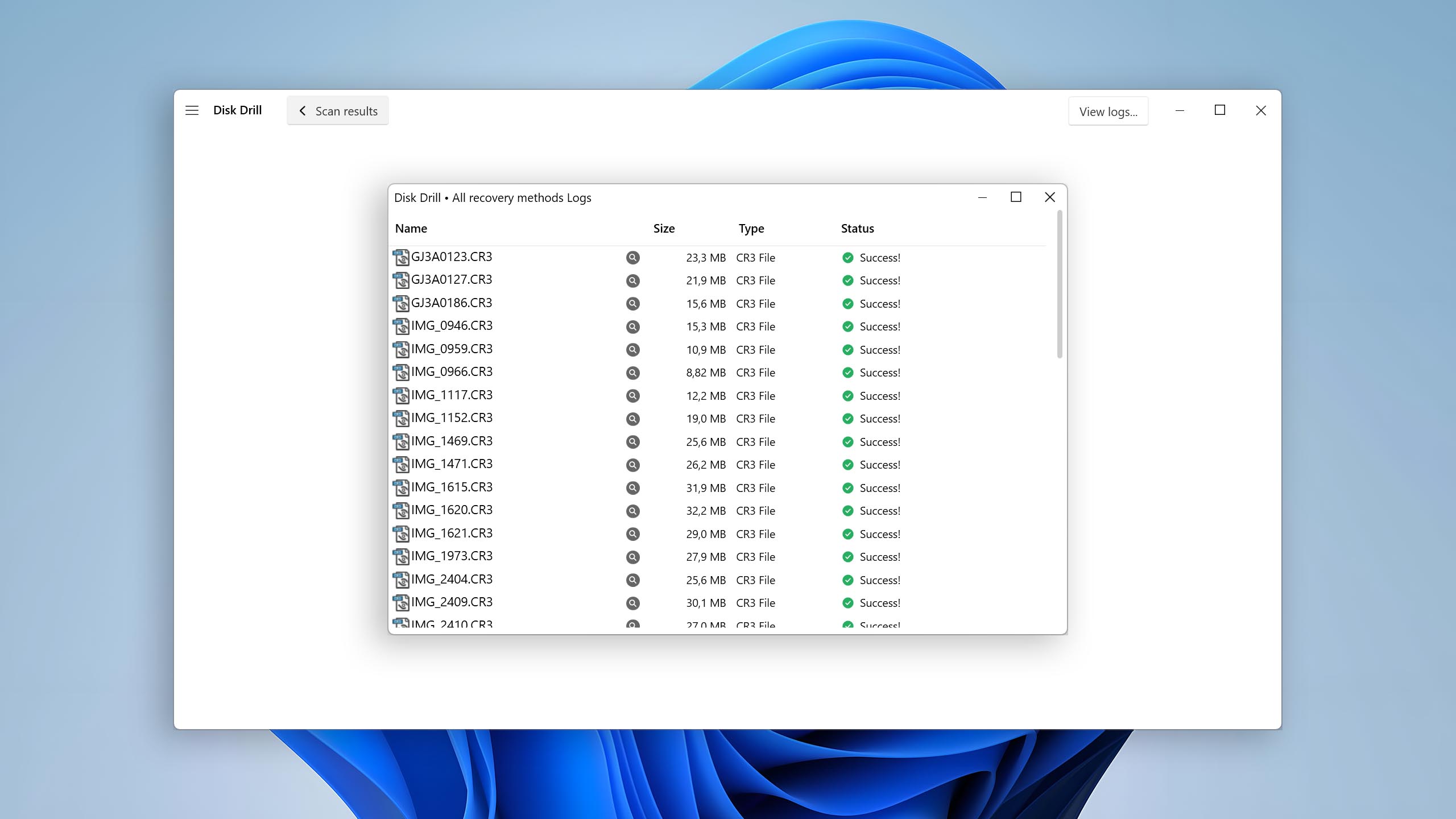
Disk Drill is designed to be simple yet highly effective. With its one-click scan capabilities, it enables users with limited technical experience and expertise to navigate through the process of partition recovery easily. Found partitions are automatically displayed in a clear and concise recovery progress screen, which offers real-time updates on the scanning process, showcasing the number of files scanned and the time remaining. The recovered partitions can be previewed, filtered, and browsed, even while the scan is still ongoing, thus saving precious time and making the recovery process more user-friendly.
Recovery Performance
Disk Drill shines particularly in the realm of partition recovery because it supports a wide range of file formats and file systems. Even logically damaged partitions that have become RAW are no obstacle for this capable software, and the same can be said about Windows Storage Spaces, RAID arrays, and even NAS devices connected remotely via SSH. In addition to the 100+ image formats it can recover, it also includes a dedicated Advanced Camera Recovery tool for intelligently recovering fragmented video files shot by cameras and drones.
Value
Disk Drill PRO gives you access to unlimited recovery for one user on both Windows and macOS, with support for up to 3 devices. The lifetime license provides excellent value for money, but a yearly subscription is also available for those who’d like cheaper, short-term access to its recovery capabilities. Windows users have the added benefit of recovering up to 100 MB of data for free.

2. TestDisk
WindowsmacOSLinux
Free All features are provided free of charge, and the software can be used, studied, and modified without restriction
None
Free
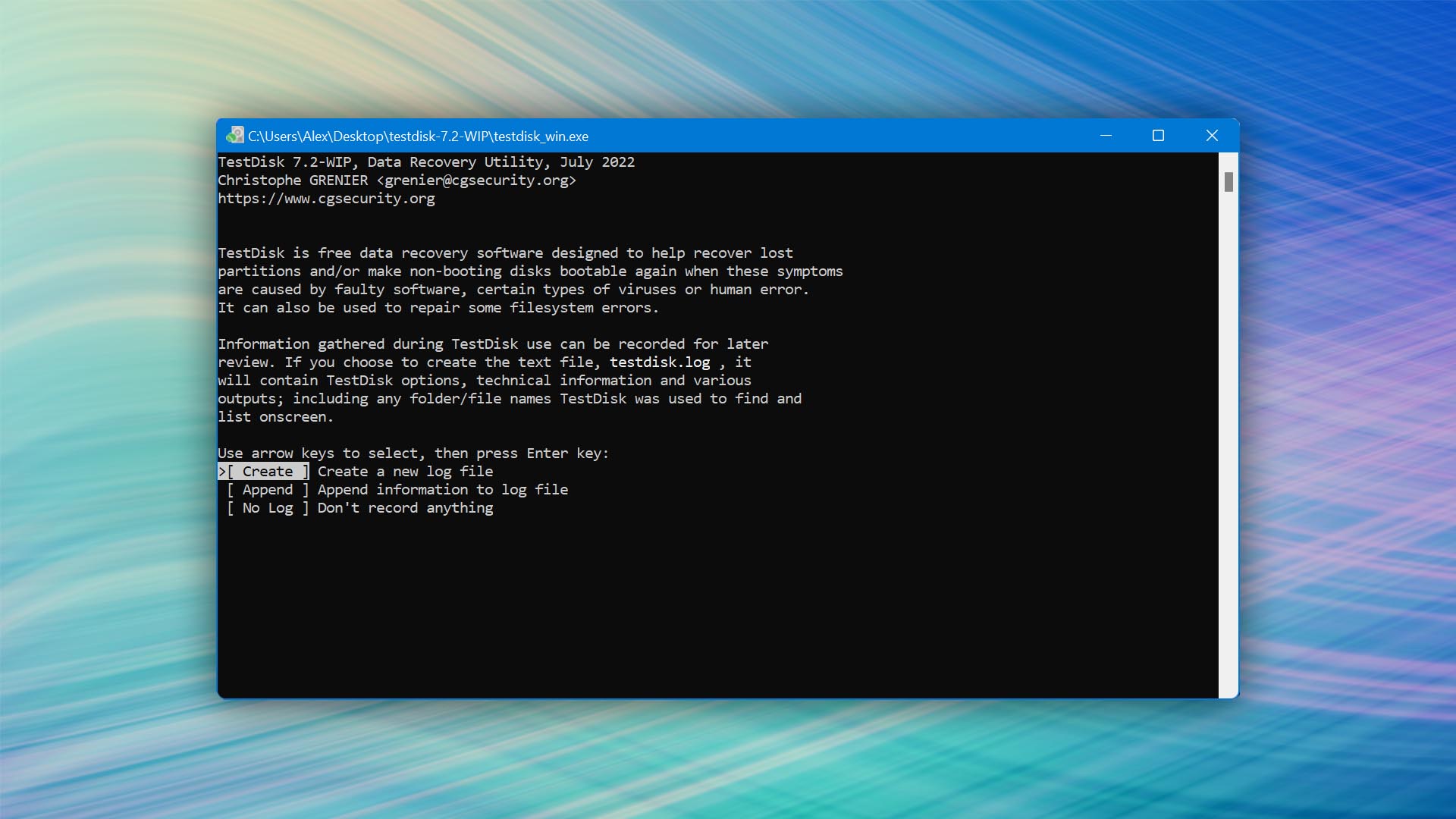
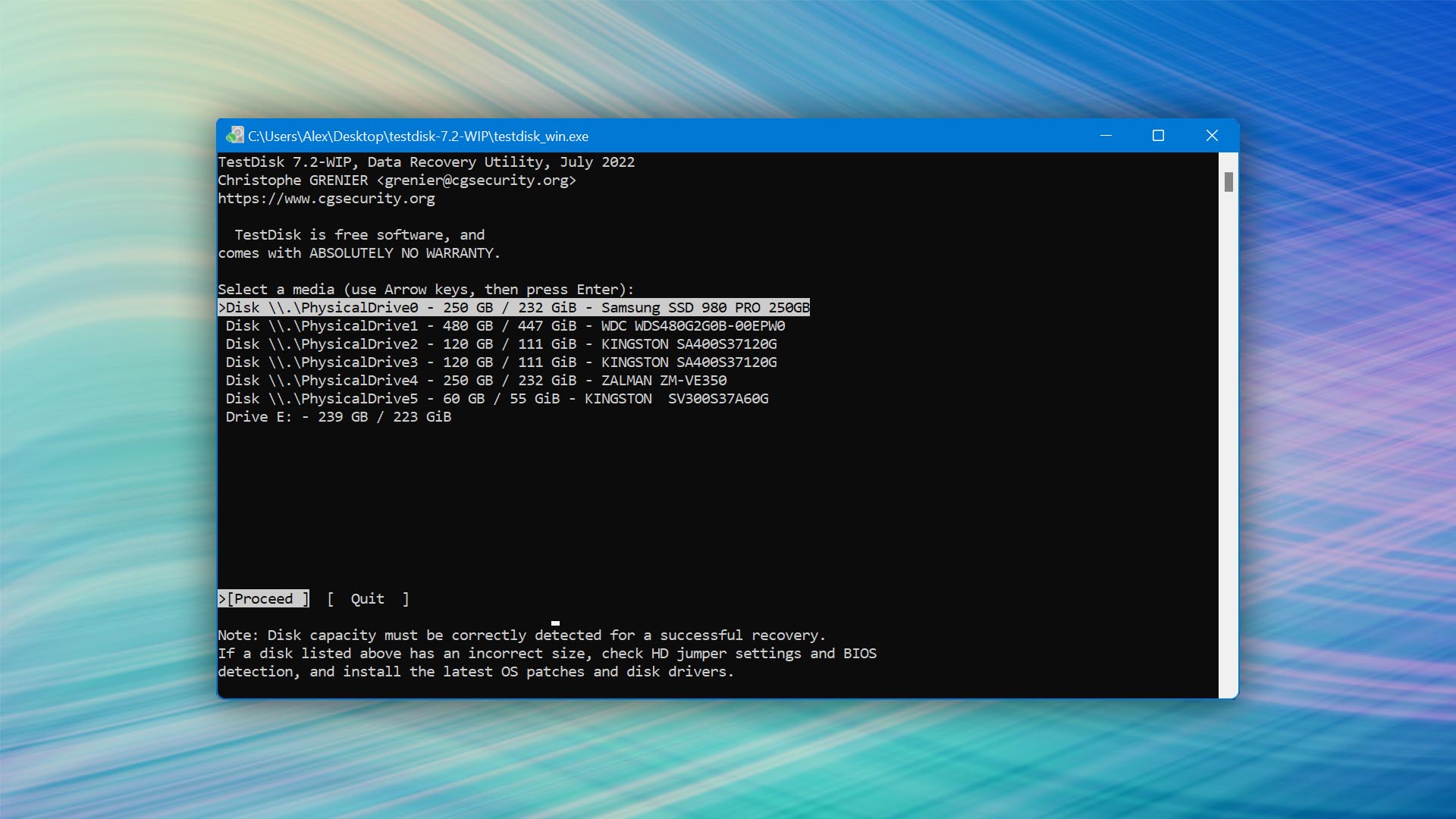
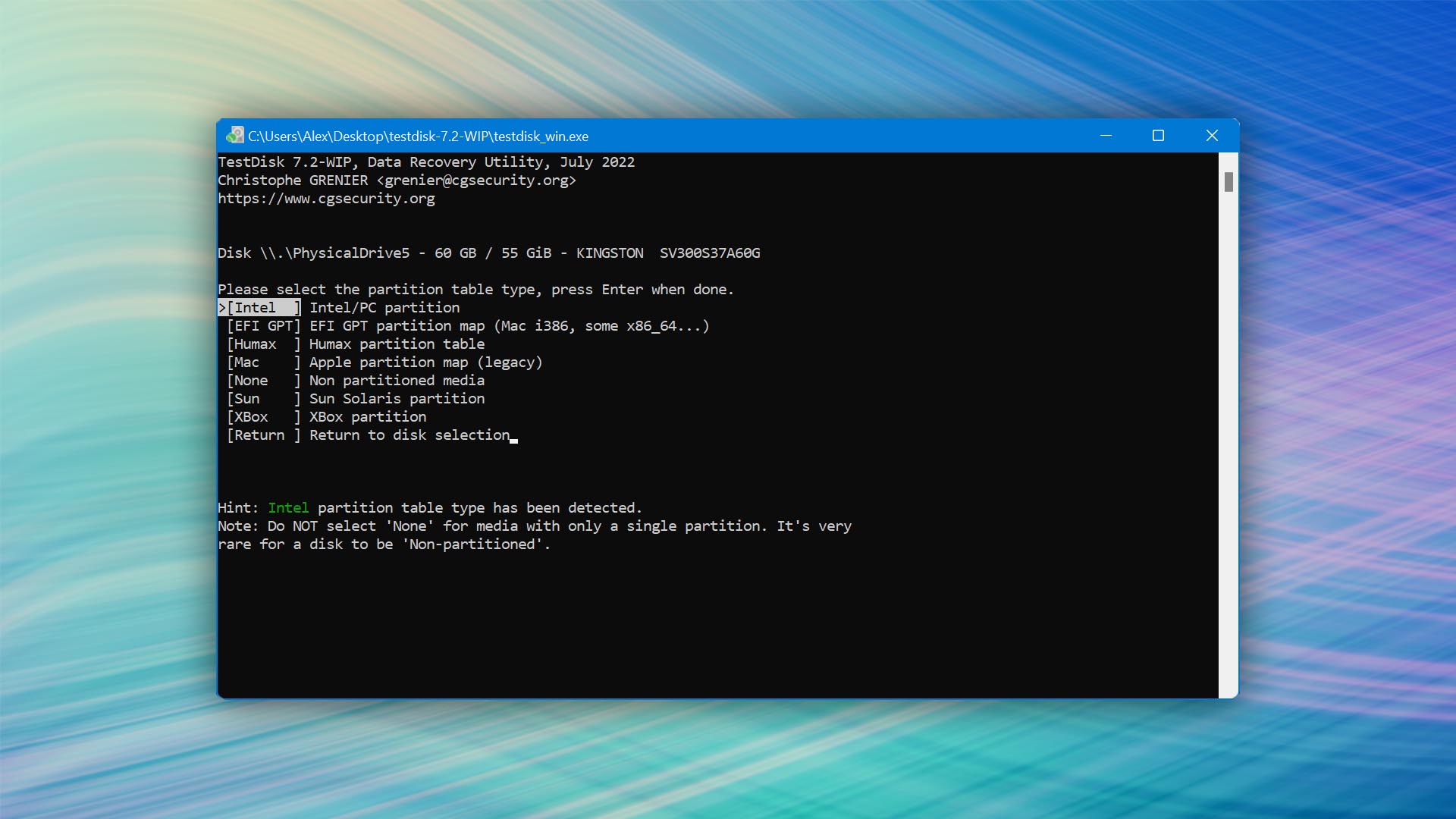
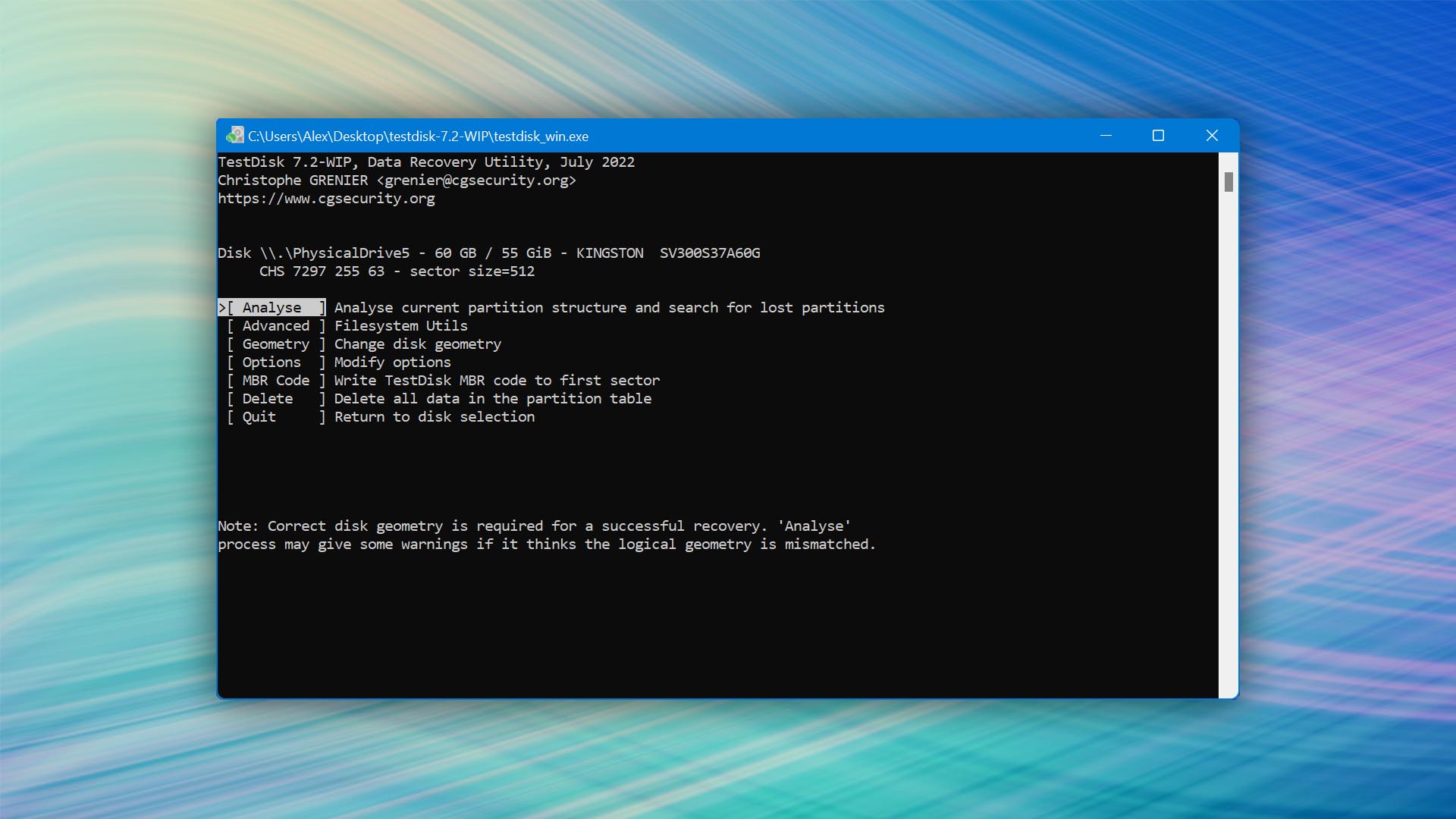
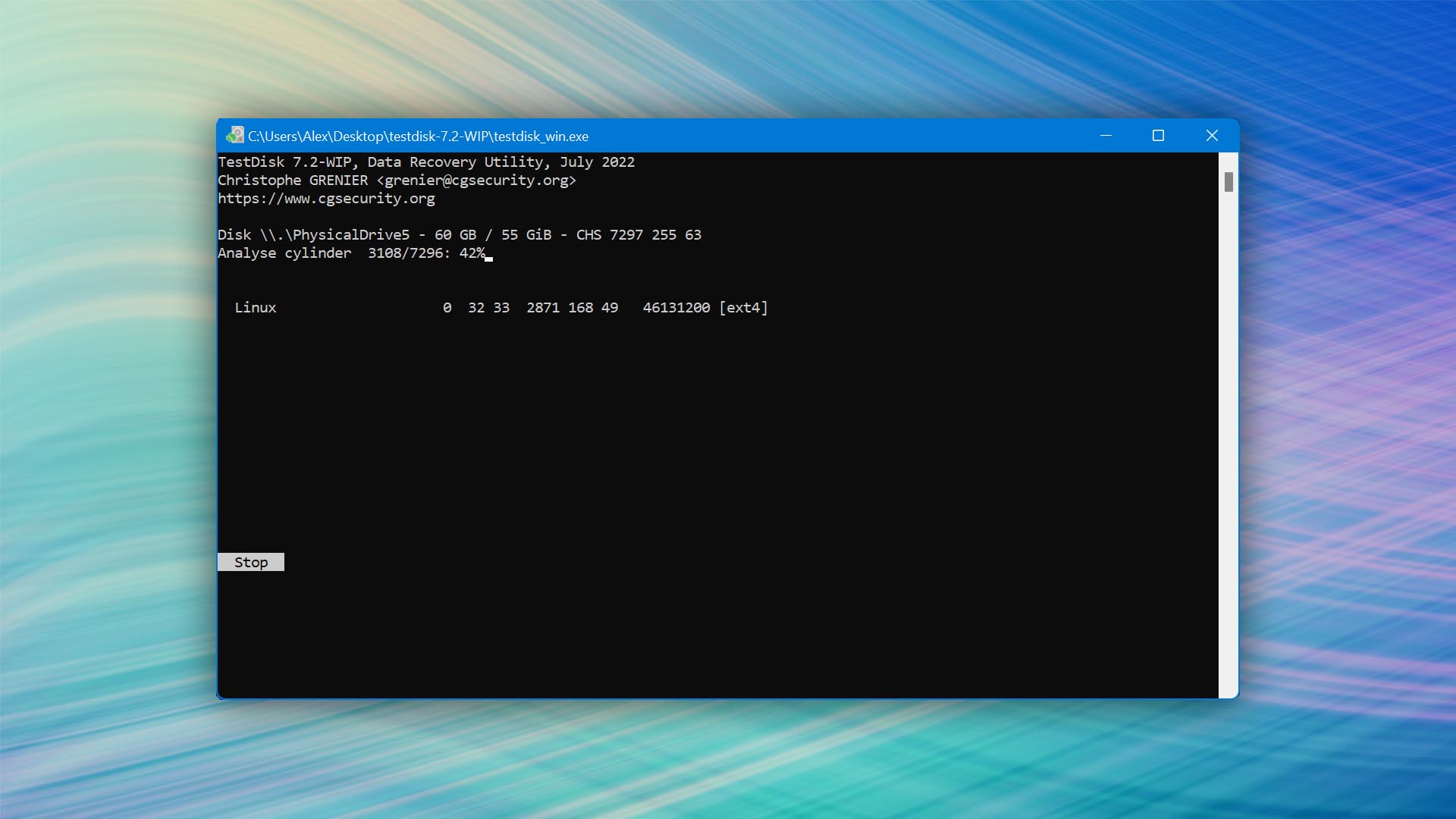
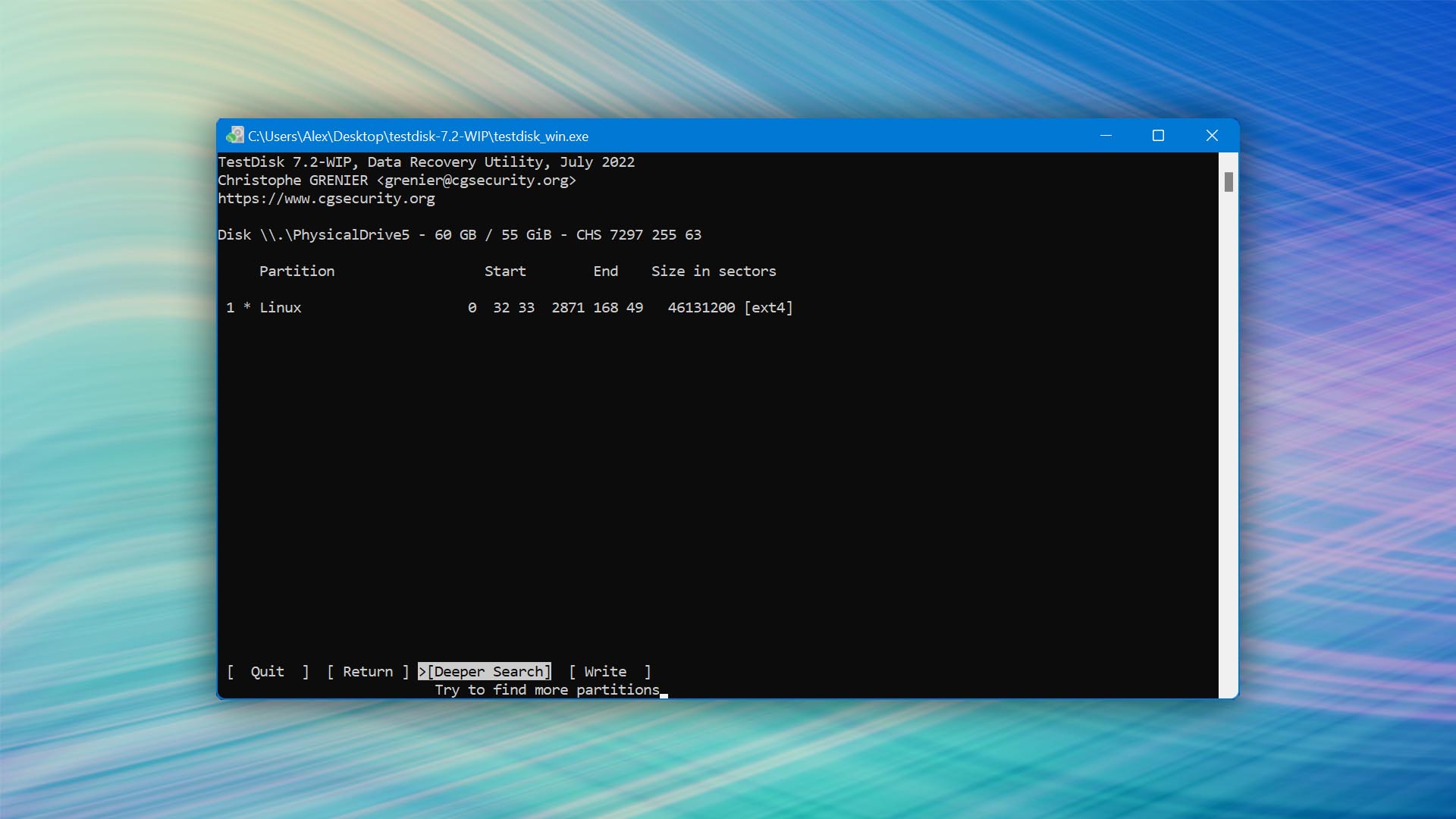
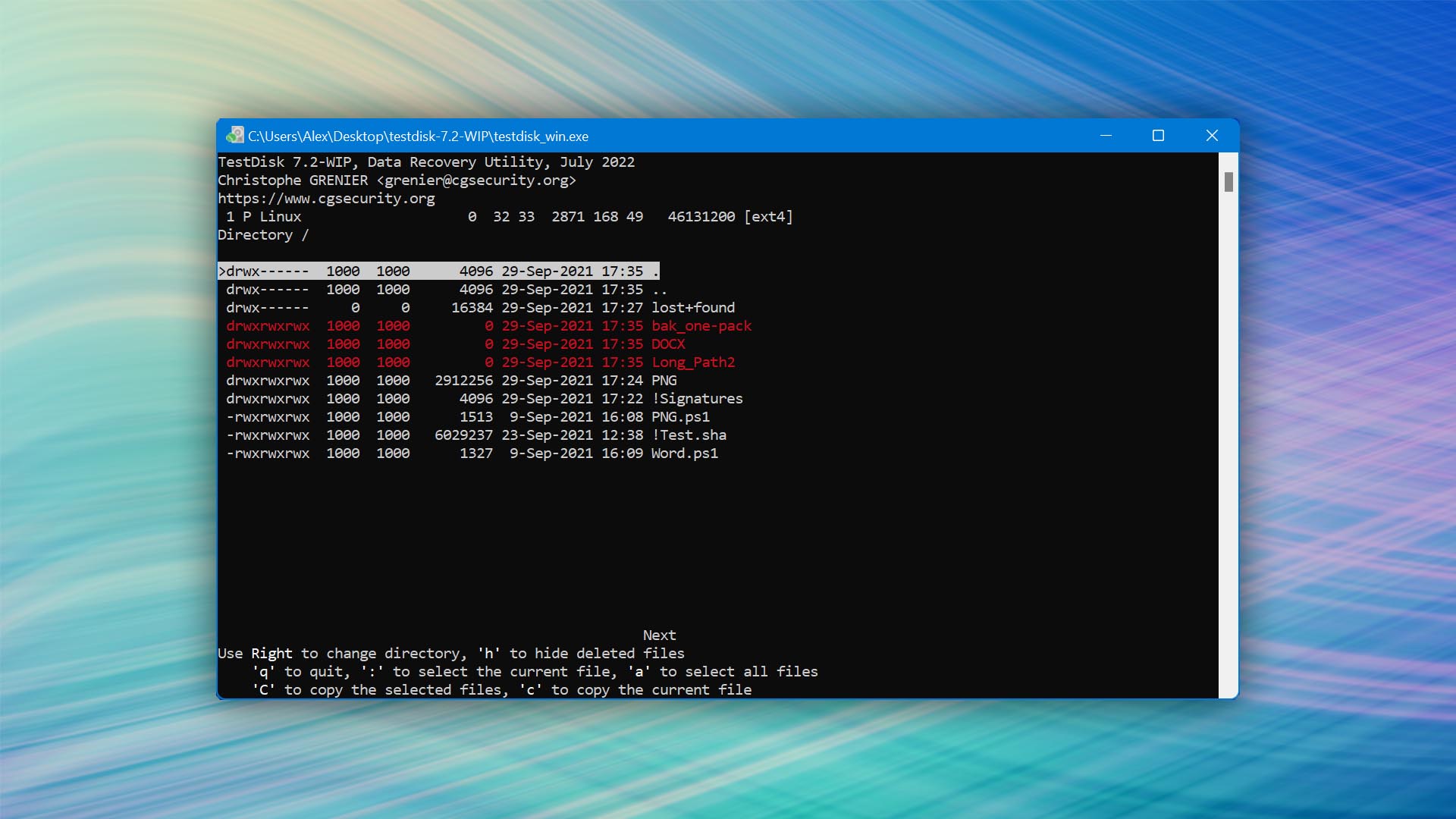
TestDisk is a powerful, free partition recovery software application designed to recover lost partitions and make non-booting disks bootable again, but its command-line nature is a significant obstacle.

Usability
TestDisk's usability is severely limited because of its command-line user interface. Anyone who doesn't feel comfortable without a modern graphical user interface is guaranteed to struggle with TestDisk—at least initially. The partition recovery process itself isn't actually all that complicated, and it's explained in great detail on TestDisk's official website. That's because the process is broken down into a series of steps and doesn't require you to enter any obscure commands.
Recovery Performance
As a partition recovery tool, TestDisk shines in its ability to recover lost partitions, rebuild partition tables, and rewrite the Master Boot Record (MBR). This specialization makes it highly effective in situations where partitions are lost due to software errors or accidental deletion. However, it falls short when it comes to recovering individual files after formatting or restoring the original folder structure and filenames.
Value
TestDisk delivers exceptional value, considering it's a free and open-source tool. Its compatibility with all major platforms is then just a nice cherry on top of an already delicious cake.
3. DiskGenius
Windows
Freemium Some features are provided free of charge, but money is required to unlock the rest
Free version limited to files 64 KB or smaller
$69.9...$699.9
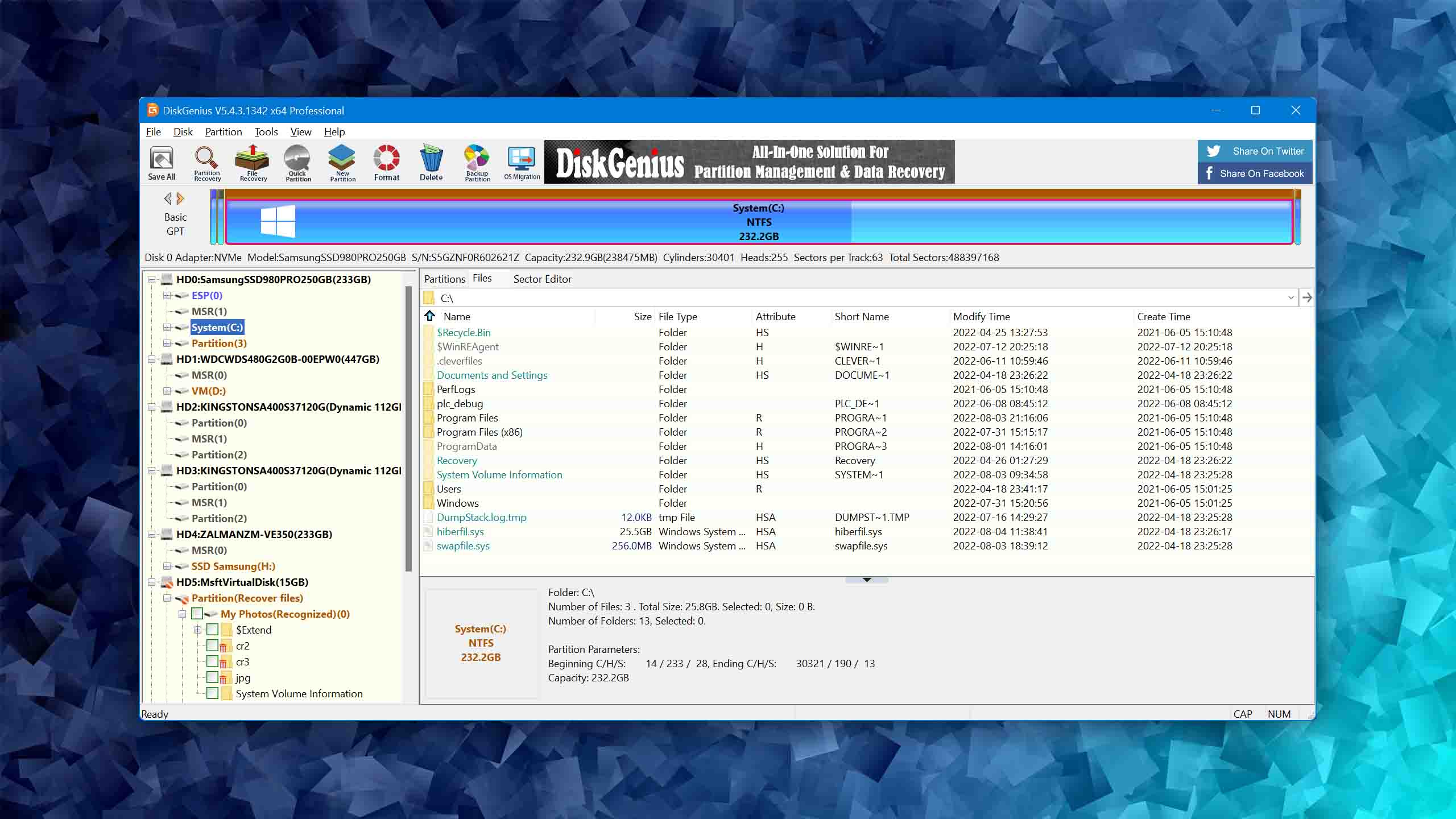
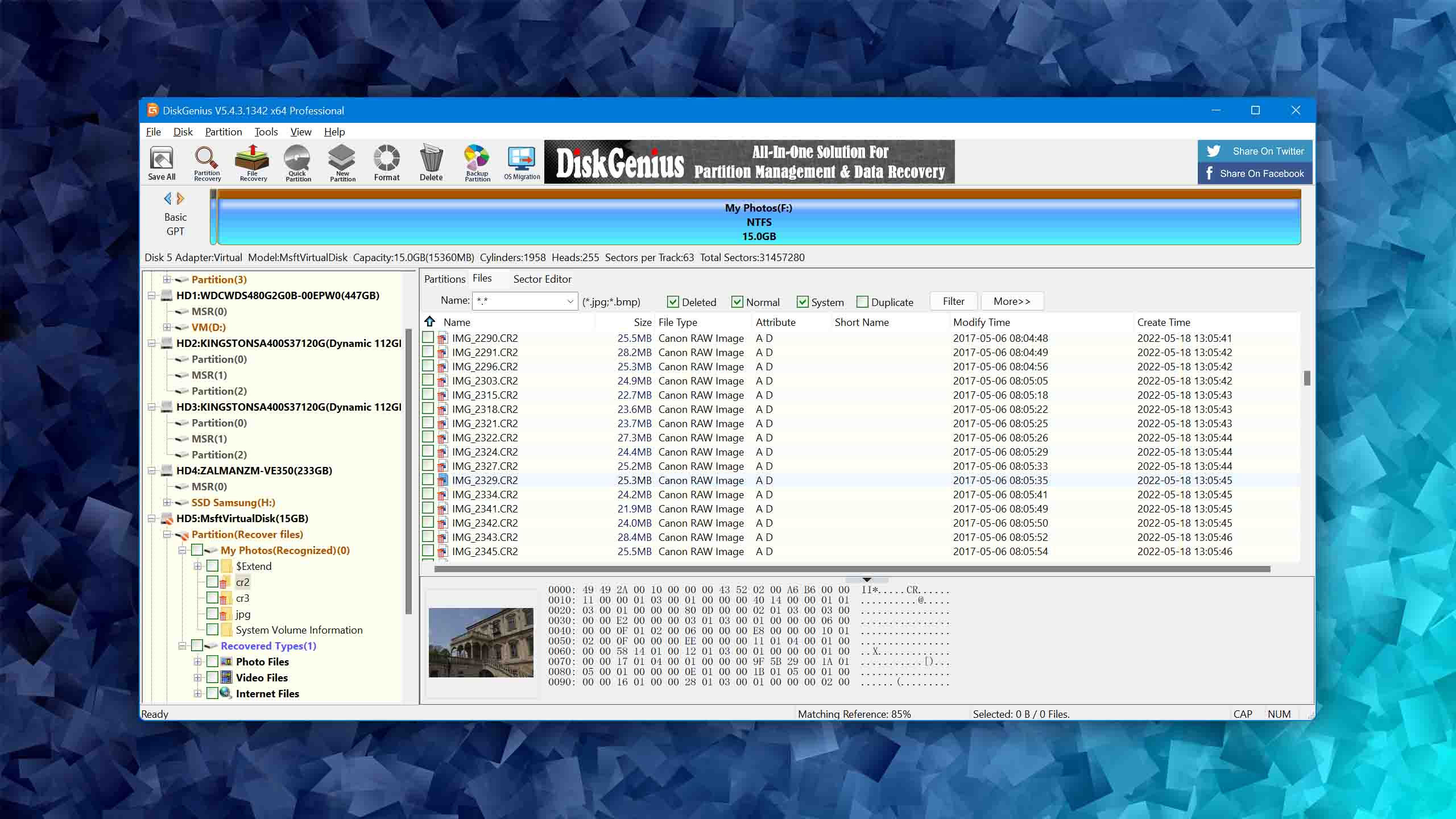
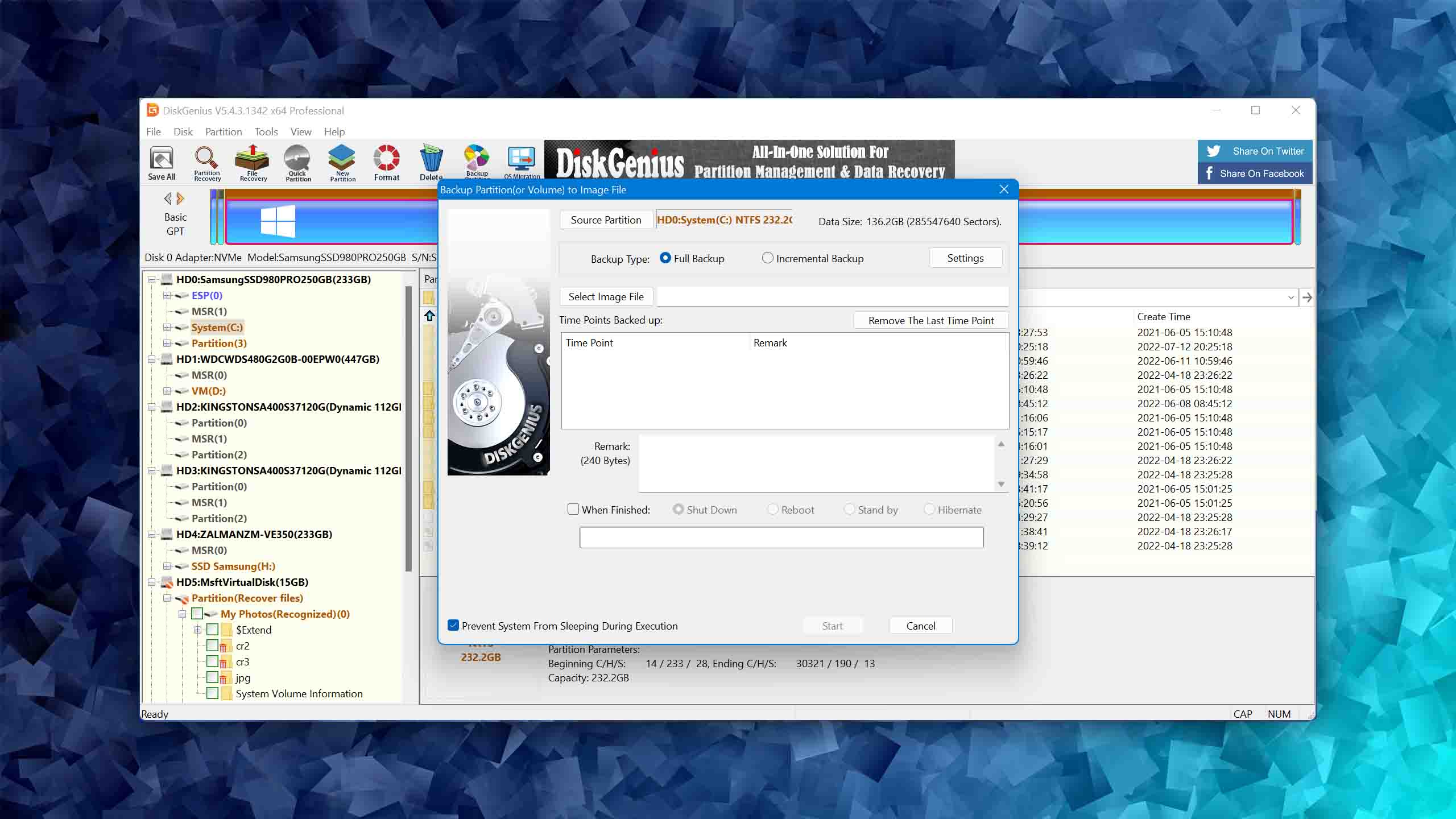
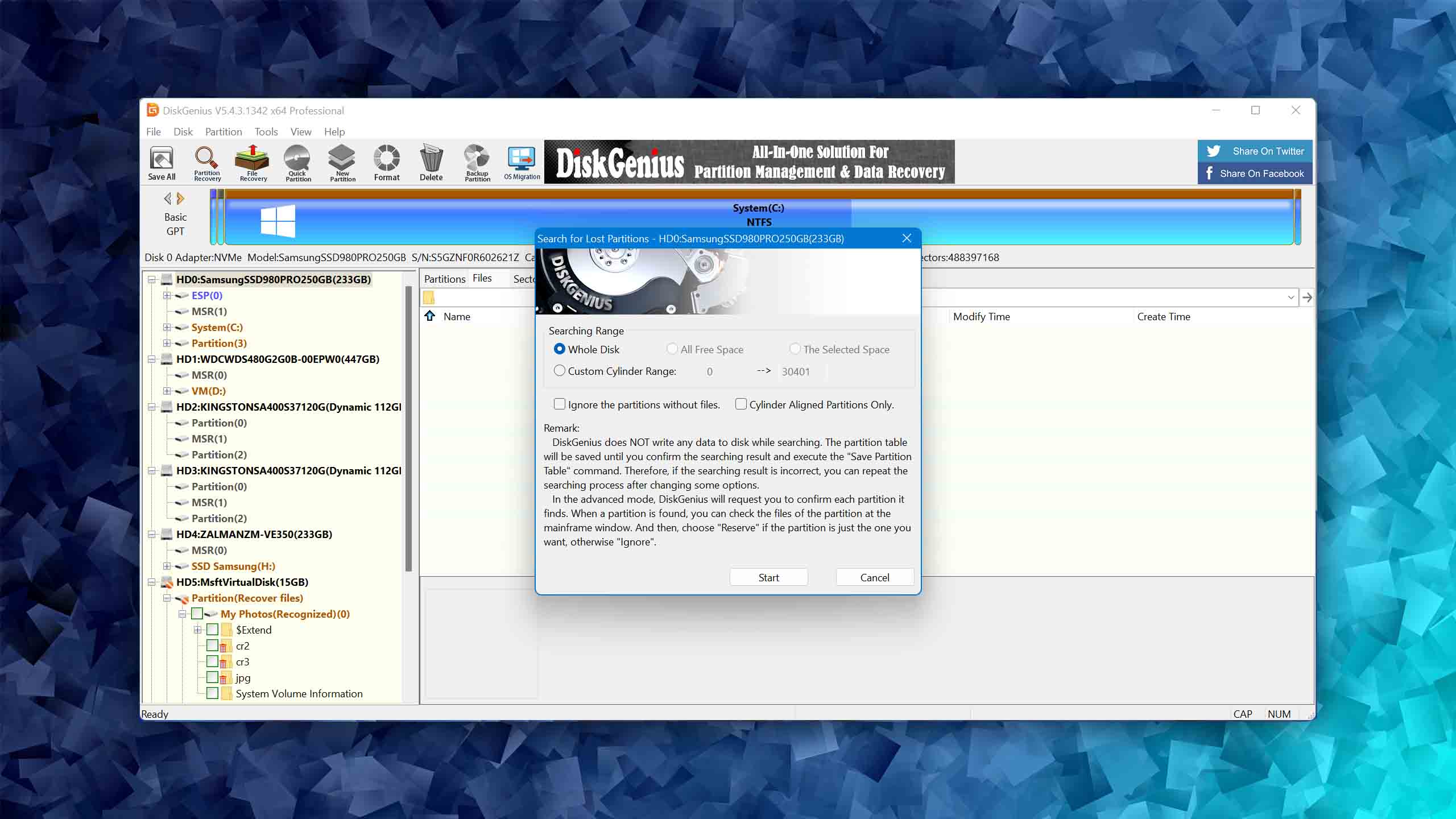
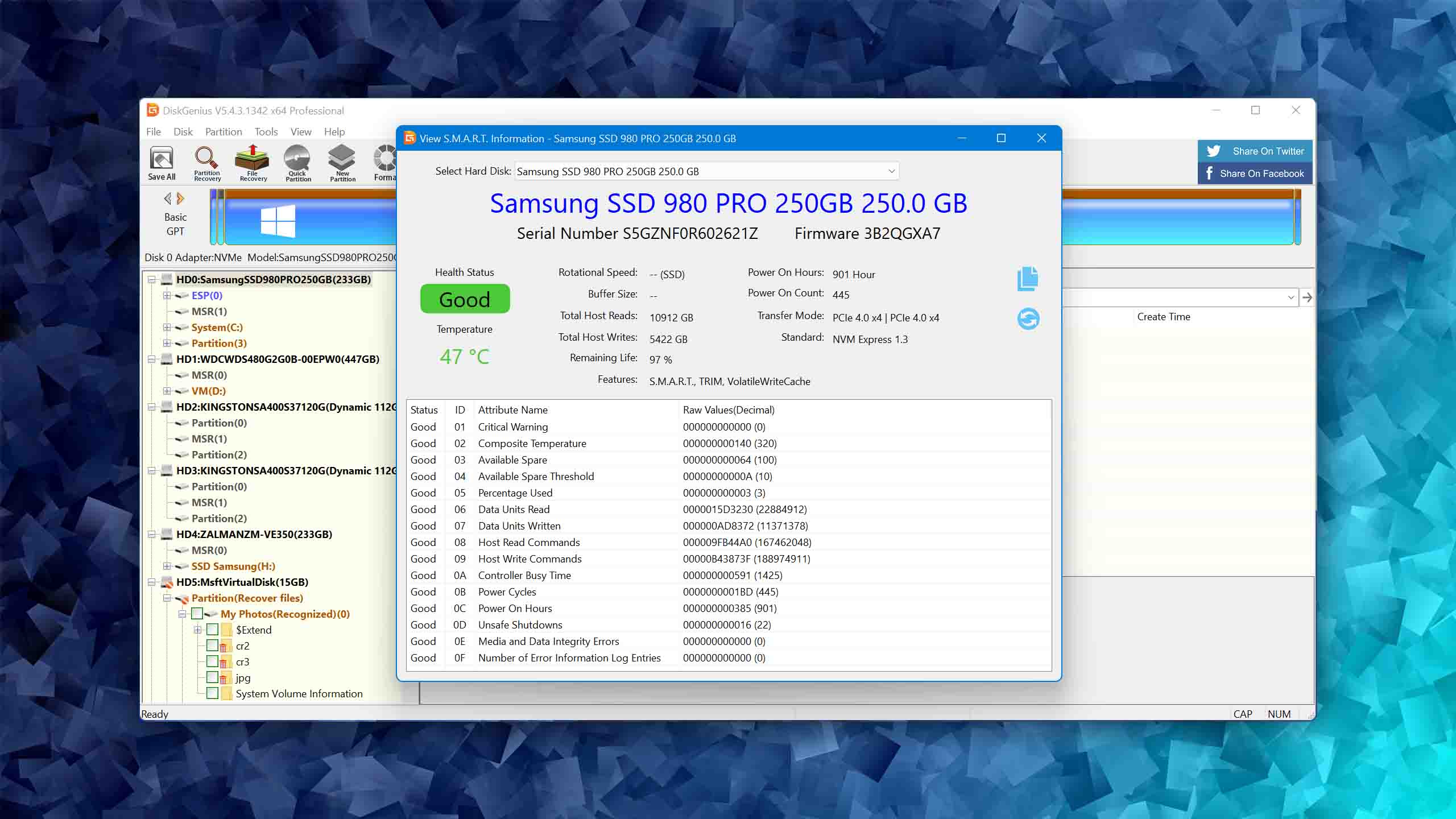
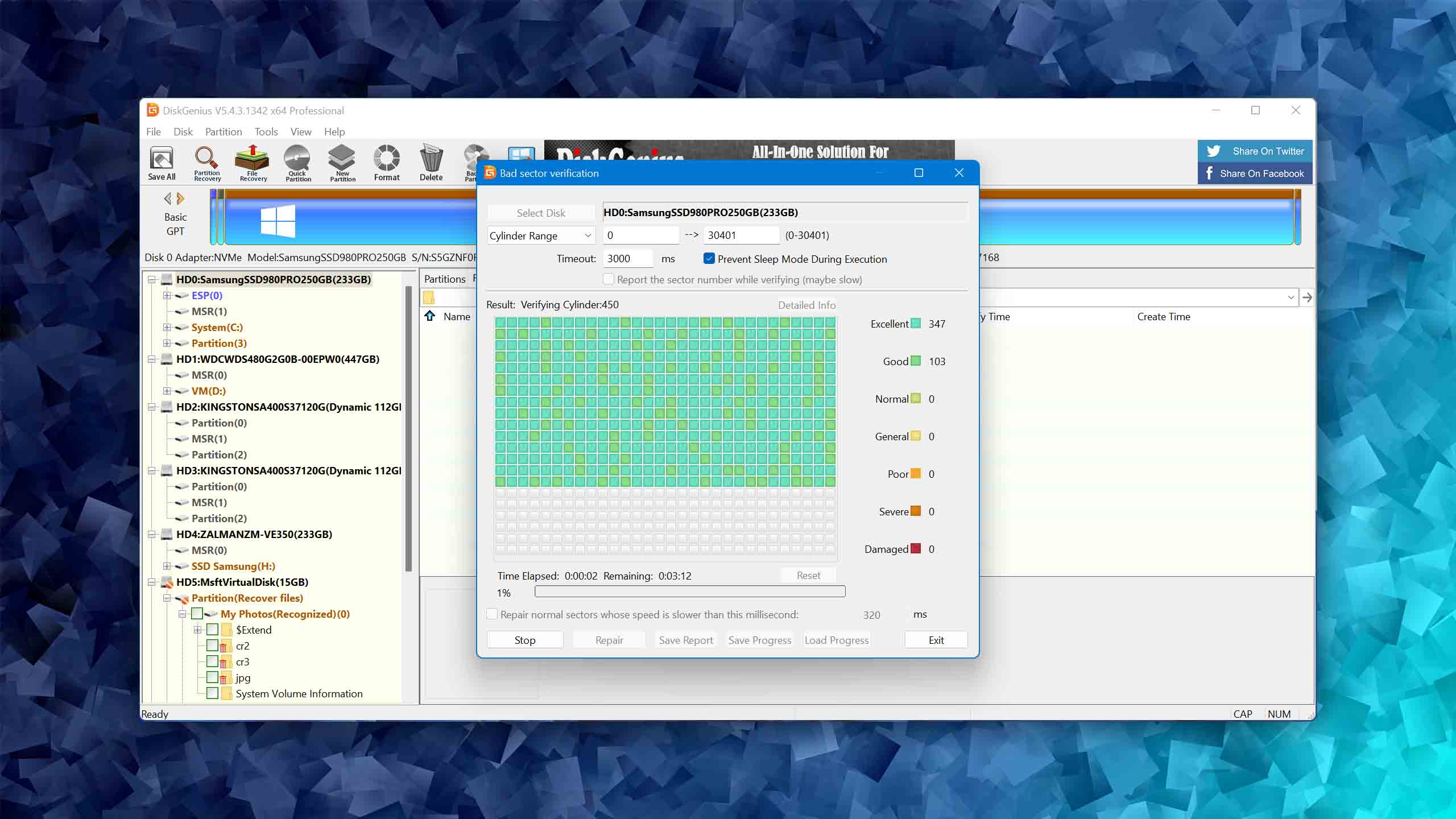
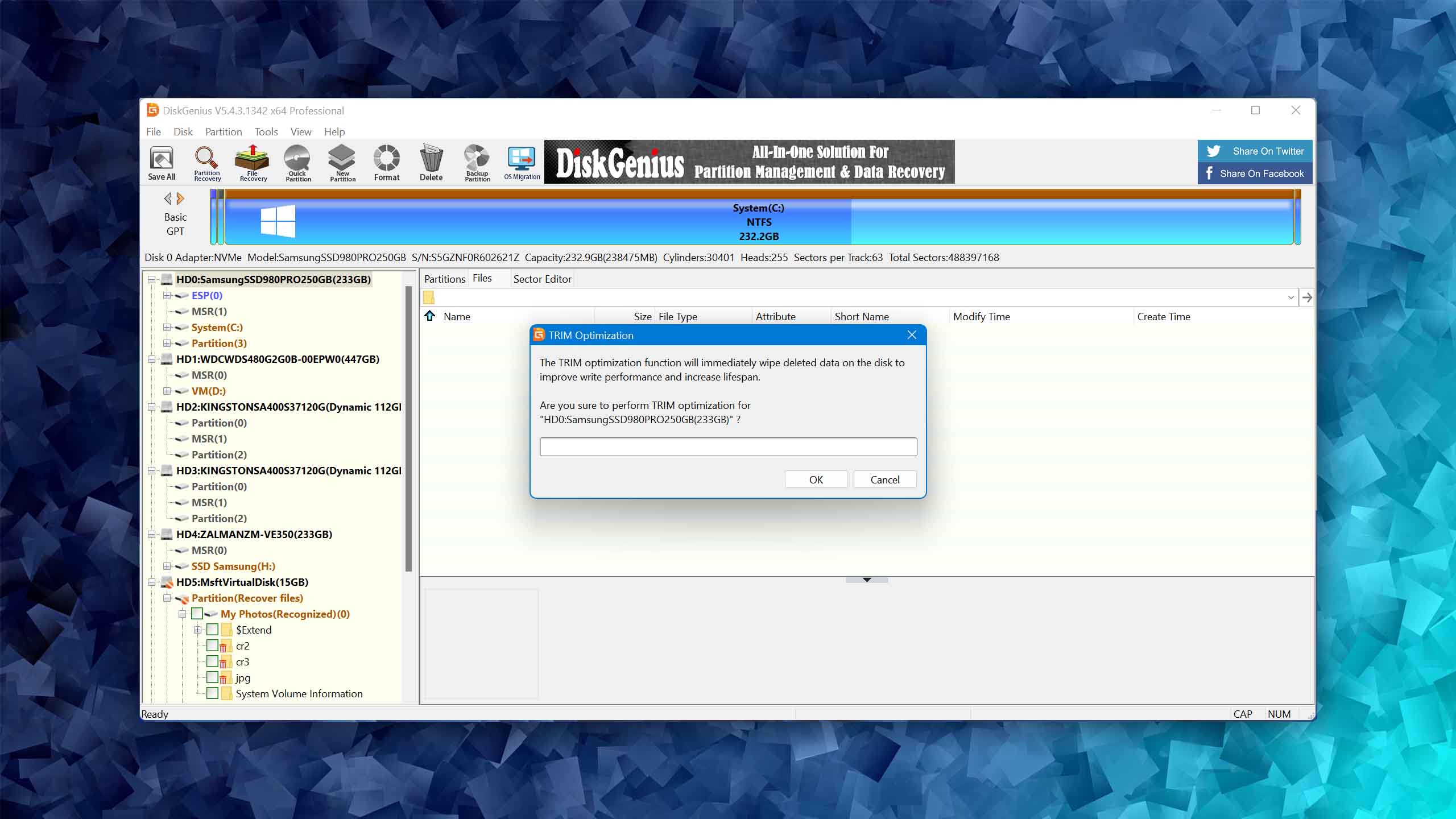
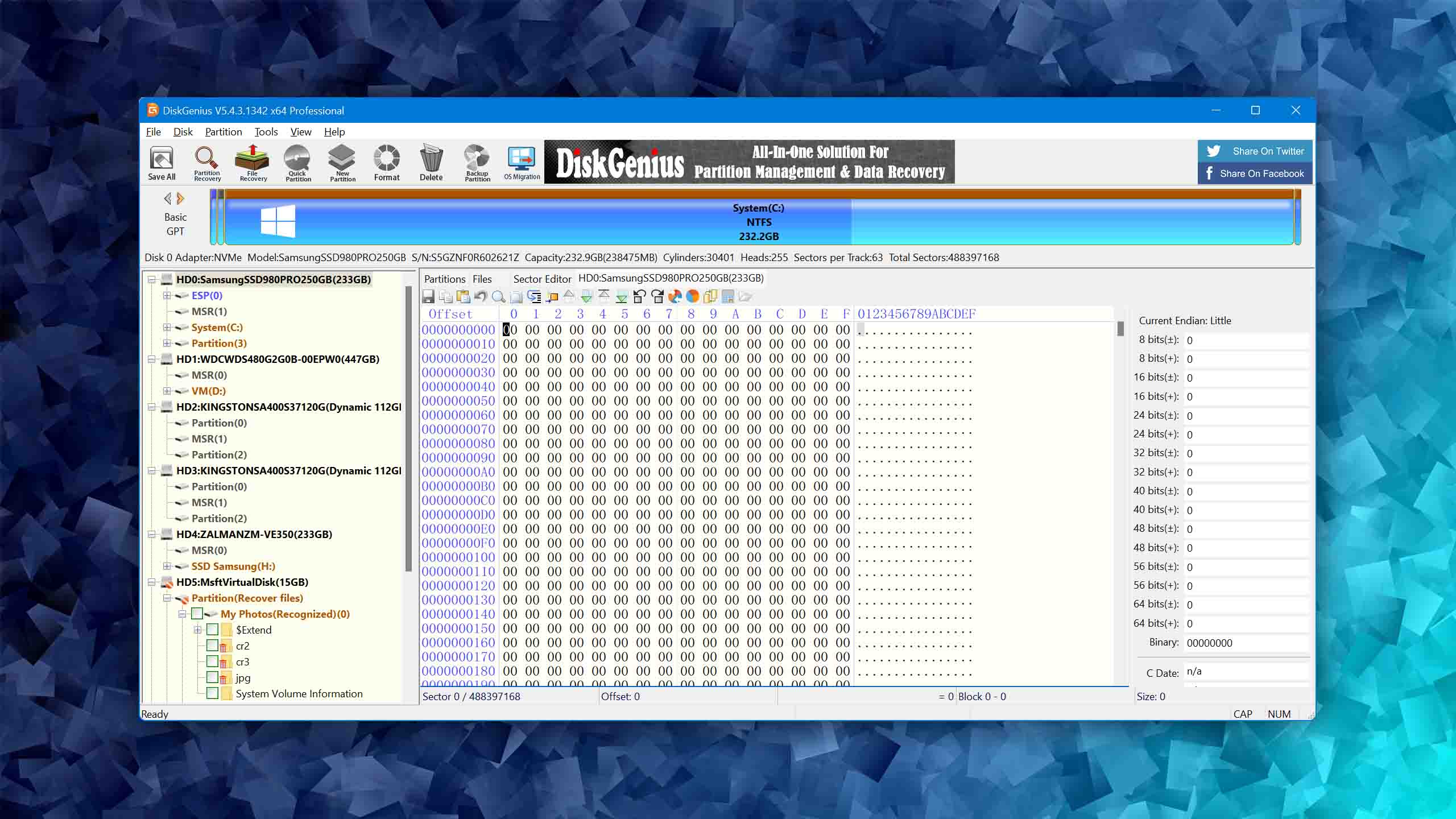
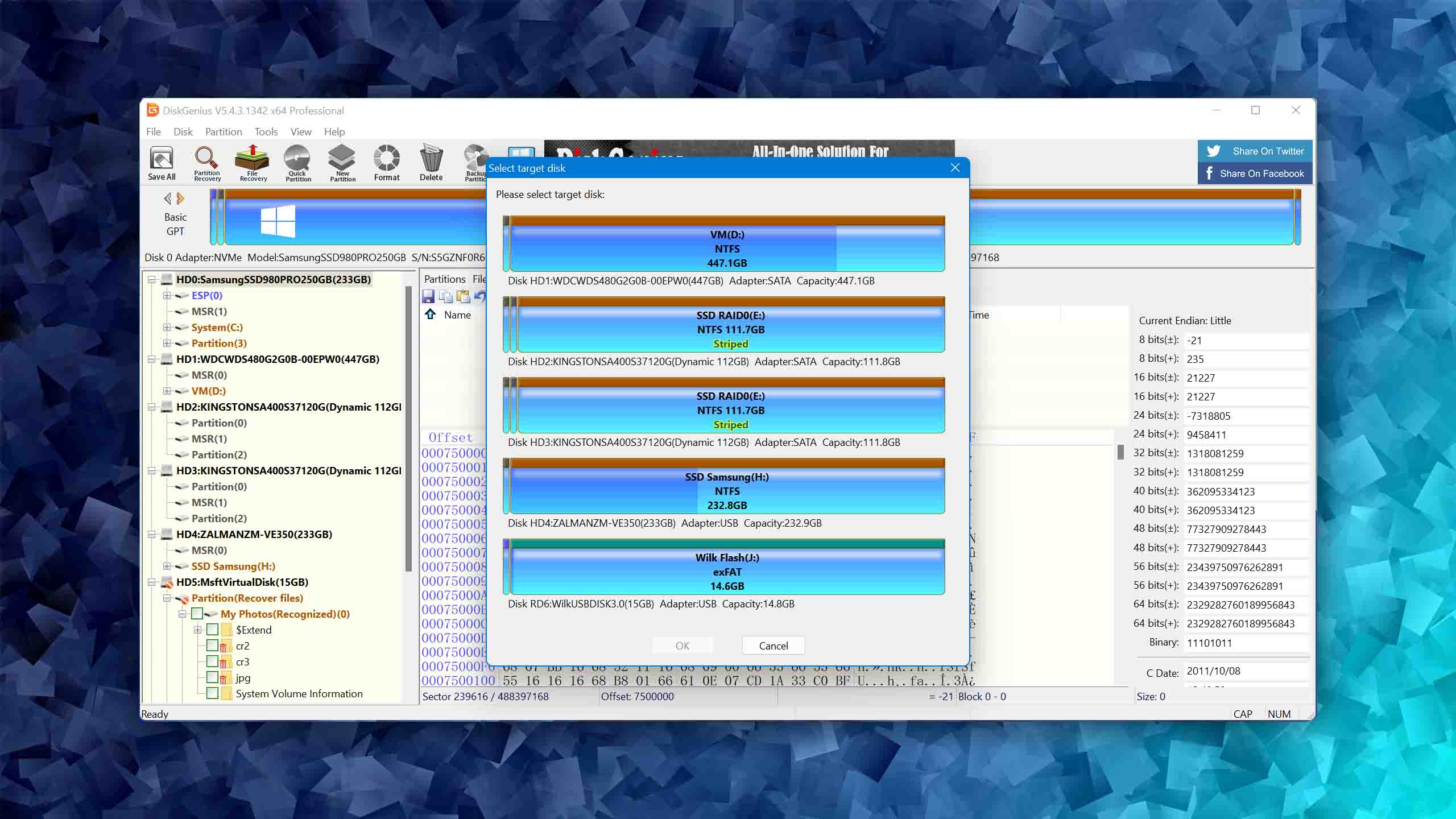
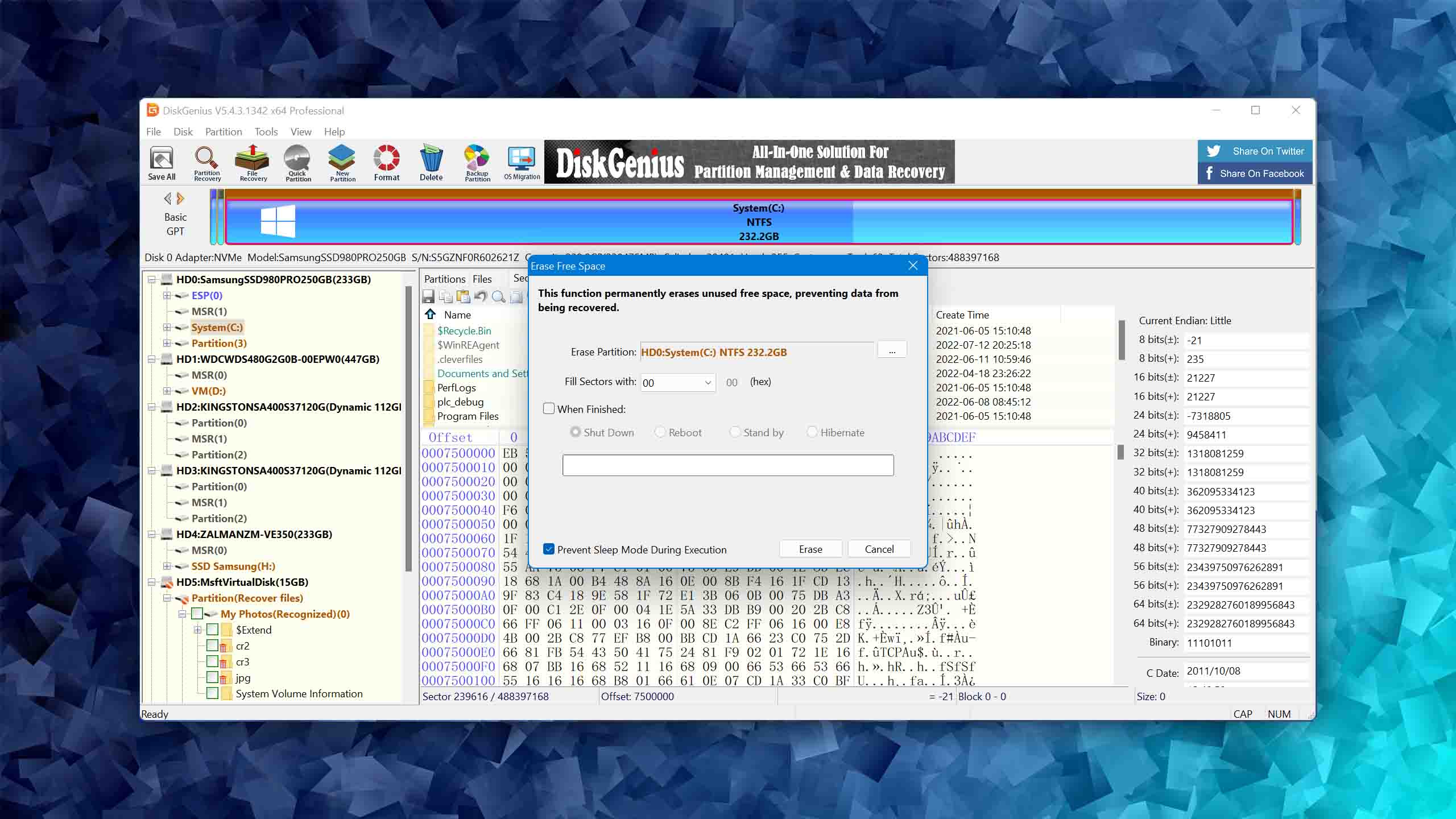
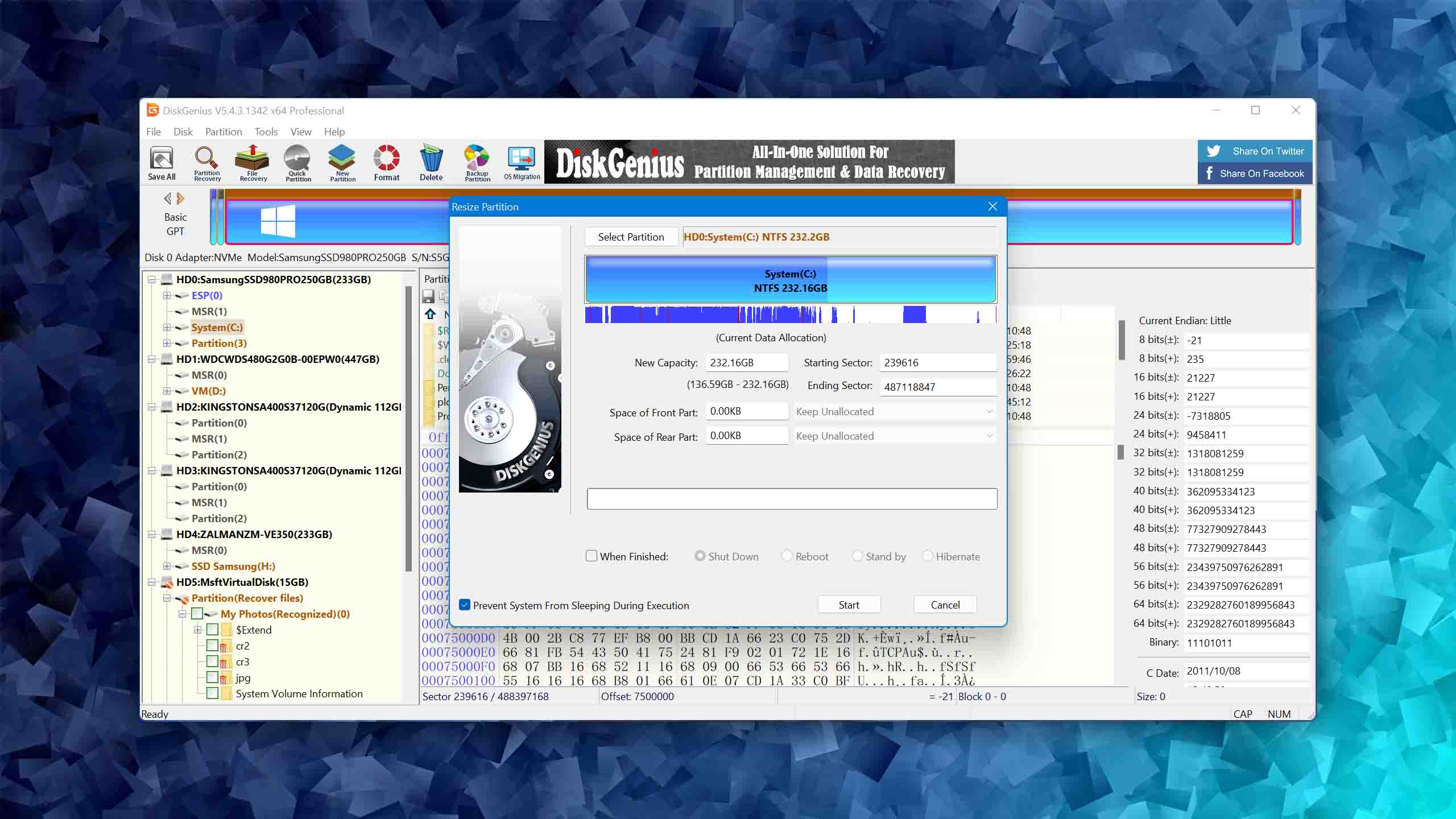
DiskGenius is a powerful partition recovery and disk management tool that combines a multitude of features under a professional-grade umbrella.
Usability
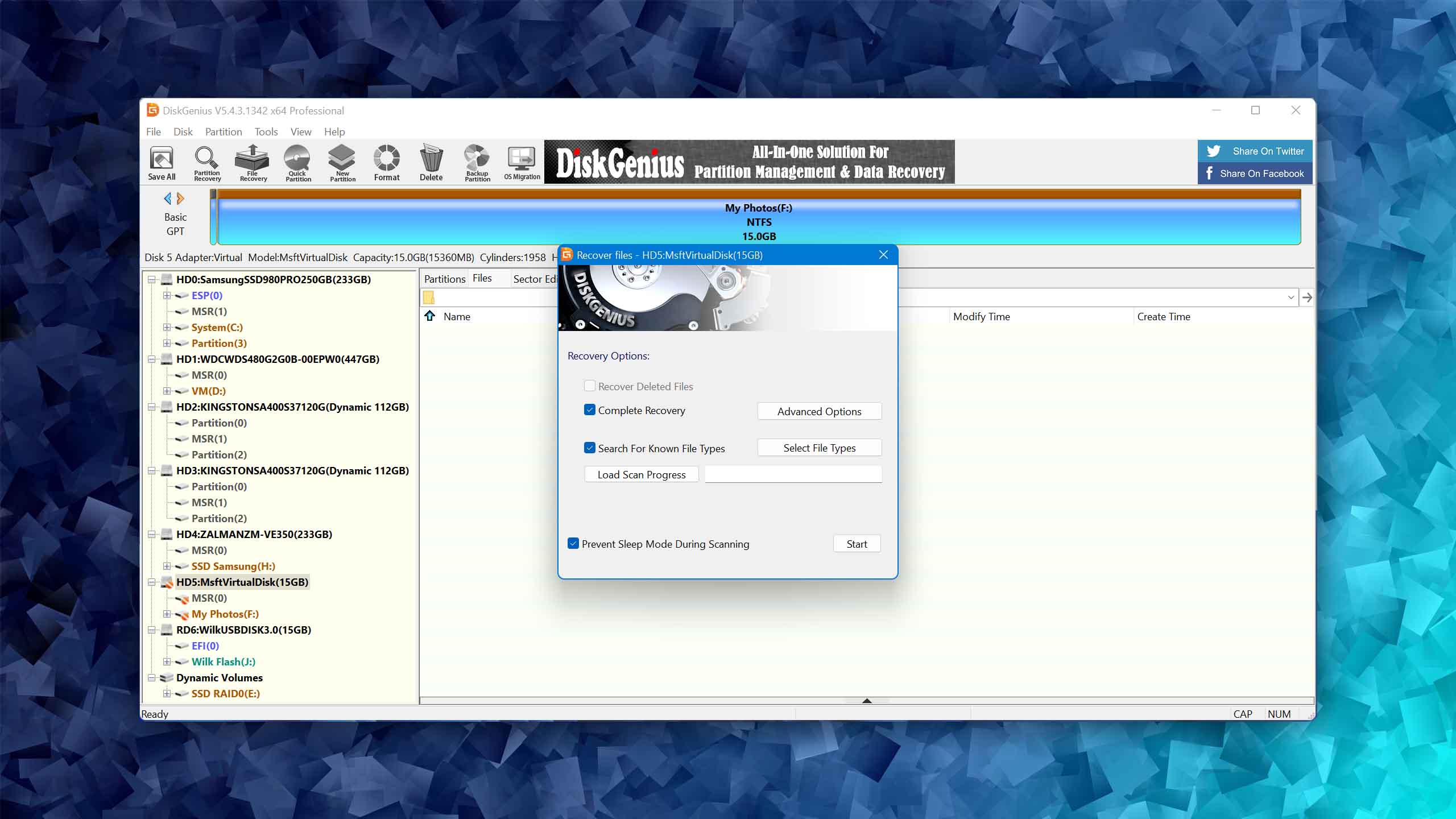
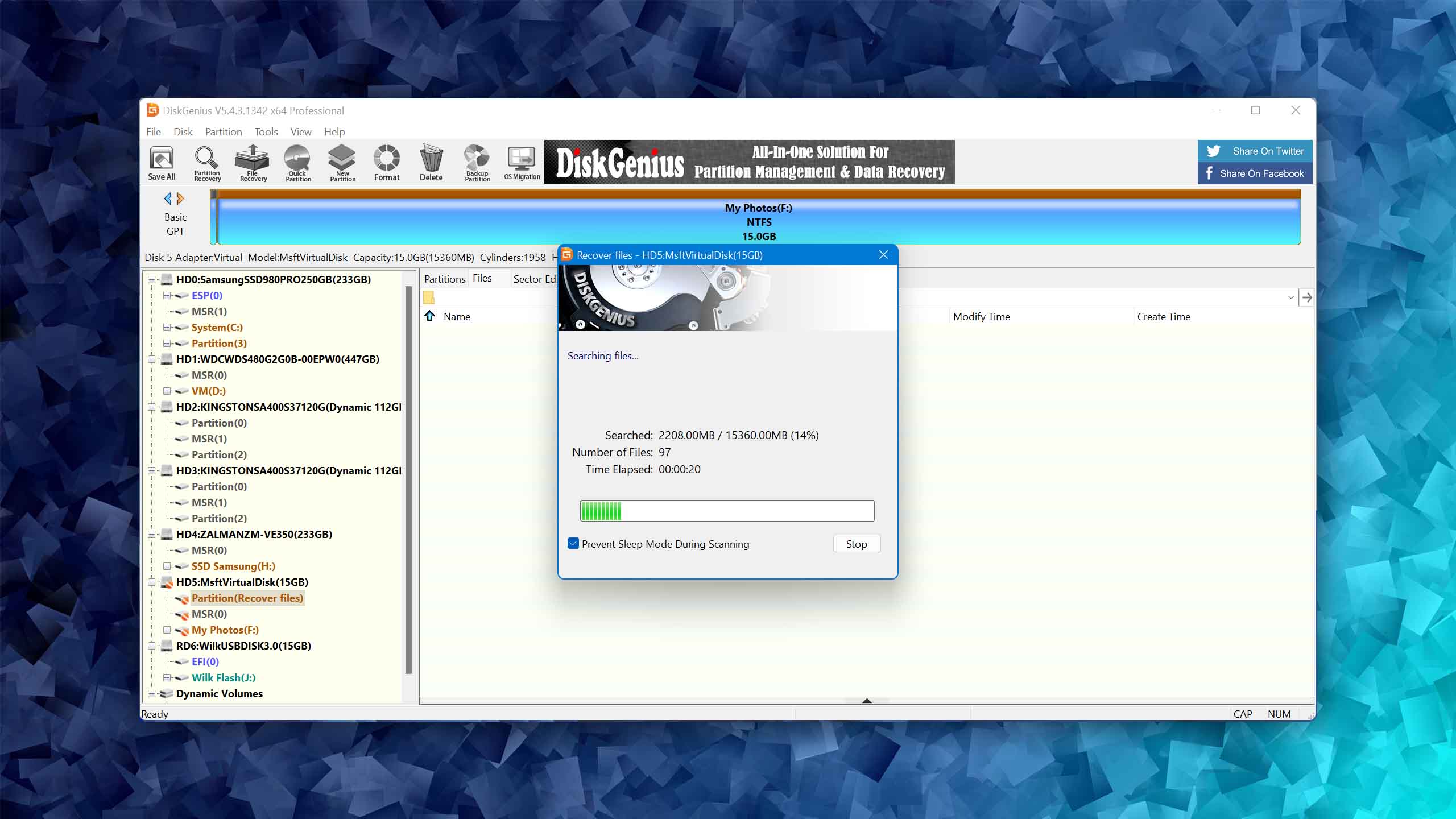
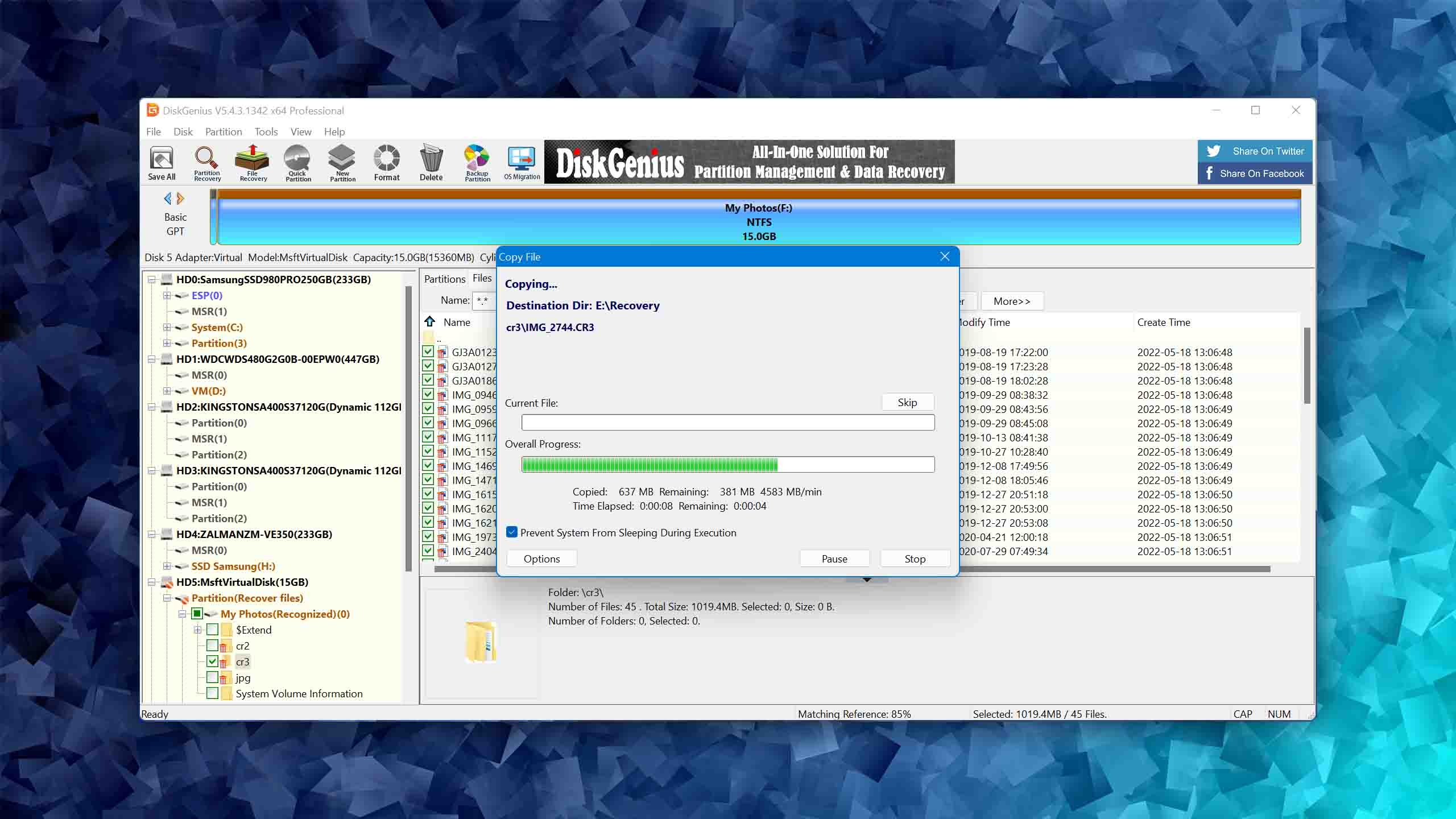
DiskGenius aims to provide a wide array of features, but this results in an overly complicated user interface. From finding the drive to scan to previewing recoverable files, there's a fairly steep learning curve involved. That said, the software might just be worth the effort because it can perform just about any partition recovery and management task you can possibly need to perform.
Recovery Performance
When it comes to recovery performance, DiskGenius provides one of the fastest scanning speeds available, ensuring that your lost partitions are found quickly. Thanks to its support for partition table recovery and bad sector detection and repair, great recovery results can be achieved even in situations when other tools fail. The tool can even create a bootable recovery drive to recover system partitions that have become lost or impossible to boot from.
Value
DiskGenius offers a free version that provides generous access to many features, such as complex partition management and disk cloning. However, data recovery in the free version is limited to files smaller than 64 KB. The Professional Edition is available in monthly, yearly, and lifetime-based licenses, all of which give you a license code for a single computer. All licenses include free technical support and version updates.

4. AOMEI Partition Assistant
Windows
Freeware and Freemium Absolutely free for personal and home use. If you need more functions to manage your partitions and hard drives, you can upgrade PA Standard to PA Professional Edition
Basic disk management
$0...$799
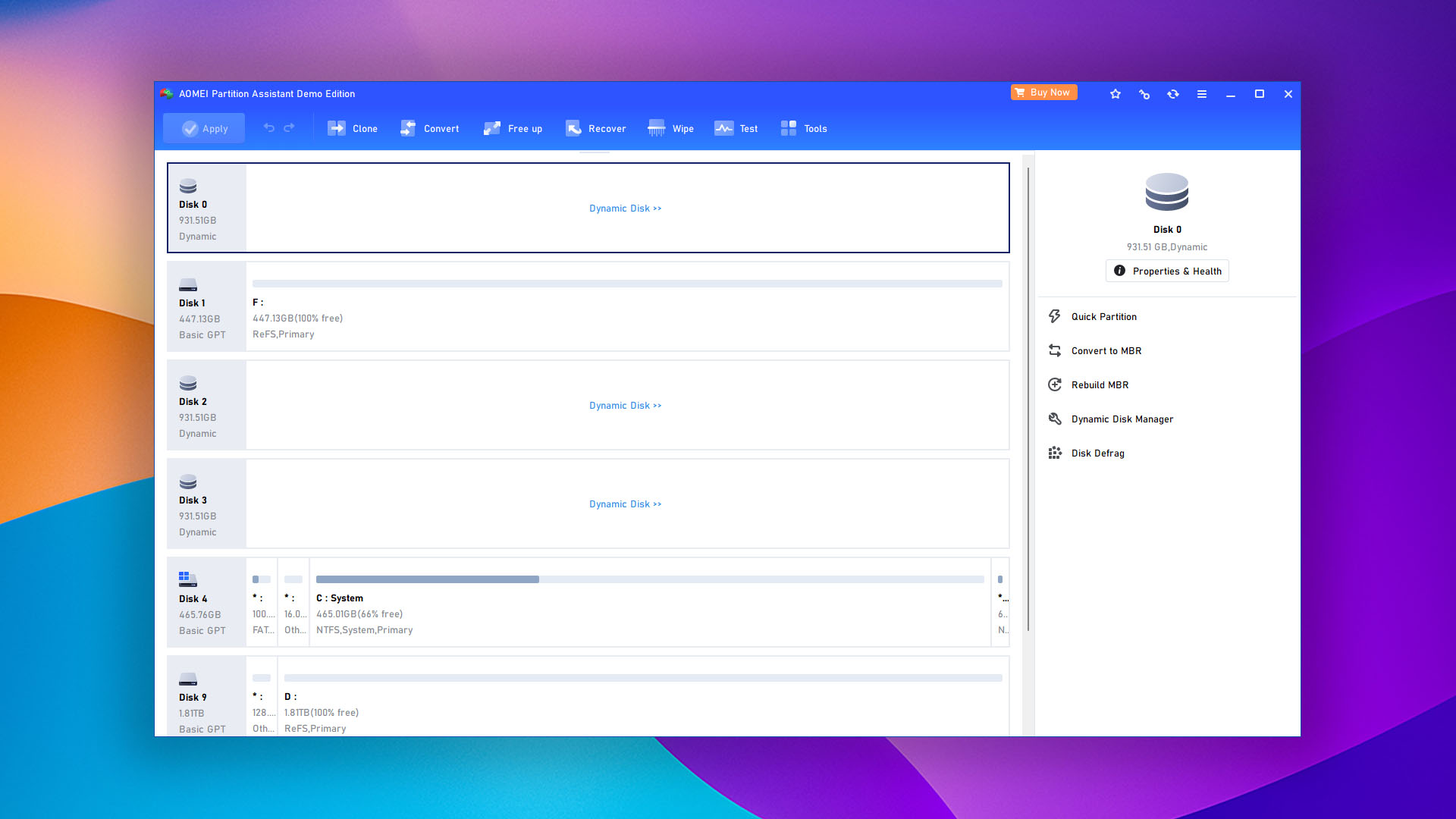
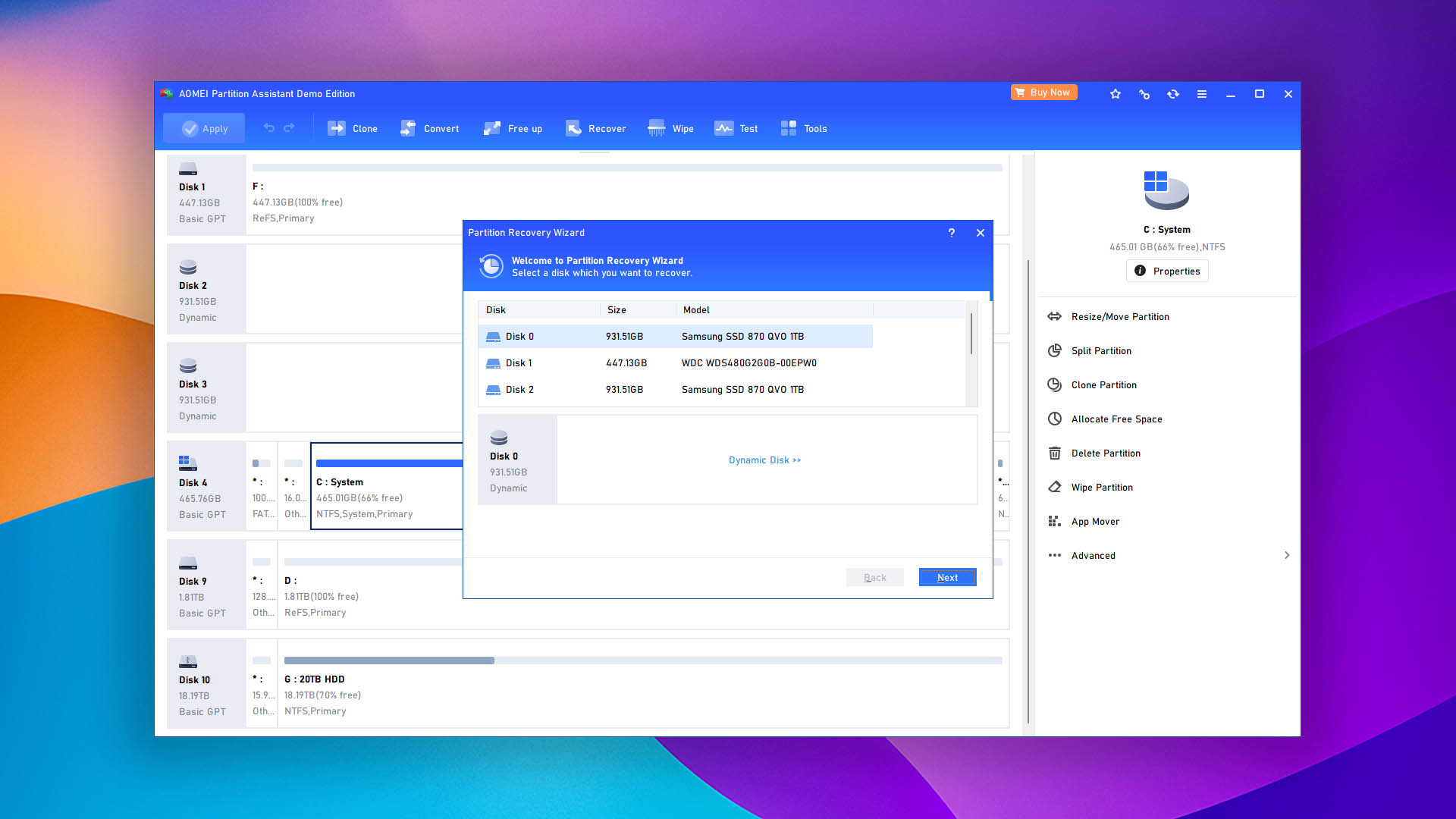
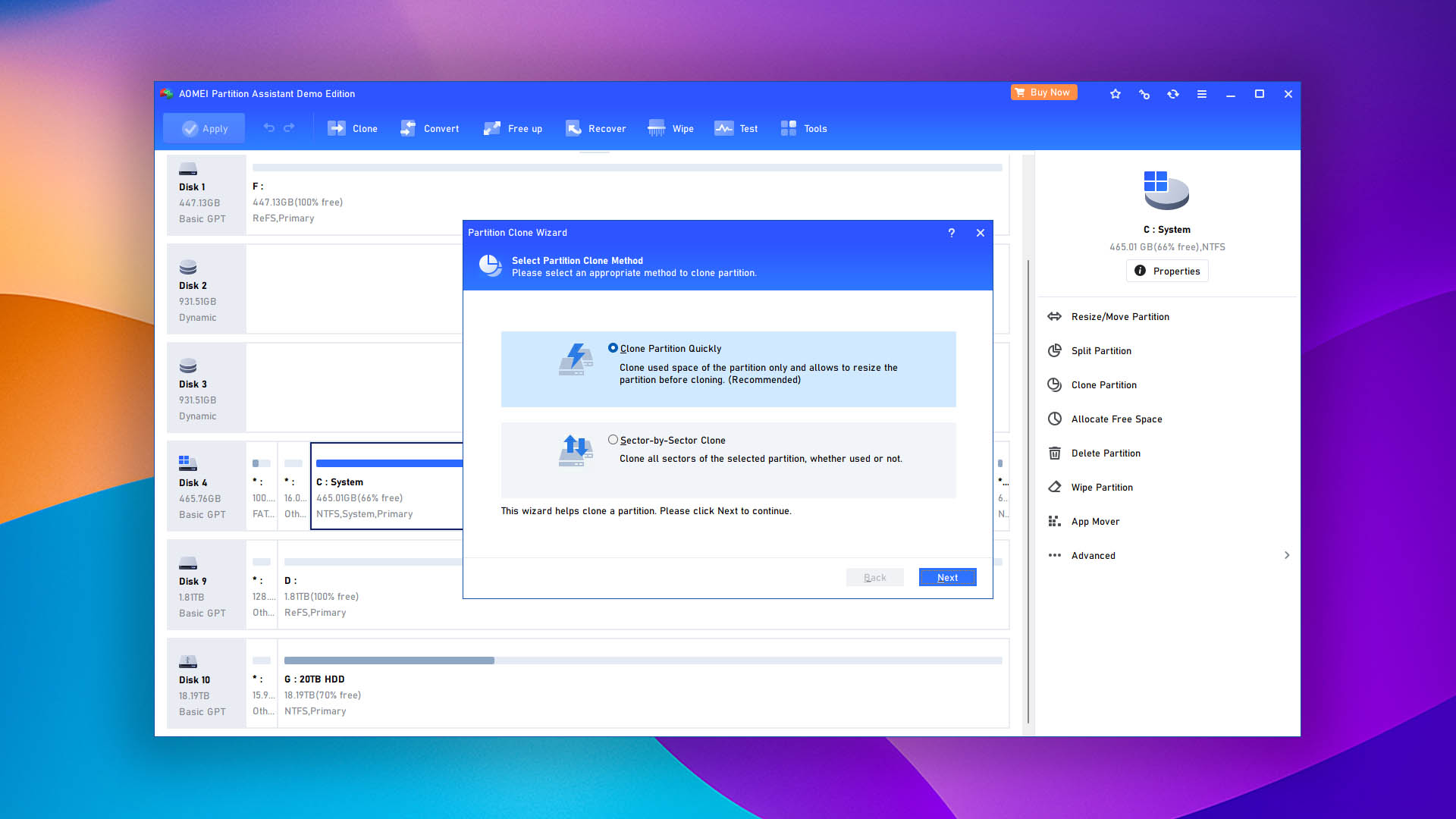
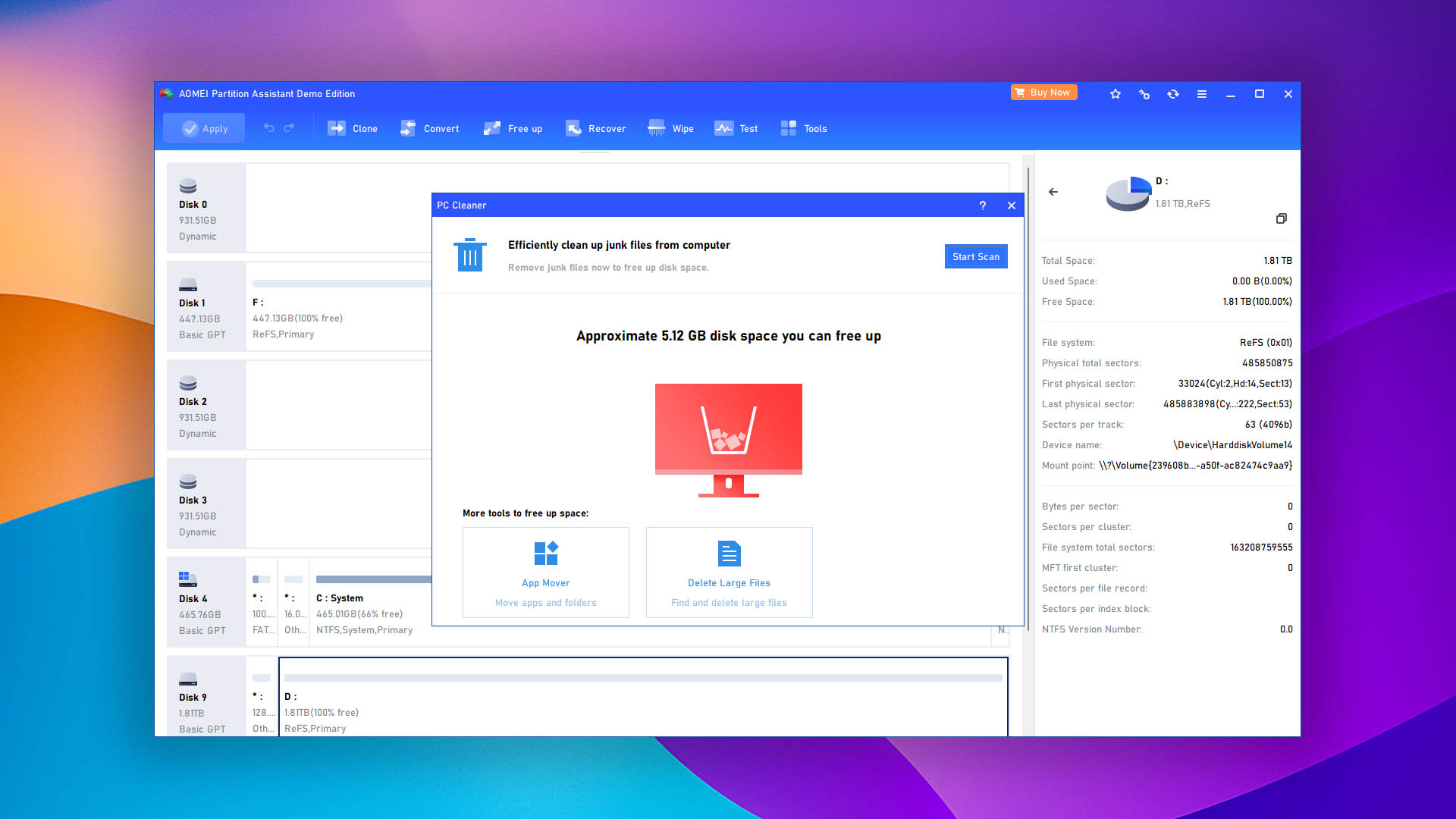
AOMEI Partition Assistant is a comprehensive and user-friendly partition management tool with praiseworthy recovery capabilities that empower Windows users to solve their partition troubles.
Usability
The ease of use is one of AOMEI Partition Assistant's strongest points. Even if your past experience with partition management and recovery is limited, the software will guide you along the way and give you the confidence you need to solve your problems the DIY way. The ability to queue multiple changes for batch operations also helps streamline the process and save time when performing more complicated partition repair and recovery jobs.
Recovery Performance
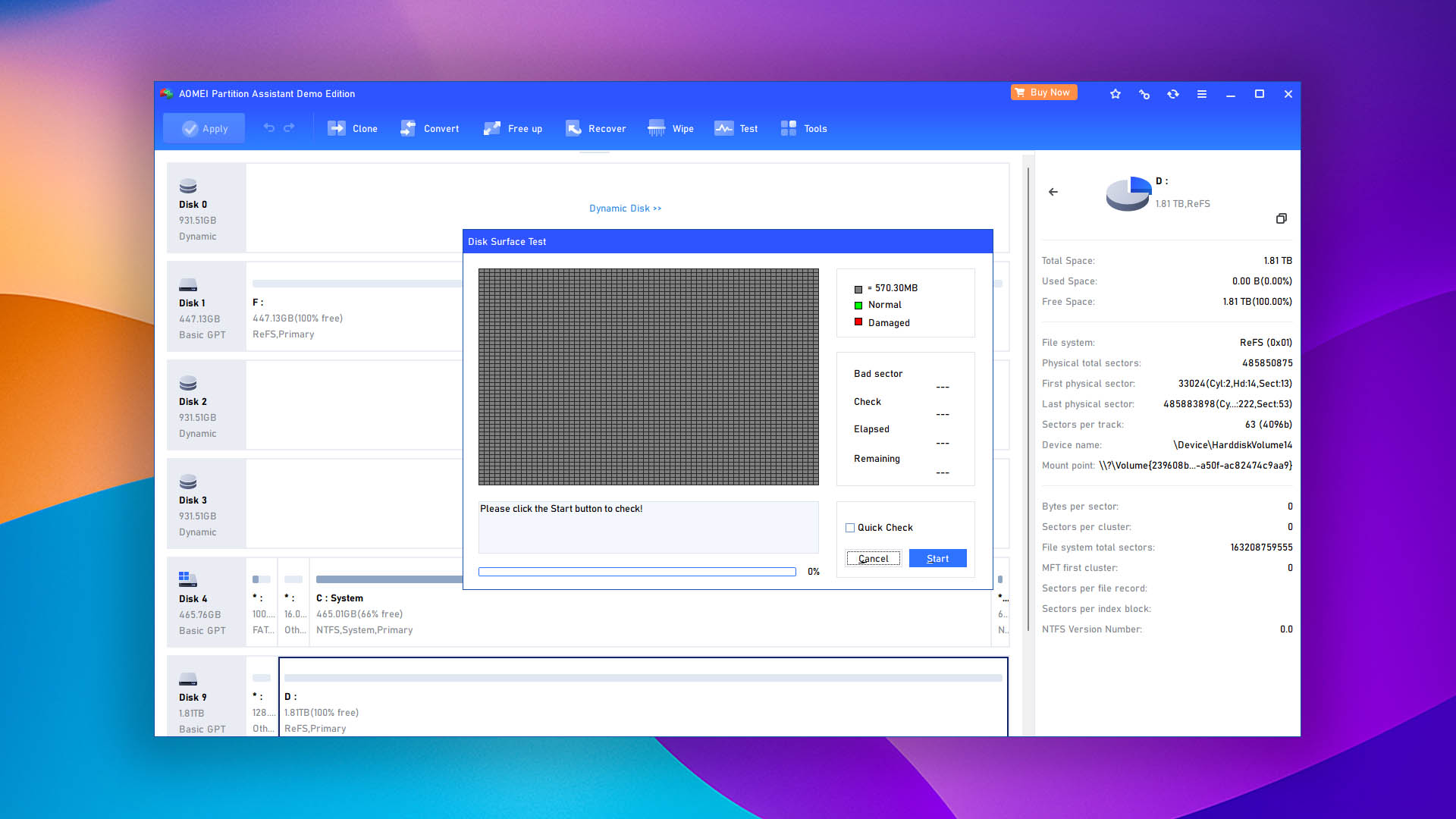
The software's wide array of partitioning tasks—from resizing, merging, and creating partitions to converting file systems—makes it a versatile partition repair tool. The software also includes a disk surface test to detect damaged sectors on the disk, adding an extra layer of protection for your data. However, AOMEI Partition Assistant's recovery capabilities, while present, lag significantly behind dedicated deleted partition recovery software like Disk Drill. In fact, even partition recovery freeware solutions like TestDisk leave AOMEI behind in this regard.
Value
The freeware version, AOMEI Partition Assistant Standard, offers a solid range of features, including partition management, disk conversion, defragging, file shredding, junk and duplicate file removal, and disk health checks. However, the key features are exclusive to the Professional version, which includes partition and file recovery, OS migration, MBR and GPT system disk conversion, bootable media creation, and much more. Pro is available on a yearly or lifetime basis, and you get one license that can be used on two PCs.

5. EaseUS Partition Master
WindowsmacOS
Freemium Some features are provided free of charge, but money is required to unlock the rest.
Basic disk management
$19.95...$69.95
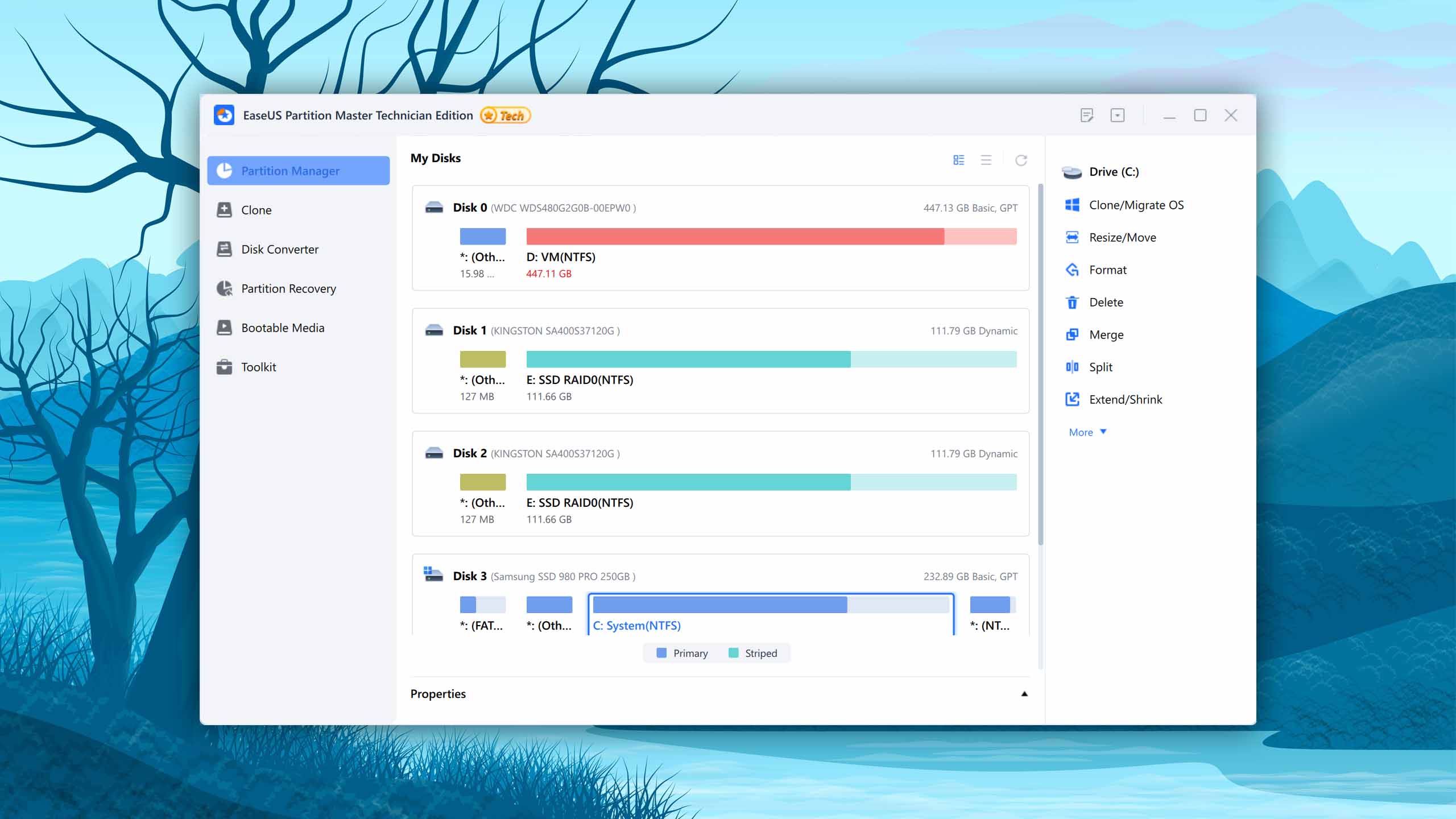
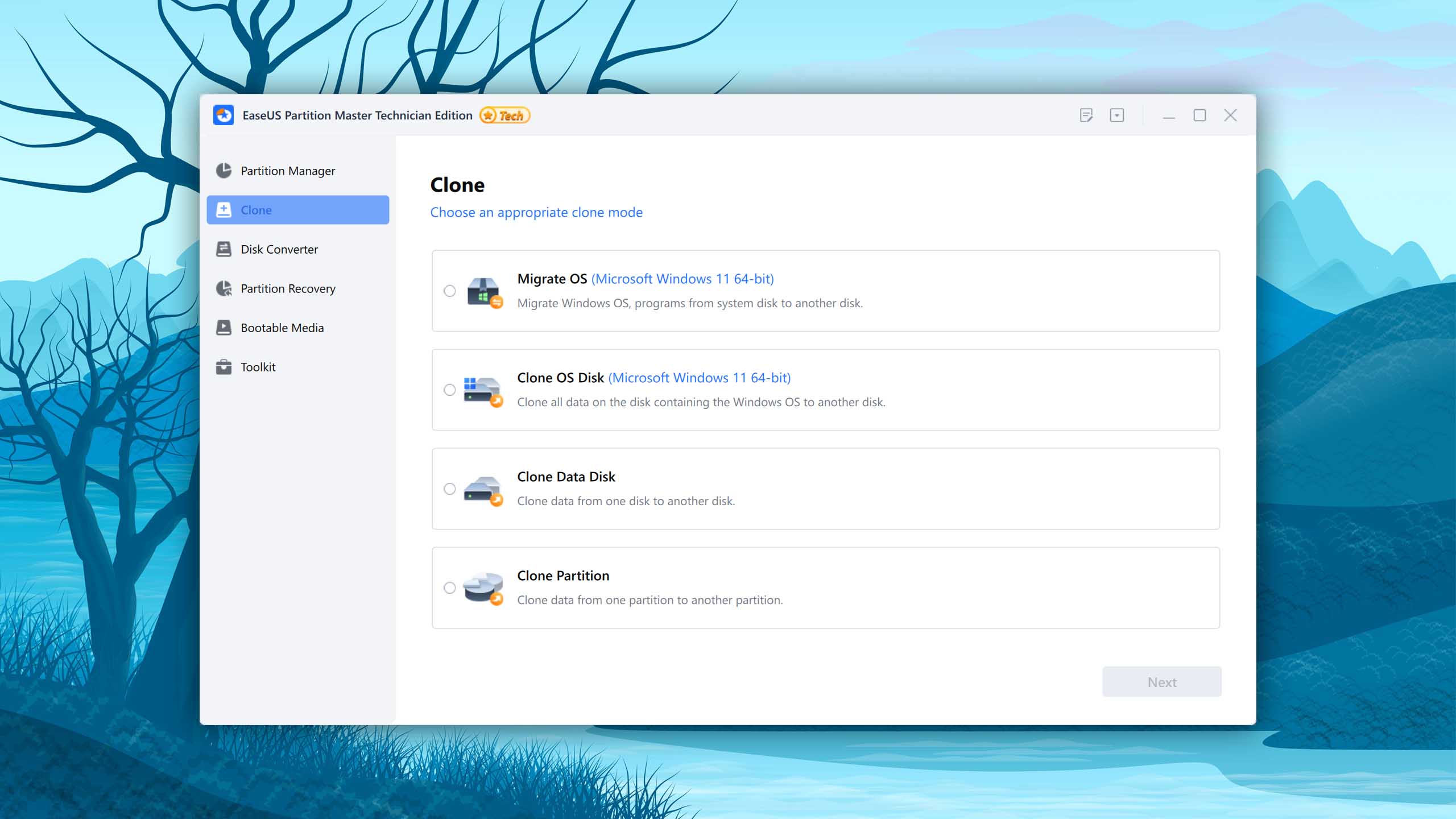
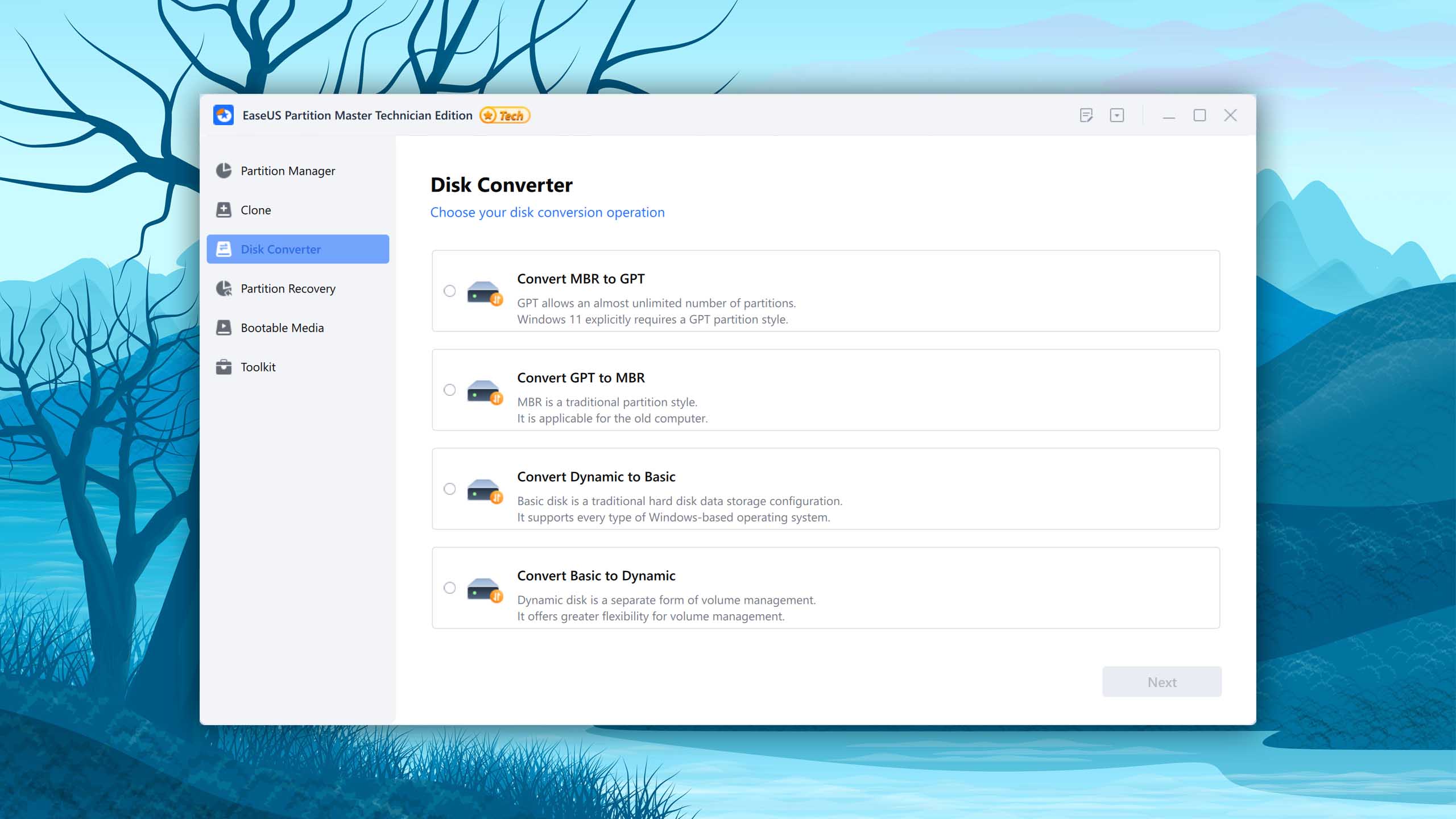
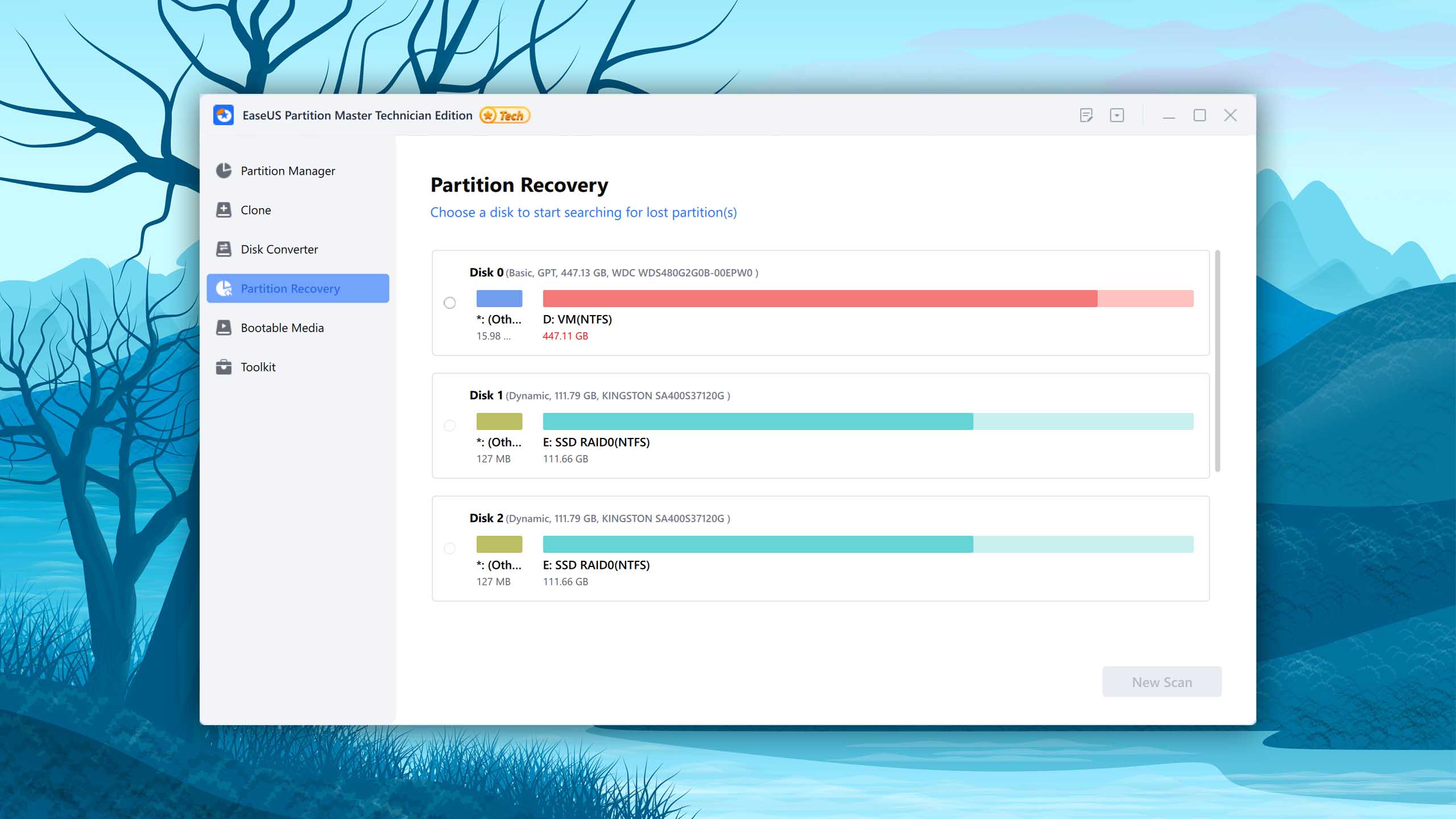
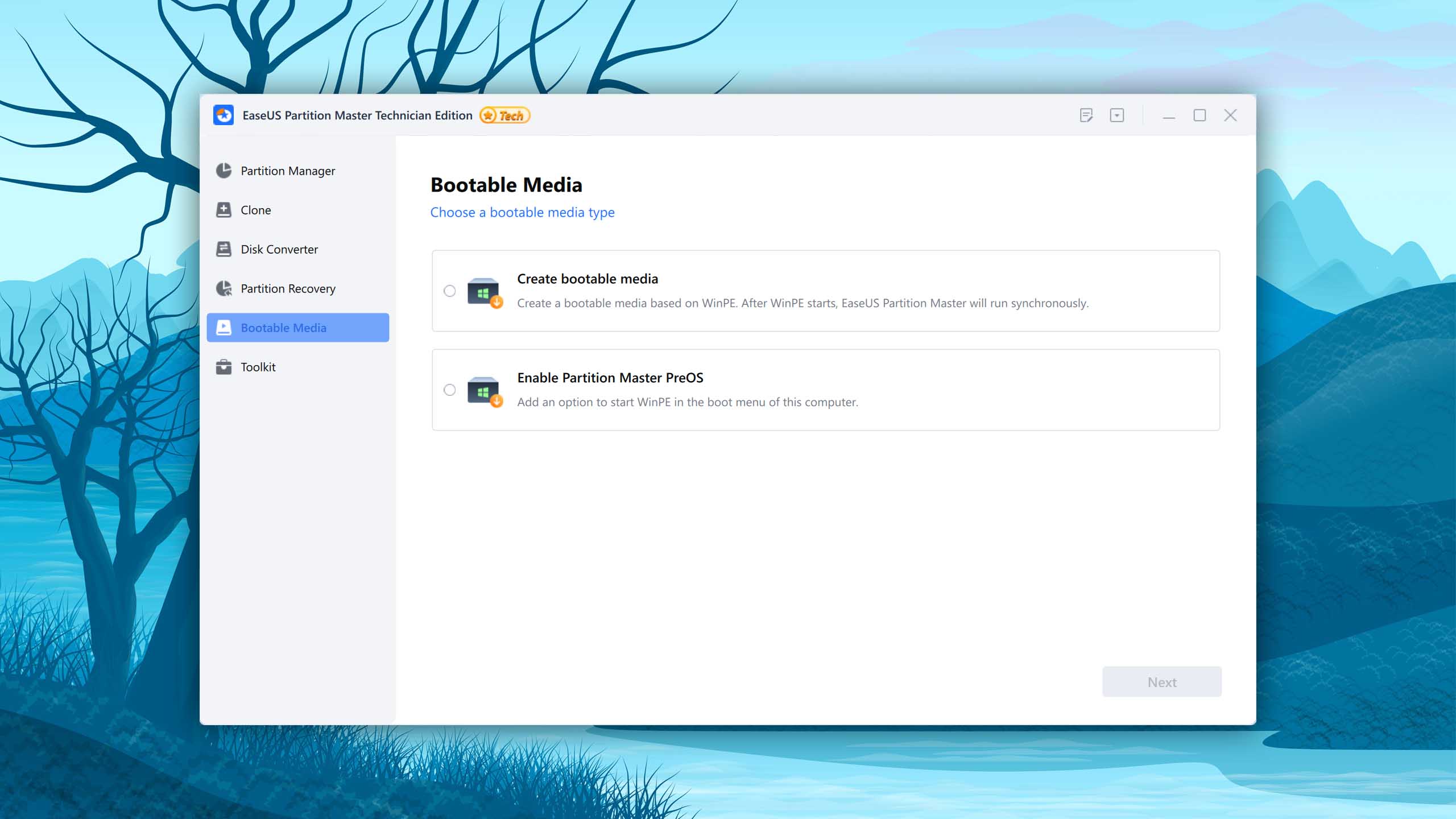
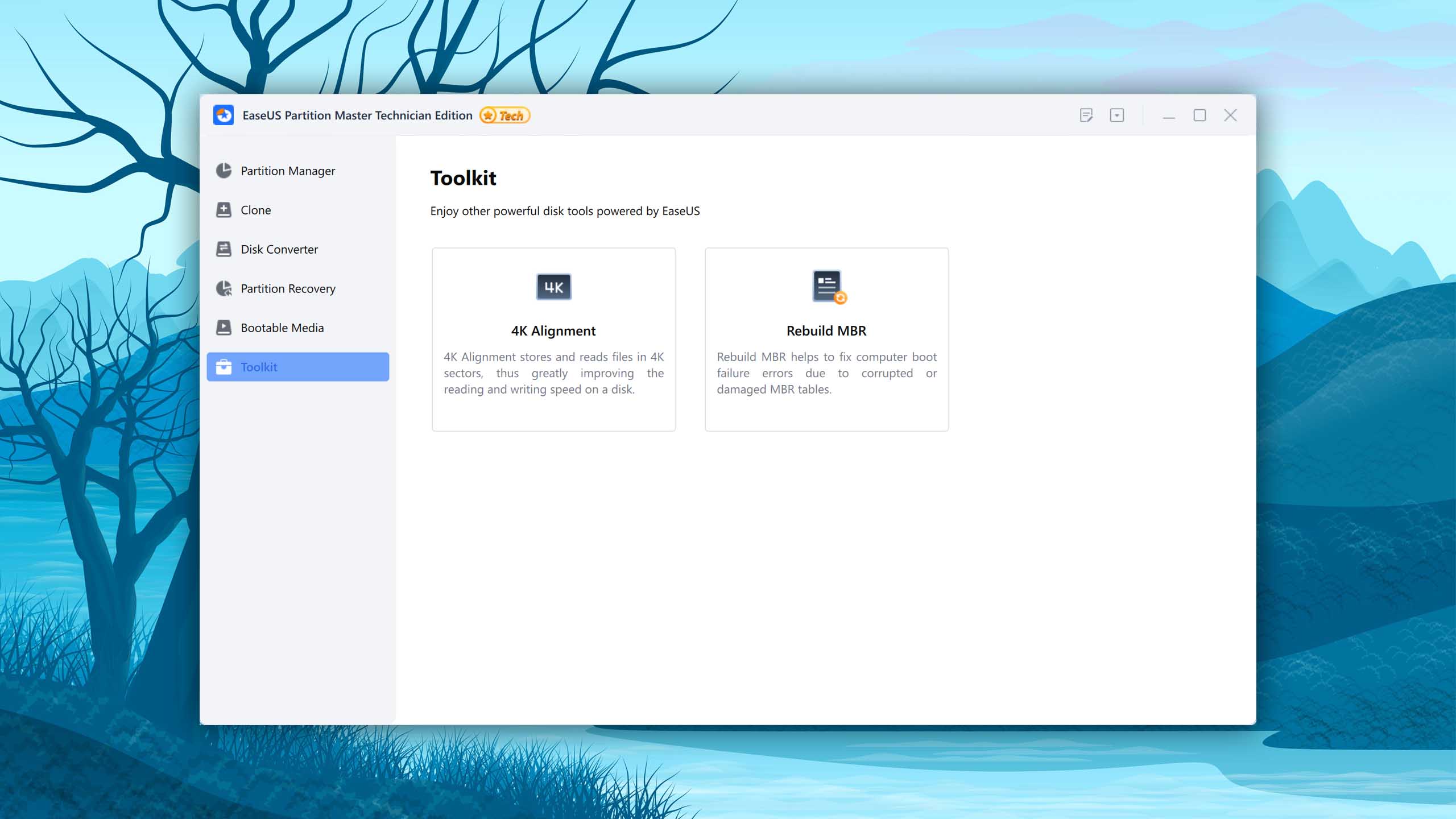
EaseUS Partition Master is a useful partition management and recovery tool from the people behind EaseUS Data Recovery Wizard.
Usability
Just like other software applications developed by EaseUS, even this partition management and recovery tool has a user-friendly design that's both inviting and functional. We appreciate that EaseUS partition Master provides a convenient overview of all changes that are to be applied to minimize the risk of unwanted modifications. It's a simple yet powerful feature that gives users confidence when carrying out tasks. However, the presence of bundled adware during installation and the recurrent ads every time the program is closed might detract from the overall user experience.
Recovery Performance
EaseUS Partition Master can handle large disks up to 8 TB, which is great news because such disks are now more affordable than ever, and their affordability will only continue to increase. As far as partition management goes, you can create/delete partitions, resize/move them, merge multiple partitions into one, and much more. Partition recovery is supported as well, but its performance can be a hit or miss depending on your specific data loss situation, such as the file system in question and other factors.
Value
Although the free version of EaseUS Partition Master is restricted to personal use, it offers a significant range of features and functions. One feature that's unfortunately absent from the free version is partition recovery. To unlock the ability to recover lost partitions, you need to purchase a Pro license, which is available on a monthly or lifetime basis.

6. Active@ Partition Recovery
Windows
Freeware and Freemium Some features are provided free of charge, but money is required to unlock the rest
Basic disk management
$0...$995
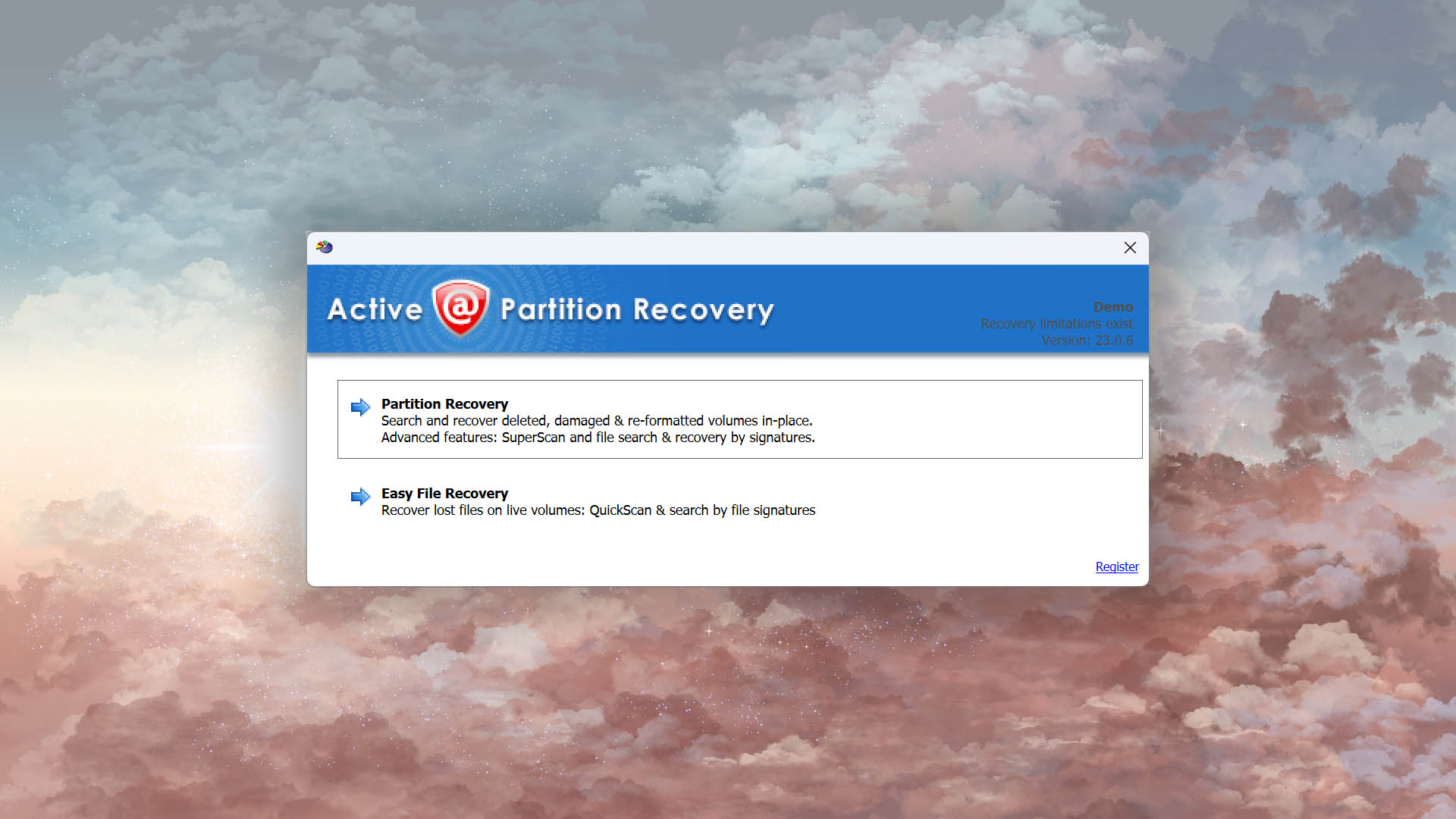
Active@ Partition Recovery is a comprehensive partition recovery solution that promises to recover even those partitions that have been missing for a long time.

Usability
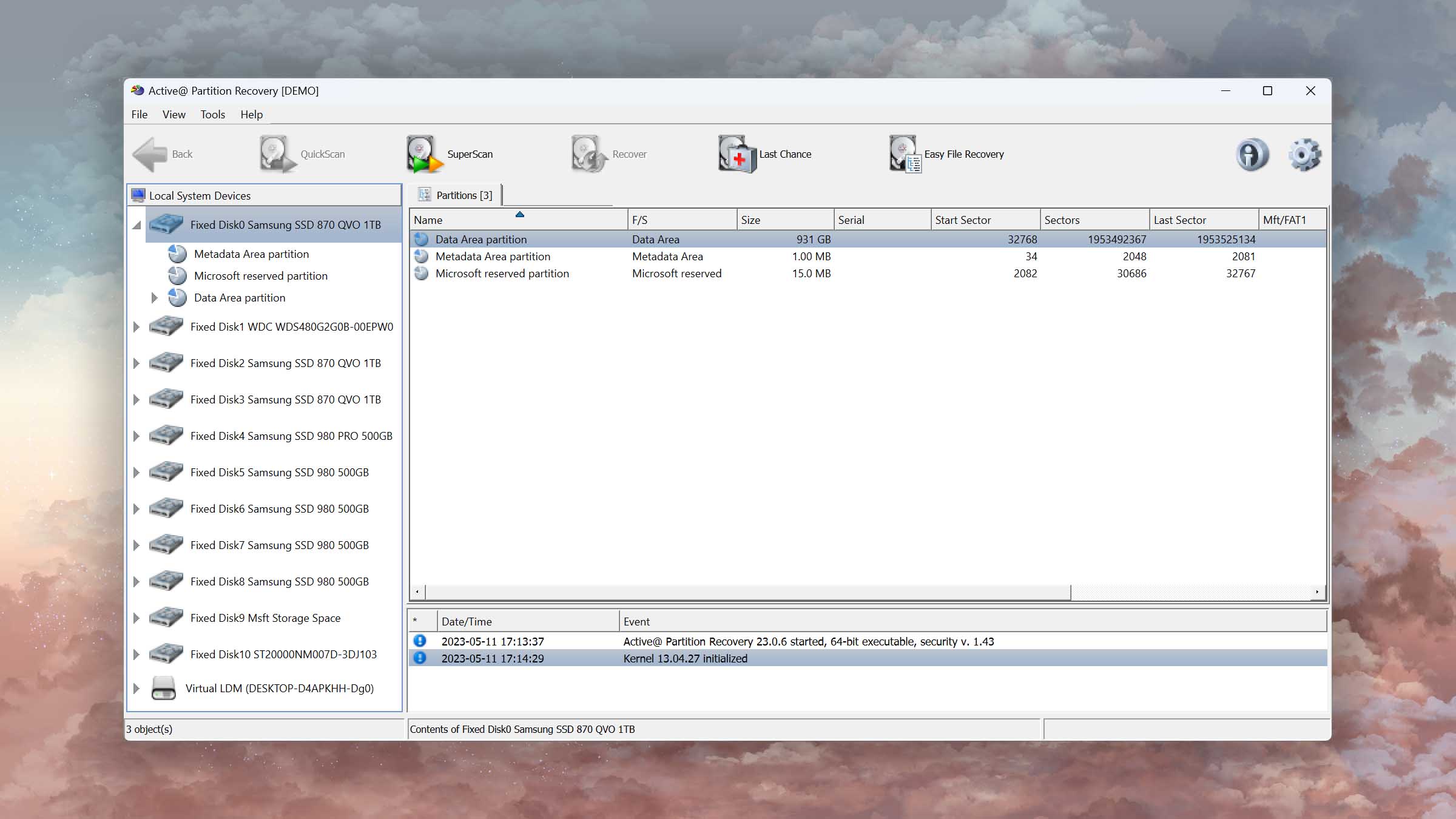
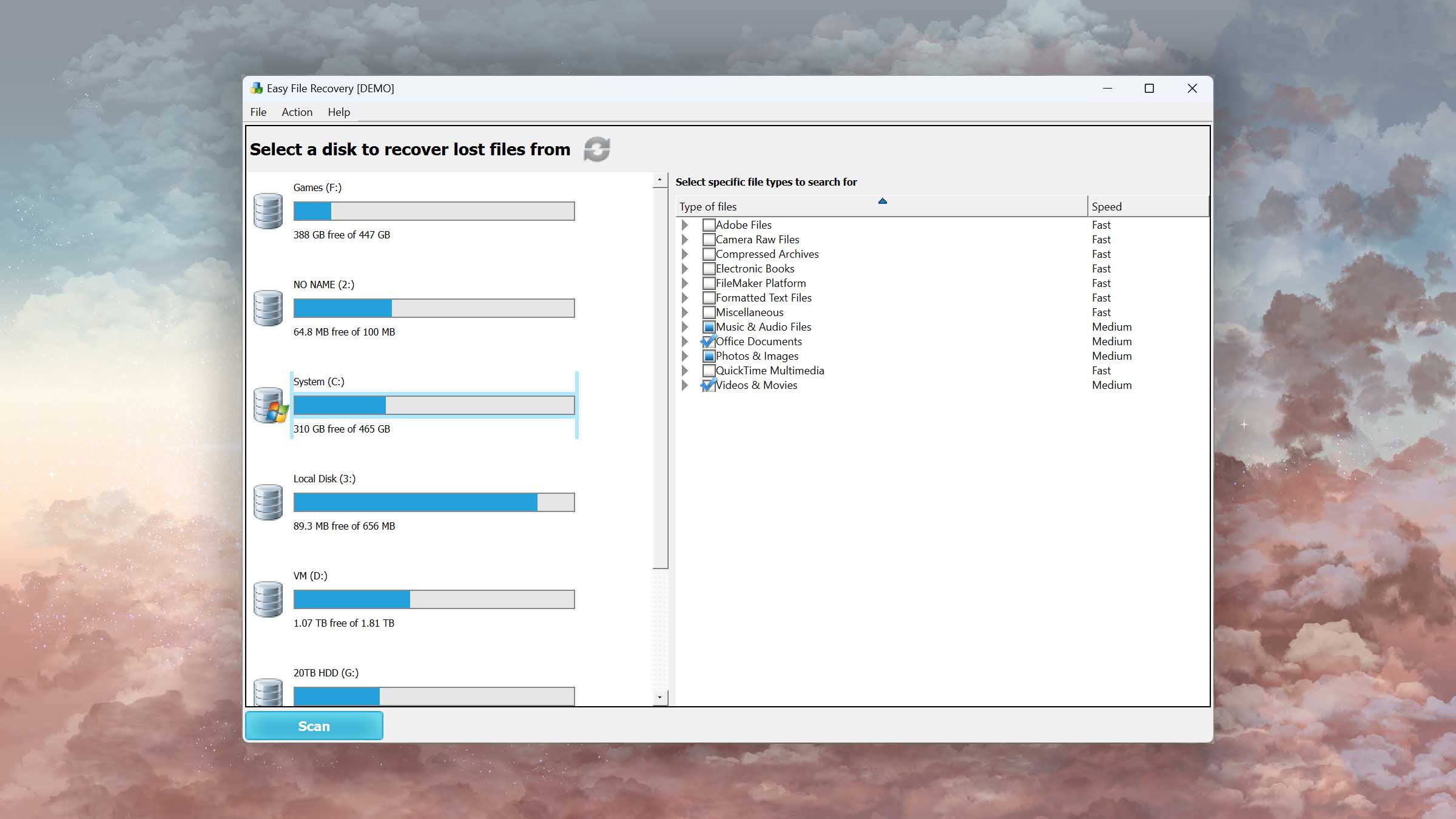
We like that all detected partitions and live volumes are visually represented within the disk area, making it easy to navigate and select the desired items for recovery. Furthermore, the software's support for multi-language characters and long file names ensures usability across diverse user needs. What we don't like is that Active@ Partition Recovery still looks as if Windows XP were the dominant operating system. In other words, the user interface could do with some polishing to bring it up to the visual standard we've all gotten used to.
Recovery Performance
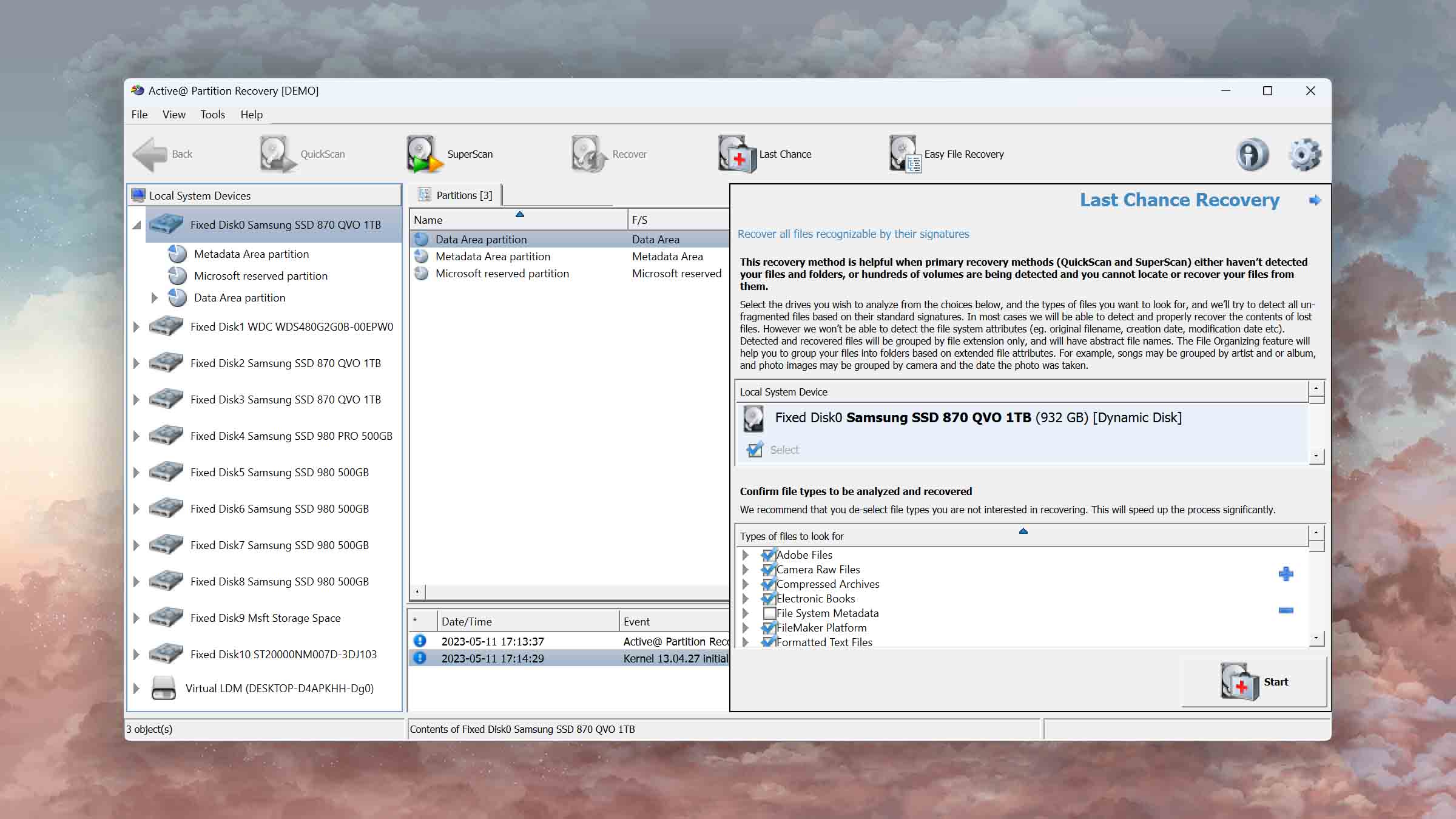
Active@ Partition recovery offers multiple partition recovery methods. The QuickScan method conveniently recovers recently deleted partitions, while the SuperScan dives deeper to identify partitions deleted long ago, even if new ones have been created and formatted. Finally, the Last Chance recovery method provides a lifeline when physical volume recovery isn't feasible. Together, the three methods can reliably address a broad spectrum of data loss scenarios.
Value
While the freeware version of Active@ Partition Recovery offers substantial value with its impressive array of features, its commercial versions come packed with extra perks like the LastChance recovery mode and a built-in organizer. Just know that all available lifetime licenses receive updates only for one year from the date of purchase. After this period, you can continue using the software with the last updated features but won't receive new ones unless you make another purchase.
7. Hetman Partition Recovery
WindowsmacOSLinux
Freemium Some features are provided free of charge, but money is required to unlock the rest
Free scan and limited watermarked preview
$97.95...$397.95
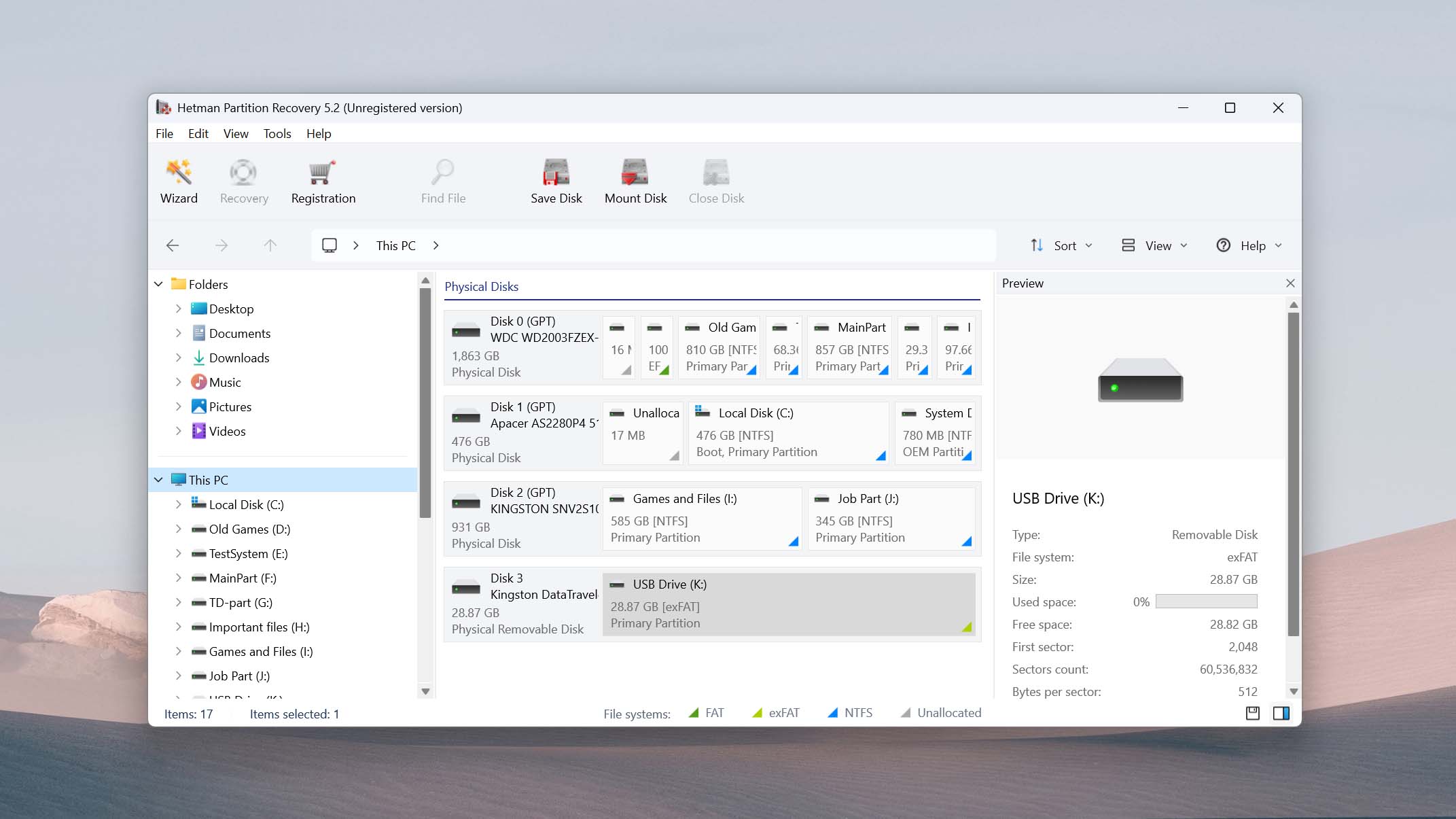
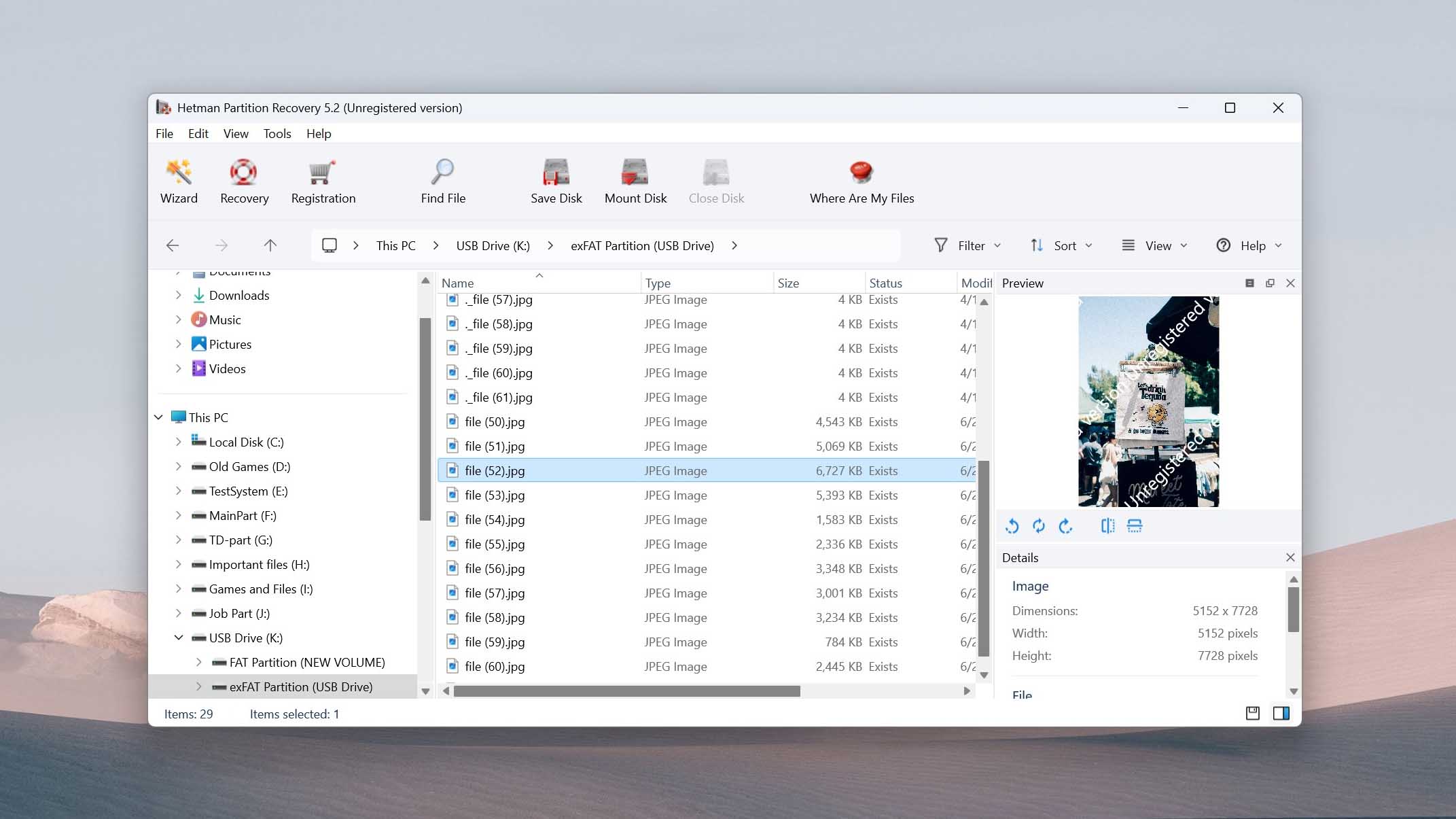
Hetman Partition Recovery is a wizard-driven partition recovery tool that works across Windows, macOS, and Linux, offering a structured, hand-held experience through the recovery process. We tested it on Windows, where it removes the friction of command-line-heavy tools like TestDisk.
Usability
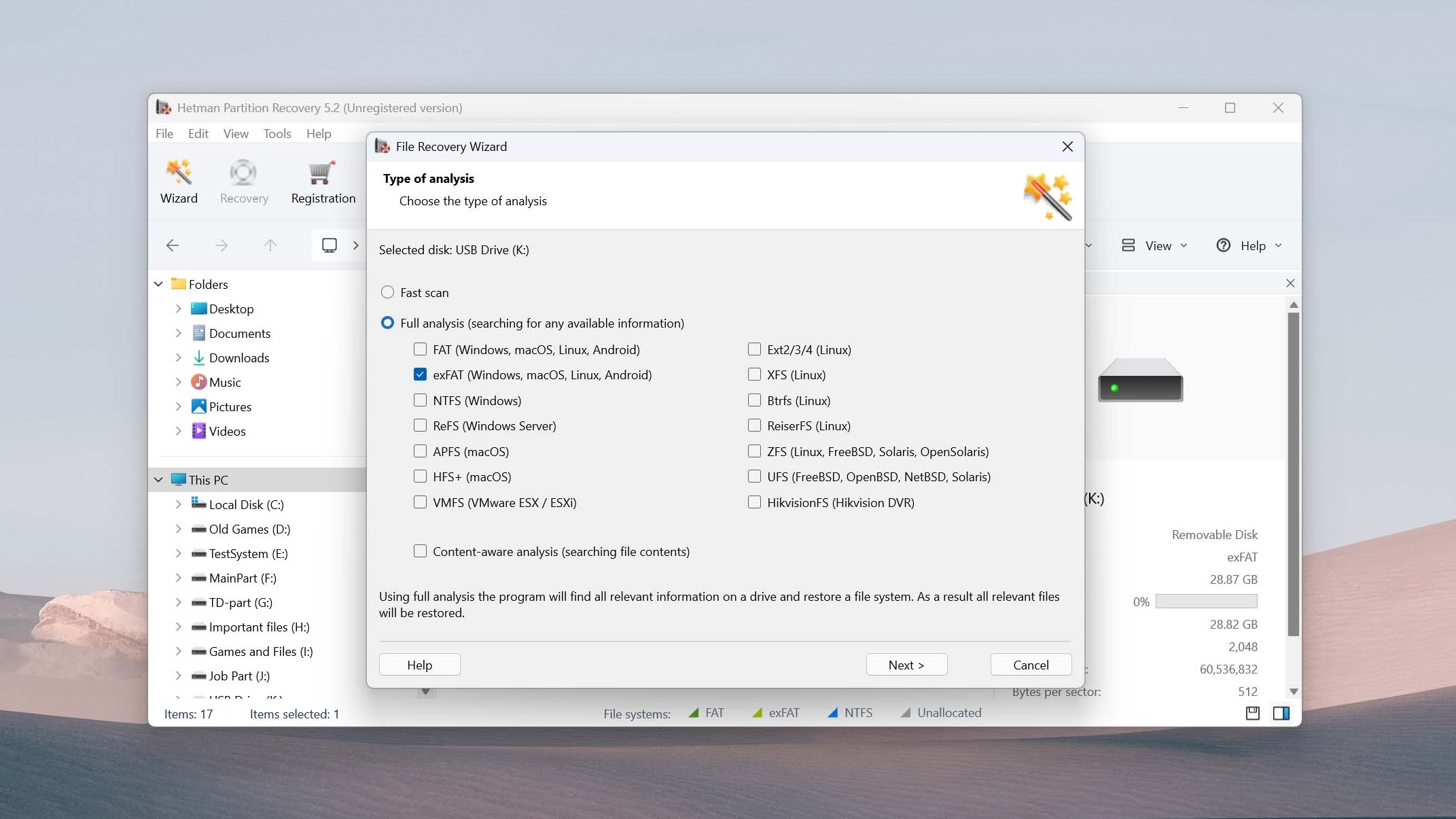
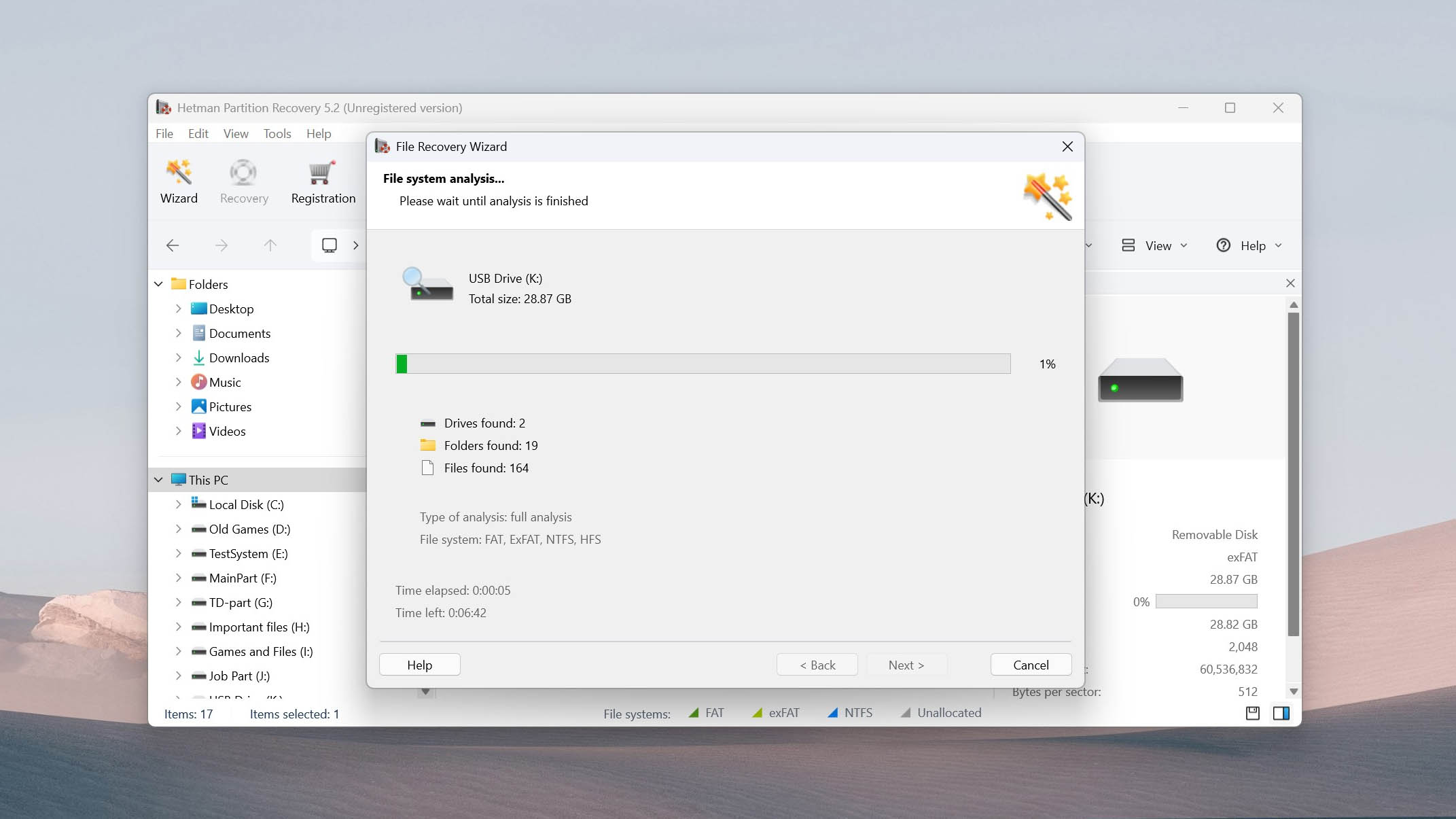
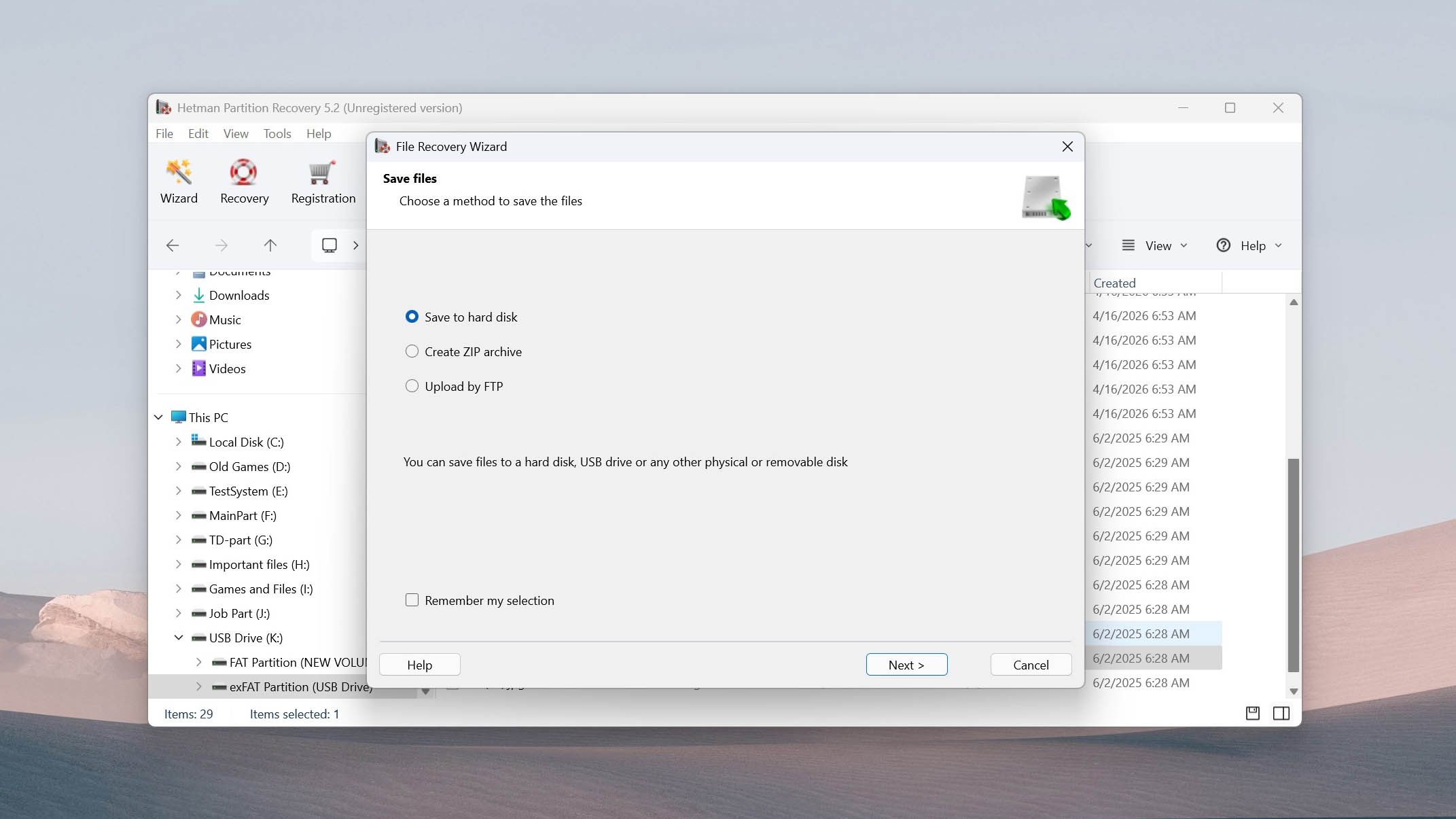
It’s clear that Hetman Partition Recovery prioritizes usability with its clearly defined recovery workflow. The step-by-step wizard breaks the process down into manageable stages that are little more than selecting your drive, choosing a scan type, previewing the files, and recovering the data. This stands in sharp contrast to TestDisk’s command-line interface, which, while powerful, demands a level of comfort with text-based tools that most users simply don’t have.
Recovery Performance
Our tests show that Hetman’s recovery abilities work great on all Windows file systems (FAT/exFAT, NTFS/ReFS), but it also supports Apple (APFS/HFS+) and Linux-based (Ext4/3/2/ReiserFS) file systems too. This gives it quite the range when recovering files from HDDs, SSDs, USB drives, and memory cards - including those that are appearing as RAW. The ability to recover data from virtual machines is also welcomed, but this feature is locked behind the considerably pricey Office and Business editions.
Value
Hetman Partition Recovery is available in three paid tiers: Home, Office, and Business - each covering a single PC. The moderately priced Home version includes everything the basic user would need to recover data from a partition, and there’s little reason to upgrade unless you need access to virtual machine disk recovery or you intend to use the software for commercial purposes. A free trial is available that lets you scan and preview recoverable data before purchasing, and all purchases are protected by a 30-day money-back guarantee.

8. DiskInternals Partition Recovery
Windows
Freemium Some features are provided free of charge, but money is required to unlock the rest.
Preview only
$39.95...$219.95
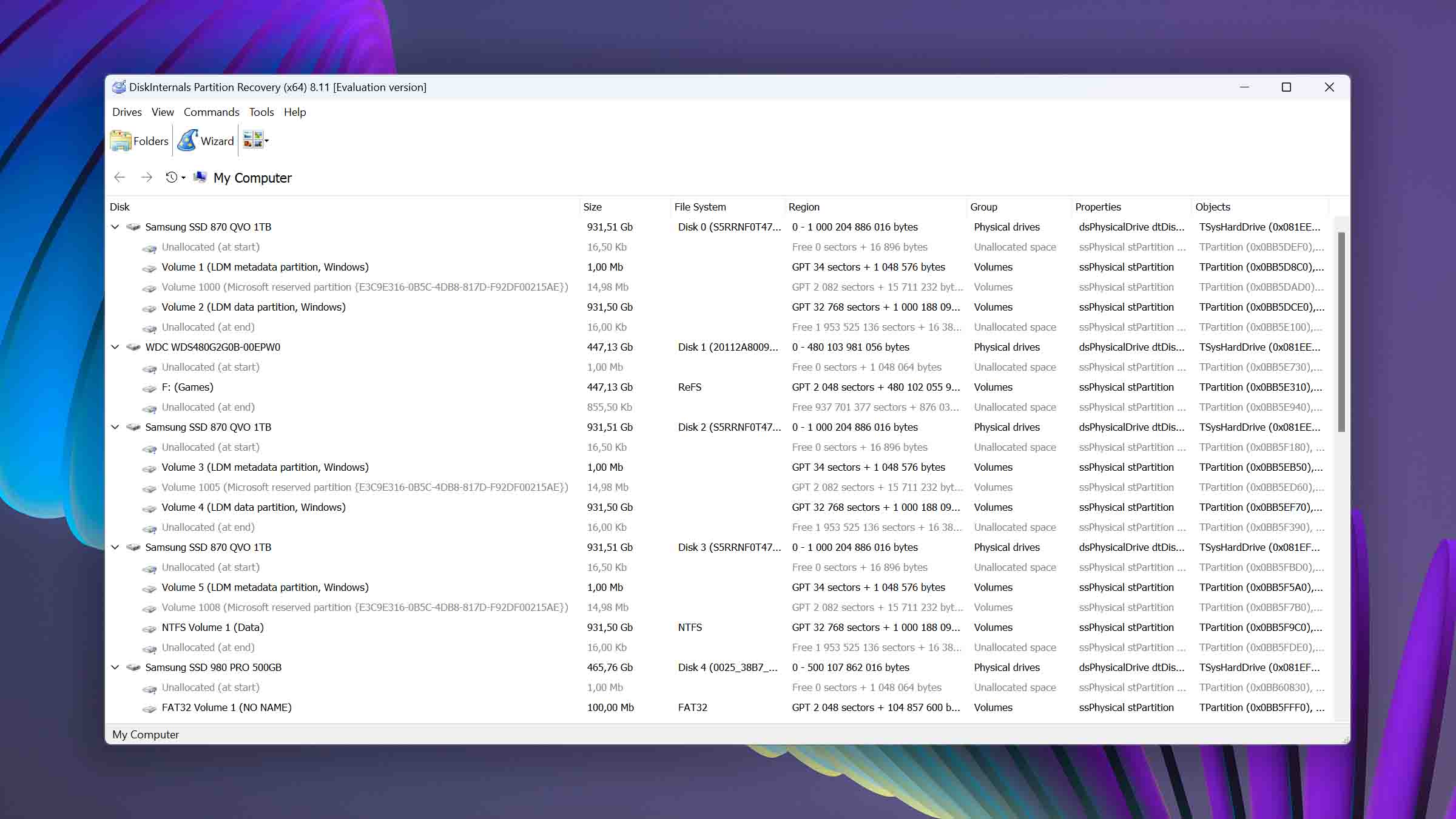
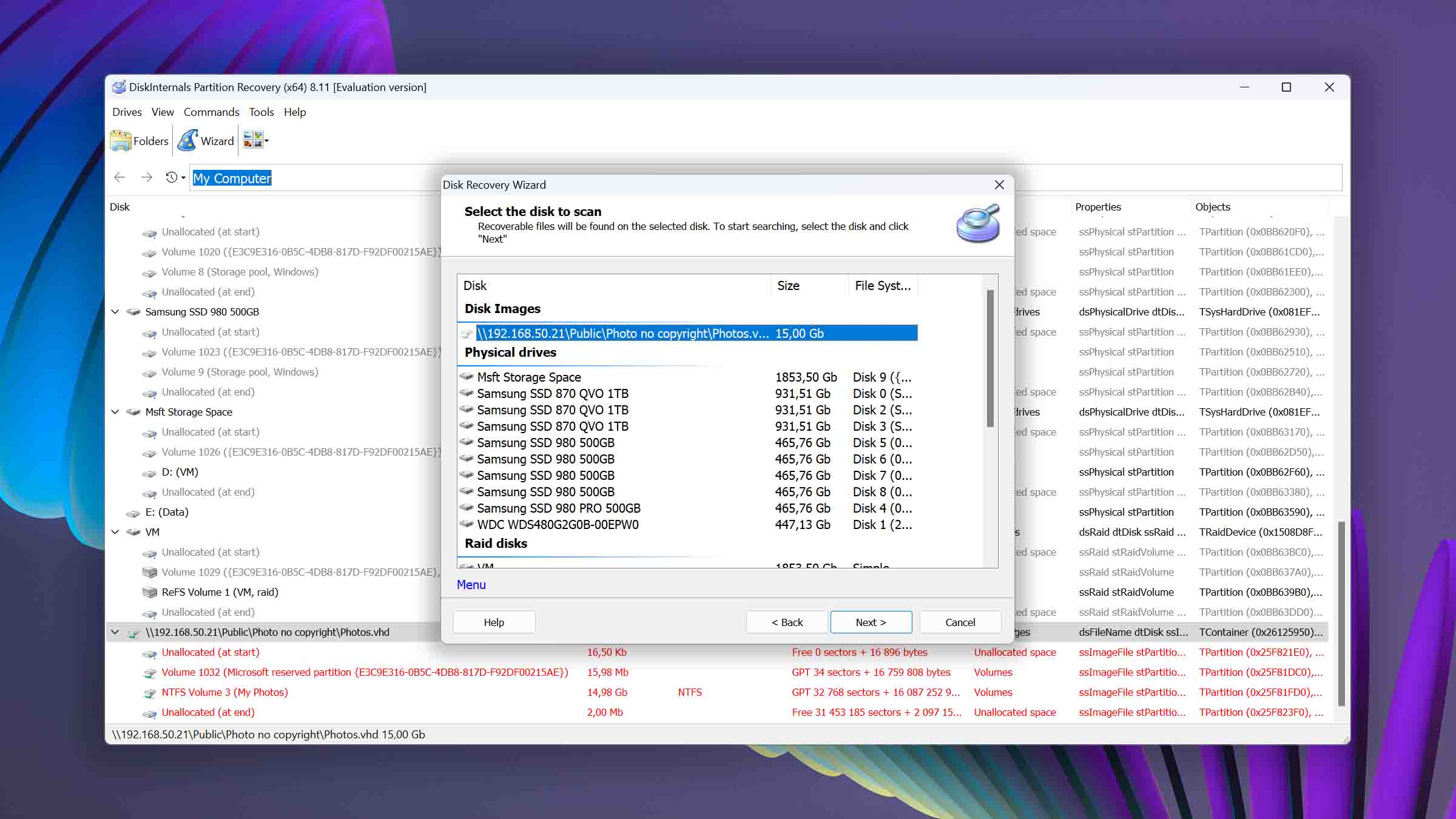
Developed specifically to address issues with lost or deleted partitions, DiskInternals Partition Recovery offers an impressive range of file system support and scanning modes but the software is less than refined in terms of usability.
Usability
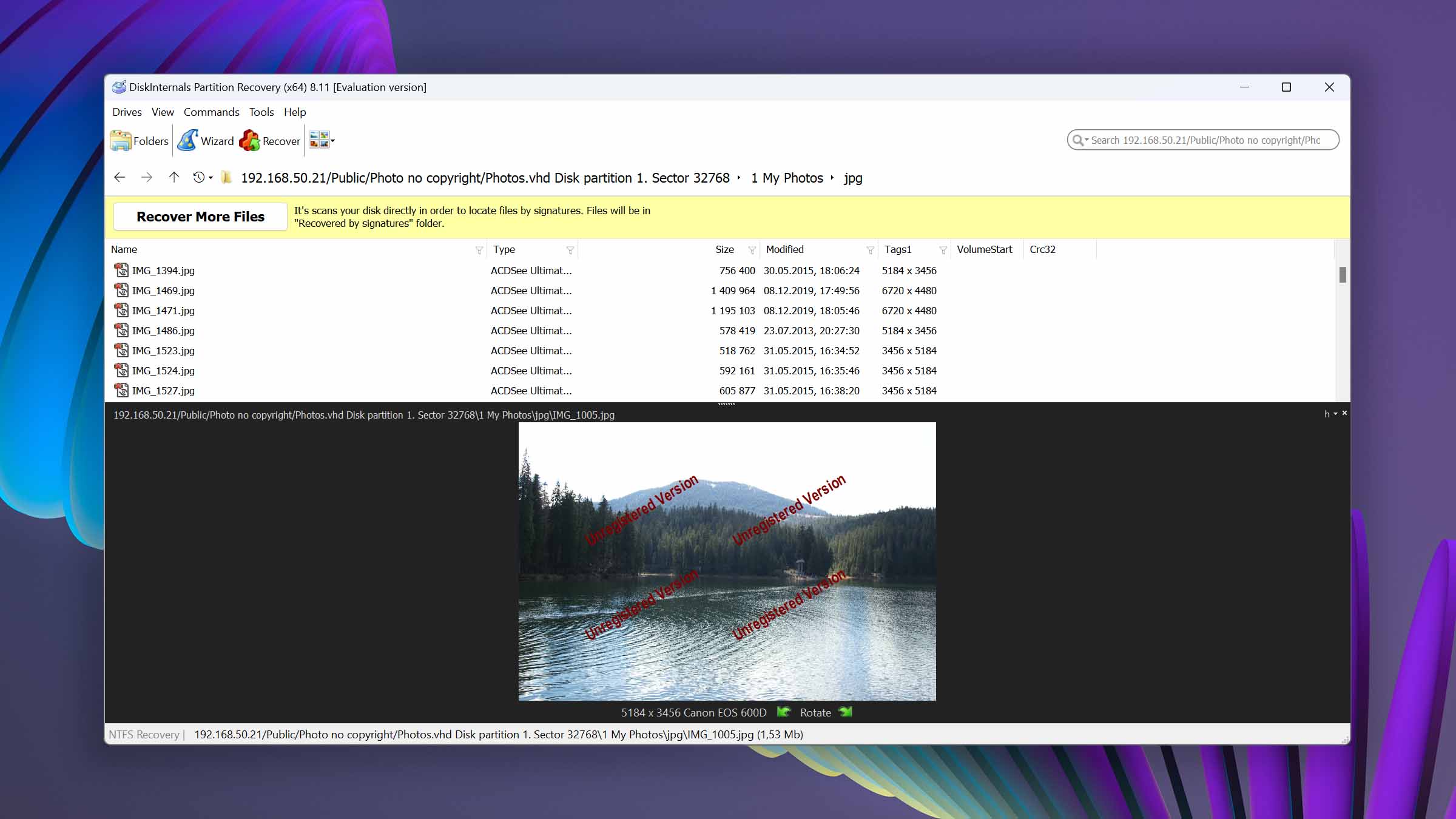
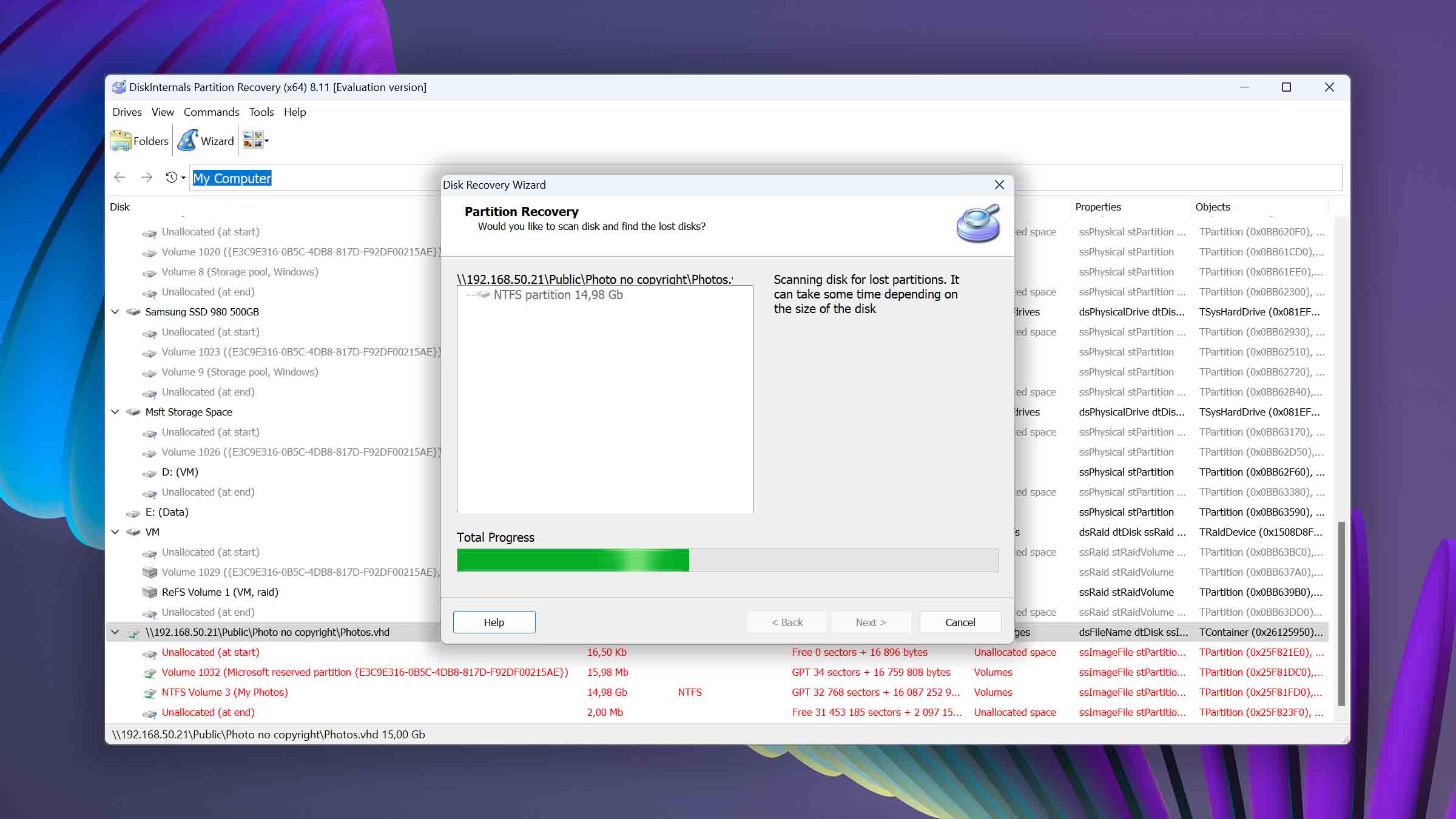
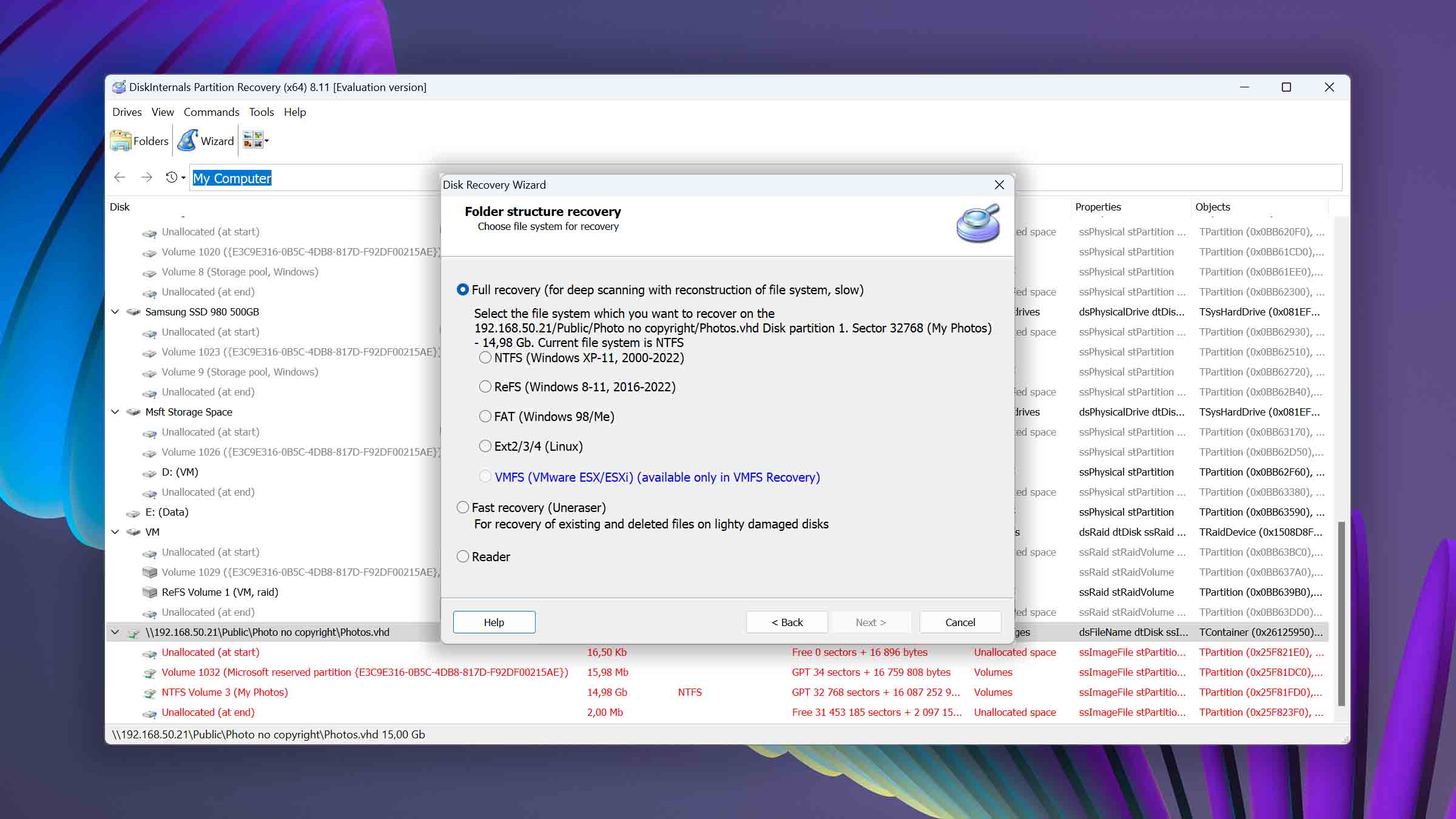
DiskInternals Partition Recovery isn't the prettiest partitions recovery software around. Its user interface looks and feels as if it were designed a decade ago, which could be off-putting to users accustomed to more modern aesthetics. However, its dated appearance doesn't fortunately reflect how easy to use the tool is. Thanks to the step-by-step recovery wizard, even users with limited technical knowledge can navigate the process with ease. The wizard guides you through each phase of recovery, from selecting the partition to scanning and finally restoring your files.
Recovery Performance
In terms of its ability to undo the damage caused by partition loss or deletion, DiskInternals Partition Recovery brings to the table three different data recovery modes: Fast scanning (Uneraser), Full scanning (Full recovery), and Reader. It also boasts support for a wide range of file systems, including APFS, HFS, NTFS, ReFS, FAT12, FAT16, FAT32, and EXT2/3/4. This versatility makes it compatible with various storage devices. However, despite these features and its comprehensive file system support, the software falls short of delivering truly exceptional results.
Value
If your wallet is a bit light, DiskInternals Partition Recovery might not be your first choice. It's pricier than many alternatives, and the difference can be rather large. Currently, the Personal license is discounted, which lets you recover deleted partitions, undelete files, and restore disks after a crash. However, you’ll need to upgrade to a Business license if you want to be able to export to virtual disks or use the software for commercial or government use. As if the steep pricing wasn't enough of a deterrent, it's important to note that the software does not offer free lifetime updates.

9. MiniTool Partition Wizard
Windows
Freemium Some features are provided free of charge, but money is required to unlock the rest.
Basic disk management
$59...$699
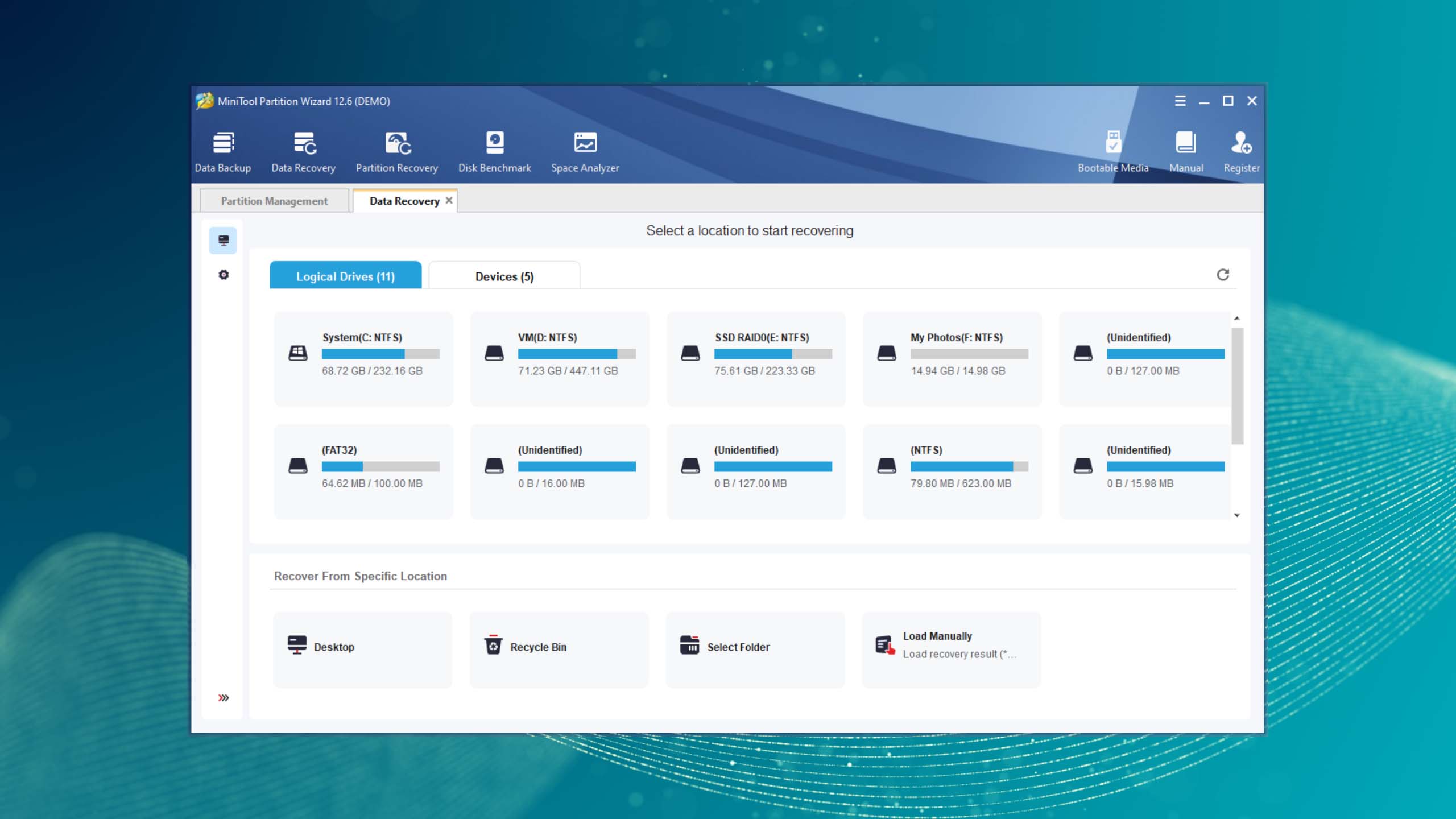
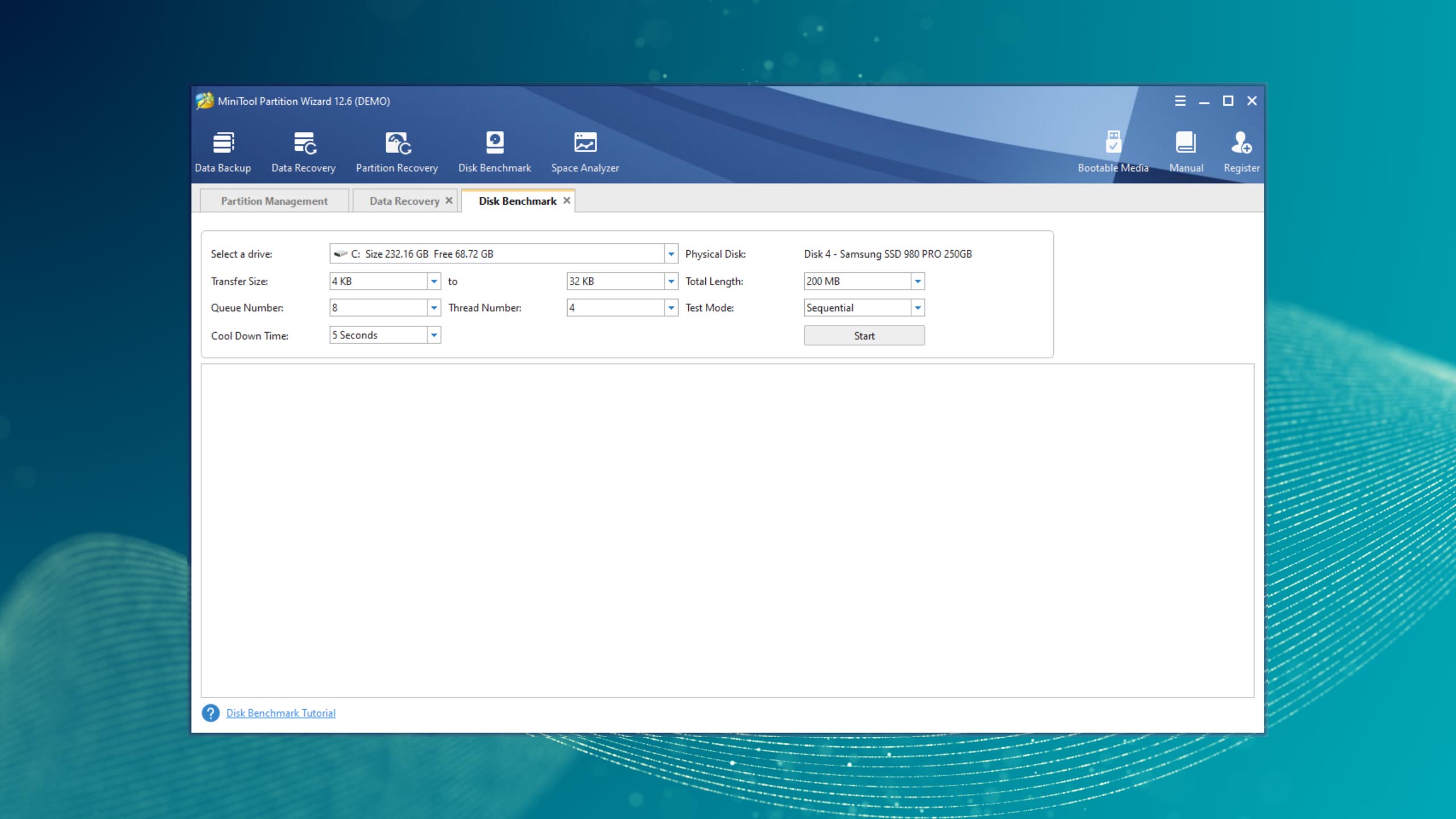
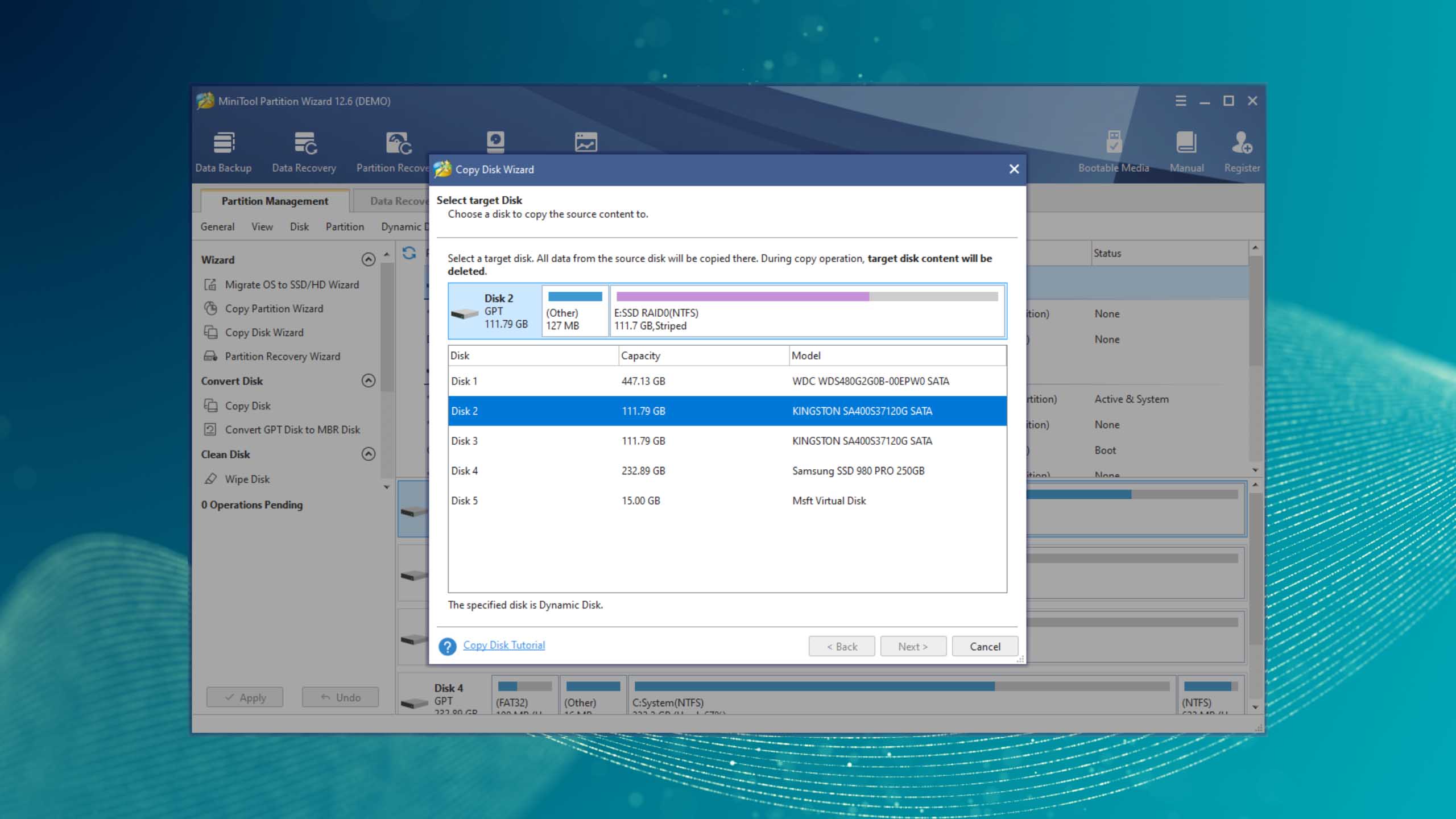
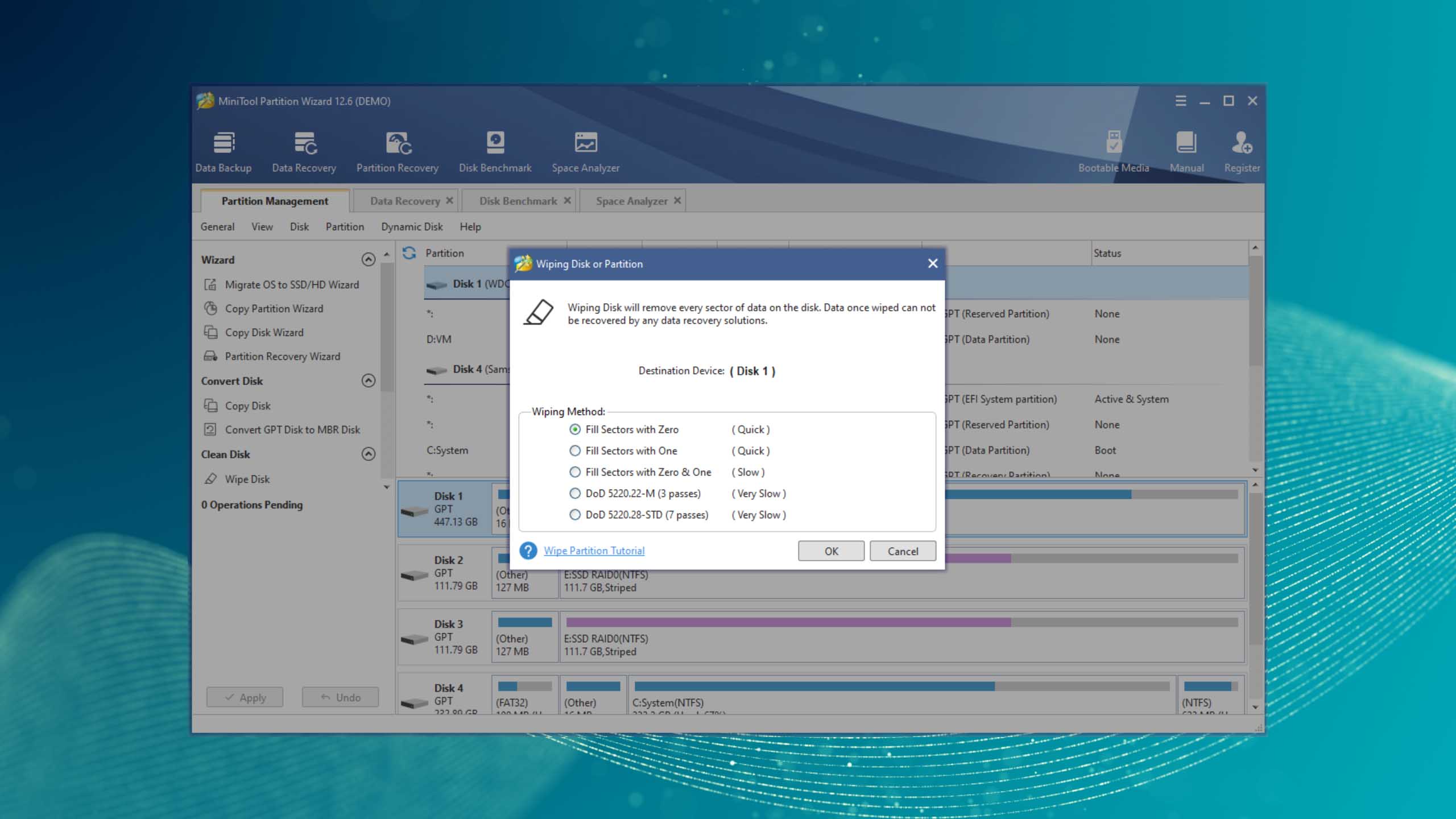
MiniTool Partition Wizard is a well-rounded tool that offers a wide array of partition management and recovery features.

Usability
From resizing a partition with a simple drag-and-drop action to running a surface test for bad sectors, the software's functionality is straightforward and accessible. However, it's a real shame that the initial positive impression can be somewhat undermined by its display of "teaser features." These features, which are only available in the upgraded version, are presented alongside the free functionalities, potentially confusing users. While this practice may encourage some users to upgrade, it could also create frustration when a seemingly accessible feature is, in fact, locked behind a paywall.
Recovery Performance
MiniTool Partition Wizard has basic partition recovery capabilities, which can be accessed by right-clicking a storage device and choosing the Partition Recovery feature. If your partition has been lost very recently and is still physically present on your storage device in its entirety, then you can expect decent results. Just know that more complicated partition loss situations may be way above this software's league. As a partition manager, however, MiniTool Partition Wizard is pretty great, equipped with many useful capabilities, such as support for rebuilding the MBR and converting disks from MBR to GPT.
Value
With its free lifetime version offering a comprehensive set of functionalities, MiniTool Partition Wizard certainly stands out among partition recovery freeware. However, the real value emerges in its paid versions, which offer additional features such as the ability to migrate OS to SSD/HD, convert dynamic disk to basic, and data recovery. The tool offers various pricing tiers, each adding more capabilities and allowing for more PCs per license. The ultimate version offers a perpetual license with a free lifetime upgrade.
10. GParted
WindowsmacOSLinux
Free Free and open-source software under the GNU GPL license
None
Free
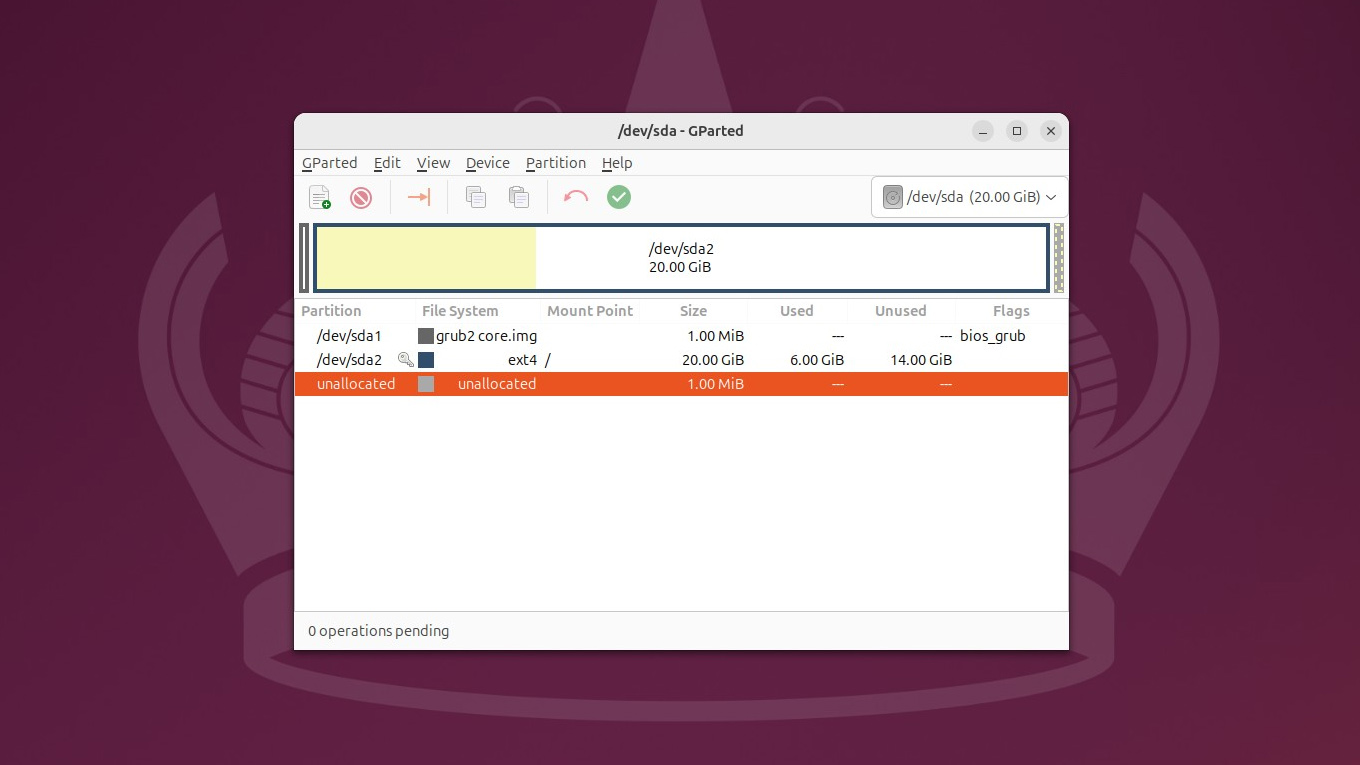
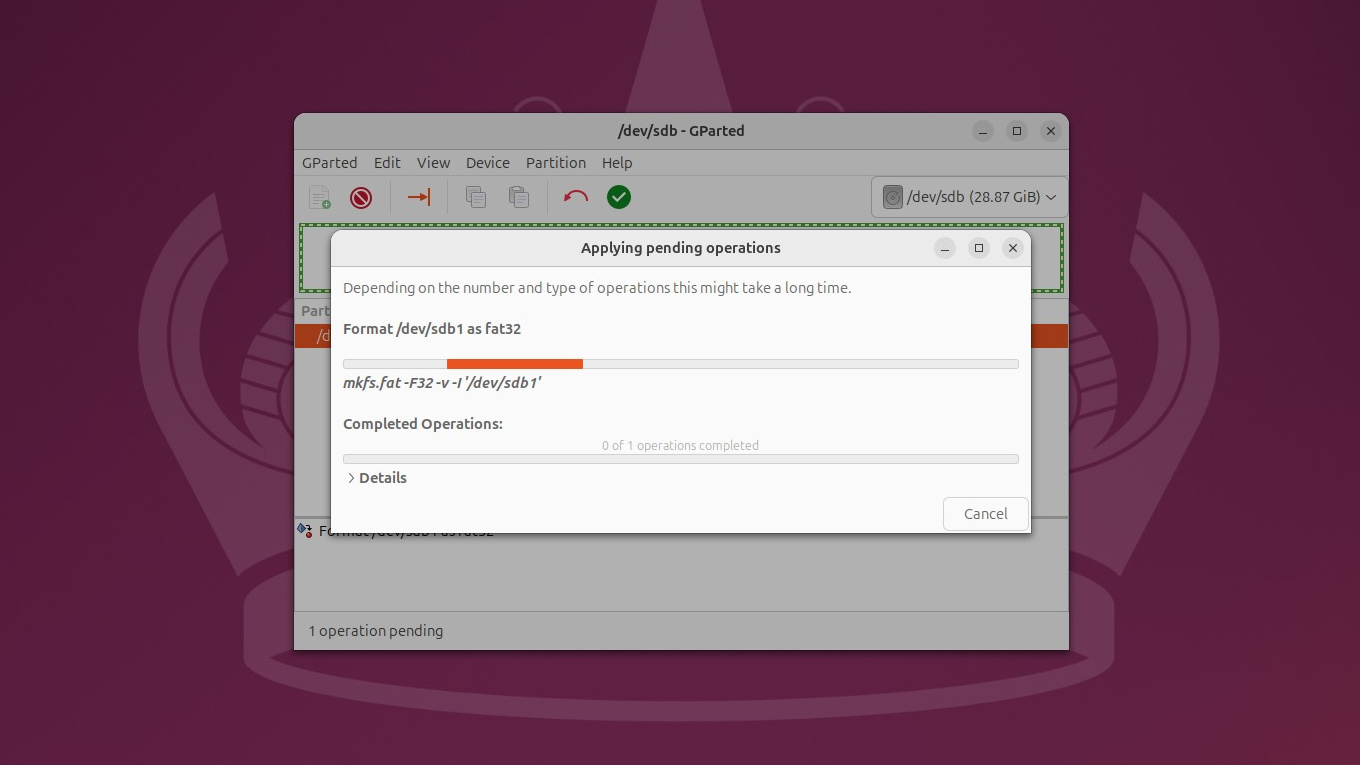
GParted is a free, open-source partition editor designed to manage, repair, or rescue partitions all from a bootable USB environment. It’s not a partition recovery tool like Disk Drill or TestDisk, so it won’t scan for or restore deleted partitions. Instead, it works alongside them by managing partitions, repairing file system errors, and providing a fully functional editing environment that’s independent of your installed OS.
Usability
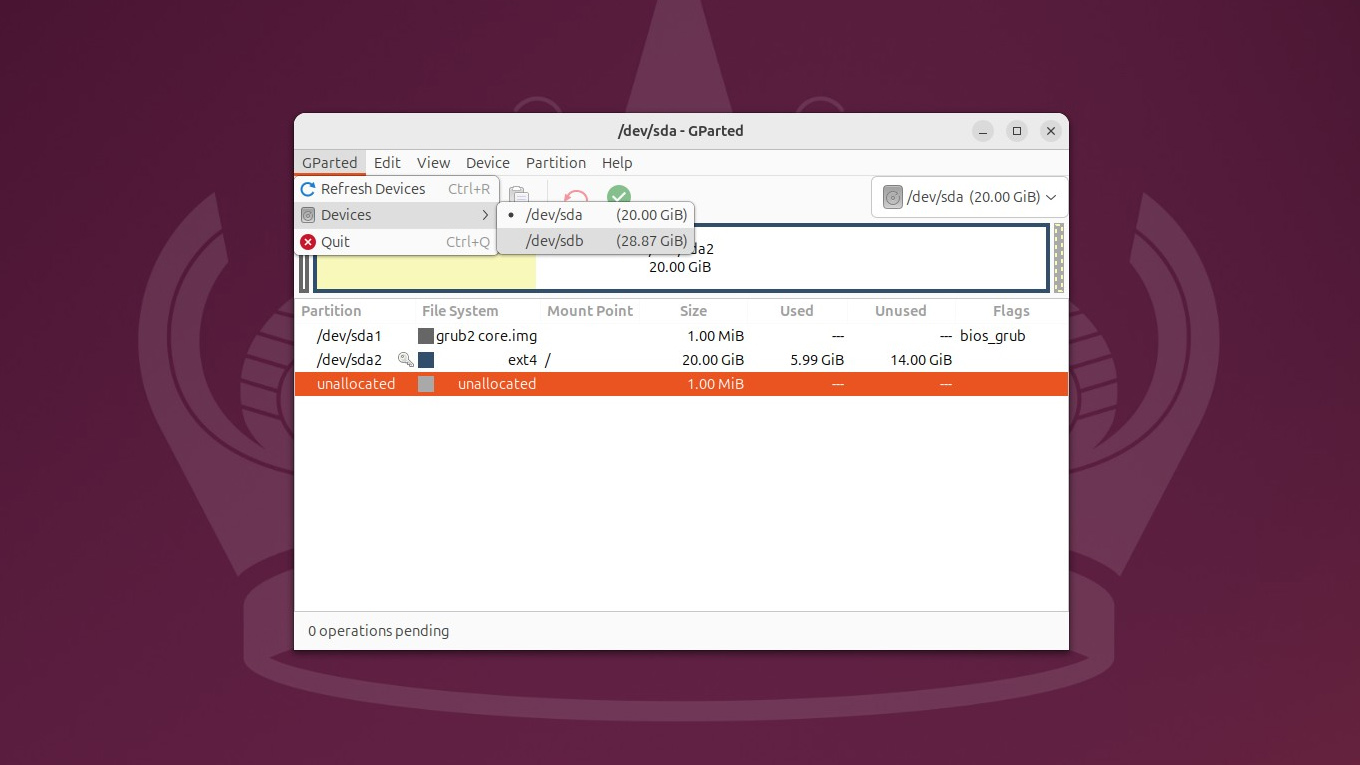
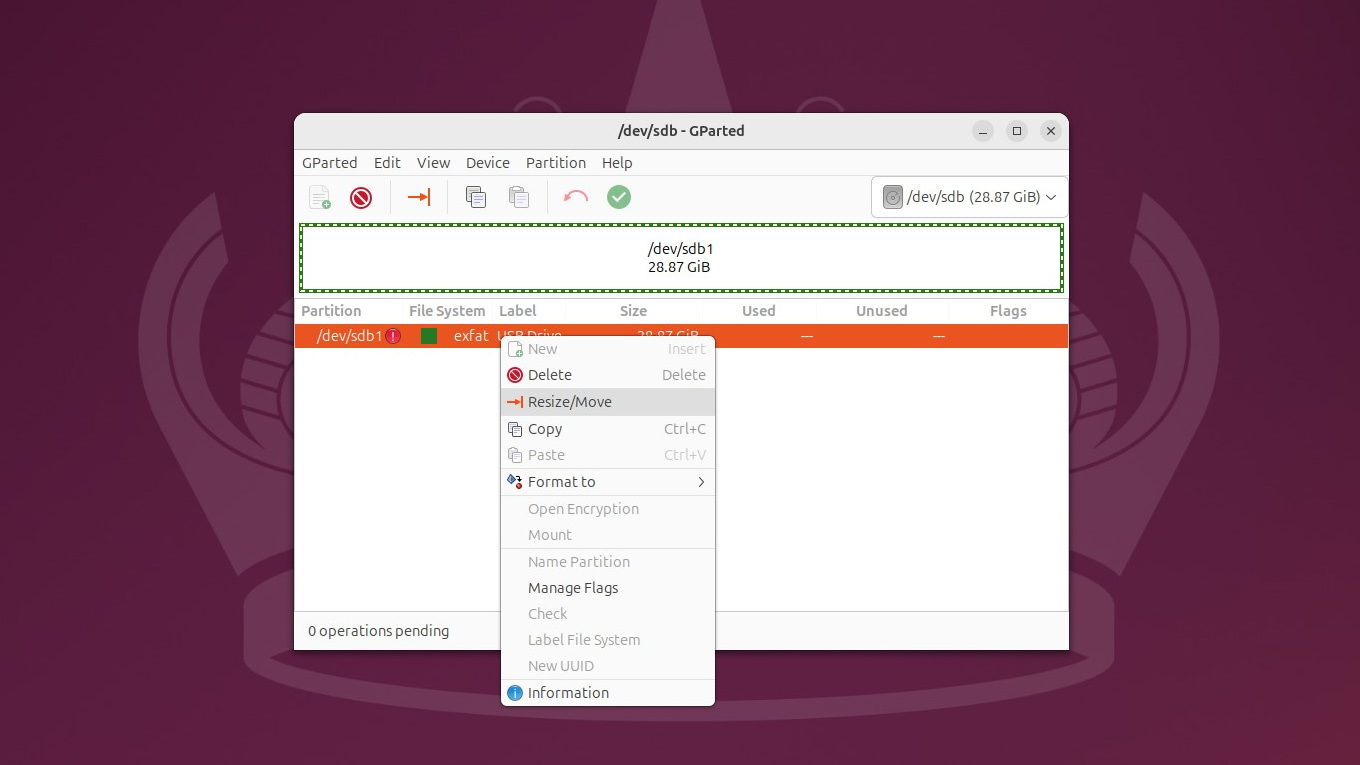
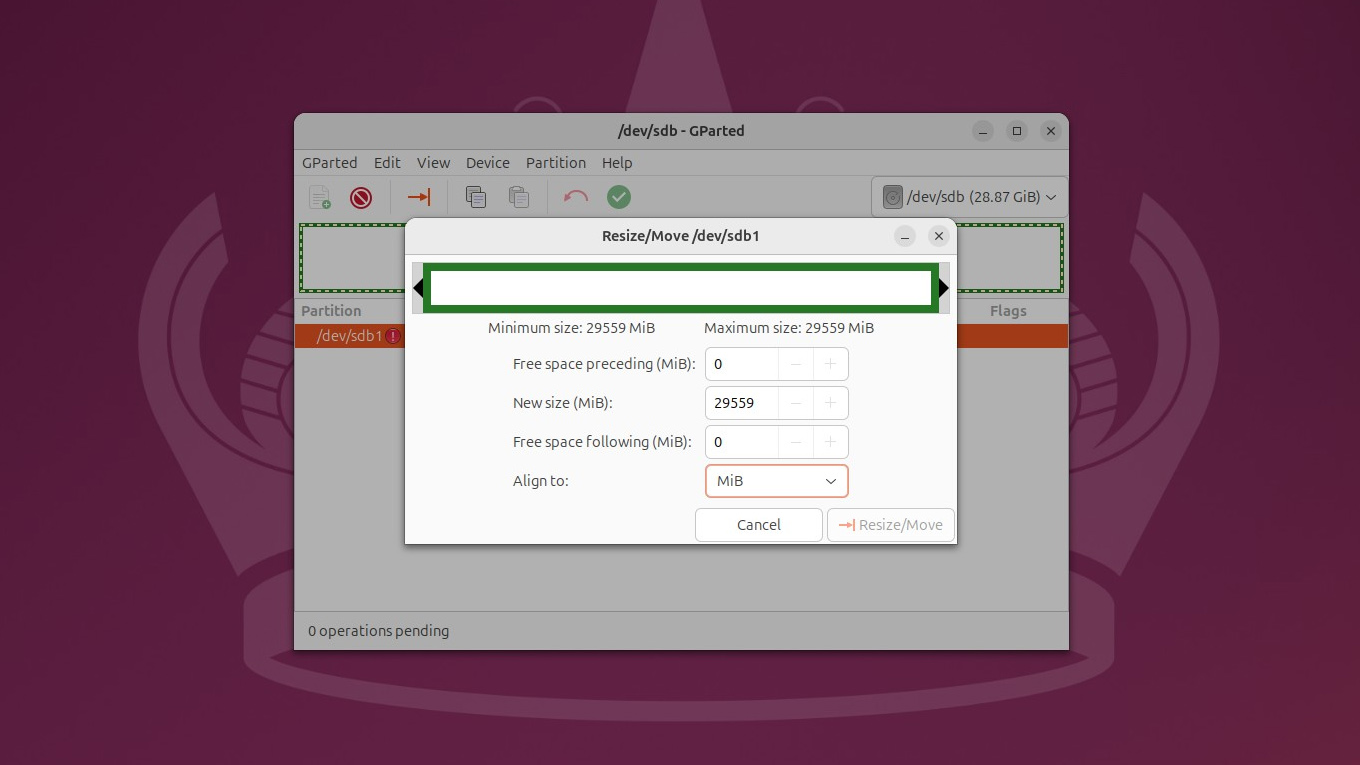
GParted’s interface presents a clear visual map of all detected drives and partitions. It may appear normal for Linux users, but Windows users may find the Linux-centric terminology unfamiliar. For core tasks like resizing, moving, and checking partitions, it follows a logical workflow. Gparted Live comes bundled with tools like parted, fdisk, and TestDisk, which can be paired with GParted on a single Live USB to create a complete, free partition rescue toolkit at no extra cost.
Recovery Performance
Seeing as GParted is a partition manager and not a recovery tool, recovery performance can be hard to determine. When no partitions are found, its own documentation points users towards TestDisk and PhotoRec, both of which are bundled on the Live image. Its real strength lies in repairing accessible-but-damaged partitions: fixing file system errors, resizing and moving partitions non-destructively, and resolving partition table issues. What makes it unique is that it does all this from a bootable environment, without the need for the host OS.
Value
You won’t encounter any upsell pressure with GParted because it’s completely free, and always will be. For linux users, it’s the standard choice available in most major distribution repositories. For Windows and macOS users, it’s best kept on a bootable USB stick as an emergency tool.
Was the provided information useful? Your vote is important to use!
Key Points for Successful Partition Recovery
Follow these recommendations for the best chance of performing a successful recovery and repair:

- Start with data recovery. The initial step you should take is to prioritize data security and promptly recover data from the affected partition, as there’s a non-zero chance that your repair attempts could inadvertently cause further data loss.
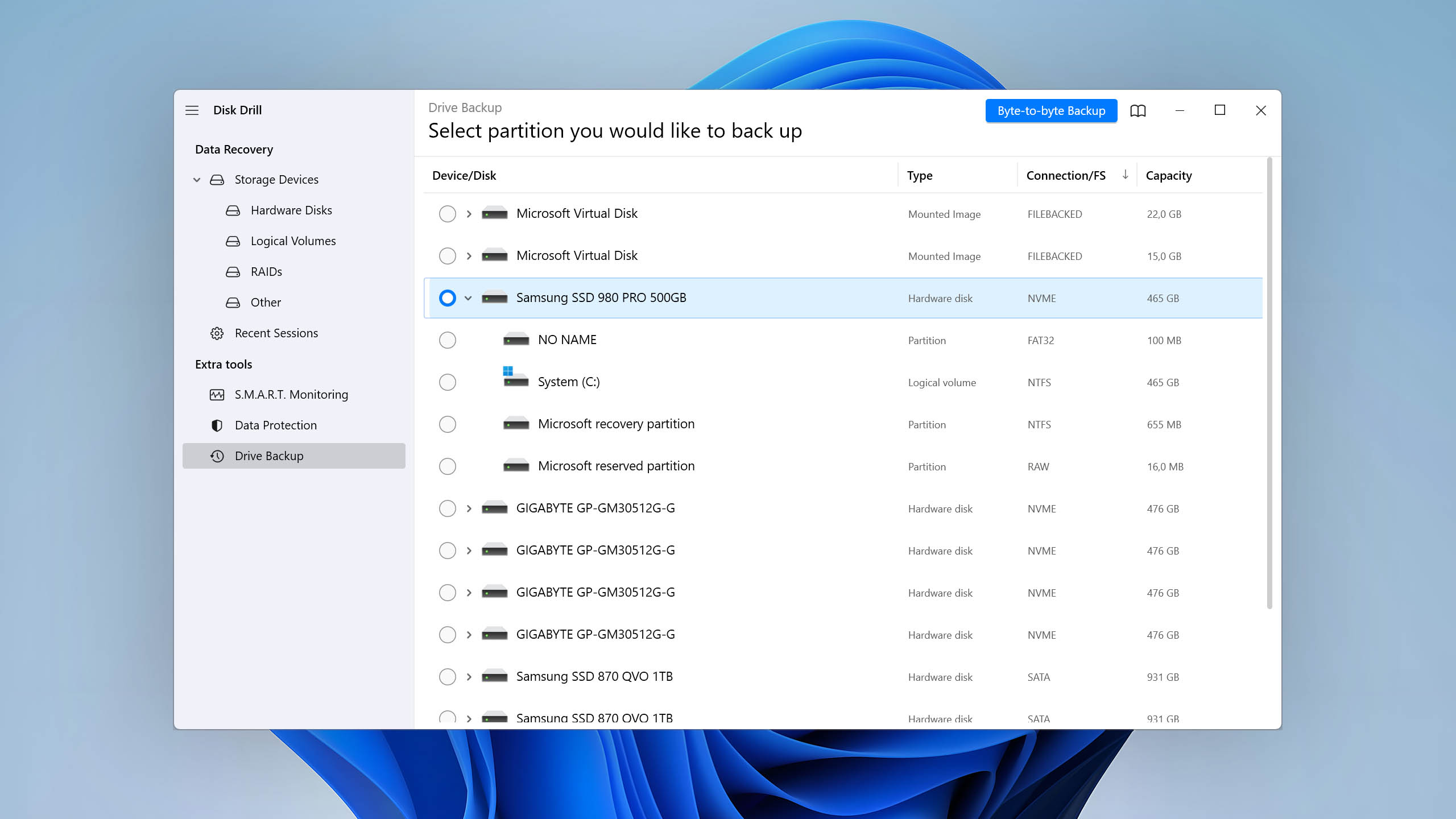
- Create a byte-to-byte image of the drive first. Use a tool like Disk Drill or DiskGenius to create a full, sector-by-sector clone of the affected drive. This way, you can work from the image rather than the original, keeping all of the original data intact.
- Restore data to a different drive. If your partition or data loss issue stems from drive corruption, avoid simply restoring the data to another partition. Instead, restore it to an entirely separate drive to reduce the risk of repeating data loss.
- Use multiple scan types. If initial scan results are incomplete, run a deep or full scan. It may take longer than a quick scan, but it yields the most results.

- Avoid using the affected drive. Every write operation risks overwriting lost data. Once you notice a partition issue, it’s best to stop using that drive entirely until the data is recovered.
- Be mindful of where your recovery tool is installed. One crucial piece of advice is to avoid installing your selected partition recovery software on the same drive that contains the partition that requires repair. Doing so could overwrite the lost information, which is a situation we’re aiming to avoid. Preservation of data is paramount in any disk partition recovery task.
- Don’t delay if the affected drive is an SSD. TRIM automatically and permanently erases data once a new partition is created or the existing partition is formatted. Unlike HDDs, SSD recovery has a very narrow window, so you should either (a) recover the data before TRIM is run, or (b) back up the drive to preserve its untrimmed state.
Additional Tools for Assessing Hard Drive Health
In addition to the best disk partition recovery and repair tools, it’s worth assessing your drive’s health before diving into recovery. A failing drive can deteriorate further during recovery, resulting in complications that can lead to permanent loss. These tools can help you catch those warning signs early, enabling you to take preventative measures and reduce the risk of data loss.
CrystalDiskInfo
CrystalDiskInfo is an open-source HDD/SSD utility for monitoring S.M.A.R.T. values, disk temperature, and other vital information. Portable and lightweight, it can be run straight from a USB stick or similar device without prior installation.
Victoria SSD/HDD
Designed primarily for hard drive repair professionals, Victoria is a compact HDD repair application used to assess performance, test, and perform minor logical repairs on IDE and SATA HDDs. The program features a robust HDD surface scanner for diagnosing faulty areas, floating defects, and interface errors.
Hard Disk Sentinel
Focused on monitoring hard disk health and temperature, Hard Disk Sentinel can test and repair HDD problems, predict failures, and prevent data loss by facilitating automatic and scheduled backups. Its primary goal is to safeguard your data by keeping a vigilant eye on your hard disk’s status.
HD Tune
HD Tune is a versatile hard disk utility with a broad range of features, including benchmarking for performance measurement, providing detailed information, checking the health status via S.M.A.R.T., scanning the surface for errors, and displaying temperature.
Final Verdict
For most users who have a lost or deleted partition, Disk Drill is the strongest all-around choice due to its ease of use and reliable recovery performance. If you have a corrupted partition and prefer a free solution, TestDisk is a reliable option if you can brave the command-line interface. DiskGenius is a good solution that has a little bit of everything, and AOMEI Partition Assistant is a polished option for day-to-day partition management. Linux users, or really anyone who needs a cost-free emergency toolkit, will look at GParted as an unrivaled bootable option that works no matter what OS your system runs.
Frequently Asked Questions
Is there any free bootable partition recovery tool?
TestDisk is a free partition recovery tool that can be accessed through a bootable Linux USB or Hiren’s BootCD. GParted Live is another option, which also includes TestDisk as part of its toolkit. Outside of that, DiskGenius can create a bootable recovery USB, but this is a paid feature.
Is there any open-source partition recovery software?
Indeed, there is. TestDisk is a prominent open-source partition recovery software that is extremely useful when it comes to recovering lost partitions and making non-booting disks bootable again. GParted is another reliable option, specifically for Linux. Both options are completely open-source, so you can verify the code, review user feedback, and rely on an active community for help.
What is the cheapest partition recovery software?
As an open-source tool, TestDisk is technically the cheapest, as it is completely free. However, in terms of professional recovery tools, EaseUS Partition Master is the cheapest at $19.95 a month, followed by Active@’s $39.95 lifetime license. But, for the best value overall, Disk Drill stands out as it offers a comprehensive suite of data recovery and protection tools for a reasonable price and wrapped in a highly intuitive user interface, making it an excellent value-for-money choice.
How to recover a deleted partition?
Partition recovery pretty much looks the same across all tools. The idea is to scan the disk, preview what’s recoverable, then recover data to a different drive (never the same one you’re recovering from). As an example, this is what it looks like to recover a deleted partition with Disk Drill:
- Download Disk Drill.
- Launch the software and select the disk where the partition was deleted.
- Click “Search for lost data” to scan the disk.
- Choose all missing files.
- Click “Recover” to get them back.
How does TRIM affect SSD partition recovery?
TRIM is a command that instructs the SSD to automatically wipe data during formatting. Unlike HDDs, which retain data until it’s overwritten, TRIM will permanently erase that data within minutes of deletion. This makes SSD partition recovery significantly harder, and in some cases, impossible.
Could I recover BitLocker-encrypted partitions?
Yes, provided the BitLocker partition is still functional and you have the necessary key or password. Tools like DiskGenius and Hetman Partition Recovery support BitLocker-encrypted drives, but decryption of the data is still required. If you don’t have the recovery key, or the BitLocker partition is no longer working, all of the data will remain encrypted and thereby be useless.
What is the difference between data and partition recovery?
Data recovery focuses on retrieving individual files that have been lost, like photos, videos, documents, music, etc. Partition recovery focuses on restoring the partition itself, the defined section of the disk that contains your data. In practice, the two often go hand in hand. However, partition recovery isn’t always possible if it’s too damaged – in which case data recovery is preferable to extract what data is left.
Is it safe to use partition recovery software?
Yes, provided you follow the best practices associated with data recovery. In any case, creating a backup of the partition or drive is always recommended. You also want to confirm the tool you’re using is trustworthy and operates in read-only mode during scanning. Finally, it’s essential that you install the partition recovery software to a separate drive than the one you’re recovering from to avoid corrupting the data.

David Morelo is a professional content writer with a specialization in data recovery. He spends his days helping users from around the world recover from data loss and address the numerous issues associated with it.
When not writing about data recovery techniques and solutions, he enjoys tinkering with new technology, working on personal projects, exploring the world on his bike, and, above all else, spending time with his family.
- Klennet Recovery Review (Formerly Zero Assumption Recovery)
- iBeesoft Data Recovery Review – A Likable Clone With Limited Features
- DMDE Review – A Data Recovery Powerhouse or a Usability Nightmare?
- Cisdem Data Recovery for Mac Review – A Clone in Disguise
- Tenorshare 4DDiG Review – All That Glitters Is Not Gold
- Frisco, Texas, United States
Yevgeniy Tolkunov is Hardware Engineer at ACE Data Recovery. Yevgeniy has a Master's Degree in Physics, Information Technology; 15+ years of experience.