
10 Best Hard Drive Repair Software

Has your hard drive become corrupted, rendering all of your data inaccessible? Or maybe you removed it from your PC without doing so safely, and now it’s showing as RAW. There are seemingly innumerable ways data can become lost or deleted from your hard drive. Thankfully, there are software solutions out there that can help you recover your data and repair the drive.
Our team of recovery experts has compiled a list of the best hard drive software that we’ve tested over the years, all of which specialize in addressing one of the many issues hard drives can face.
See our list of the best disk repair software for Mac instead.

| Platform |
|
| Distributed as | Freemium |
| Limitations | Recover up to 100 MB for free |
| Price range | $89...$149 |

| Platform |
|
| Distributed as | Free |
| Limitations | None |
| Price range | Free |

| Platform |
|
| Distributed as | Freemium |
| Limitations | Free version limited to files 64 KB or smaller |
| Price range | $69.9...$699.9 |
What Is Hard Drive Repair Software?
Let’s start by clearing up what hard drive repair software is and what’s within the bounds of possibility. Broadly speaking, it refers to any software that can perform some sort of beneficial function in the recovery or repair workflow.
Software is extremely useful in a wide range of cases where the issue is not hardware-related, like repairing file system corruption, restoring lost partitions, remapping soft bad sectors, reading your drive’s S.M.A.R.T. data, and more. Contrarily, it cannot address physical problems, like abnormal noises coming from the drive, the device not being recognized in Disk Management or BIOS, or a head crash. In fact, it can exacerbate them.
We expand on the logical vs. physical distinction later in the article, but for now, the key takeaway is that logical issues are oftentimes fixable with software, but hardware-level issues aren’t.
Before attempting any DIY repair on a failing or problematic drive, always create a backup. An unstable drive can go south at any moment, and disk imaging or cloning (which can be done with some of the tools on this list) preserves the data in case something goes wrong.
Find the Right Tool for You
Choose the symptom that best describes the situation you’re facing:

Files are missing or deleted.
Recommended tool: Disk Drill (Freemium – 100 MB free)
Offers the best all-round recovery from hard drives on Windows and macOS. Recovers lost or deleted files from corrupted, crashed, formatted, RAW, and unallocated drives. Includes byte-to-byte backups and active drive monitoring for free.
Also consider: Hiren’s BootCD PE if the drive is unbootable.

Read errors/bad sectors.
Recommended tool: Victoria HDD/SSD (Free)
A small, portable tool that specializes in surface scanning and bad sector repair. Run a full surface test on your hard drive to identify bad sectors, then choose what actions you want to take. Simple, lightweight, and widely effective.
Also consider: Hard Disk Sentinel for automated alerts to any HDD issues it detects.

Monitoring drive health.
Recommended tool: CrystalDiskInfo (Free)
Provides a clear, at-a-glance overview of your drive’s S.M.A.R.T. data and health status. Ideal for catching early warning signs of drive failure before data loss occurs or worsens.
Also consider: Hard Disk Sentinel for advanced diagnostics and configurable alerts.

Back up or clone an HDD.
Recommended tool: Macrium Reflect (Free trial – 30 days)
A fully fleshed-out backup utility that supports full disk and partition cloning, image backups, and automatic backup schedules. Backups are mountable in File Explorer and the software includes WinPE rescue media creation for emergencies.
Also consider: DiskGenius if you want backup and cloning functionality bundled with data recovery and disk management.

Lost or corrupted partition.
Recommended tool: TestDisk (Free)
A free and open-source partition recovery tool that can rebuild partition tables and restore missing or deleted partitions on Windows, macOS, and Linux with no installation required.
Also consider: AOMEI Partition Assistant for setting up new partitions after recovery with more control than Disk Management.

Drive is RAW or unallocated.
Recommended tool: AOMEI Partition Assistant (Freeware)
A comprehensive partition management tool that can recover lost partitions, as well as individual files.
Also consider: Disk Drill for recovering data from RAW or unallocated drives before reformatting them back to a working state.

Windows OS won’t boot.
Recommended tool: Hiren’s BootCD PE x64 (Free)
An all-in-one repair environment built on Windows PE that includes a curated suite of tools for diagnostics and repair to tackle startup and drive issues without needing a working OS.
Also consider: Macrium Reflect to create a byte-to-byte disk image of your drive before performing repairs.

Unusual noises.
Recommended tool: None (Physical failure)
Clicking, grinding, or other abnormal sounds are a clear indication of physical hardware failure. This isn’t fixable with software, and continued use risks worsening the damage.
Power down the drive and consult a professional data recovery service to have the data recovered. Explicitly avoid any DIY repair attempts.
Top 10 Hard Drive Repair Software
#Each of the tools on this list has been expertly reviewed according to our testing methodology and assigned its ranking following close comparison to other software in the same vein, so you know you’re getting the best of the best.

1. Disk Drill
WindowsmacOS
Freemium Some features are provided free of charge, but money is required to unlock the rest
Recover up to 100 MB for free
$89...$149
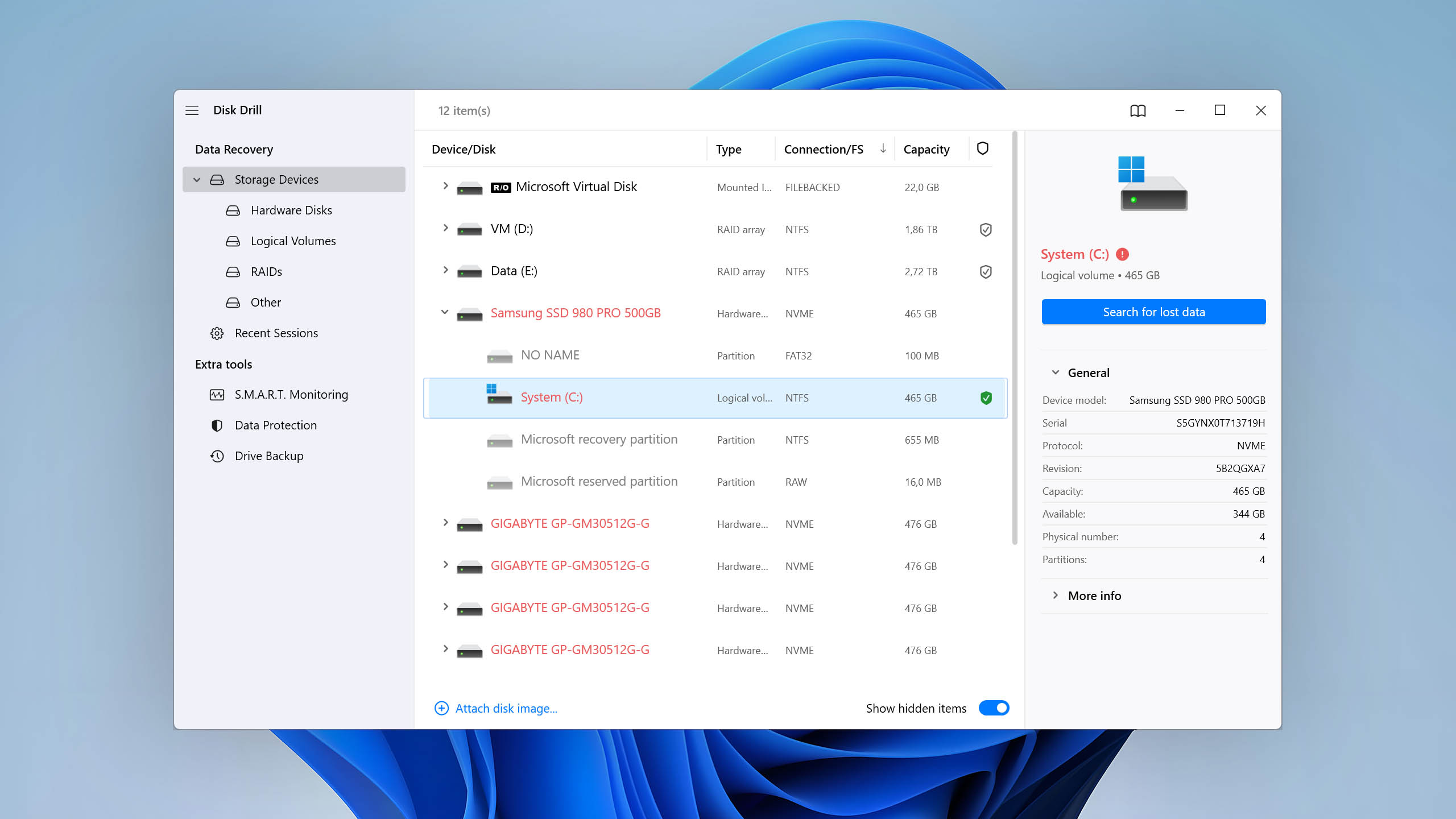
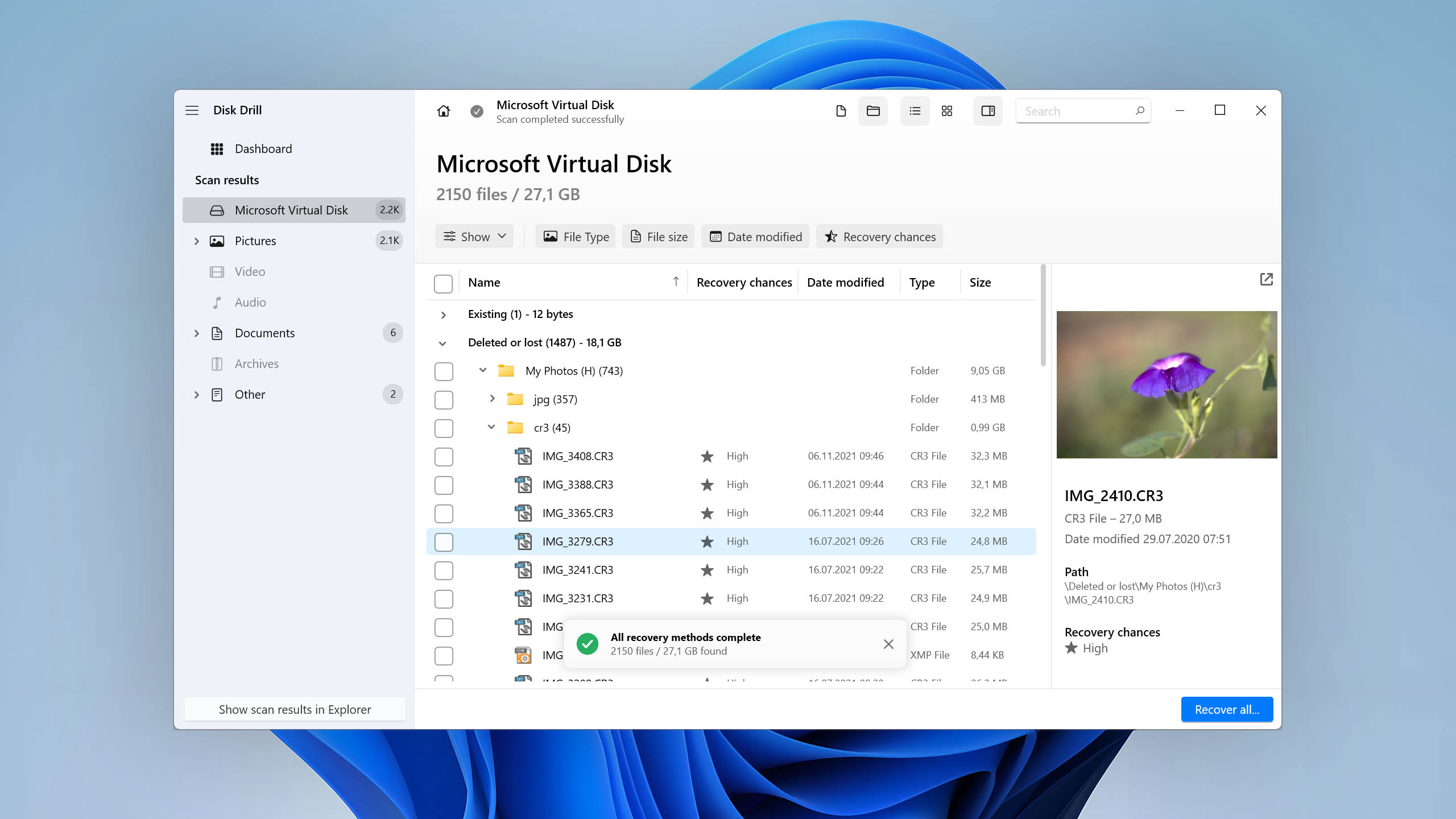
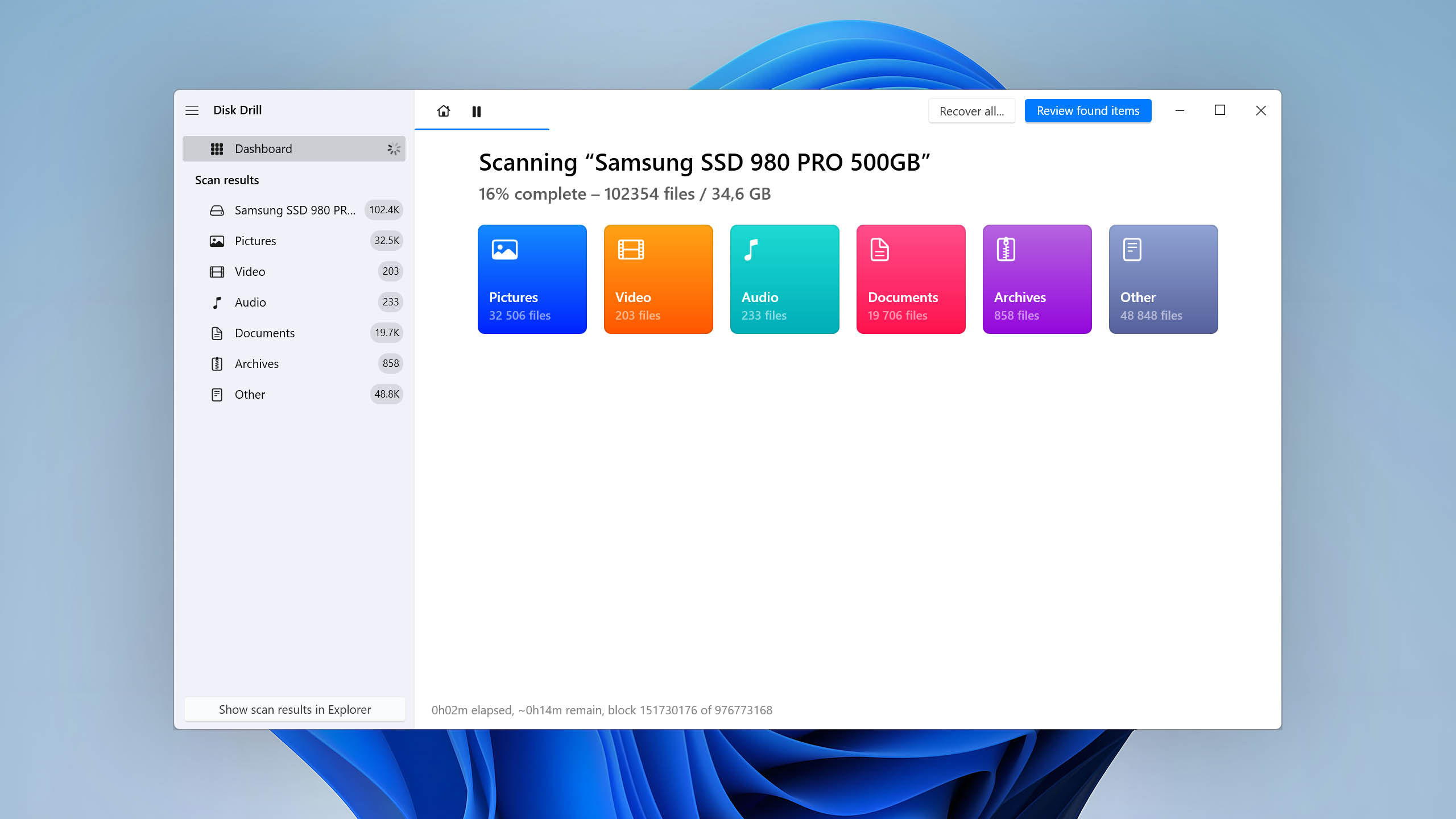
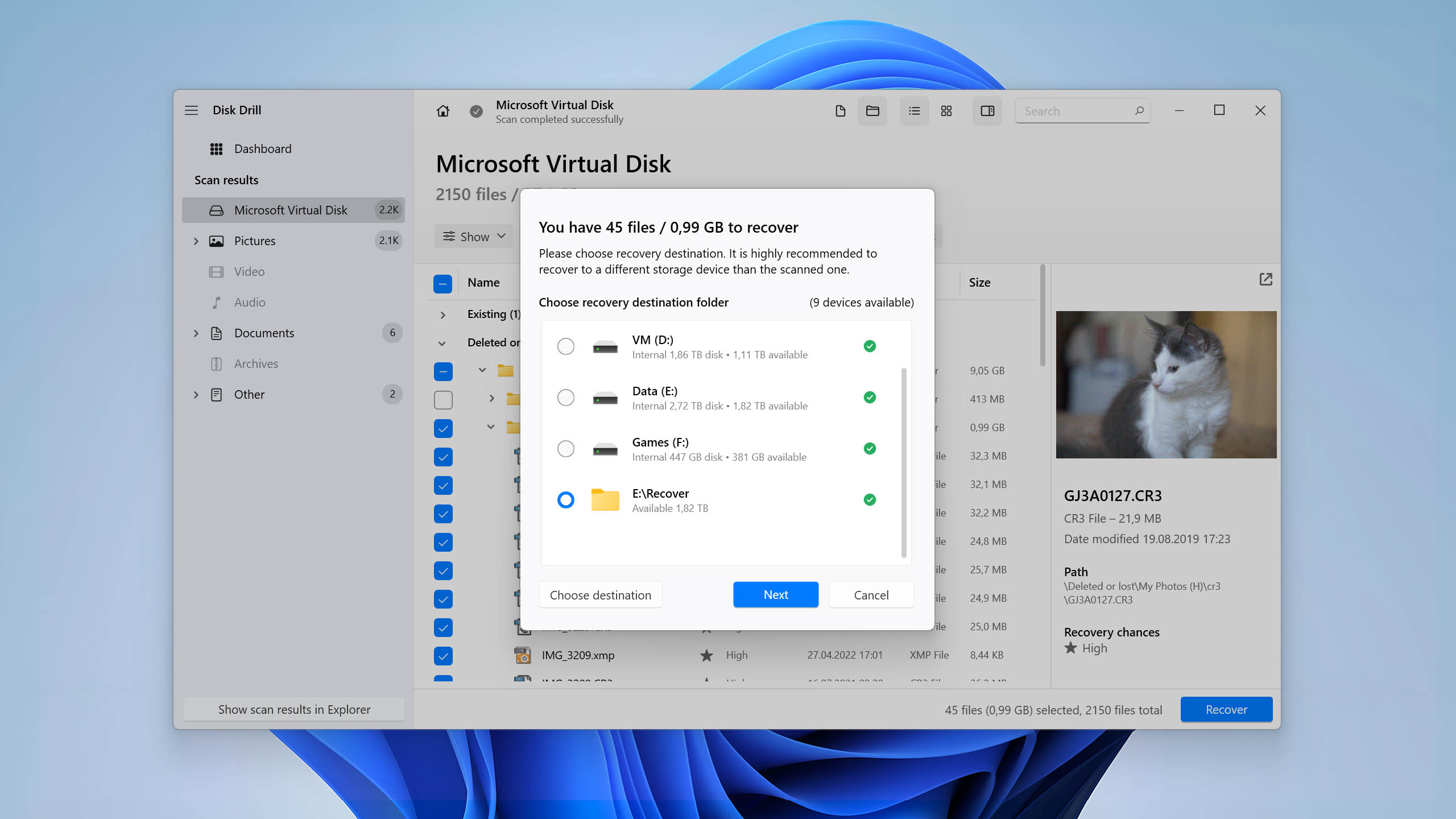
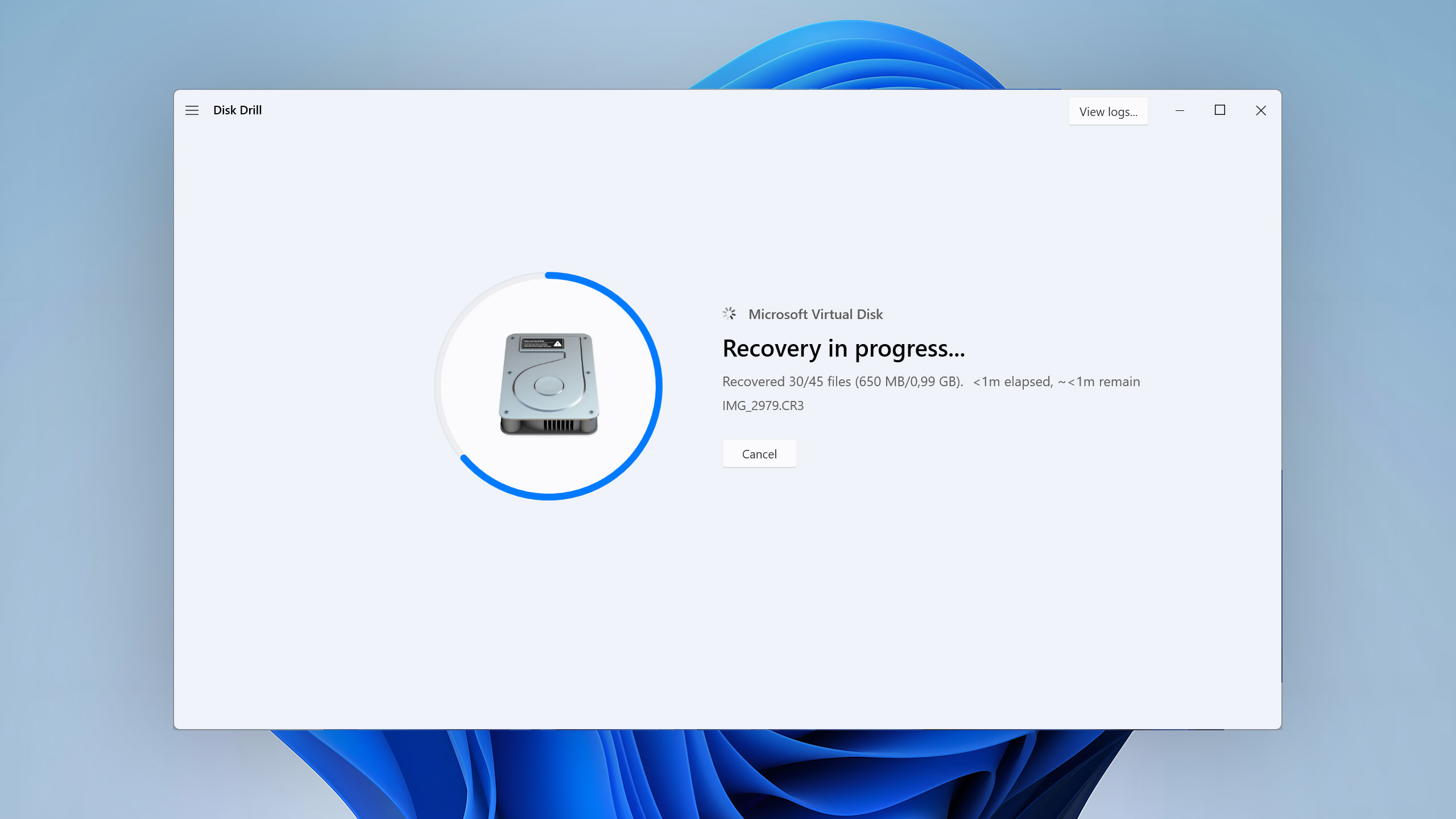
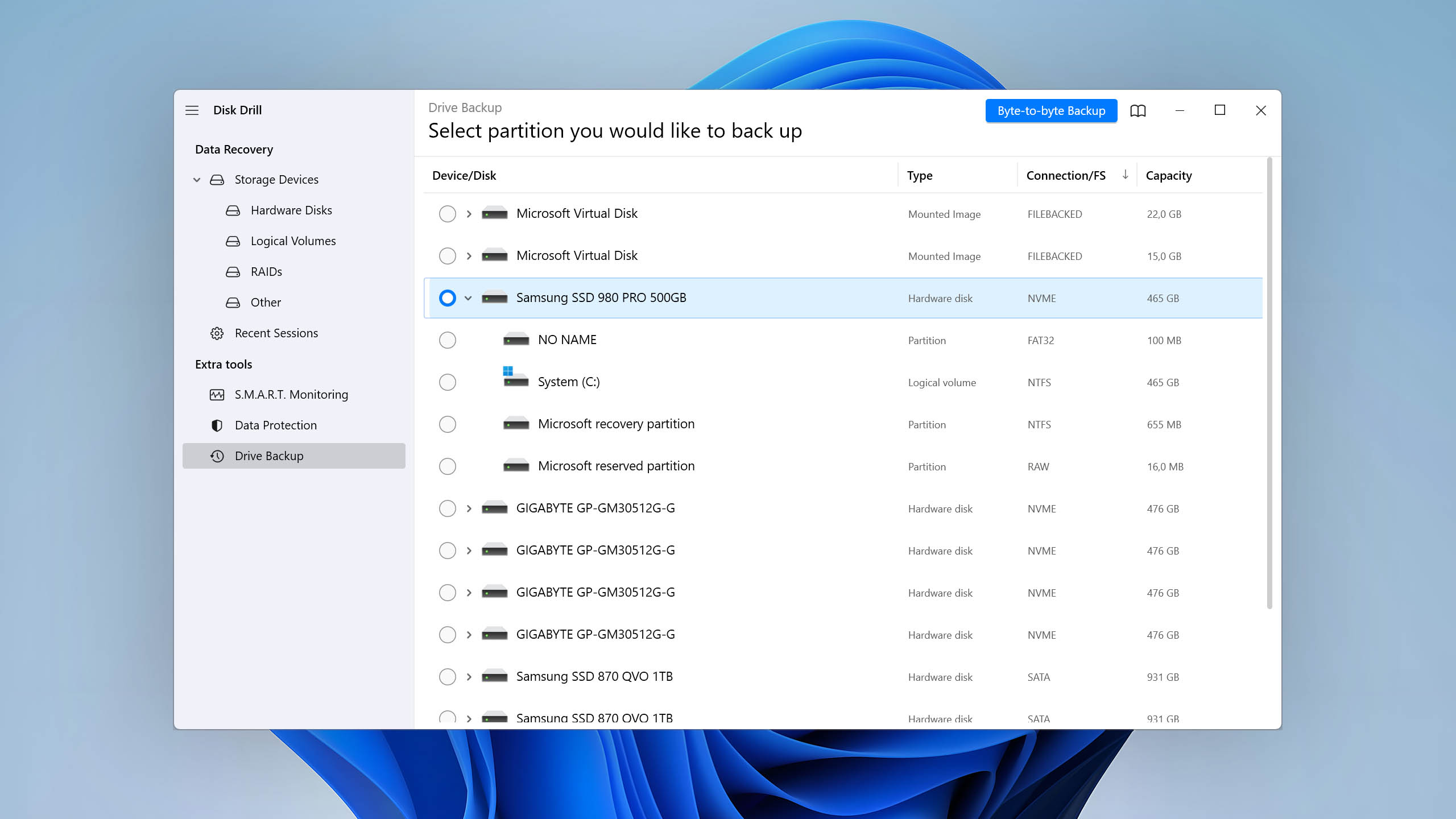
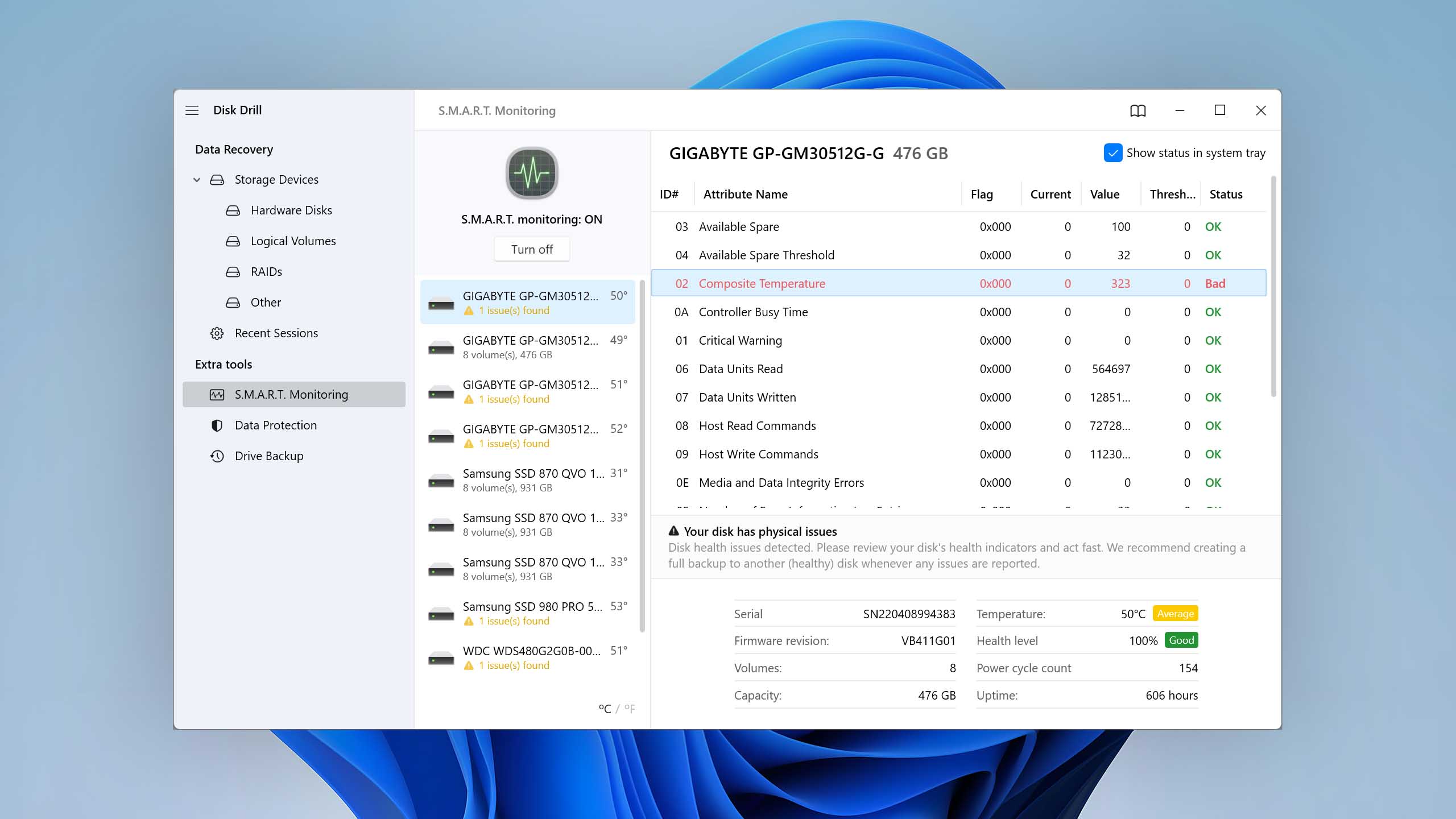
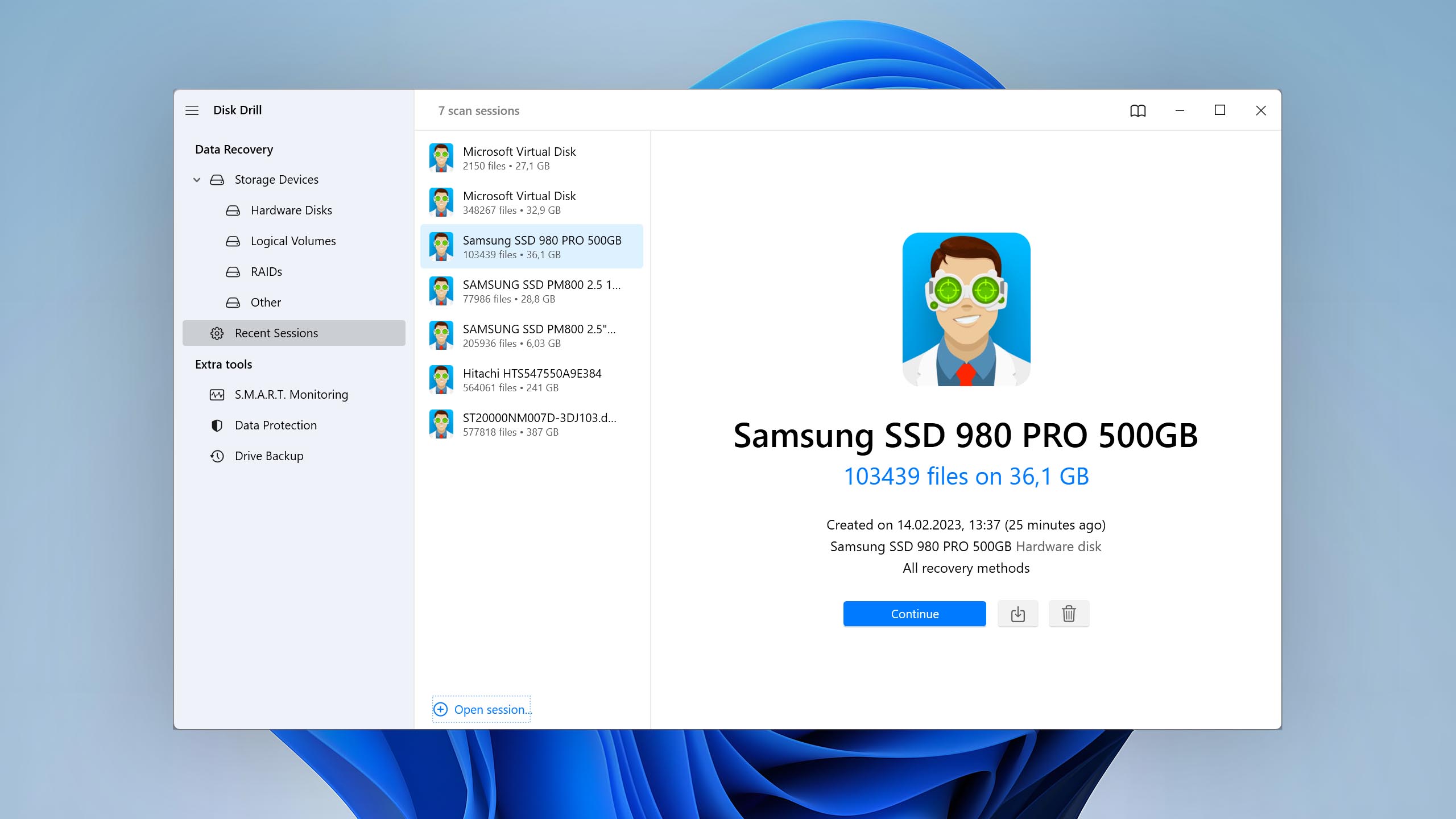
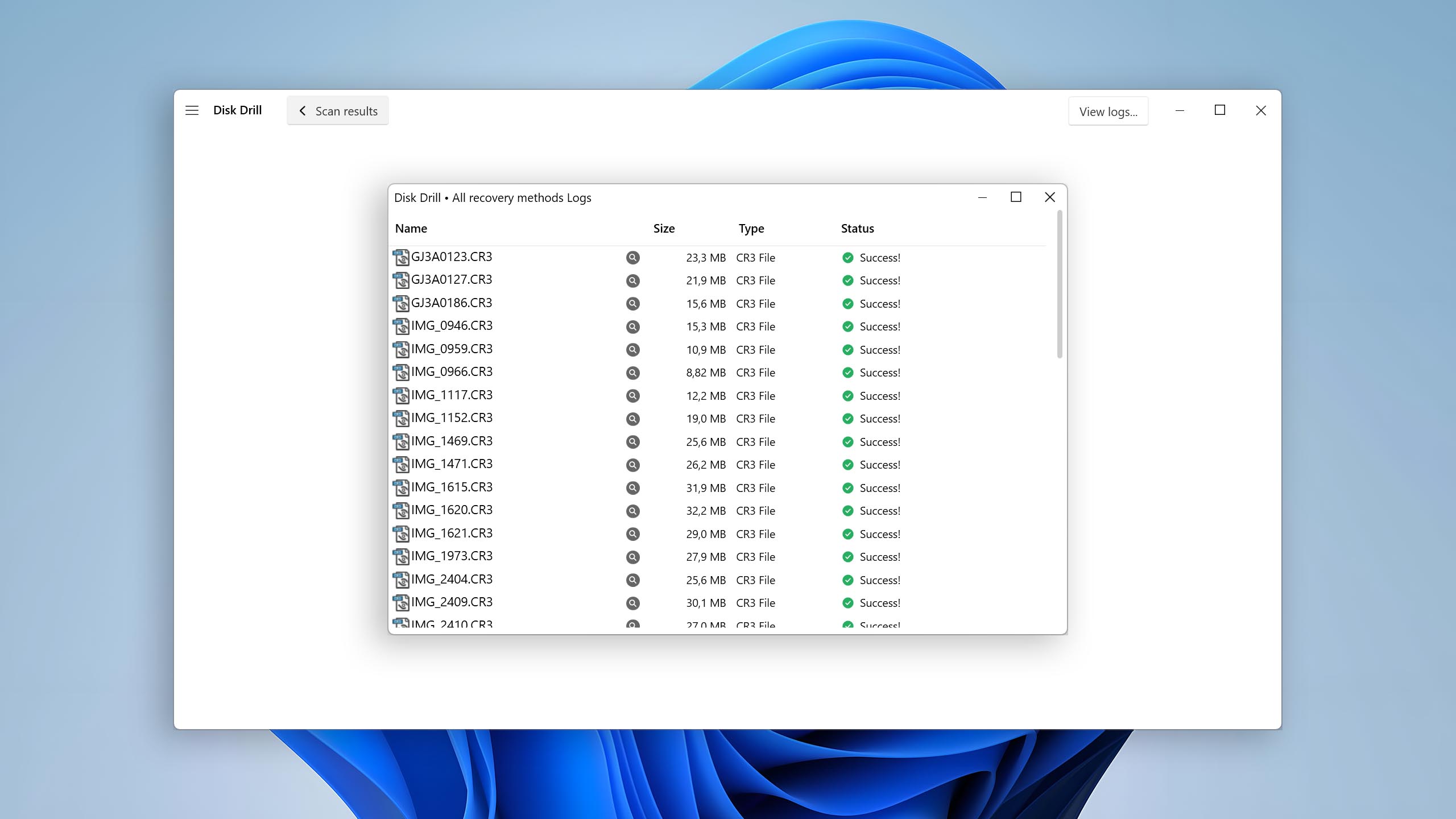
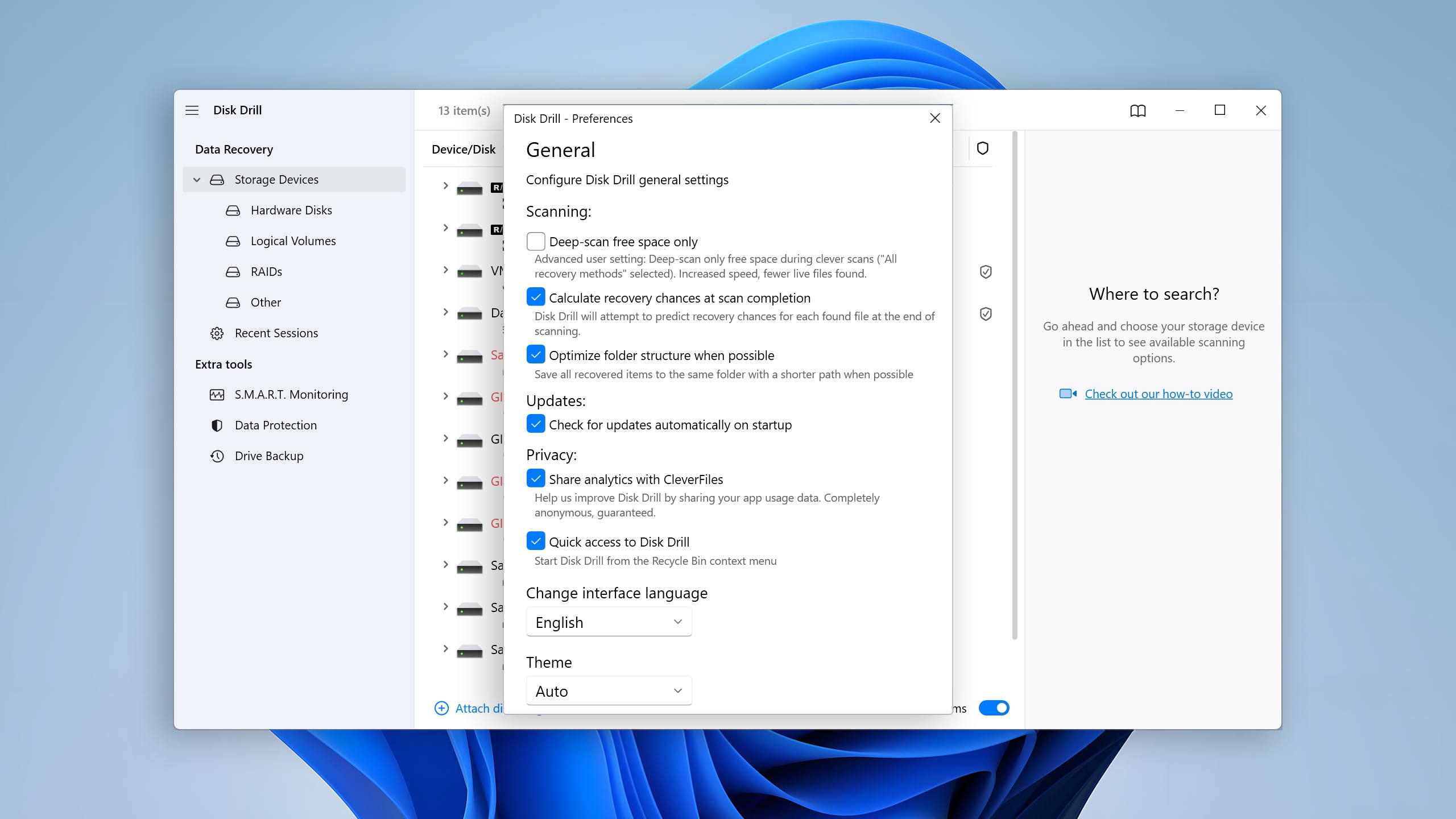
Disk Drill makes our list of the best hard disk repair software for its ability to easily recover lost or deleted data, even from corrupted or malfunctioning hard drives. Supported on Windows 7 through Windows 11 (as well as older versions of the OS), it uses several scanning algorithms for maximum coverage, making it the best for data recovery. It can be downloaded for a free test drive, where up to 100 MB of data can be recovered. We will concentrate on the full-featured Pro version of the application as we investigate its features.

Usability
Basic and advanced users alike will find Disk Drill easy to use and navigate. All of its features are prominently displayed and it’s easy to determine what your next action is. Instead of forcing users to perform multiple scans to gather as much recoverable data as possible, Disk Drill combines multiple scan types into a single click to make it more convenient without sacrificing effectiveness. Furthermore, the recovery results screen can be tailored to your liking with filters to find specific files or folders without sifting through thousands of files manually.
Tool capabilities
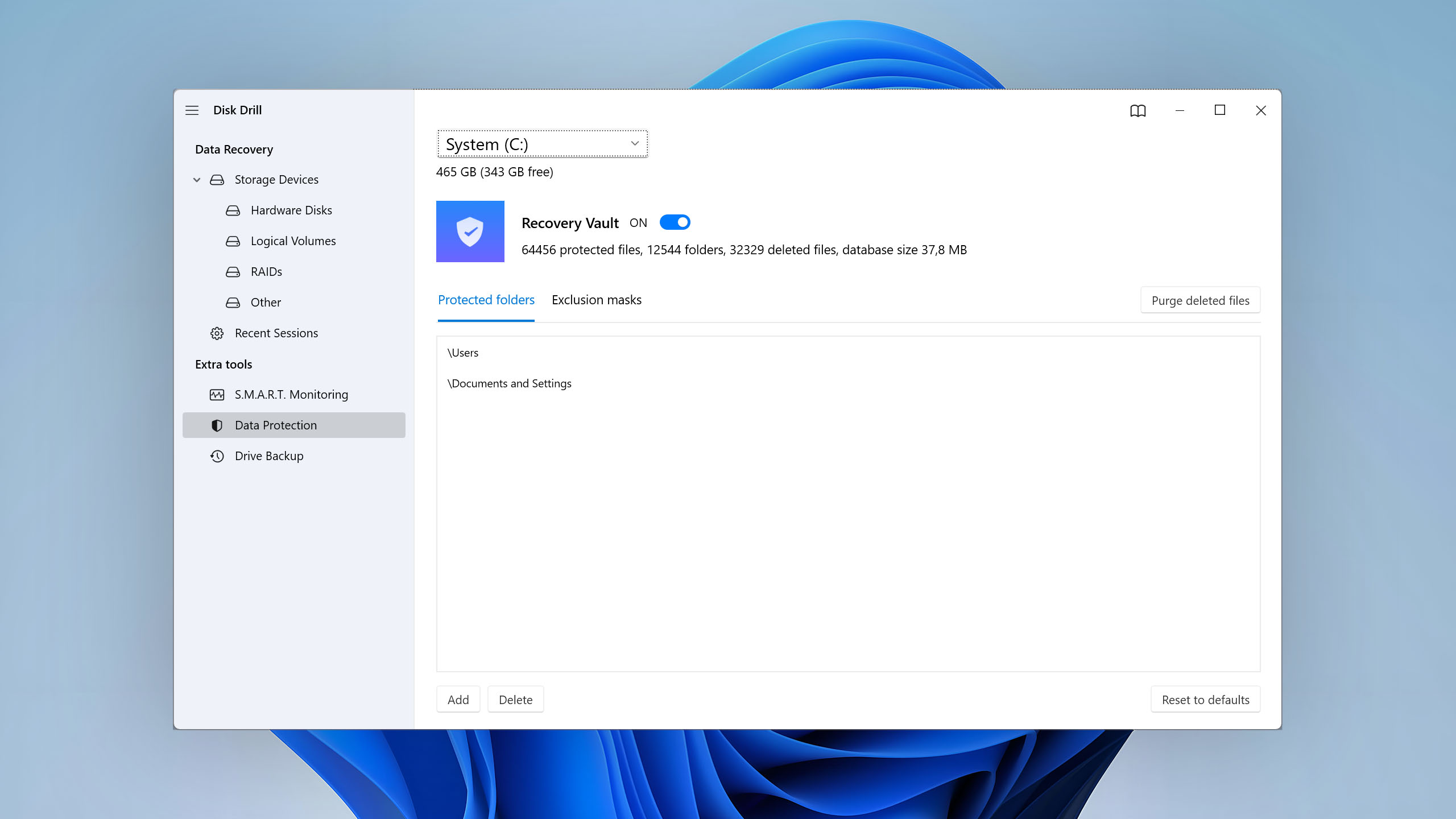
Disk Drill has a lot going on under the hood, which makes it a great recovery tool, especially the fact that it can recover data from corrupted, malfunctioning, and RAW hard drives. While its main focus is data recovery, it also includes plenty of other useful features. Its Data Protection feature allows you to add an extra layer of protection to specified data, and the active S.M.A.R.T. monitoring feature gives you an early heads up of drive health concerns. For more day-to-day use, it can map disk space usage to see what data is taking up the most space, as well as locate unimportant data for deletion to free up storage.
Value
You get good value for your money if you use Disk Drill to recover lost or deleted data from your hard drive. The $149 price tag gives you a lifetime license, allowing for unlimited data recovery and full access to any other additional features it includes. Or, you can opt for the cheaper $89 yearly subscription if you don’t think a perpetual license will be beneficial. As we found in our Disk Drill review, the program is very versatile and performs well in almost any data loss situation, so you know you’re getting good bang for the buck. It’s a useful tool to have in your hard drive repair toolkit for emergencies.

2. TestDisk
WindowsmacOSLinux
Free All features are provided free of charge, and the software can be used, studied, and modified without restriction
None
Free
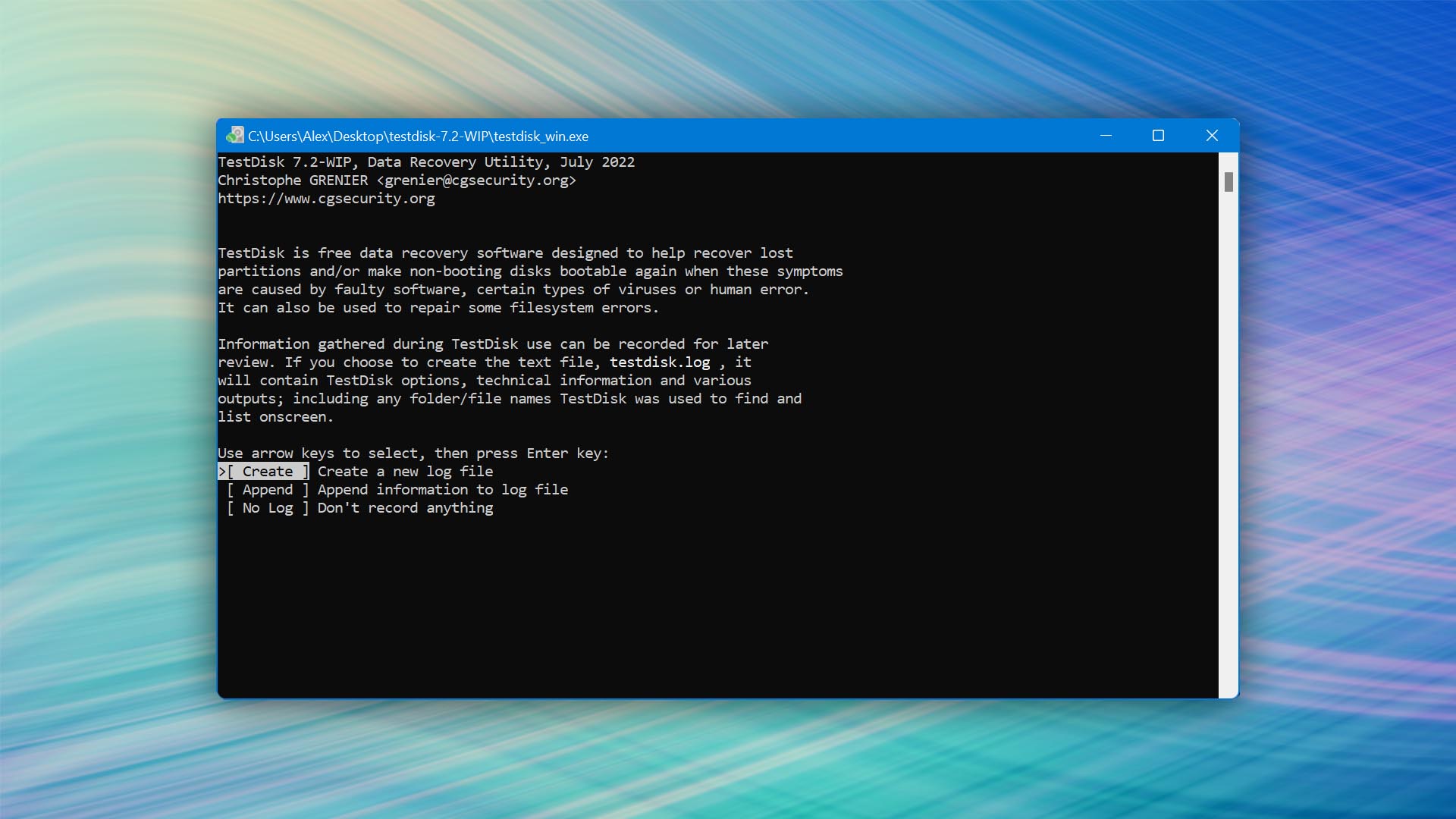
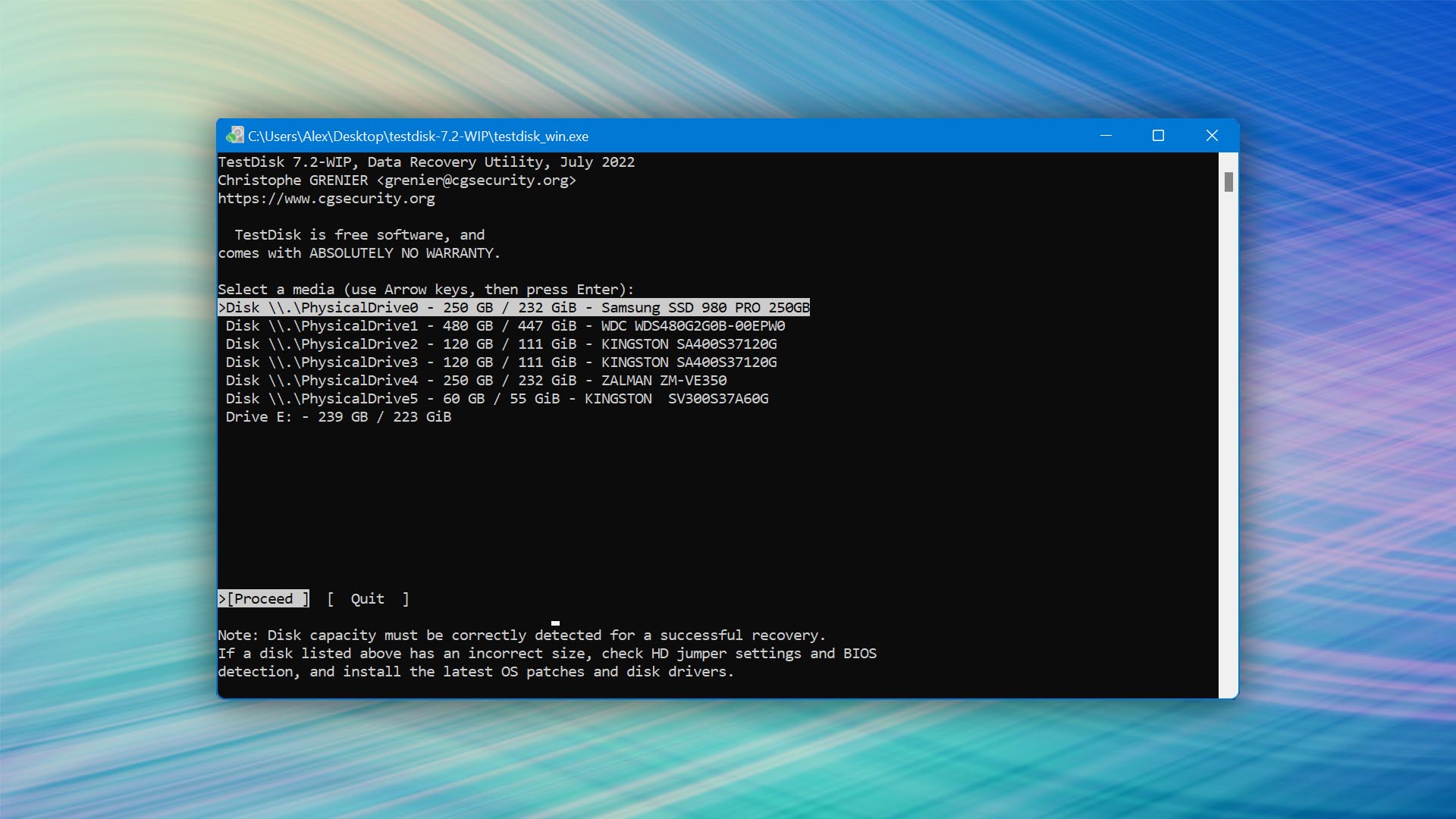
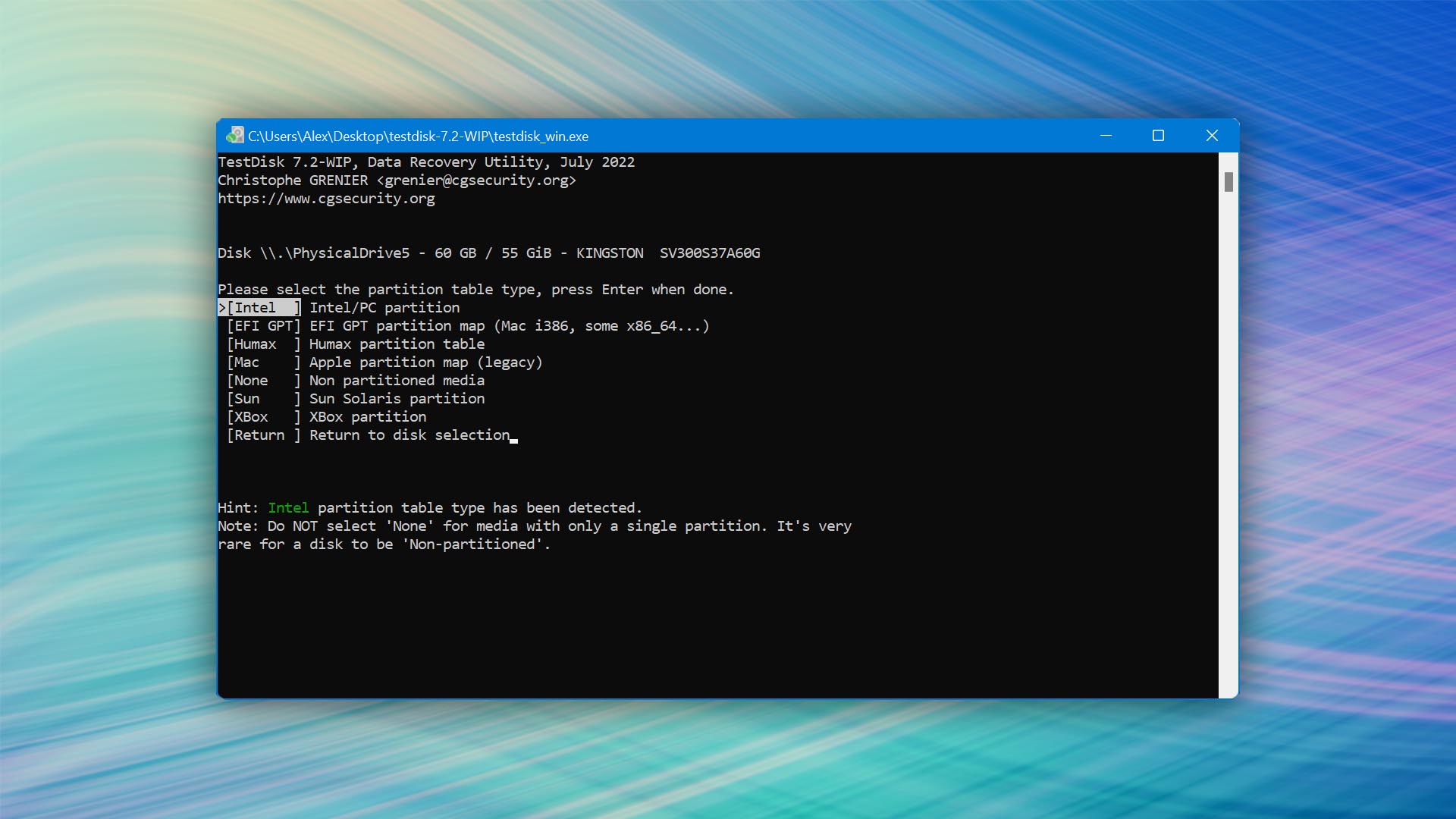
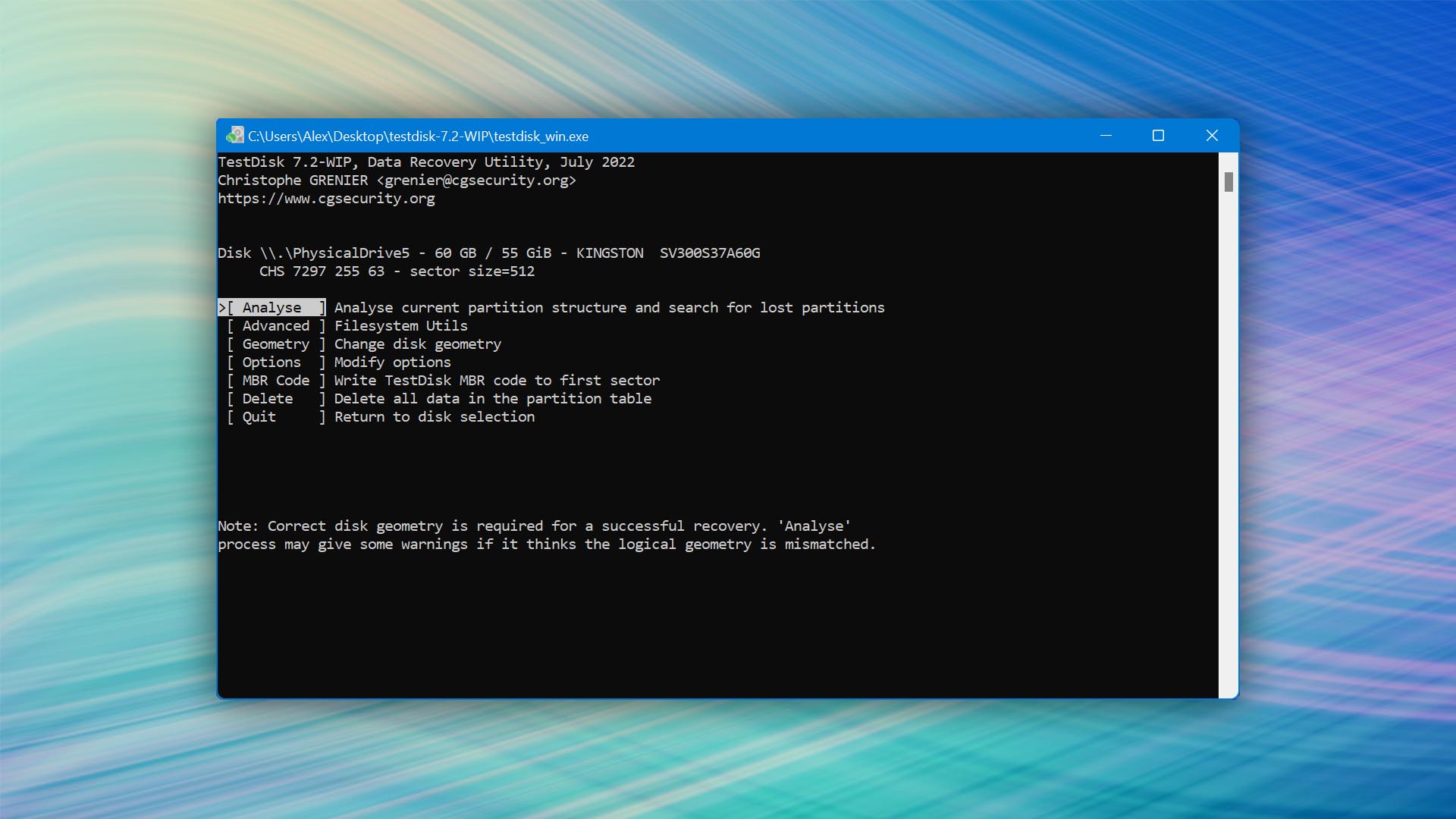
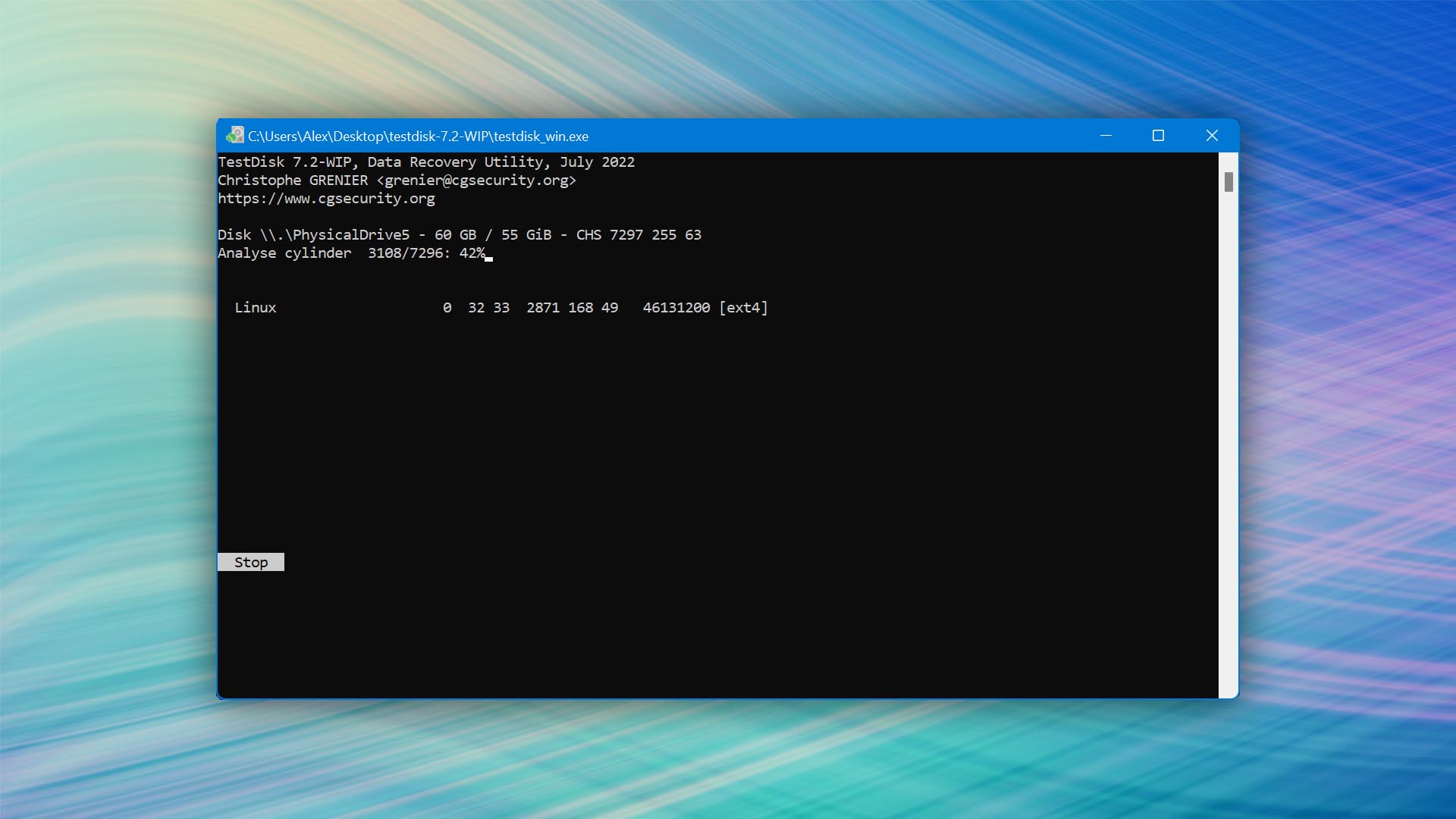
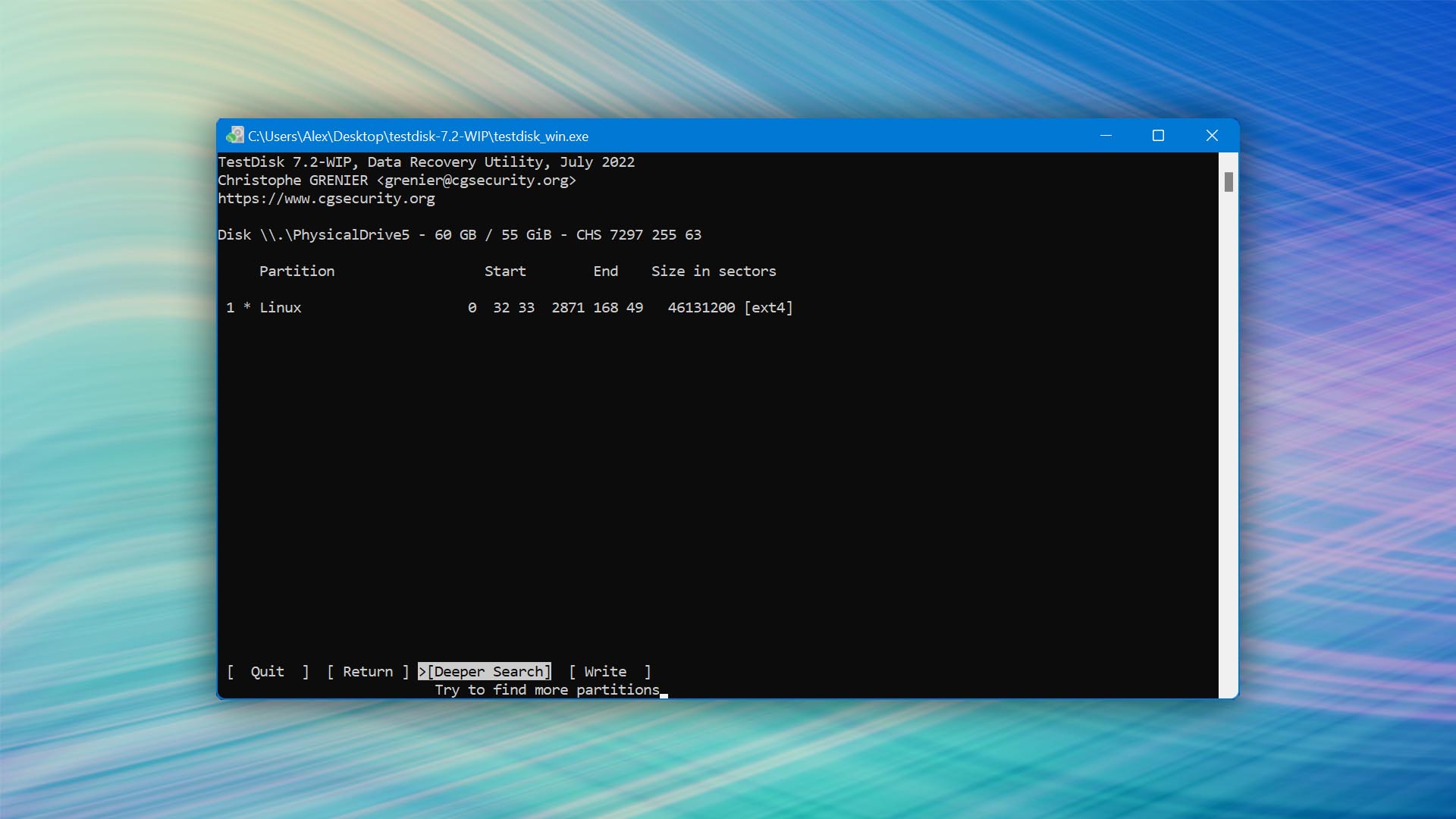
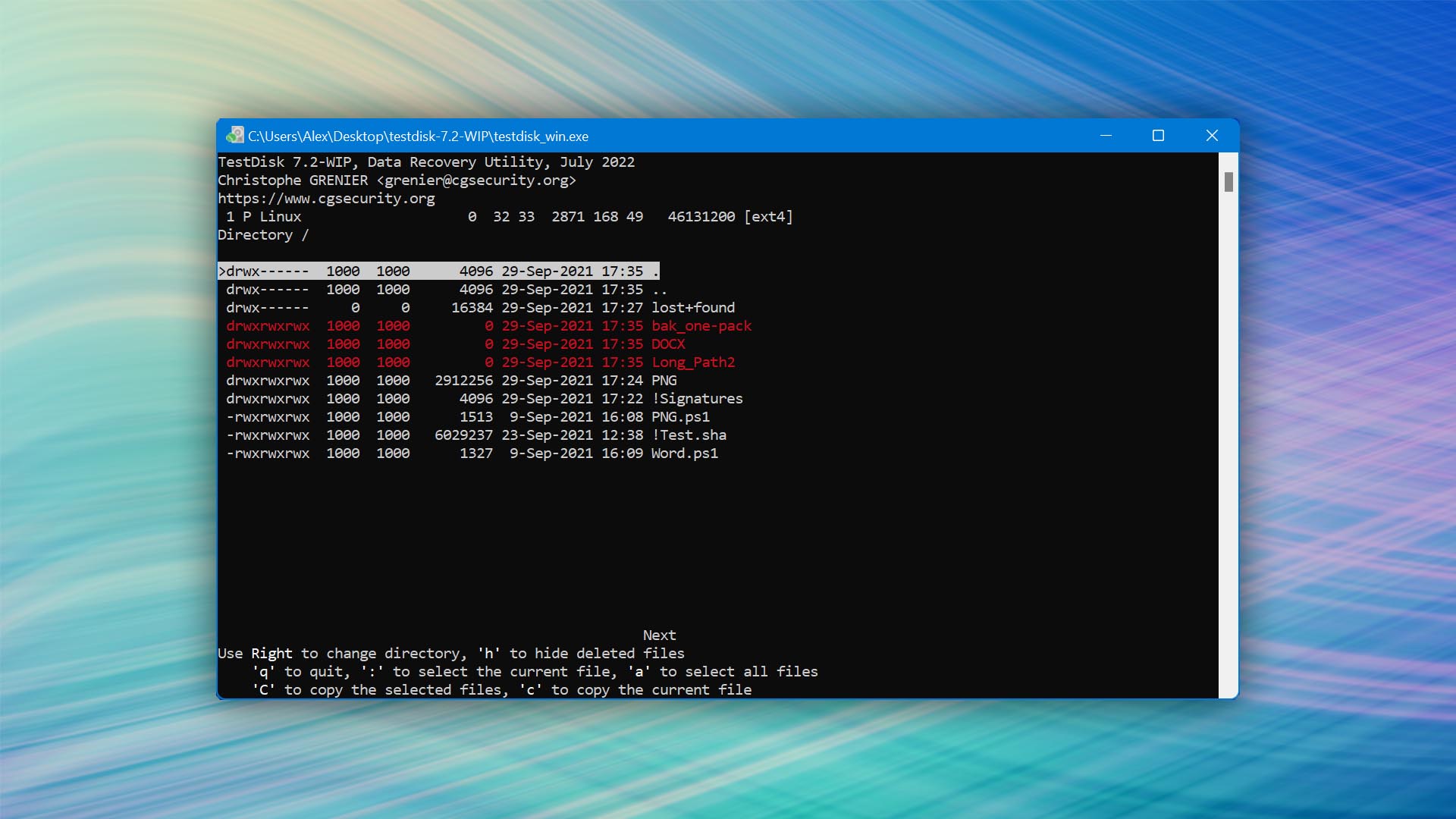
In times where your partition has vanished, you need a reliable partition recovery tool to get it back. TestDisk deserves this spot on our list as the best free disk repair software tool for easily recovering entire partitions, as well as the data on them.

Usability
TestDisk isn’t known for its usability. In fact, usability is one of its worst areas. However, as a one-man project, you have to cut it some slack. The program uses a command-line interface to perform partition recovery. As you’d expect, you’re quite limited in what you can do. Recovery results cannot easily be sorted and because you’re recovering entire partitions using a command-line interface, you cannot preview the data on them.
Tool capabilities
In addition to the ability to recover your partitions, TestDisk can fix your partition table and rebuild boot sectors. It’s supported by all major operating systems, including Windows, macOS, and Linux. One of its biggest flaws, however, is that it doesn’t have a signature scanner. Partitions can only be recovered if your file system is still intact. Otherwise, the program will have no way of finding it.
Value
Most likely the best part about this software: it’s free. TestDisk is offered as a free HDD repair software tool, but donations are welcome on the download page. As a portable application, that means you can download and begin using the software in mere seconds. Of course, as a free solution, you shouldn’t expect the world from it. Even so, it’s a very capable solution for those who need to recover their partitions but can’t afford to put down some money on a paid alternative.
3. DiskGenius
Windows
Freemium Some features are provided free of charge, but money is required to unlock the rest
Free version limited to files 64 KB or smaller
$69.9...$699.9
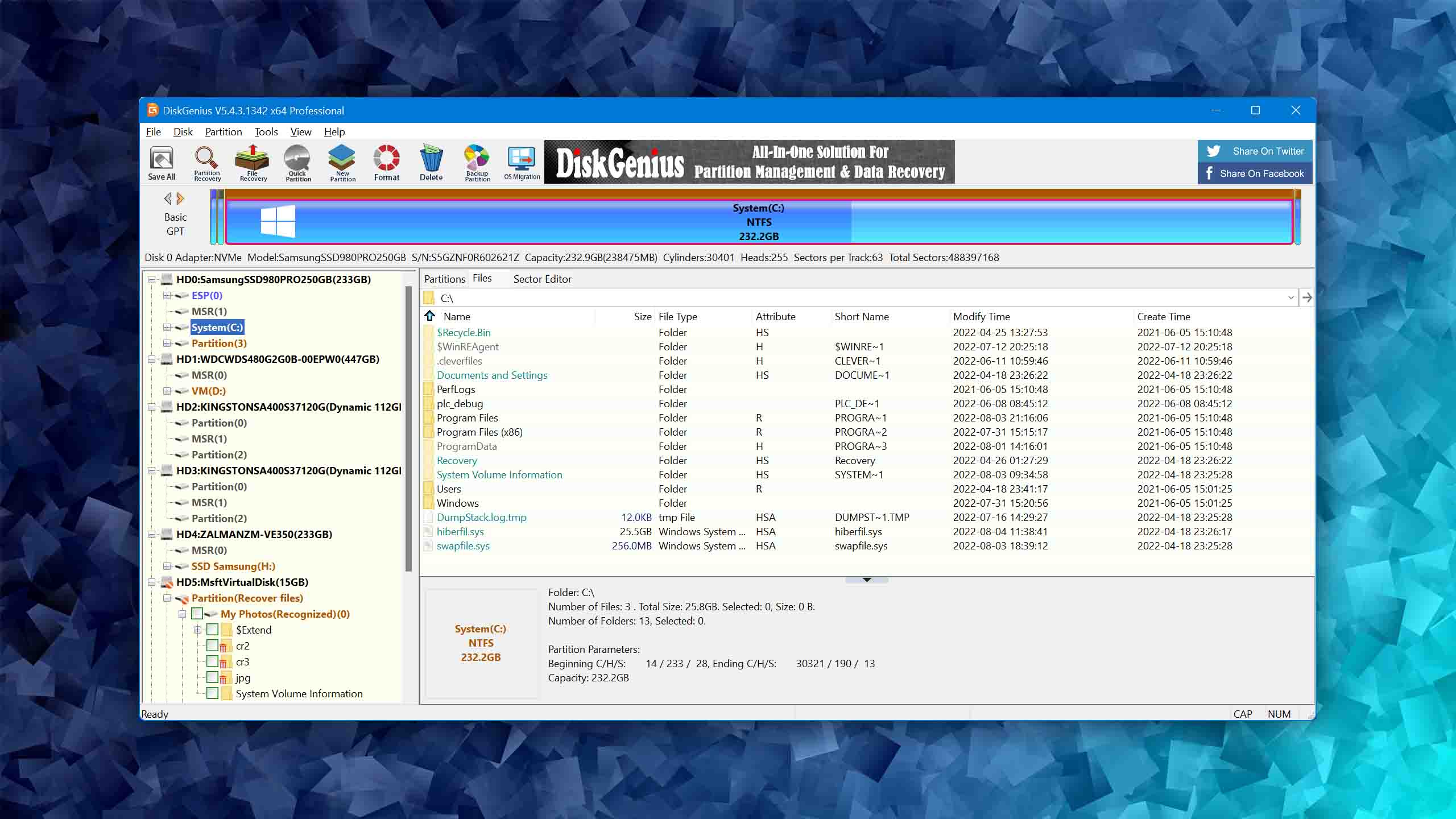
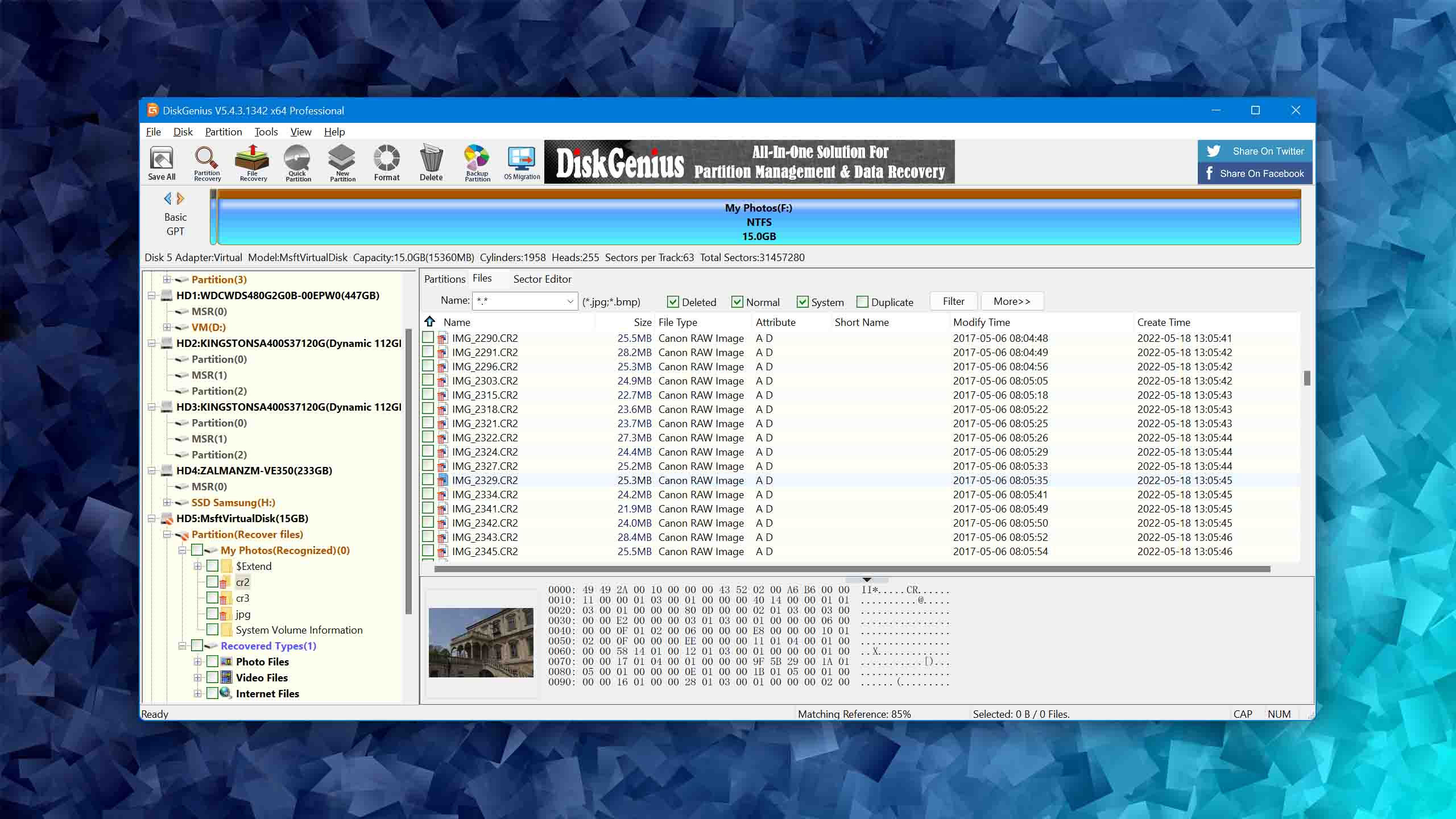
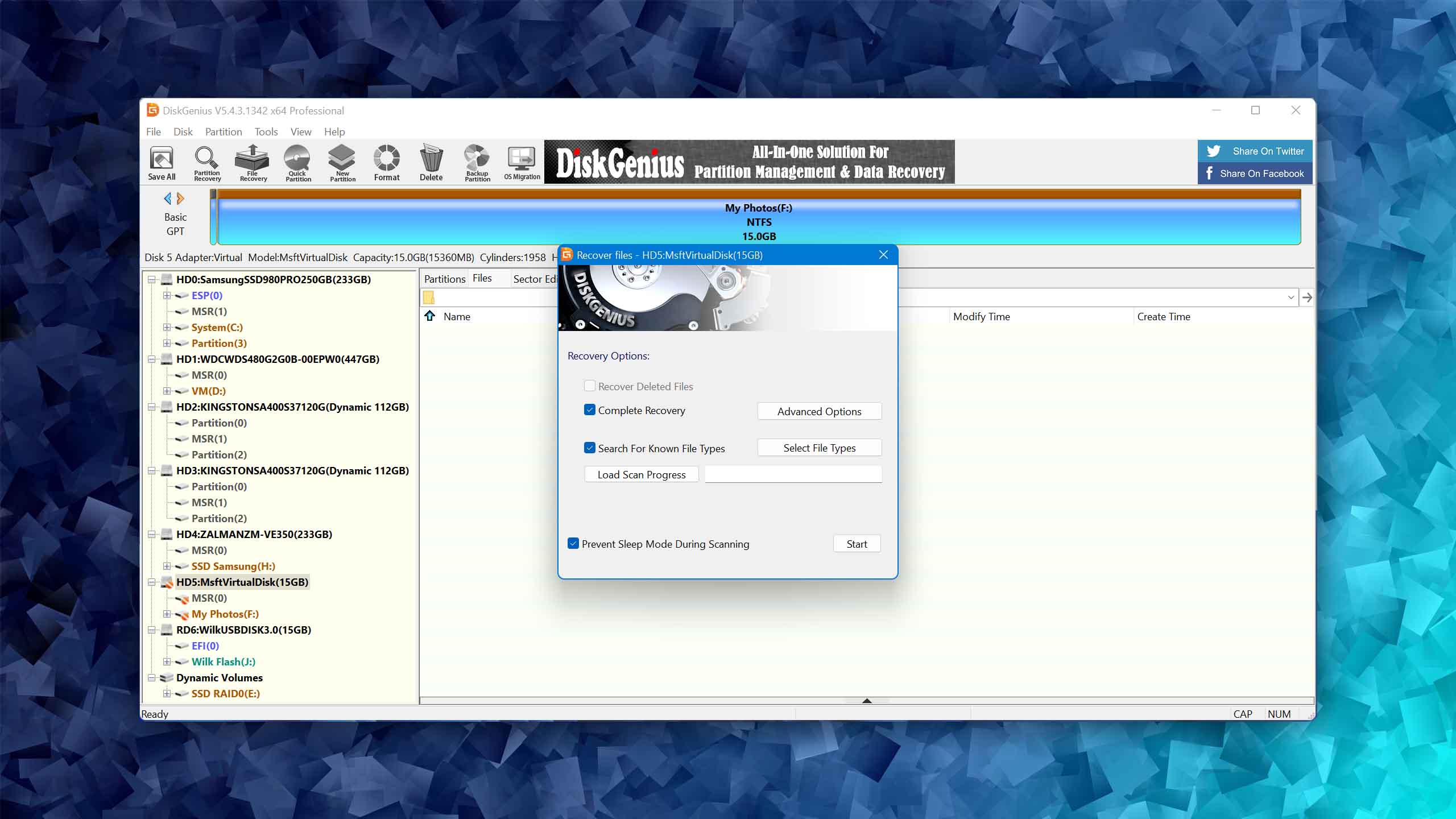
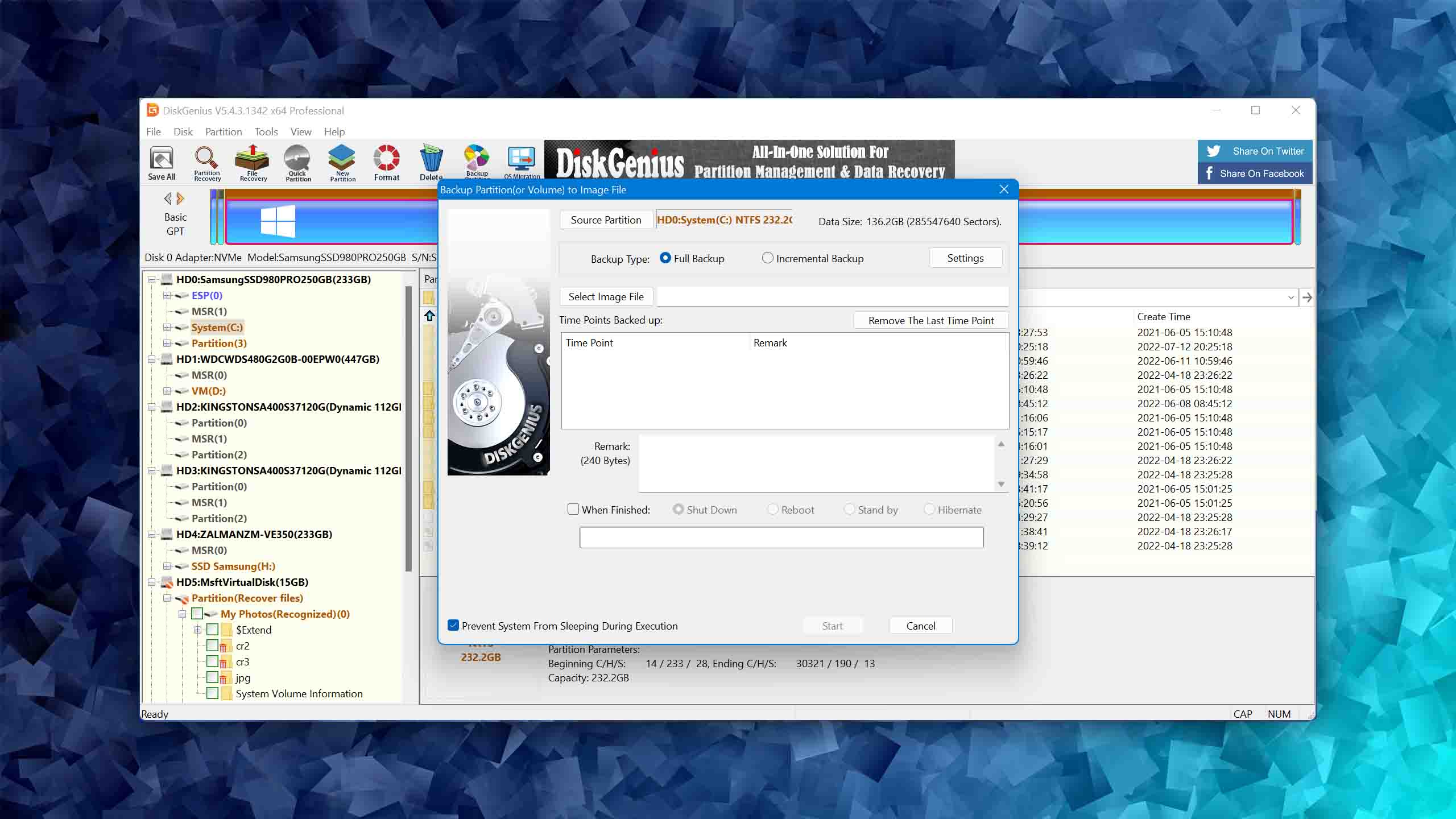
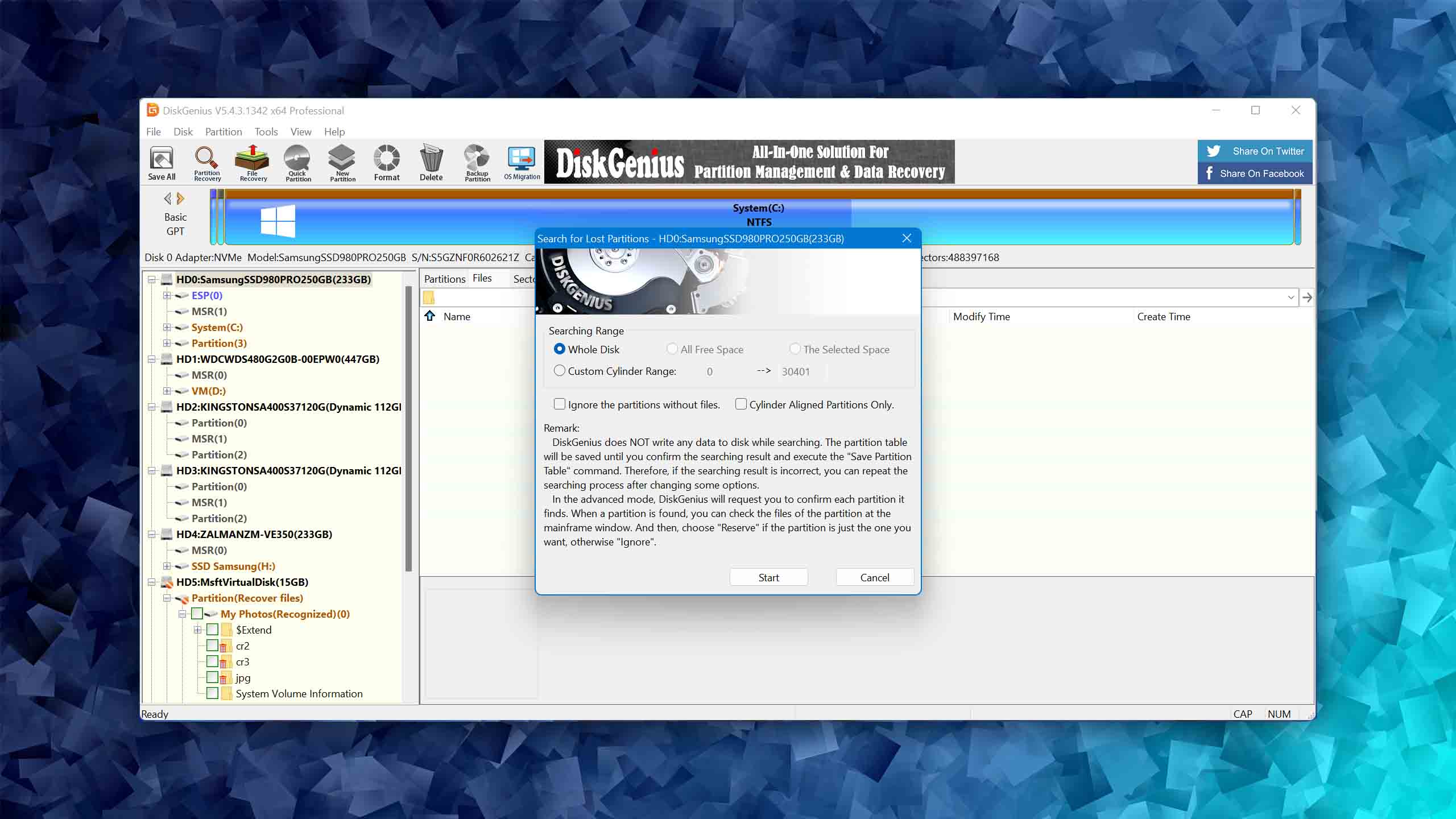
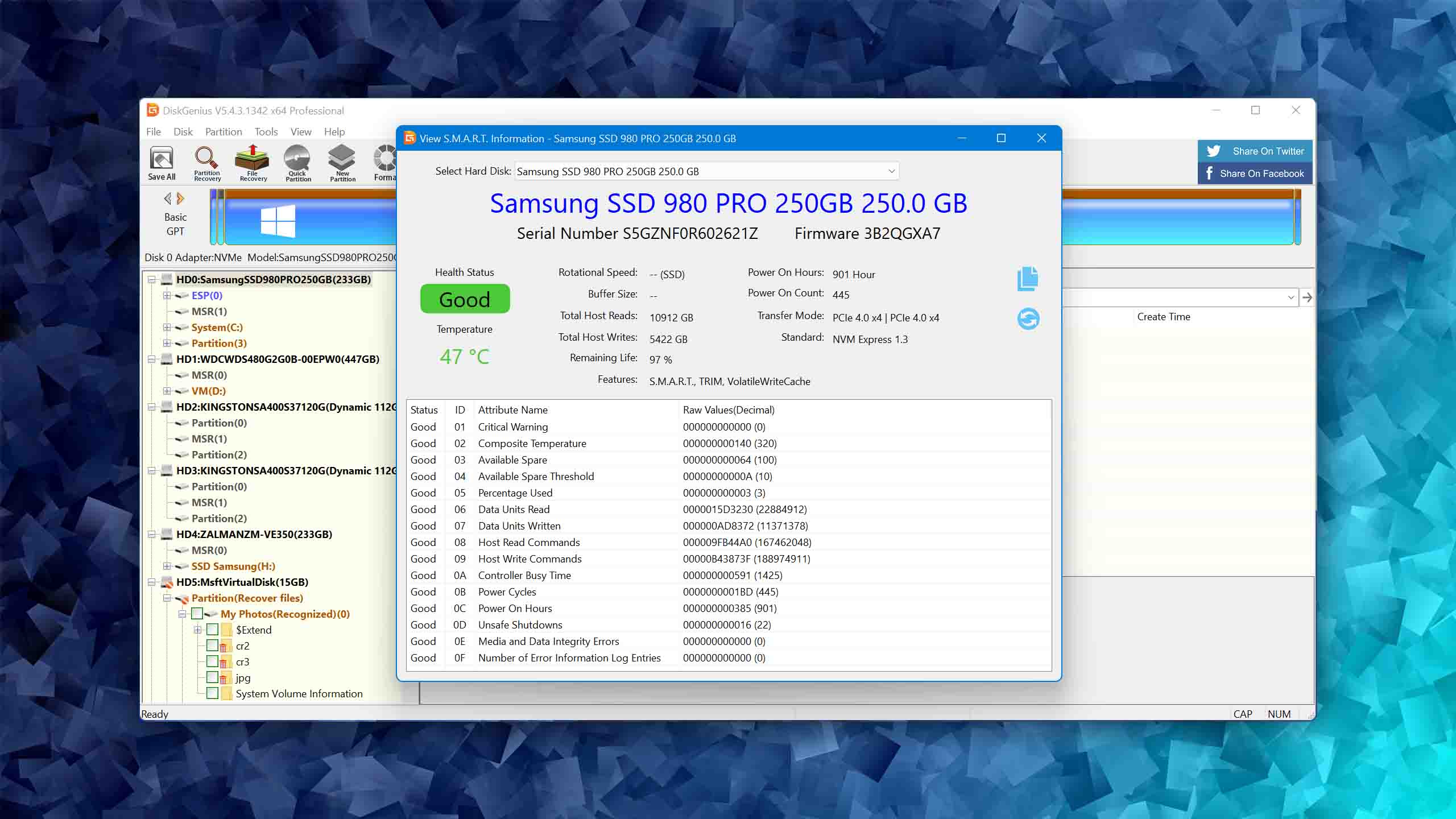
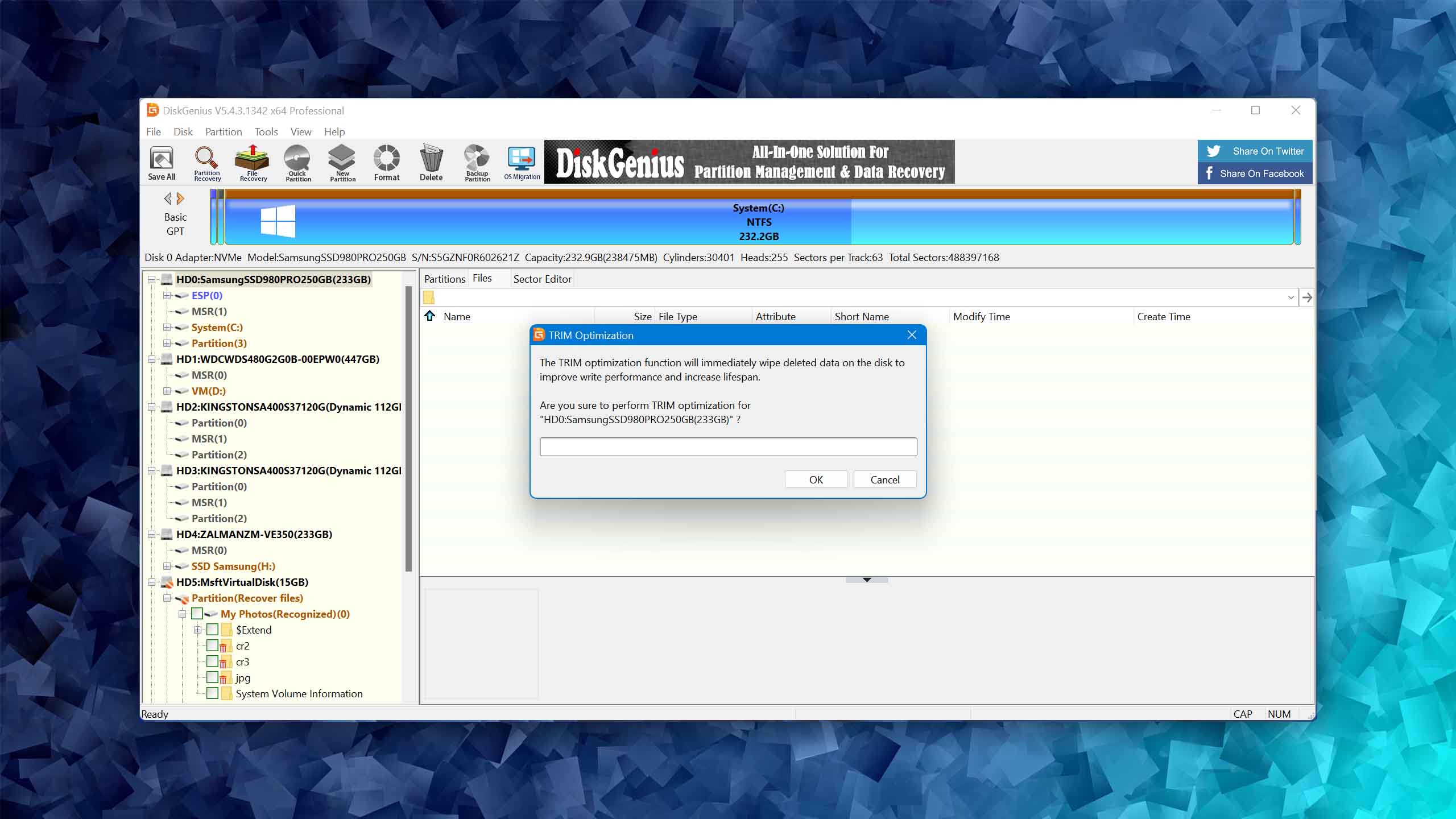
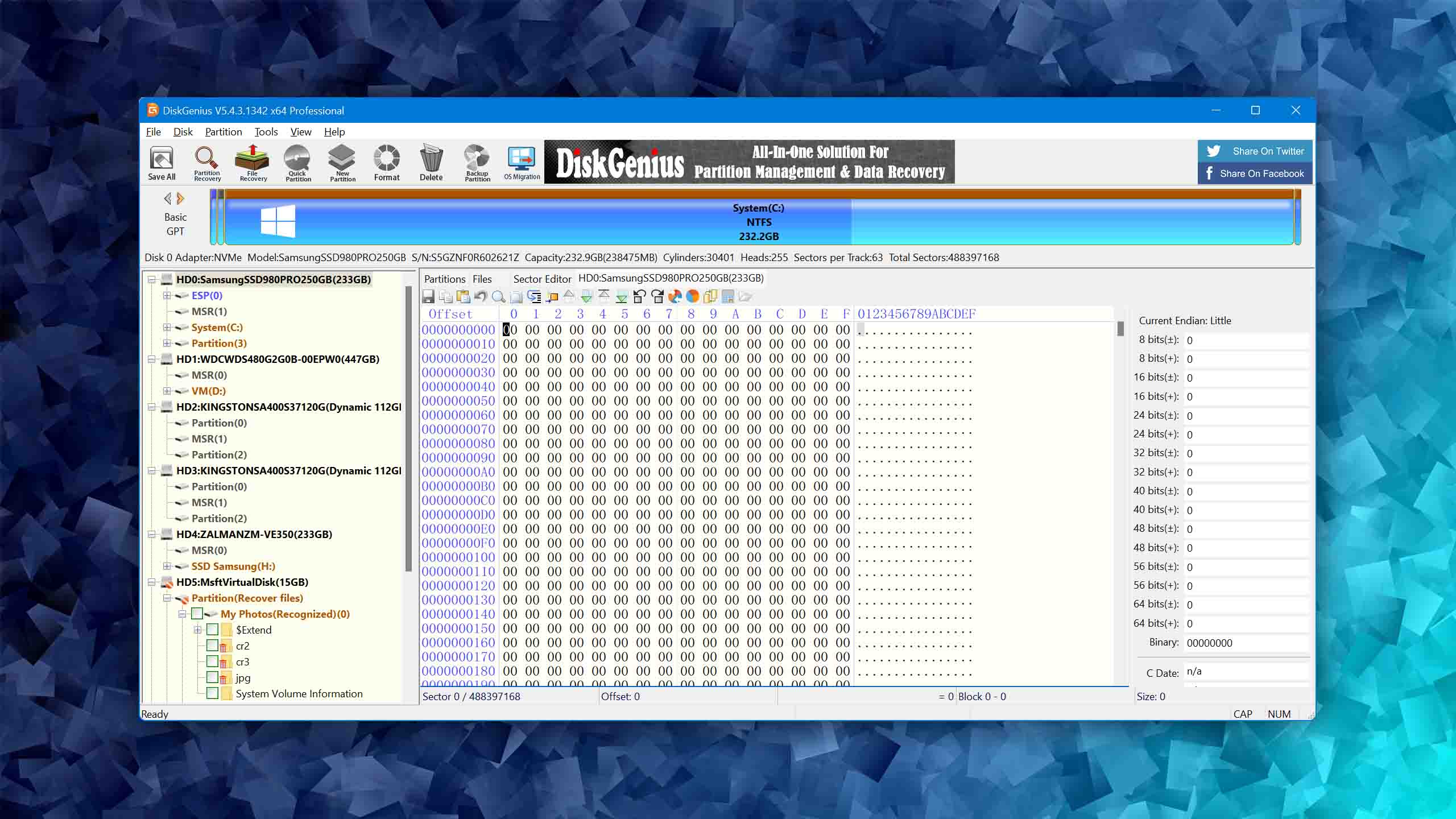
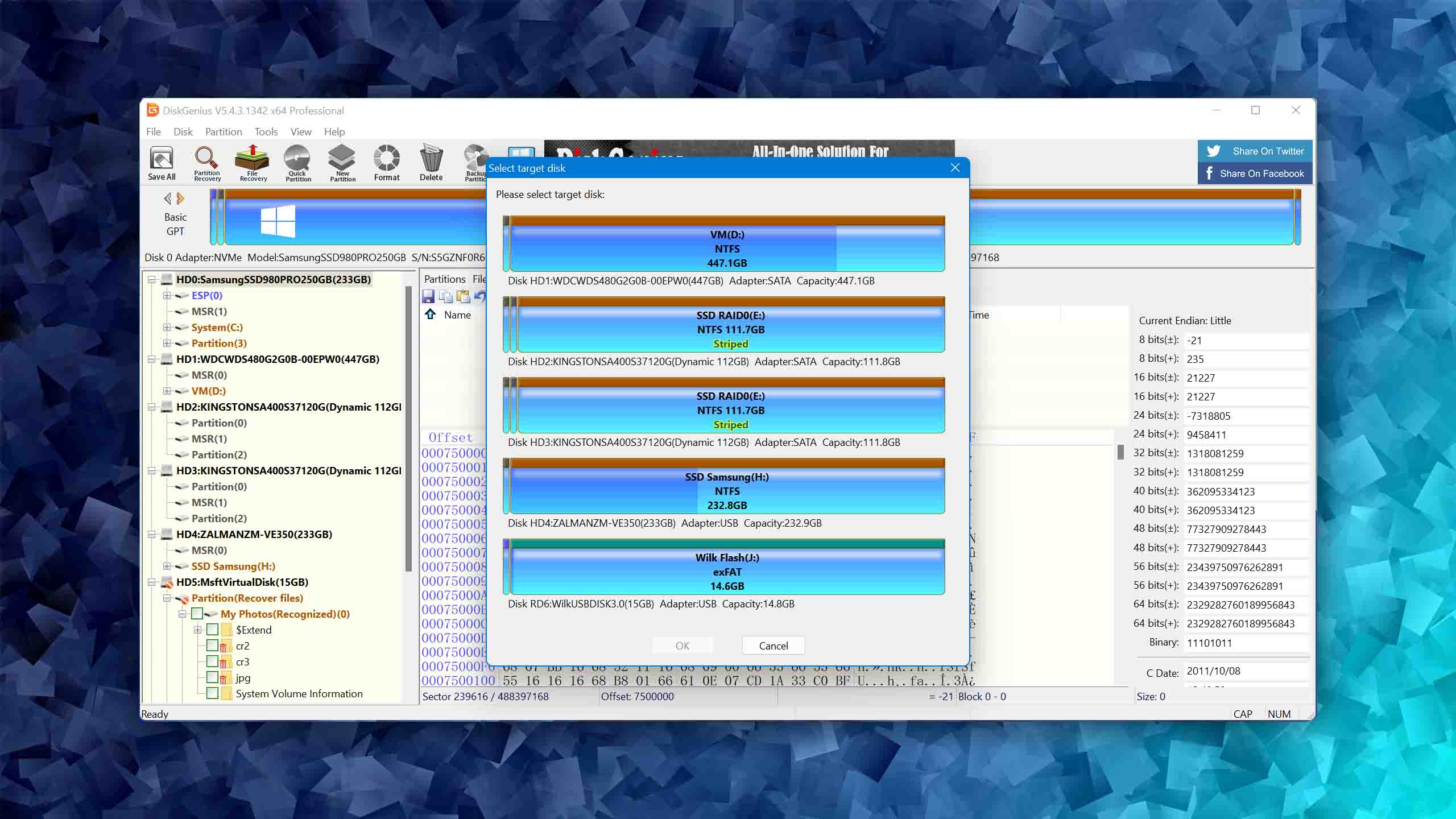
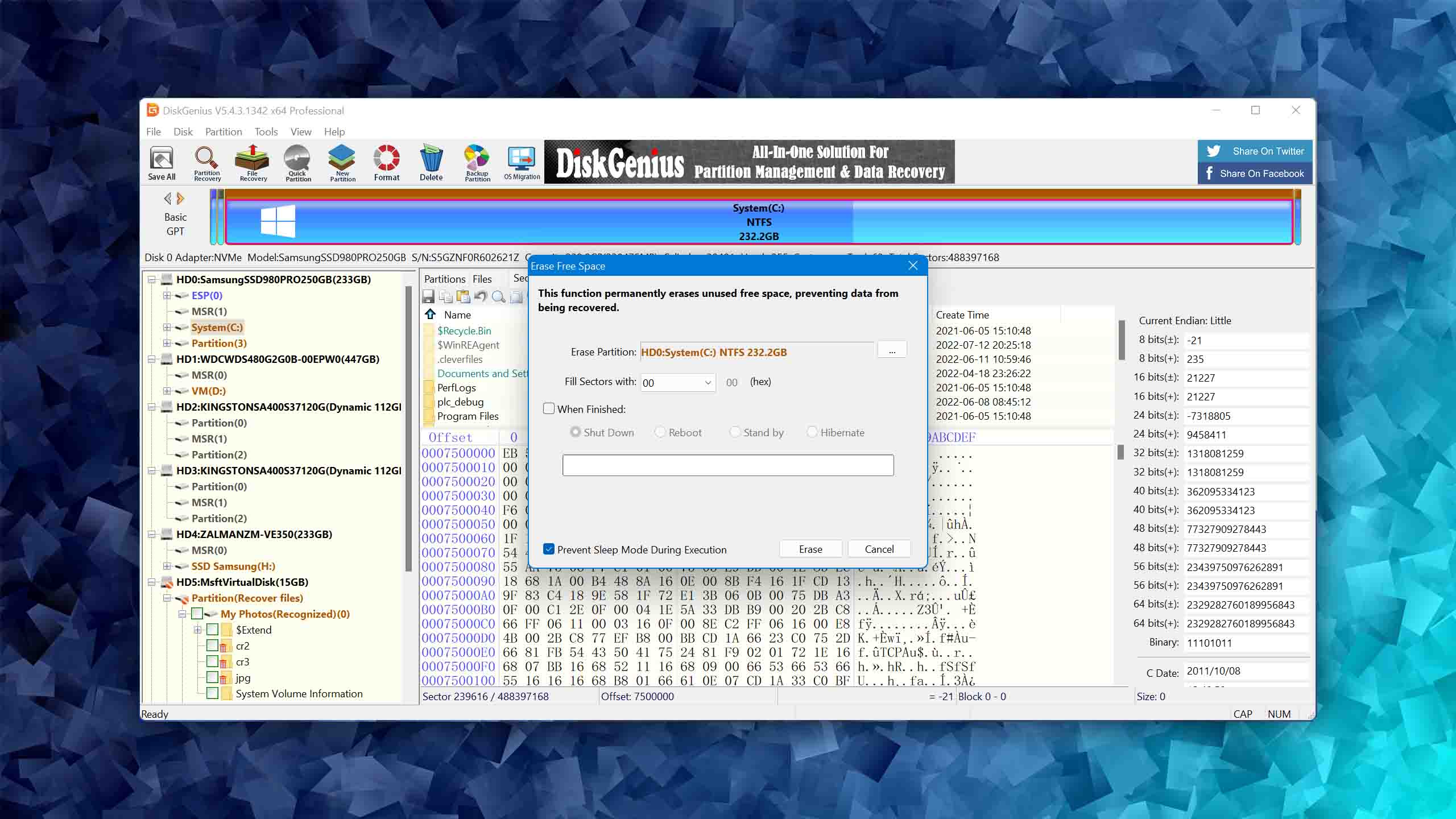
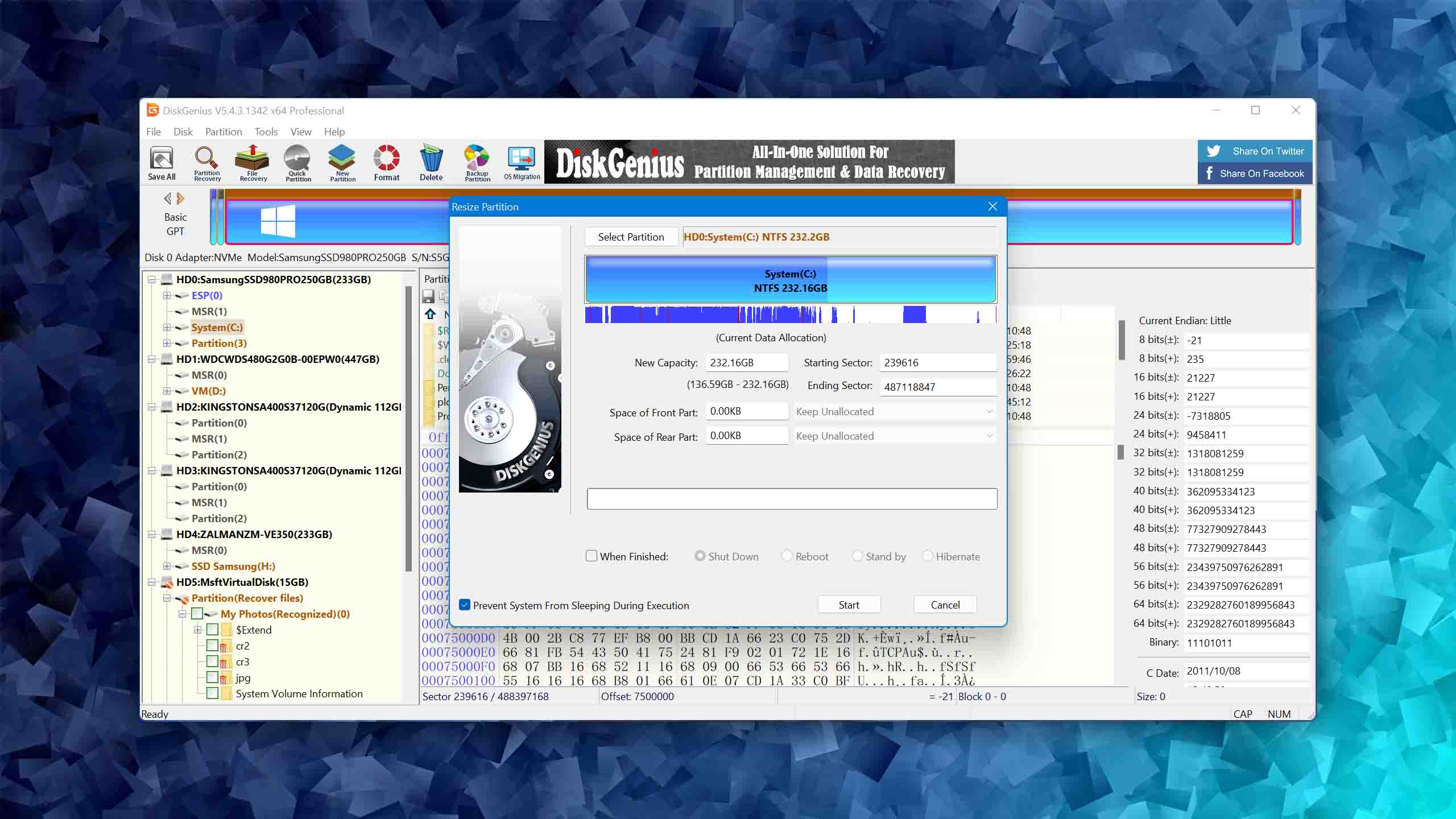
DiskGenius sits as the best all-in-one disk repair toolkit on our list of the best disk repair software because of its versatility. Instead of focusing solely on data recovery, it doubles as a disk management tool that allows you to manipulate and back up your hard drives and partitions, as well as perform other tasks.
Usability
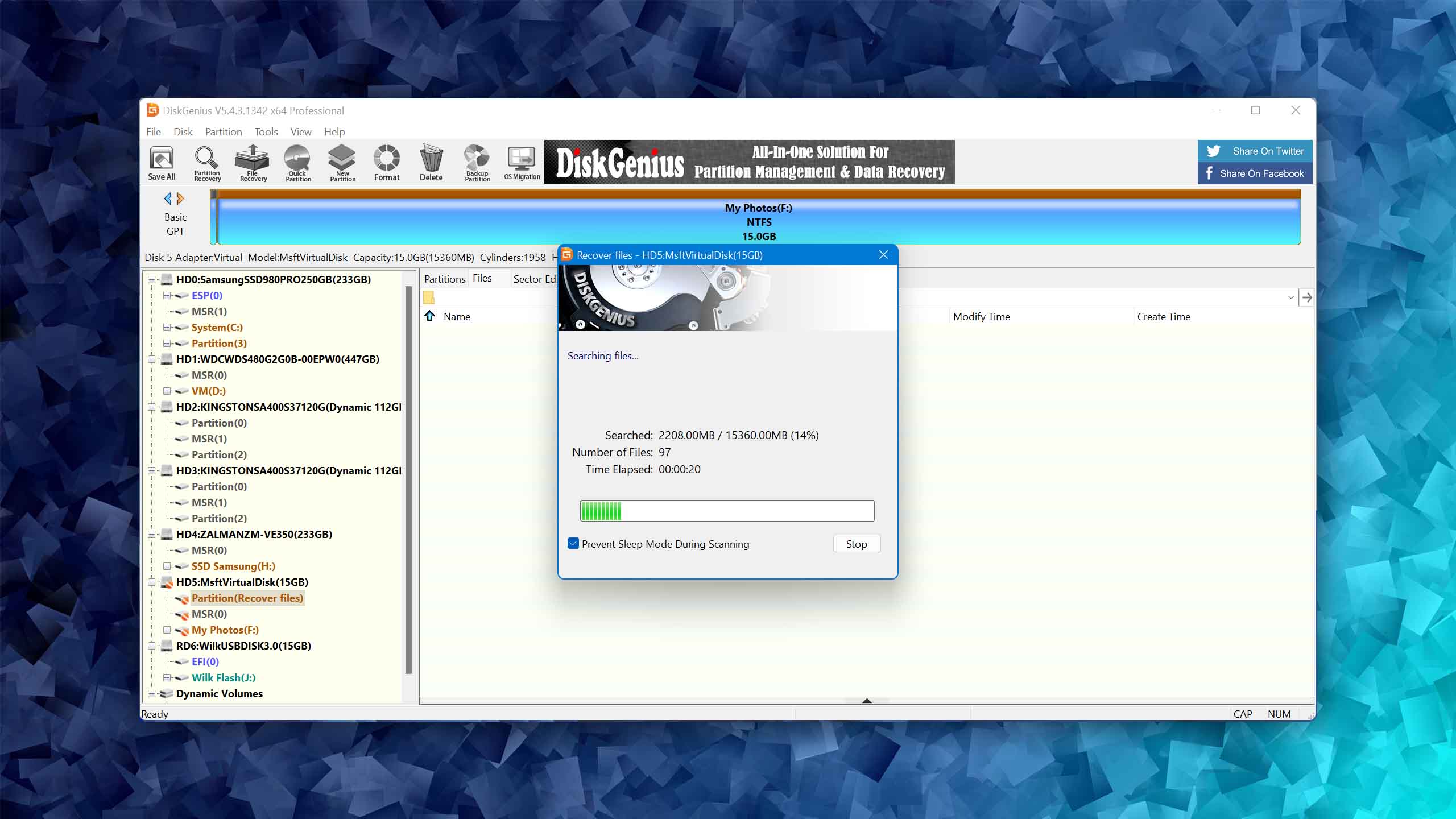
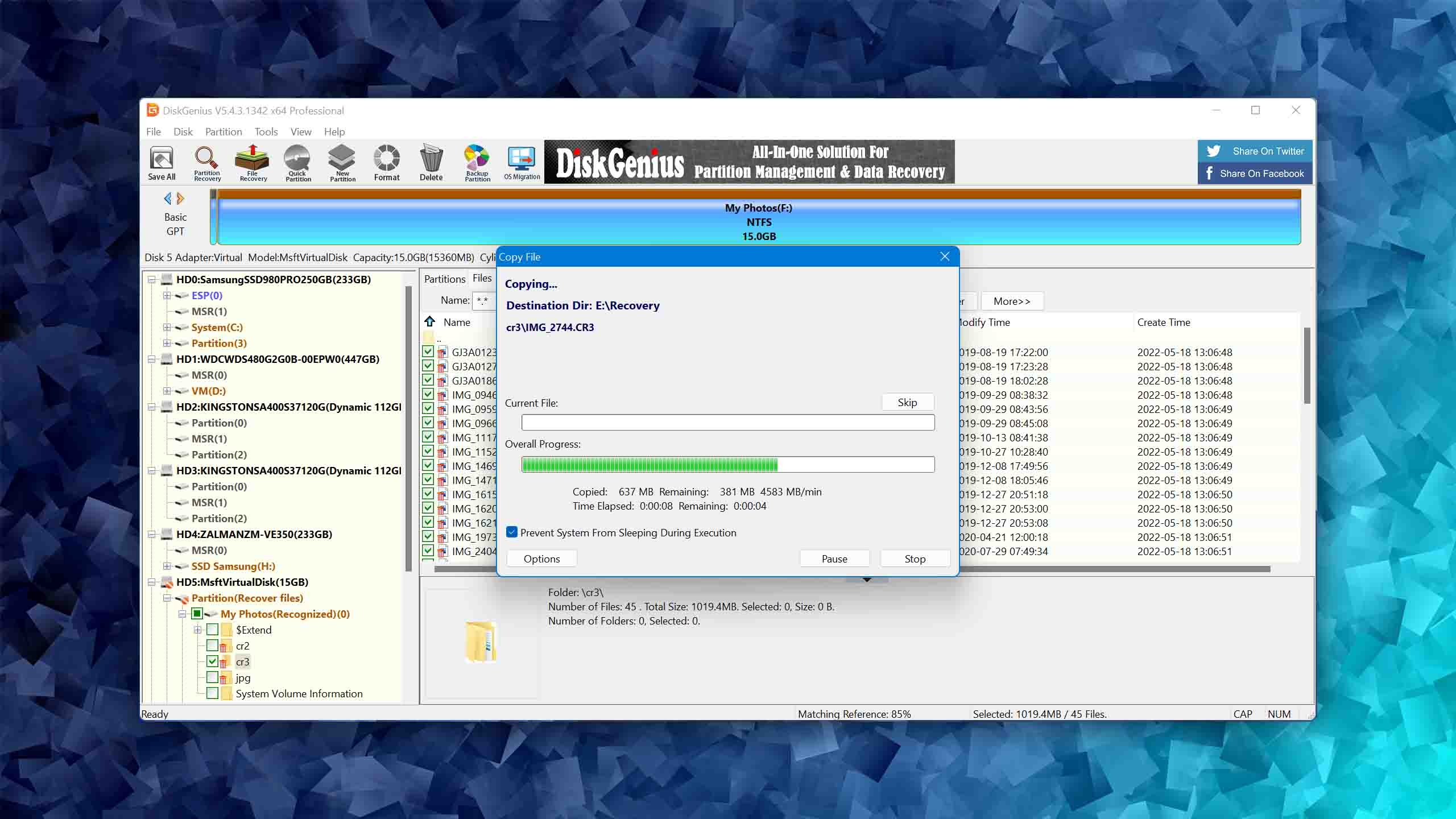
DiskGenius isn’t winning any awards for its user interface. It favors function over aesthetics. The outdated interface has a lot going on, and many features are oddly named so it can be difficult to find what you’re looking for. The crowded space floods the user with an abundance of information, which would otherwise be a good thing if it was executed well. Some good things include the use of multiple scanning methods without intervention by the user and the ability to sort and search the scan results.
Tool capabilities
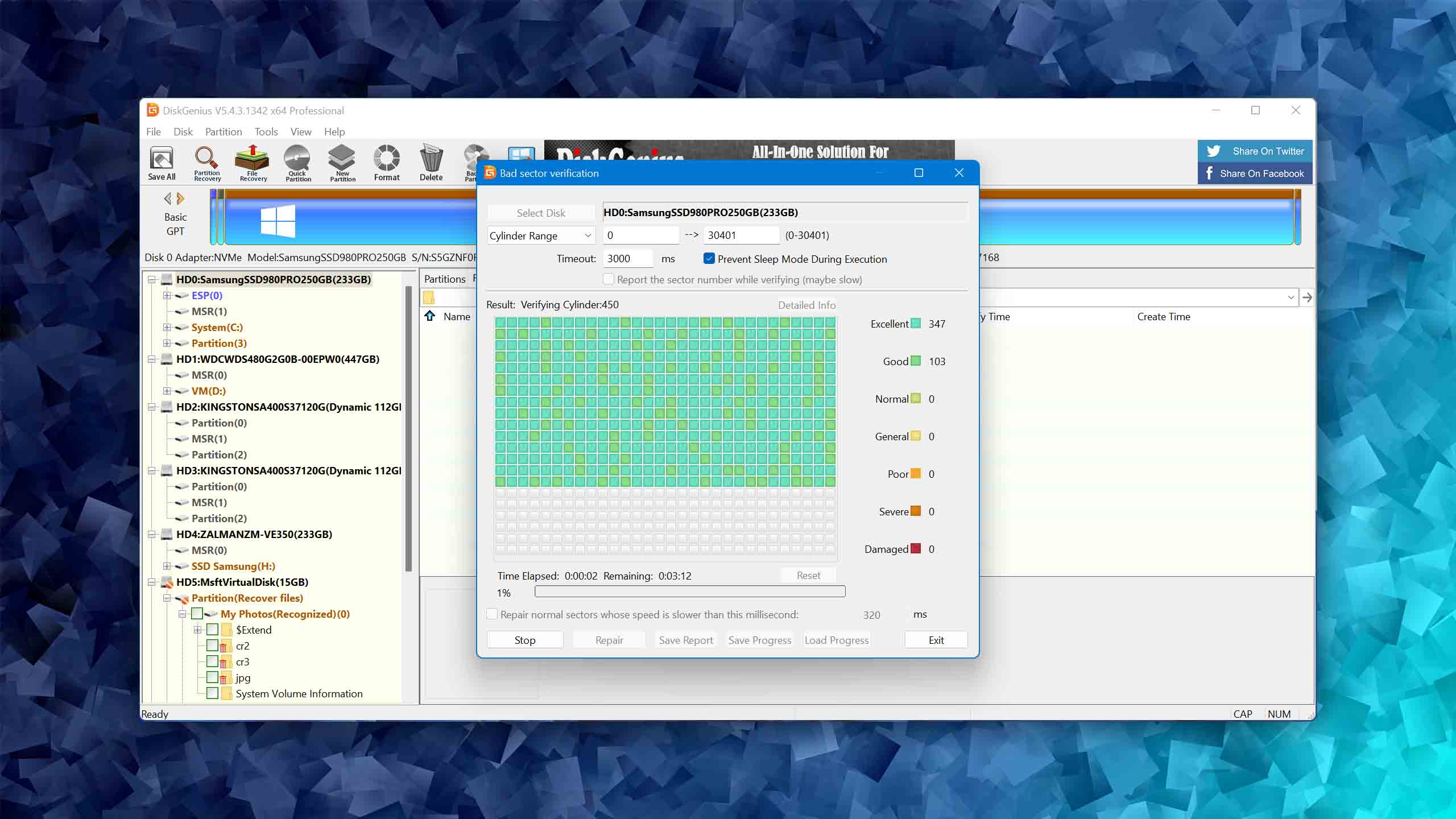
The program gives you a lot of control over how you manage your drives. Even the free version is quite generous and allows users to back up or restore their partition table, erase the sectors on an entire disk or partition, and quickly switch their disk to MBR or GUID. In our DiskGenius review, we found that its quick scan was fairly good but its signature scan had some issues recovering certain file video types, like MP4, MXF, and some versions of MOV. Even so, other features like its support for BitLocker-encrypted drives and recovery from disk images help make the tool more appealing. It’s also good for tackling logical bad sectors, as the software allows you to make full backups of your drive and repair any bad sectors that it finds.
Value
DiskGenius is a great value for money if you make use of all of its features. It’s available for $69.90 a month, $99.90 a year, or $129.90 for a lifetime license, but you can also download the free trial to evaluate the tool before committing to anything. If you’re looking purely at its ability to recover data, there are other applications out there that would give you better recovery performance for your money. However, all of the additional features you get with it help make it a decently well-rounded disk management and recovery solution.

4. AOMEI Partition Assistant
Windows
Freeware and Freemium Absolutely free for personal and home use. If you need more functions to manage your partitions and hard drives, you can upgrade PA Standard to PA Professional Edition
Basic disk management
$0...$799
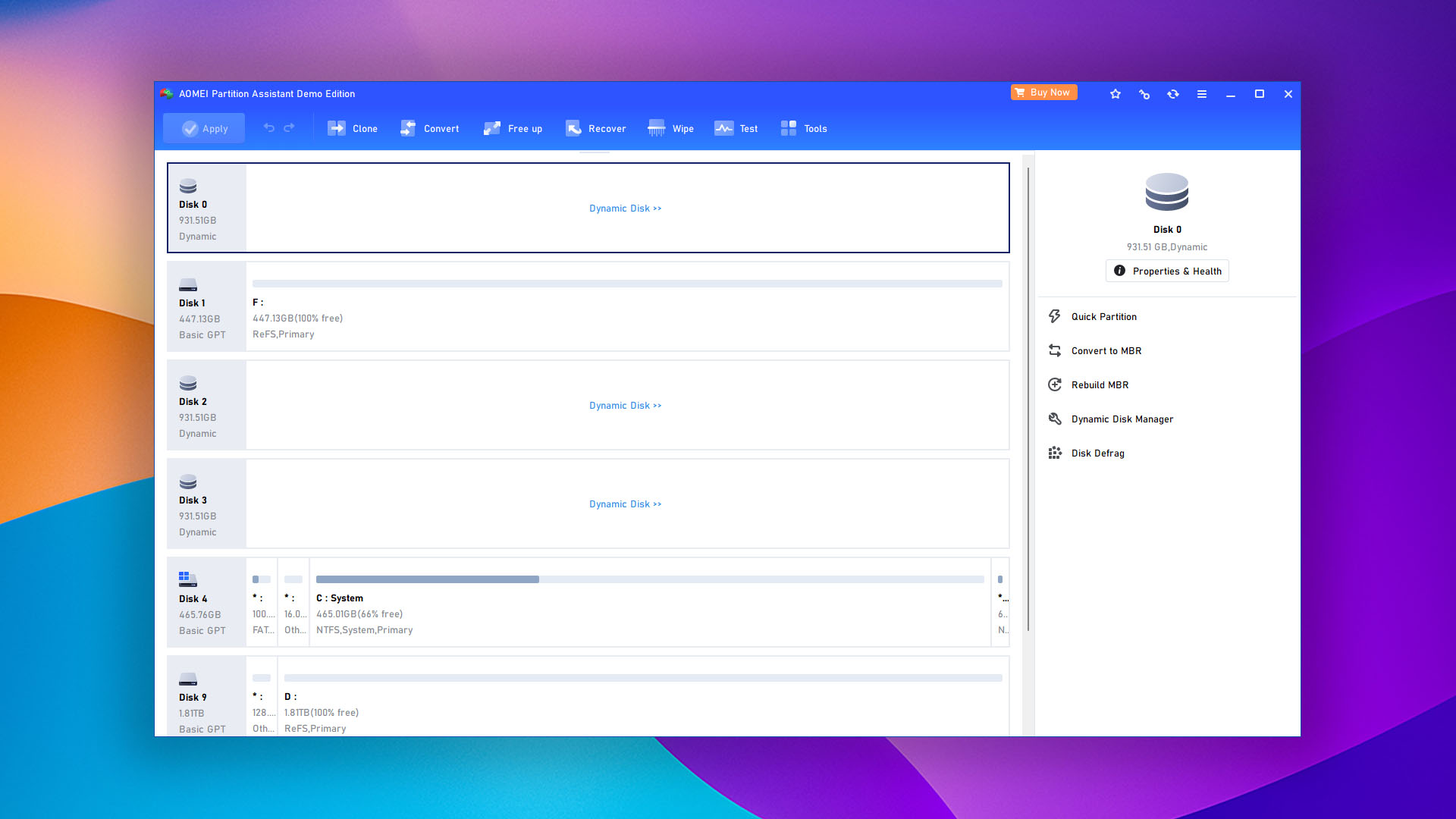
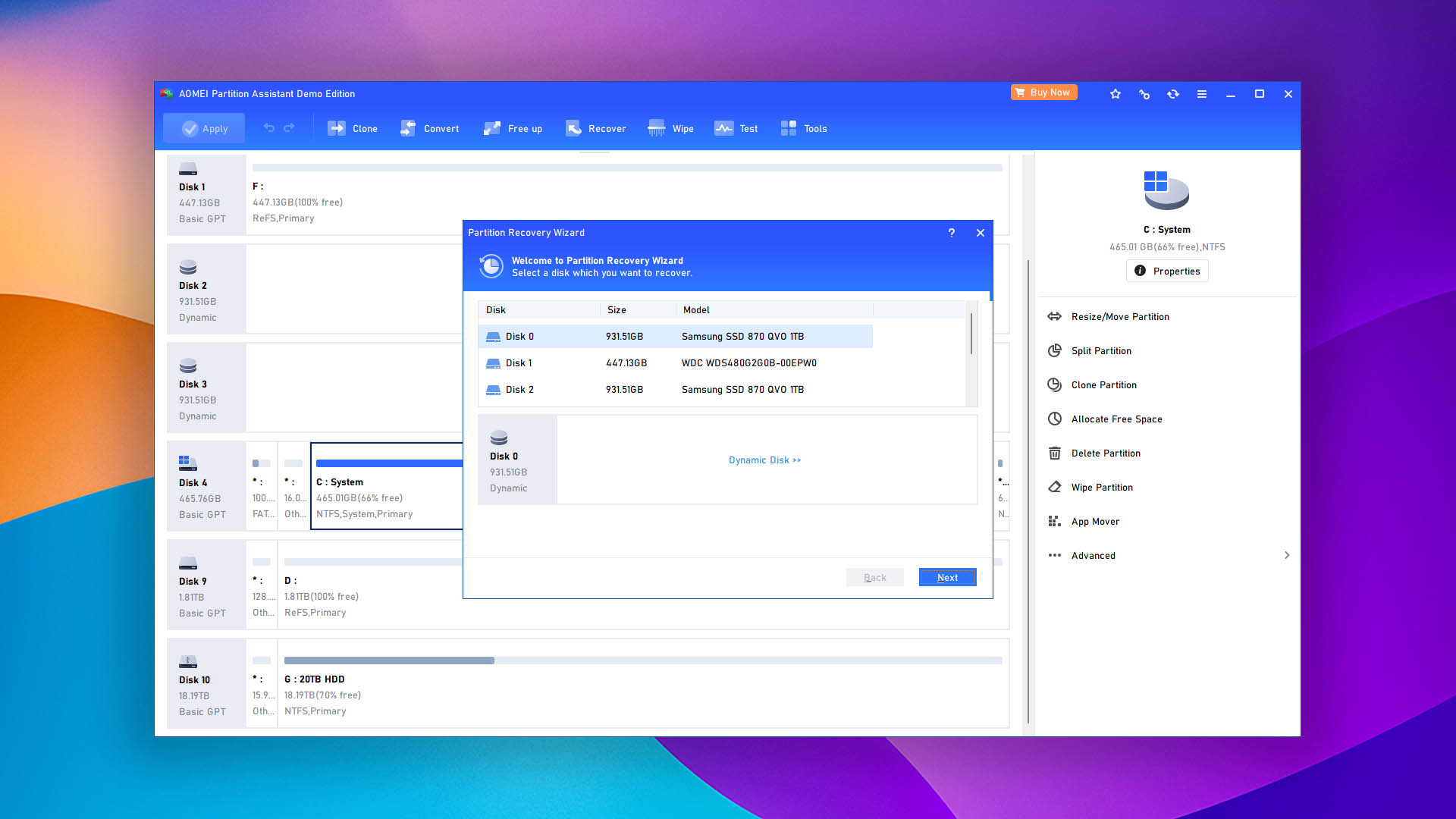
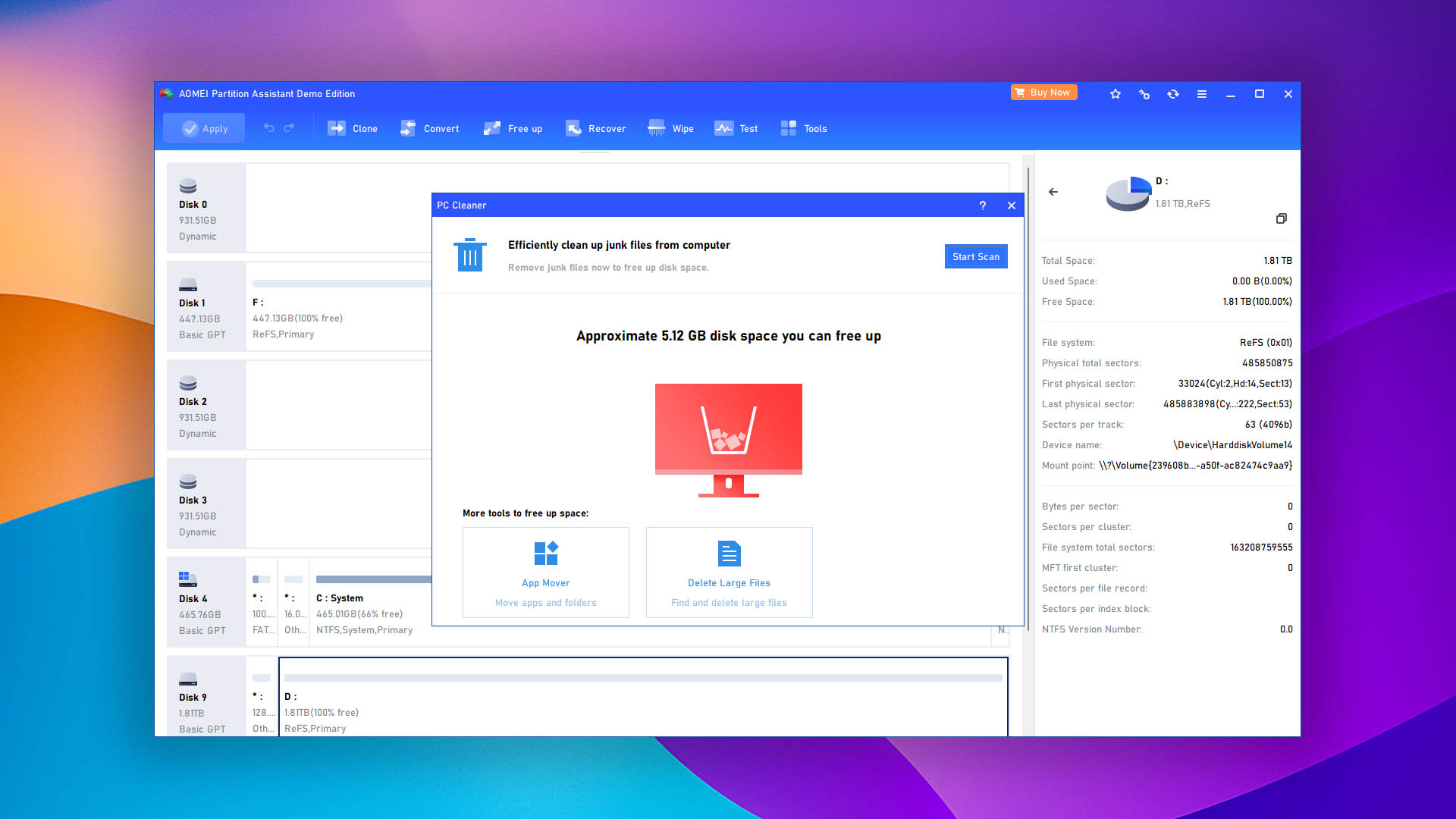
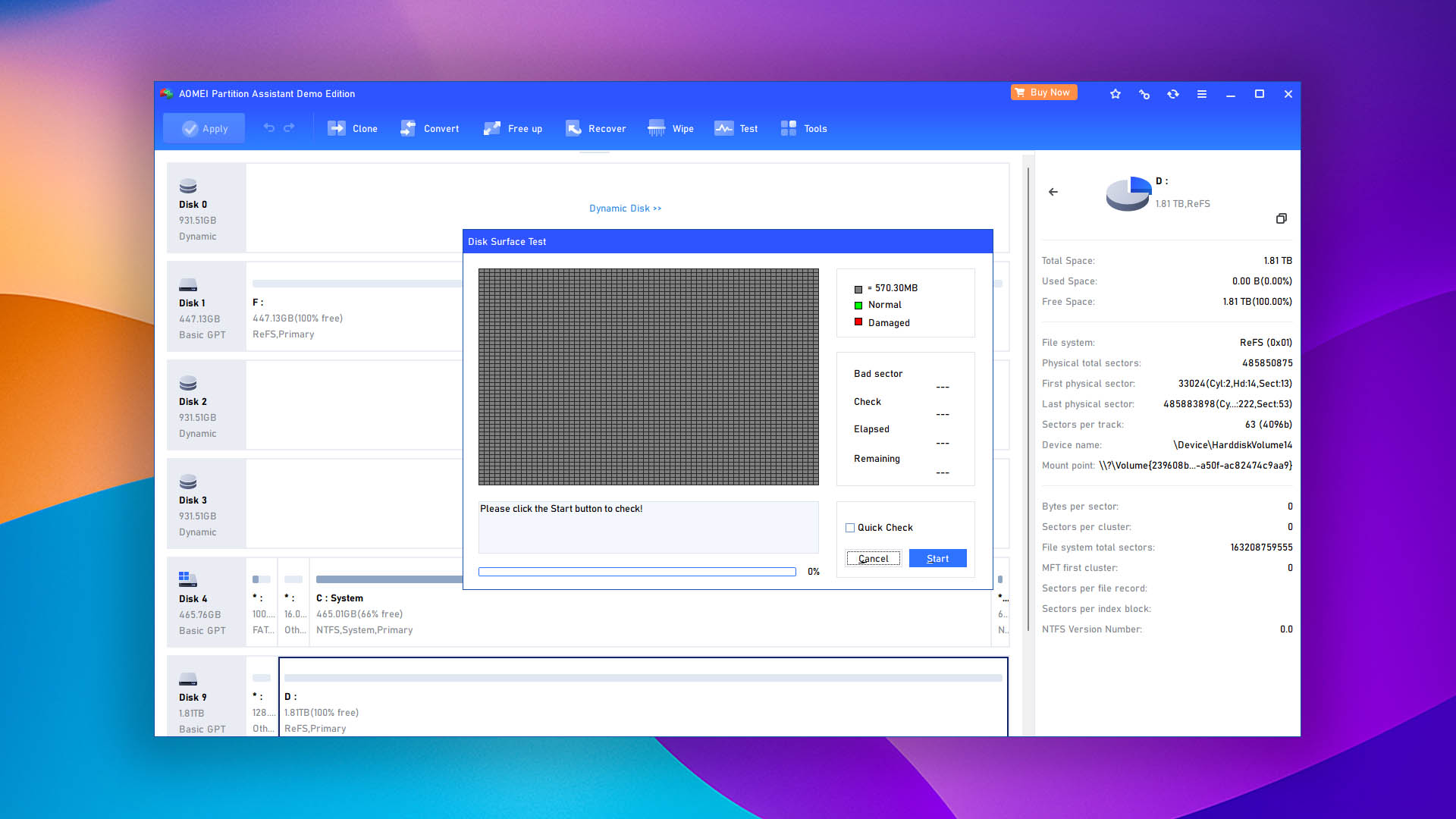
AOMEI Partition Assistant is ranked as the best hard drive management tool on our list for the control it gives users over disks and partitions compared to what Disk Management has to offer. The clean user interface and beginner-friendly interface keep it accessible to anyone while still providing features like secure wiping, cloning, and partition recovery.
Usability
AOMEI Partition Assistant is easy enough to use. It offers a more pleasant experience than what you’d find with DiskGenius, but the layout can make it feel a bit cramped now and then. Nevertheless, all features are accessible and easy to use, even for beginners. Technical details that would otherwise be an eyesore are managed well and the device source menu makes it easy to differentiate disks from partitions.
Tool capabilities
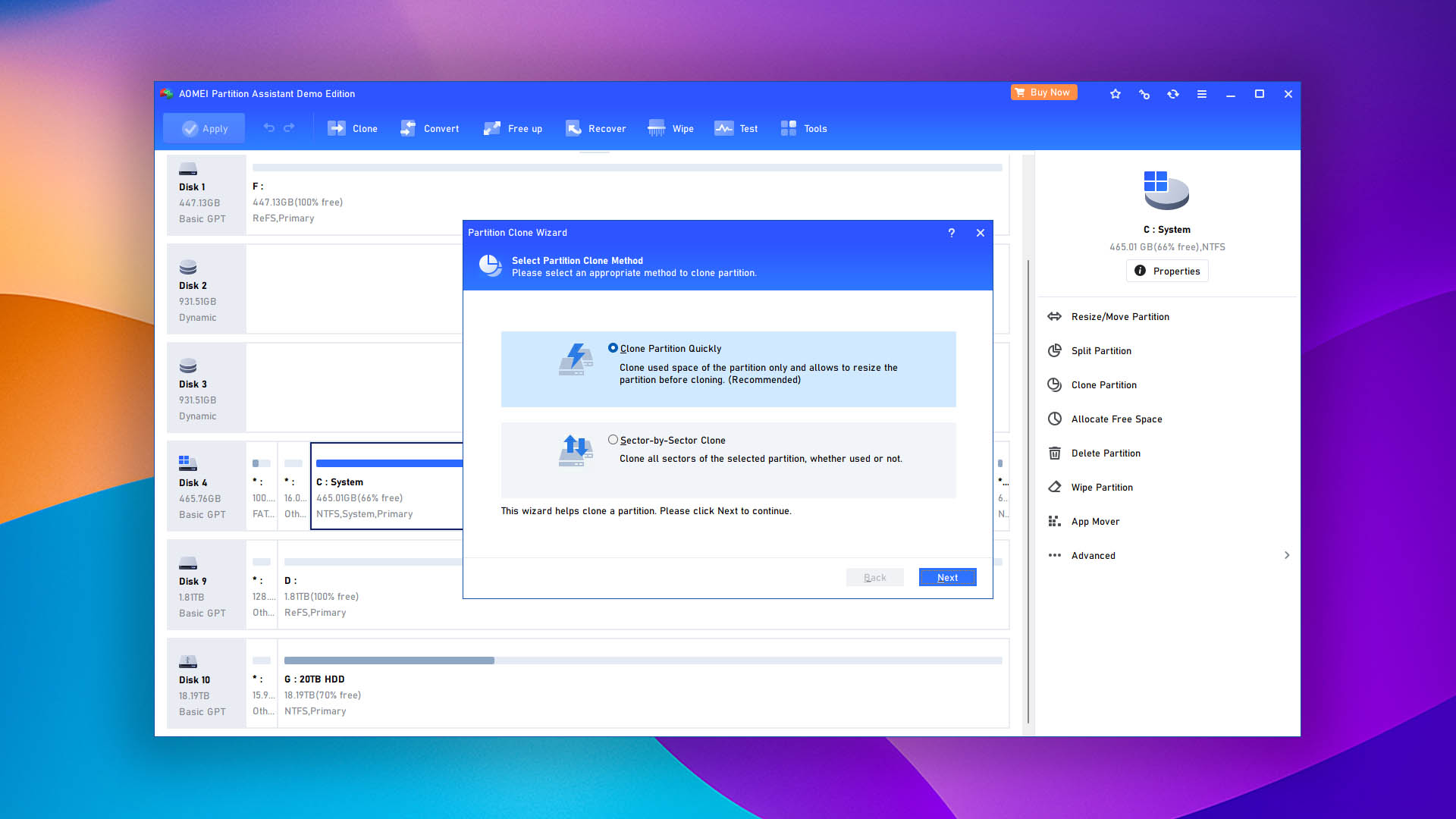
The program focuses on giving you a toolkit for managing your disks and partitions. With it, you can manipulate partitions by resizing, splitting, cloning, formatting, deleting, wiping, and converting them. Much of the same can be done with your disks. Hard drive users can run disk defragmentation and delete junk files to improve performance and free up space. Some recovery features are included too, like the ability to recover lost partitions and data, but it’s more of a secondary feature.
Value
The Standard edition alone gives you generous access to many features for free. You can upgrade to the Professional edition for $49.99/year for two PCs or for a one-time payment of $59.95 for two PCs. Both include free upgrades to the newest version of the software. Basic users can probably get away with the Standard edition, but professionals and advanced users may find the aptly priced Professional edition to be more suitable for their needs.
5. Hard Disk Sentinel
WindowsLinux
Freemium Some features are provided free of charge, but money is required to unlock the rest
Basic functionality
$22...$219.5
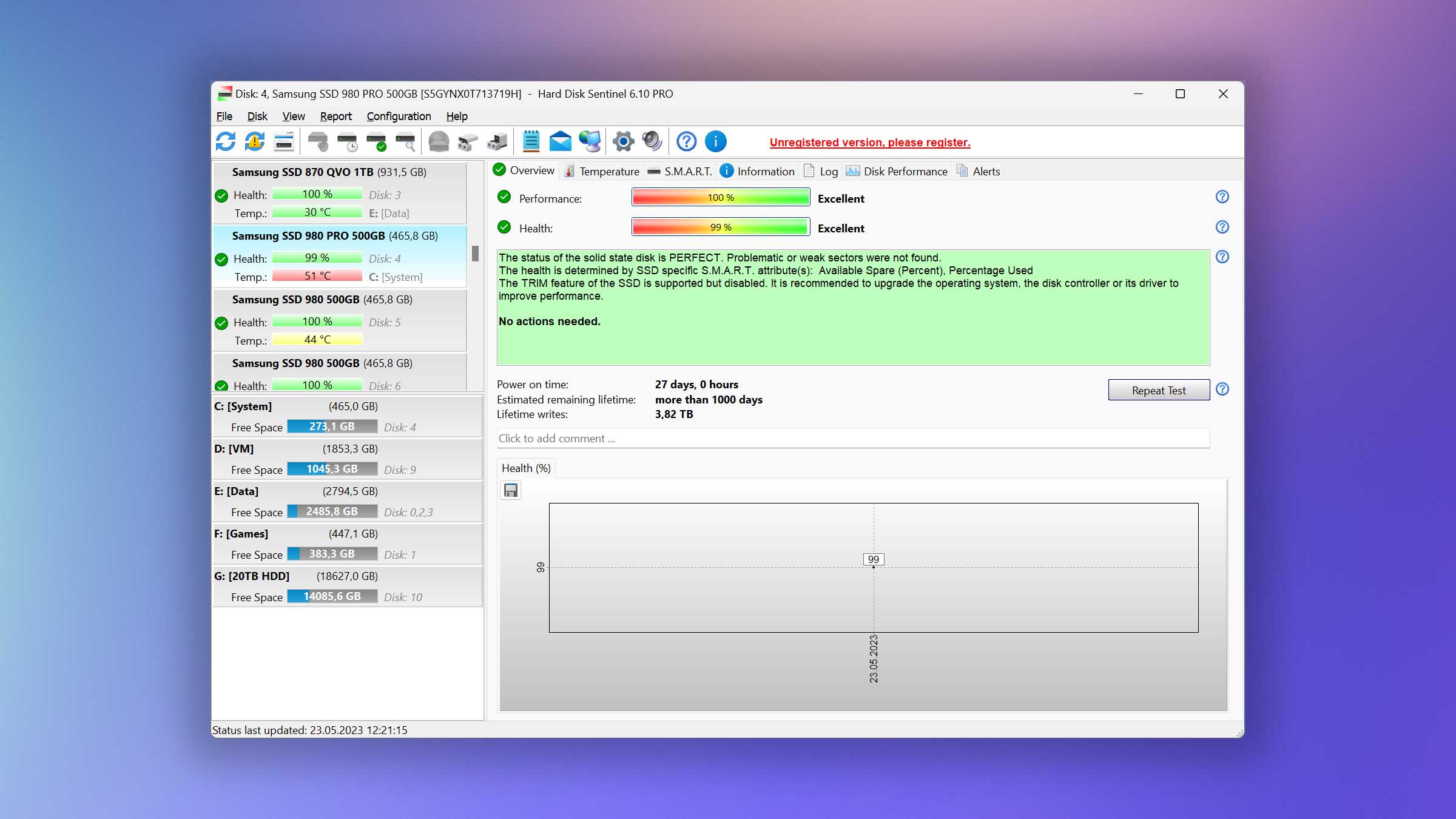
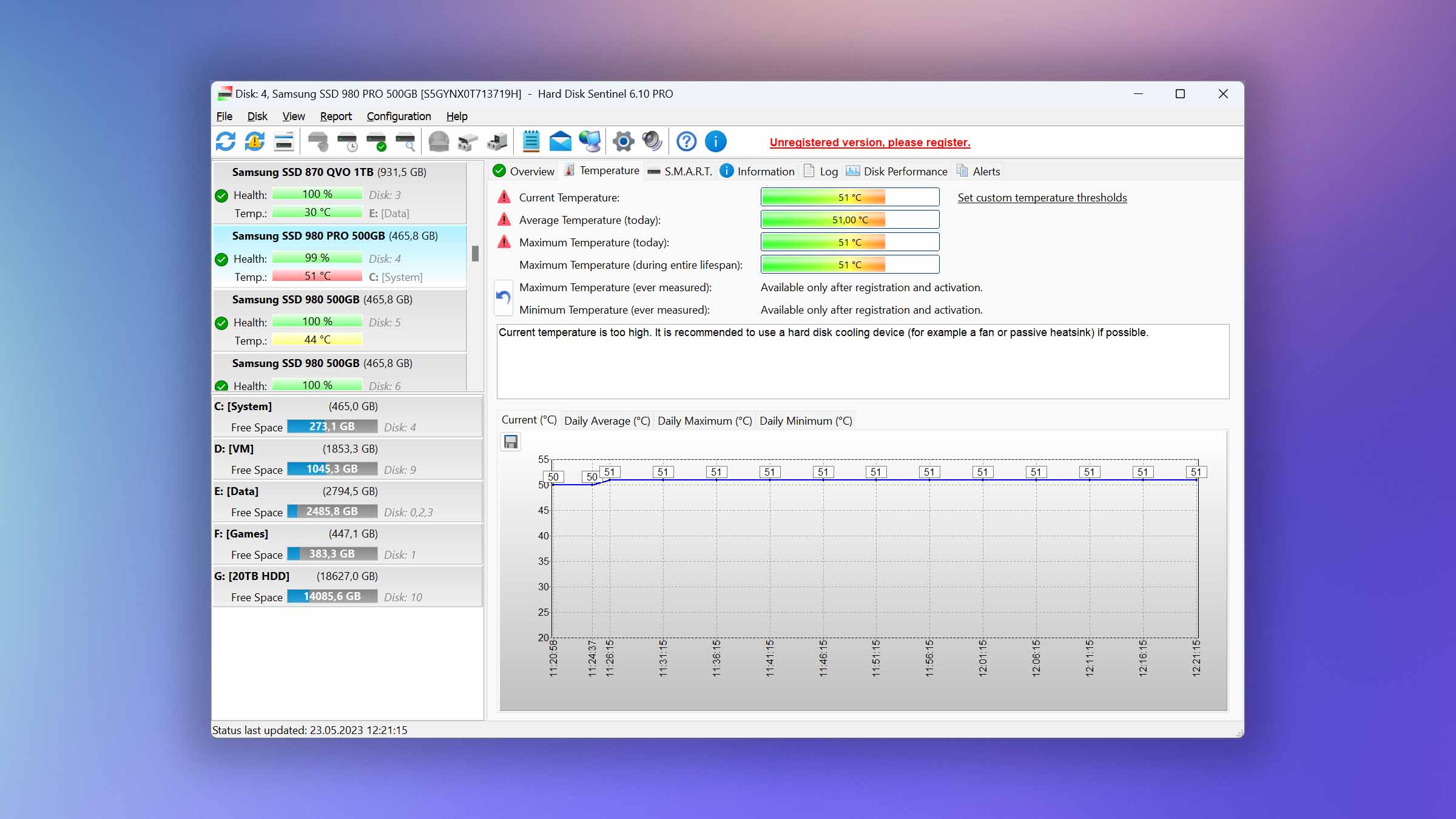
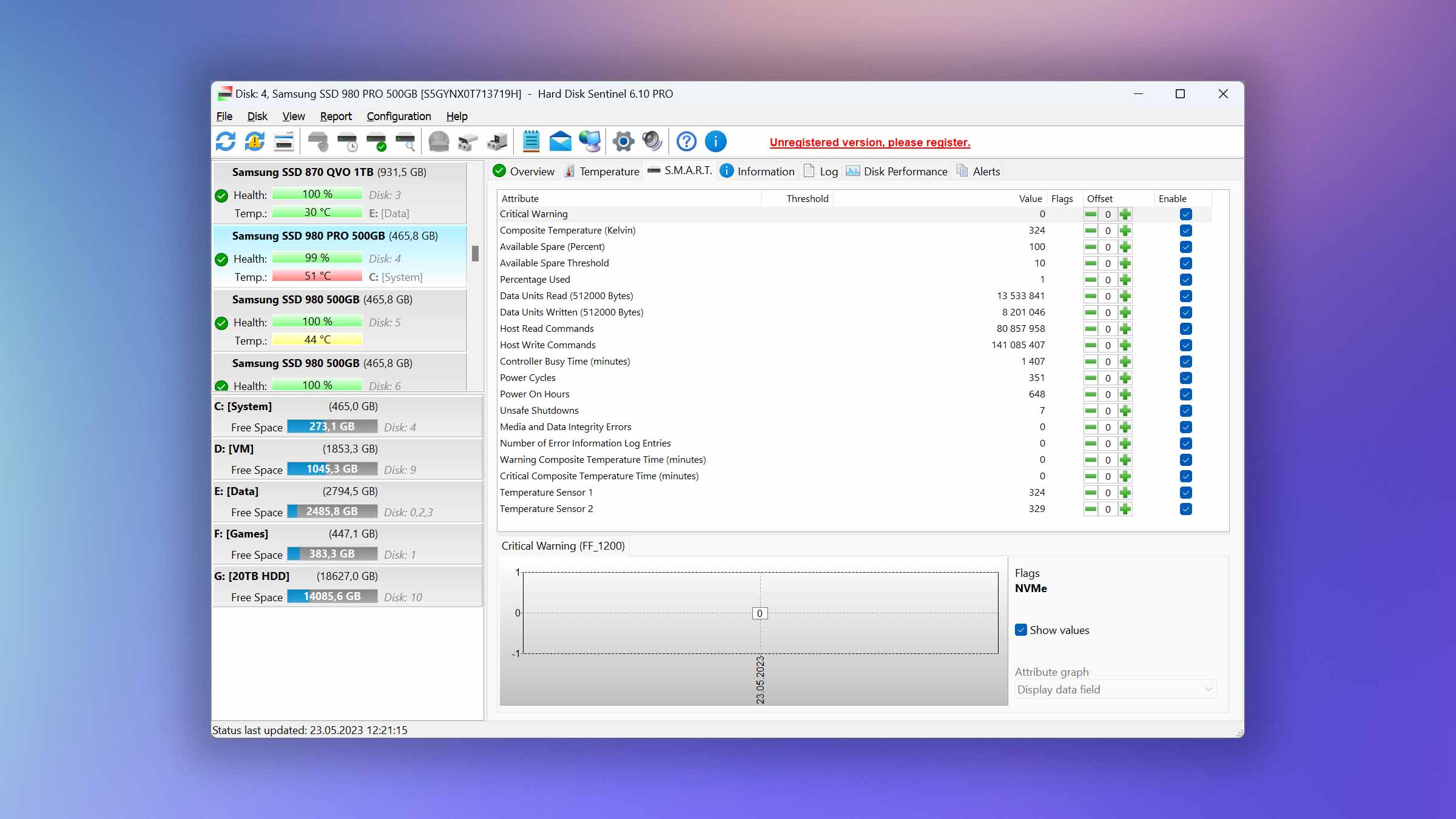
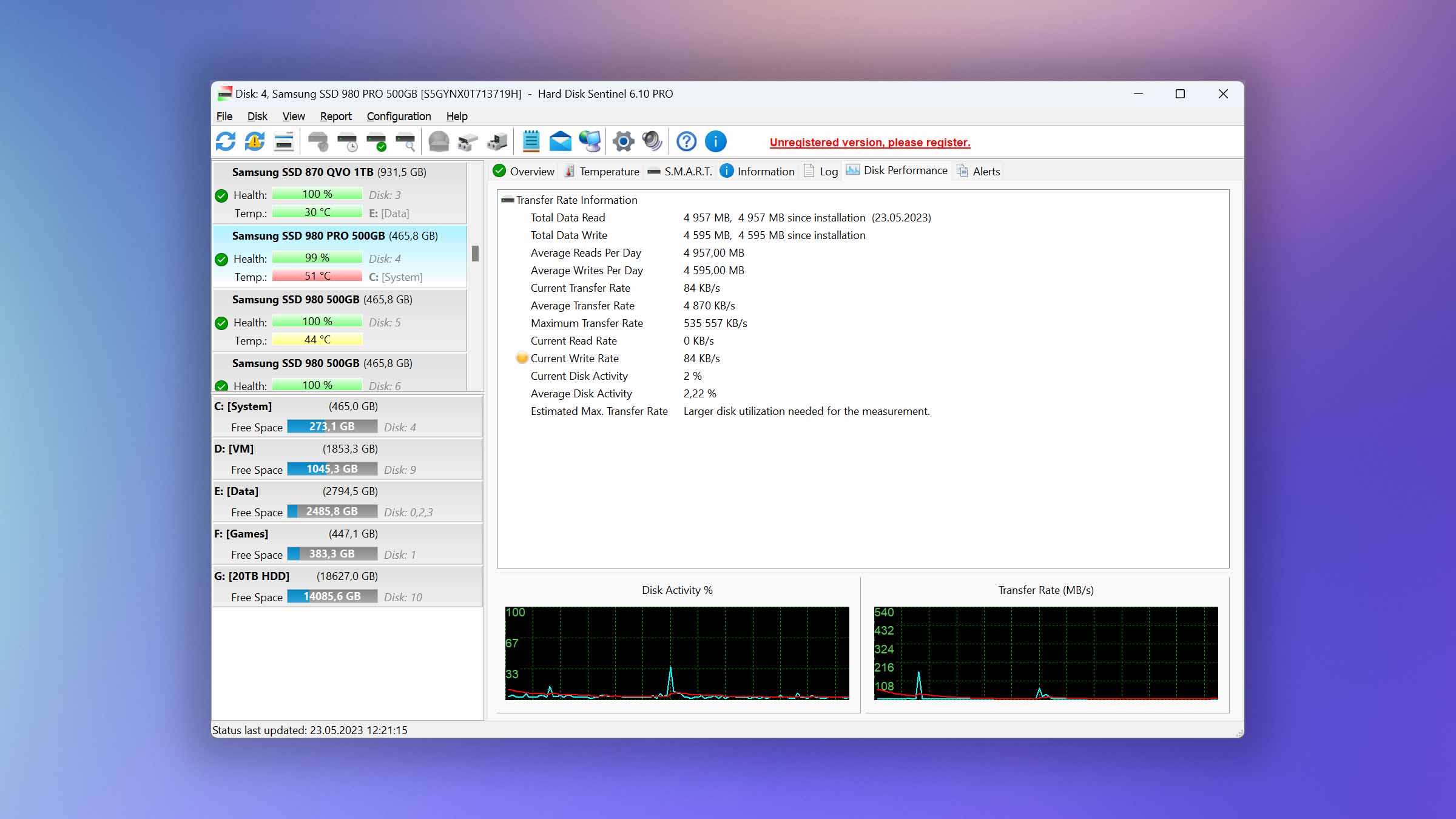
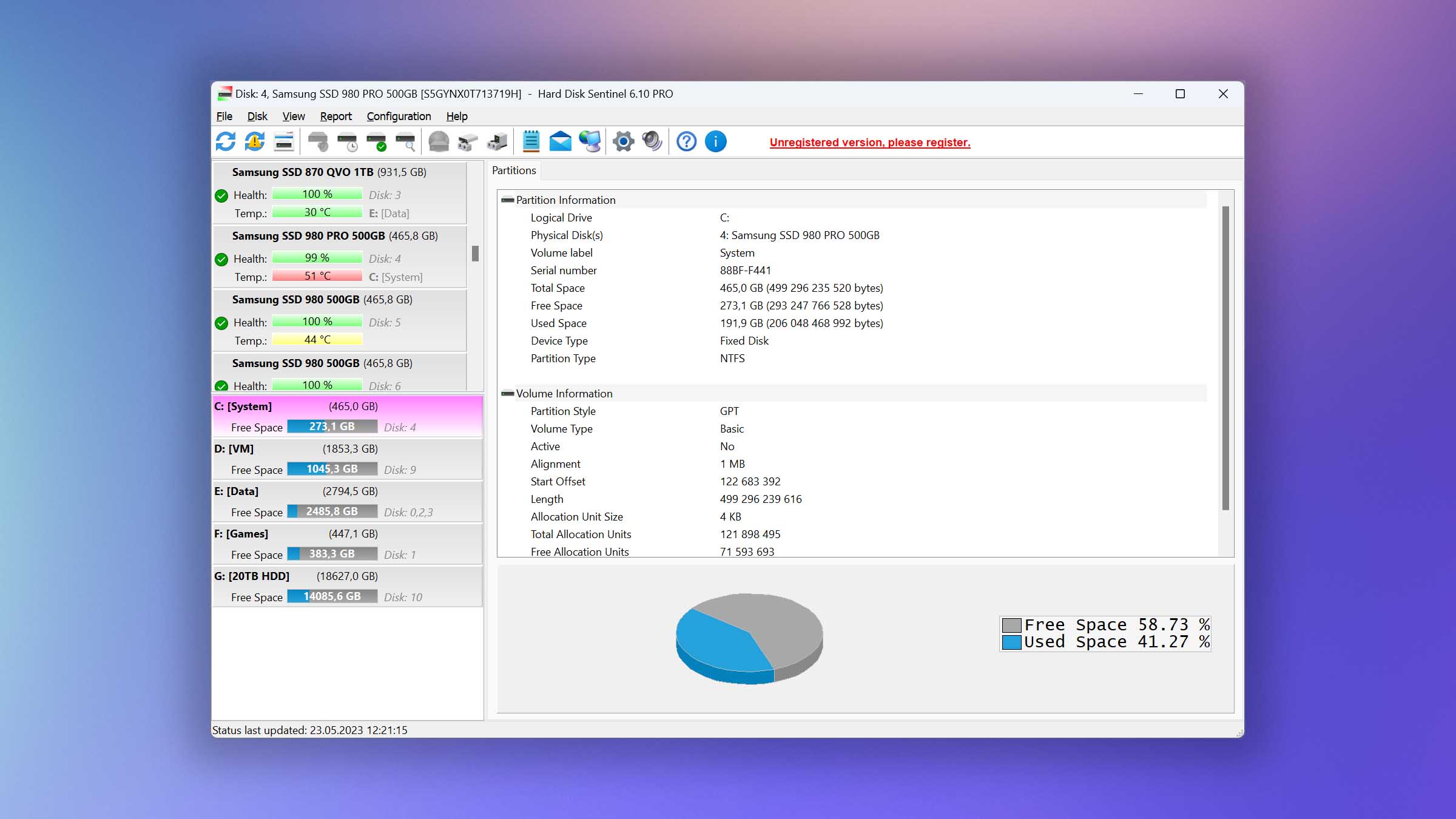
Hard Disk Sentinel goes well beyond what a typical drive health monitor offers, which is why we prioritized it as the best tool for advanced diagnostics on our list. Rather than simply give you an at-a-glance breakdown of your drive’s S.M.A.R.T. data, it stands as an early-intervention tool that actively tracks bad sectors over time, measures drive performance, runs surface tests, and generates detailed health reports.
Usability
Usability is one of Hard Disk Sentinel’s weak points. The user interface looks really old and many of the features only have labels that appear when you hover over them, which is annoying until you can associate the icon with the feature from memory. Regardless, the main screen where you can view different aspects of your hard drives is easy to navigate, with each area being split into tabs you can quickly switch between. The program is also available in a portable form if you can’t risk writing the application to your hard drive.
Tool capabilities
There’s no doubt that this program is rich in features. You get a complete overview of everything related to the health of your hard drive. The tool runs in the background, actively monitoring the status of your hard drive or solid-state drive using S.M.A.R.T. data. When something of concern is detected, the application can notify you and optionally perform actions like running a backup. Additionally, you can perform a surface test to scan for bad sectors, in which case the program will prompt your drive’s firmware to reallocate data on weak sectors to working ones. The active monitoring allows you to get a headstart on anything that could negatively affect your hard drive performance.
Value
The free version of Hard Disk Sentinel provides a detailed breakdown of S.M.A.R.T. data and drive health status. Upgrading to a $22 Standard license gives you lifetime access to disk testing, surface checks, alert configuration, and the ability to store health reports in text or HTML format. The $33 Professional license takes things further with complete surface analysis, sector refresh, reinitialisation and repair, industry-standard data destruction, and support for monitoring NAS devices. Both paid versions offer a 30-day demo of the software to try before you buy.

6. Victoria HDD/SSD
Windows
Freeware All features are provided free of charge without any limitations
None
Free
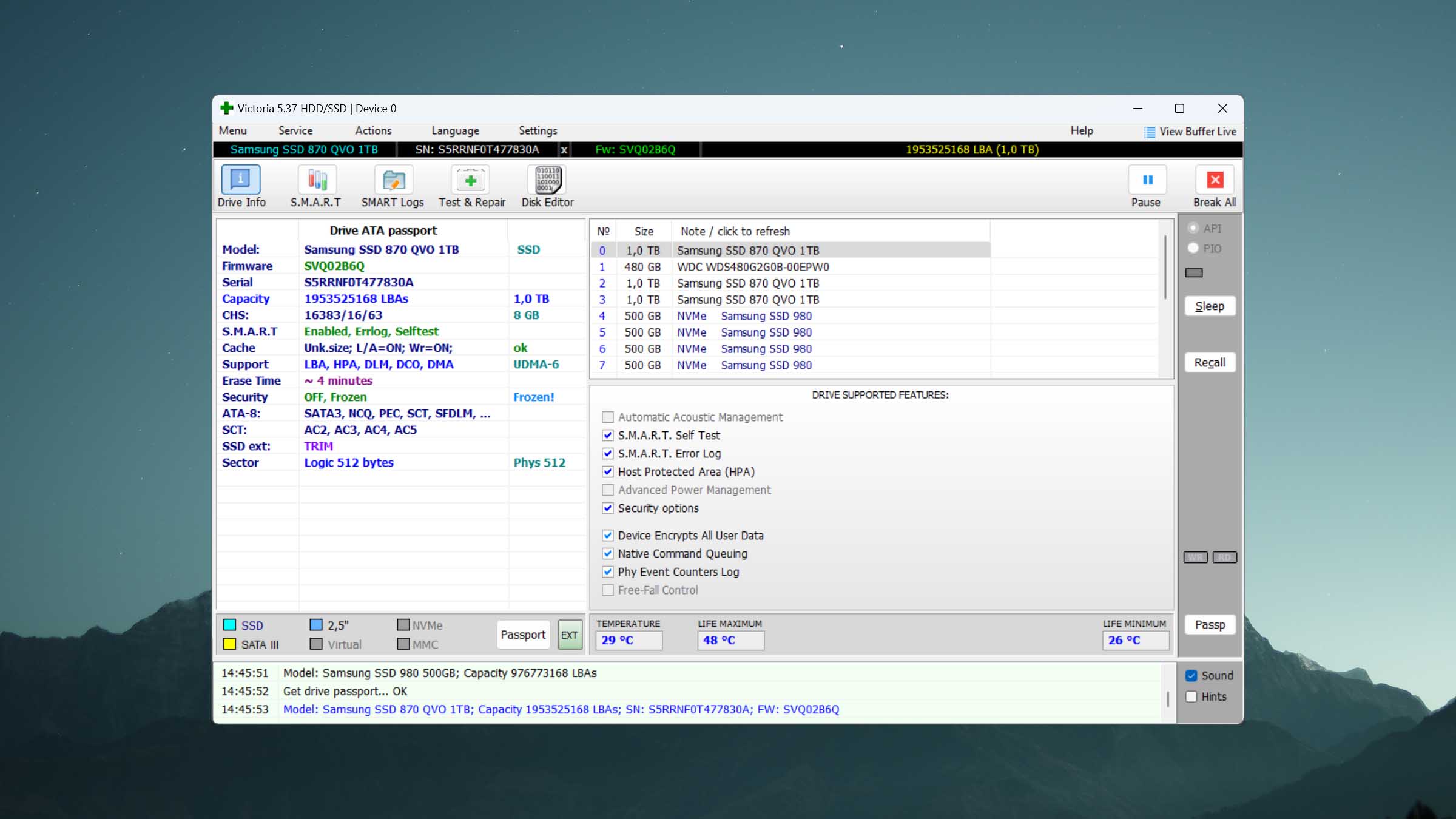
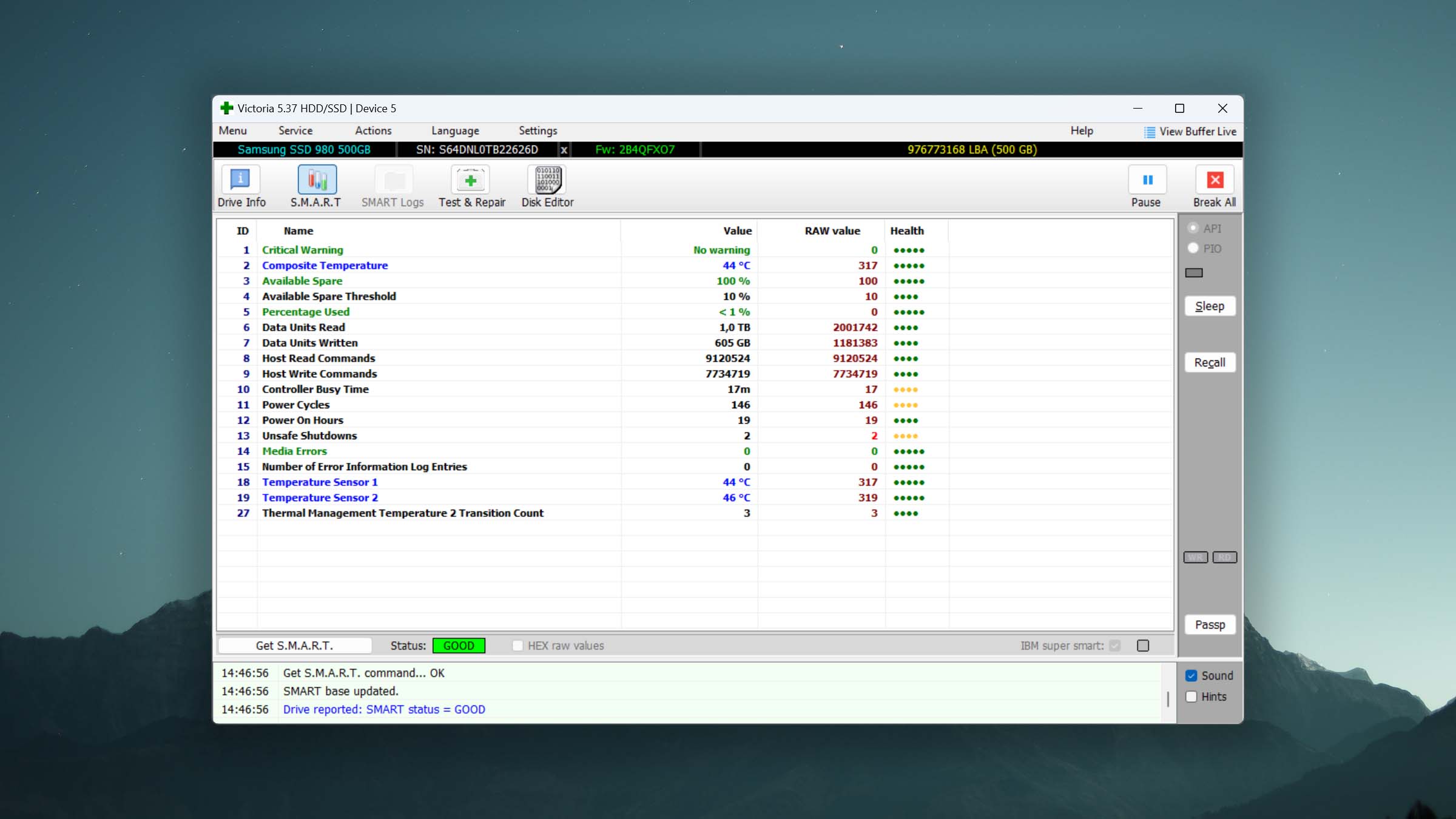
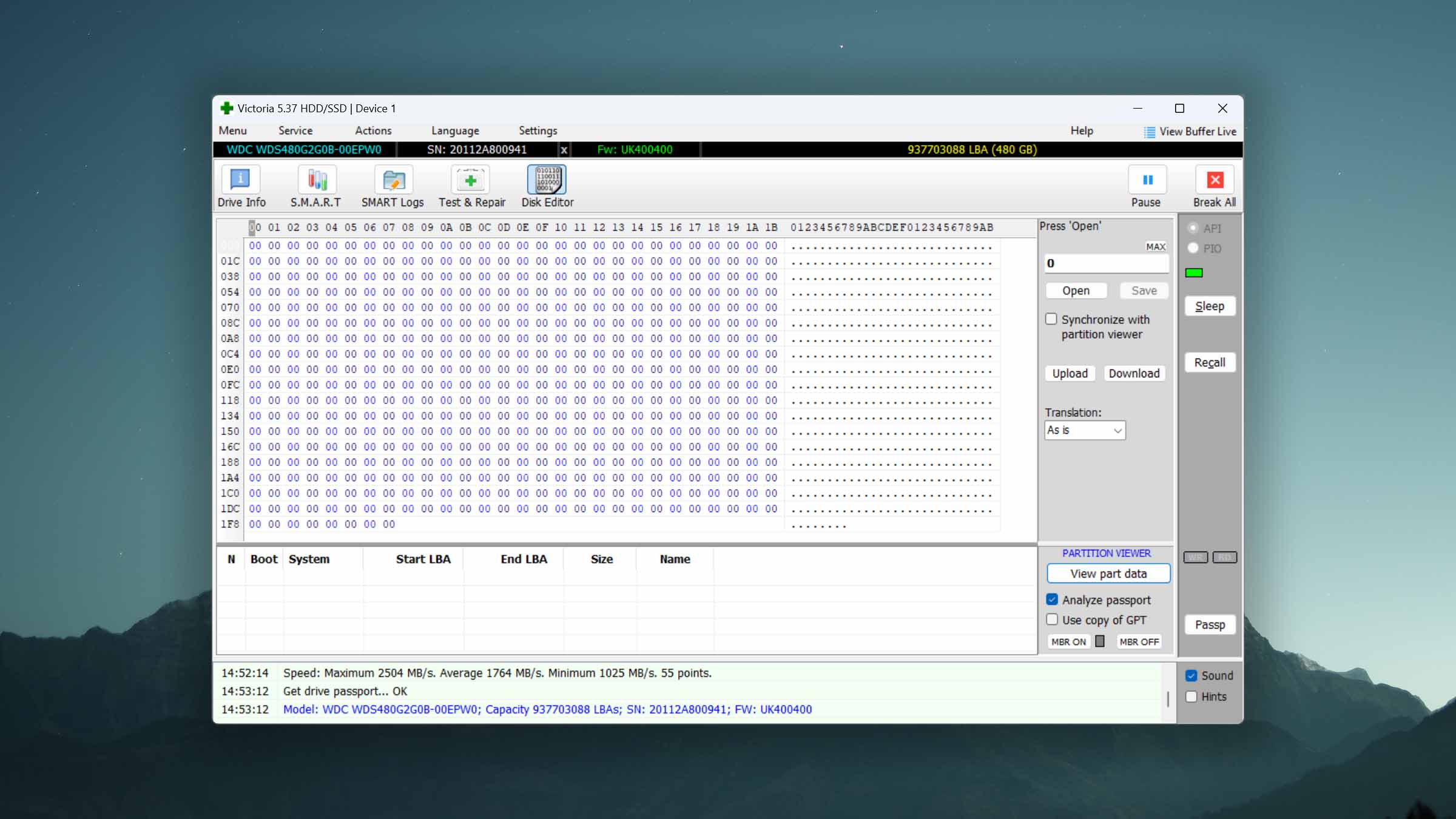
Have some bad sectors on your hard drive but aren’t sure what to do about them? Victoria HDD Utility is our top pick for remapping logical bad sectors and marking physical ones. While most tools treat bad sector management as a secondary feature, Victoria is purpose-built to give you granular control over how you scan and handle problematic sectors – all for free.
Usability
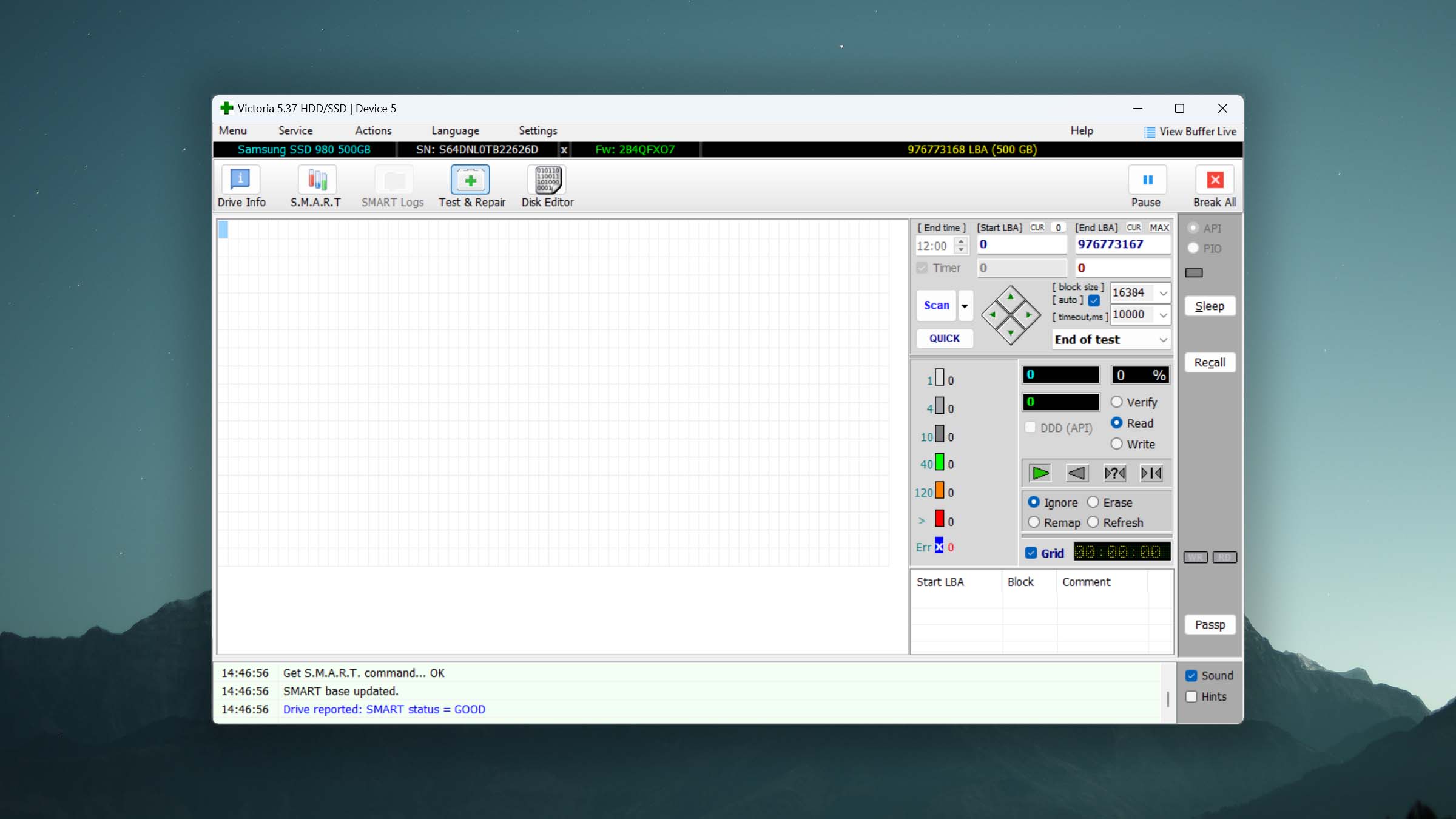
As a free tool, don’t expect too much for the user interface. It’s very basic and only seeks to be functional at best. You can navigate to the different areas of the program with the prominent buttons at the top of the application.
Tool capabilities
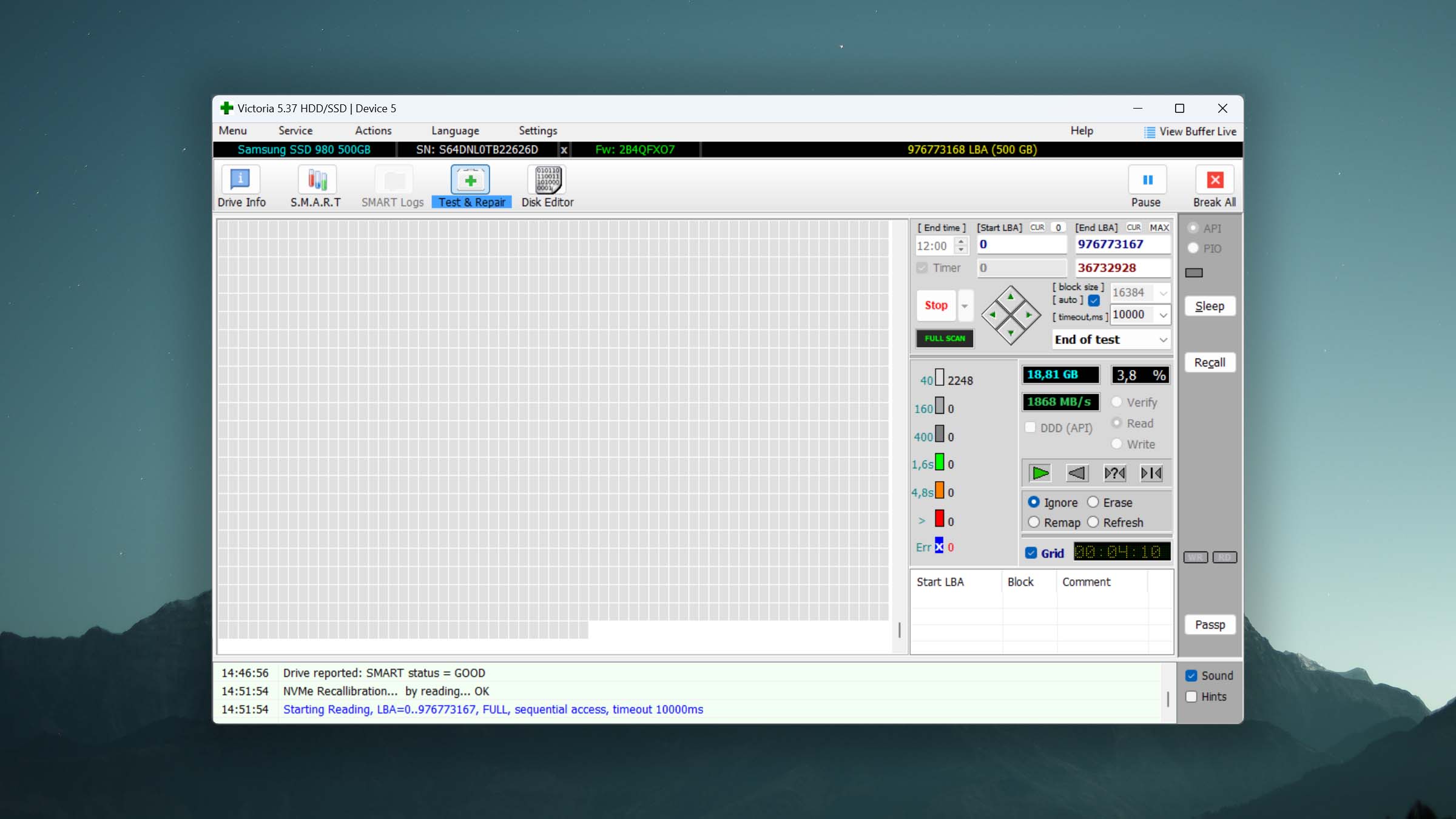
We consider Victoria HDD Utility to be the best bad sector repair software because it’s simple but effective. While its Test & Repair feature may appear intimidating with the number of options and settings that are available, it allows you to control the surface scan you perform on the drive. It also gives you a visual representation of the sectors on your hard drive and allows you to ignore, erase, repair, or refresh them based on what you’re trying to achieve.
Value
Value is pretty easy for this one. Since the program is completely free, we don’t have much to comment on here. You can do a lot with what the tool has to offer and there are few other options that give you such control over finding and repairing bad sectors on your hard drive for free.

7. Macrium Reflect
Windows
Freemium Some features are provided free of charge, but money is required to unlock the rest
30 day trial
$65...$4880
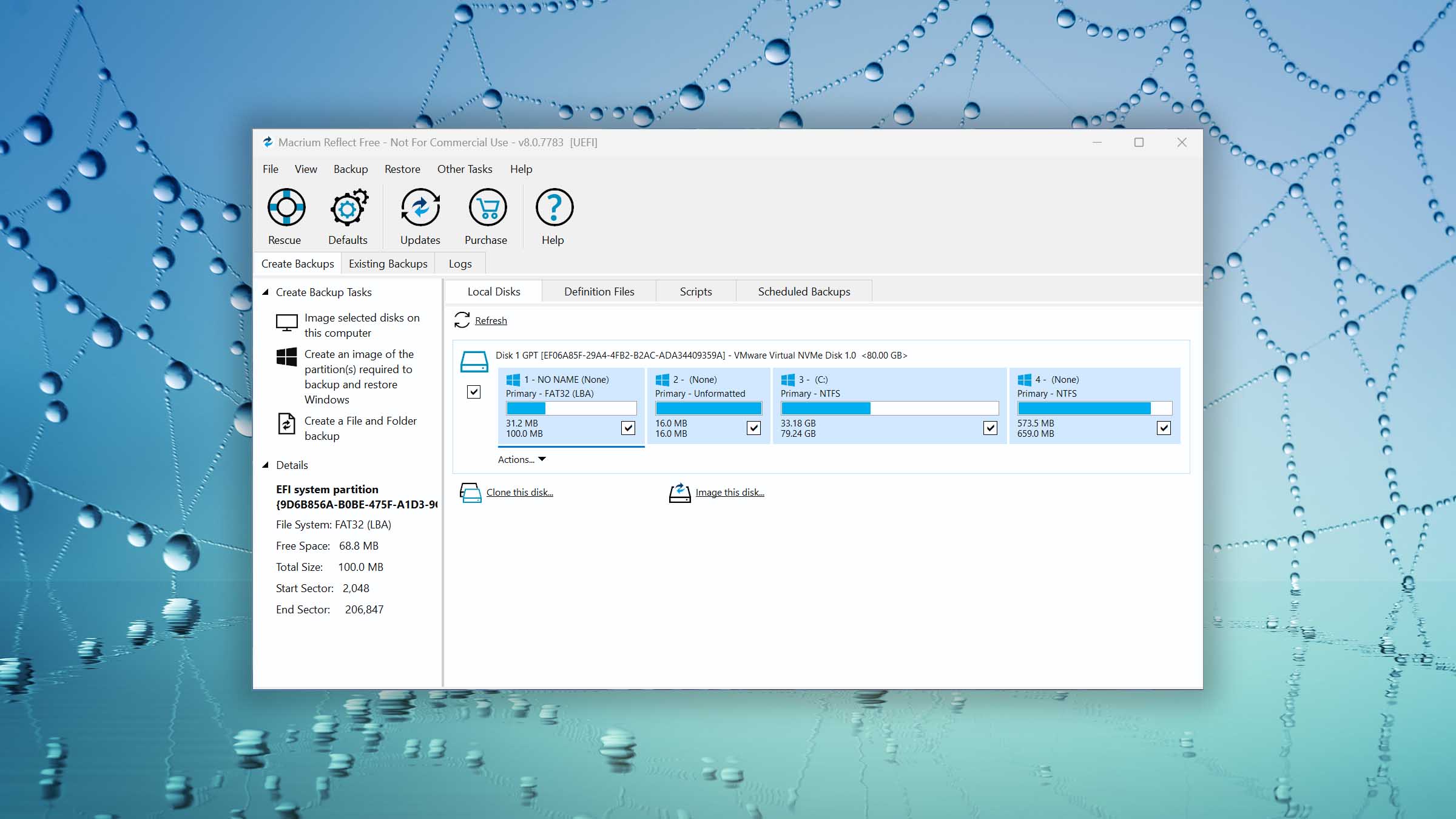
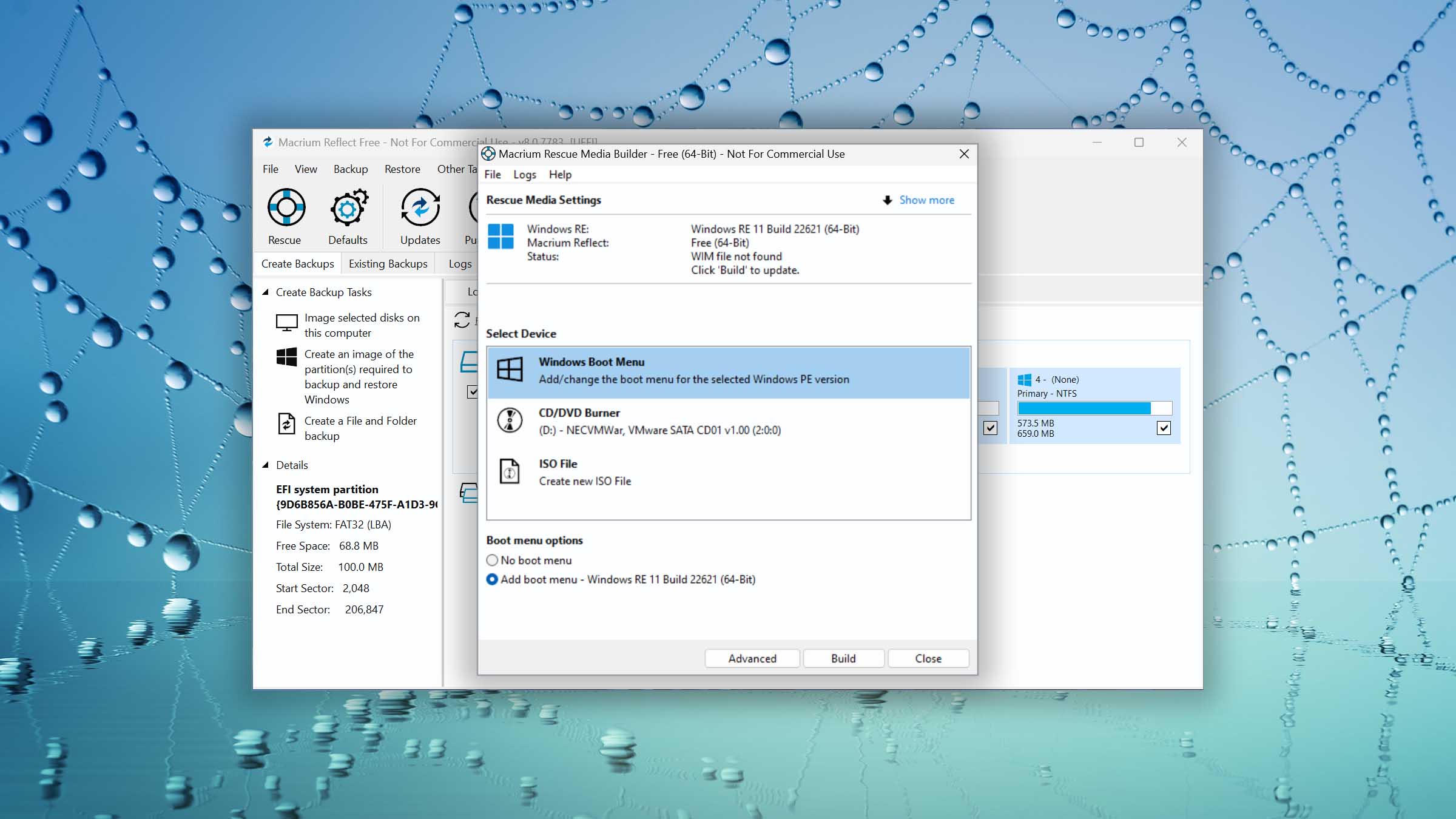
Macrium Reflect is a feature-rich backup utility designed to give you complete control over how you back up your data. From simple disk or partition images to highly customizable backup plans, Macrium Reflect is a flexible backup tool that’s ideal for ensuring your data is backed up and safeguarded against drive failure.
Usability
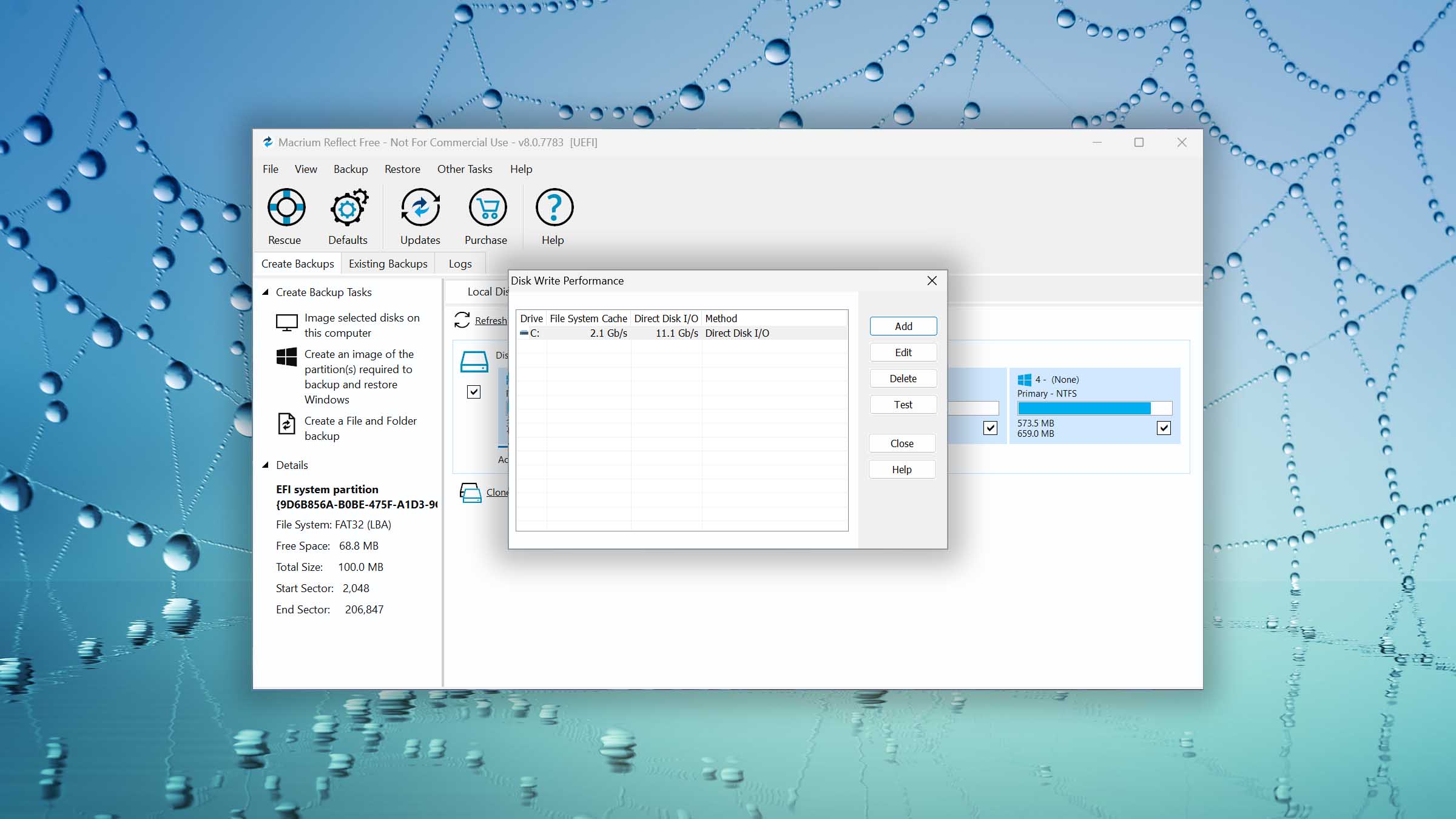
Macrium Reflect’s user interface is basic but functional. It can take some time to familiarize yourself with the layout, as it’s not very intuitive right off the bat. Despite that, once you overcome the learning curve the software is very easy to use and all necessary functions are easy to access. In addition to the easy-to-access features, you can also set up automatic backup schedules to take away the stress of needing to do manual backups. Furthermore, if your subscription ends, the software switches to restore-only mode so you can continue to restore data from your existing backups.
Tool capabilities
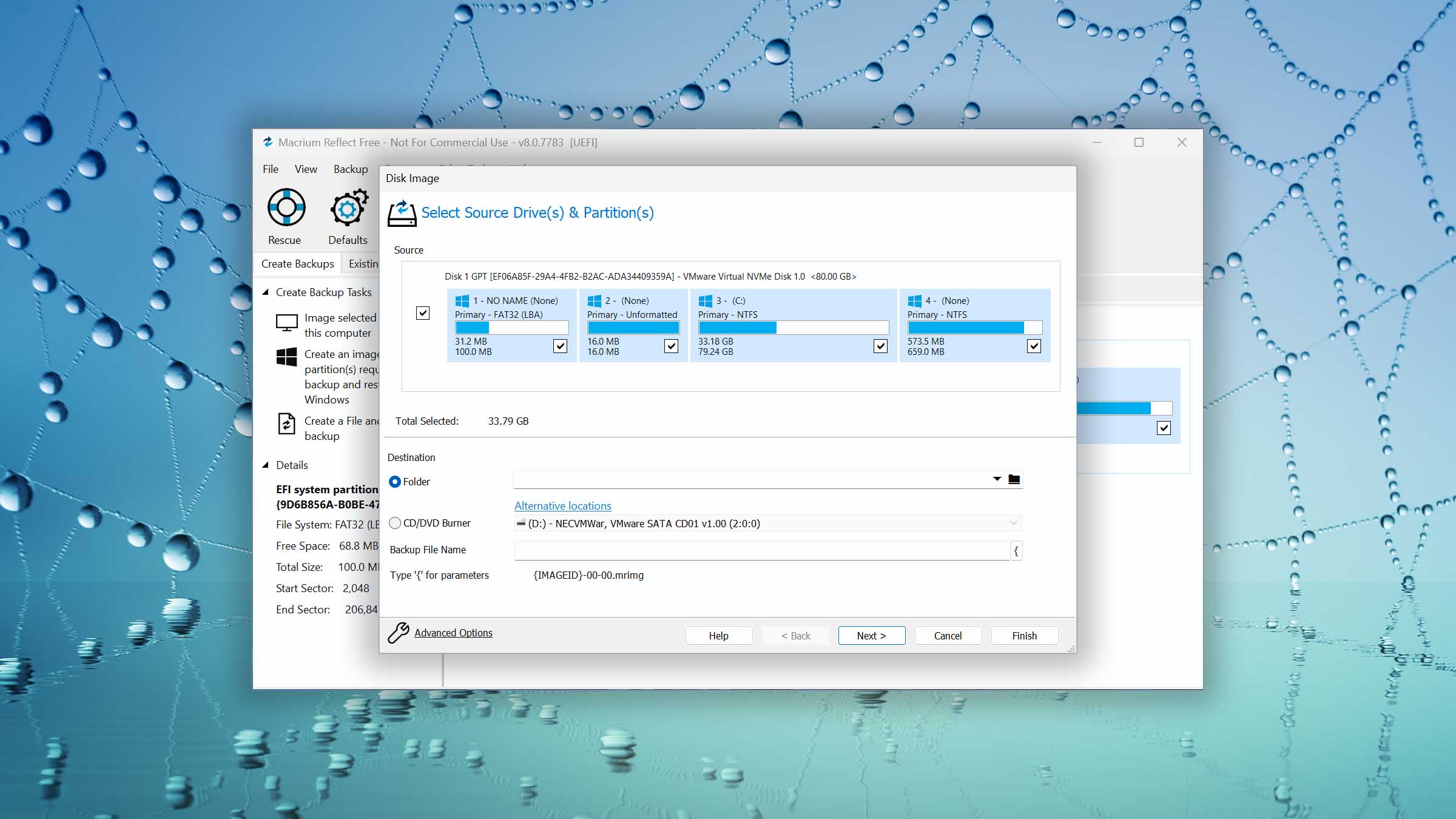
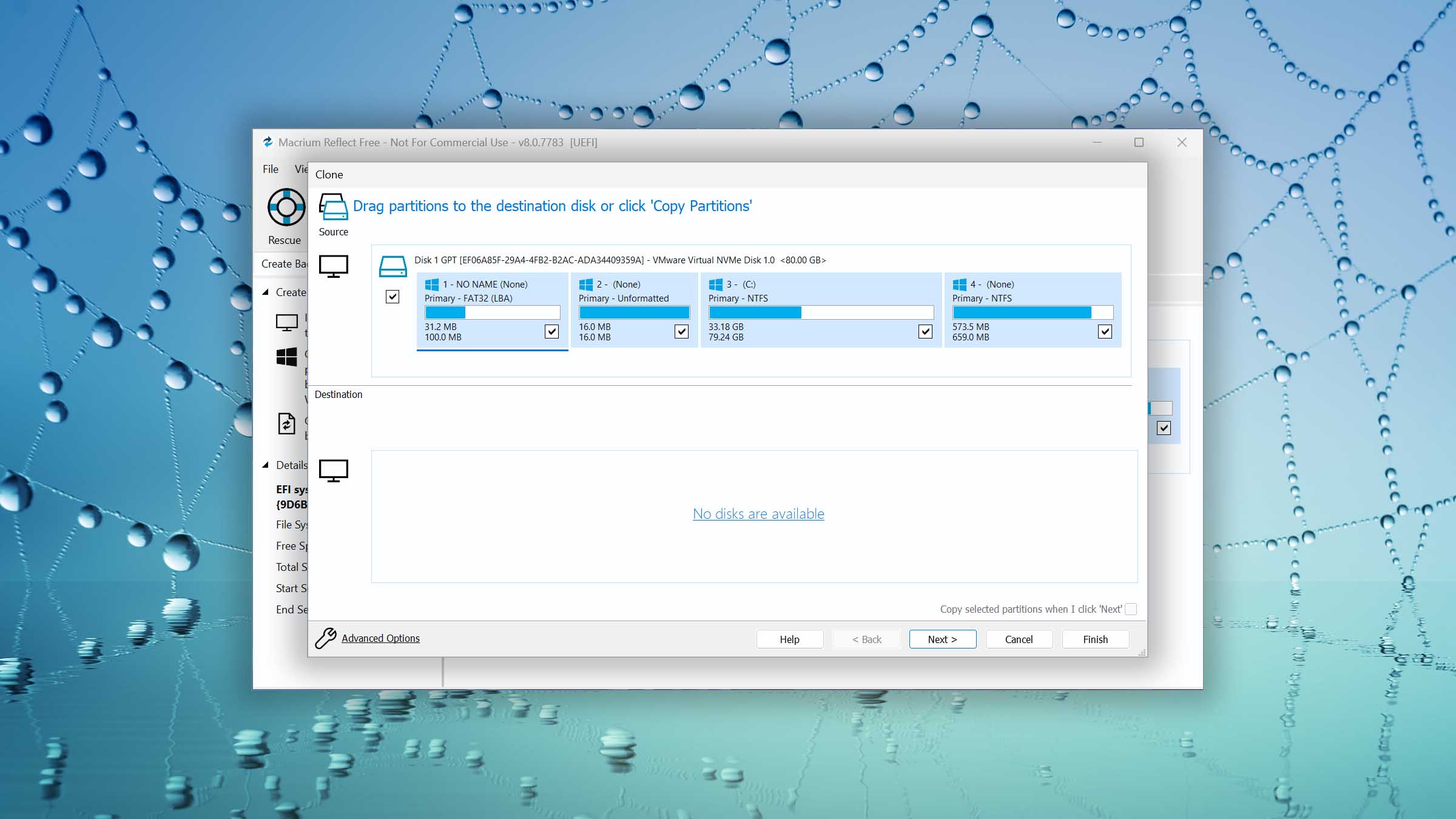
The ability to easily clone or image disks and partitions is one of Macrium Reflect’s highlights. In just a few clicks, you can begin copying data to a backup drive or file. Being able to make quick backups of your failing drive is essential, as the drive can fail at any moment. Backups are also highly configurable, allowing you to choose compression level, password protection, and auto-verification of backup integrity. Backups made of failing hard drives can be mounted and accessed using File Explorer at any time. In cases where your system drive has stopped working, you can create WinPE 11 rescue media from within the application to help you get back up and running.
Value
The free version, Macrium Reflect Free v8.0, was retired as of 1 January 2024. It’s still available on mirror sites like Major Geeks, but it no longer receives updates. Instead, a 30-day free trial is available, after which you will need to upgrade to a paid plan. The primary consumer-facing option is Reflect X Standalone, which starts at $45.50 a year for workstations. Pretty much all the other licenses are primarily for SMEs and enterprises, easily putting them outside the price bracket of the average consumer who just needs to back up their files.
8. Hiren's BootCD PE x64
Windows
Freeware All features are provided free of charge without any limitations
None
Free
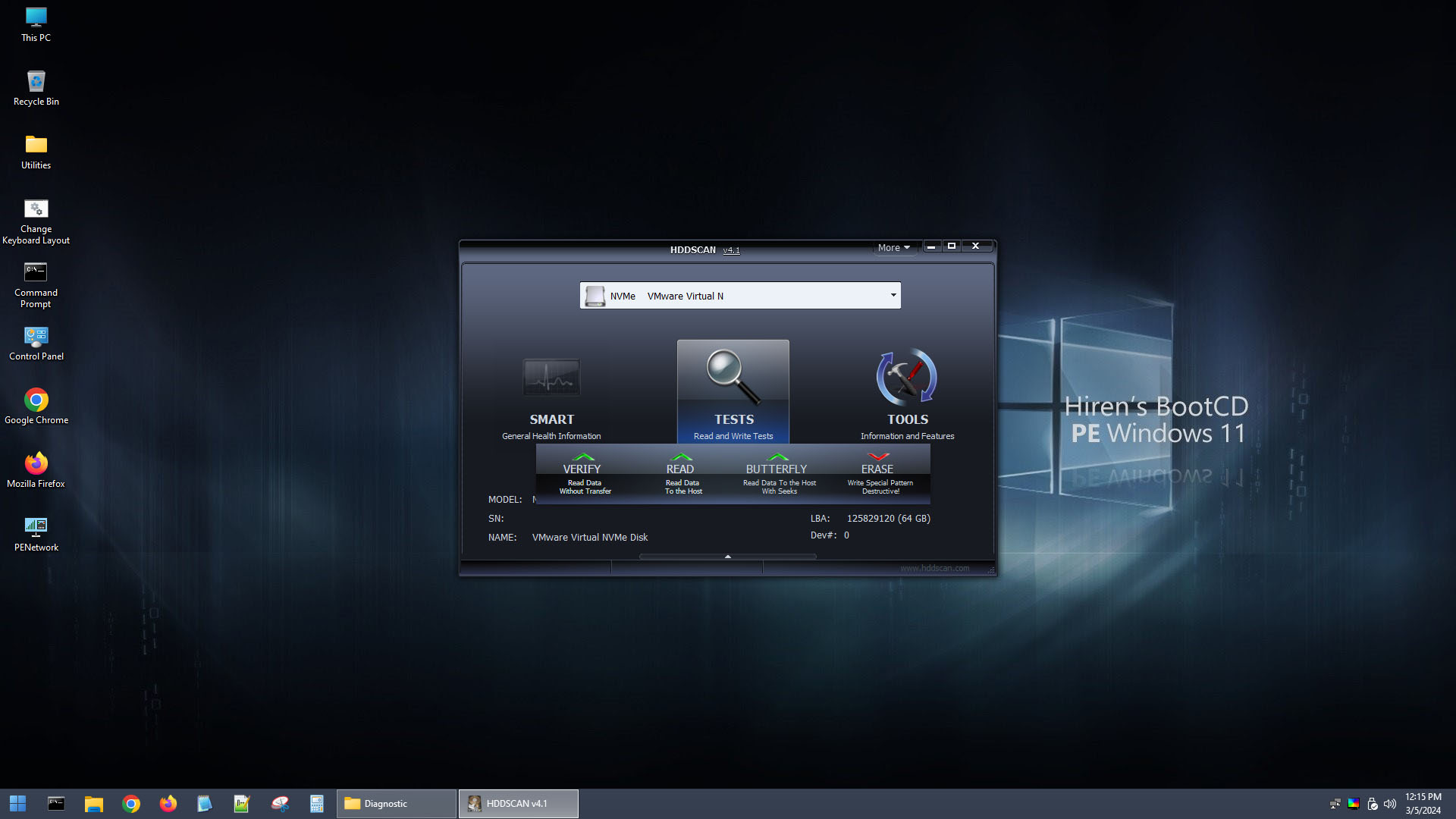
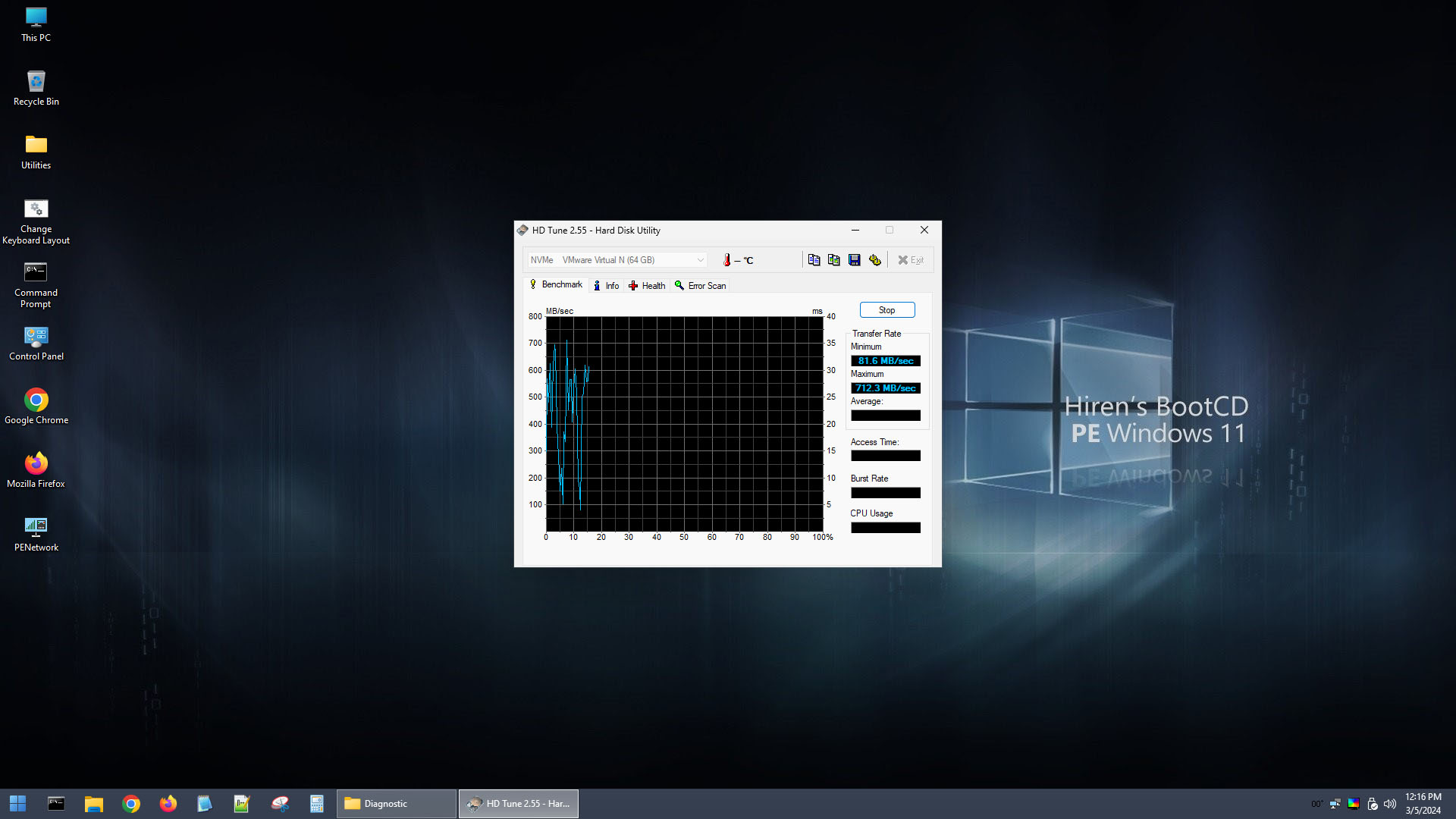
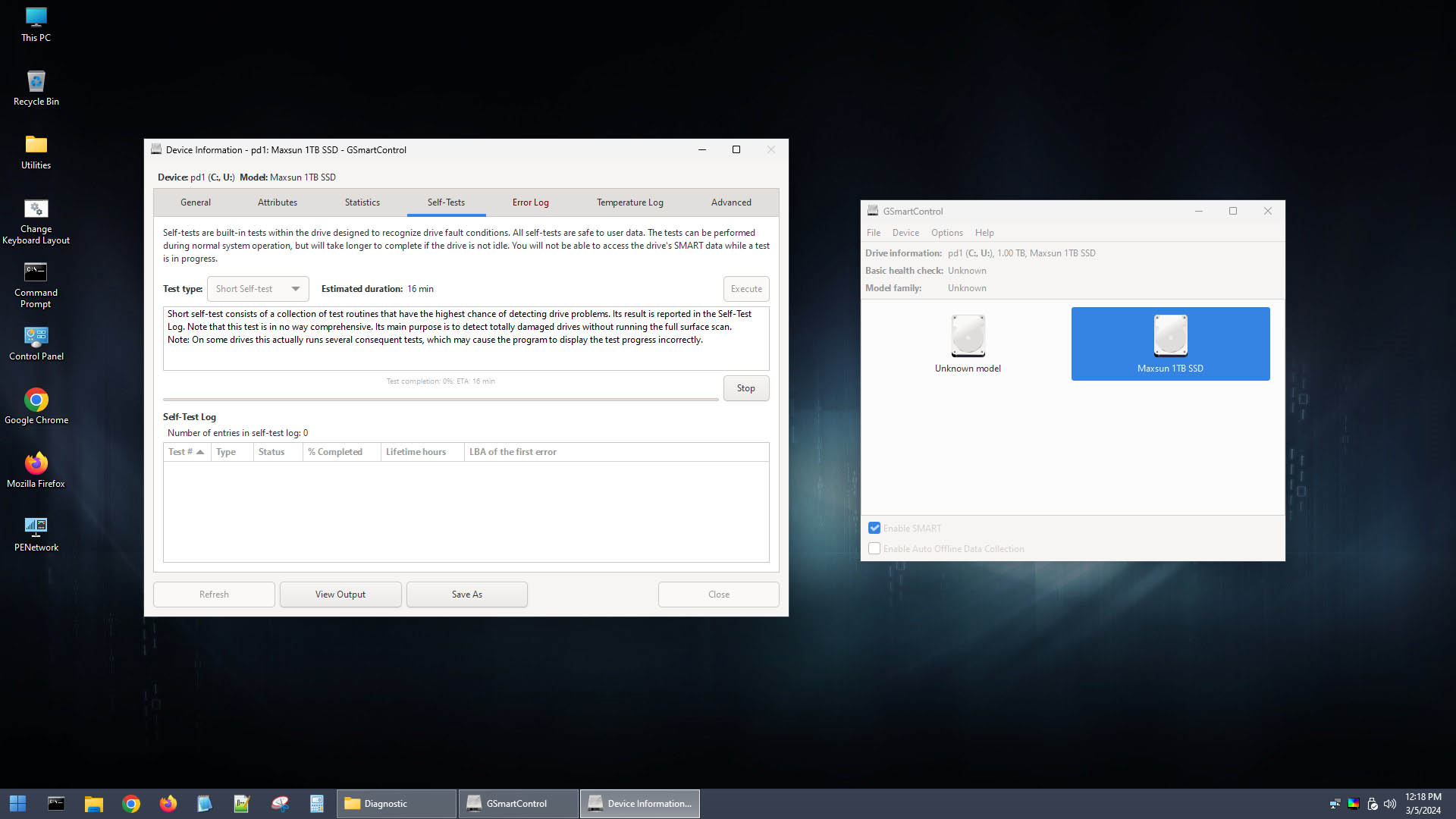
Hiren’s BootCD is a comprehensive toolkit for system diagnostics, troubleshooting, and recovery tasks. It was first released in 2004 but was officially discontinued in 2012 after the release of version 15.2. Since then, the project has been updated and maintained by the community to the point where it’s still widely considered the best bootable repair environment by many.
Usability
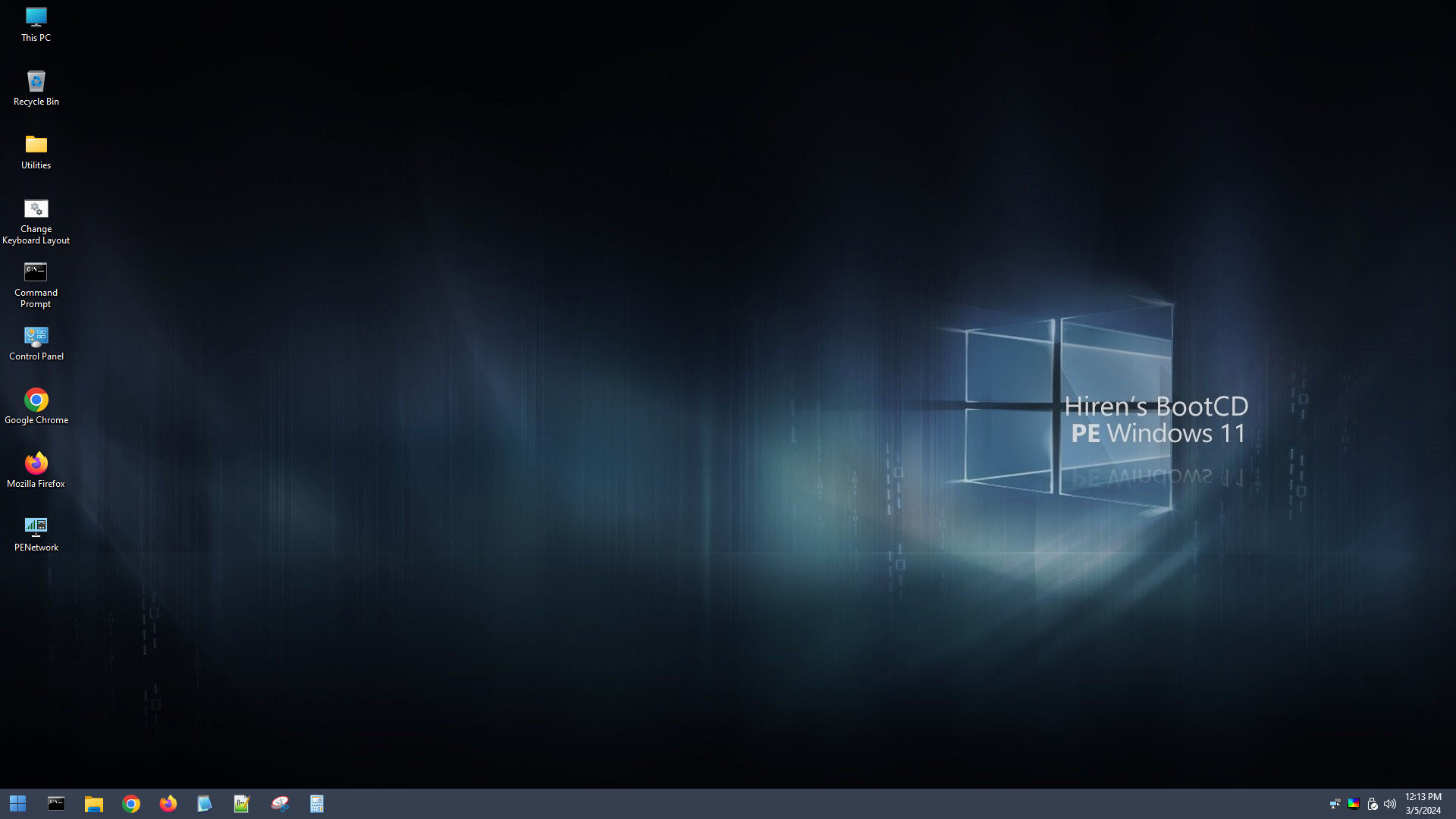
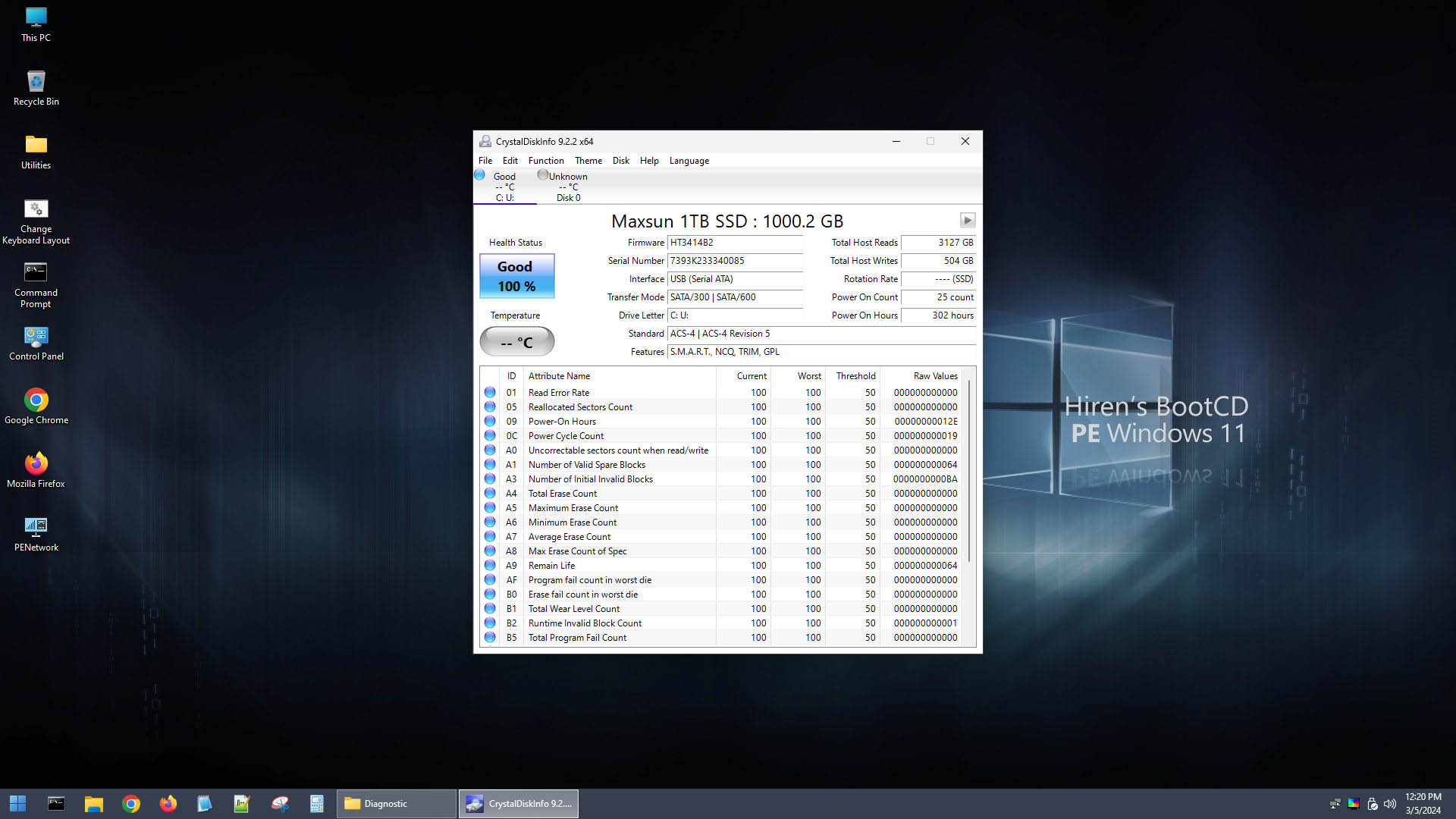
As Hiren’s BootCD uses Windows Preinstallation Environment (Windows PE), the user experience is essentially the same as using regular Windows. The bootable all-in-one solution comes with several useful software tools intended to tackle specific problems, such as TestDisk and PhotoRec, CrystalDiskInfo, DiskGenius, and more. The ISO file can be burned to a DVD or used to create a bootable USB.
Tool capabilities
By design, it includes a wide range of tools intended to address specific problems with your Windows computer. For instance, Recuva, DMDE, and PhotoRec are included for recovering data from problematic drives. CrystalDiskInfo and TestDisk are included to help with hard disk diagnostics. You’ll also find AOMEI Partition Assistant and DiskGenius, which are used for partitioning. For a better understanding of what the tool is capable of, it’s best to see exactly what software tools are included.
Value
Hiren’s BootCD can be downloaded for free. As a community project, it’s regularly updated by volunteers and hosted on a large number of mirror pages in addition to the official website. The value provided by Hiren’s BootCD comes from the range of software included in it, all of which are legally obtained and updated regularly.
9. CrystalDiskInfo
Windows
Free All features are provided free of charge, and the software can be used without restriction
None
Free
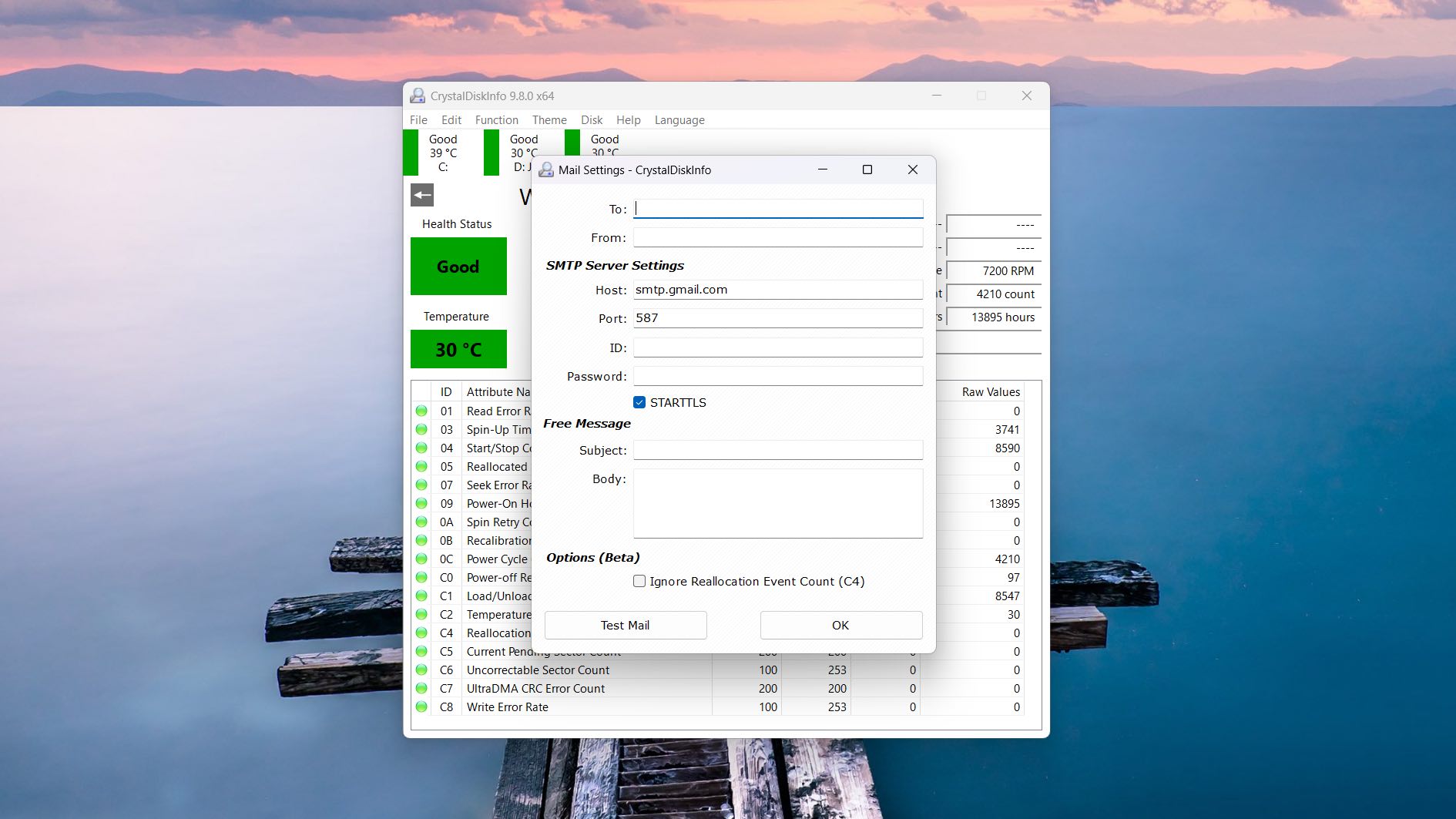
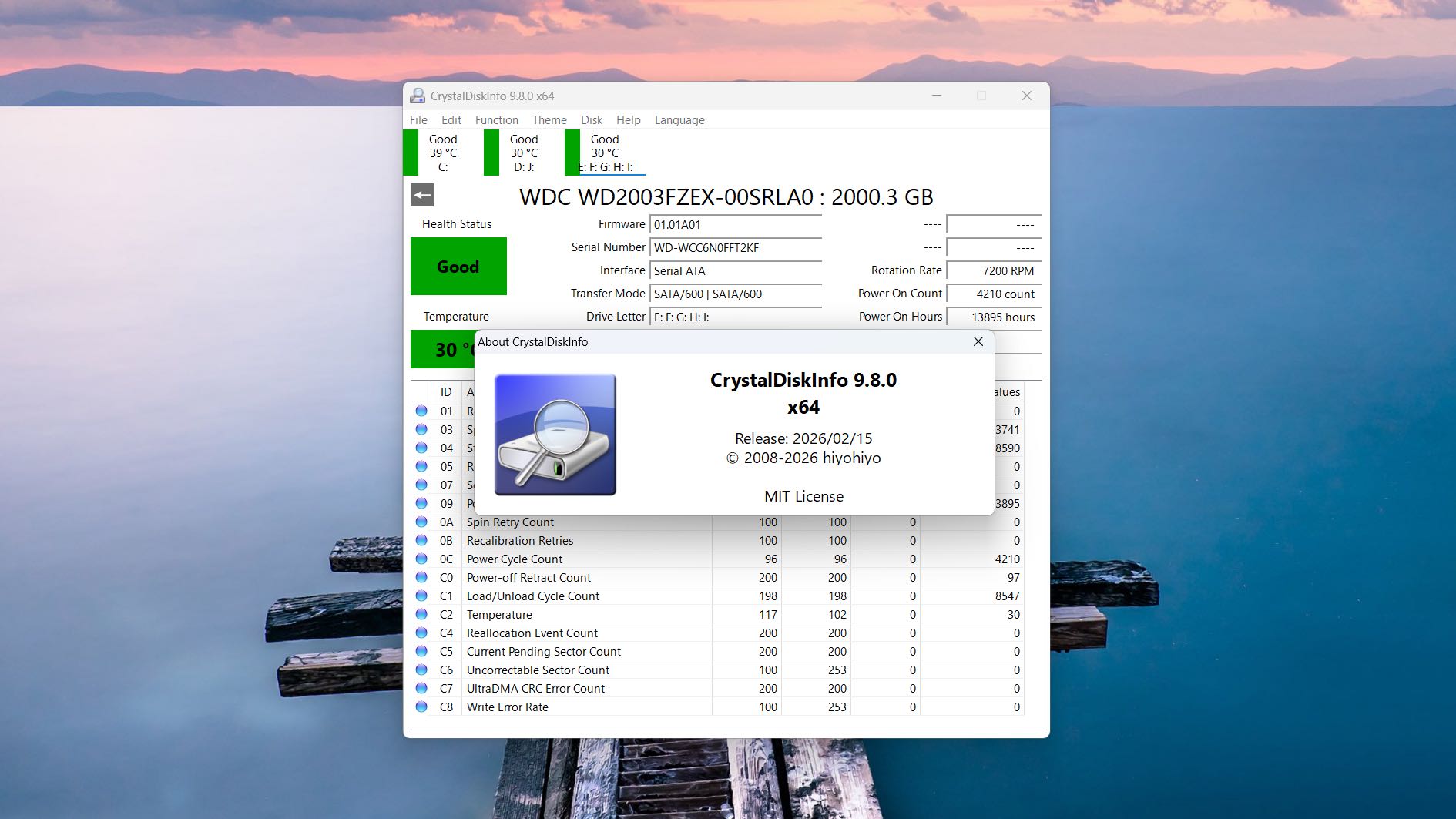
For the best drive health monitoring, CrystalDiskInfo is the go-to for how it prioritizes live disk health monitoring to give you a clear, real-time view of your drive’s health with minimal complexity. As it runs in the background, it regularly reads your drive’s S.M.A.R.T. data and alerts you to the moment something of concern is detected. No learning curve, no unnecessary features to navigate, and no cost – it’s perfect for anyone who simply wants a reliable health dashboard that stays out of the way until needed.
Usability
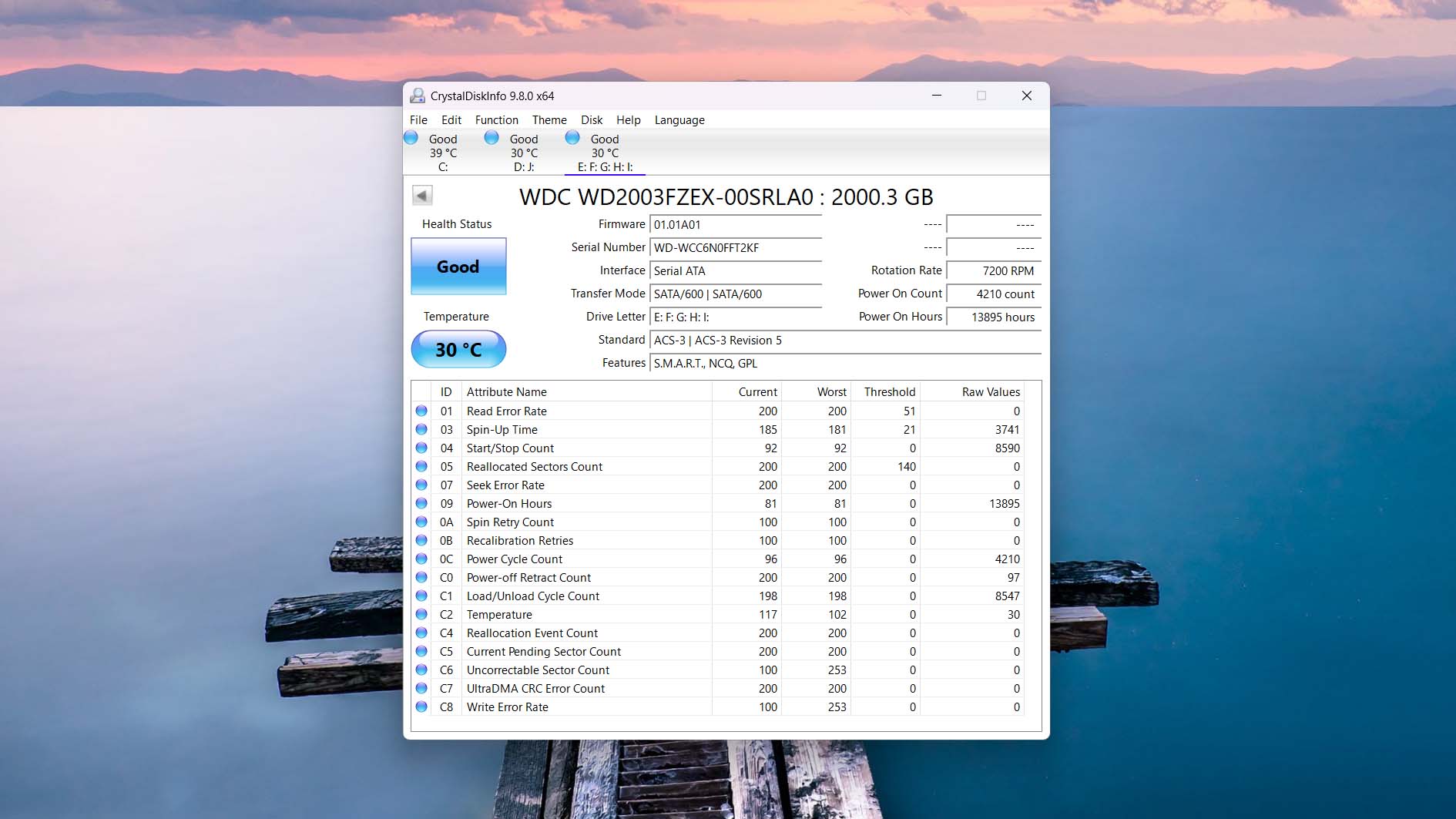
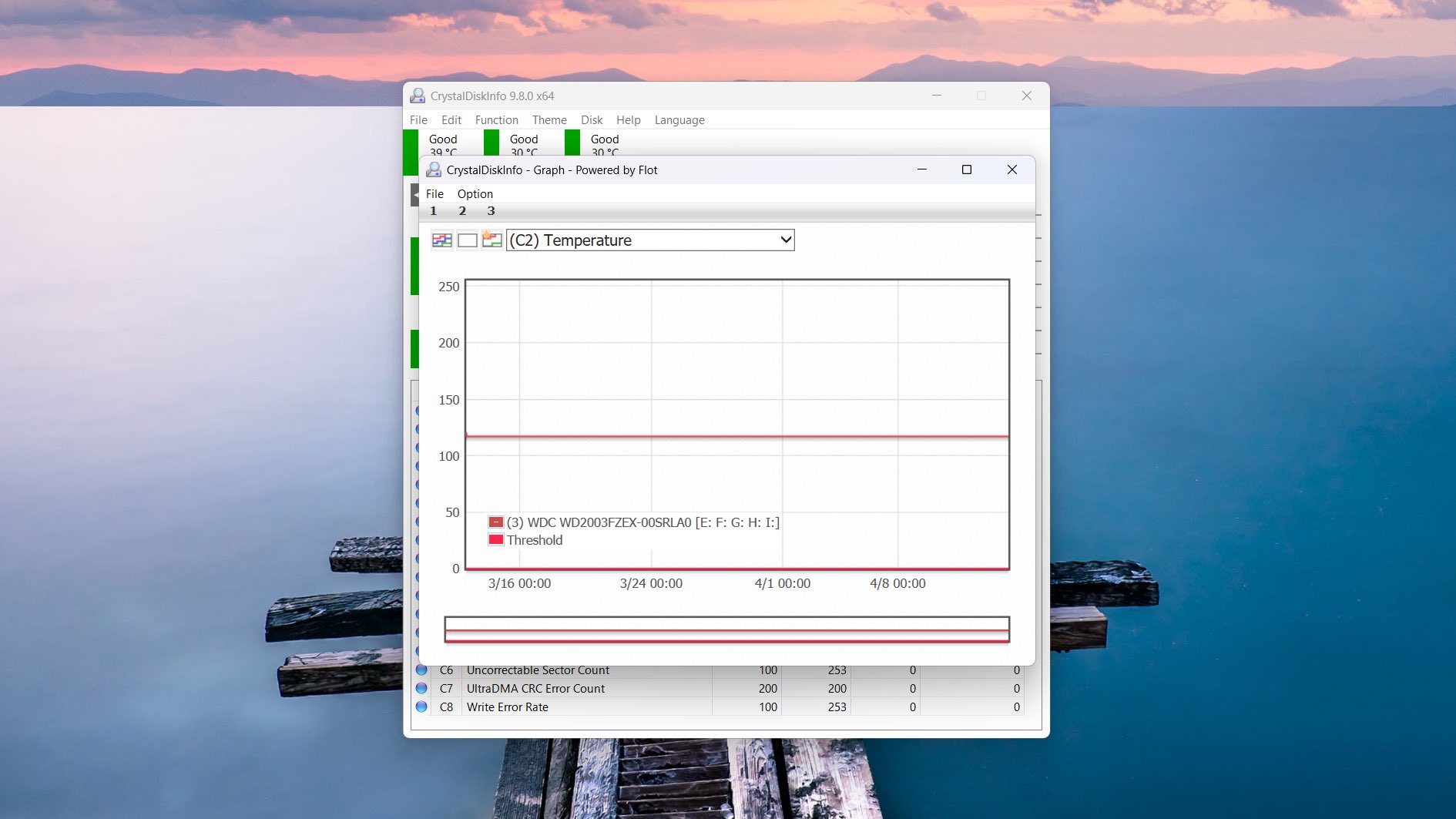
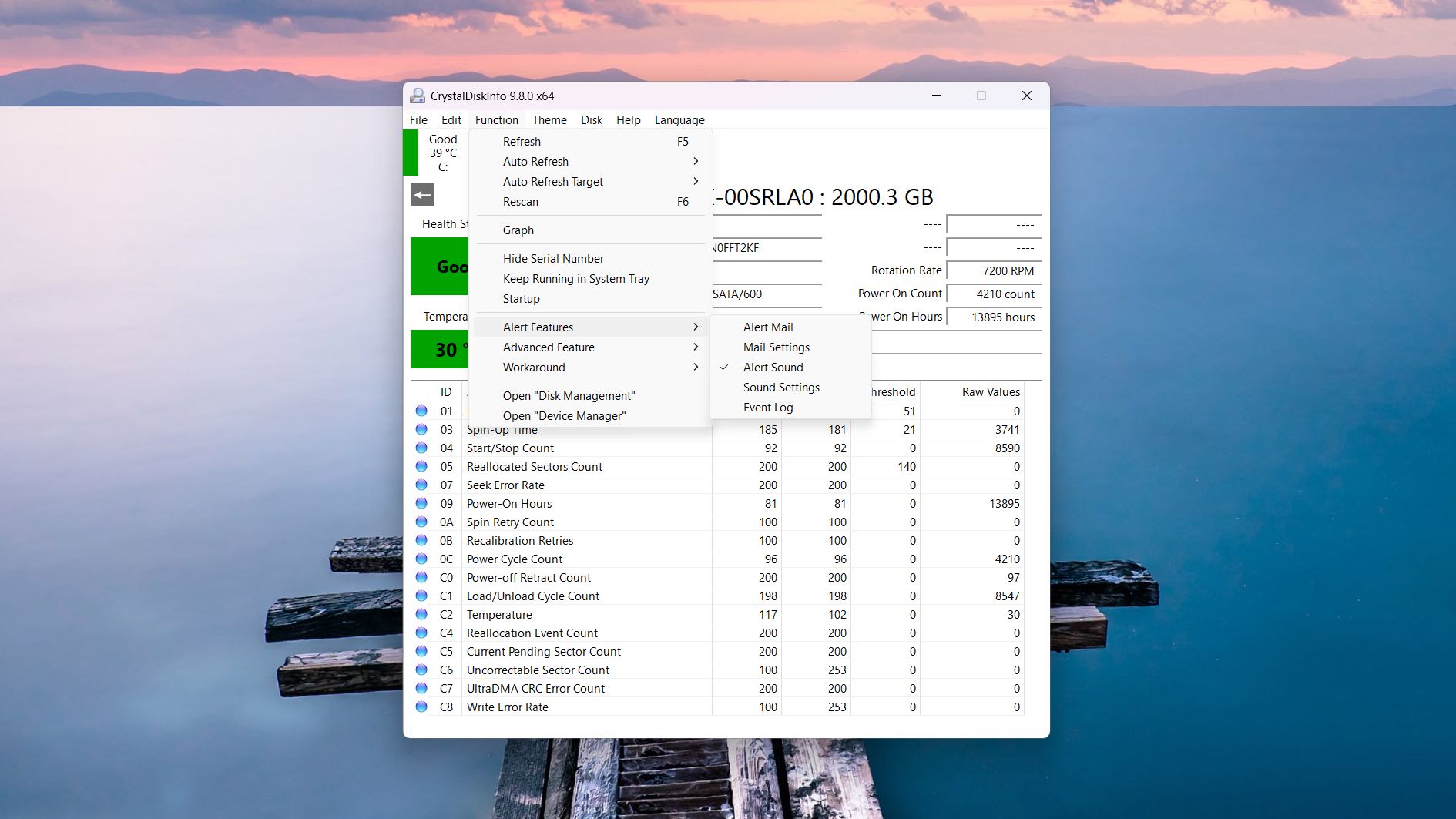
CrystalDiskInfo is entirely usable, while at the same time, not being overly appealing in terms of style. It’s very basic in that once the app is launched, it gives you an immediate breakdown of your drive’s health, complete with color-coded elements for quick interpretation. S.M.A.R.T. data is laid out in a clean table, while all the extra stuff, like alerts, auto refresh configuration, and value control, is accessible via the menus at the top of the window.
Tool capabilities
Sure, CrystalDiskInfo may only serve a few functions, but it serves them well. It continuously monitors your drives in the background and gives you a quick overview of their health based on S.M.A.R.T. data, covering critical attributes like reallocated sector count, uncorrectable sector count, and pending sector count. When something changes, it can notify you via system or email alerts so you can take action before things deteriorate further. While it cannot repair bad sectors as they occur, when paired with tools that can, it serves an invaluable function.
Value
Available completely for free, CrystalDiskInfo is already widely adopted by many and serves as an important part of every toolkit. Given its purpose-built nature, you shouldn’t expect all the bells and whistles that come with tools that serve multiple functions. Instead, it’s intended as a basic but reliable lookout for helping to identify drive issues before they get out of hand.

10. SeaTools
WindowsLinux
Free All features are provided free of charge, and the software can be used without restriction
None
Free
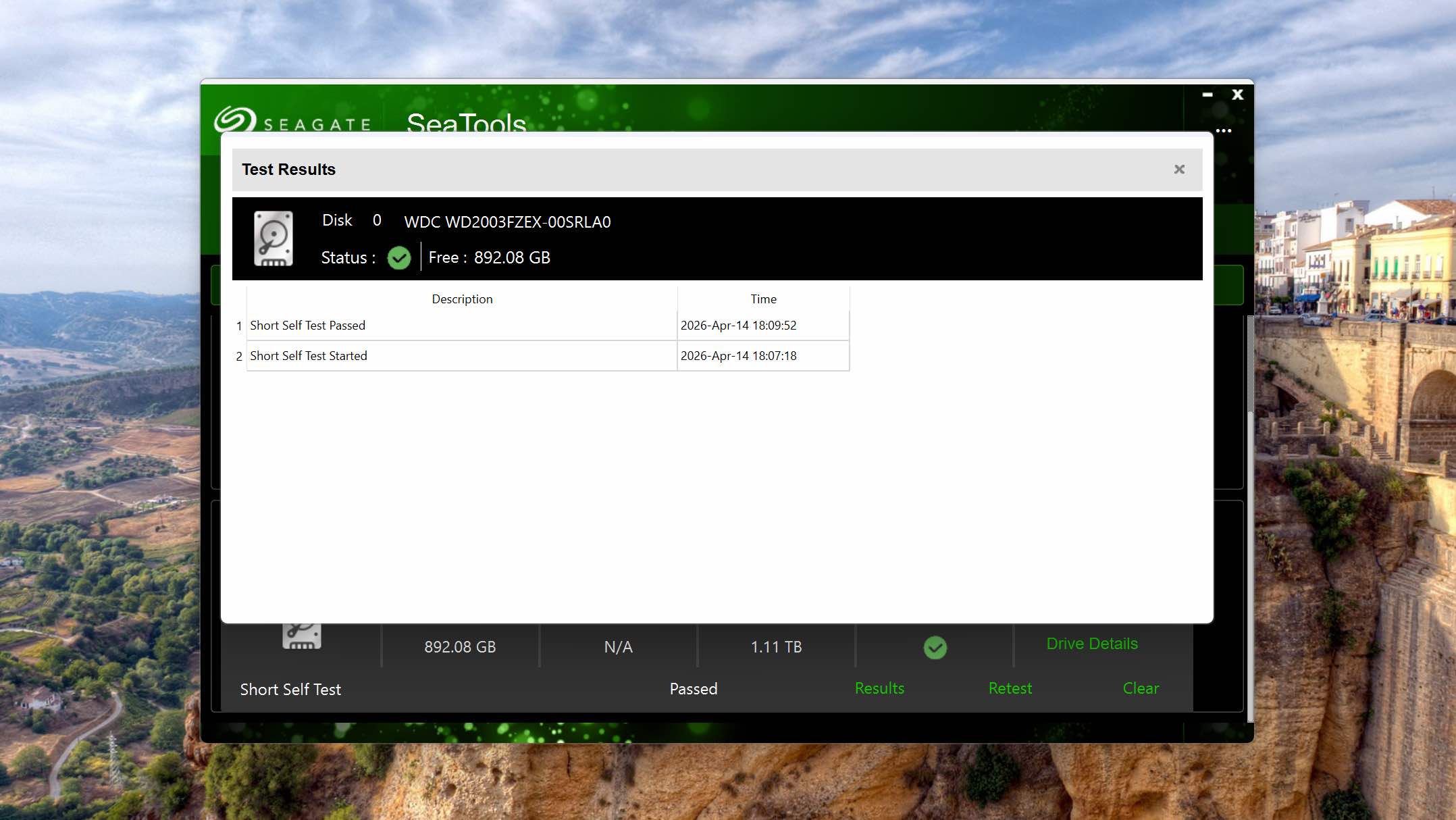
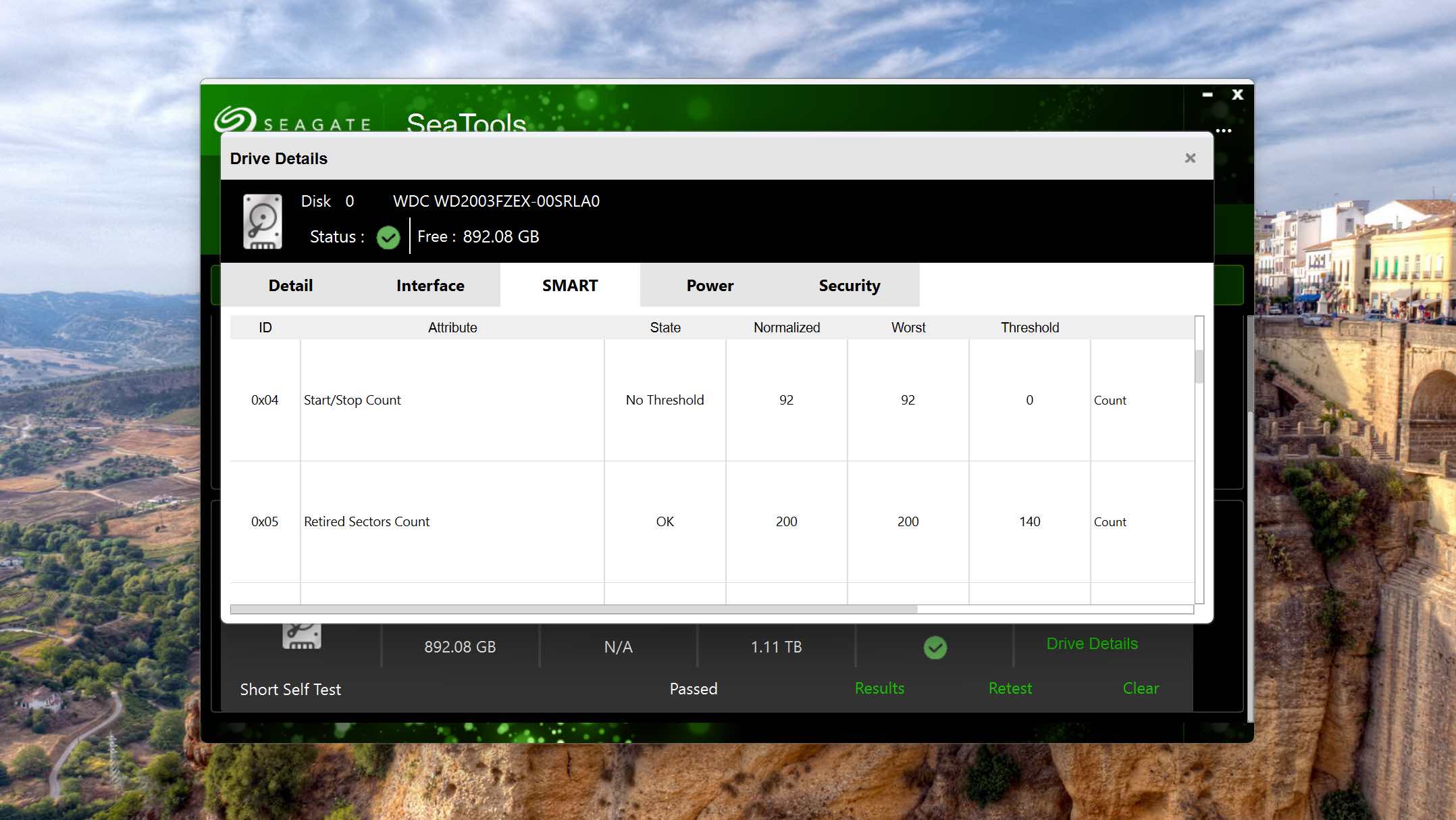
Seagate SeaTools is rated the best manufacturer diagnostic tool for its focus on drive-specific insight that general-purpose tools can’t always match. Despite its name, it supports drives from any manufacturer, not just Seagate, making it a useful addition to any toolkit. It’s free, straightforward to use, and covers everything from health monitoring and S.M.A.R.T. reporting to firmware updates and secure drive erasure, all from a single interface.
Usability
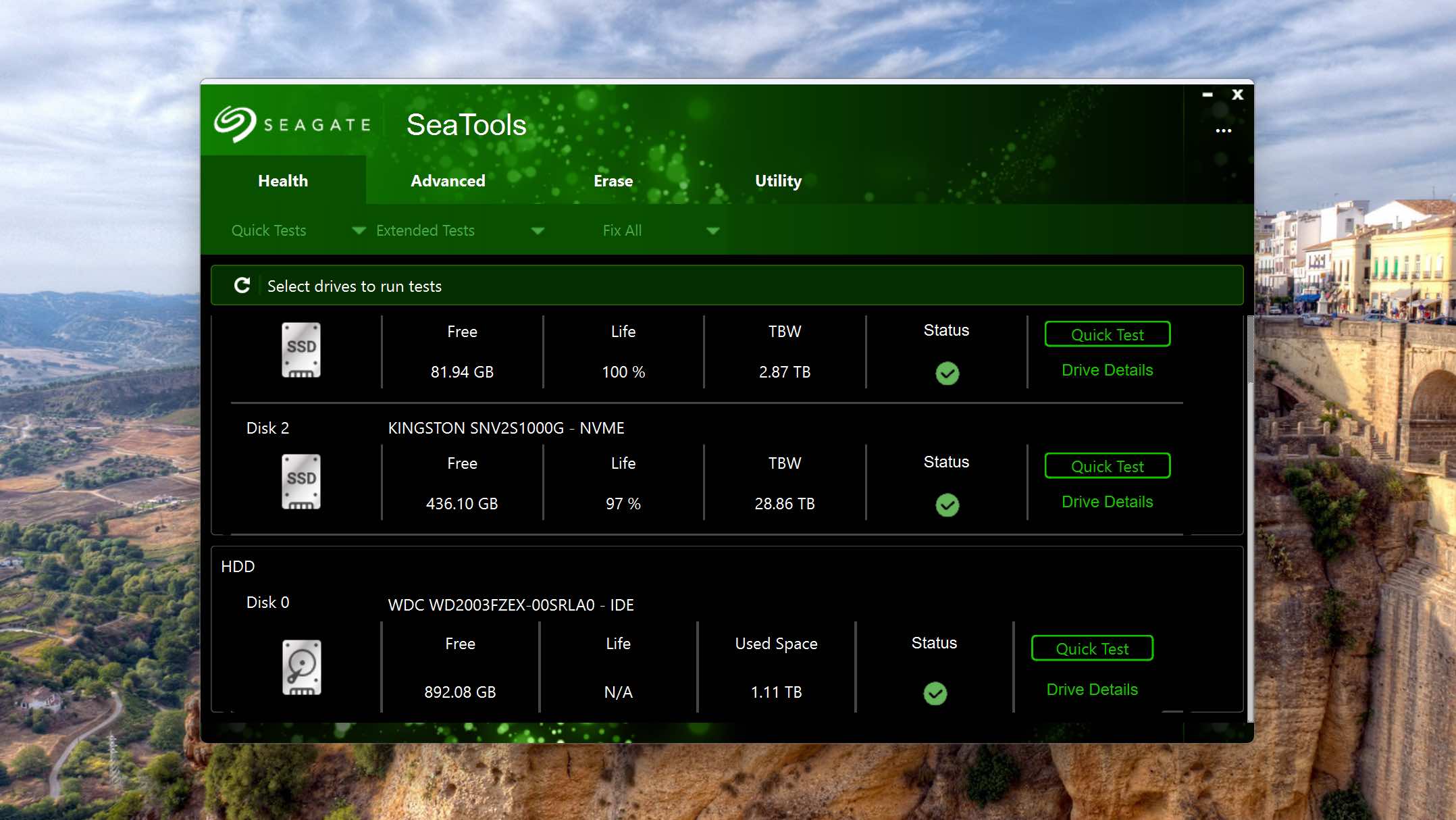
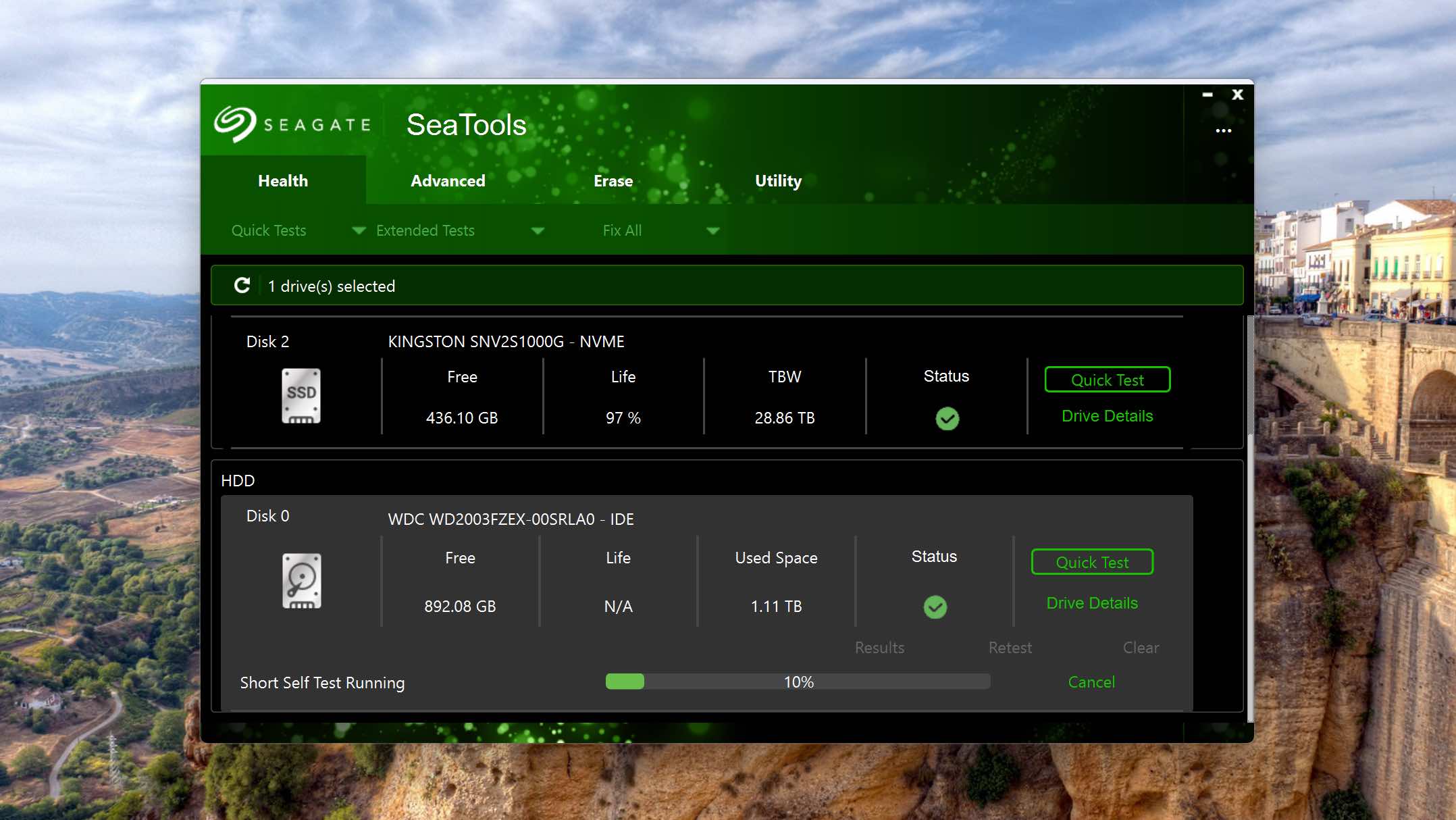
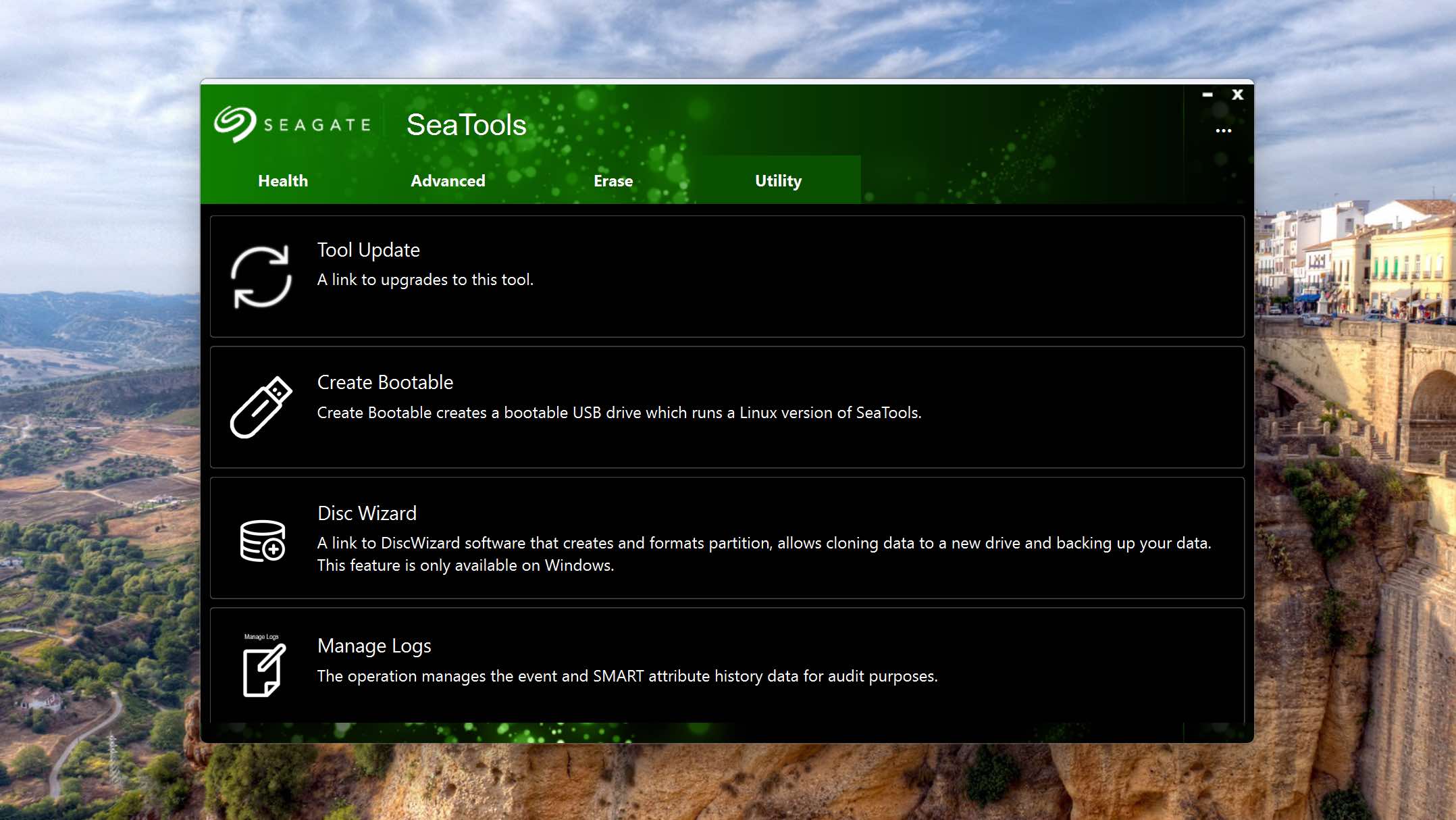
In terms of user experience, everything is very functional in Seagate SeaTools. The interface is organized into Health, Advanced, Erase, and Utility tabs, making everything accessible once the layout is familiar. Drive panels display key metrics, which include free space, drive life, total bytes written, and general health status. Running tests is as simple as selecting a drive and choosing a test type from the menu, with results accessible directly from the drive panel. The learning curve is minimal, though the overall aesthetic feels very typical of a manufacturer's tool.
Tool capabilities
You can perform a surprisingly wide range of diagnostic and maintenance tasks. From the Health tab, you can run everything from a quick short self-test to a thorough long generic read/write test, as well as the "Fix All" function that attempts to locate and repair bad blocks. The "Advanced" tab gives you access to firmware updates, spindown controls, and capacity tuning (for supported drives, of course). If you’re disposing of or selling your drive, the several secure erasure options are a reliable means of destroying your data and preventing its recovery.
Value
Given that SeaTools is completely free and works even for non-Seagate drives, it’s an easy recommendation for anyone who wants a capable, manufacturer-backed diagnostic tool. Seagate drive owners may get the most out of it, as some advanced features are limited to Seagate hardware, but the core diagnostics and testing functionality works great across brands. For users who want a tool that can run drive tests, check S.M.A.R.T. data, or securely erase a drive, SeaTools delivers solid value.
Honorable Mentions
We couldn’t fit every popular application in this list. Here are a few honorable mentions that didn’t make the list but still deserved a mention.
HDD Regenerator
HDD Regenerator claims the ability to restore bad sectors, even physical ones. While the software does have the ability to fix drive-related issues in some cases, there’s no telling how long those fixes will last. Therefore, the tool didn’t make the list as this program is only a temporary means of restoring a hard drive.
MHDD
MHDD was designed for MS-DOS due to its low-level access to computer hardware. Seeing as it is now significantly outdated, the only means of running it on updated operating systems is through virtualization. Even then, the way hardware works now severely limits MHDD’s functionality, making it a much less appealing option when compared to modern applications of a similar nature.
HDDScan
HDDScan is a free portable diagnostic tool for hard drives, SSDs, and RAID arrays that can read S.M.A.R.T. attributes, run surface tests, and check drive temperatures. While it covers the basics well enough, it didn’t quite make our list due to its dated interface and the fact that our selections match or exceed its capabilities in pretty much every area it covers.
Clonezilla
Clonezilla was a contender for the spot of the best tool for disk imaging/cloning. While it is still a very capable option, we went with Macrium Reflect as Clonezilla does not currently support differential or incremental backups yet, giving you fewer options in terms of how you back up your data.
When to Stop Using Software
#The tools in this list are designed for logical failures. These problems are at the file system or partition table level, and include corrupted partitions, RAW drives, missing files, and bad sectors (logical ones). Physical failures are a different matter entirely. When the drive itself is mechanically or electronically compromised, no amount of software will help, and attempting to use or repair it will make things significantly worse.
Signs of logical failure where software can help:
- The drive is detected in BIOS and Windows, but shows errors or behaves unexpectedly.
- The drive appears as RAW or unallocated in Disk Management.
- Files are missing or a partition has disappeared without explanation.
- Windows fails to boot, but the drive is still recognized by the system.
- S.M.A.R.T. is reporting warnings, but there are no unusual sounds or physical symptoms.
Signs of physical failure where software won’t help:
- You can hear clicking, grinding, buzzing, beeping, or scraping sounds coming from the drive.
- The drive isn’t detected in BIOS or Disk Management at all, even after ruling out connection issues.
- The drive is detected intermittently or disappears mid-use without prompt.
- There’s a burning smell or visible damage to the drive’s circuit board.
- The drive’s reported capacity is wildly incorrect (e.g., a 2 TB drive showing as 32 MB), isn’t reported at all, and can’t be explained by partition issues.
- S.M.A.R.T. data can’t be read at all.
Built-in Windows Tools for Hard Drive Repair
Windows includes several built-in command-line and GUI tools that can handle some basic repairs without the need of third-party software. For more complex issues, these serve as a useful first step before reaching for a dedicated tool.
| Tool | Type | Purpose | Example |
| CHKDSK | Command-line | File system repair with sector management. | chkdsk *: /r |
| Disk error checking | GUI | GUI for CHKDSK. Scans for and repairs file system errors. | Drive properties → Tools → Check |
| SFC | Command-line | Restores corrupted system files. | sfc /scannow |
| DISM | Command-line | Repairs the Windows system image. | dism /online /cleanup-image /restorehealth |
| DISKPART | Command-line | Partition management, clean and recreate volumes. | Diskpart → clean → create partition |
| BOOTREC | Command-line | Troubleshoot and repair startup issues. | bootrec /fixmbr |
| Disk Defragmenter | GUI | Defragment HDD to improve performance. | Start → Defragment and Optimize Drives |
These built-in options cover most common logical repairs. For anything beyond them, the tools mentioned in this guide are the next step.
Which Hard Drive Repair Tool Should You Choose?
As with most software categories, it’s impossible to deem one option as the best hard drive repair too – and that’s by design. Hard drives fail in very different ways, and the right tool depends entirely on what’s wrong. To account for that, our list covers ten distinct tools that are the best in their respective fields.
For recovering lost or deleted files, Disk Drill is your best starting point. For partition recovery, TestDisk is a very reliable option, and so is AOMEI Partition Assistant if you prefer a graphical interface. Bad sectors can be addressed by Victoria HDD/SSD, and Hard Disk Sentinel is good for ongoing monitoring. Macrium Reflect covers backups and cloning, while DiskGenius covers similar ground alongside data recovery and disk management. For unbootable systems, Hiren’s BootCD PE provides a full repair environment to work from. And for free health analysis and repairs, CrystalDiskInfo and Seagate SeaTools are both worth keeping on-hand.
That said, the best repair is the one you never need to make. A reliable way of data loss prevention is following the 3-2-1 backup rule. This involves keeping three copies of your data on two different types of storage, keeping one off-site, keeping you covered even after a complete drive failure.
Was the provided information useful? Your vote is important to use!
Frequently Asked Questions
Is there any difference if I need to repair a corrupted external hard drive?
It really depends, as there are many reasons why your hard drive could have become corrupted. In such cases, we recommend you check out our guide on how to fix a corrupted hard drive for a walkthrough on how to repair a corrupted internal or external hard drive.
What bootable disk repair tools can I use?
DiskGenius and AOMEI Partition Assistant both support the creation of bootable drives to repair startup problems. We can also recommend Hiren’s BootCD PE if you need an all-in-one bootable solution.
Can a hard drive be repaired without losing data?
Absolutely. Logical issues like file system corruption, RAW drives, and missing partitions can often be resolved without any data loss. That said, you should always back up the drive before attempting any repairs, as an already unstable drive could unpredictably fail at any time.
How do I know if my hard drive is failing?
Common warning signs include unusual noises like clicking or grinding, slow file access times, frequent freezes or crashes, files becoming corrupted or disappearing, and S.M.A.R.T. warnings reported by tools like CrystalDiskInfo or Hard Disk Sentinel. If you’re experiencing any of these, stop using the drive and keep it disconnected until you can determine the nature of the issue (logical vs. physical). From there, you can plan your next steps.
Is it worth repairing a hard drive, or should I just replace it?
99% of the time, you should replace the drive or at least avoid using it for critical data. Once a drive has encountered one issue, you can’t rule out the possibility of more appearing. In any instance of a physical failure, replacing the drive is always more reliable than trusting it for continued use.
Is it safe to use disk repair software?
Disk repair software is safe for logical issues, like file system corruption and partition recovery. However, it’s not safe for physically damaged drives, nor is any DIY repair method. Before repairing any issues, it’s always best to create a byte-to-byte backup to protect the data that’s left.
Can hard drive repair software fix an SSD the same way it fixes an HDD?
Almost all of the tools on this list work the same on SSDs, the same way they do on HDDs. Corrupted files, missing partitions, and boot issues can be addressed the same way, with the exception of data recovery, which is affected by TRIM. Apart from bad block management behaving slightly differently from bad sector management, the other significant difference is that you should never run disk defragmentation on an SSD, as it uses unnecessary write cycles without any performance benefit.
Are there any free hard drive repair tools?
A lot of the tools on this list are completely free. TestDisk, Victoria HDD/SSD, CrystalDiskInfo, Seagate SeaTools, and Hiren’s BootCD PE can all be downloaded and used at no cost. Paid tools often offer a free trial that allows some level of access to the software. For instance, Disk Drill lets you perform free scans and recover up to 100 MB for free (Windows only).

- 48 publishings
- Auckland, New Zealand
Jordan Jamieson-Mane is a content writer with a focus on technology-related content. He has spent much of his life studying and working with all types of technology. During his time as a writer, he has written countless articles in the field of data recovery, breaking down complex topics into articles that are easy to understand.
When he's not writing articles on data recovery, Jordan enjoys traveling the world, reading books, and building websites.
- LC Tech FILERECOVERY Professional Review – Can It Compete with Modern Recovery Tools?
- UFS Explorer Review – A Powerful Recovery Tool With Lots to Offer
- Cisdem Data Recovery for Windows Review – A Capable Copy
- AnyRecover Data Recovery Review – A Polished Solution for Basic Users
- iBoysoft Data Recovery Review: Not Much to Offer

- Houston, Texas, United States
Nikolay Lankevich has over 15 years of strong experience in various fields and platform includes Disaster Recovery, Windows XP/7. System analysis, design, application (Inter/Intranet) development, and testing. Provided technical supports on desktop and laptops on Win-XP and Macintosh for about 2000 employees.