
10 Best Disk Repair Software for Mac (Tested & Ranked)


Confused about the MANY disk repair tools available? With a busted drive, we understand you don’t have the luxury to try each one you find online, especially since most tools do completely different things (that fall under the umbrella of “disk repair”).
To help you figure out which tools you actually need to save your files and fix your drive, we filtered out the chaff and narrowed down your selection to 10 proven and reliable disk repair and recovery apps.

| Platform |
|
| Distributed as | Freemium |
| Limitations | Free preview |
| Price range | $89...$149 |
| Platform |
|
| Distributed as | Paid |
| Limitations | No trial |
| Price range | $100.8...$123.2 |
| Platform |
|
| Distributed as | Paid |
| Limitations | No trial |
| Price range | $119.95...$59.95 |
What to Look for in Mac Disk Repair Software?
During our search for the best disk repair software for Mac, we evaluated each tool against a set of key parameters. We selected these parameters based on our extensive, real-world experience with hard drive repair. Here’s a closer look at the parameters we considered:
- Compatibility
We only included tools that support Mac file systems, like the Apple File System (APFS) and Hierarchical File System (HFS and HFS+), and prioritized those that worked with the widest range of Mac operating systems–including the latest, macOS 26.
- S.M.A.R.T. monitoring
S.M.A.R.T. (Self-Monitoring, Analysis, and Reporting Technology) is a built-in storage drive feature that tracks disk health indicators, which provide information that helps you take action before your device fails. Some tools on this list are designed solely to interpret this data, while others have this ability as a secondary feature.
- Disk repair capabilities
Hard drives fail due to corruption and bad sectors, often caused by malware, software errors, or system issues (which further lead to instability, data loss, and failed operations). Our roundup can repair logical issues and soft bad sectors by fixing file inconsistencies, directory issues, and other corruption-related problems, hopefully restoring your device to an operational state.
- Data recovery & protection
Your files are the #1 casualty in case of drive failure, which makes data safety a primary concern. So, we included tools with advanced backup features, like cloning and disk imaging, as well as the ability to recover data from malfunctioning hard drives.
- User experience
When deciding on the inclusions – and to some extent, the order – of this list, we considered how easy it is for the average user to understand what to do without consulting official documentation or hopping on forums. Some apps still require guides, but they are few and worth learning.
- Free tier limitations
Most of our featured apps have a meaty free trial that allows you to explore their features, interface, and ability to solve your problem, which is critical for evaluating which one is worth paying for and installing.
Quick Guide: Mac Disk Tool Types
#Drive corruption and failure is a multifaceted problem that requires securing your data, diagnosing the problem, and fixing the disk according to the diagnosis. To address this “chain” of issues, disk repair tools also fall into several categories.
To help you figure out which tools to focus on, according only to what you need, we prepared a simple “menu” of the different types of disk repair tools, what they do, and which software applications in our top 10 list are classified to each type.
| What it does | When to use it | Featured software | |
| Data Recovery Software | Recovers lost, deleted, or inaccessible files from a storage drive | After accidental deletion or disk formatting, or when a drive shows up but its files are missing | |
| Disk Health Monitoring | Reads S.M.A.R.T. data from storage devices to detect early signs of failure | During normal usage of your storage device, as a preventative measure | |
| Disk Repair Software | Fixes file system errors, rebuilds directory structures, repairs corrupted volumes, and recovers lost partitions | When a drive mounts but misbehaves or throws errors, or when Disk Utility’s First Aid tool fails to repair the drive |
Did you know that the lifetime annualized failure rate for modern hard drives is around 2 percent, according to data storage provider Backblaze. In other words, you can expect 2 out of every 100 hard drives to fail during a full year of use.
Top 10 Disk Repair Software for macOS
#After hands-on testing across various failure scenarios, we narrowed down the 10 best tools for repairing Mac disks. We also included notes on when each app is most likely to be useful, based on its capabilities.

1. Disk Drill
4.84 • Best choice for Mac users – Disk Drill for Mac combines ease of use with excellent data recovery capabilities and many extra features that greatly increase its overall value.
macOSWindows
Freemium Some features are provided free of charge, but money is required to unlock the rest
Free preview
$89...$149
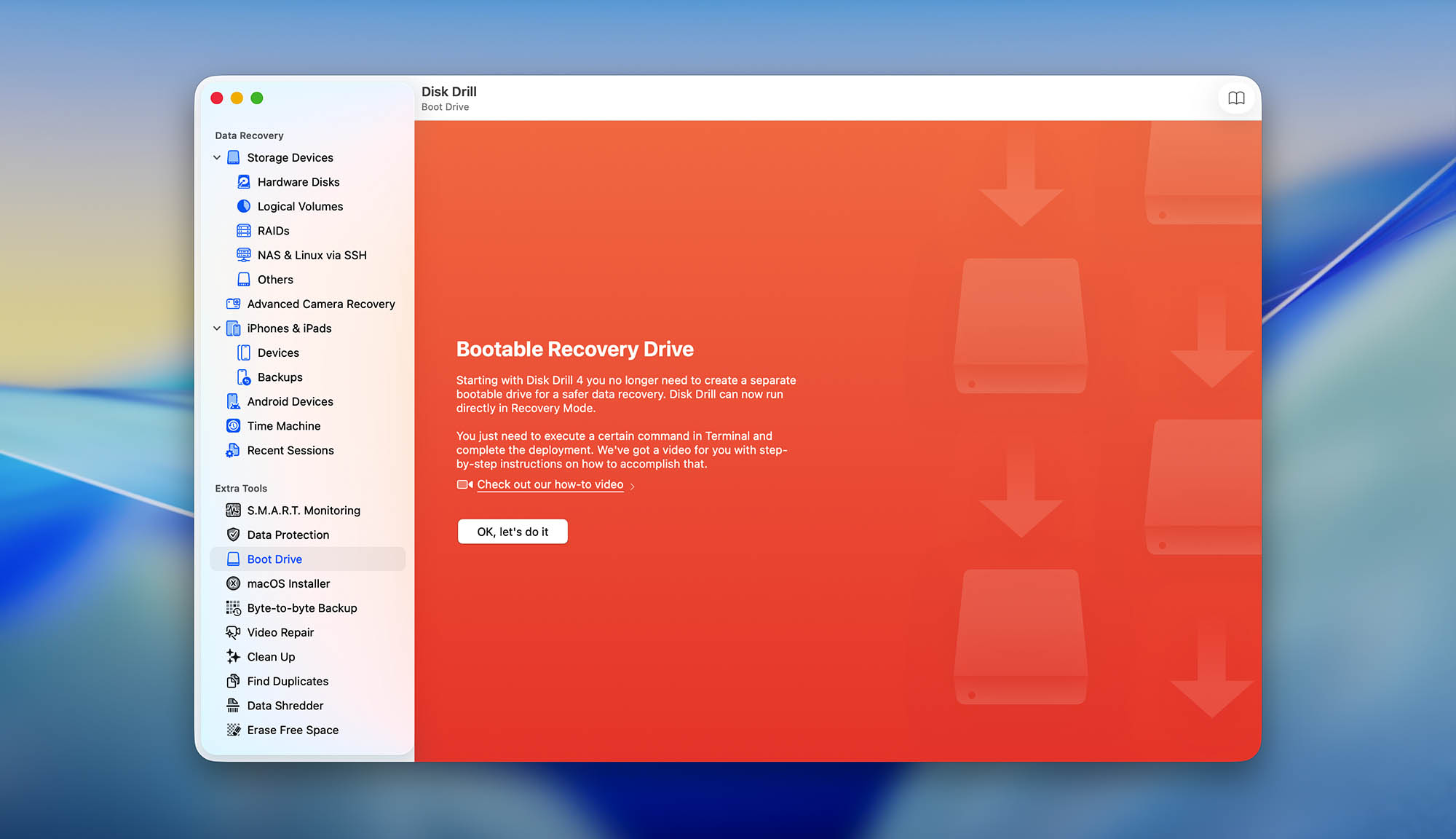
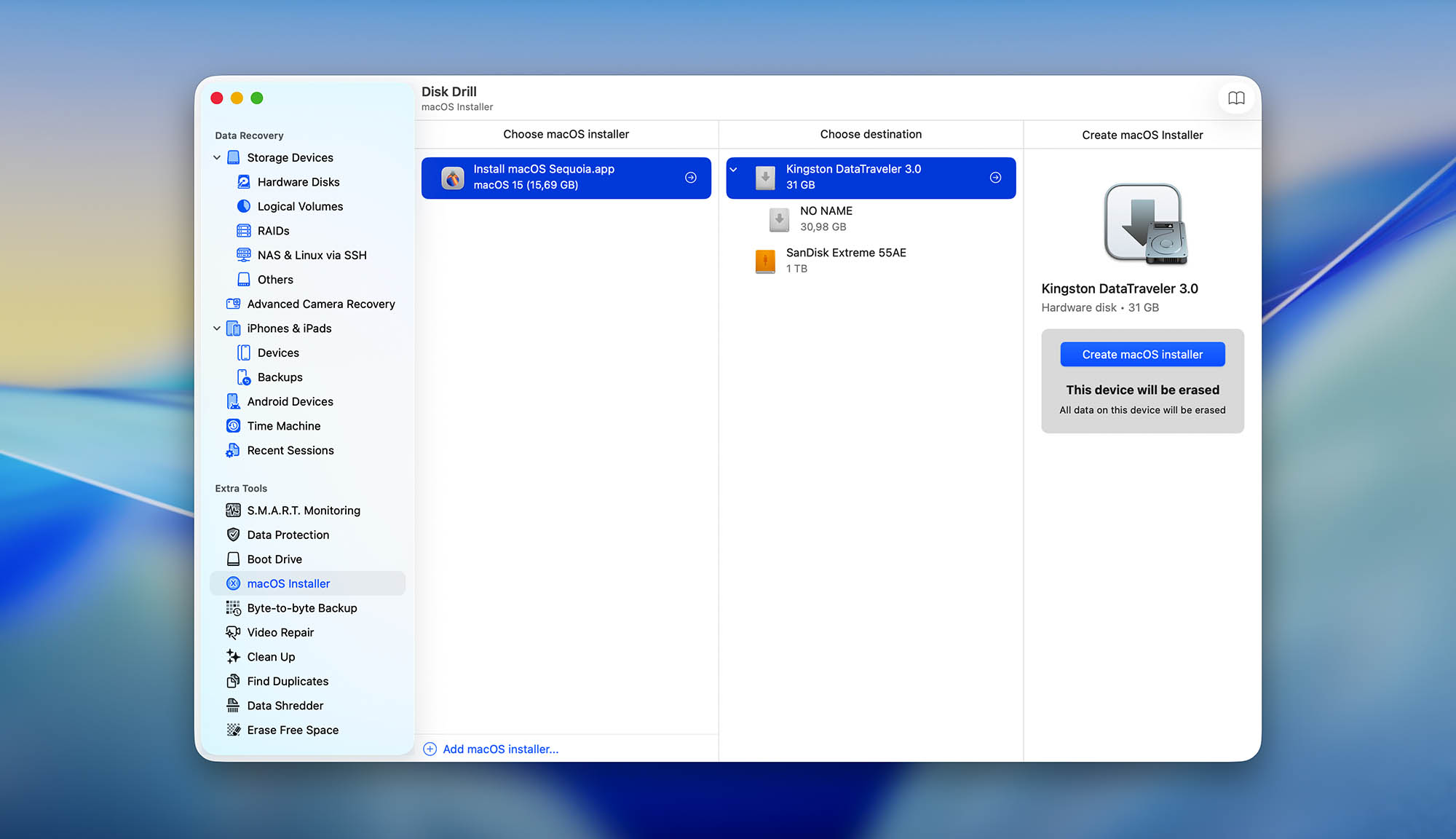
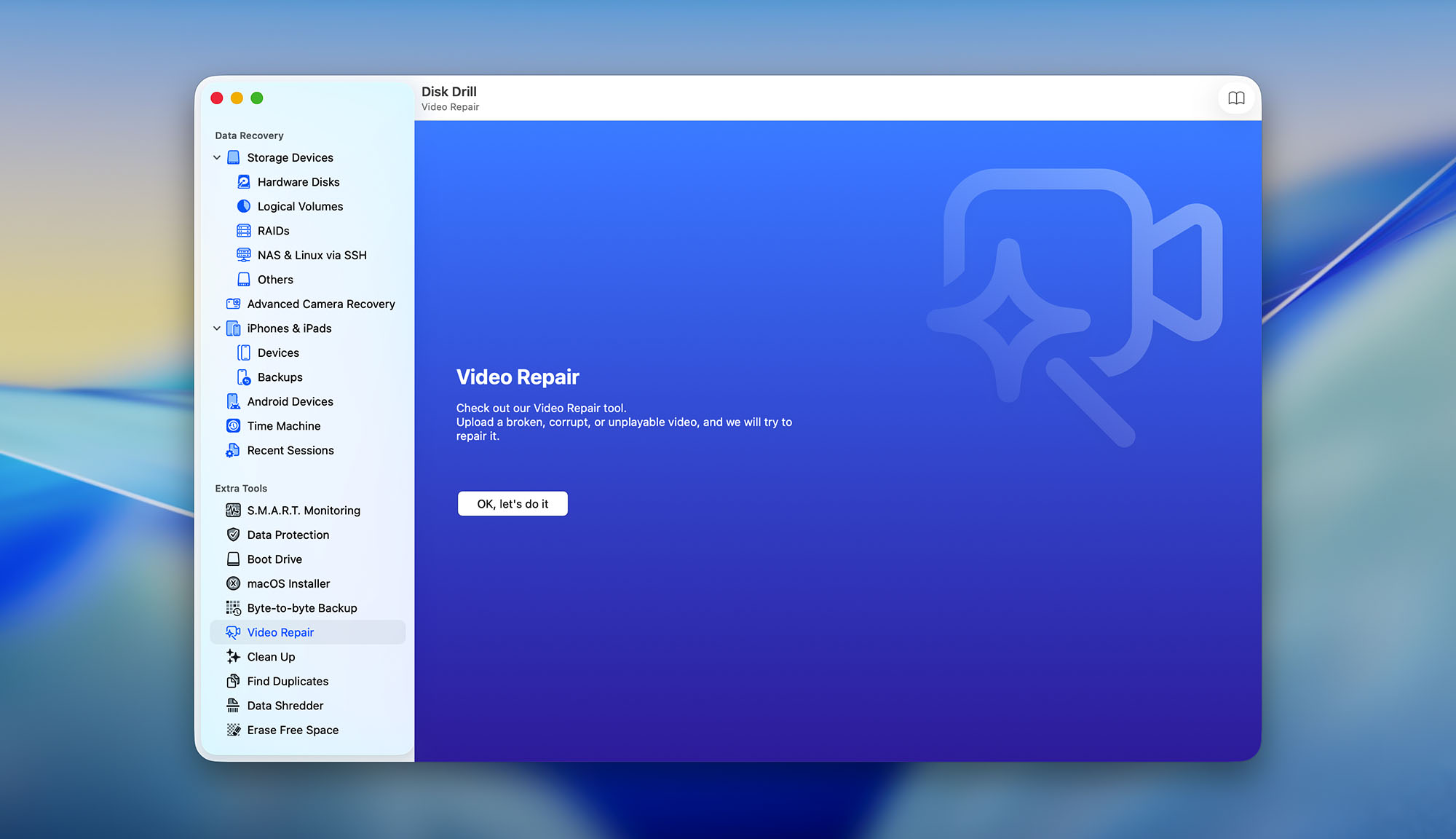
Disk Drill for Mac is a user-friendly data recovery and disk repair software that combines simplicity with powerful recovery capabilities and extra features, making it the best choice for Mac users.
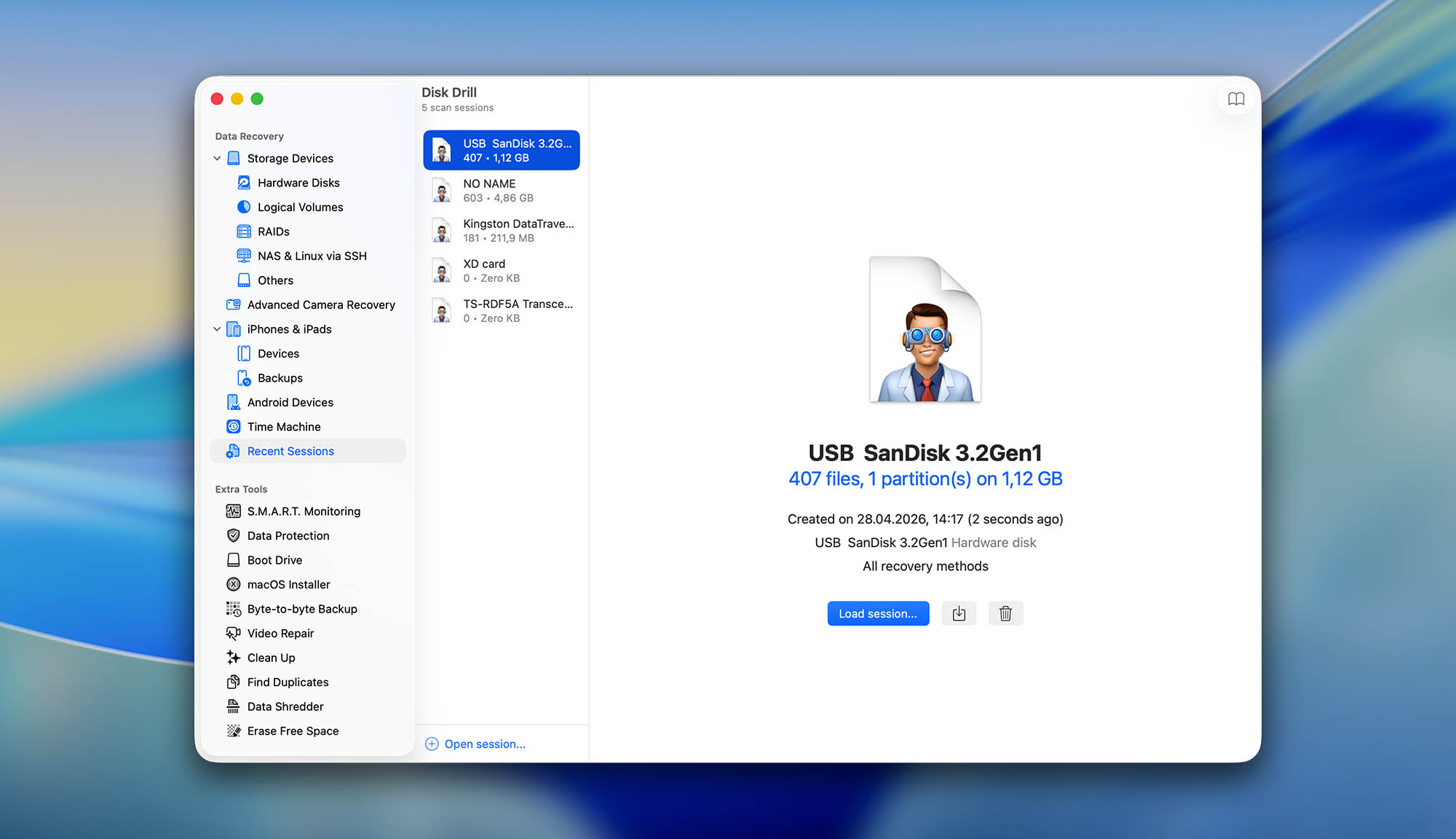
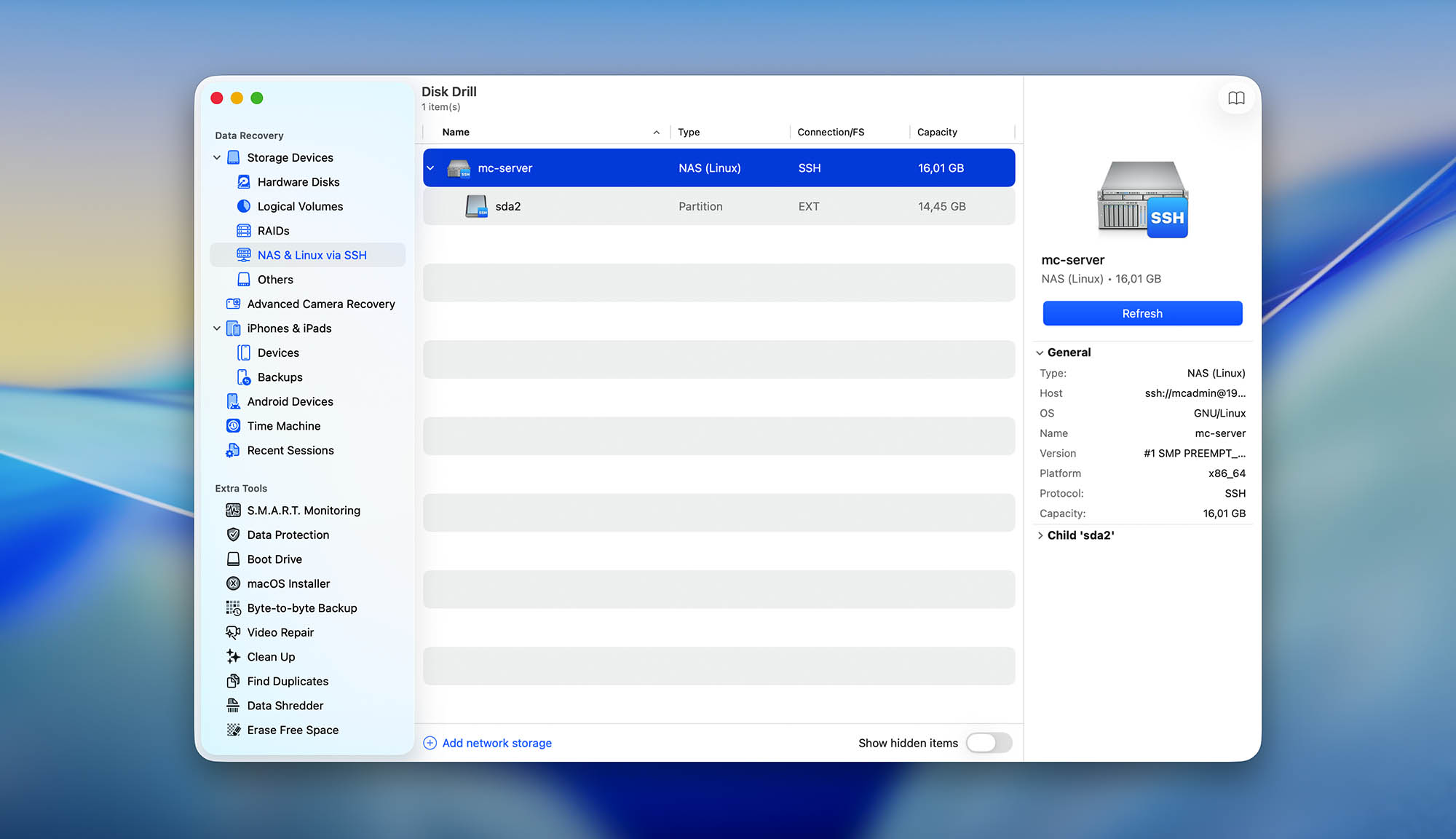
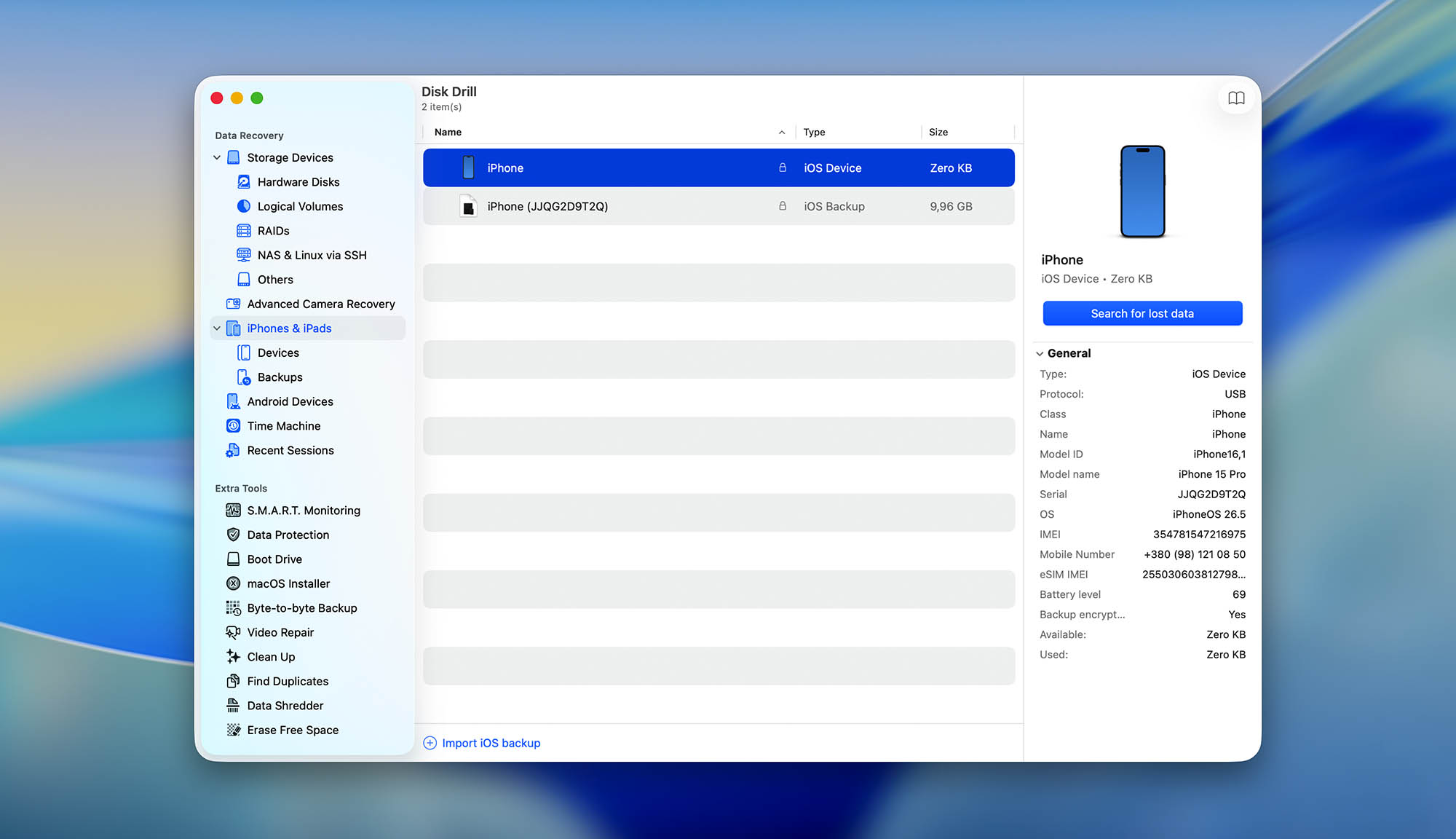
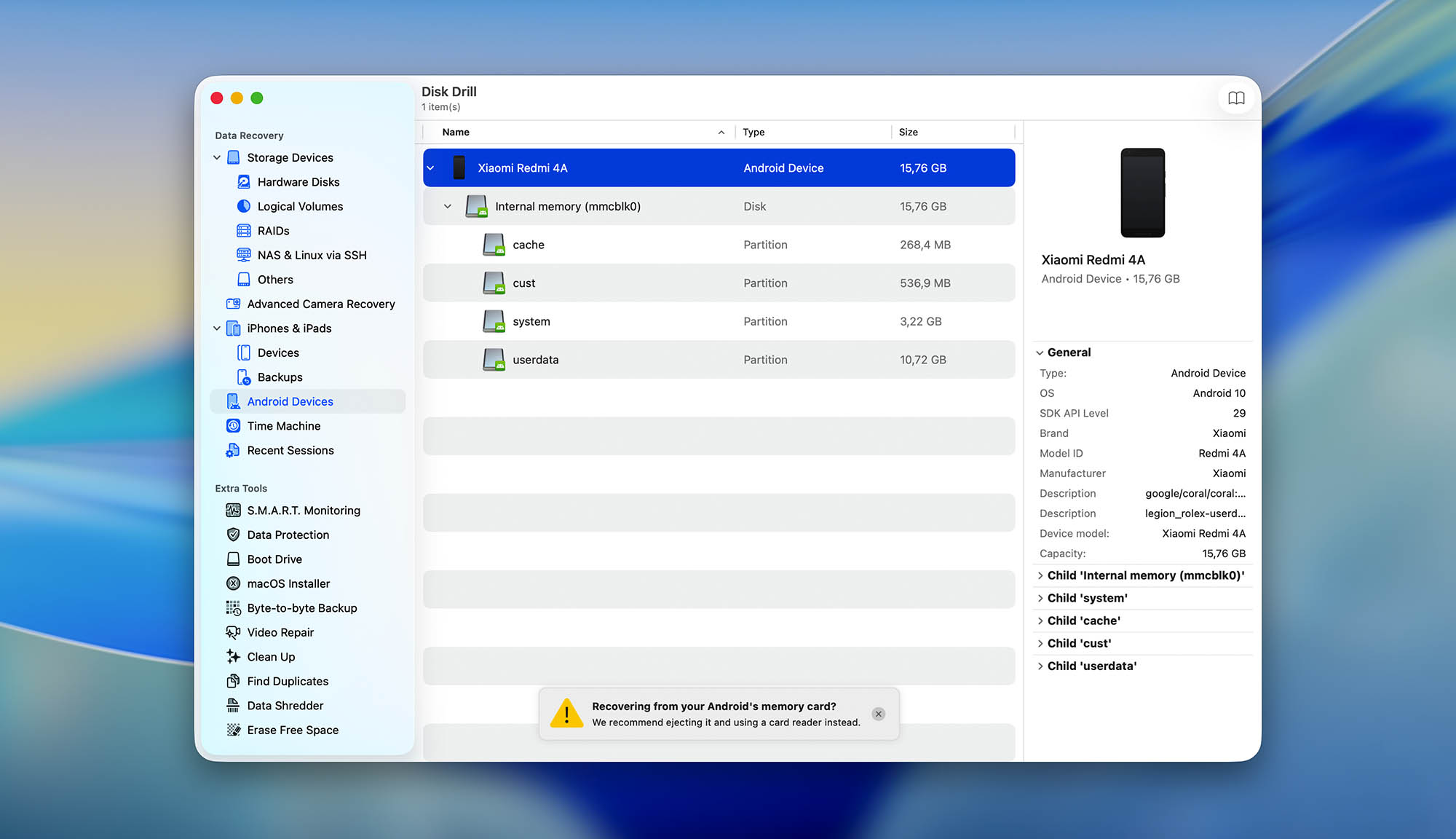
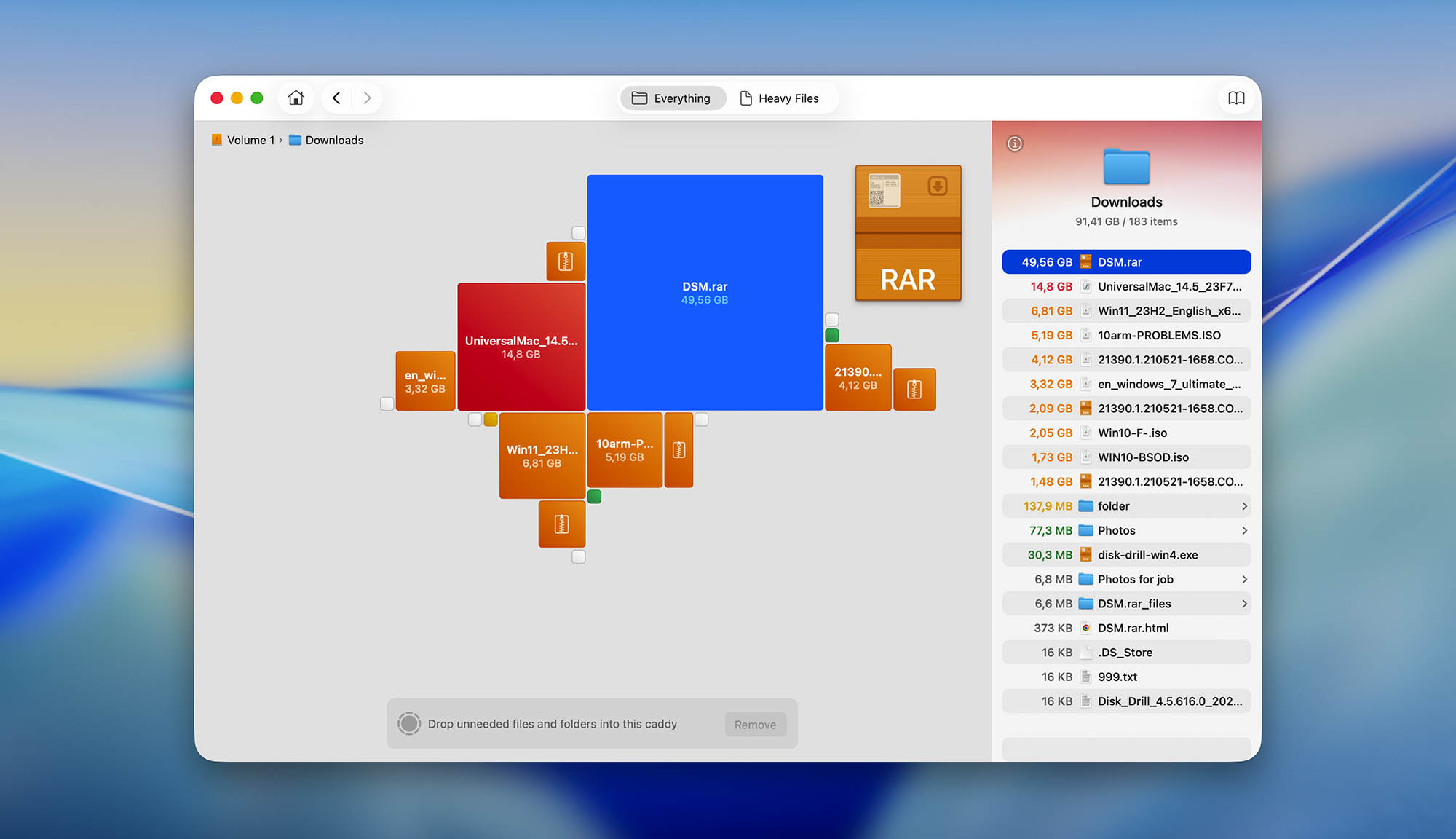
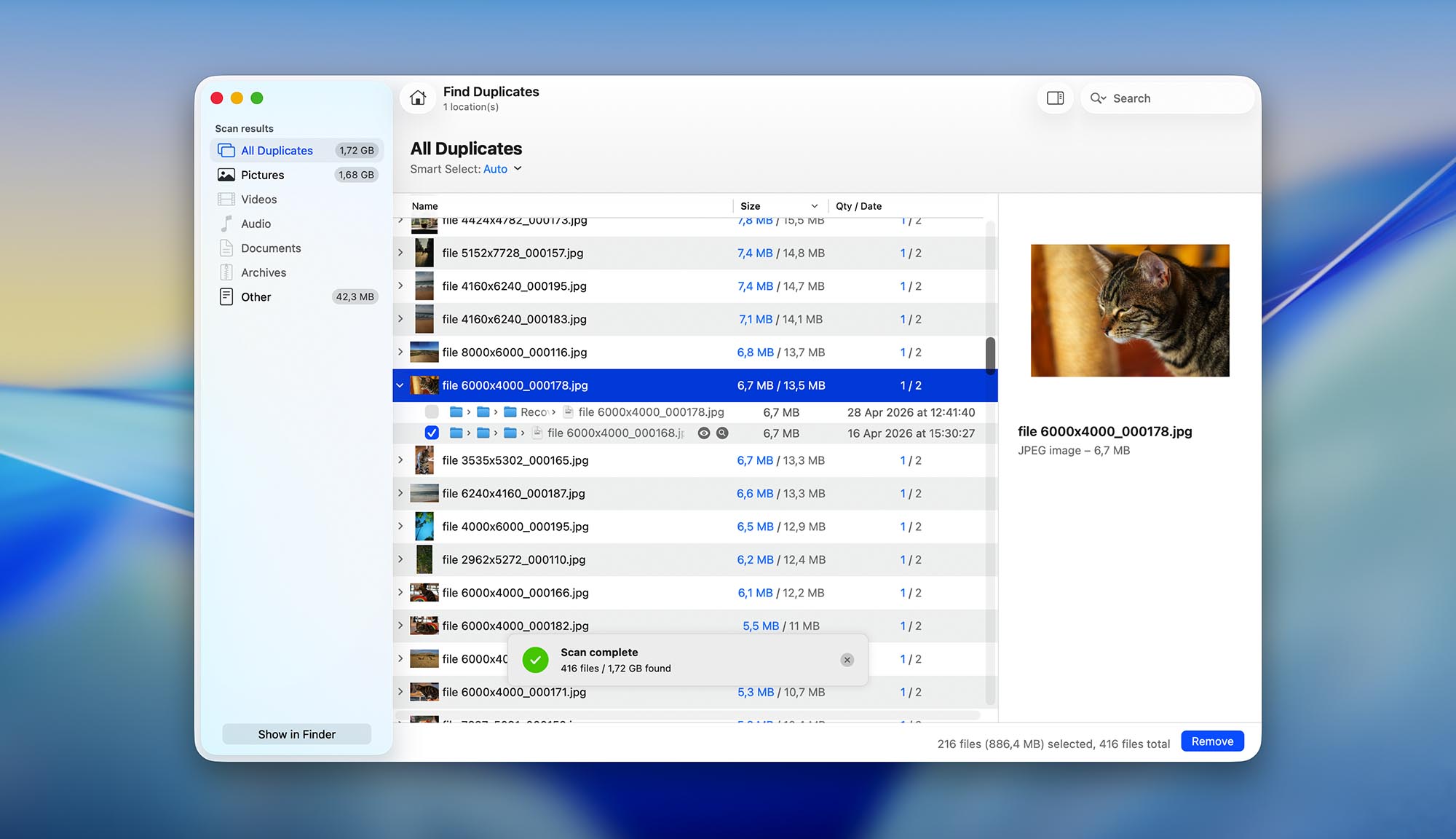
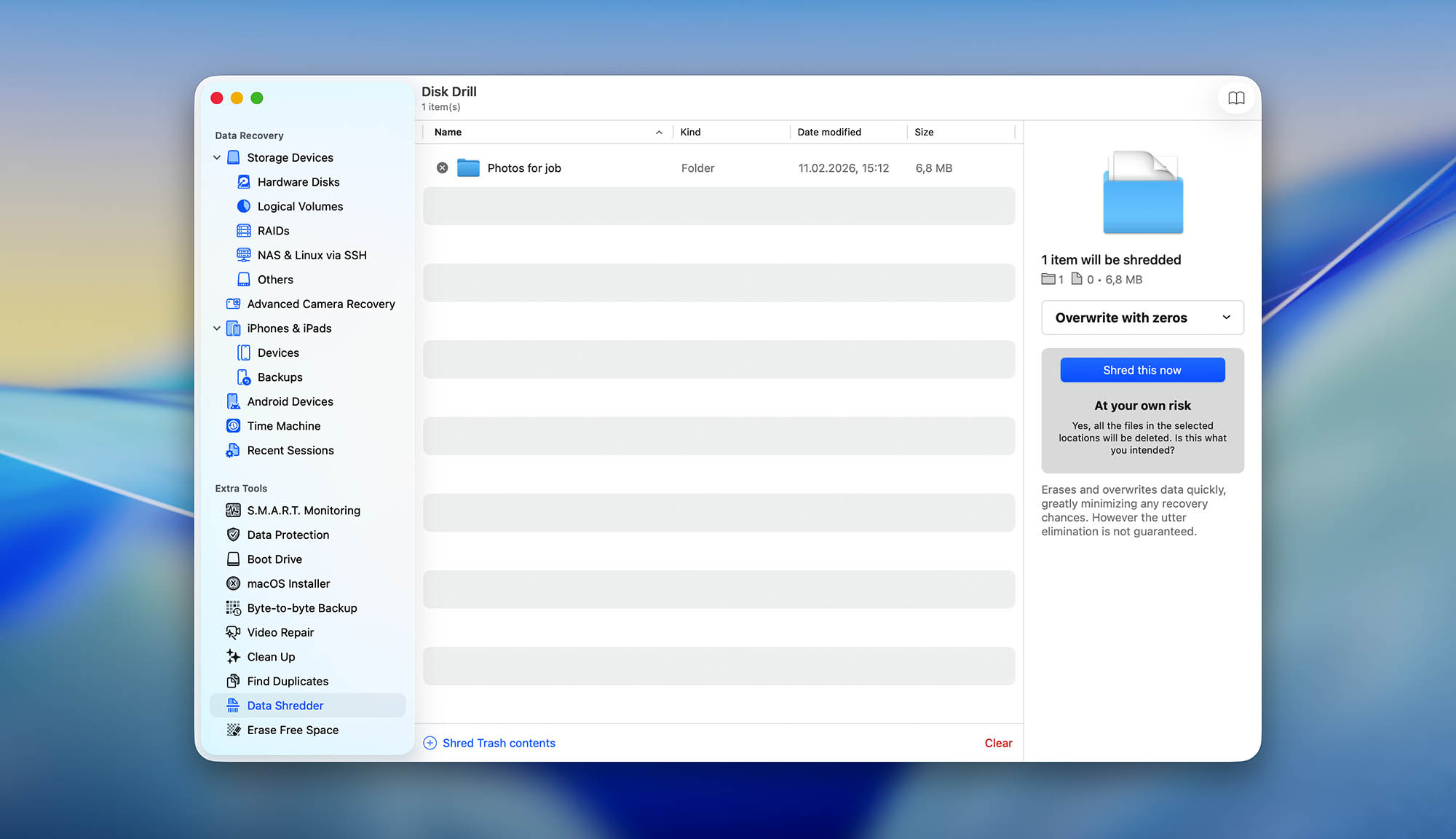
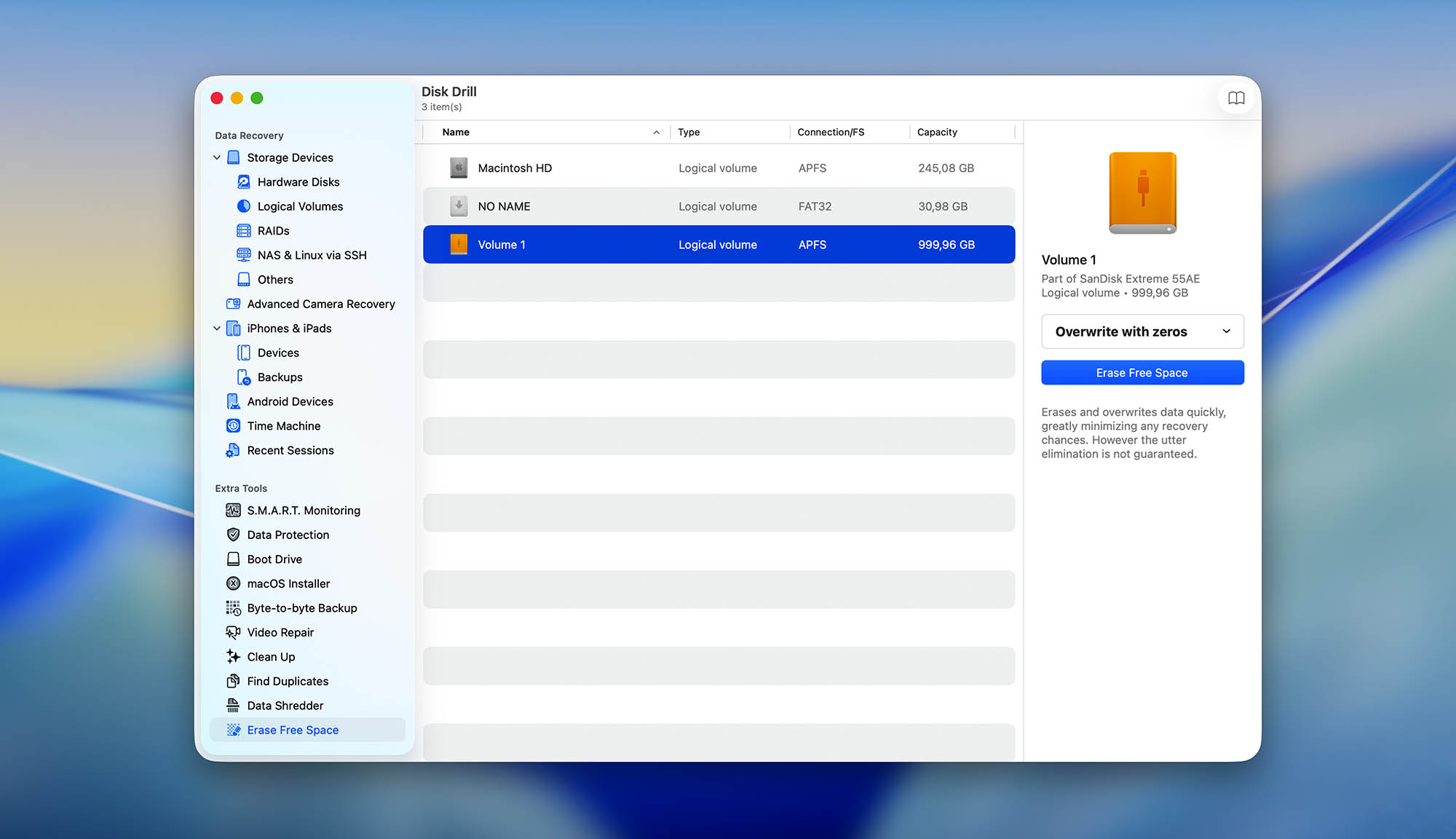
Usability
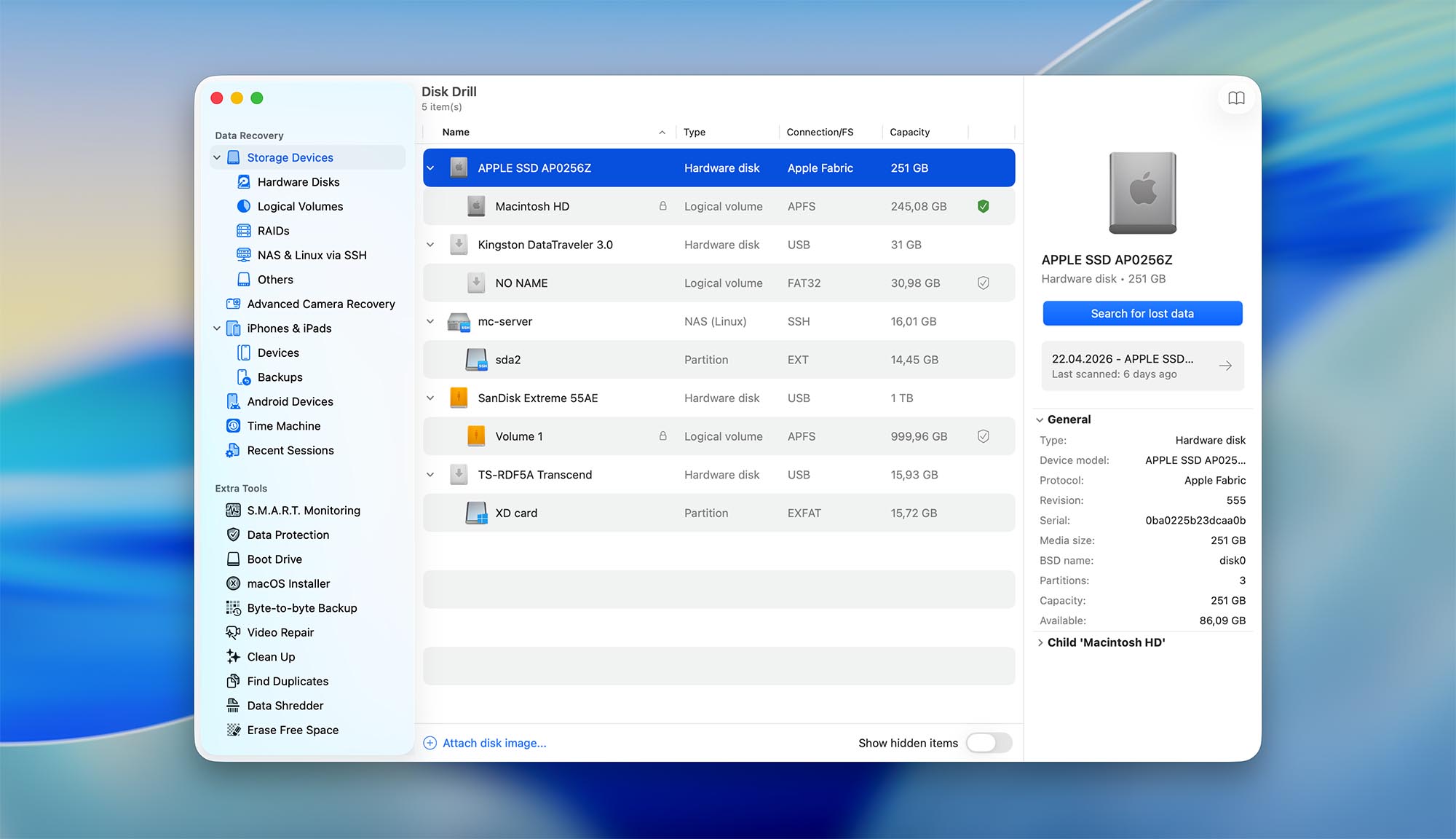
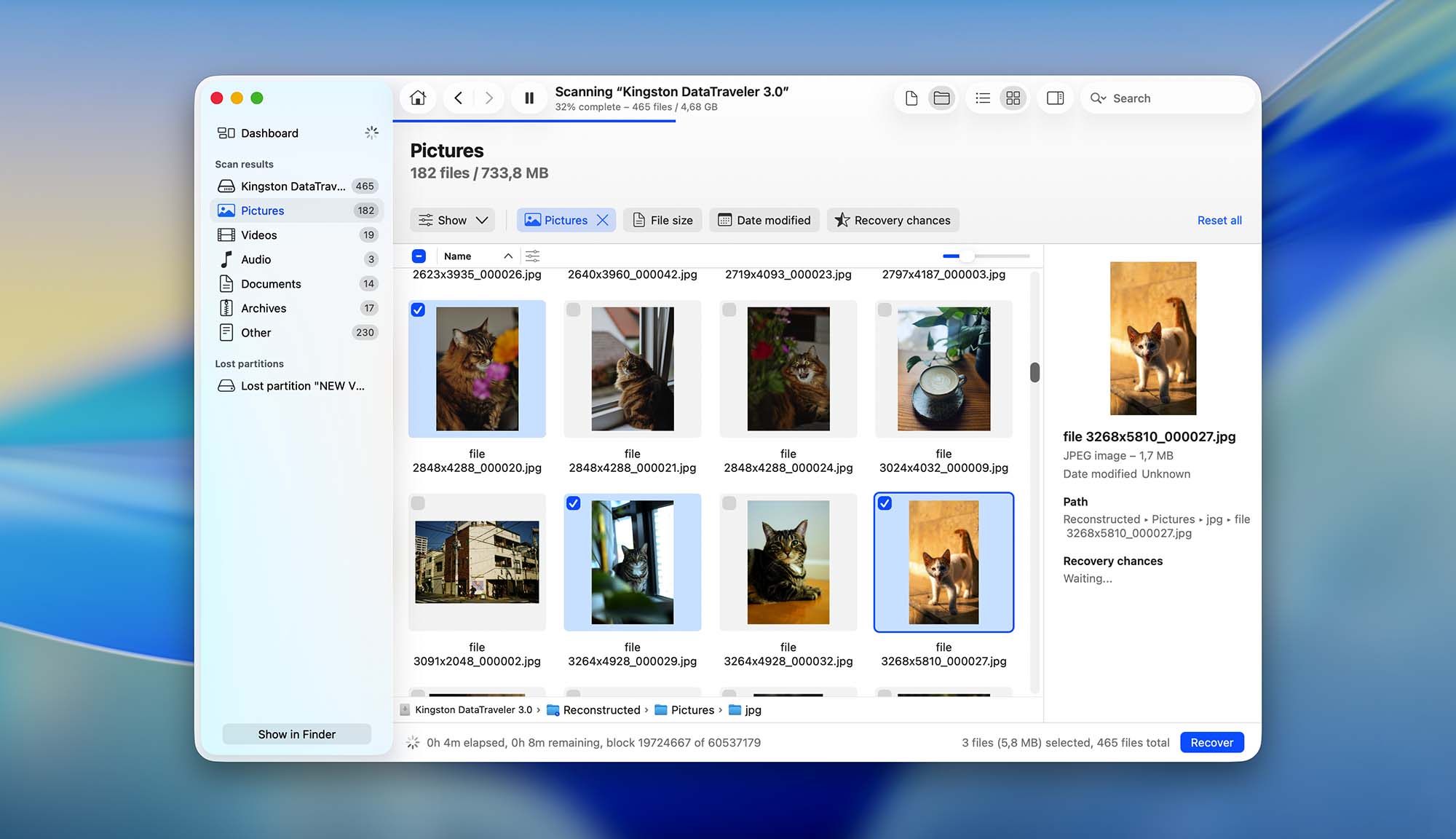
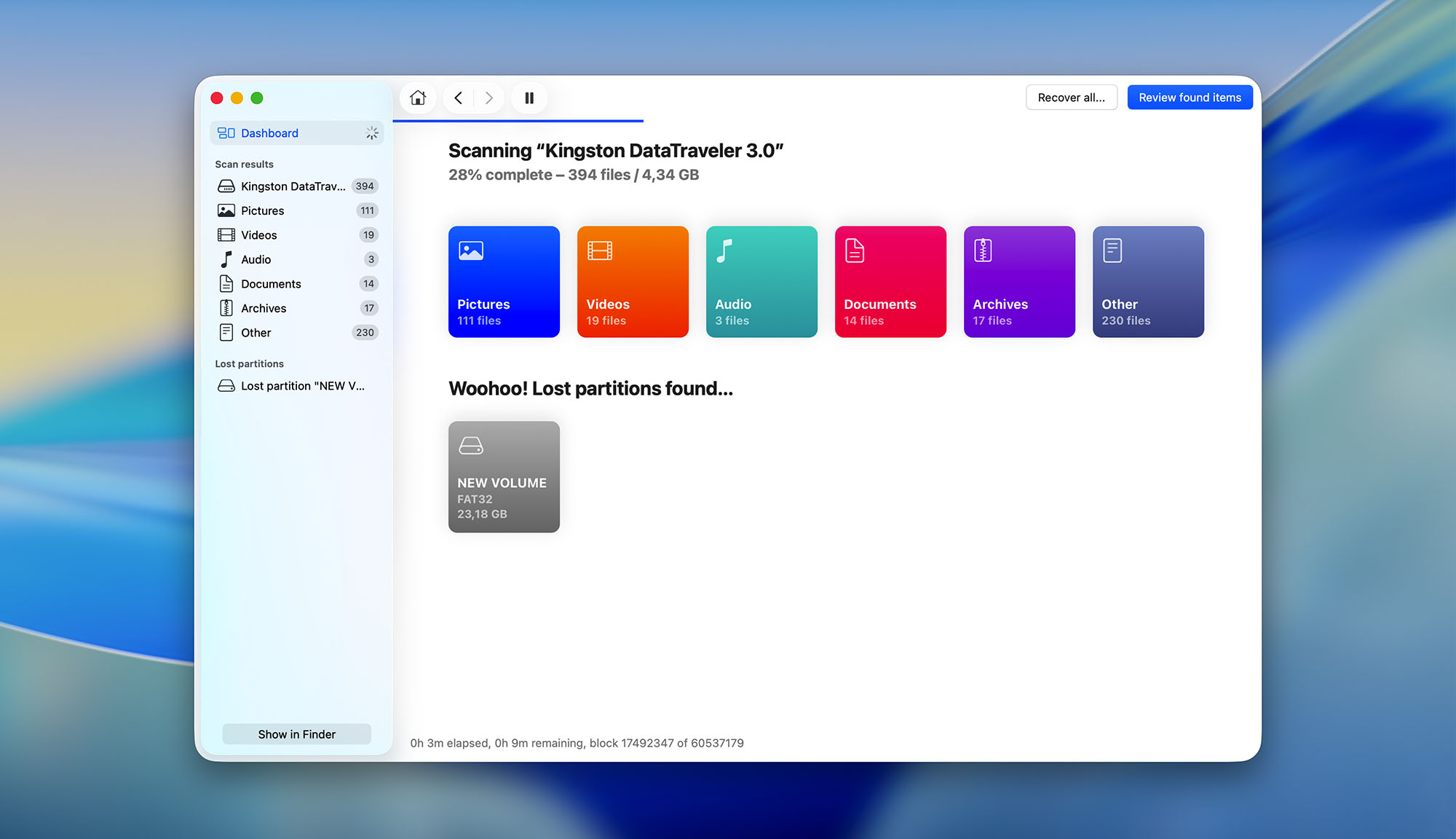
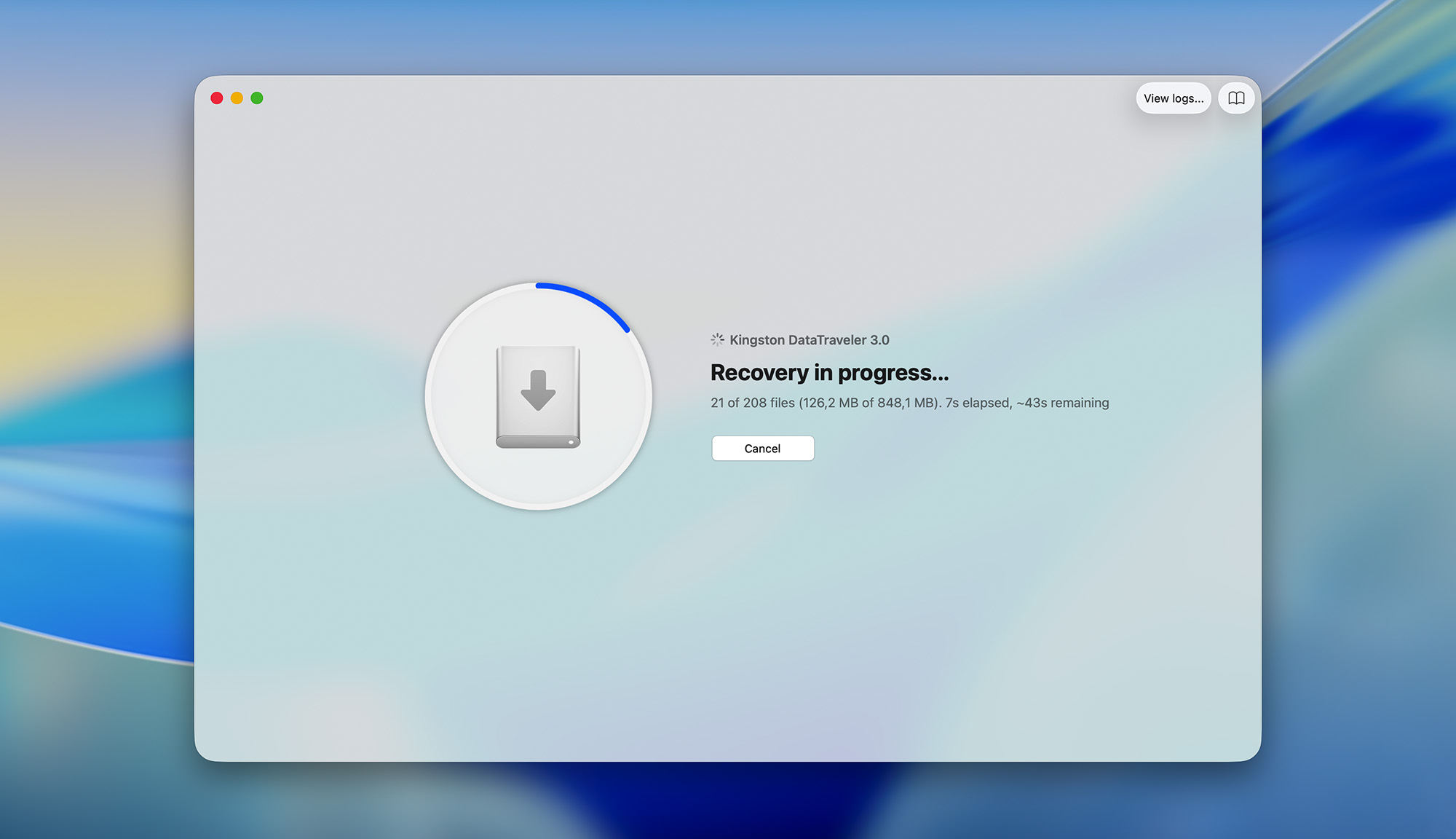
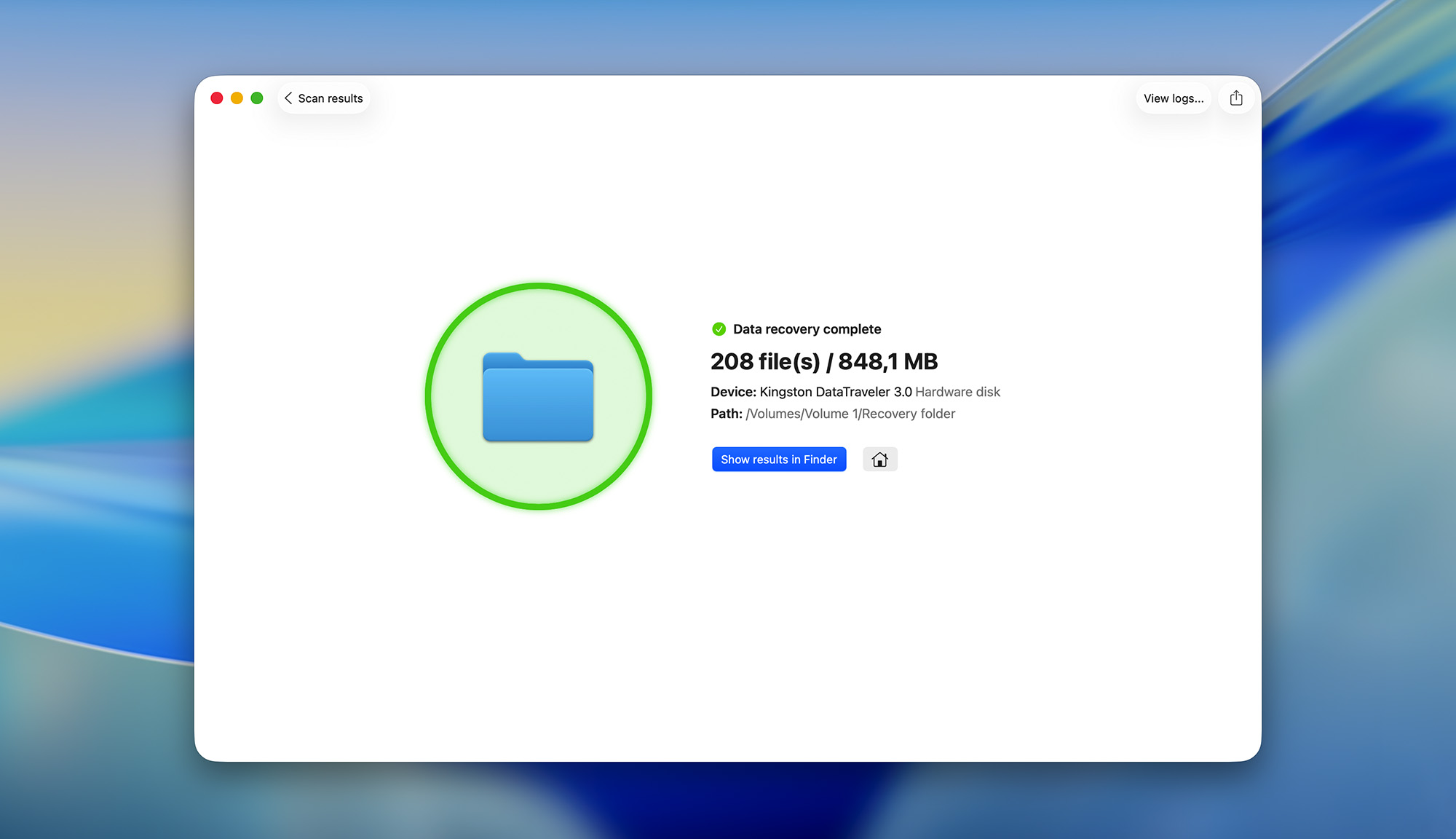
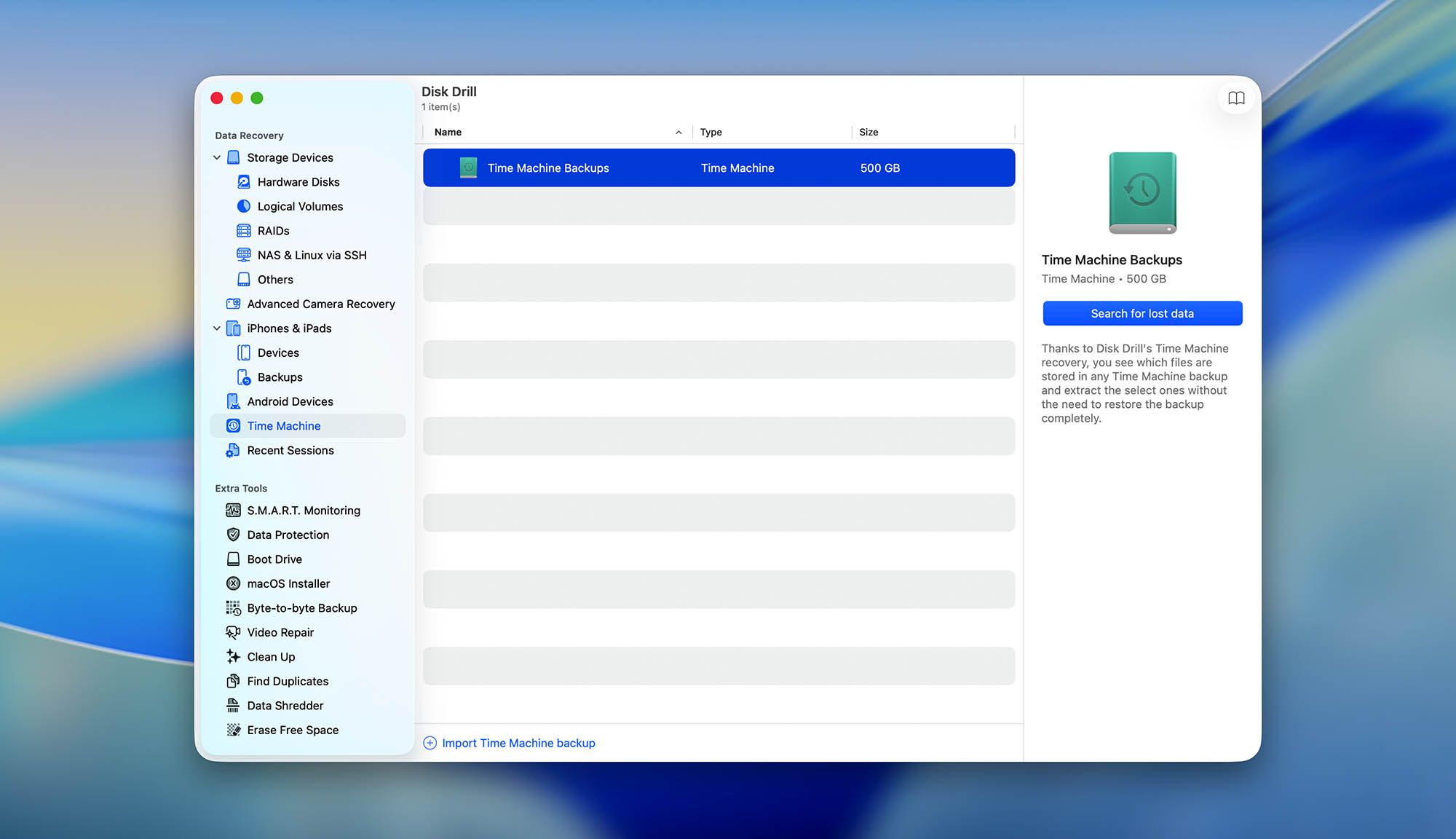
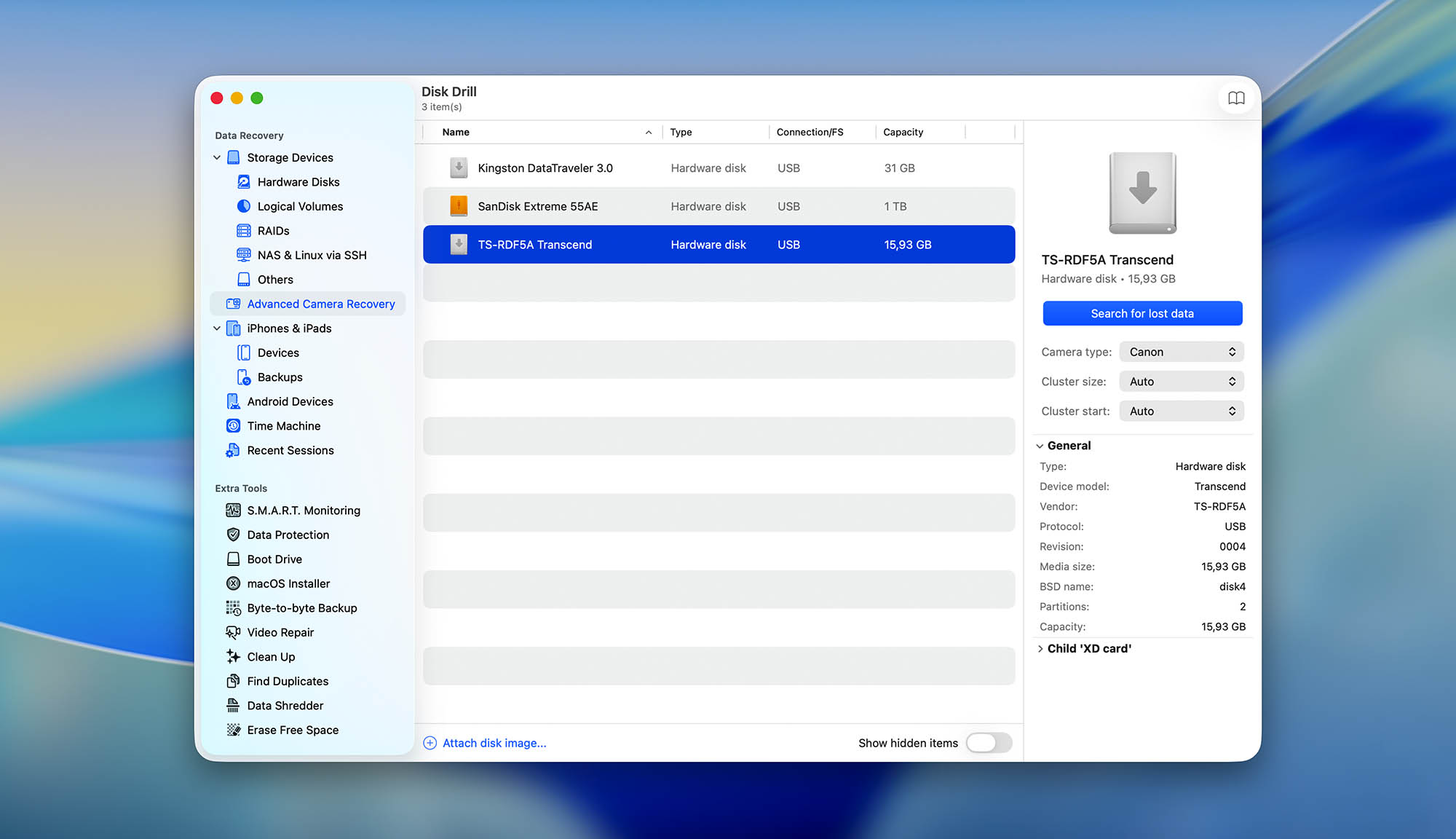
Disk Drill for Mac is designed with usability in mind. The average Mac user can launch the software, select the problematic hard drive, and click the Search for lost data button. Disk Drill will automatically run its recovery algorithms on the hard drive, select the optimal data recovery method, and proceed to locate deleted and lost files. All that’s left to do is pick the right files for recovery (easy thanks to Disk Drill’s filters and preview feature), and click the Recover button.
Recovery/repair performance
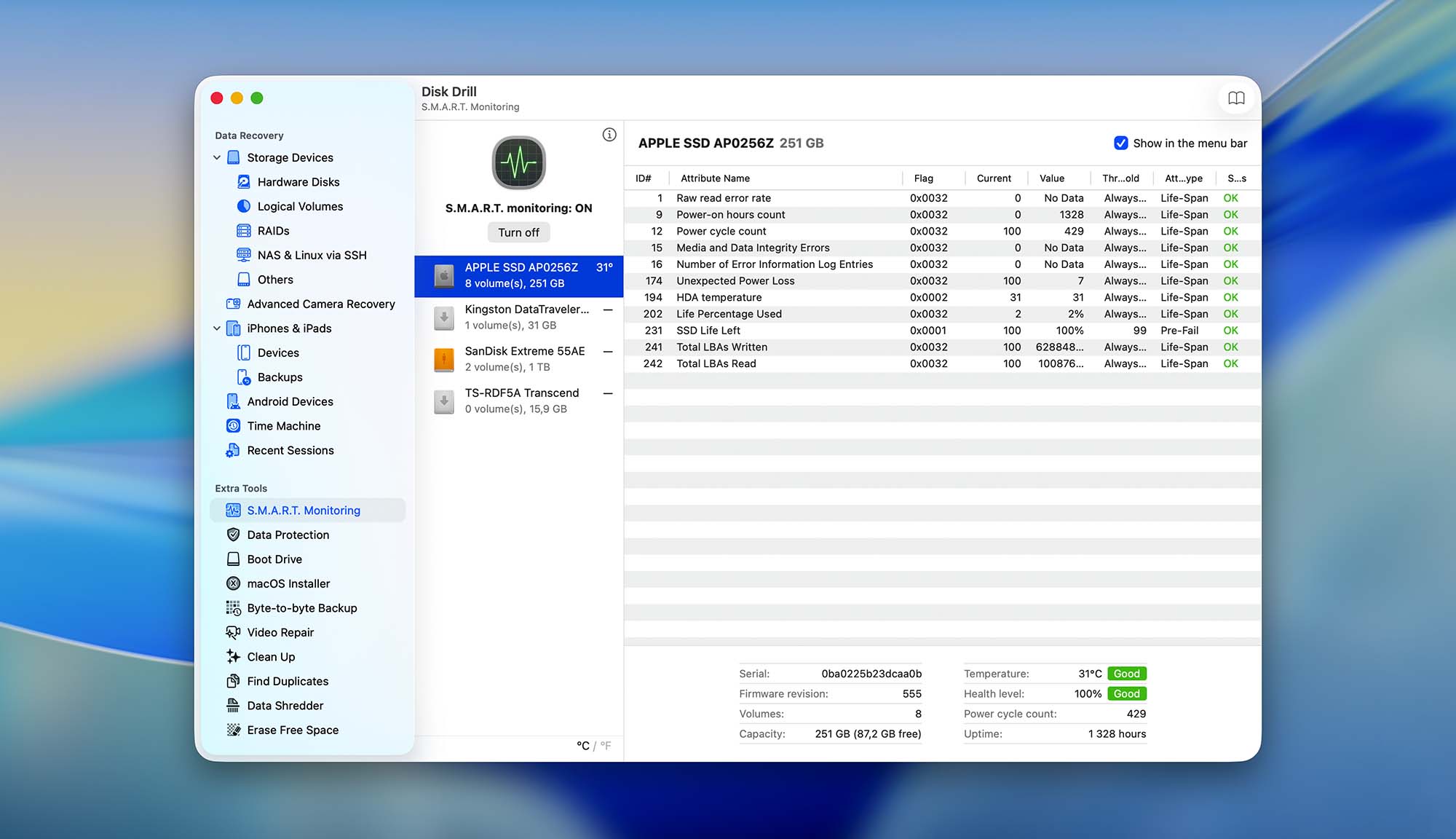
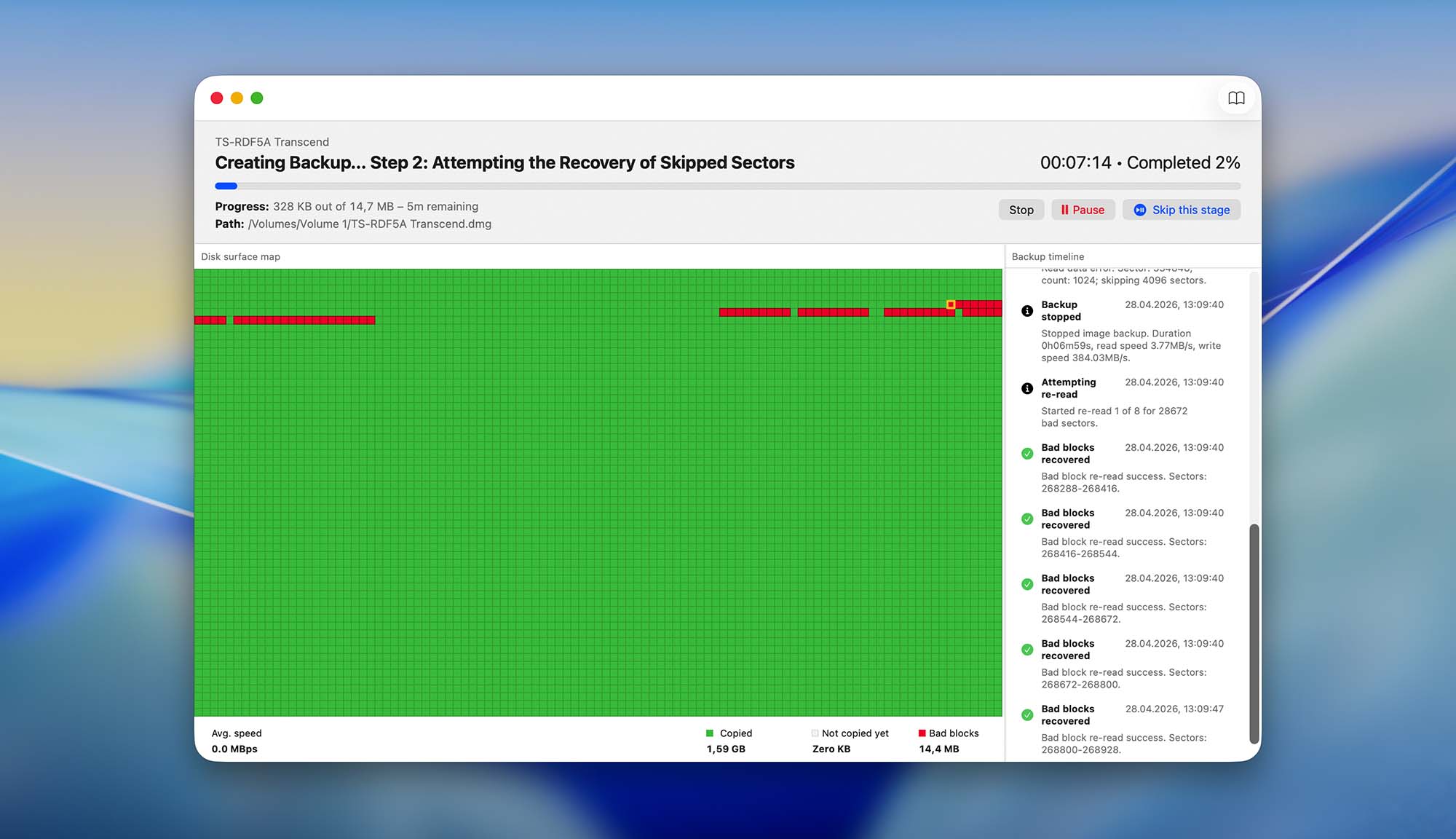
Disk Drill for Mac excels in data recovery performance. It supports all major file systems, including HFS & HFS+, FAT/FAT32/exFAT, NTFS, EXT3/EXT4, and works with both internal and external storage devices. Native scanning on Apple Silicon (M1-M5) Macs is also supported. Additionally, it comes with multiple Mac HDD repair tools, such as a disk monitoring tool that alerts you when your hard drive starts to show signs of failure. Thanks to its byte-to-byte backup feature, you can create a backup image of the affected drive and safely scan it instead of the drive itself.
Value
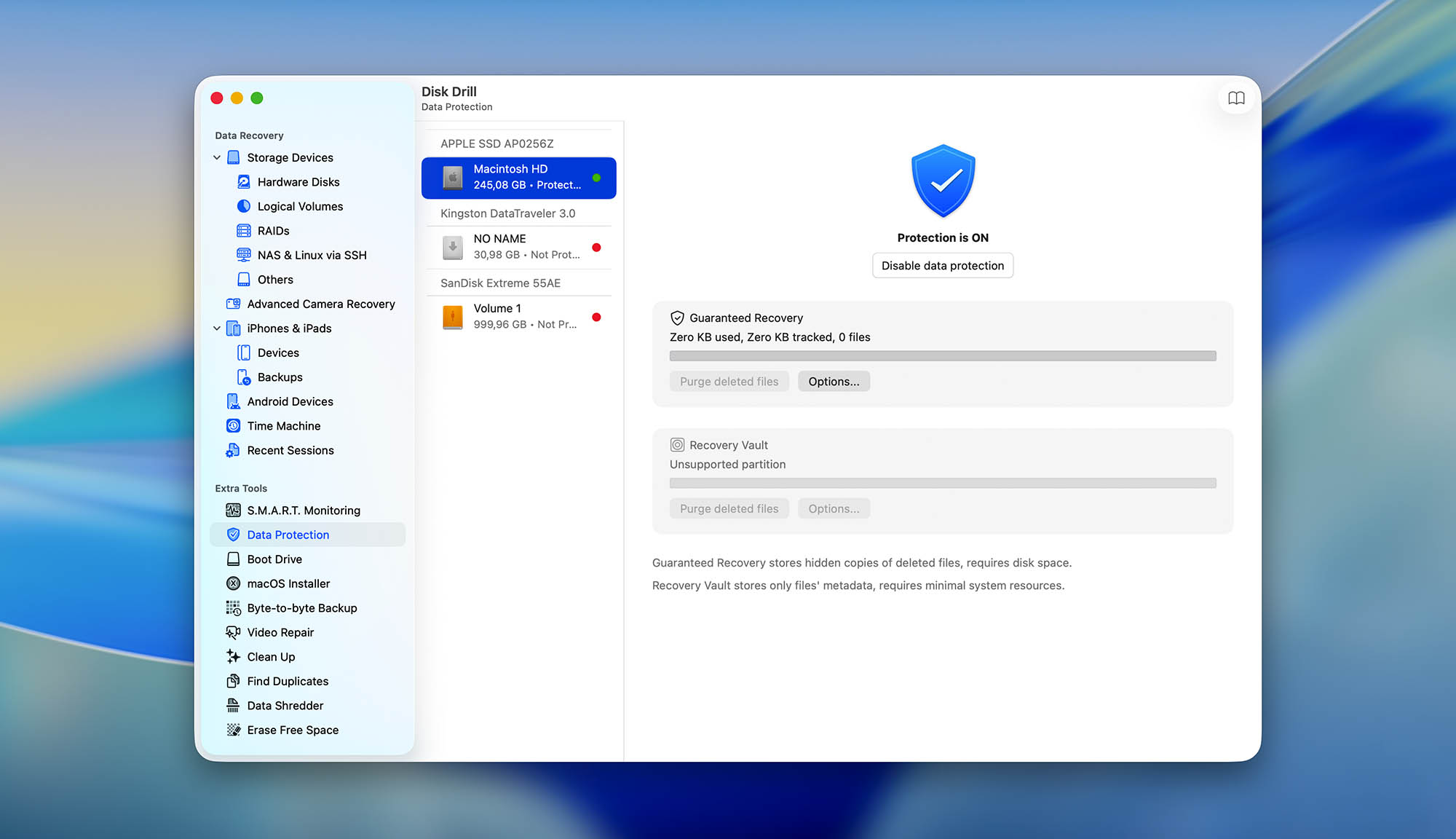
Disk Drill for Mac offers excellent value, delivering very strong features for its cost. Even the free version is useful for impending drive failure, providing tools like an image backup feature, S.M.A.R.T. monitoring, and the ability to scan and preview drive data. This already provides a lot of information about the state of your drive and lets you secure your files. It’s also one of the best in its software class, and its reliable recovery performance is what justifies the price tag (more on this in the review linked above).
2. Techtool Pro 21
3.9 • Suitable for basic data recovery tasks – TechTool Pro 21 is a beginner-friendly repair and diagnosis tool, equipped for most major file systems and storage devices in various states of disrepair.
macOS
Paid Commercial software can be used only with a valid license.
No trial
$100.8...$123.2
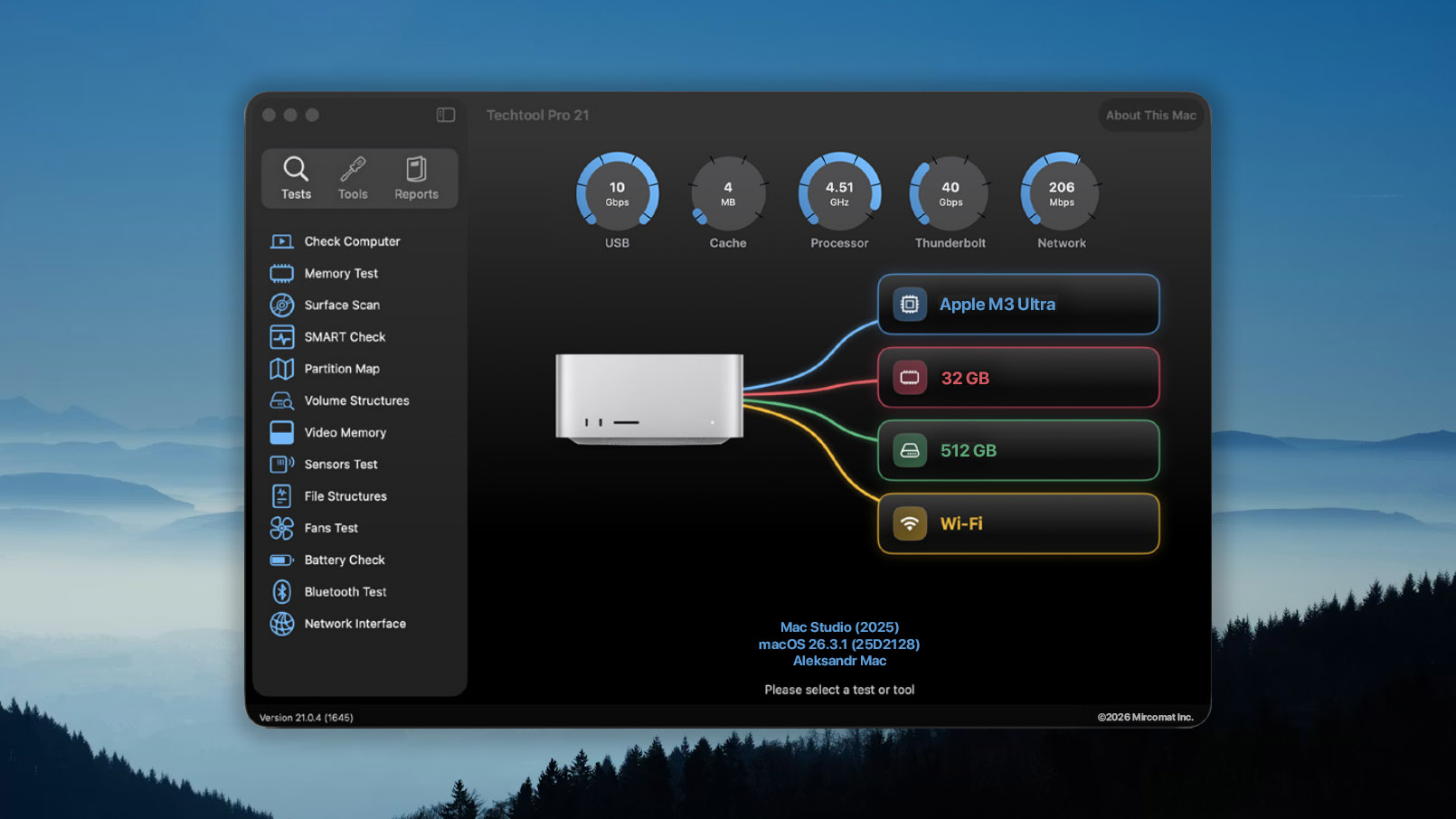
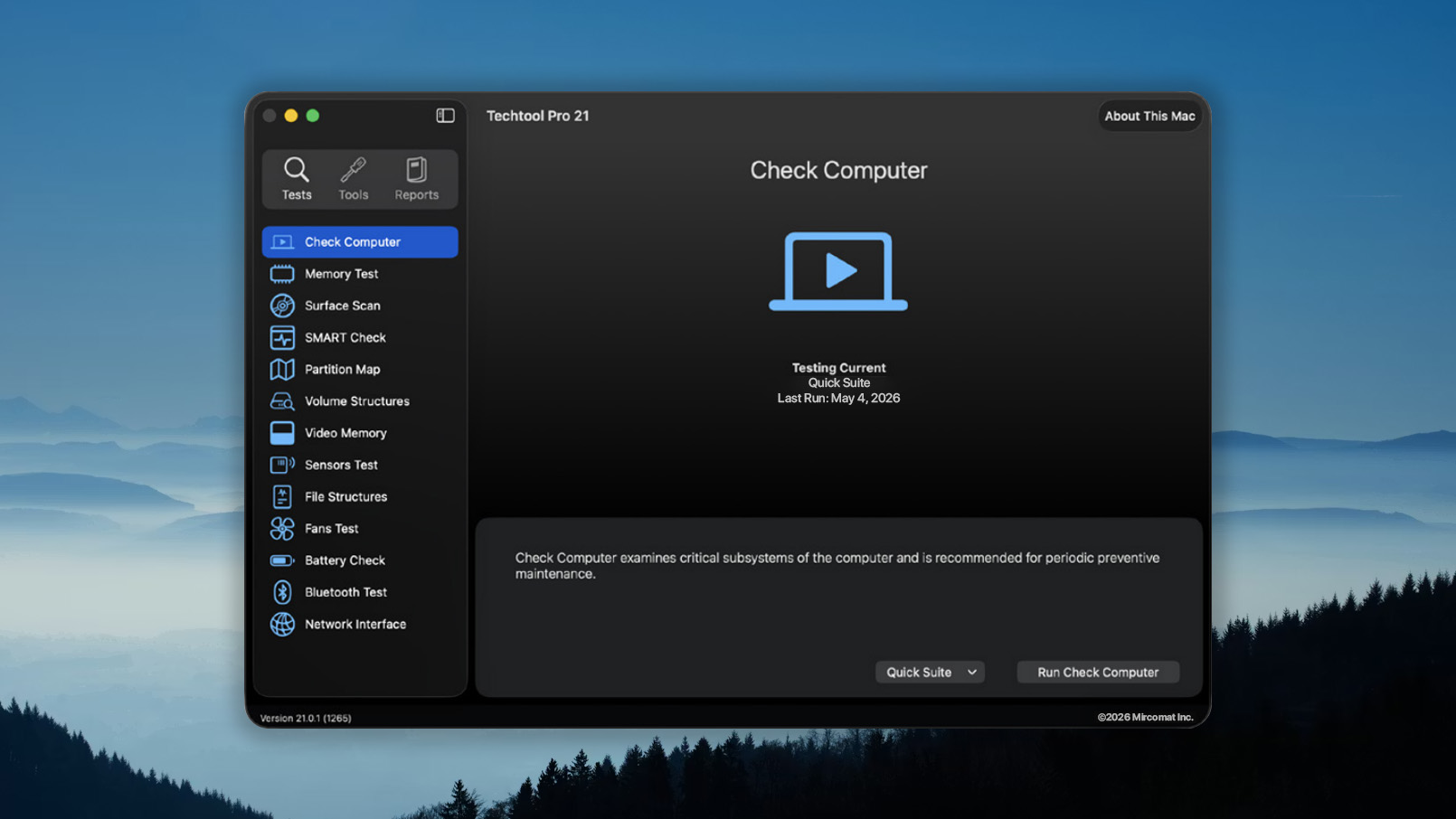
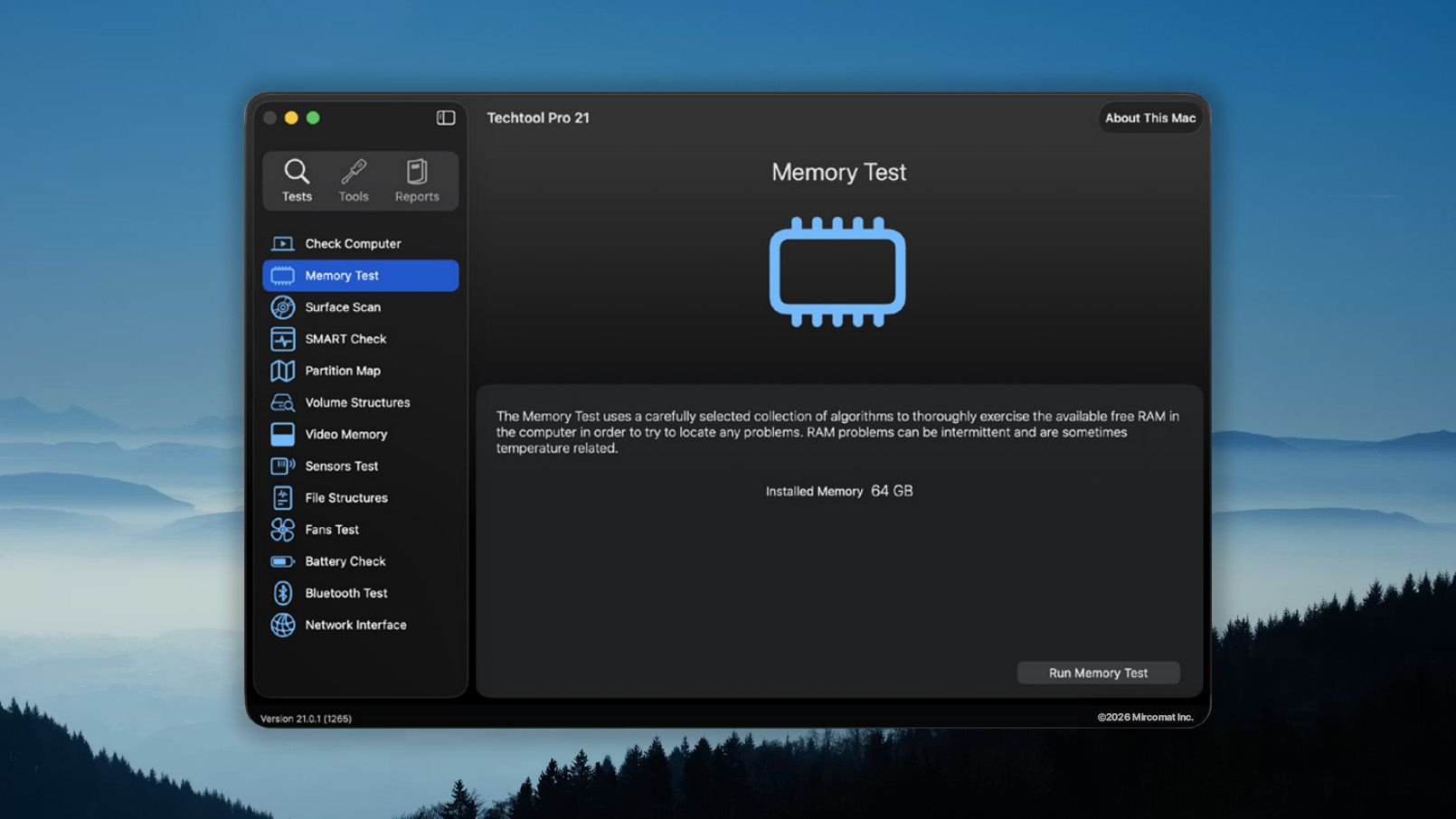
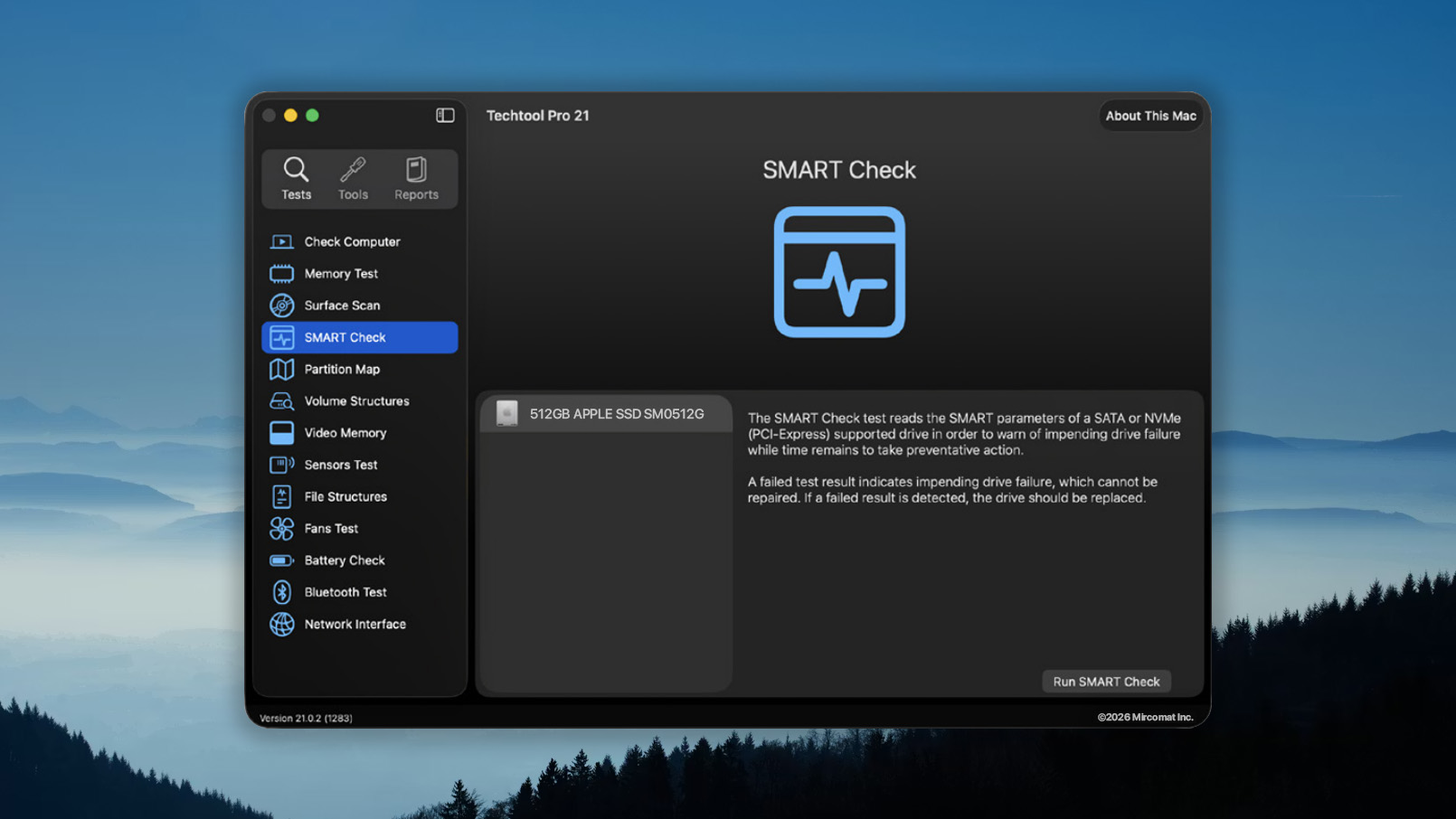
Techtool Pro is a versatile disk repair and diagnostic tool for Mac, offering data recovery capabilities and hardware testing features to help users identify and resolve hard drive issues.
Usability
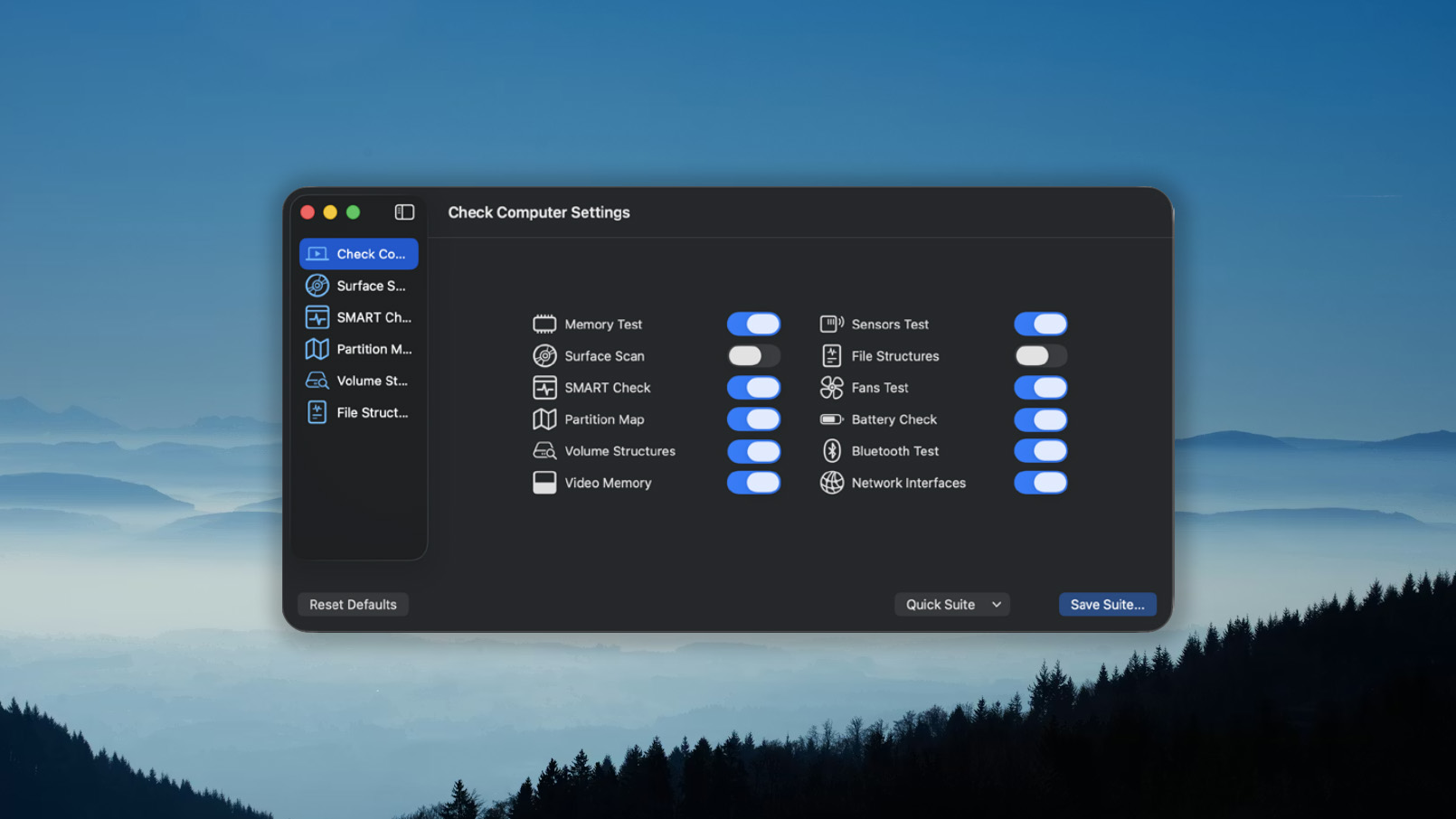
Techtool Pro offers a user-friendly interface that makes it relatively easy for users to navigate and understand the available features. The software runs directly from a bootable diagnostic device, so it can bypass the operating system and perform disk repairs more effectively. However, some users may find it challenging to control startup parameters or create an eDrive for booting.
Recovery/repair performance
Techtool Pro's data recovery capabilities focus on repairing volumes that have suffered logical damage. The Volume Rebuild tool can handle native Mac drive formats, as well as MS-DOS (FAT32) and exFAT volumes. Additionally, the software offers S.M.A.R.T. drive checks to alert users of potential drive failures. Techtool Pro's comprehensive hardware diagnostics help users identify and address external factors, such as overheating or a faulty power supply, that may cause hard drive issues.
Value
Techtool Pro is priced between $100.80 and $123.20, depending on the version you choose. While it does not offer a trial version, the software provides a range of features beyond data recovery, such as hardware testing and volume rebuilding. However, the requirement to purchase additional licenses for application upgrades can increase the overall cost for users who want to keep the software up-to-date and usable even on future versions of macOS.
3. DiskWarrior
2.29 • This warrior is ready for retirement – DiskWarrior claims to be the world's most advanced repair and data recovery tool, but the results it delivers tell a different story.
macOS
Paid Commercial software can be used only with a valid license
No trial
$119.95...$59.95
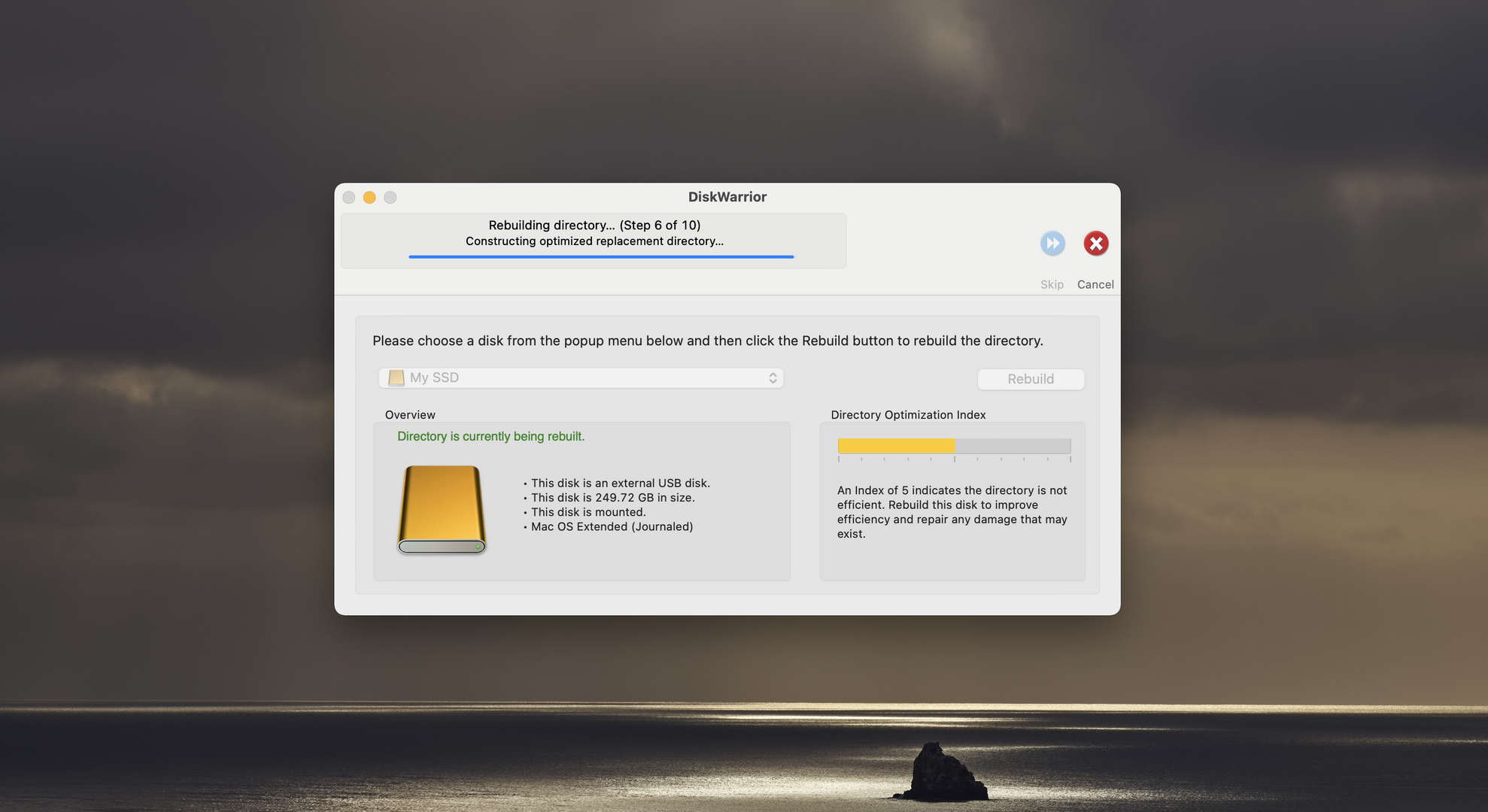
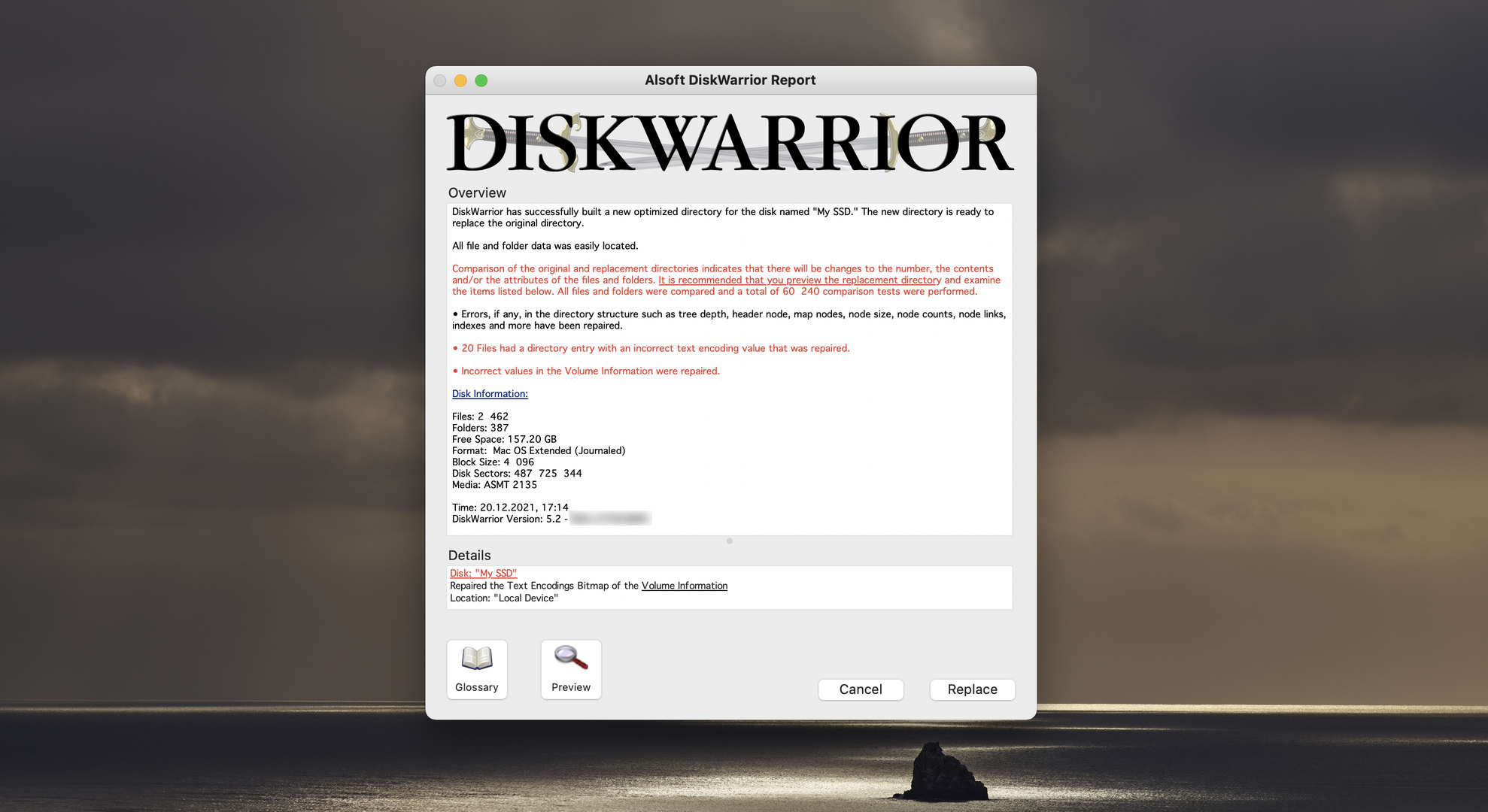
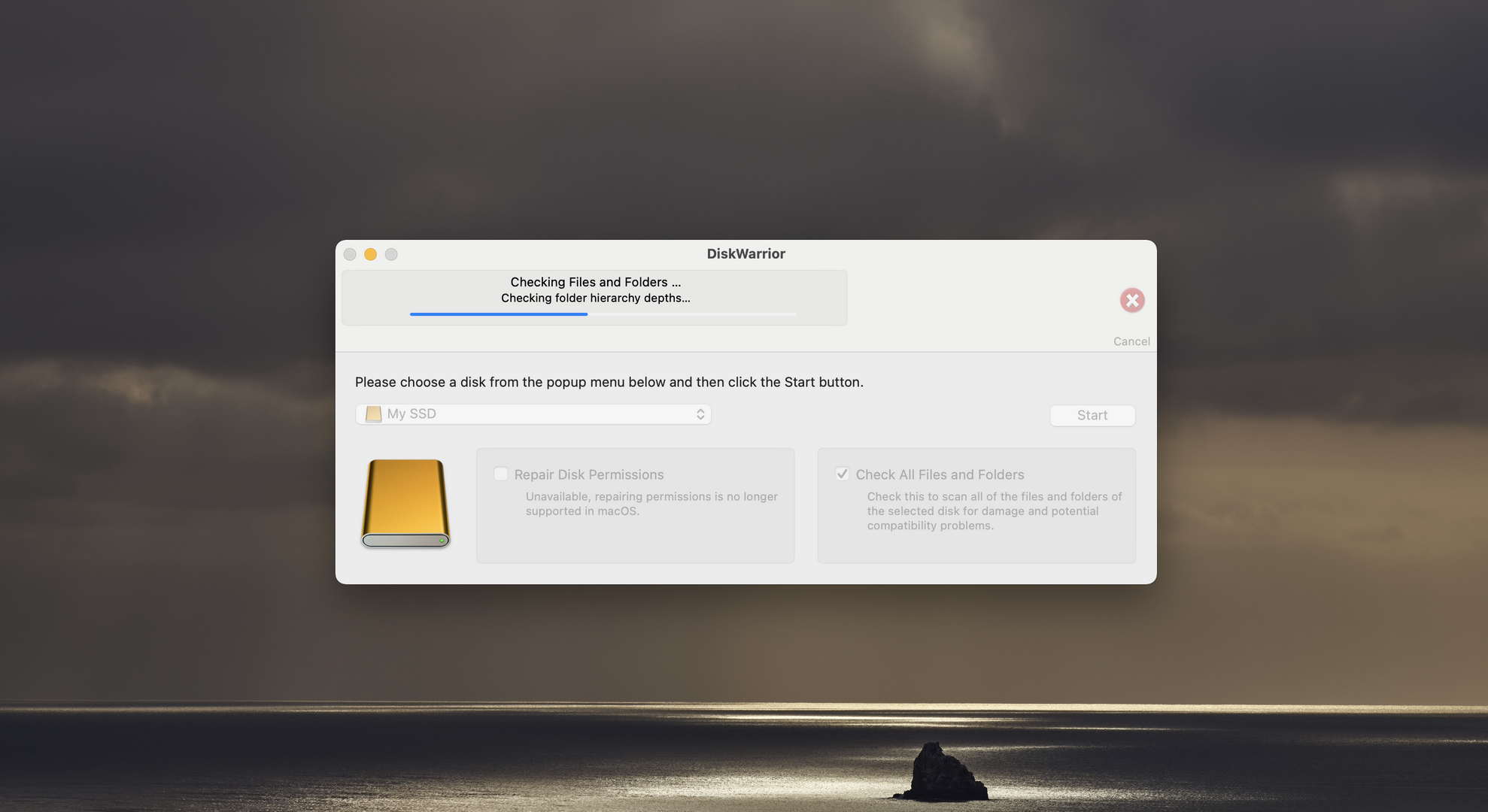
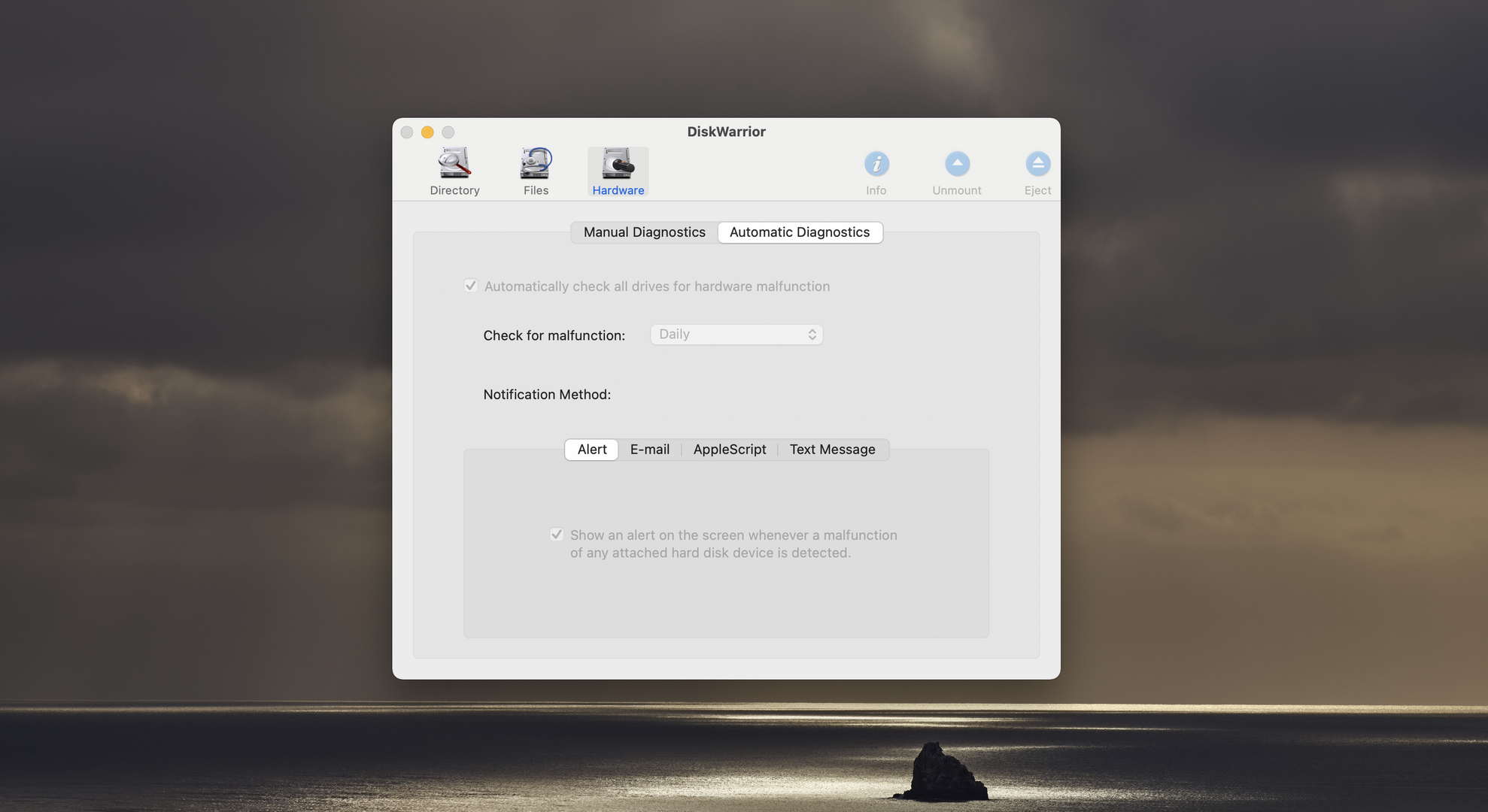
DiskWarrior is a specialized disk repair tool for Mac that focuses on recovering access to data and improving system performance through directory structure repair and optimization. However, note that it only works on older Macs with HFS+ volumes.
Usability
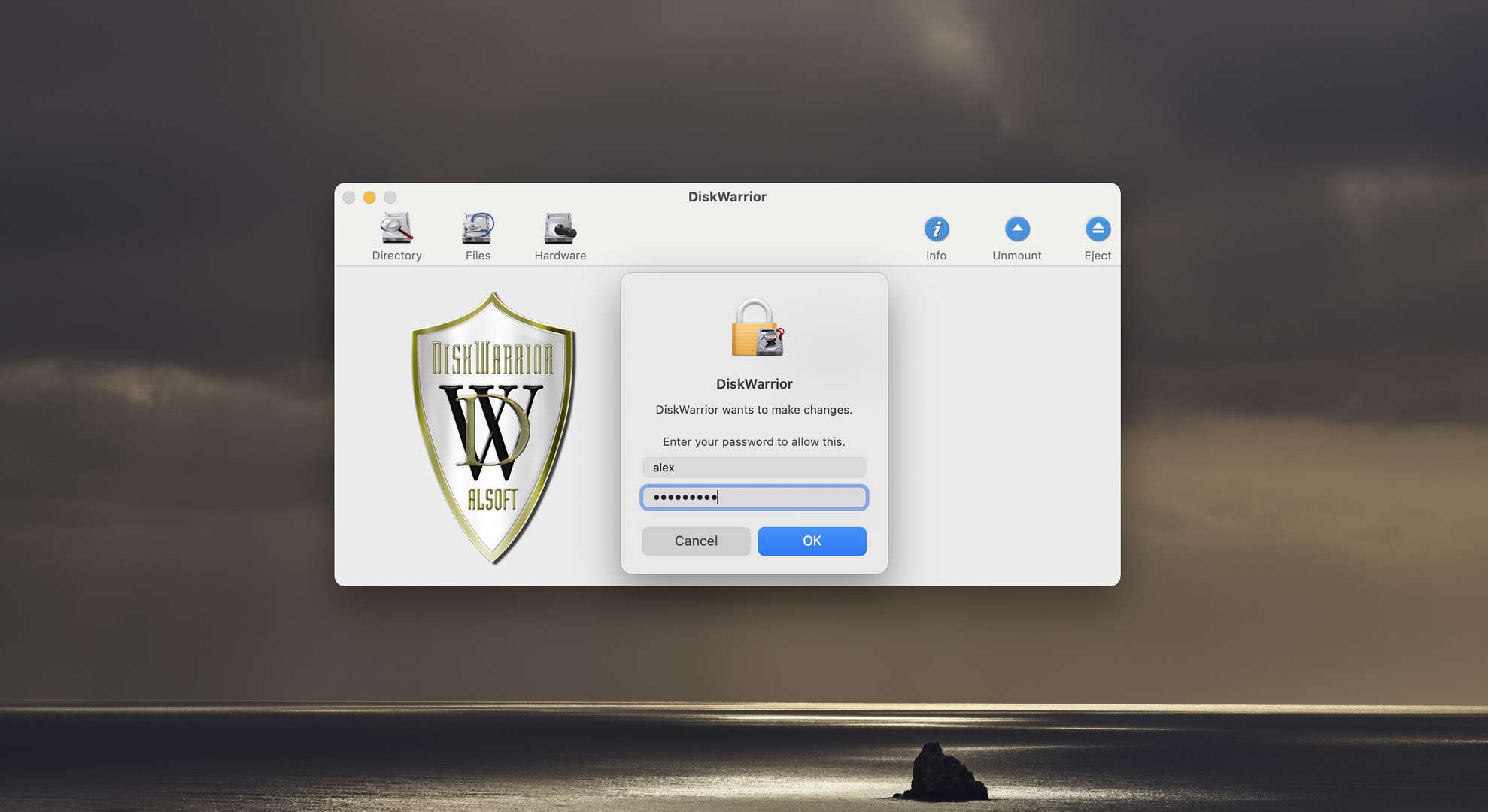
DiskWarrior's user interface is straightforward and easy to navigate, but it does look a bit outdated. Users can quickly select their problematic drive and initiate the repair process. The process of repairing directory errors is automated, with DiskWarrior creating an error-free version of the directory to compare with the original.
Recovery/repair performance
As a tool focused on directory errors, DiskWarrior's strength lies in its ability to rebuild your Mac's directory structure from scratch to eliminate problems and optimize performance. This can lead to significant improvements in how quickly programs scan the directory, potentially reducing scan times by up to 60%. What’s more, DiskWarrior is capability to run from a bootable device and perform repairs even when the main operating system is compromised. But as previously stated, DiskWarrior’s support is limited to older machines, as it doesn’t work with APFS volumes (the default file system for macOS 10.13 High Sierra and later), and it can’t rebuild the startup disk on any Mac with an SSD running a modern macOS version.
Value
DiskWarrior is priced at $119.95, with a special discounted price of $59.95 for existing customers upgrading from previous versions. While the software does offer unique directory repair capabilities, its limited file system support and lack of a trial version may make it less appealing to users with even slightly modern Macs, all of which come with APFS-formatted hard drives.
4. OnyX
3.8 • Suitable comprehensive disk maintenance – OnyX is a powerful and well-respected free software that gives you direct access under the hood, for the purpose of disk cleaning, maintenance, and repair. It doesn’t hold your hand at all, so it’s better for experienced users.
macOS
Freeware All features are provided free of charge without any limitations.
None
Free
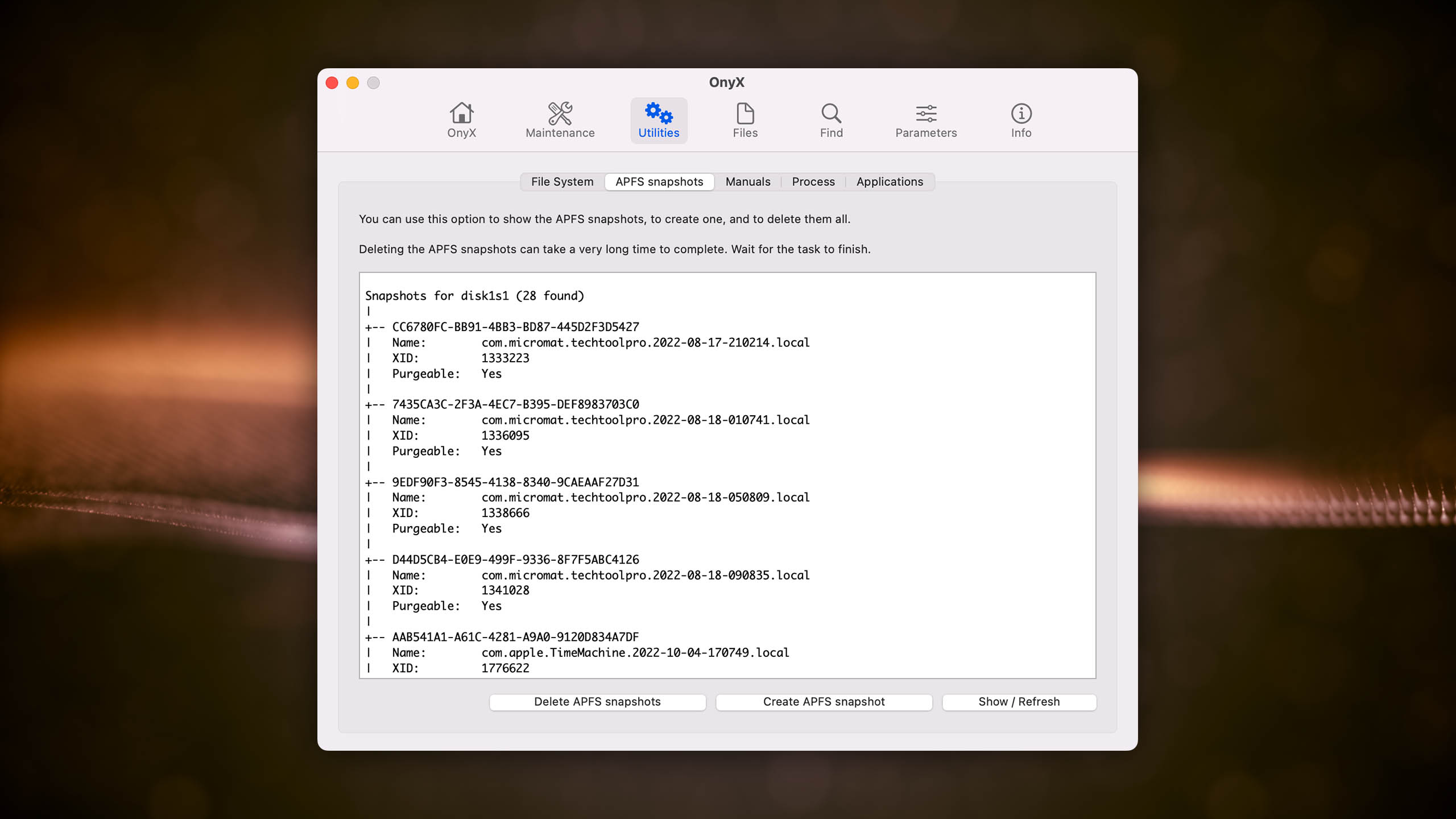
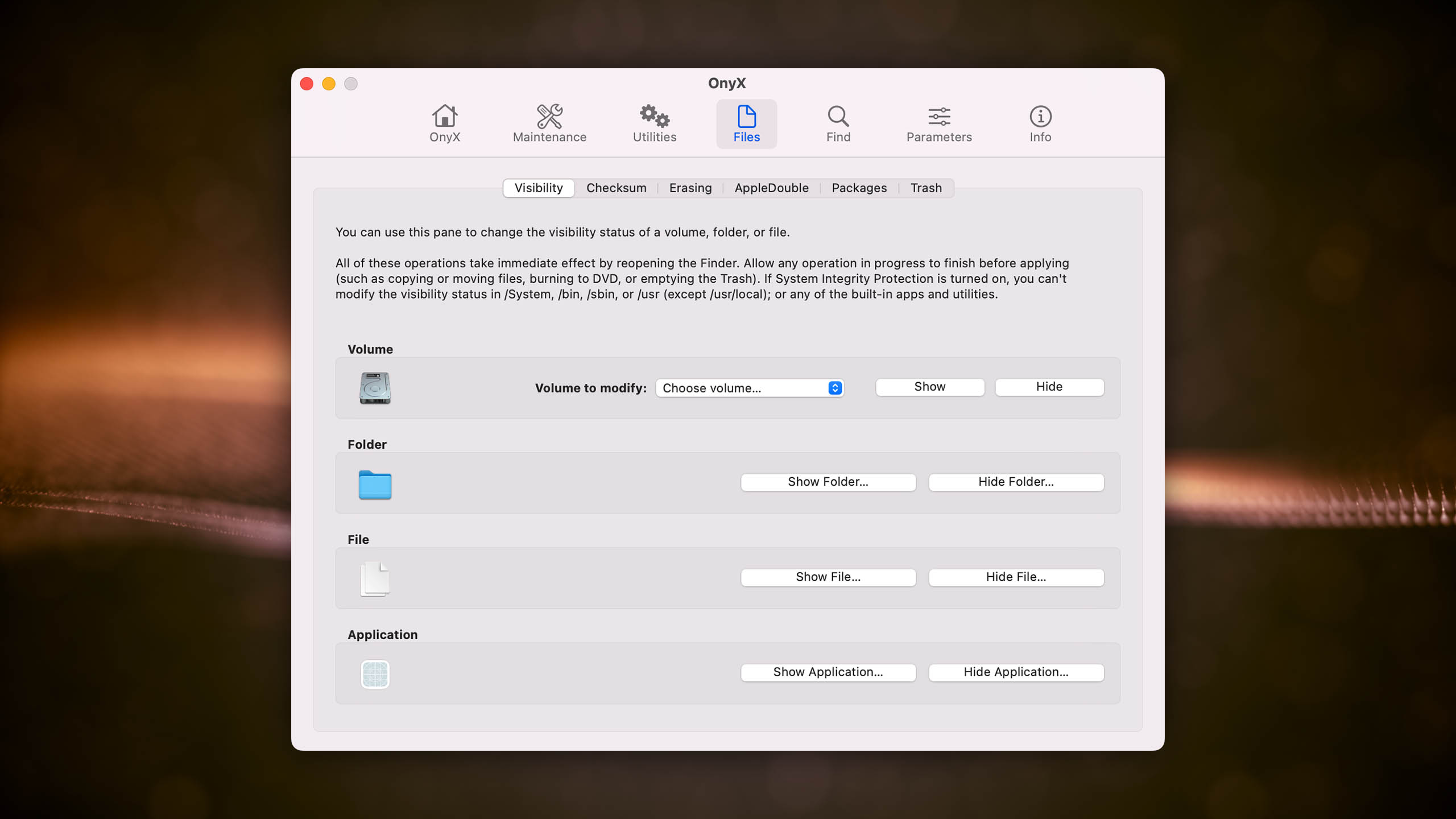
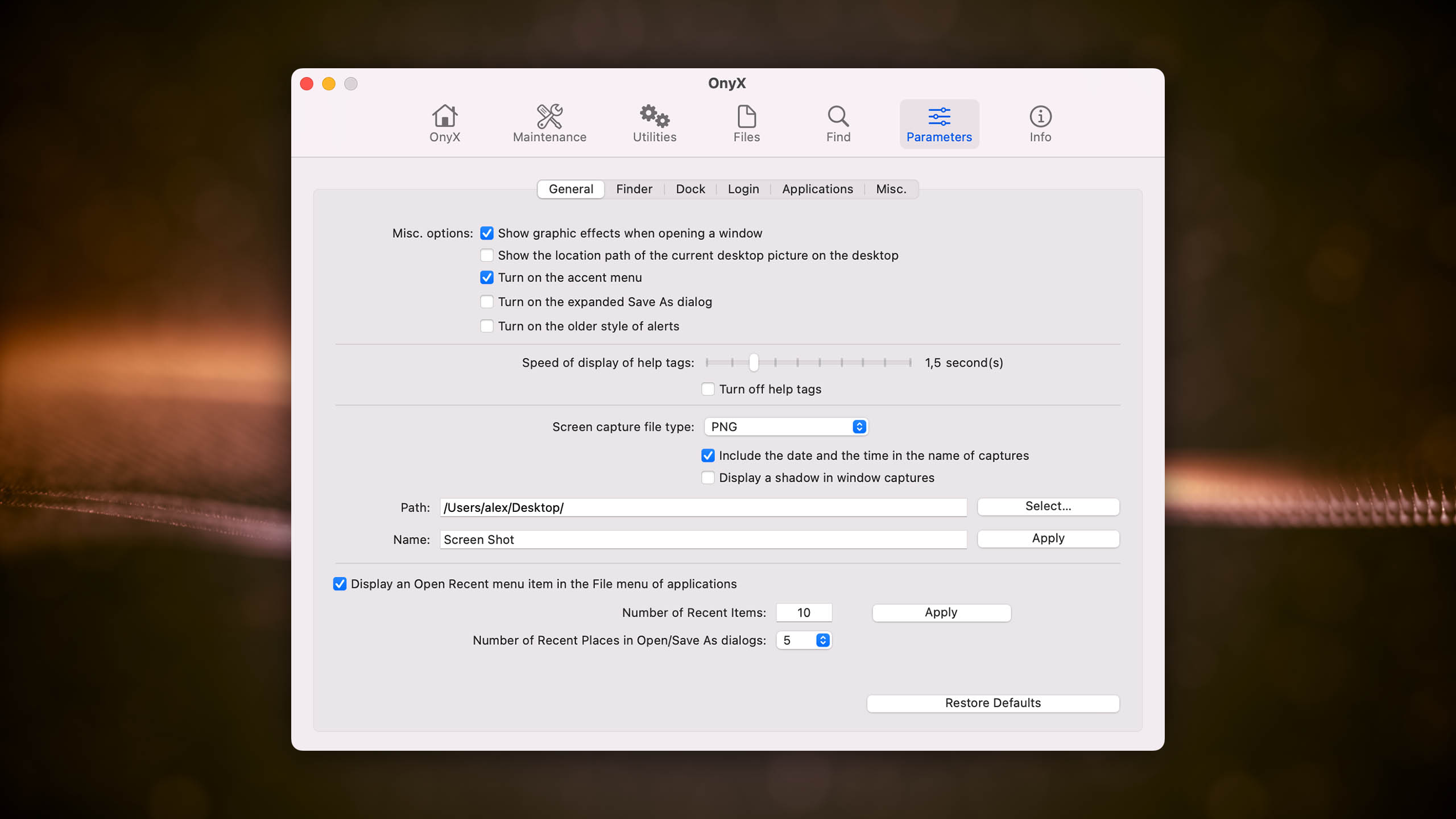
OnyX is a versatile, free maintenance and optimization tool for macOS that provides access to hidden features and advanced system settings.
Usability
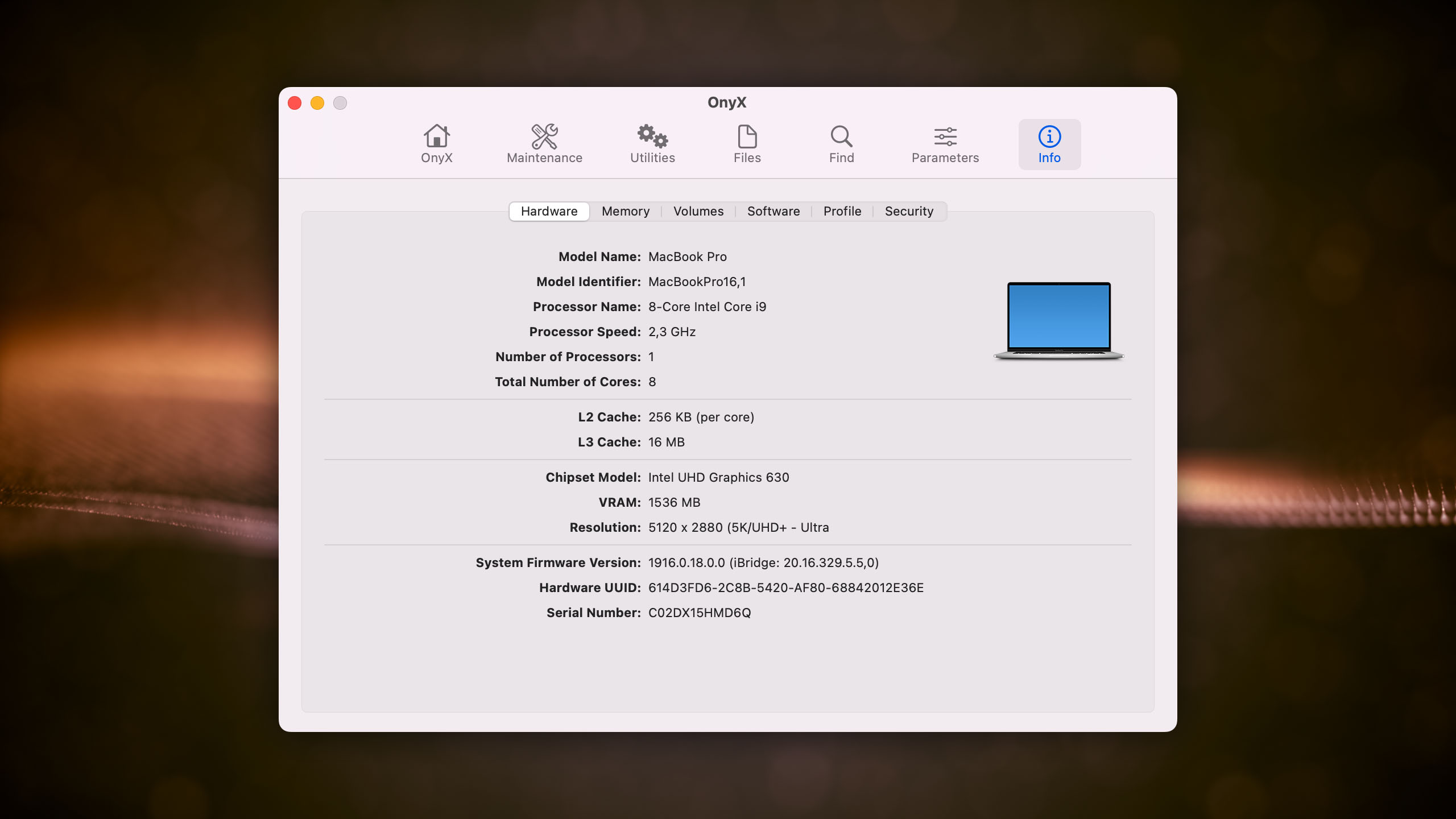
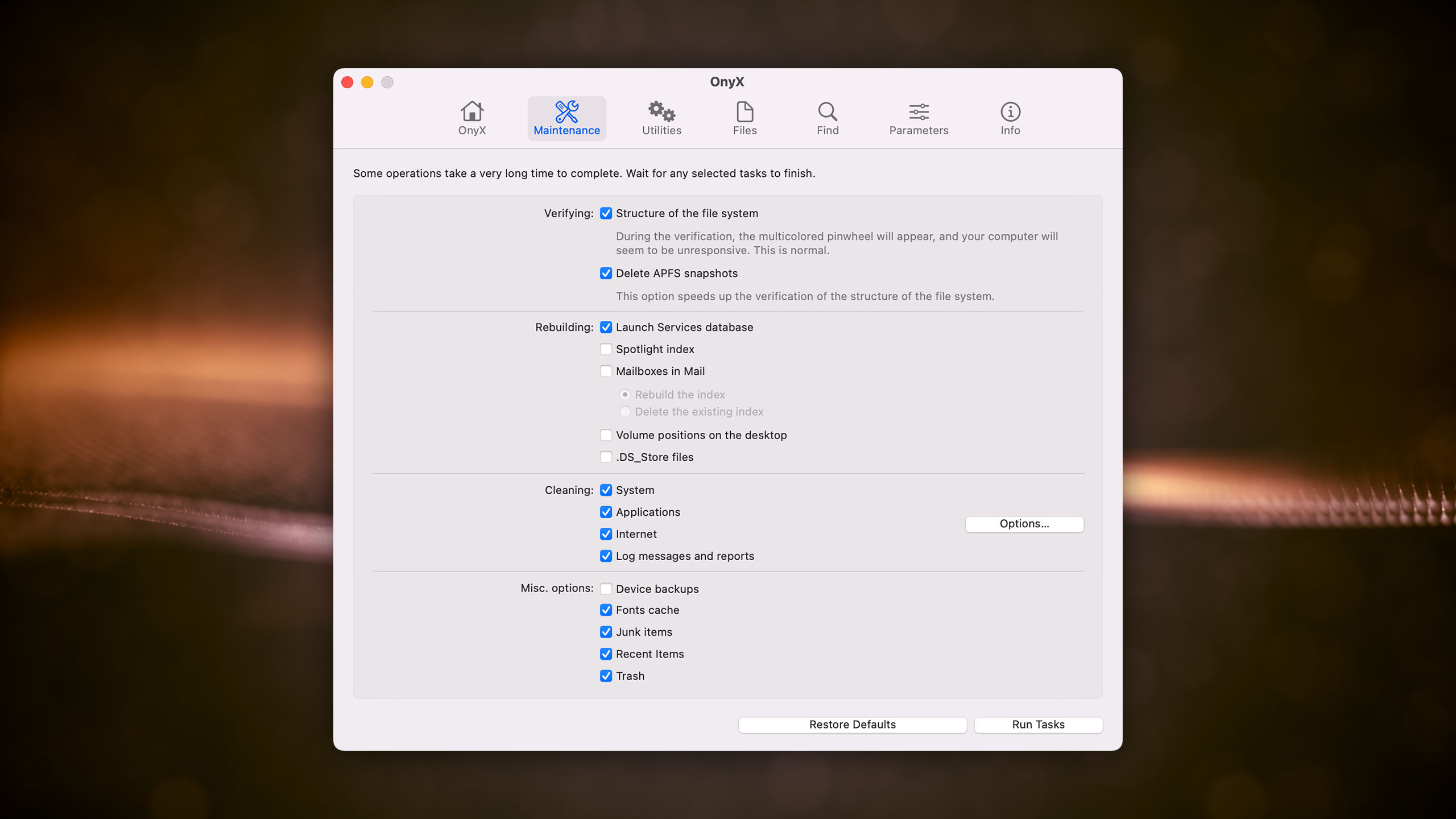
OnyX features a well-organized user interface with multiple tabs that allows users to navigate and access various maintenance tasks, cleaning options, automation routines, and utilities with ease. However, some features might be overwhelming for less tech-savvy users due to their advanced nature. Of course, this is to be expected considering that the sole purpose of the software is to provide access to advanced features and options, so it’s not really something we can criticize the OnyX for.
Recovery/repair performance
OnyX offers several maintenance and optimization tools that can help diagnose and repair disk problems, such as rebuilding cache files, repairing file permissions, and deleting system cache files or large logs. However, its disk repair capabilities are not as extensive as those of dedicated disk repair software, and it lacks a data recovery feature. As such, we wouldn’t recommend it as the only solution to try when attempting to repair a Mac drive.
Value
As a free and donation-supported tool, OnyX provides excellent value for users looking to access hidden macOS features and perform routine maintenance tasks. While it may not be as powerful as dedicated disk repair software, it still offers a useful set of tools for optimizing and maintaining a Mac system.

5. Data Rescue
3.26 • Oldie but not goodie – Data Rescue for Mac is among the oldest applications of its kind, but its age is starting to show in multiple not-so-favorable ways.
macOSWindows
Freemium Some features are provided free of charge, but money is required to unlock the rest
Recover up to 1 GB for free
$79...$399
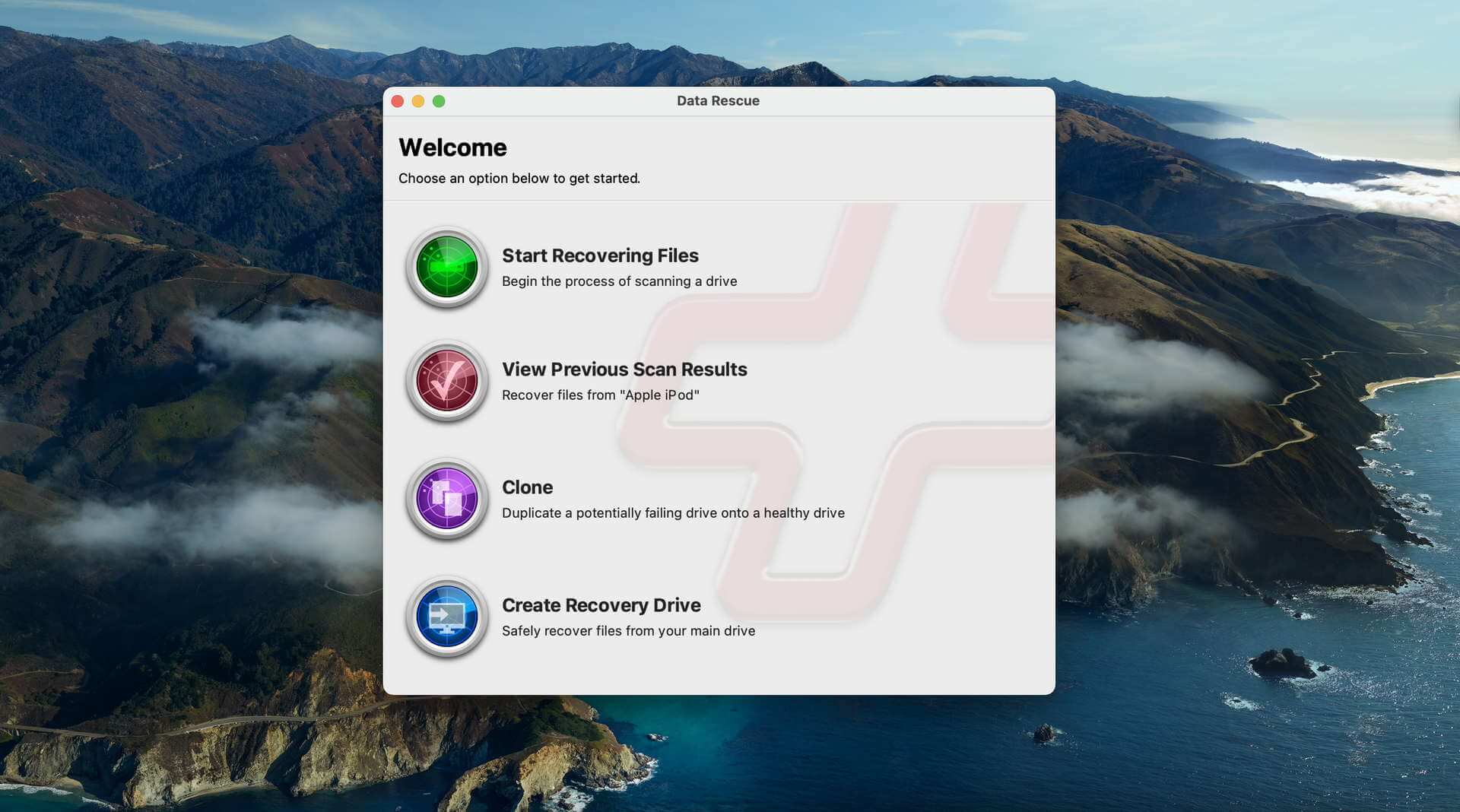
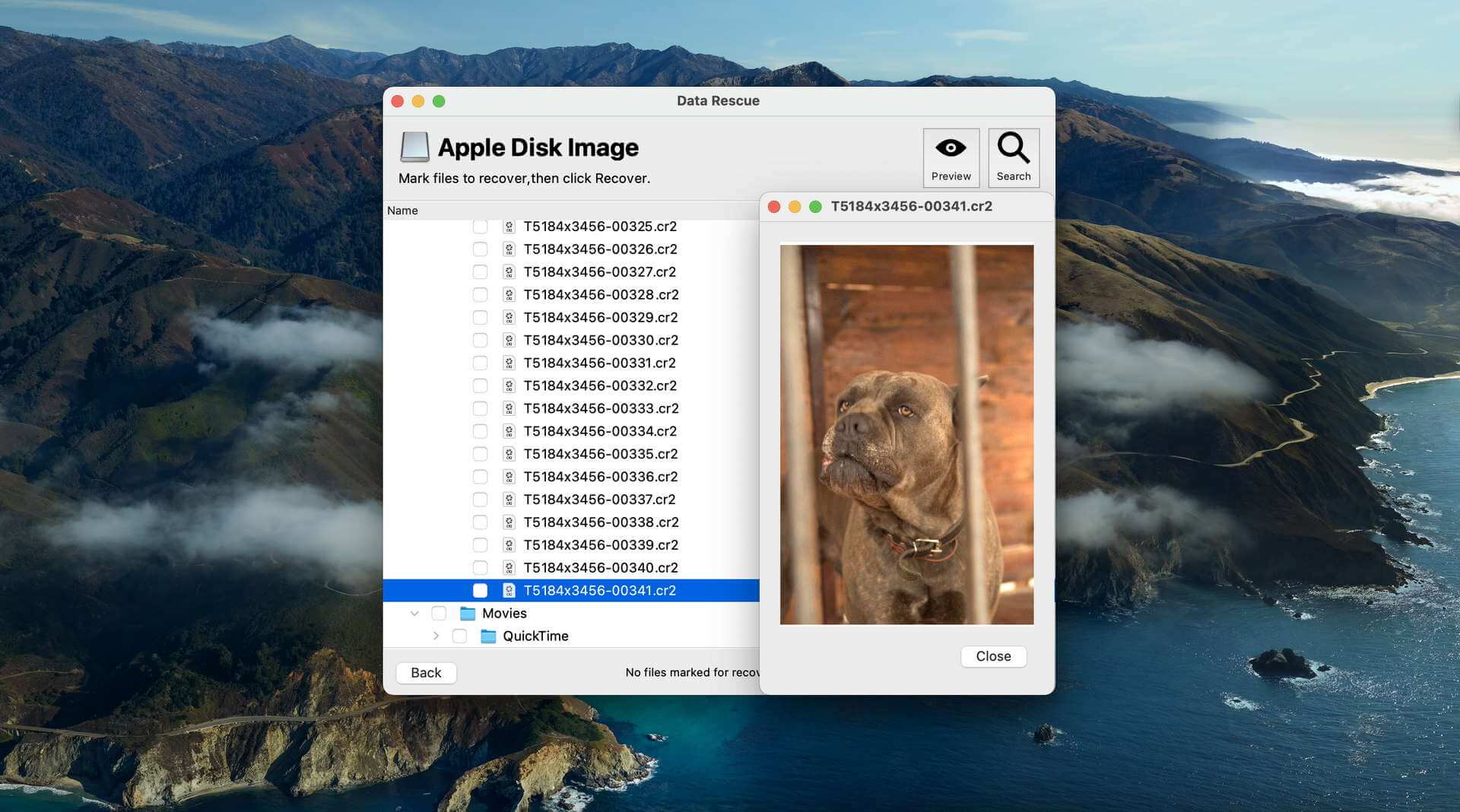
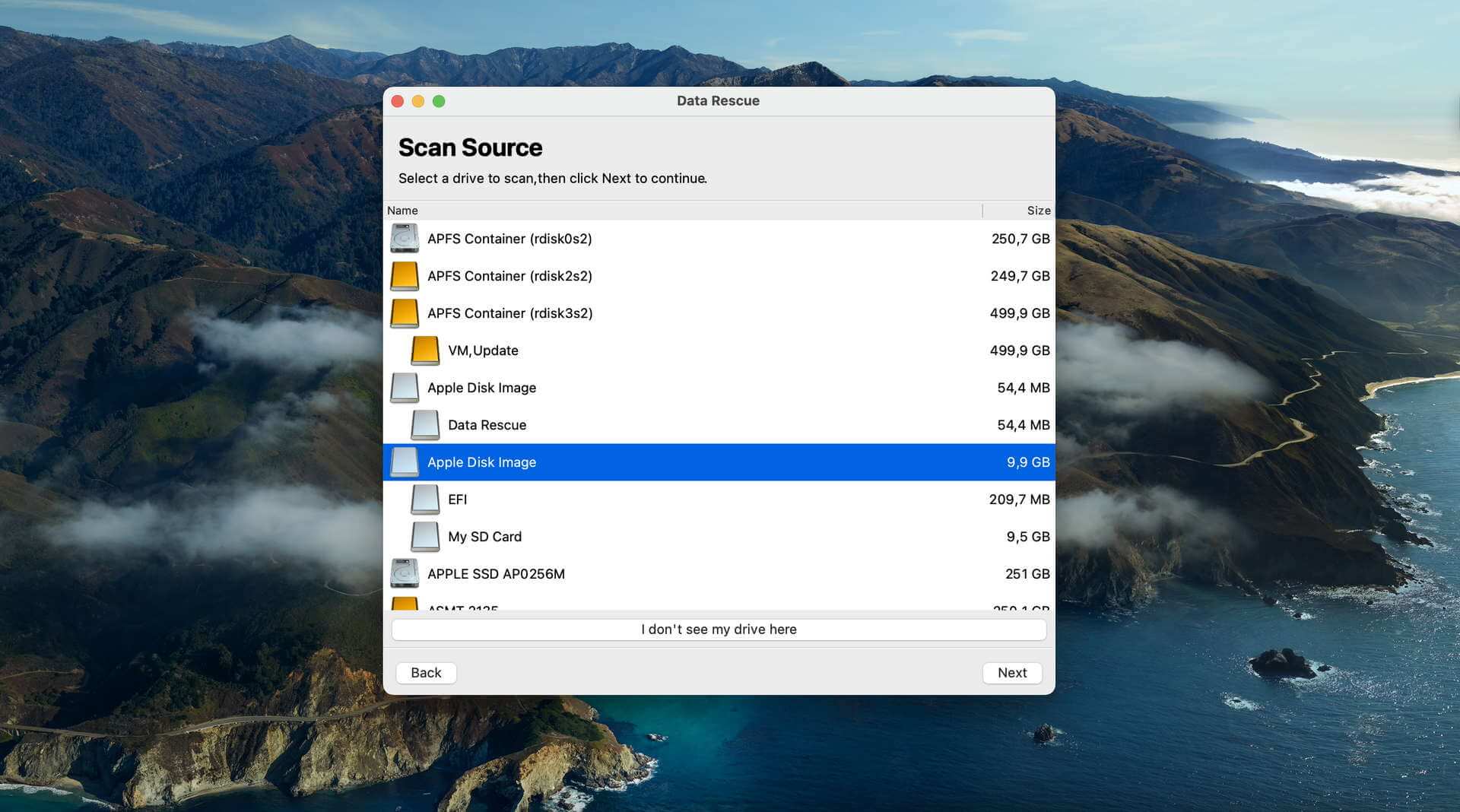
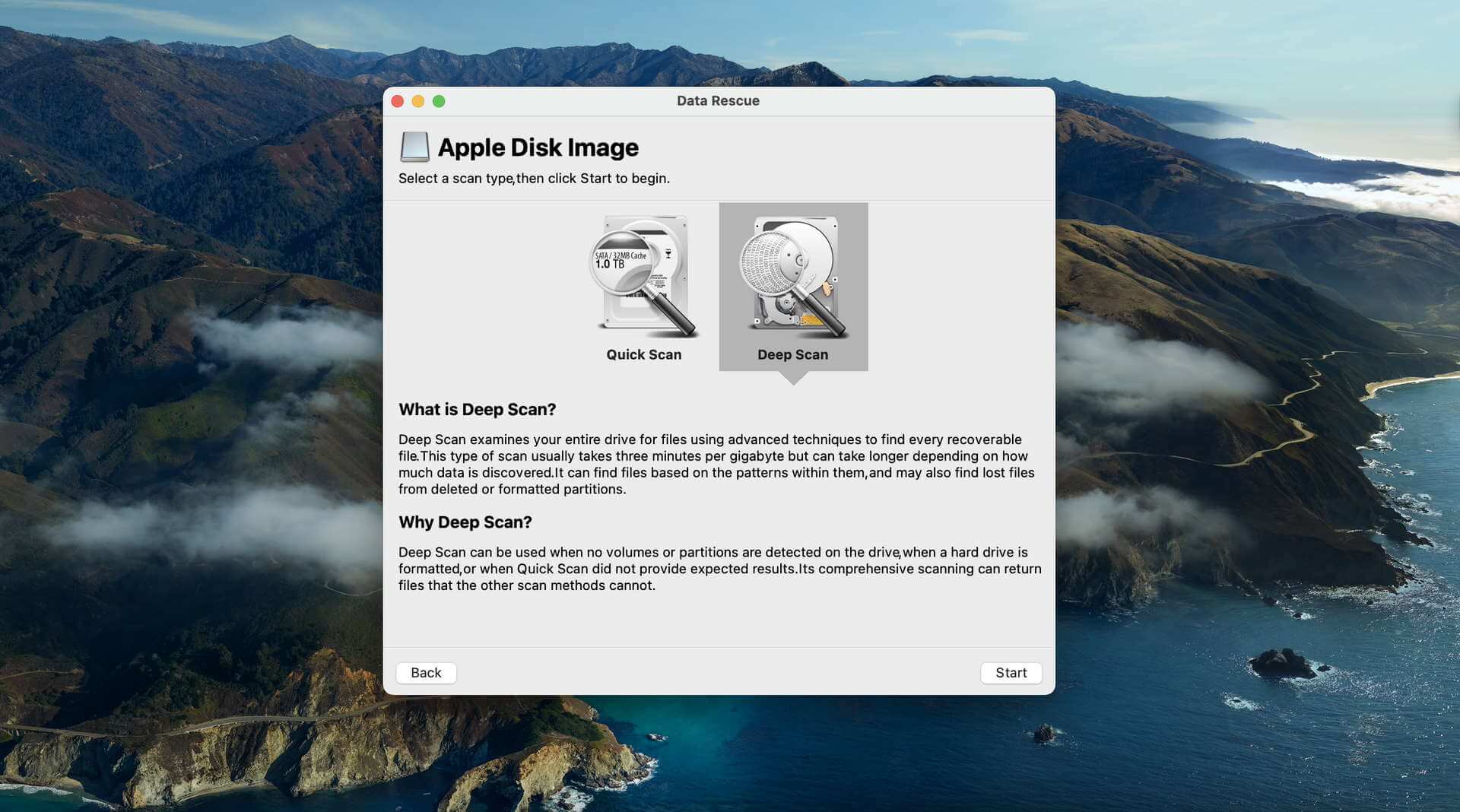
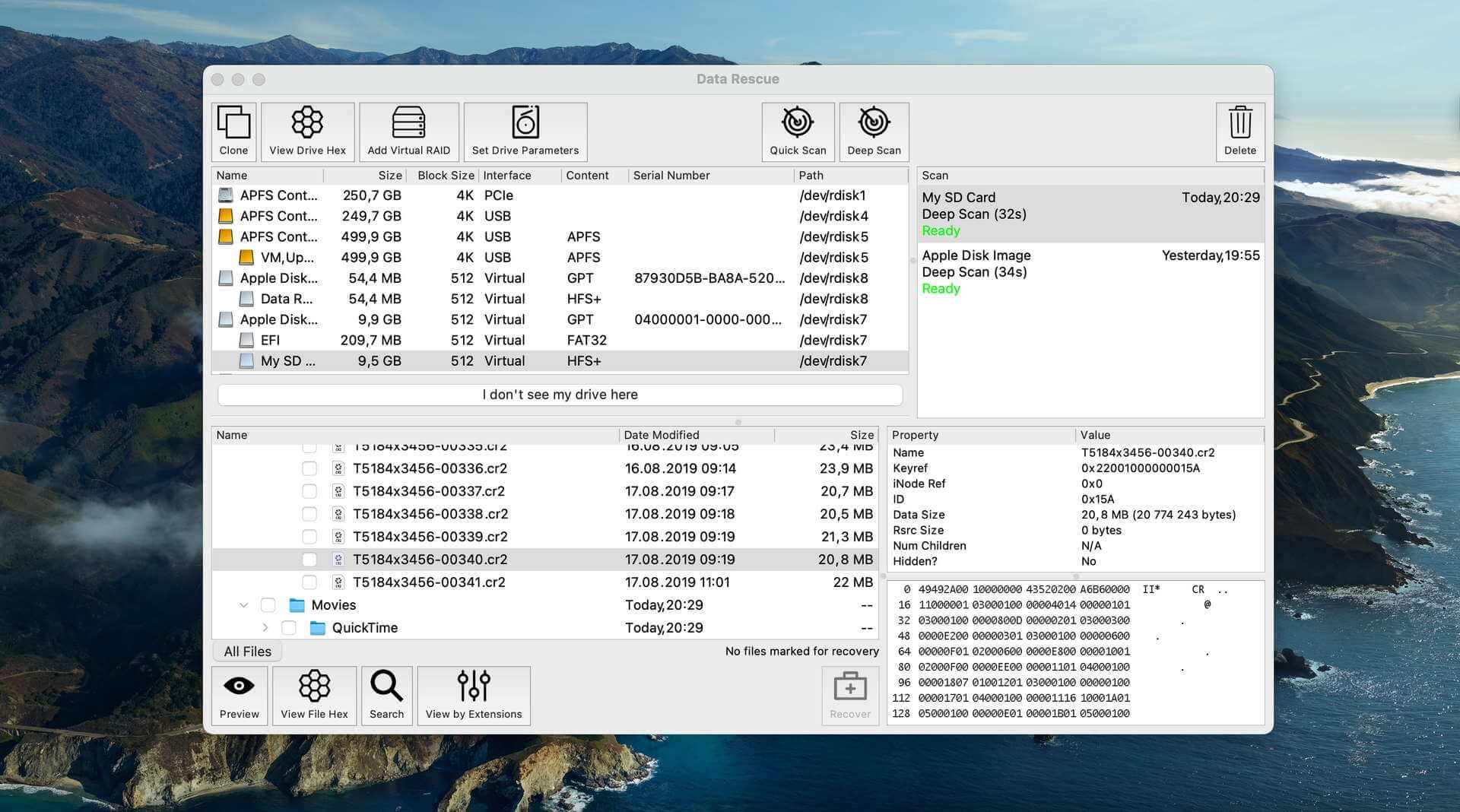
Data Rescue for Mac is a data recovery tool with a long history, offering two scan modes to recover deleted files from various storage devices. However, its aging interface and certain limitations affect its usability and performance.


Usability
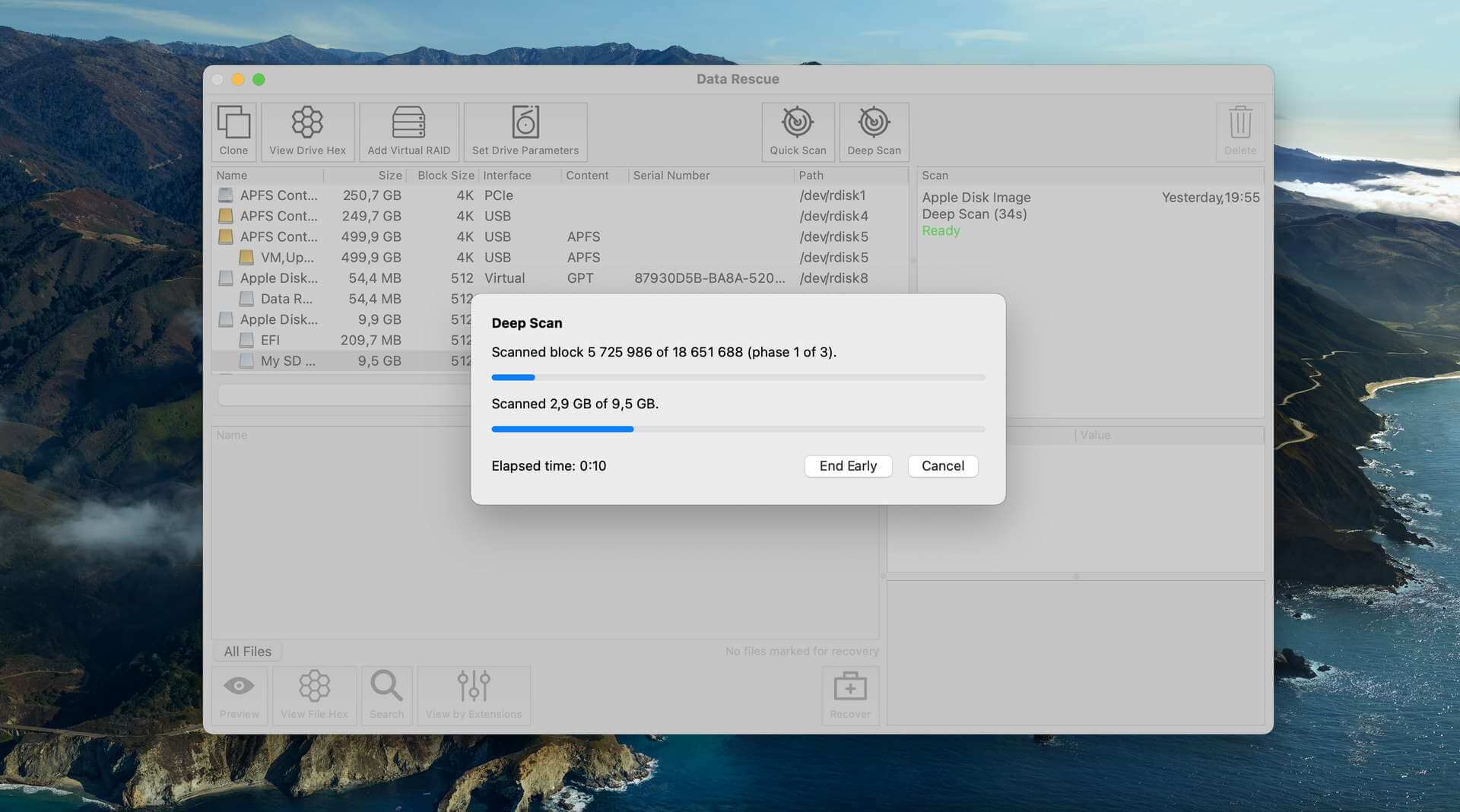
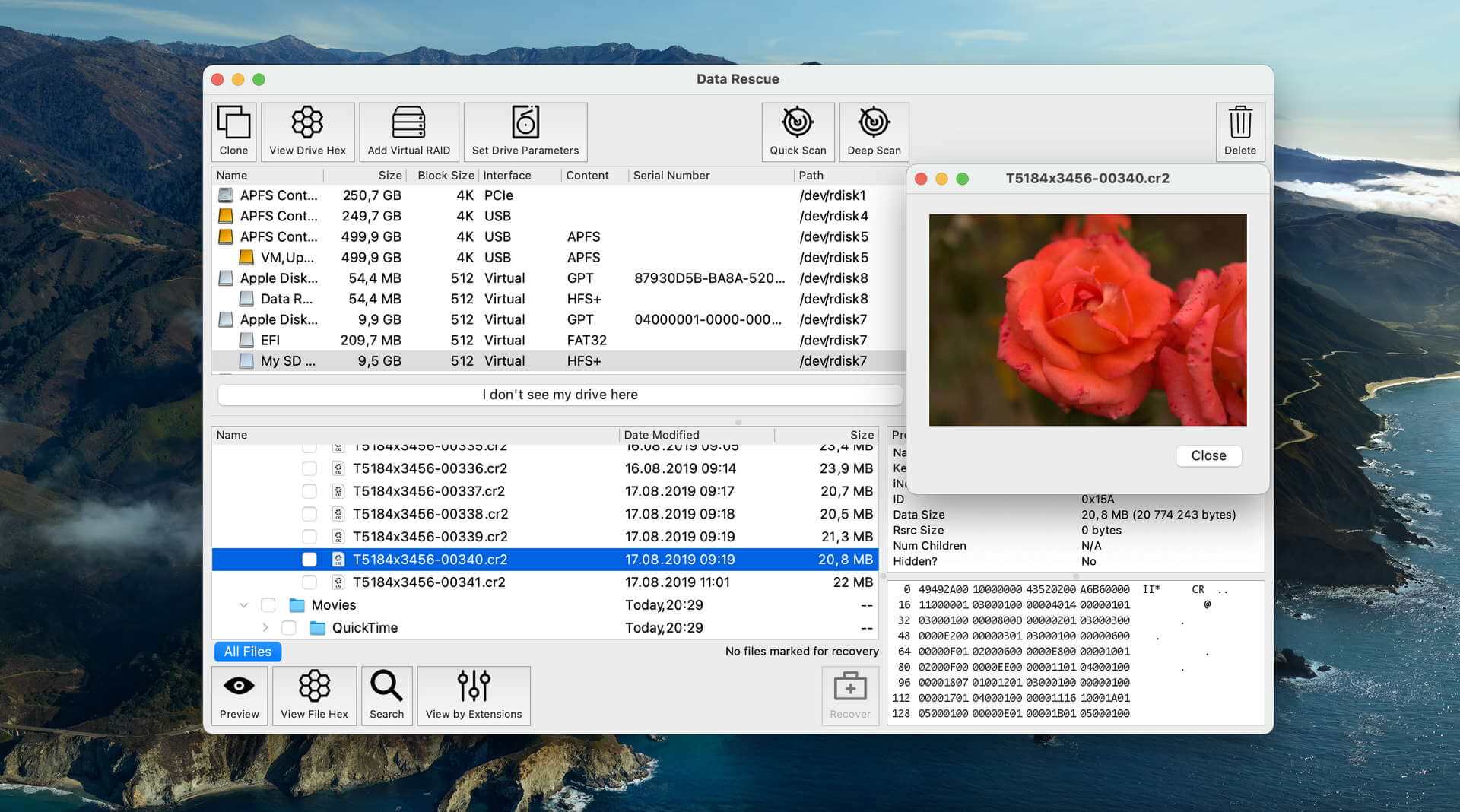
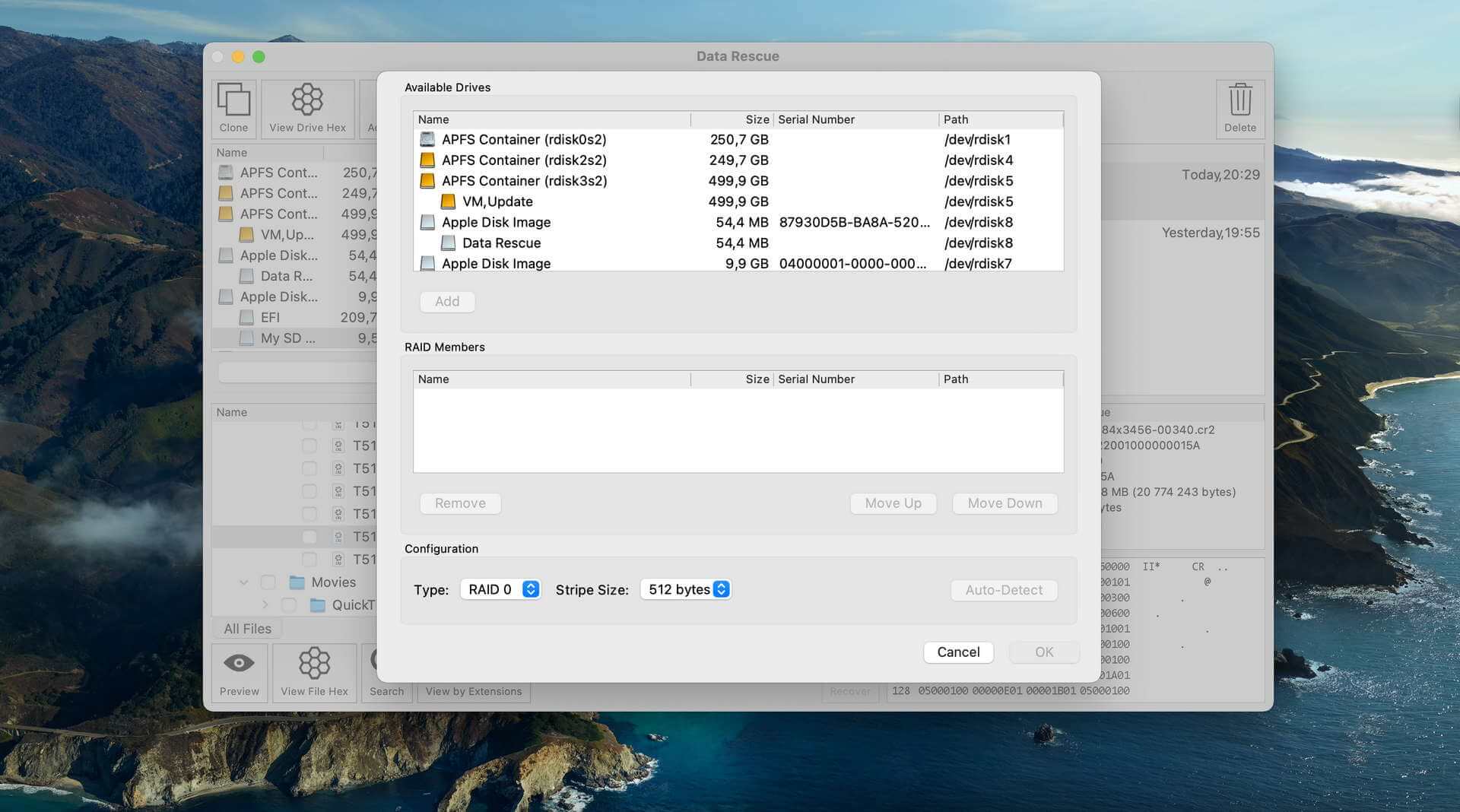
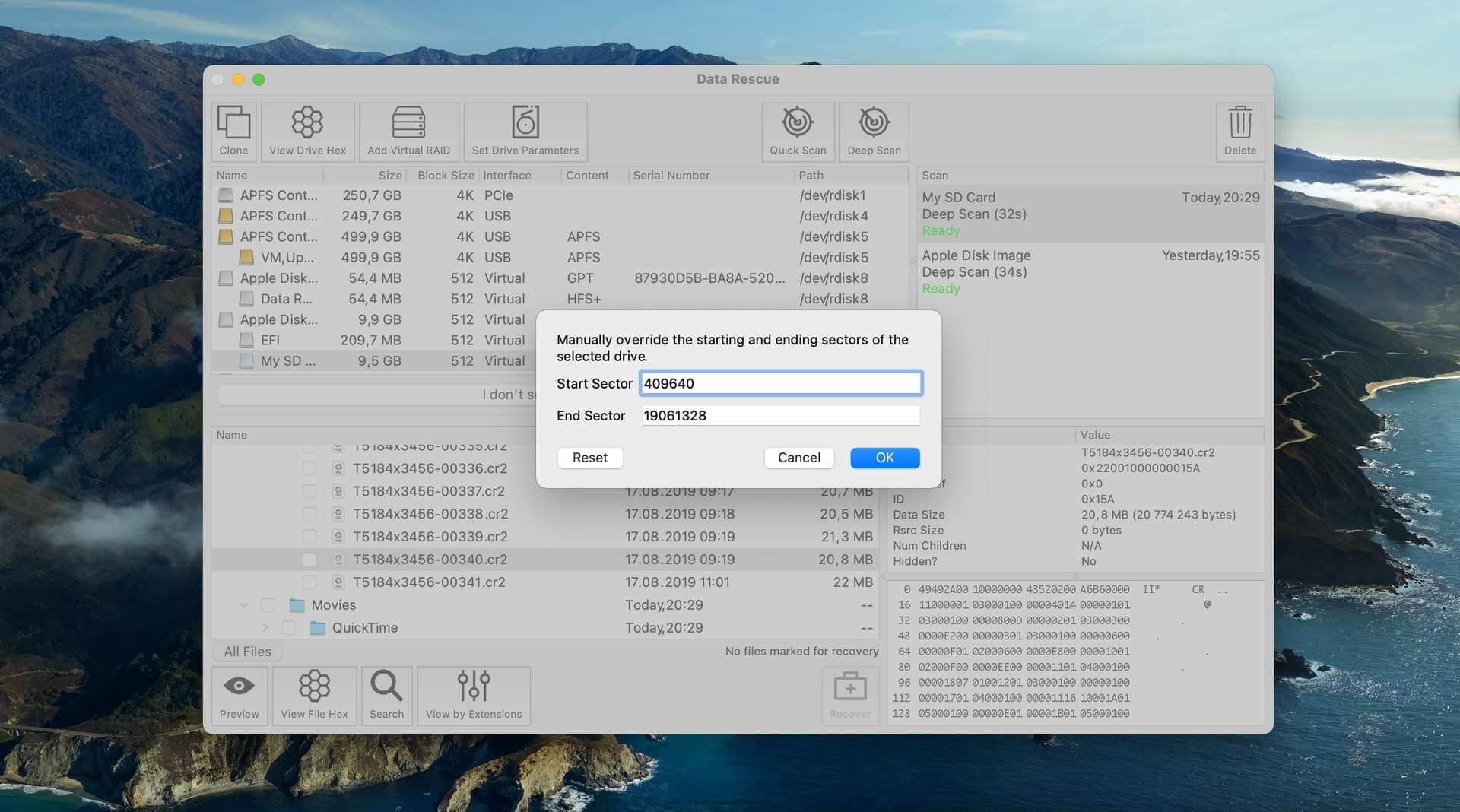
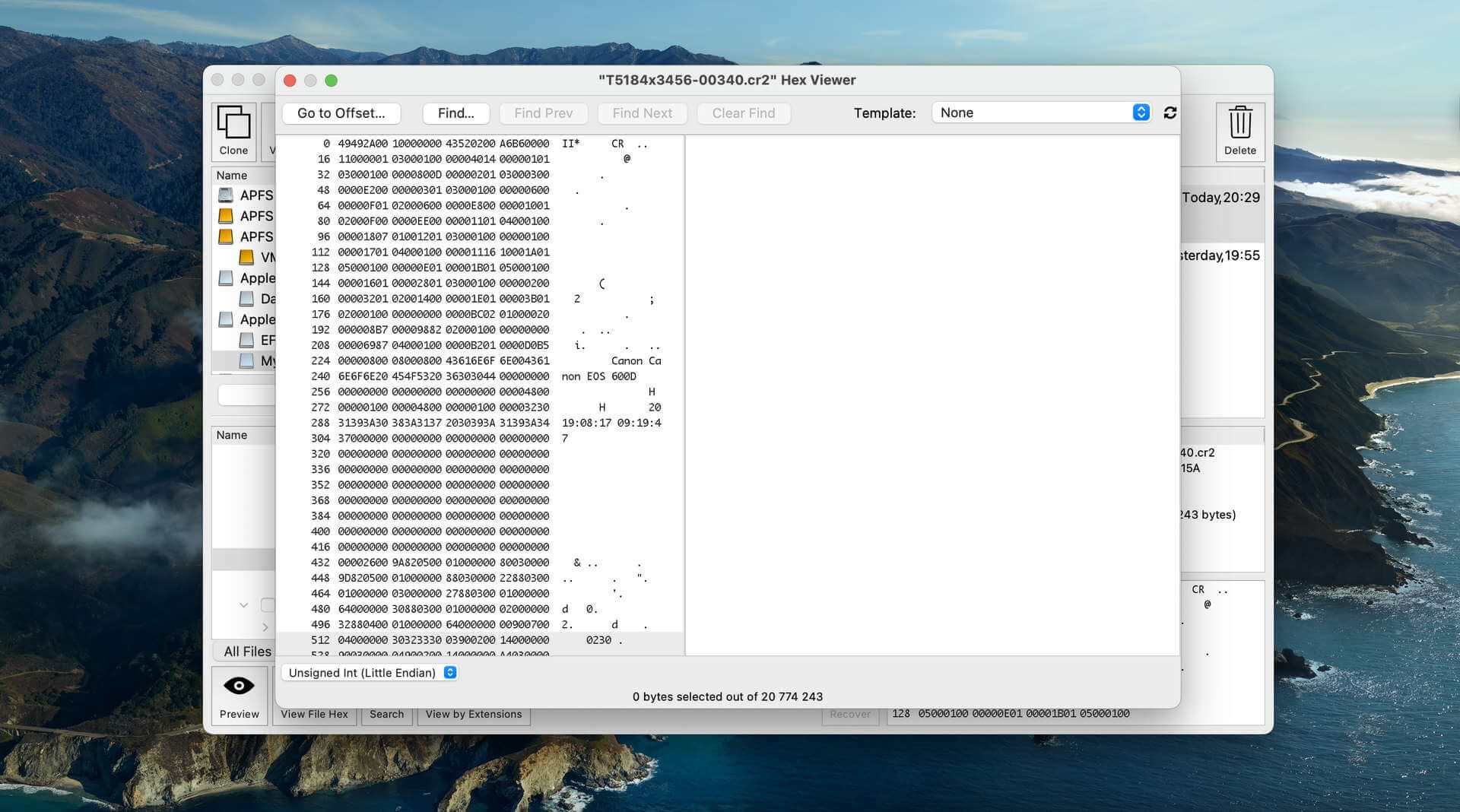
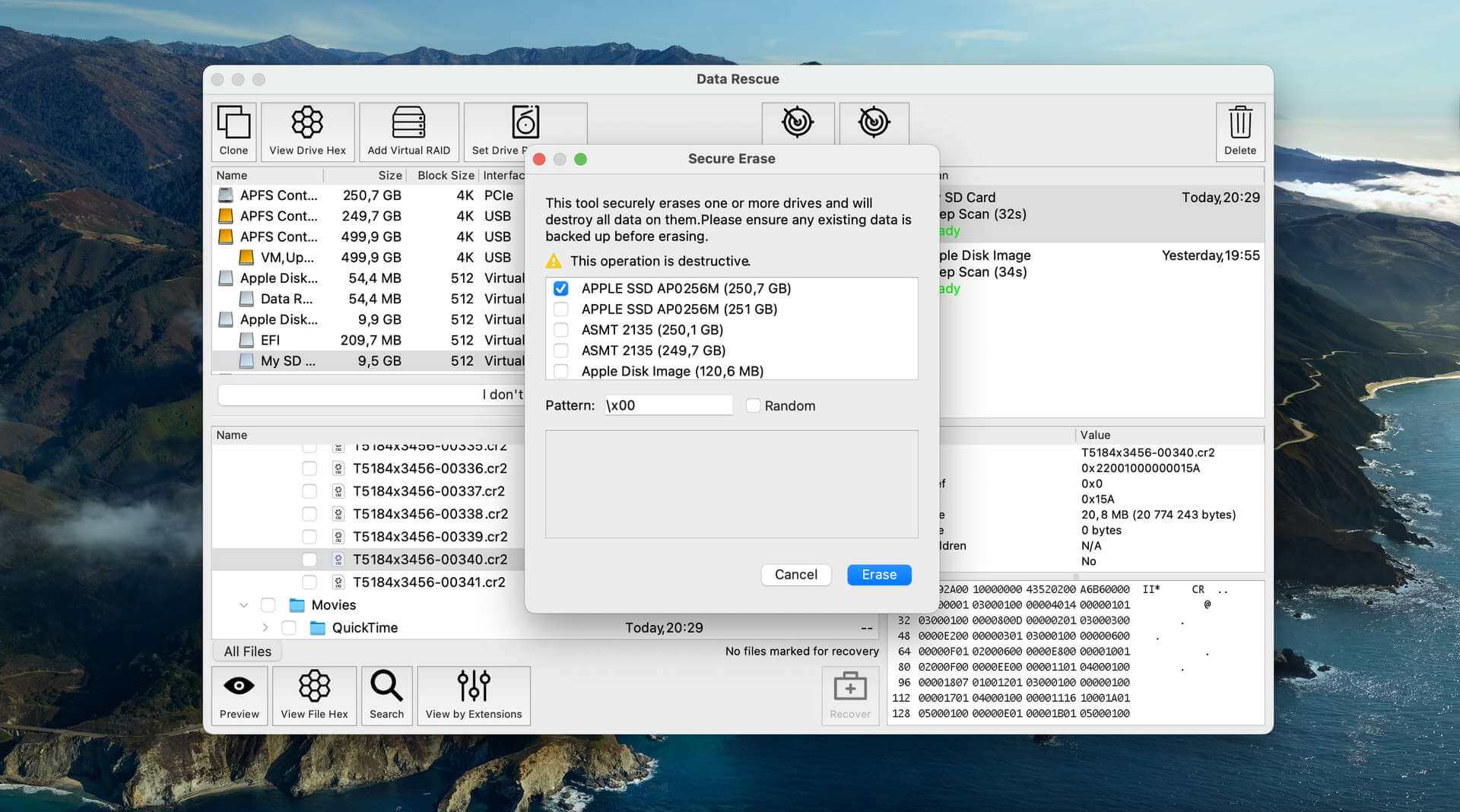
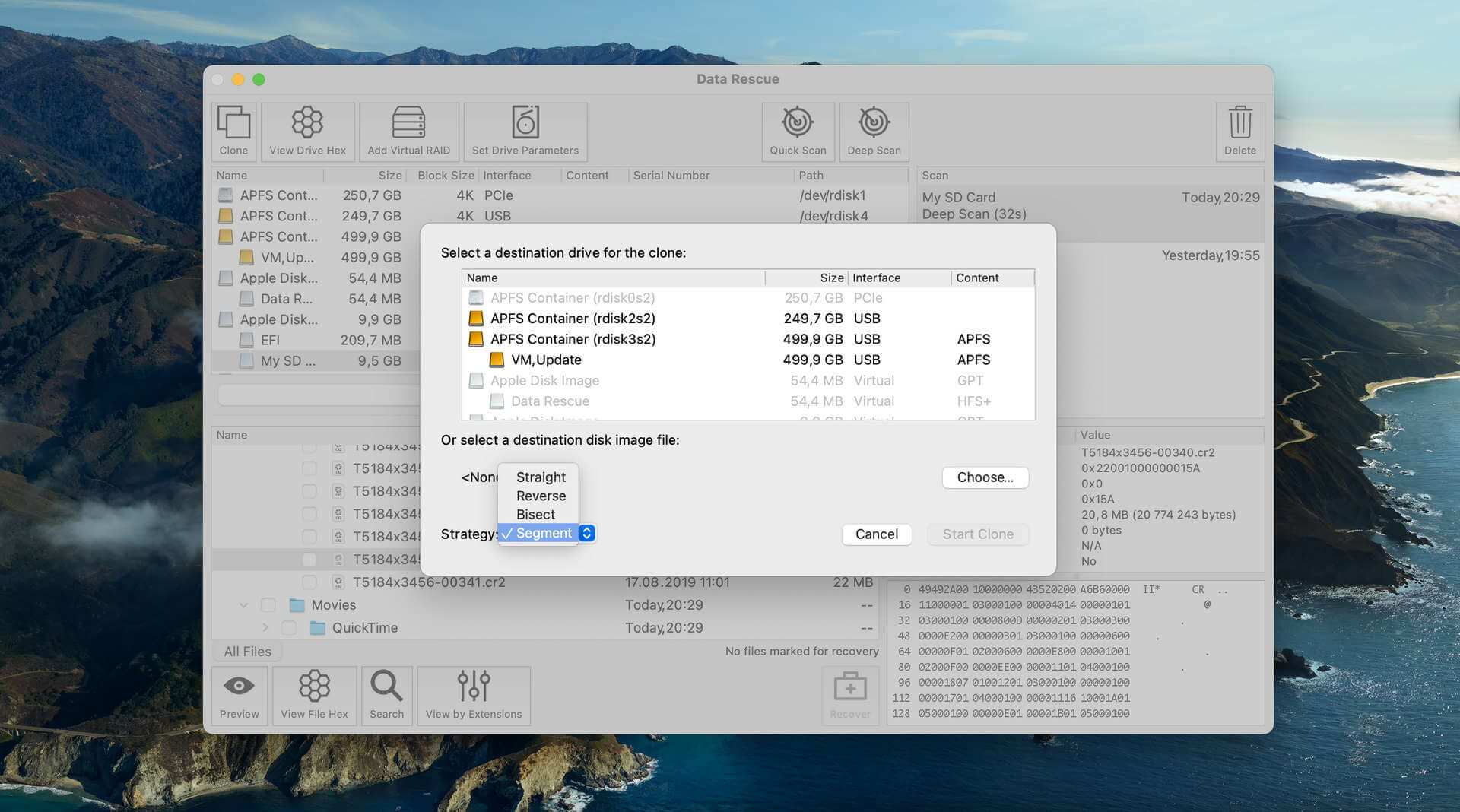
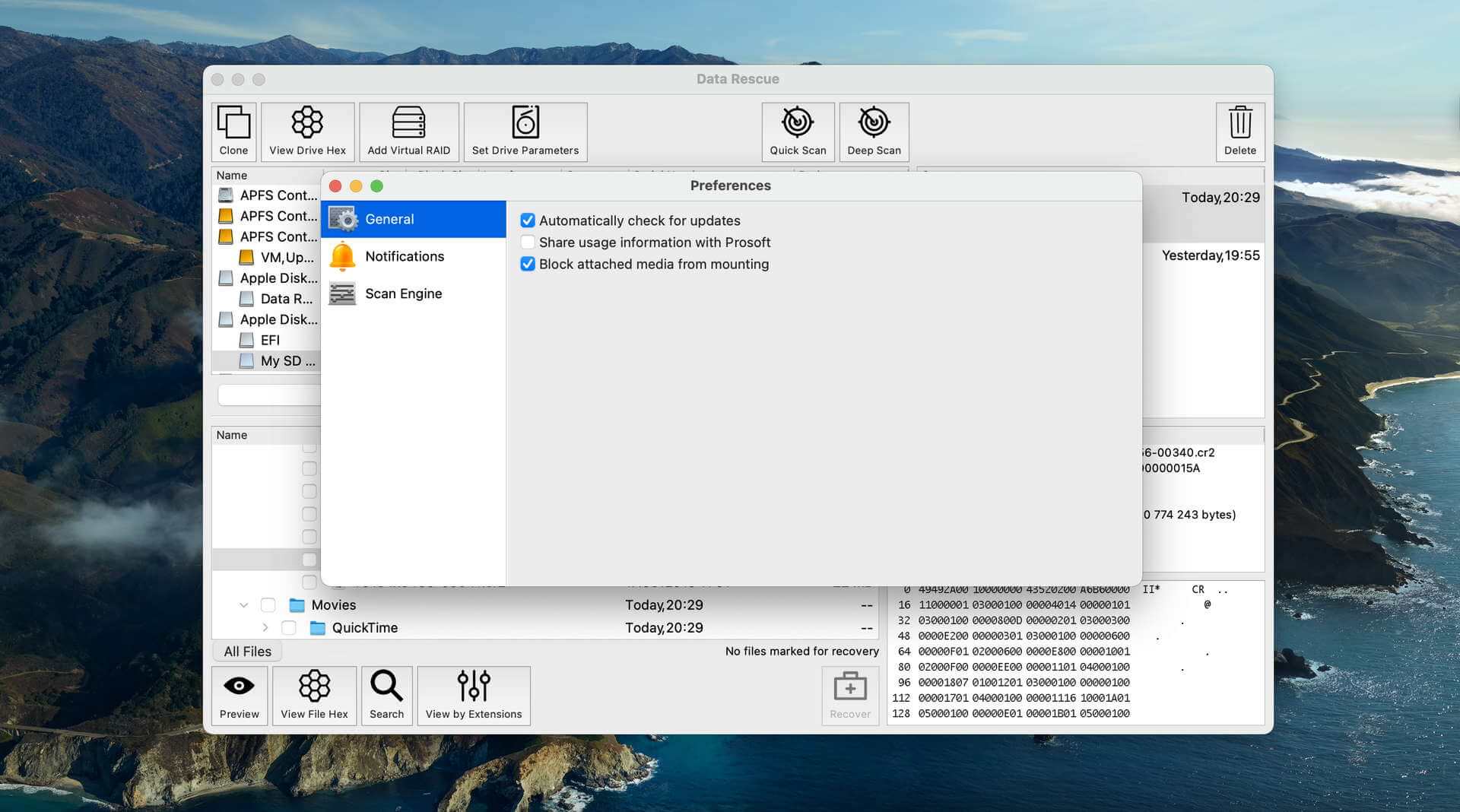
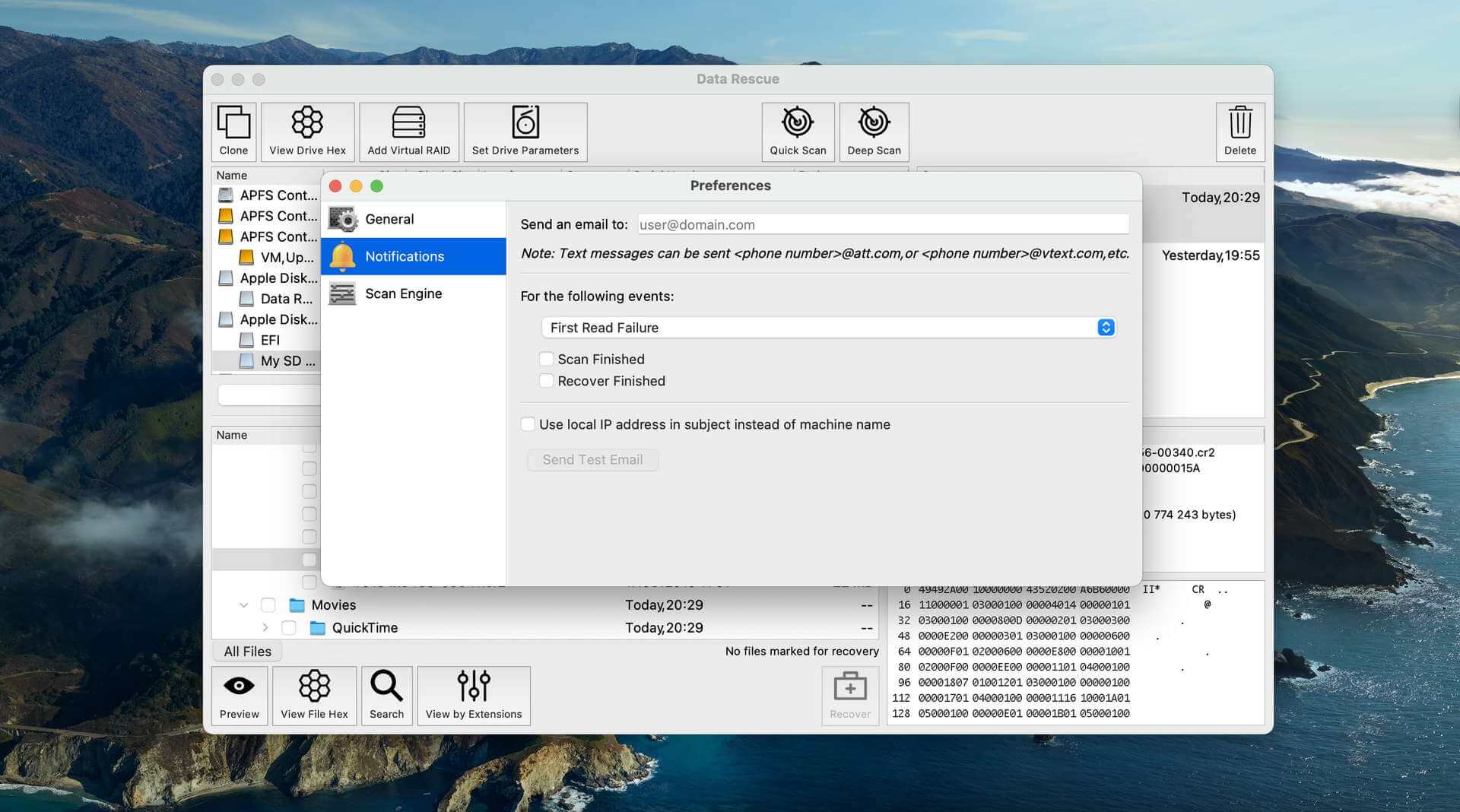
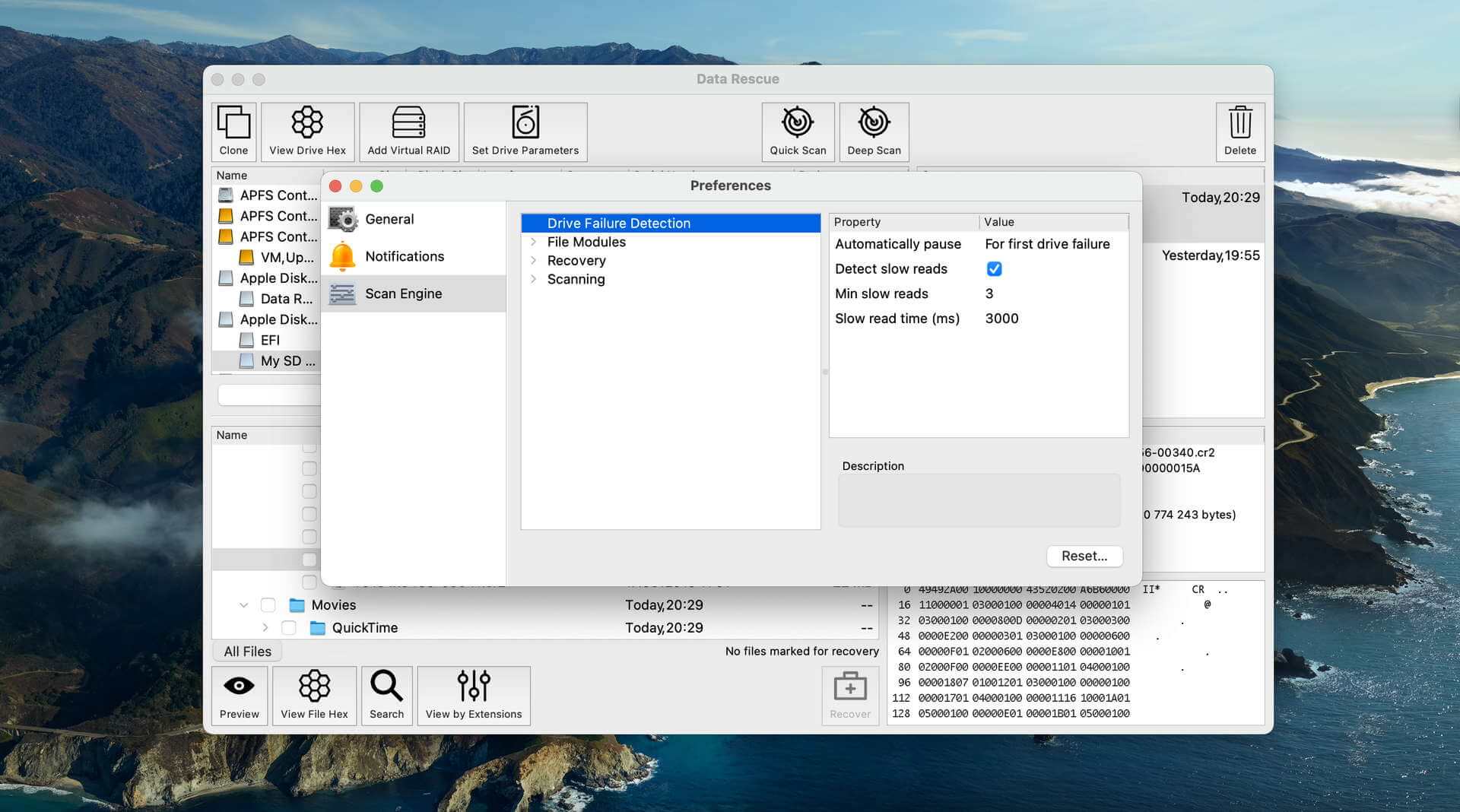
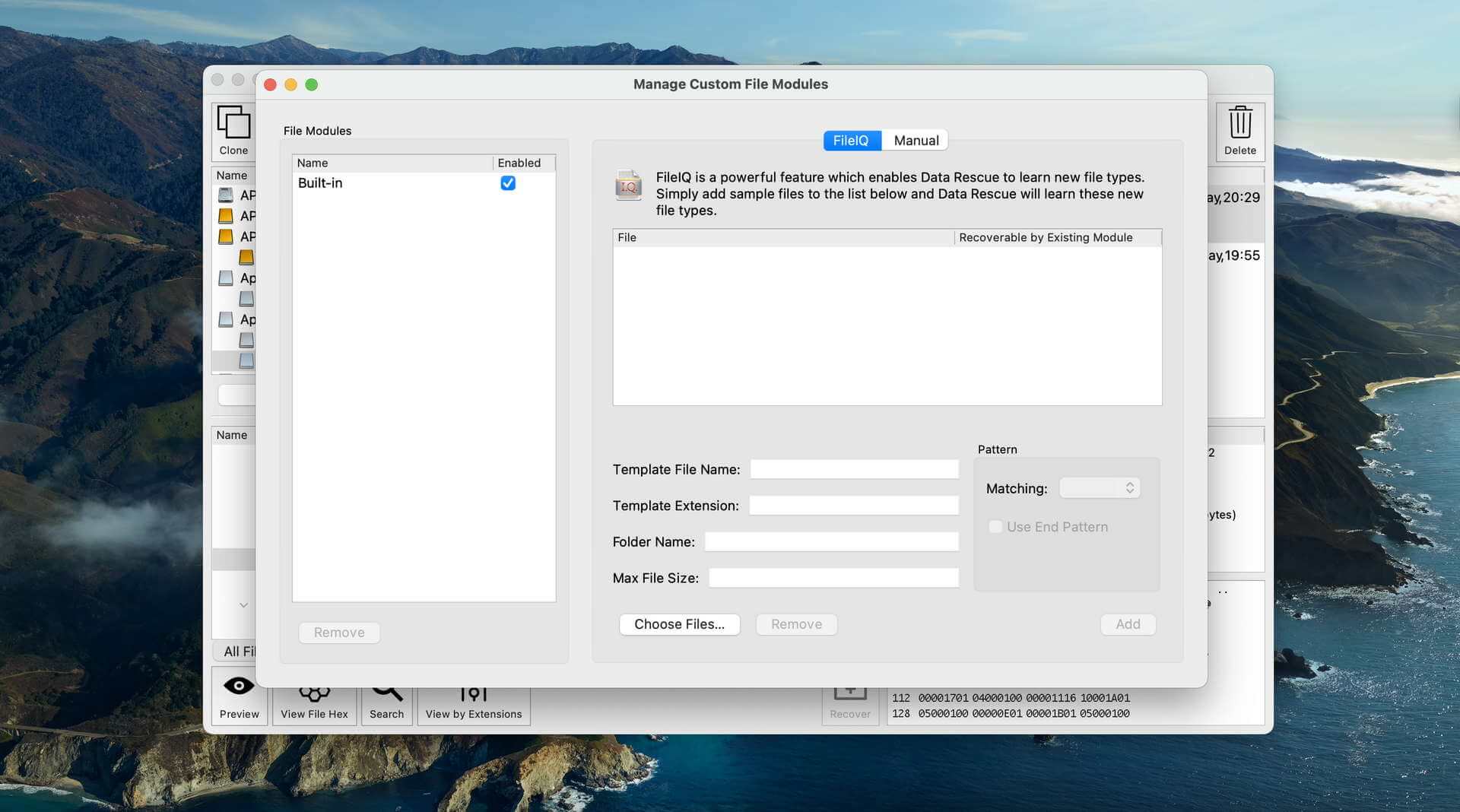
Data Rescue's user interface is fairly basic, and it appears that the developers have not focused on making it visually appealing or user-friendly. Despite its simplicity, the software is relatively easy to use, with only a few steps required to initiate the recovery process. However, the lack of a pause feature during scanning means that the software will take up your system resources from the moment scanning begins to its end, unless you decide to cancel it and start again from scratch.
Recovery/repair performance
Data Rescue offers two scan modes for data recovery: Quick Scan and Deep Scan. The Quick Scan mode is faster and can recover recently deleted files, while the Deep Scan mode is more comprehensive and can recover data from formatted or corrupted drives. However, the Deep Scan mode can take several hours to complete and, as we’ve pointed out in the section above, can’t be paused. Even bigger issue is the fact that the software can’t directly scan system disks on Macs running macOS 10.13 and higher; it’s necessary to boot into Recovery Mode first.
Value
Data Rescue's pricing ranges from $79 to $399, depending on the desired features and the number of drives to be recovered. While the software does offer unlimited recoveries with a single license, its aging interface and limitations make it less attractive compared to more modern data recovery tools with similar or better performance.
6. DriveDx
3.64 • Best for disk health monitoring – DriveDx is a super comprehensive hard drive that provides an unbeatable depth and volume of information about your drive health. It just can’t fix anything.
macOS
Freemium Some features are free for a limited time, but you need to pay to unlock the rest.
10 to 15-day trial period, 12-hour session limits
$24.99...$39.99
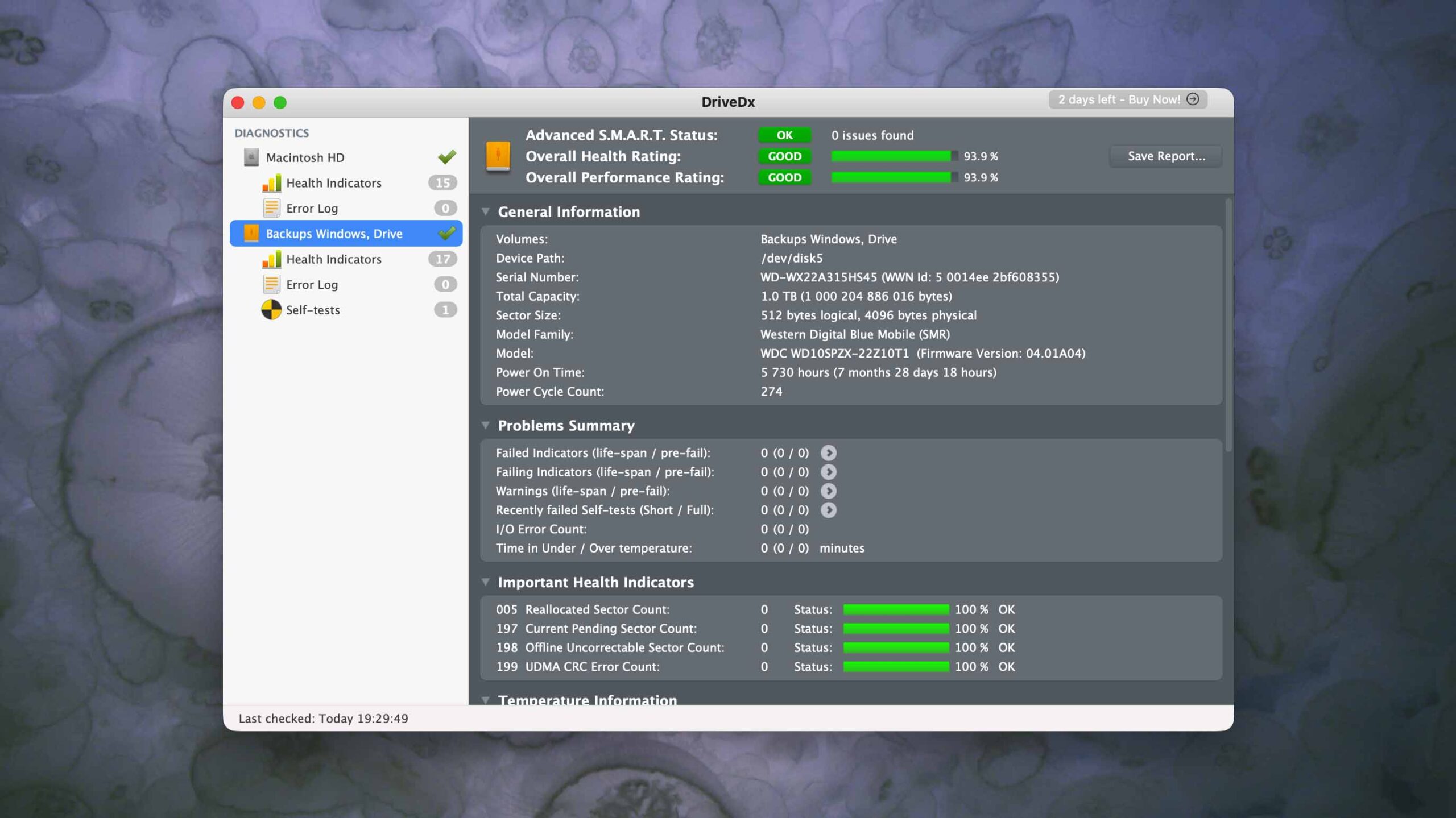
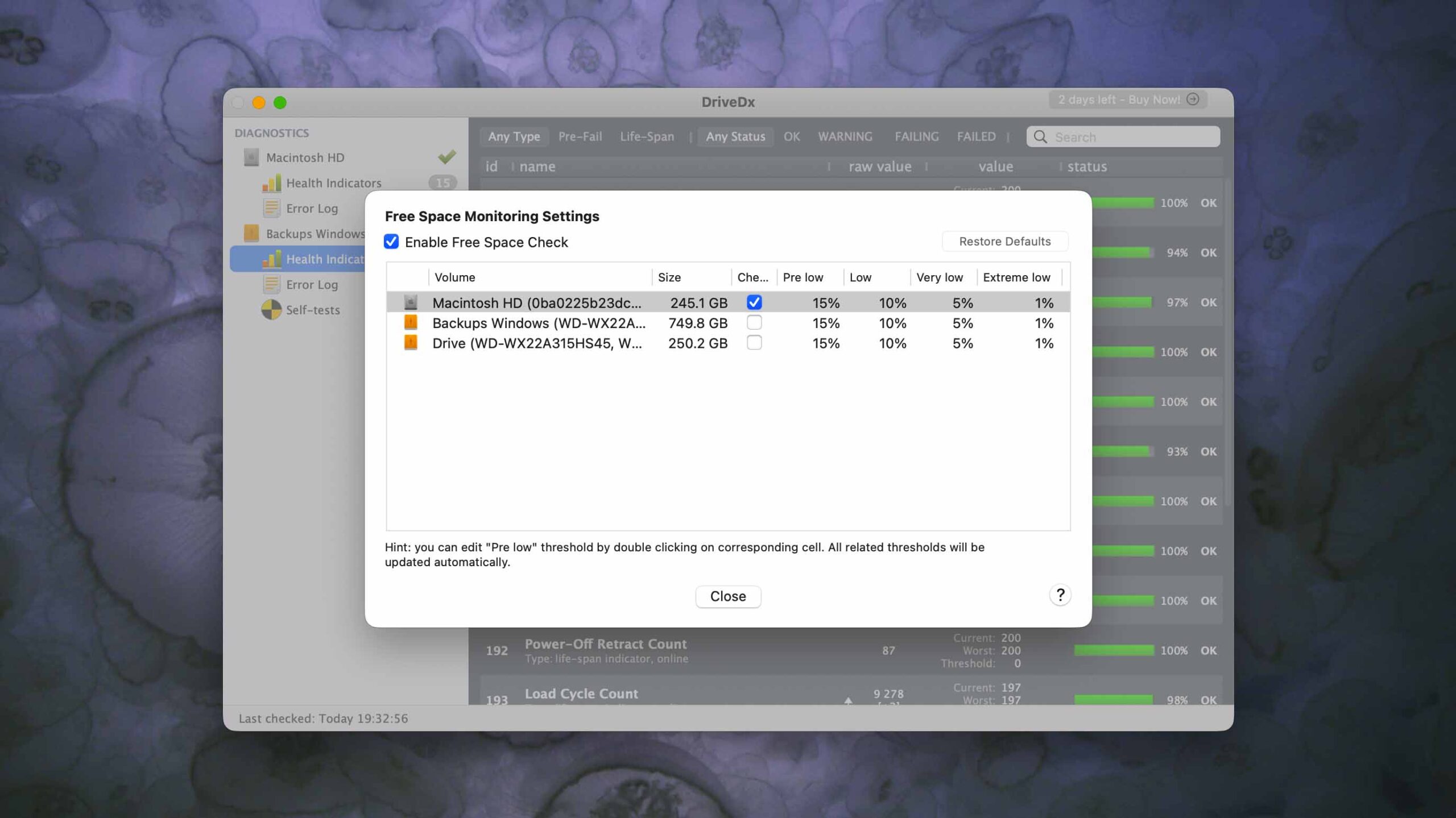
DriveDx is a comprehensive disk monitoring tool that can diagnose your hard drive, help you predict impending failure, and set up continuous health tracking to ensure no errors sneak up on you.
Usability
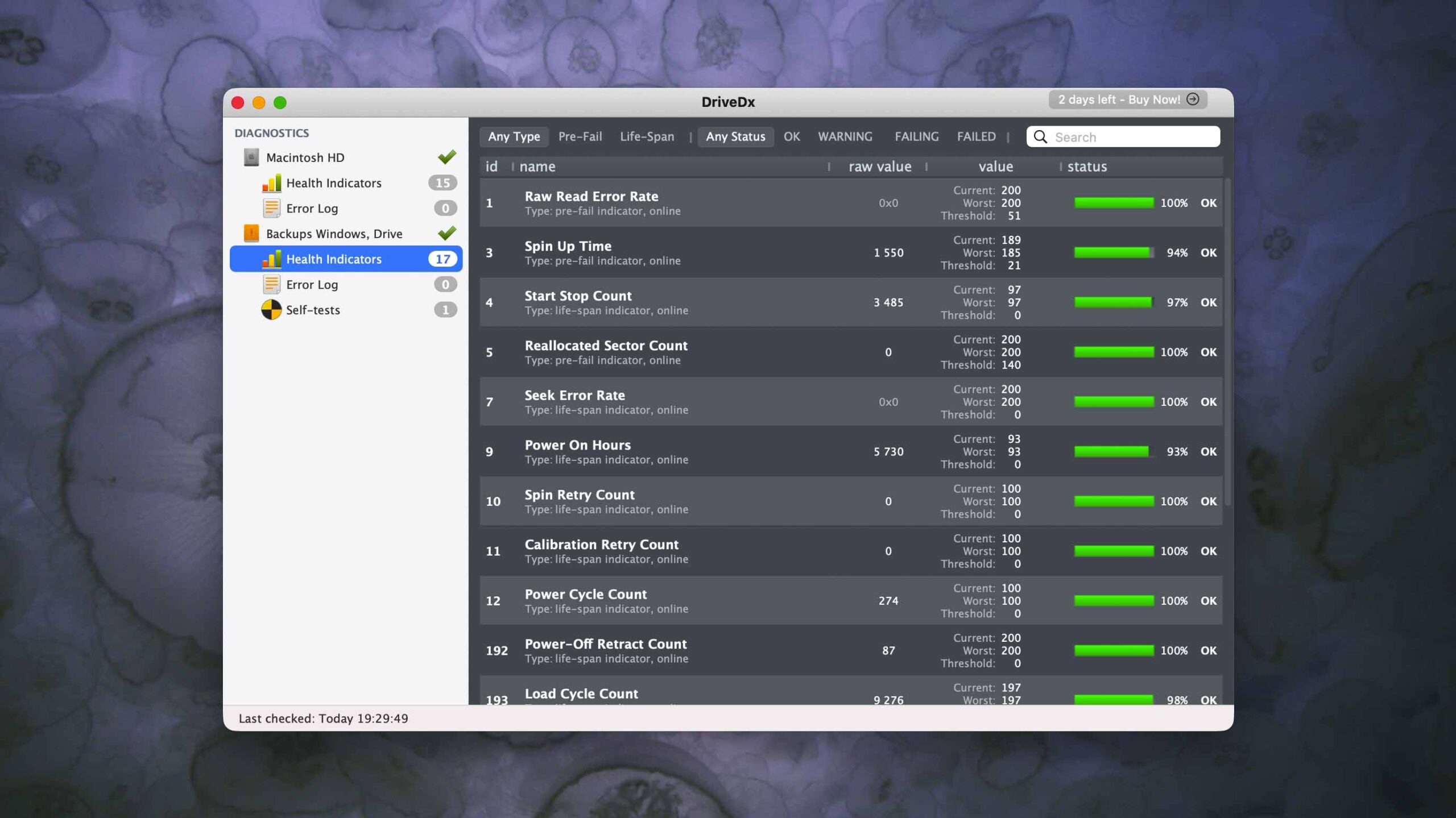
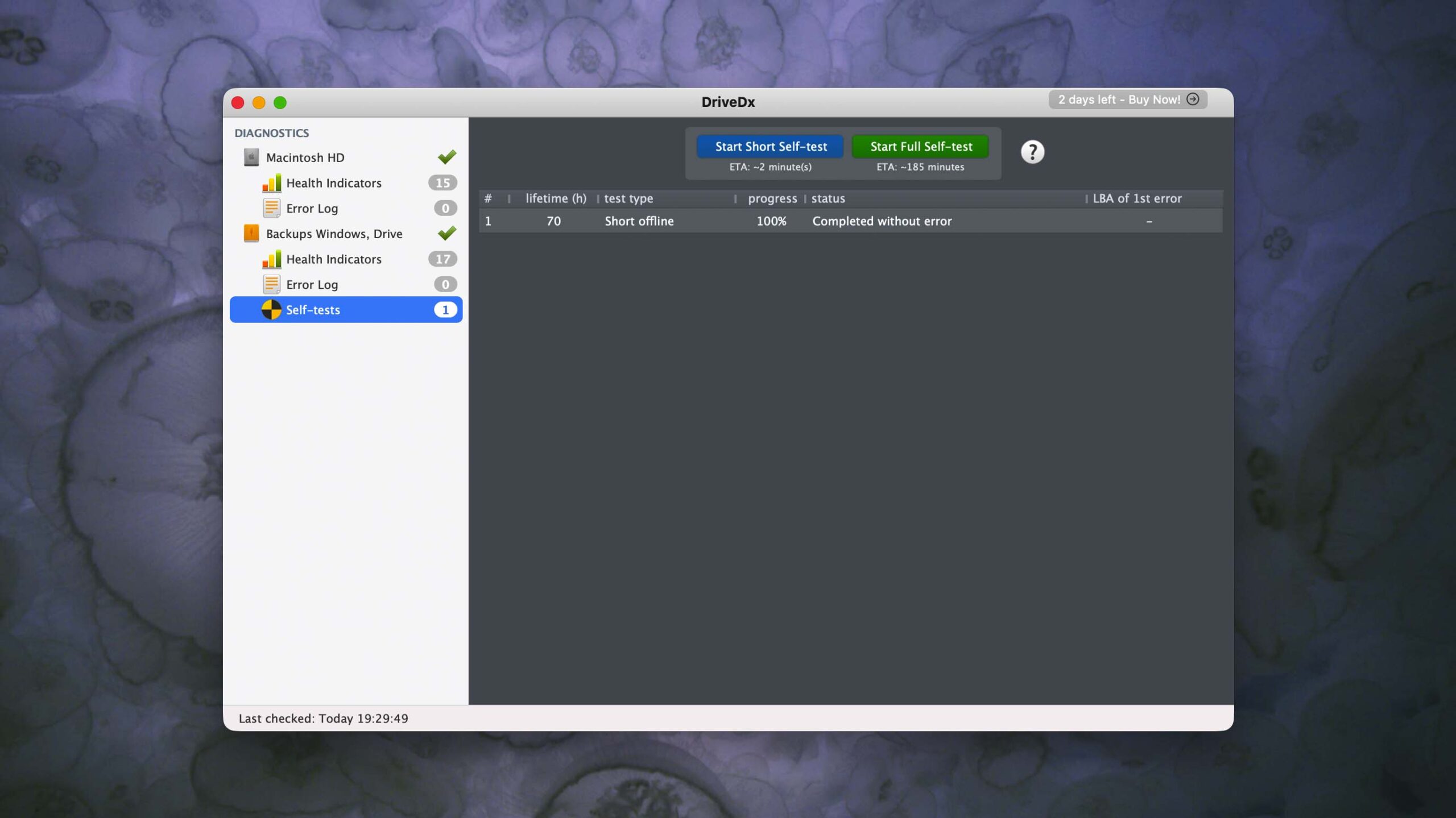
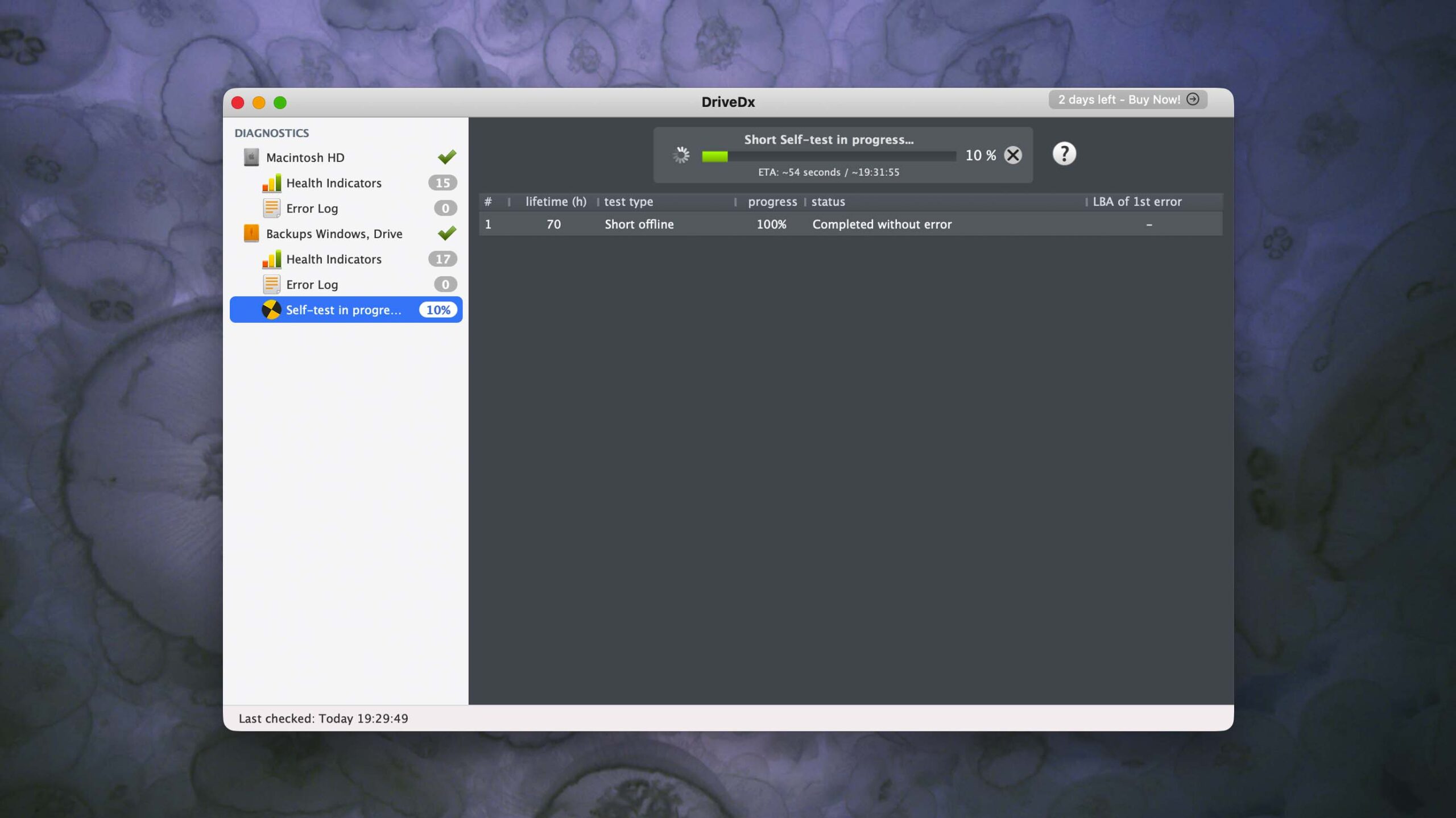
DriveDx’s interface looks a bit dated compared to other apps on this list, but it’s super beginner-friendly, buttery-smooth in operation, and sufficiently compacts a lot of disk health information into digestible information panels with semi-colorful indicators. At a glance, you’ll be able to identify your disks and volumes, diagnose existing problems (and prioritize danger zones), as well as analyze individual health indicators about your drive.
Recovery/repair performance
DriveDx can’t recover data or repair disks at all; it’s meant to be used alongside repair and recovery tools, or as a way to avoid needing to fix your drive in the first place. But, as a disk health monitoring tool, it’s extremely impressive. It provides much more exhaustive S.M.A.R.T. attribute details than any of its competitors, which can specifically tell you about indicators like Wear Leveling Count, Raw Read Error Rate, Spin Up Time, and dozens more.
Value
Even though DriveDx doesn’t have recovery or repair features, it’s one of the best disk health monitoring tools available. For what it's worth as a diagnosis tool, its affordable pricing options are more than worth it. DriveDx also supports HDDs, SSDs, NVMe drives, and USB drives, which helps extend its value. But if you strictly need to reserve your budget for disk repair or data recovery tools, you can skip this one.

7. Drive Genius
4.2 • Powerful but outdated repair tool – Drive Genius is an impressive Mac drive repair kit that can fix minor and severe logical issues, while also helping you diagnose hardware failure. Unfortunately, official support ended with macOS Ventura.
macOS
Freemium Some features are provided free of charge, but money is required to unlock the rest.
Limited functionality
$79...$299
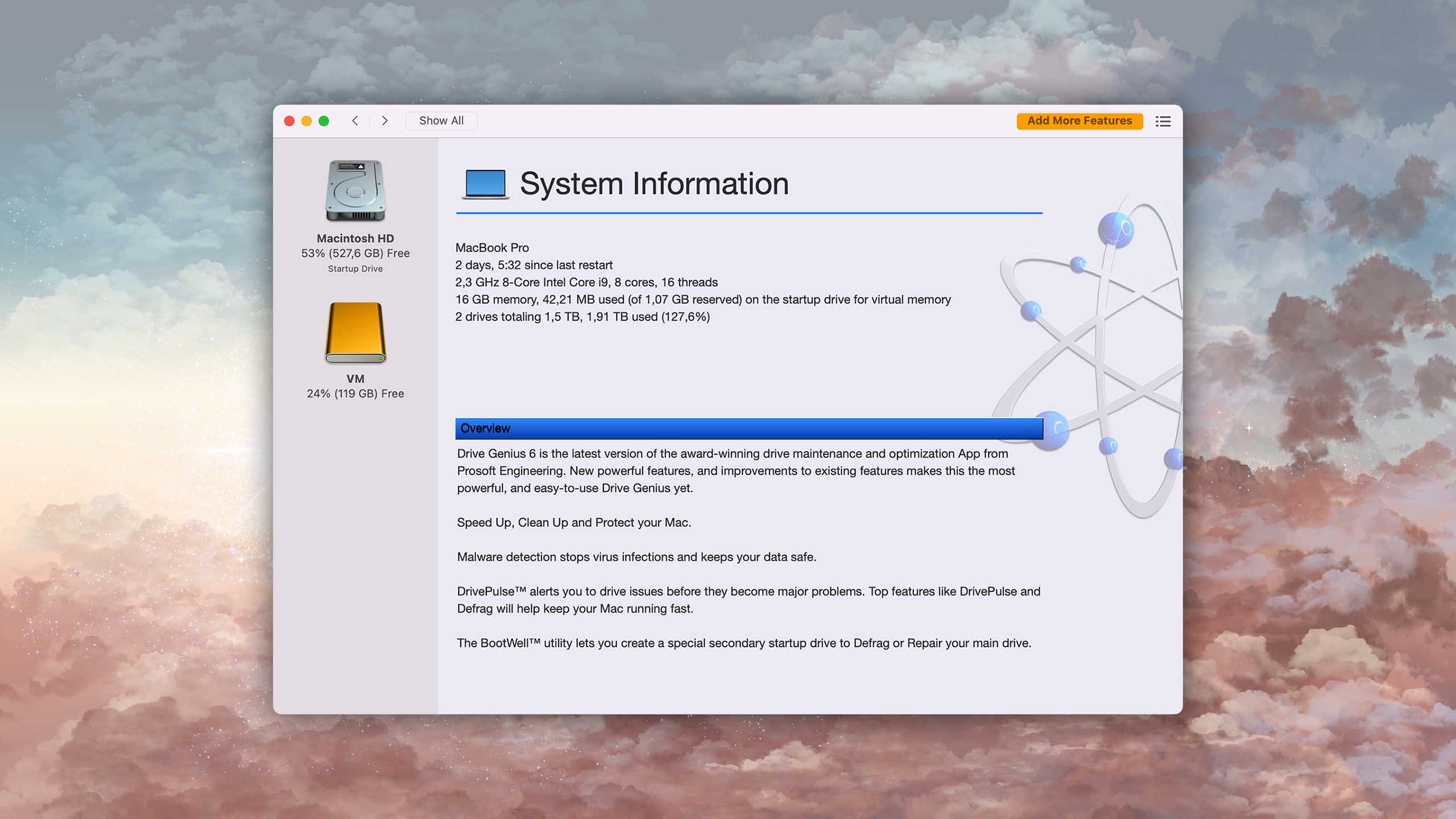
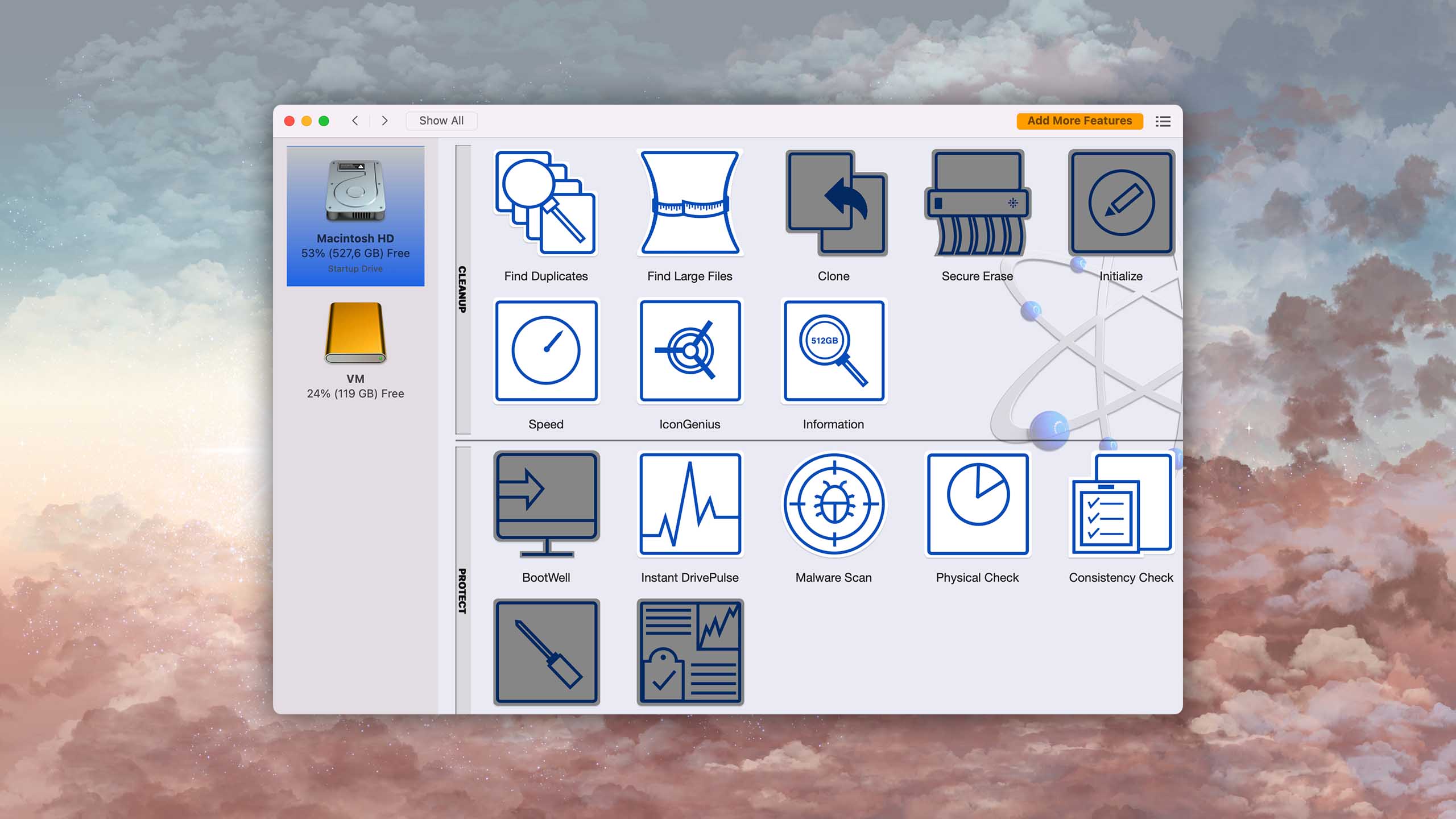
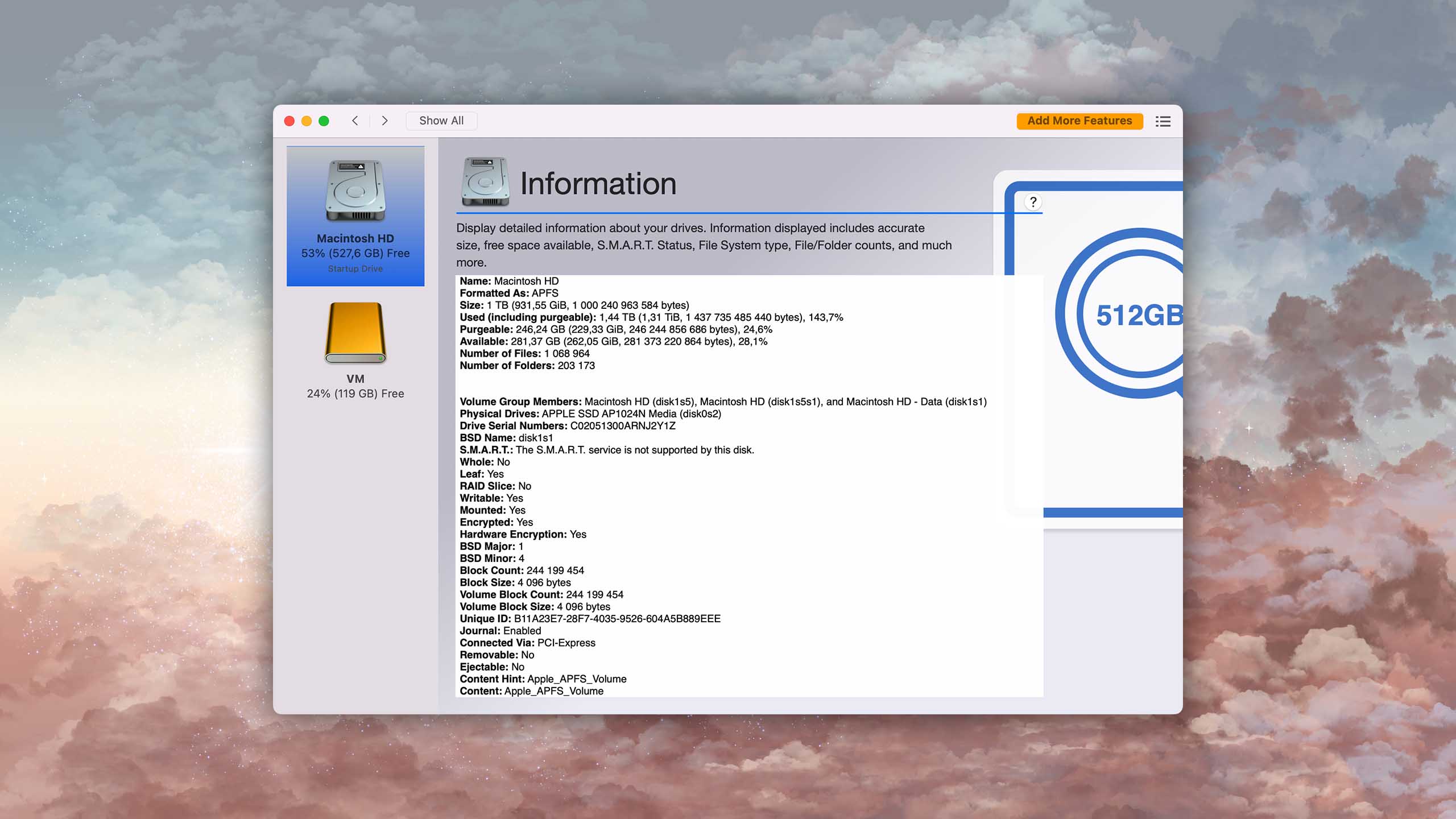
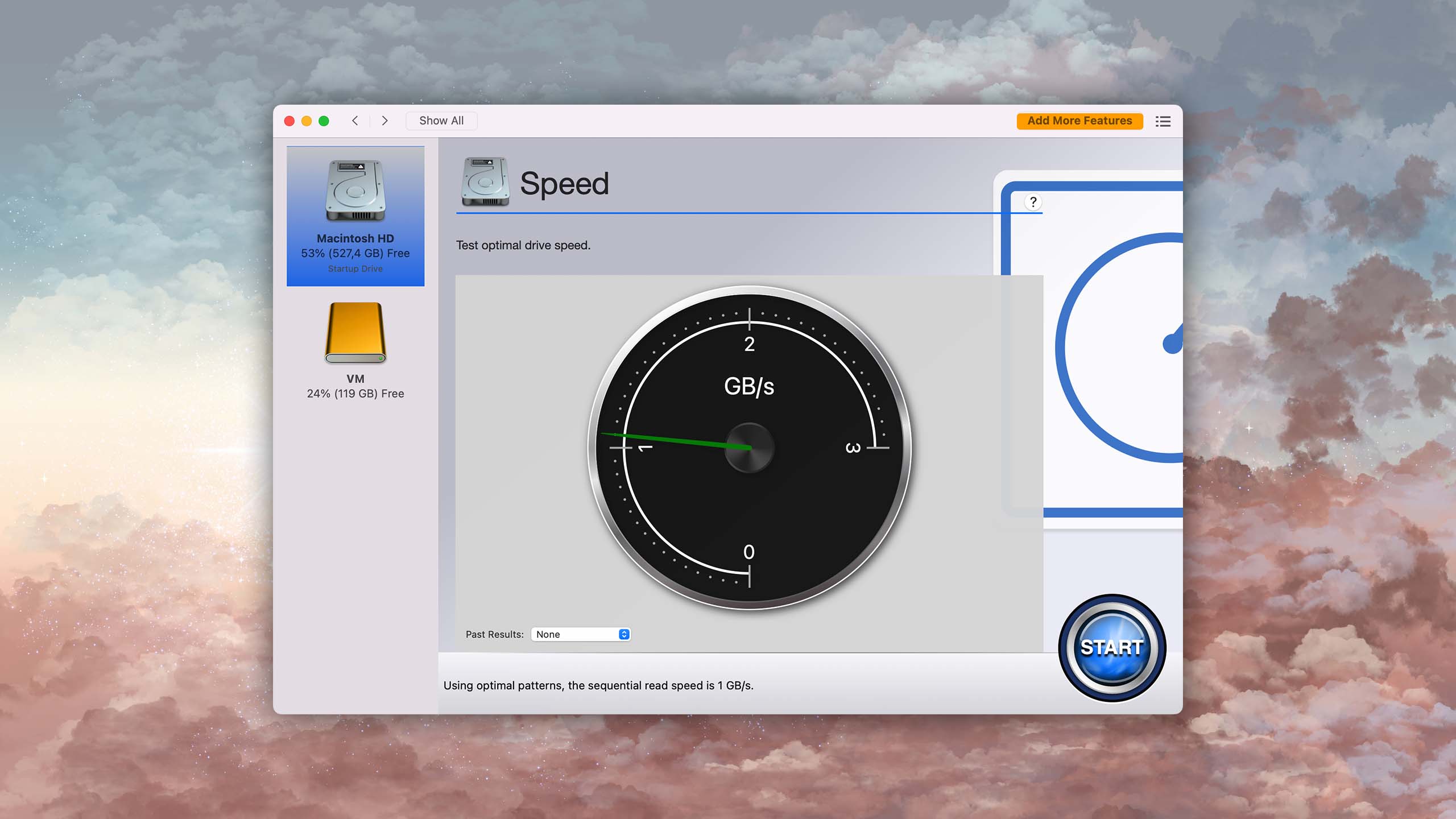
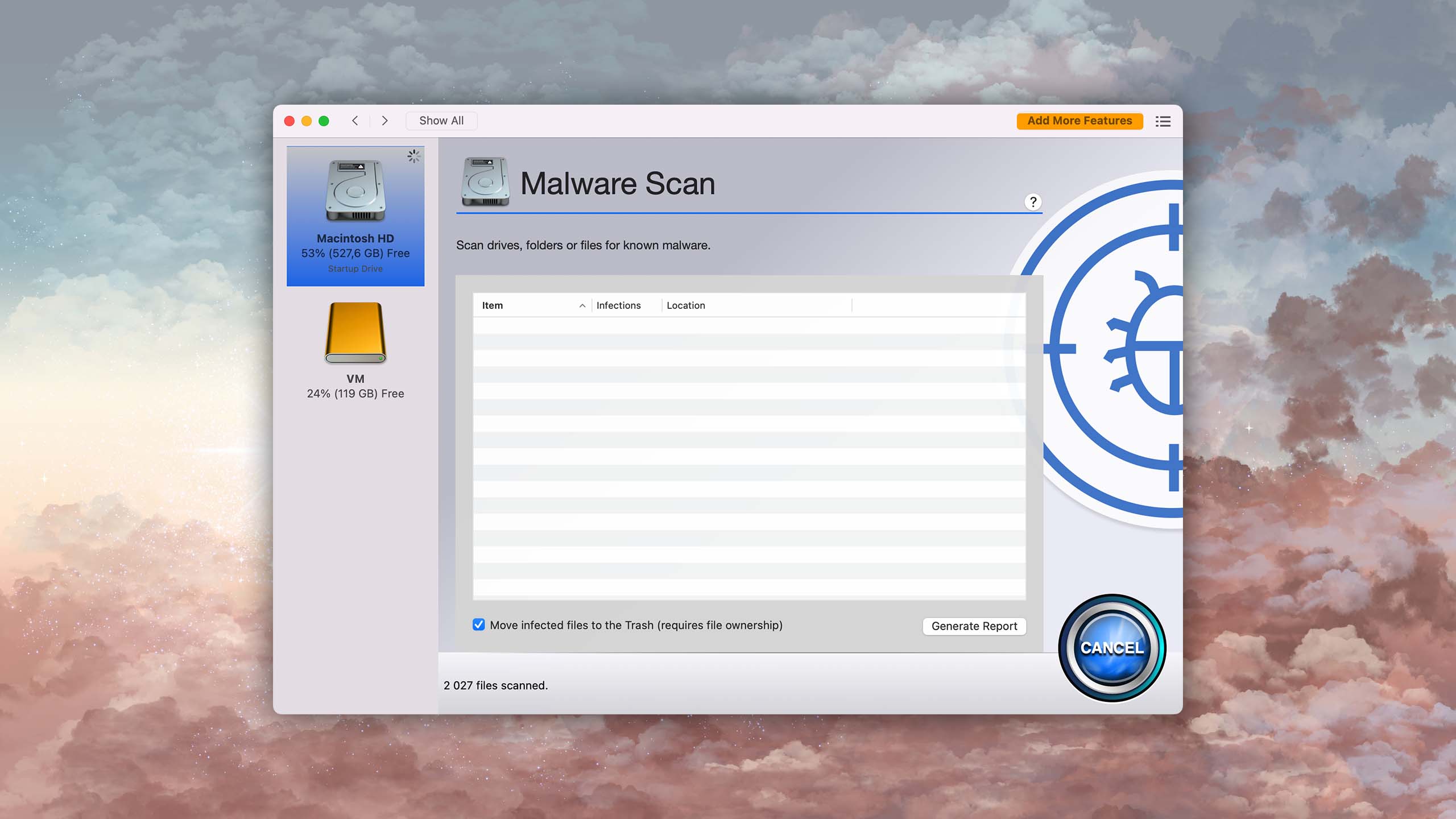
Drive Genius is a comprehensive disk repair software for Mac with 18 useful features to maintain, clean, and speed up your hard drive.
Usability
The user interface of Drive Genius is organized into three categories: Protect, Clean Up, and Speed Up. This makes it easy for users to navigate and select the appropriate tool for their disk repair needs. Unfortunately, the user interface hasn’t been updated in a while, and it shows. When you launch it on a modern Mac, the app stands out like a sore thumb, and its outdated design doesn’t inspire much confidence in its repair capabilities.
Recovery/repair performance
Despite its ugly exterior, Drive Genius offers a wide range of disk repair features, including consistency check, repair, rebuild, and hardware issue detection. The software's Instant DrivePulse feature is especially worth mentioning, as it checks your hard drive for hardware-related problems, such as those resulting from a damaged drive, bad cable, or a bad connection. Note that the app’s last officially supported macOS version is Ventura, but the system requirements list macOS 10.12 or later.
Value
Drive Genius offers a professional version available for a one-time payment, starting from $79 to $299, depending on the license type. There’s also a free demo version that allows users to test its compatibility and functionality on their Mac before purchasing. But despite the numerous tools that are included in the software, the overall value isn’t great because you can’t run Drive Genius on the latest version of macOS.

8. Carbon Copy Cloner
3.8 • Best for disk imaging and bootable backups – Carbon Copy Cloner, affectionately known as CCC, is a crowd favorite and reliable backup tool with an affordable price tag and strong free trial.
macOS
Freemium Some features are provided free of charge, but money is required to unlock the rest.
30-day trial
$39.99...$100
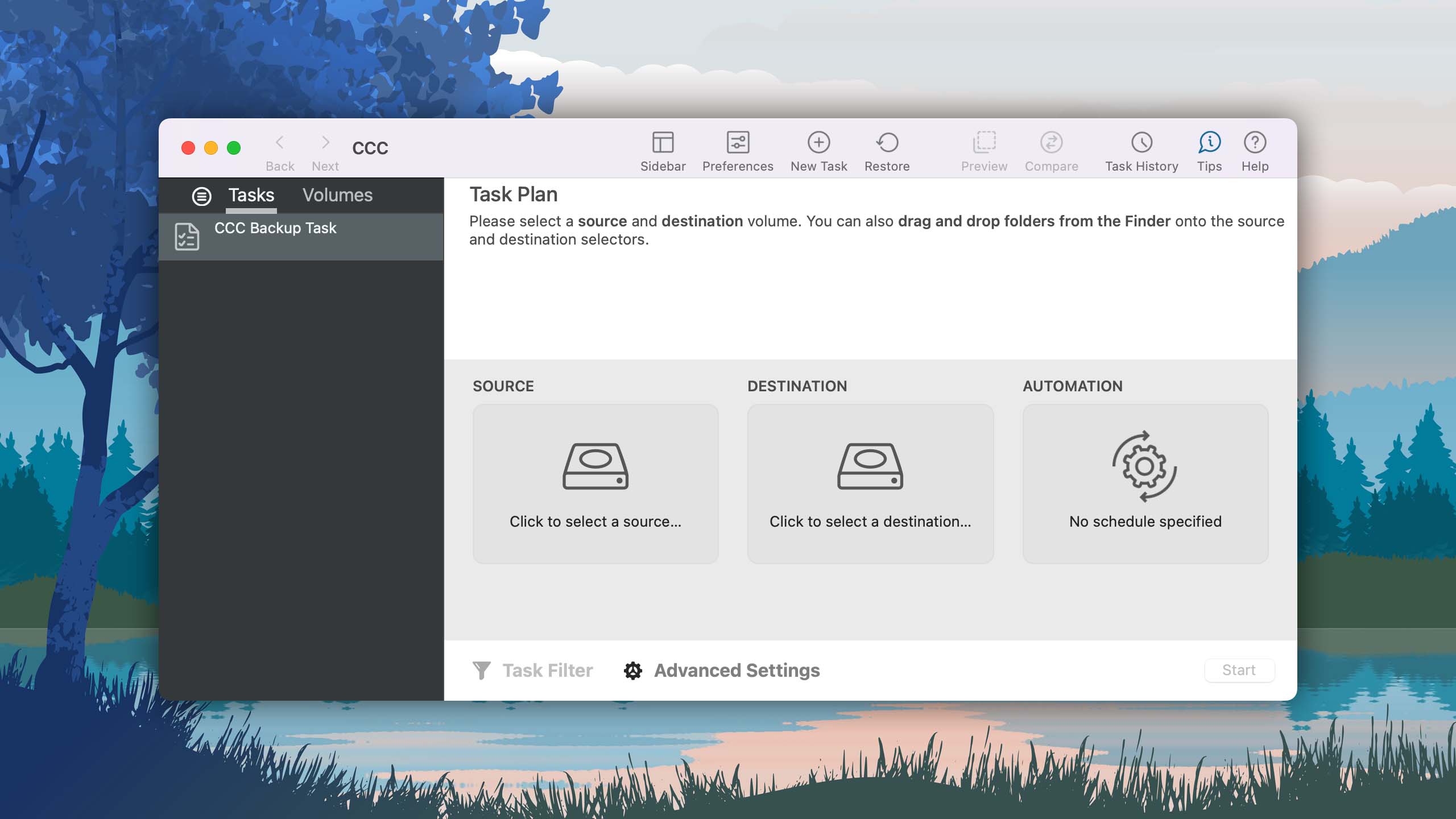
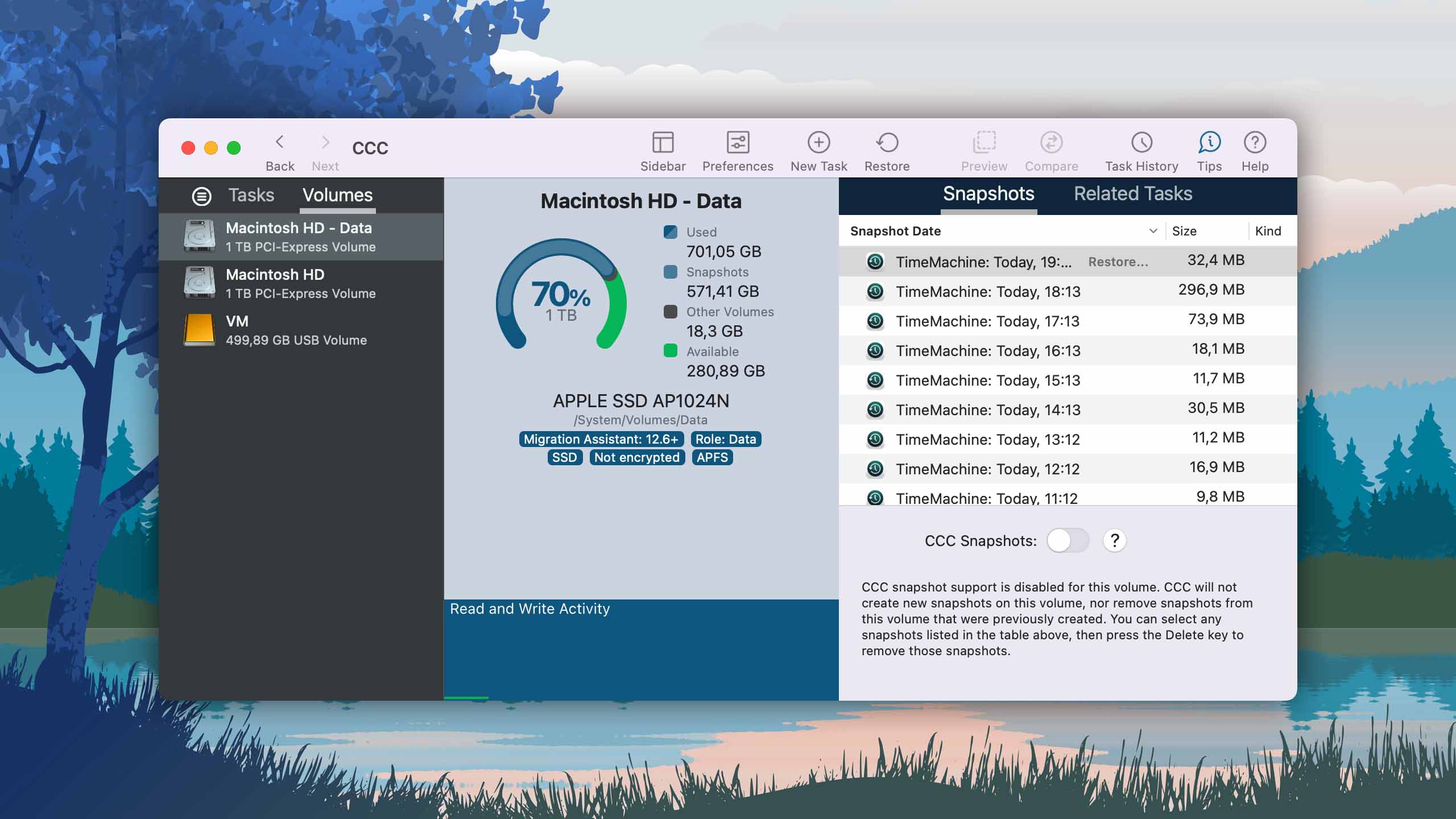
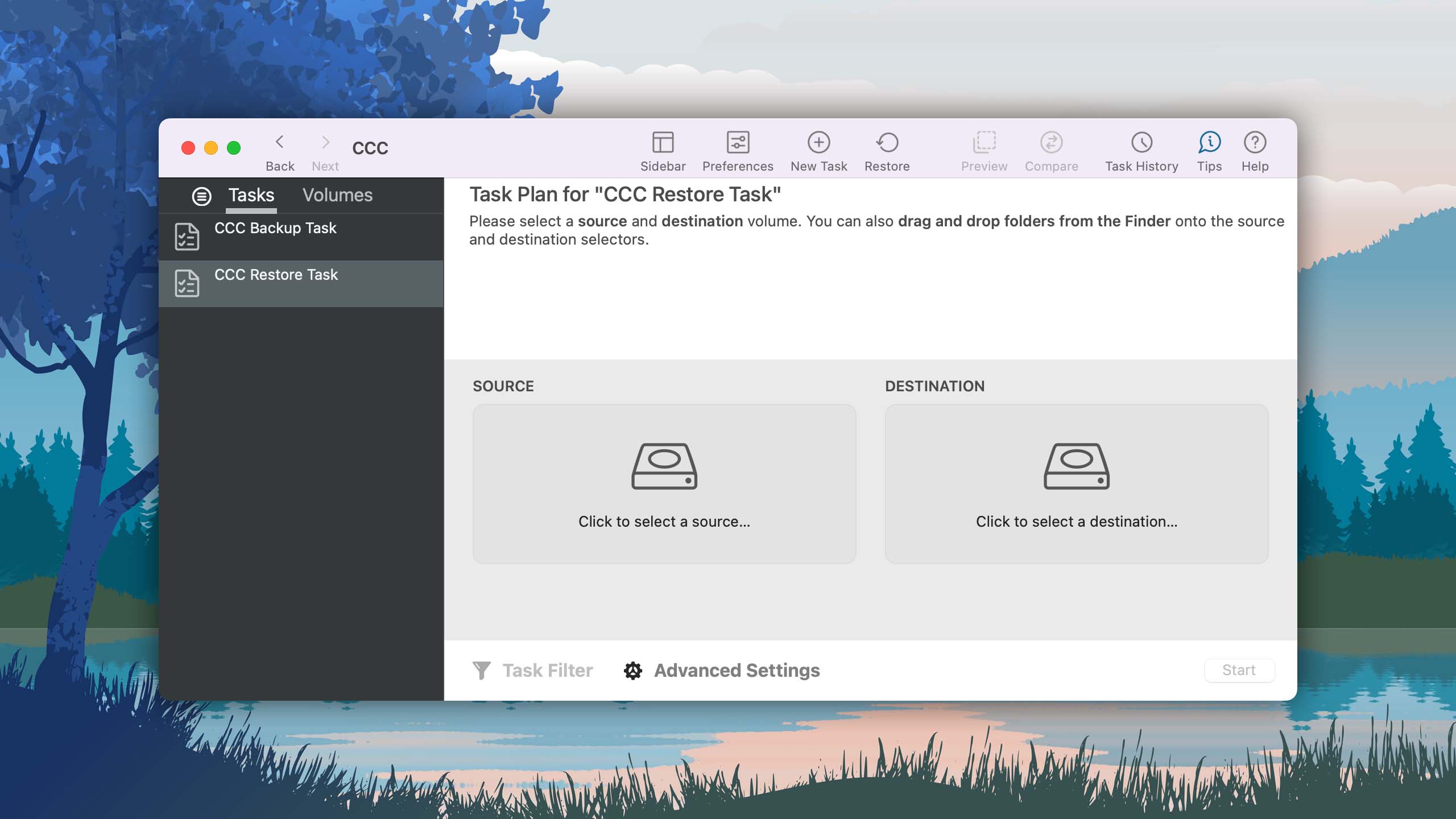
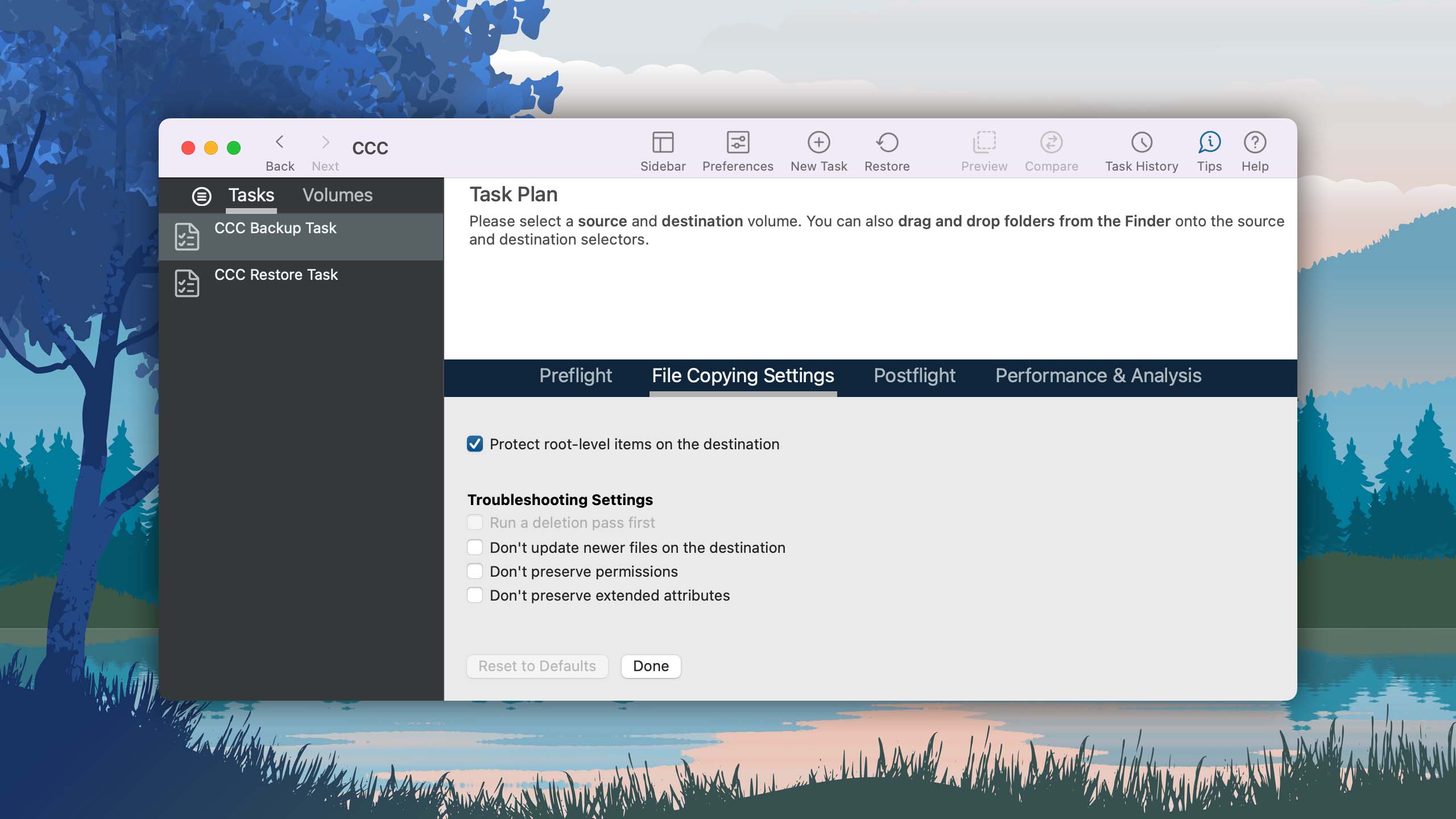
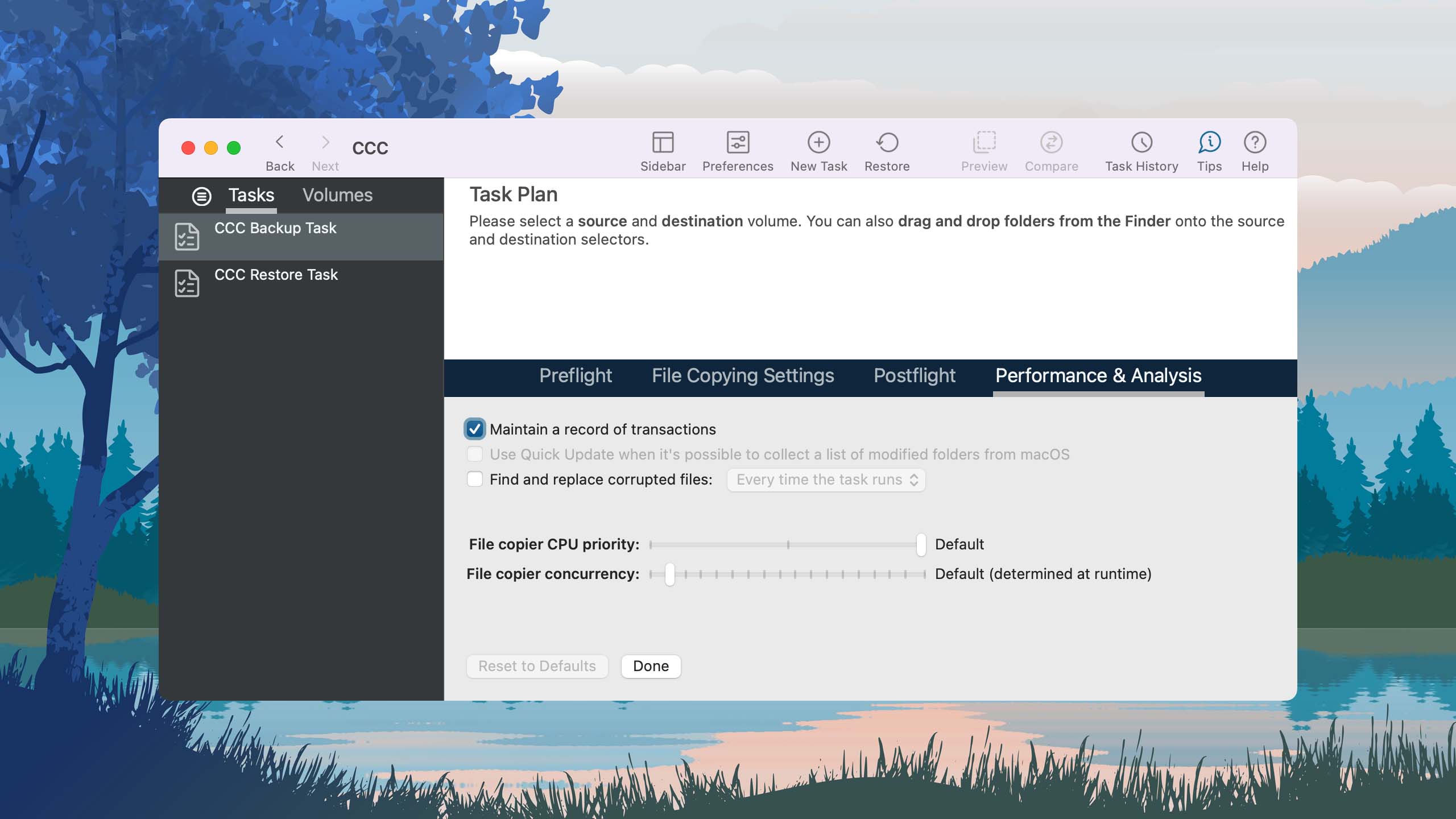
Carbon Copy Cloner is a Mac disk backup software that excels in creating comprehensive backups from which you can recover your data should a disaster strike.
Usability
Carbon Copy Cloner makes it easy for users to create backups and schedule backup tasks. The software keeps you informed about backup progress via the Notification Center or email so you’re always aware of your backup status. The recovery process is equally straightforward, which is admirable considering the large number of advanced features supported by the software.
Recovery/repair performance
While not a disk repair tool in a traditional sense, Carbon Copy Cloner is a critical lifeline in case a repair attempt fails or the drive needs to be replaced. It’s a disk cloning software that can create bootable backups, which include both user data and system files. This means that you can quickly rebound from a critical disk failure and minimize downtime. As far as backup software for Mac goes, Carbon Copy Cloner is among the most popular and trusted solutions, so you can rest assured, knowing your data will always be safely backed up. Just don’t expect it to recover data that isn’t included in your backups—that’s not something this tool can do.
Value
Carbon Copy Cloner offers a 30-day trial and a one-time purchase price ranging from $39.99 to $100, depending on the license type. Considering its powerful bootable backup feature and continuous backup capabilities, the software provides good value for users looking for a reliable backup and recovery solution. However, those seeking more comprehensive disk repair and data recovery features should look elsewhere.

9. TestDisk
2.40 • Best free partition recovery software – TestDisk is a free and open-source partition recovery and boot sector repair tool. It lacks a modern interface and more advanced features, but it works–especially for users on a budget.
macOSWindowsLinux
Free All features are provided free of charge, and the software can be used, studied, and modified without restriction
None
Free
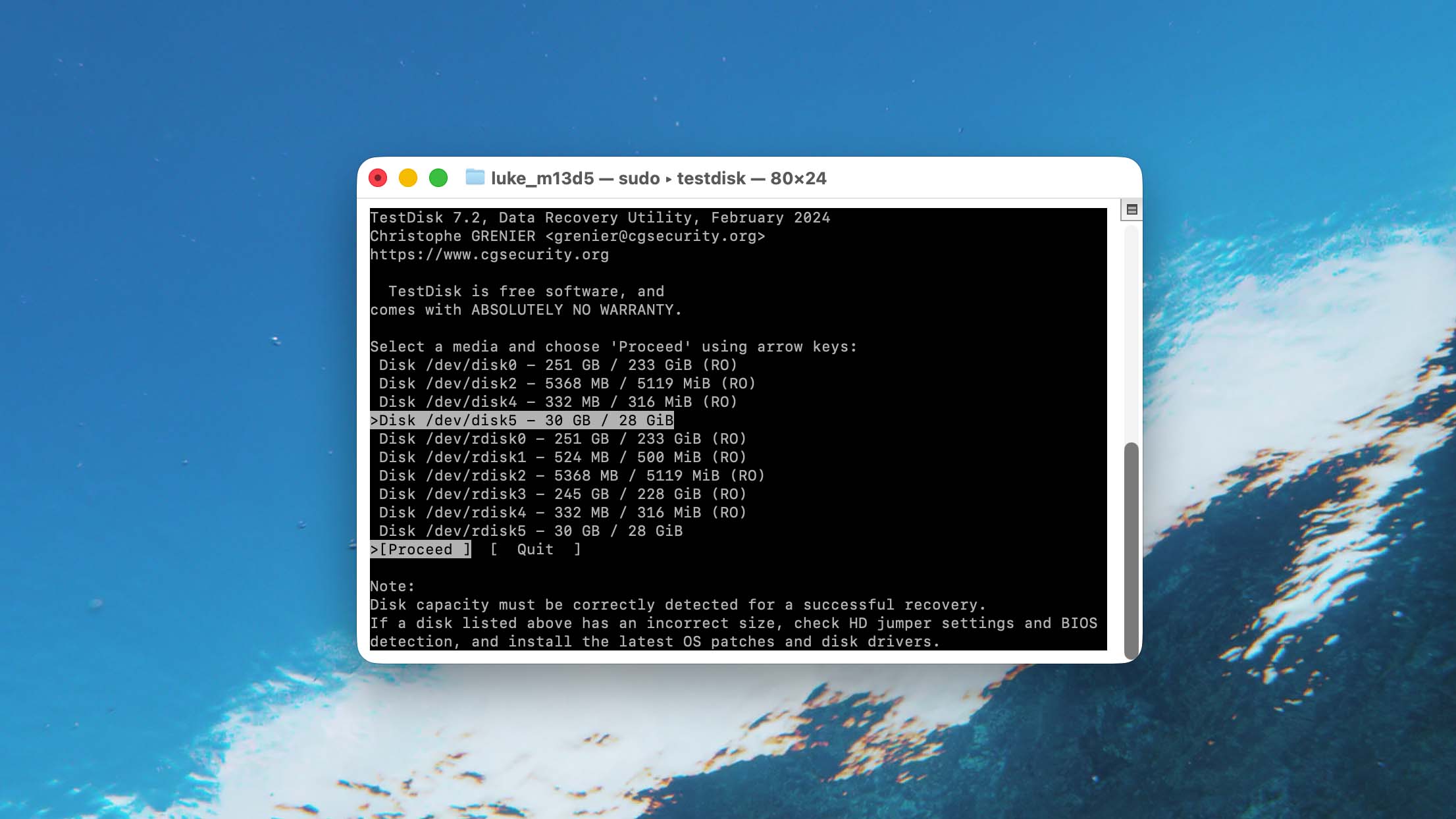
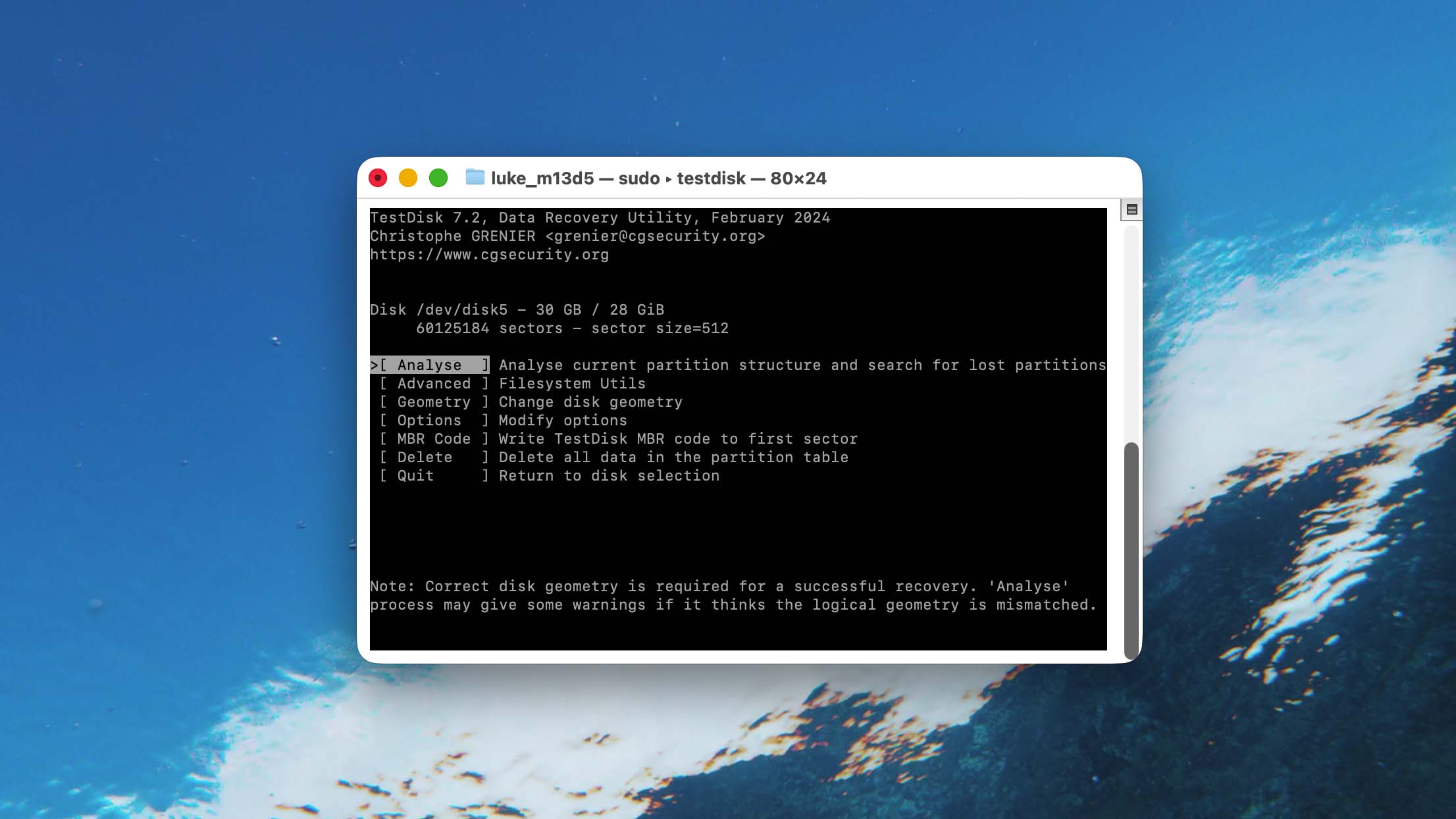
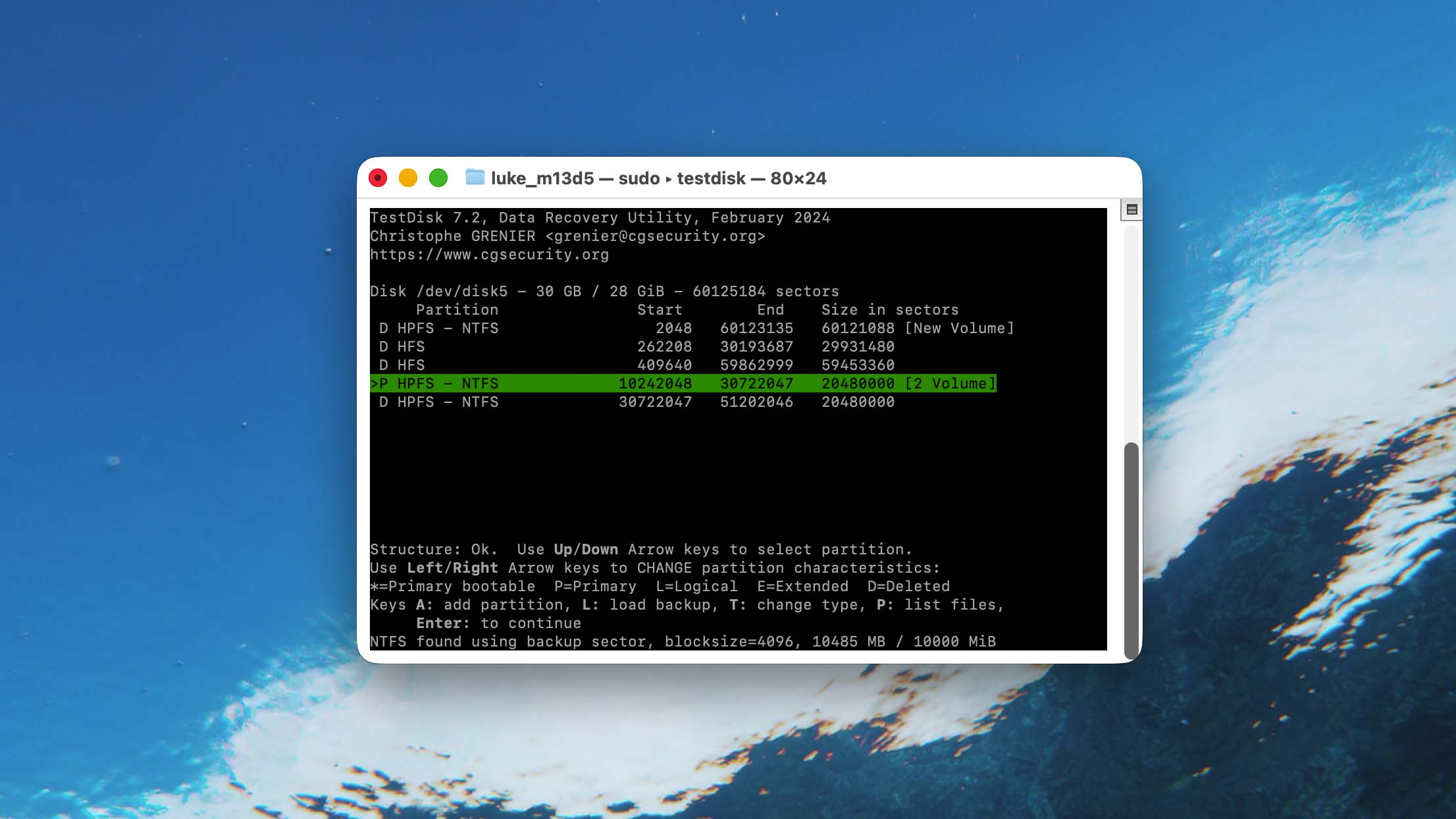
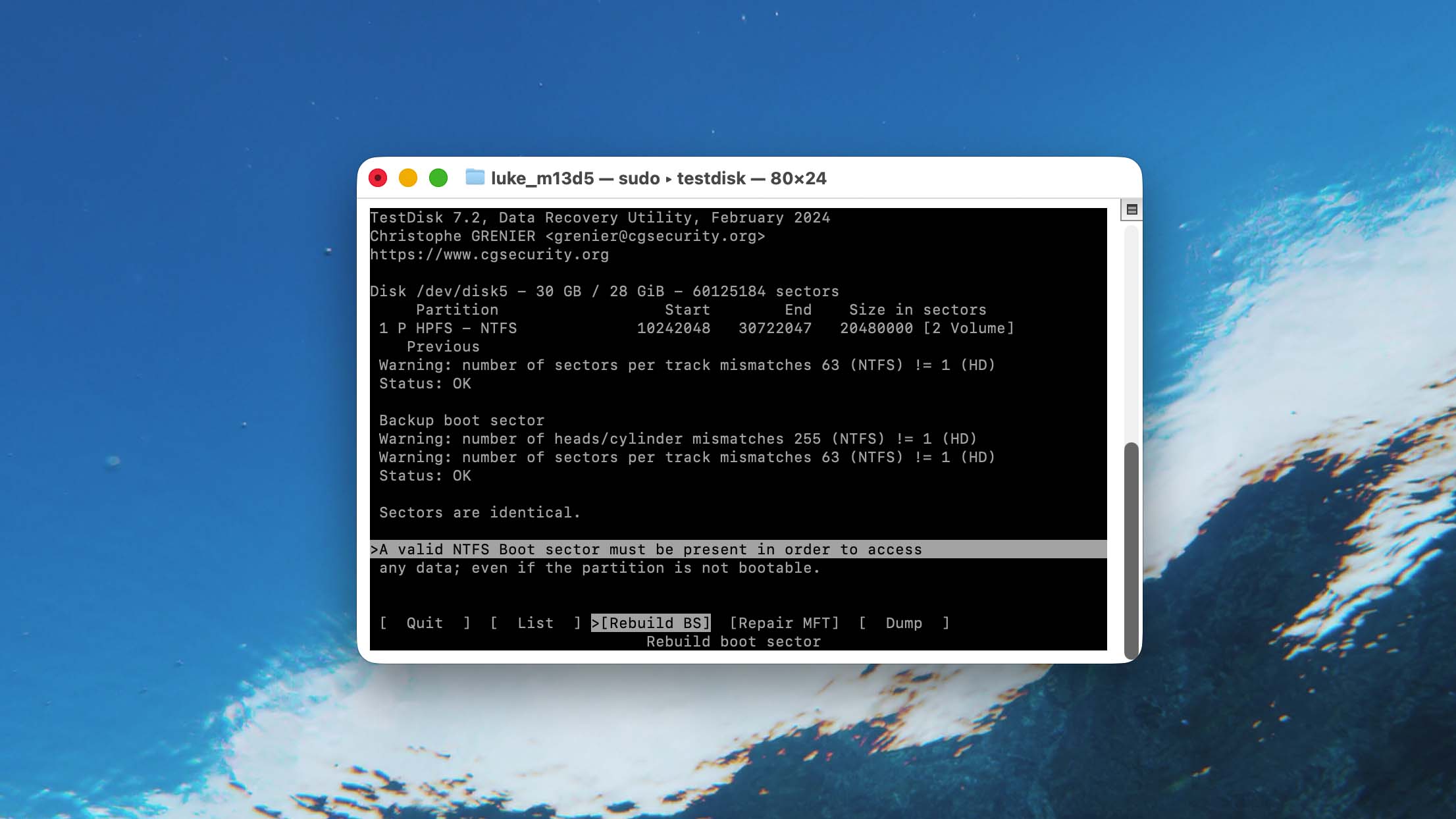
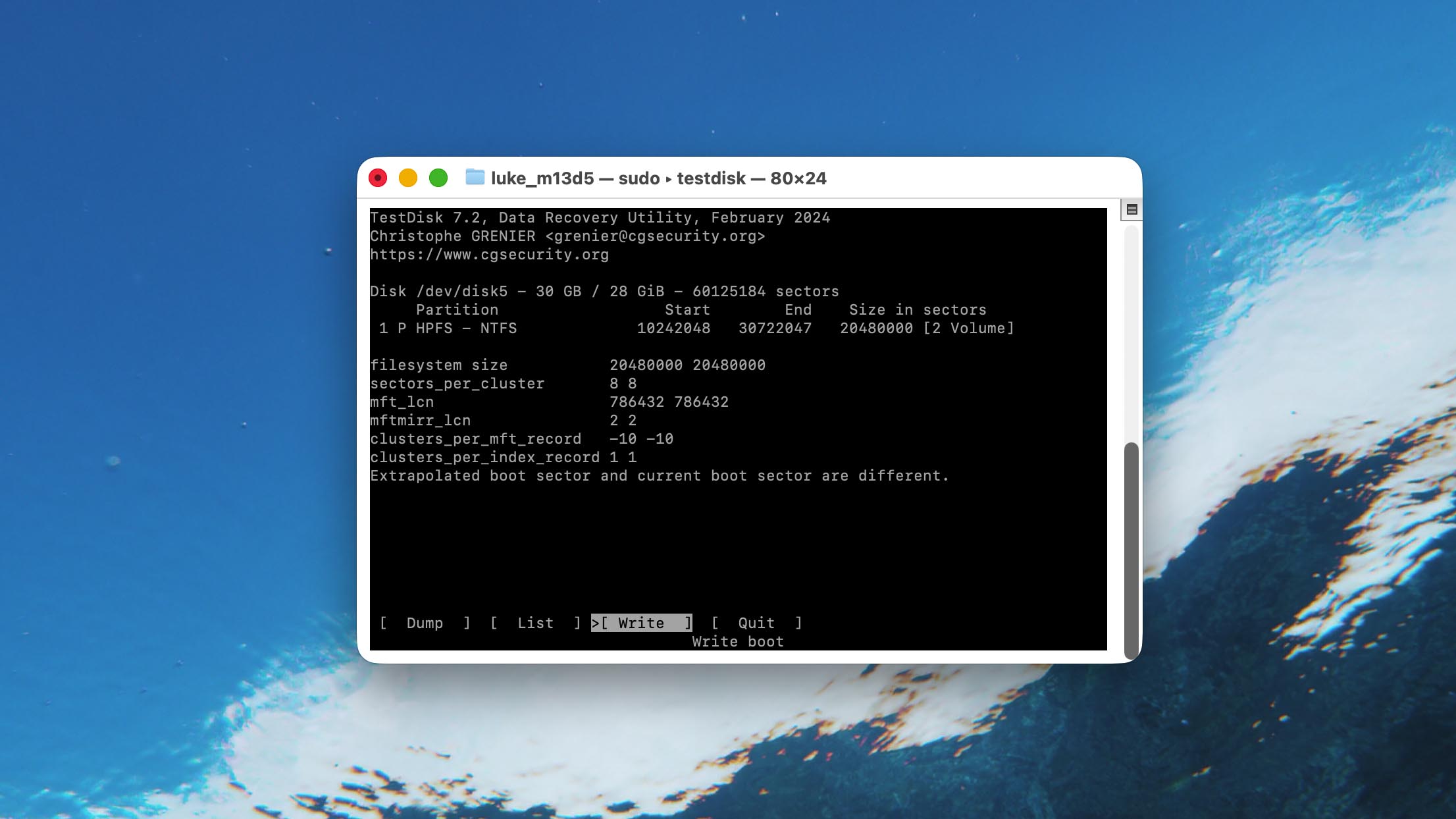
TestDisk is a disk partition recovery tool with features that can restore missing partitions, as well as rebuild boot sectors, repair file system metadata, and more. You will need to read the documentation, though.
Usability
TestDisk has many awesome features and abilities… But usability is not one of them. The application looks like a command-line interface (like the Terminal app), and you can only interact with it using your keyboard. There are also no in-app guides or tutorials, and the on-screen descriptors assume some level of technical knowledge.
Recovery/repair performance
Performance is where TestDisk shines; despite its humble appearance, it has a suite of features that can help with all manner of disk errors. Lost partition recovery helps with restoring files, as well as returning functionality to a corrupted drive. It can repair boot sectors on disk volumes, which is helpful for both non-booting and non-mounting drives. TestDisk can also fix corrupted headers and file system metadata, which can prevent macOS from recognizing your device.
Value
On its own, TestDisk is rough around the edges. It lacks a modern interface, explainers, and even clickable buttons. But it has features that many paid competitors don’t, while being completely free and open-source. It’s an extremely high-value software worth learning if you have the time and effort available.

10. MemTest86
4.5 • Best for ruling out RAM as the cause of disk-like symptoms – Useless for actual hard drives, but it’s the premier tool for diagnosing RAM issues (which can appear as disk errors).
macOSWindowsLinux
Freemium Some features are provided free of charge, but money is required to unlock the rest.
Limited functionality
$0...$4400
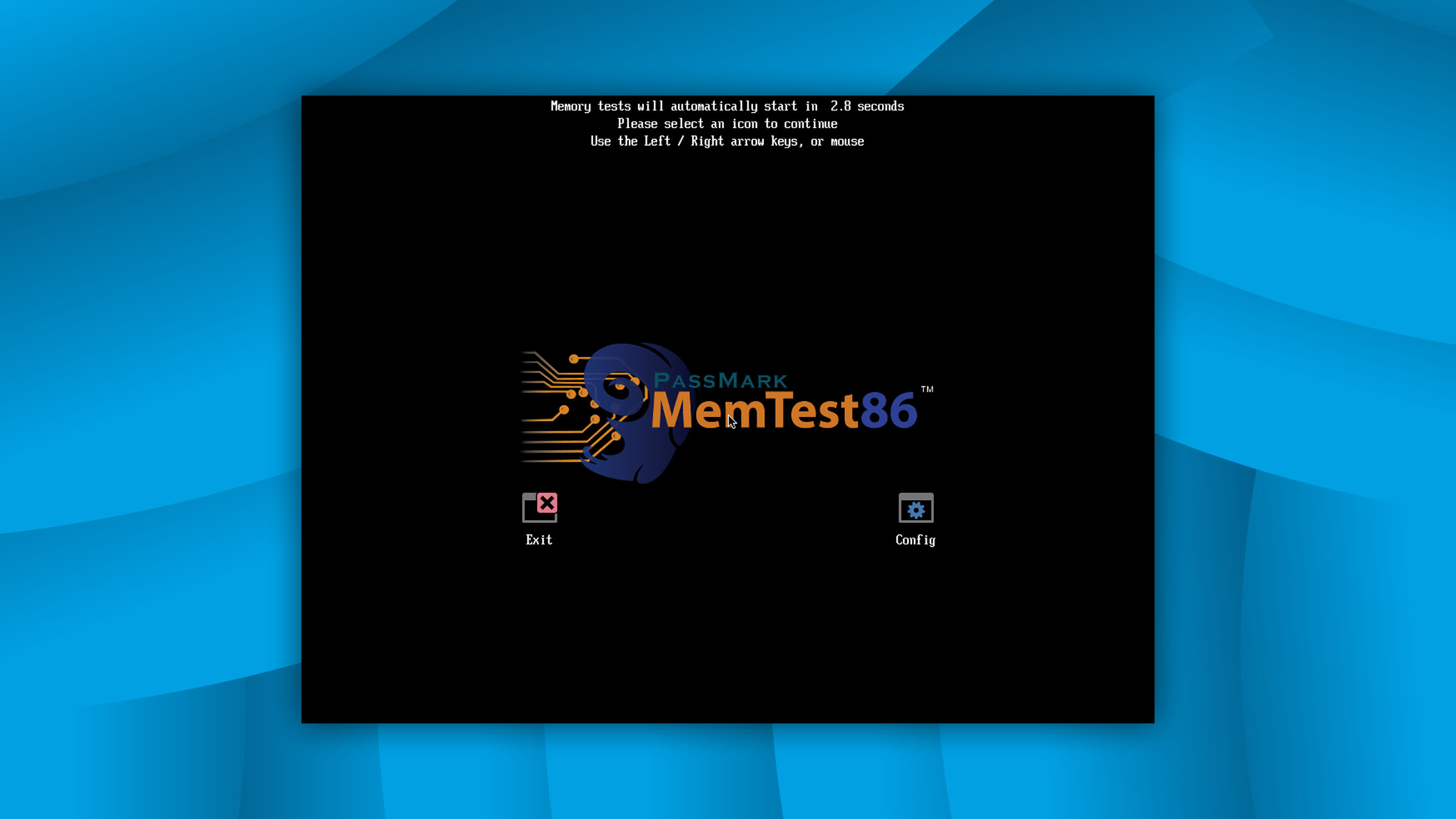
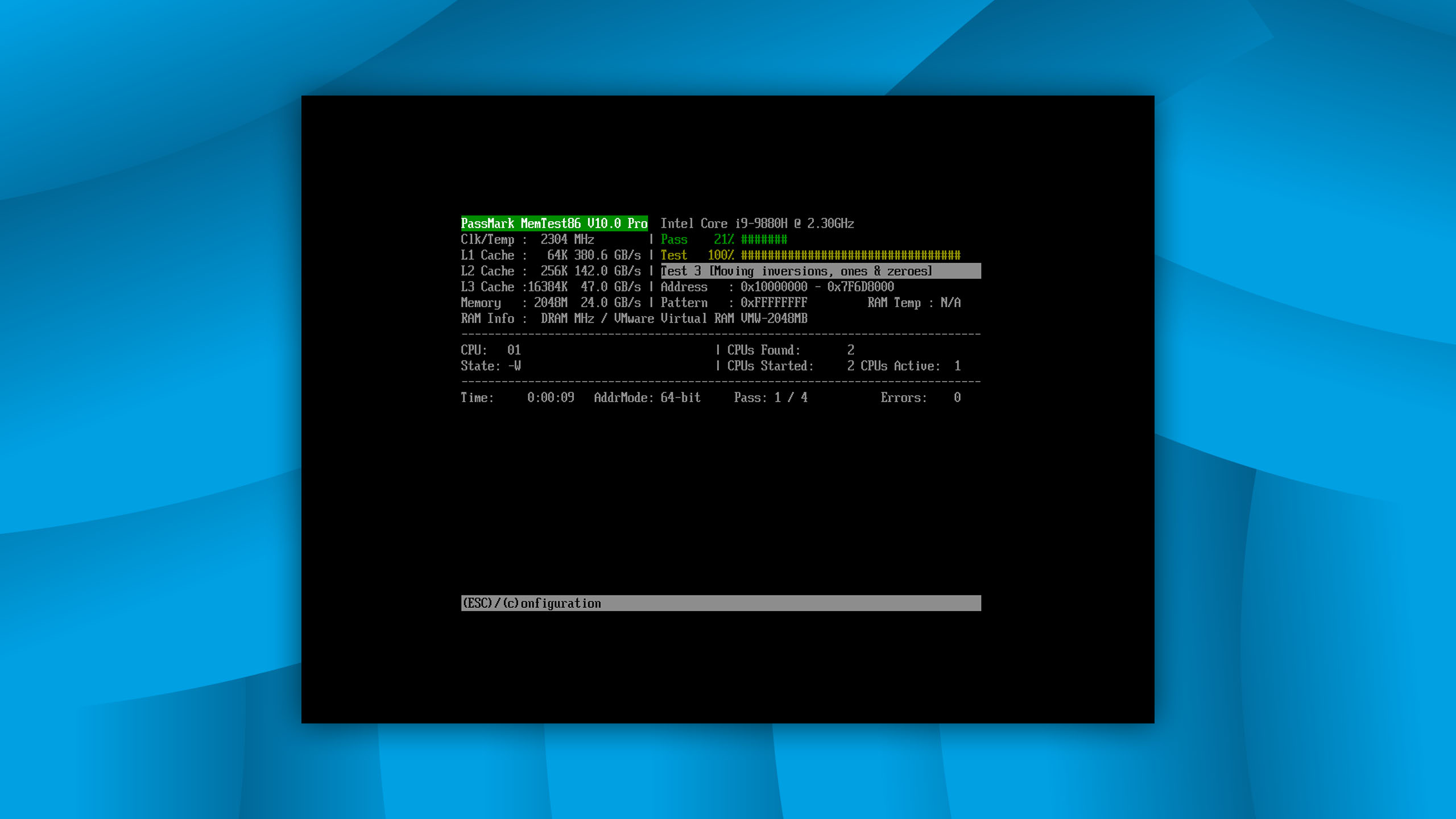
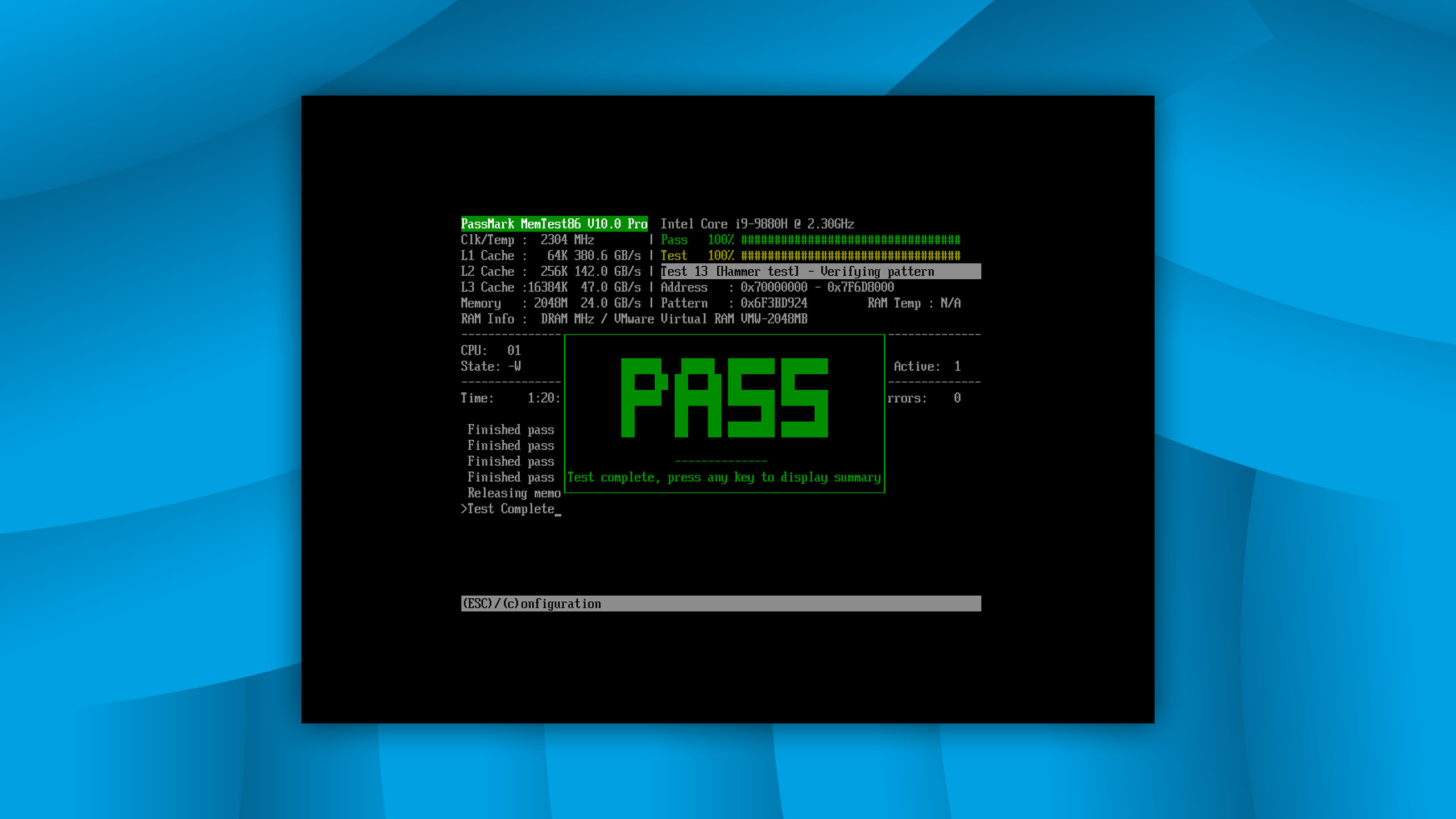
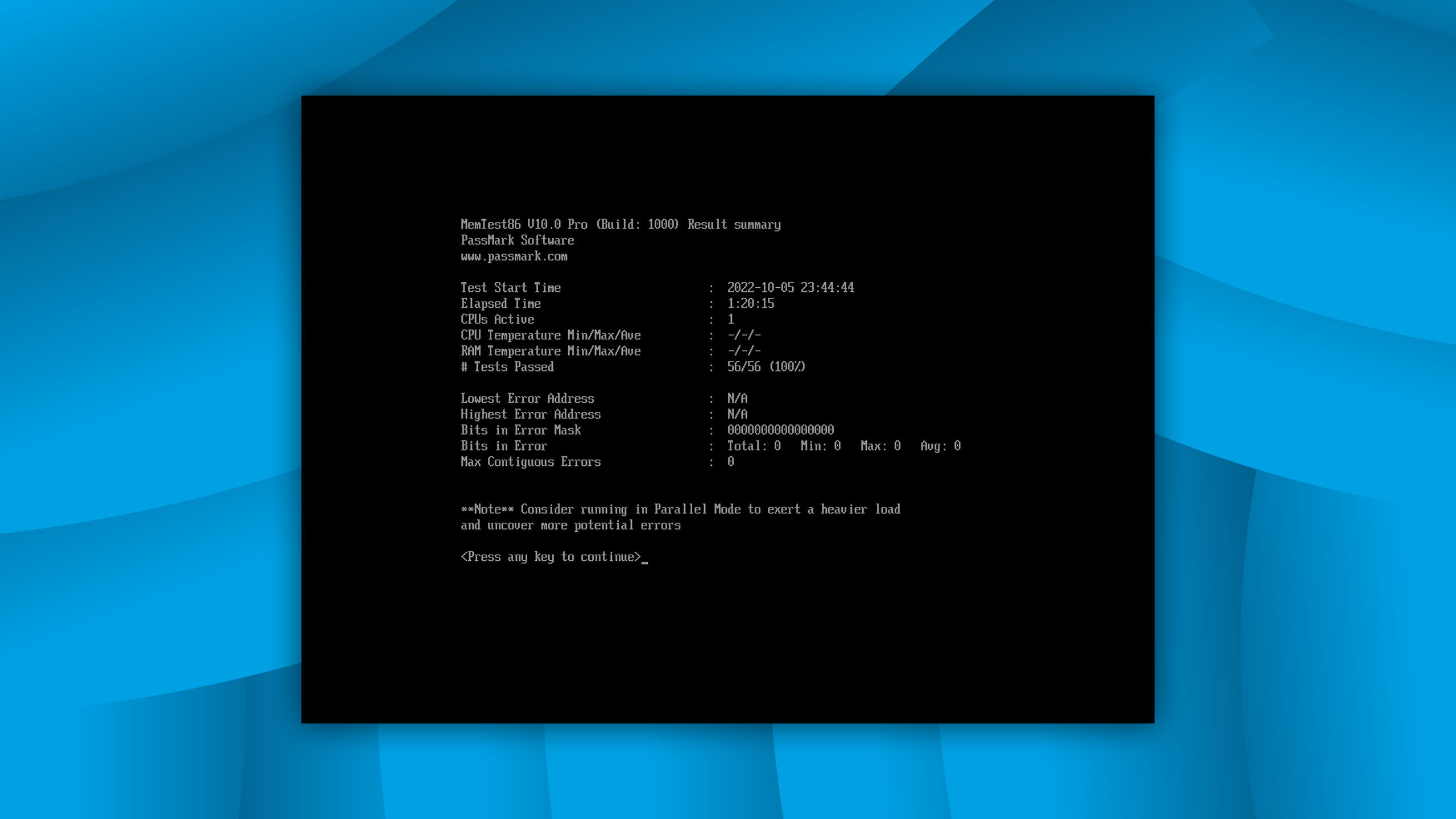
MemTest86 is an industry-standard RAM-testing software that can diagnose system instability and rule out RAM issues versus actual hard drive failure, which can save you from unnecessary disk attempts.
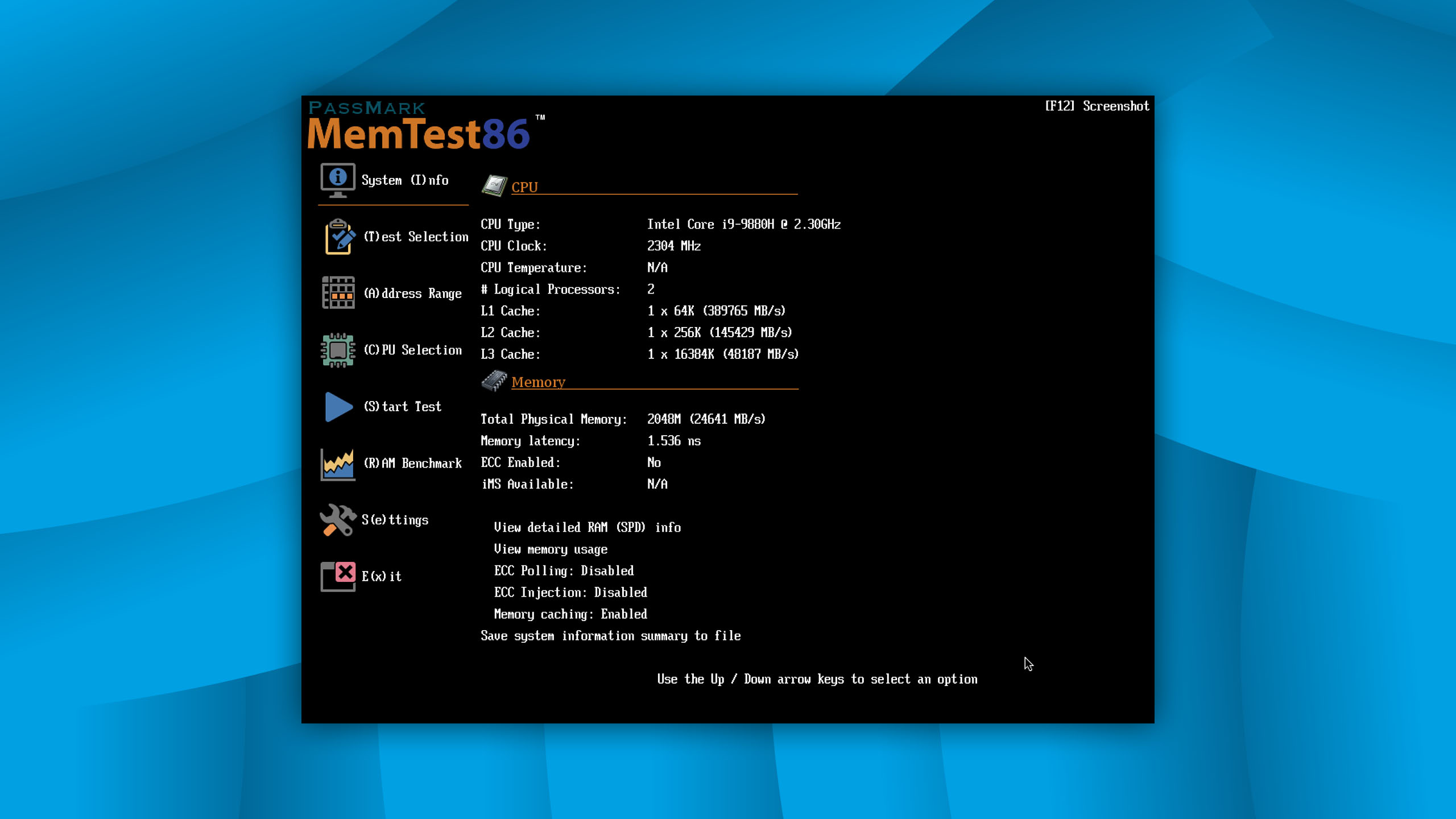
Usability
You may be familiar with the console version of this tool, but MemTest86 also a graphical user interface with mouse support that makes it easy to navigate and use. The interface presents test results and information clearly. Users can boot the software from a USB flash drive and initiate RAM testing with minimal effort.
Recovery/repair performance
MemTest86's performance in identifying memory issues is unparalleled, and it can potentially save users from pursuing unnecessary disk repair paths. By thoroughly testing RAM using its array of algorithms, it can accurately pinpoint issues that can manifest with the same symptoms as disk-related issues. Keep in mind, however, that MemTest86 can only detect RAM issues—it can’t fix them. Usually, the only fix is to replace the faulty RAM module.
Value
MemTest86 offers a free version that is sufficient for most personal use cases. However, professionals or more demanding users may need to consider the Pro Edition, which can be quite expensive considering its singular purpose.
Mac Built-in Disk Tools
#If you’ve never tried your Mac’s native tools on your drive, and you aren’t sure you need third-party apps, it’s worth giving them a try. Here’s a short guide to get you started:
| What it does | How to run it | |
| First Aid in Disk Utility | Verifies directory structure integrity and repairs file system errors |
|
| Diskutil (Terminal command) | Identifies, repairs, and mounts/unmount disks, as well as verifies volumes |
|
| Fsck (Terminal command) | More comprehensive repair operation to be used in case diskutil or First Aid fails |
|
Your Mac’s built-in disk tools are powerful and have a lot of features… But they aren’t optimized specifically to triage drive failure, secure your files, or precisely monitor your disk health. For more complex or high-stakes situations, third-party disk repair and data recovery apps will likely prove more reliable.
When Disk Repair Software Can Help (and When It Can’t)
Disk repair and data recovery tools are powerful, but there are just some situations where software isn’t enough. Whether or not this is the case depends entirely on the type of damage affecting your drive: Logical damage vs. Physical damage. Here’s a quick breakdown:

Logical damage
Logical damage refers to software-related errors; the drive’s hardware is undamaged, but its data is lost or inaccessible. This type of damage can usually be resolved with disk repair tools and data recovery software. Instances of logical damage include:
- File system corruption
- Accidental deletion or formatting
- Partition errors
- macOS update failures
- Early-stage bad sectors

Physical damage
Physically damaged drives have had some part of their hardware scratched, broken, chipped, or otherwise compromised. No software can fix these problems, and only professional data recovery services can (potentially) get your files back. Instances of physical damage include:
- Worn-out NAND flash on SSDs
- Controller failure
- Heat or liquid damage
- Undetectable drive/complete drive death
Final Verdict: The Right Tool for Your Situation
To conclude our top 10 list, here’s our final verdict: different use cases require different tools. Based on our list, our recommendations are Disk Drill for data recovery and protection, TechTool Pro 21 for real-time all-around disk repair, DriveDx for diagnosis and health monitoring, OnyX for system maintenance (tread carefully), and TestDisk for partition recovery and boot sector repair. You can also start with built-in tools like First Aid and diskutil commands to get your feet wet.
Note that it’s usually recommended to use a combination of disk repair tools during the process. For example, you can use Disk Drill to recover your files and store them somewhere safe, then use TechTool Pro 21 to aggressively test and repair the drive. You should also make sure to check for physical damage; if your drive has hardware issues, don’t attempt DIY repair – use professional services instead.
Was the provided information useful? Your vote is important to use!
Frequently Asked Questions
What is Mac disk repair utility?
A Mac disk repair utility is a software tool whose purpose is to determine what’s wrong with your Mac’s hard drive or solid-state drive (SSD) and fix the problem. They solve file system issues, permission errors, or broken directory structures, among other things, on APFS and HFS+ file systems (or only HFS+ file systems, depending on the software’s compatibility).
How can you do a hard disk repair on a Mac when the hard drive does not boot up?
If you can’t boot in macOS to perform hard disk repair using any of the 10 tools listed above, you need to restart your computer in macOS Recovery and repair the hard disk using Disk Utility:
- For Intel Macs, turn on your computer, then press and hold the CMD + R keys. For Apple Silicon Macs, simply press and hold the power button to enter Recovery Mode.
- Select Disk Utility from the utilities window and click Continue.
- Choose View and select Show All Devices.
- Select your hard disk in the sidebar and click the First Aid button.
- Click Run and Continue to repair the hard disk with Disk Utility.
How to run whole disk repair on a Mac?
macOS provides several native disk repair tools that can fix minor system errors and other instances of corruption, such as the First Aid feature in Disk Utility and the diskutil and fsck commands in the Terminal app. We break down each of these features in the Mac Built-in Tools section of the article.
Why does disk repair with Disk Utility sometimes fail?
Disk Utility can fail for many different reasons. The disk may have suffered mechanical damage, the file system may be corrupted, or there may be malware present on the system that’s blocking Disk Utility and preventing it from finishing the repair process. APFS startup disks have an additional limitation–they can’t be fully unmounted while active, which can block repair operations. In such cases, third-party disk repair apps may prove more effective, as they are designed with these limitations in mind.
What is the difference between disk repair and data recovery?
Disk repair is the operation of fixing bugs or errors that cause system instability or data loss, while data recovery is the operation of restoring lost or deleted files from a storage device. Disk repair and data recovery, along with disk health monitoring, are often executed concurrently while troubleshooting a malfunctioning drive. It’s helpful to know the difference, so you know which tools you need – here’s a guide.
Does Mac disk repair software work on Apple Silicon Macs?
Yes, Mac disk repair software applications work on Apple Silicon Macs, as long as they’ve been appropriately updated by their developers. Check the website of any repair tool you plan on using for exact compatibility requirements.
Will disk repair software erase my data?
Disk repair software applications don’t directly erase your data. However, due to the nature of repair operations, data loss is a common side effect. We strongly recommend cloning or disk imaging your drive before attempting repair.
Is disk repair software on Mac safe to use?
Yes, disk repair software applications are generally safe to use on your Mac, as long as you download them from official sources. However, note that repair operations may cause partial or even total data loss while your drive is being fixed, so we recommend cloning or imaging your drive beforehand.

David Morelo is a professional content writer with a specialization in data recovery. He spends his days helping users from around the world recover from data loss and address the numerous issues associated with it.
When not writing about data recovery techniques and solutions, he enjoys tinkering with new technology, working on personal projects, exploring the world on his bike, and, above all else, spending time with his family.
- Klennet Recovery Review (Formerly Zero Assumption Recovery)
- iBeesoft Data Recovery Review – A Likable Clone With Limited Features
- DMDE Review – A Data Recovery Powerhouse or a Usability Nightmare?
- Cisdem Data Recovery for Mac Review – A Clone in Disguise
- Tenorshare 4DDiG Review – All That Glitters Is Not Gold

- 23 publishings
Alejandro is a veteran writer with a rich background in technology. He worked part-time in his uncle’s repair and recovery shop as a young boy, and now uses his experience and writing skills to produce content for multiple tech websites – specifically on the topic of data recovery. As an author for Pandora Data Recovery Mentor, he is constantly testing and experimenting with new tools and technology to help his readers find the best software for their needs.

- Frisco, Texas, United States
Yevgeniy Tolkunov is Hardware Engineer at ACE Data Recovery. Yevgeniy has a Master's Degree in Physics, Information Technology; 15+ years of experience.