
6 Best SD Card Repair Tools (2026): Fix Corrupted Cards & Recover Data


Stuck with a corrupted SD card with all your data trapped inside? Memory cards can fail from simple improper ejection or gradual wear — but in most cases, the data is still recoverable. Our team of recovery experts has tested and consolidated the best and most effective solutions for fixing and recovering data from a corrupted SD card.

| Platform |
|
| Distributed as | Freemium |
| Limitations | Recover up to 100 MB for free |
| Price range | $89...$149 |

| Platform |
|
| Distributed as | Free |
| Limitations | None |
| Price range | Free |

| Platform |
|
| Distributed as | Freemium |
| Limitations | Free version limited to files 64 KB or smaller |
| Price range | $69.9...$699.9 |
What's Wrong With My SD Card?
Before choosing a tool, see if your specific problem can be found below and jump straight to the answer you need.
| Symptom | Best Fix | First Steps |
| Card shows as RAW or unreadable | Recover data with Disk Drill or attempt to fix the file system with TestDisk | Back up the card, then recover the data or repair the file system with TestDisk. |
| Card is not detected | Try a different port/card reader, clean the metallic contacts, and test on another device | Rule out connection issues before running any software. |
| Files deleted or missing | Recover the deleted or missing data with Disk Drill. | Stop using the card immediately and recover the data with Disk Drill. |
| Card is slow or throwing read errors | Check for bad sectors with DiskGenius, then back up and recover with Disk Drill. | Image the card first – do not run repair on a degrading card without a backup |
| Card’s file system is not recognized | Assign a drive letter in Disk Management or run SD Memory Card Formatter. | Back up or recover data first, as formatting is destructive. |
Warning: If your SD card is displaying symptoms of physical failure like disappearing during use, remaining undetected across multiple devices and readers, or obvious visual damage, you should avoid using any software. Instead, your card must be sent to a professional data recovery lab for recovery.
How We Tested and Rated These Tools
In the quest for the best SD card repair tool, one must navigate a sea of options. Each program has unique features and is tailored for specific tasks. In light of this, we adhere to a strict editorial and testing process that backs up our selections with objective, fact-based data. Our comprehensive evaluation included the following critical factors:
- Repair & Recovery Capabilities
We chose tools that demonstrated the ability to address logical SD card issues like corrupted file systems, lost partitions, RAW drives, and soft bad sectors. However, we gave particular consideration to tools that could both repair your SD card and recover data to reduce the need for multiple single-function tools.
- File System Support
Since FAT32 and exFAT are the dominant file systems for SD cards, tools supporting both were a fundamental no-brainer. However, solutions that also supported NTFS and cross-platform compatibility received an extra bonus in our rankings.
- Recovery and Repair Performance
We graded performance across several test scenarios: accidental deletion, full card format, RAW or corrupted file system, write-protected cards, and cards that were not detected or recognized. Success rate and data integrity were key focuses.
- Usability
SD card repair and recovery doesn’t need to be complicated. We prioritized tools that enable non-technical users to identify their problem and take action with as little friction as possible. Tools with clear scan workflows, guided wizards, and in-app file previews ranked higher than those requiring deep technical knowledge or command-line input.
- Price
Our list includes tools of all price ranges. Free tiers were evaluated based on whether they provide meaningful repair and recovery rather than just scanning. Tools that offer a genuinely useful free tier ranked higher than those that gate all functionality behind a paywall.
Top 6 Best SD Card Repair Software
#Now that you know how we picked SD card repairing software, it’s time to take a closer look at the top 6 best solutions currently available.

1. Disk Drill SD Card Recovery
WindowsmacOS
Freemium Some features are provided free of charge, but money is required to unlock the rest
Recover up to 100 MB for free
$89...$149
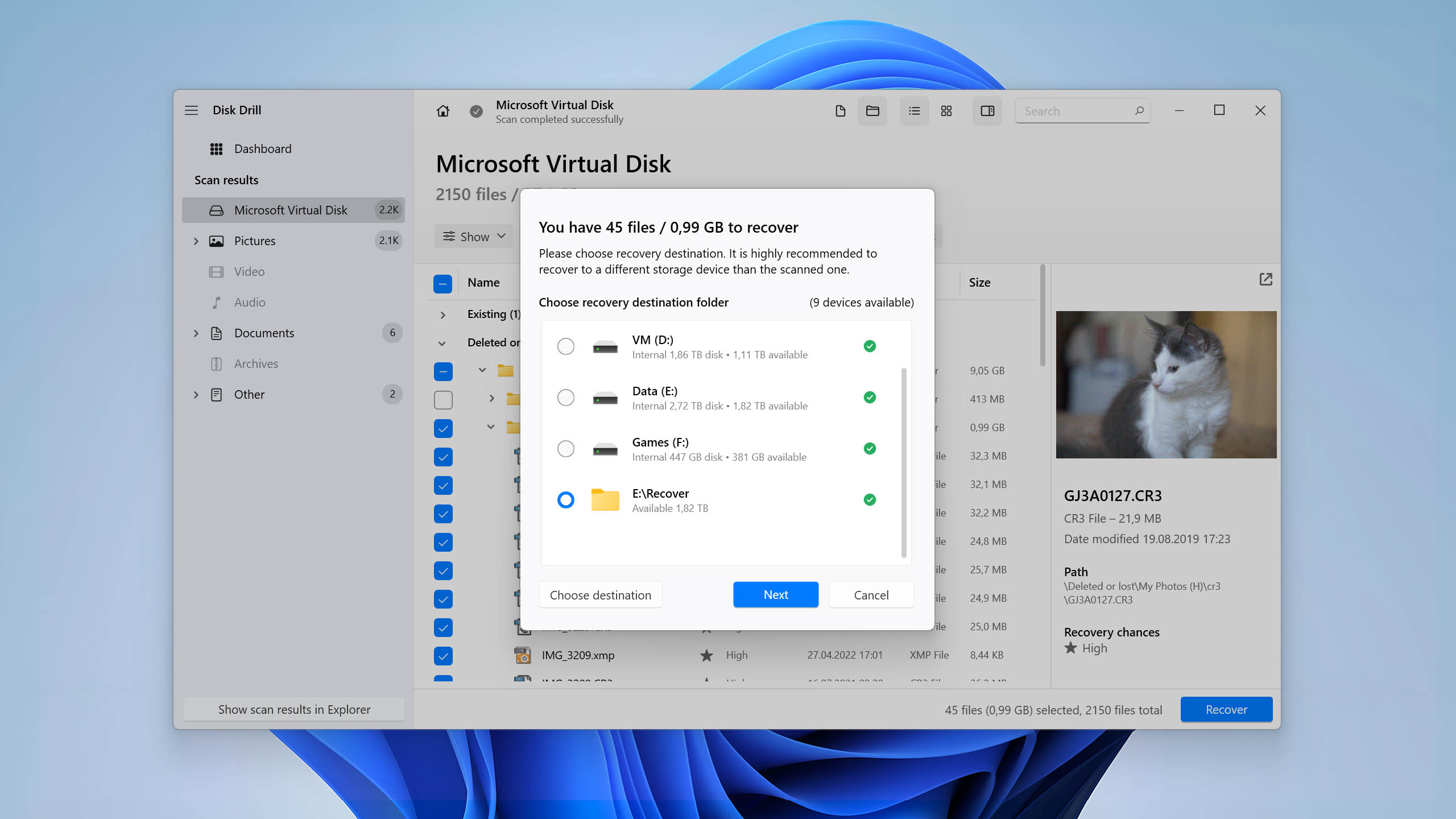
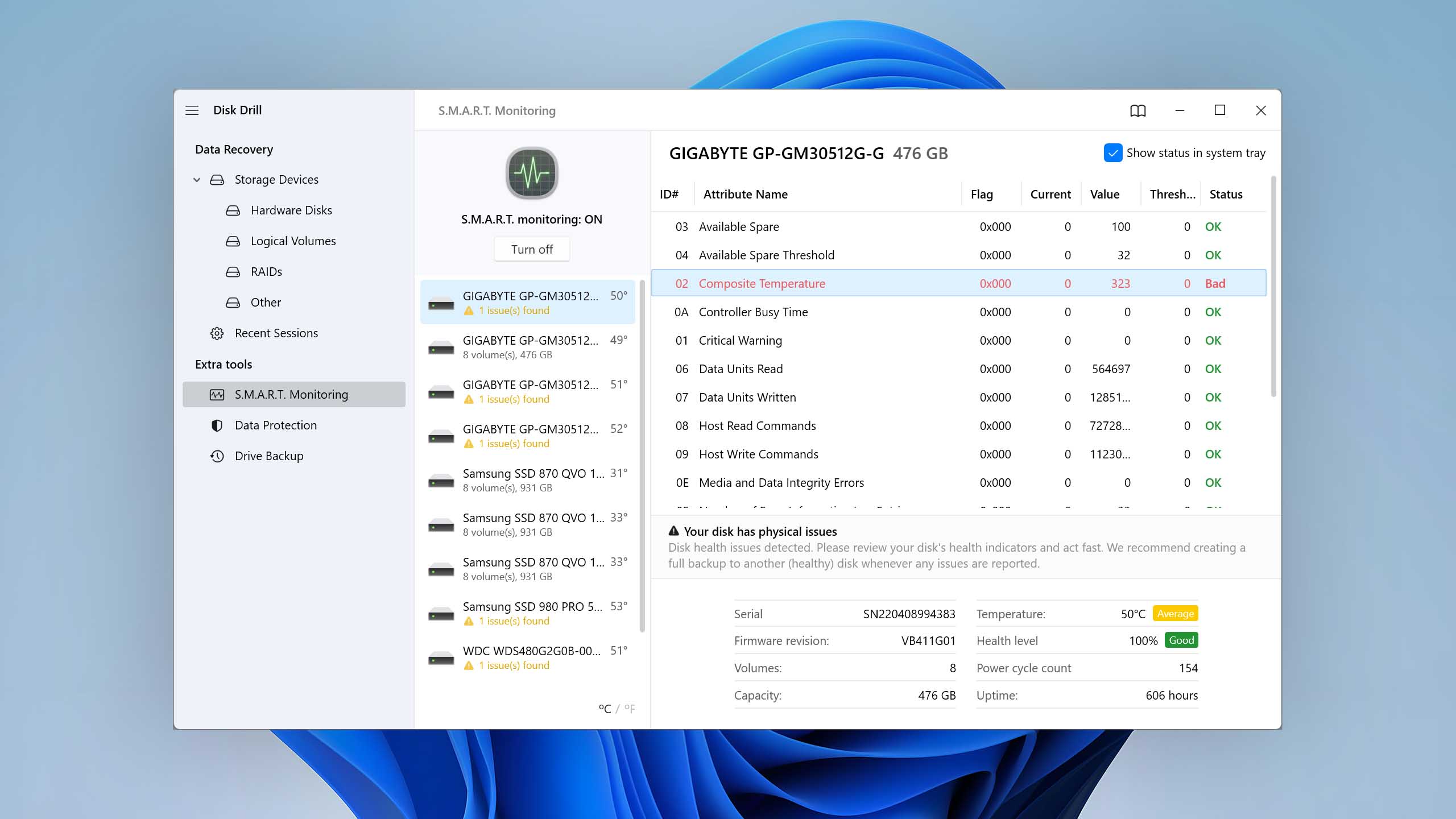
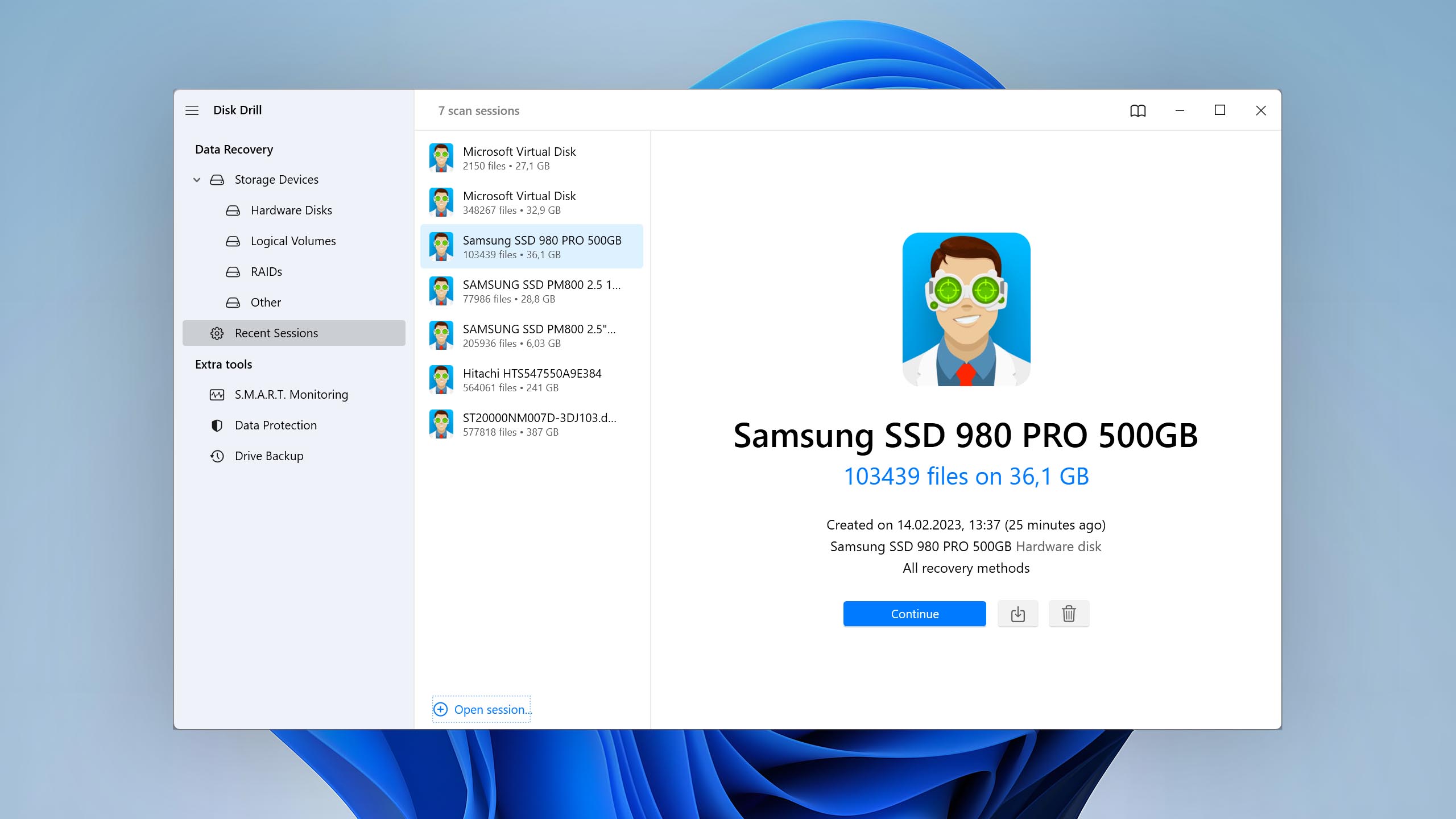
Whether you’re dealing with data loss due to SD card corruption or are unable to access data due to various potential logical issues, Disk Drill is the go-to tool for recovery and file access restoration thanks to its powerful features and outstanding intuitiveness.

Usability
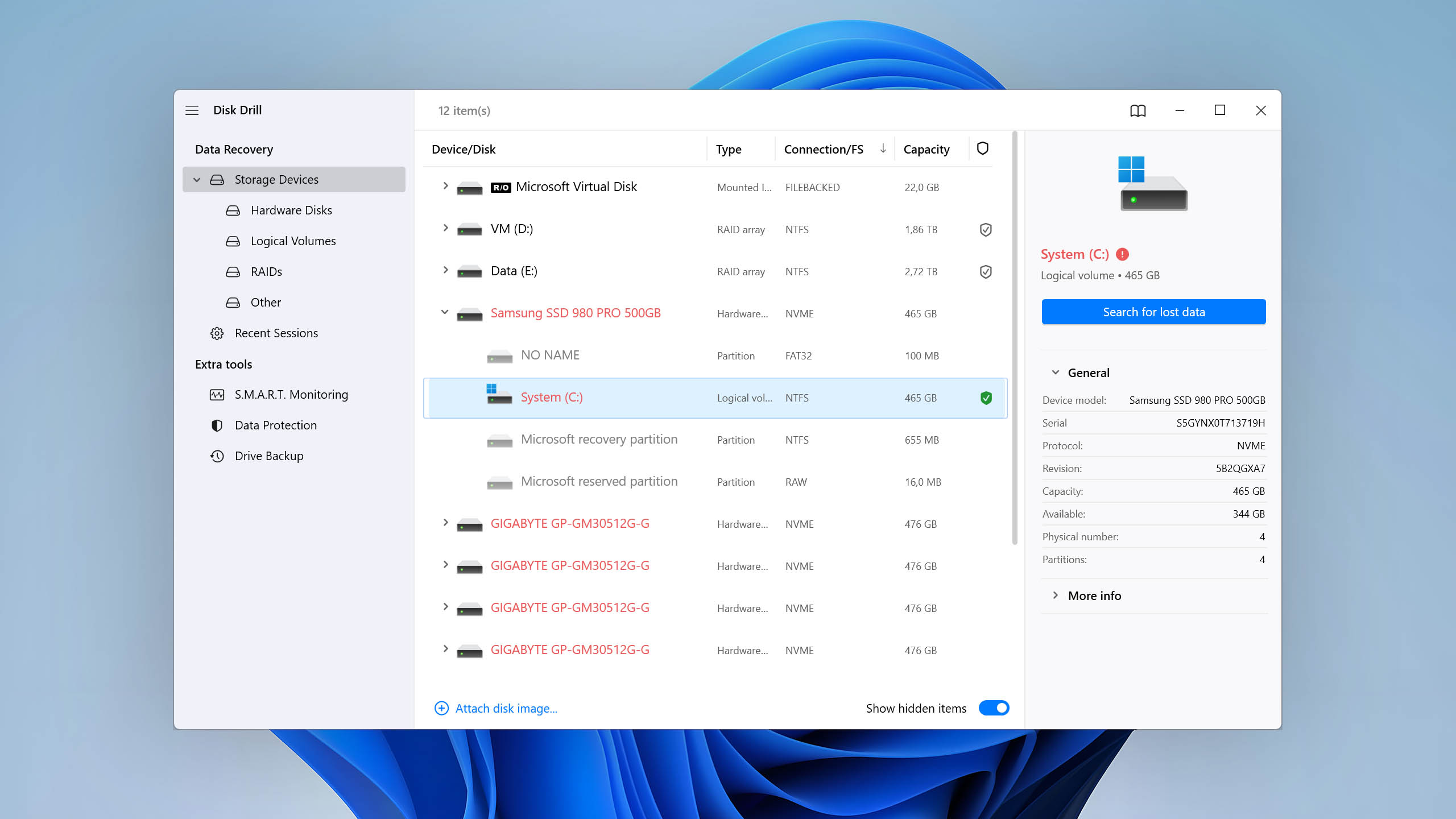
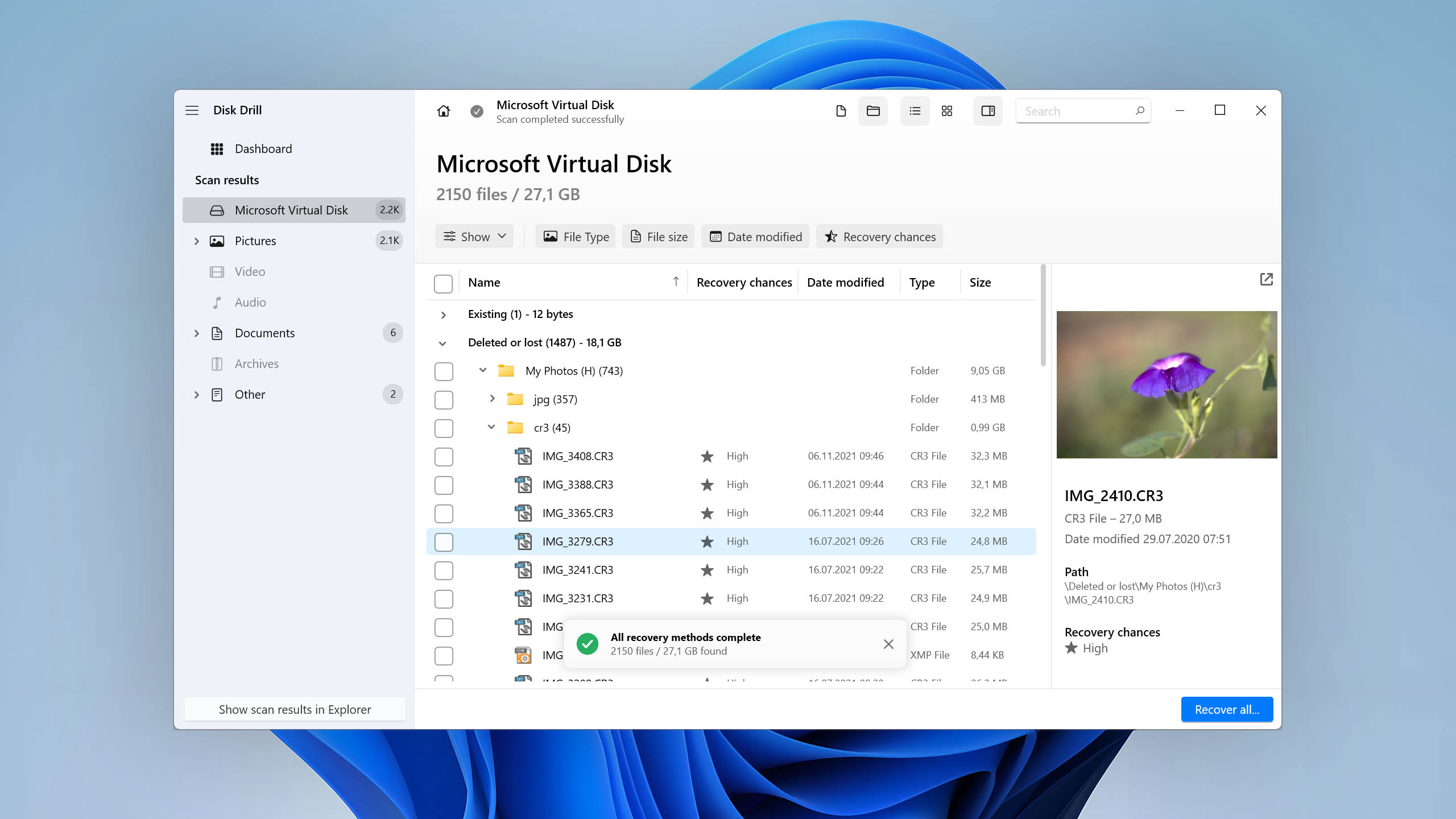
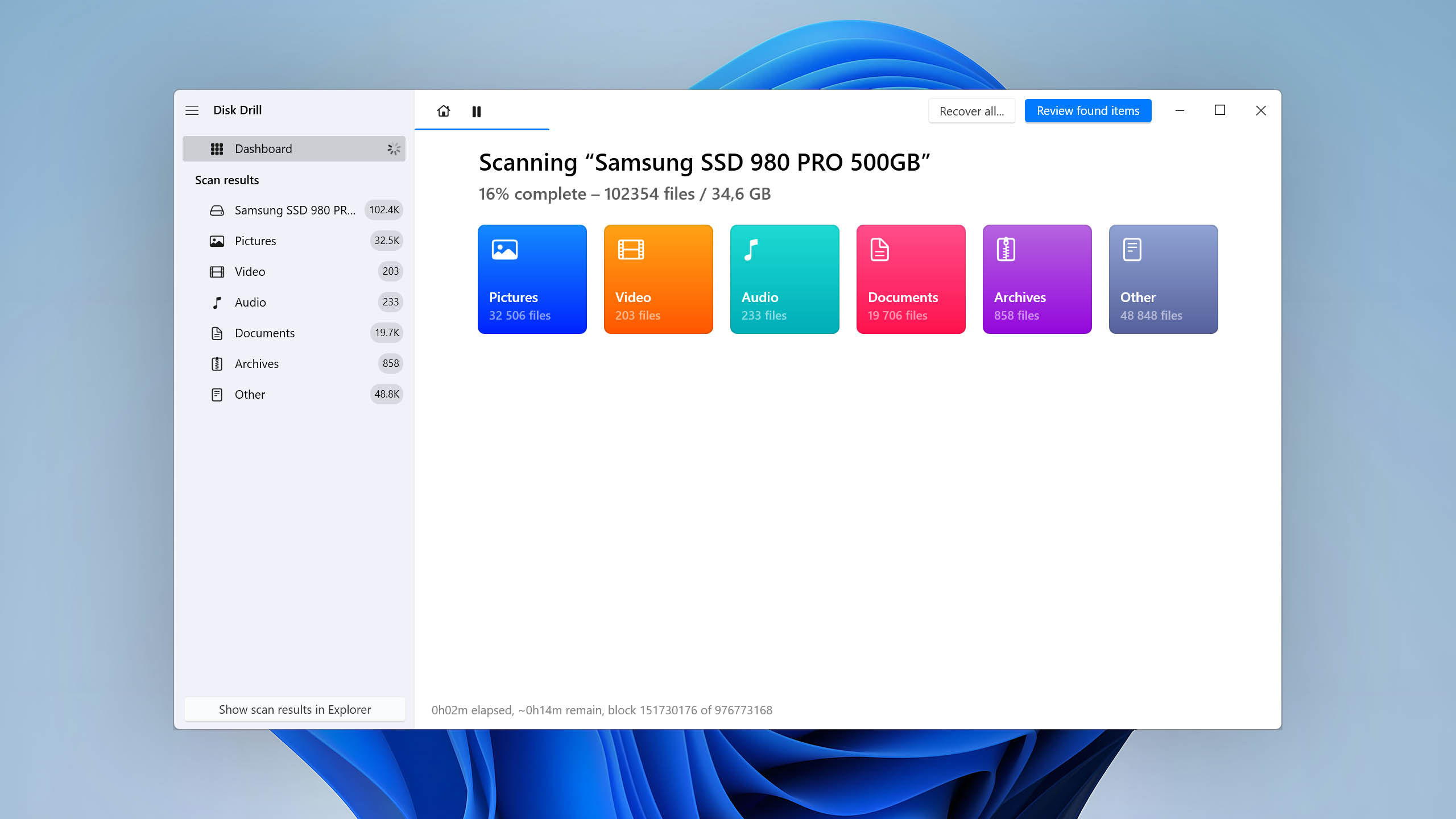
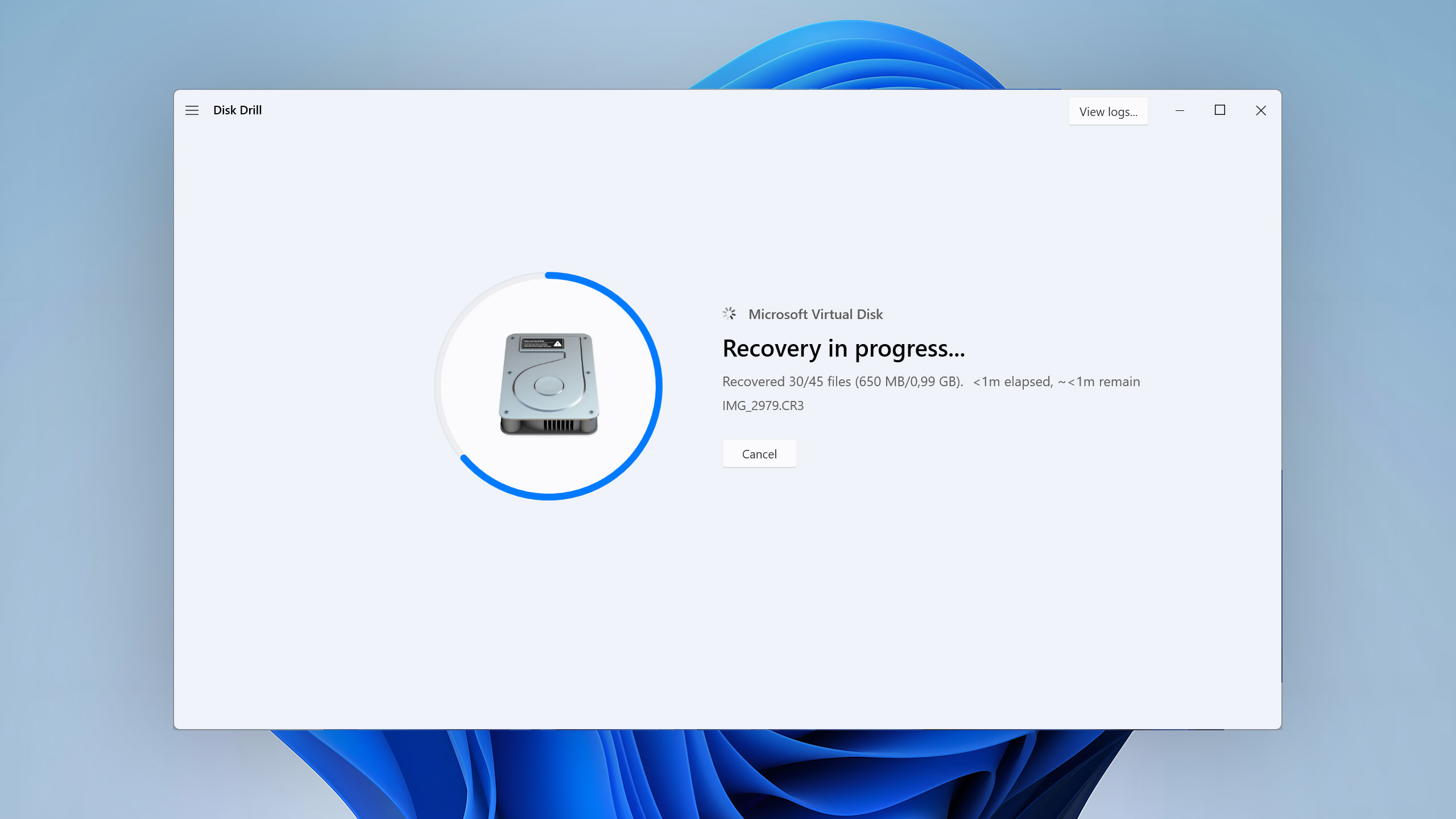
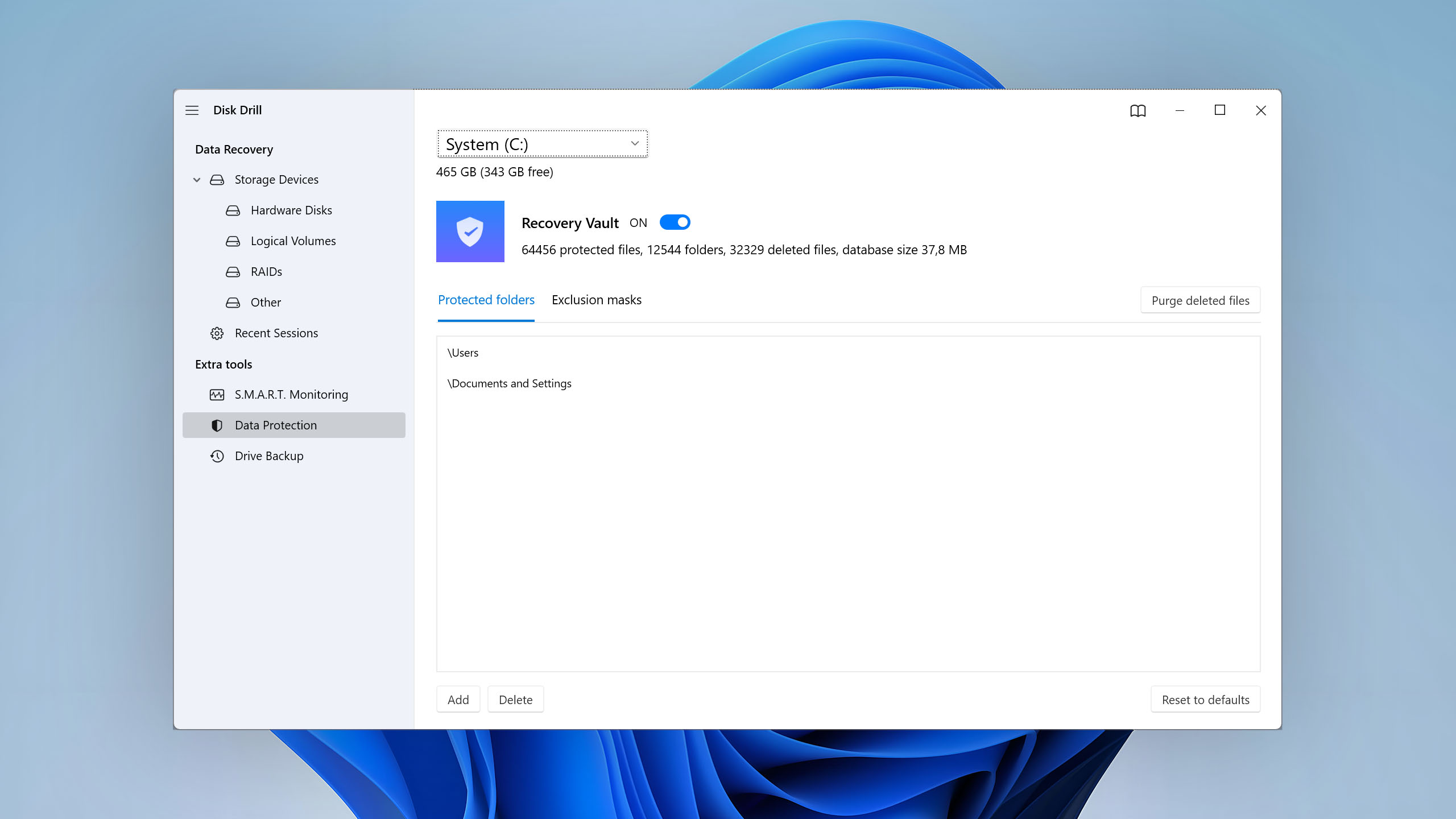
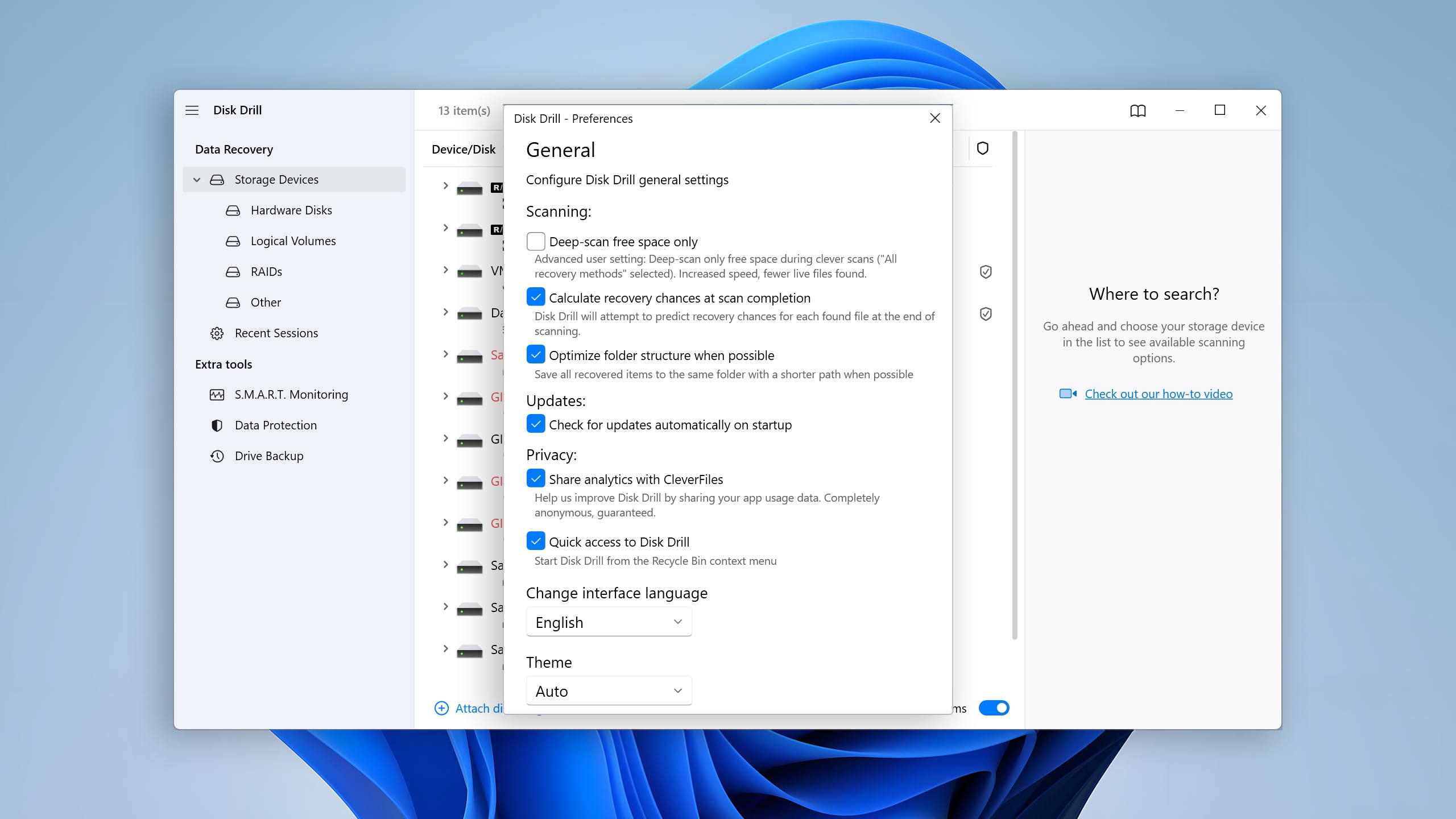
Disk Drill is a gem because it makes data recovery an almost enjoyable task. Its user-friendly interface makes it easy even for novices to confidently achieve impressive results, while its multi-language support makes the software less intimidating for non-English speakers. All main features can be conveniently located in the left pane, and they're designed to be self-explanatory. But even if you do get stuck, you can count on Disk Drill's extensive knowledge base to get you moving forward again.
Capabilities
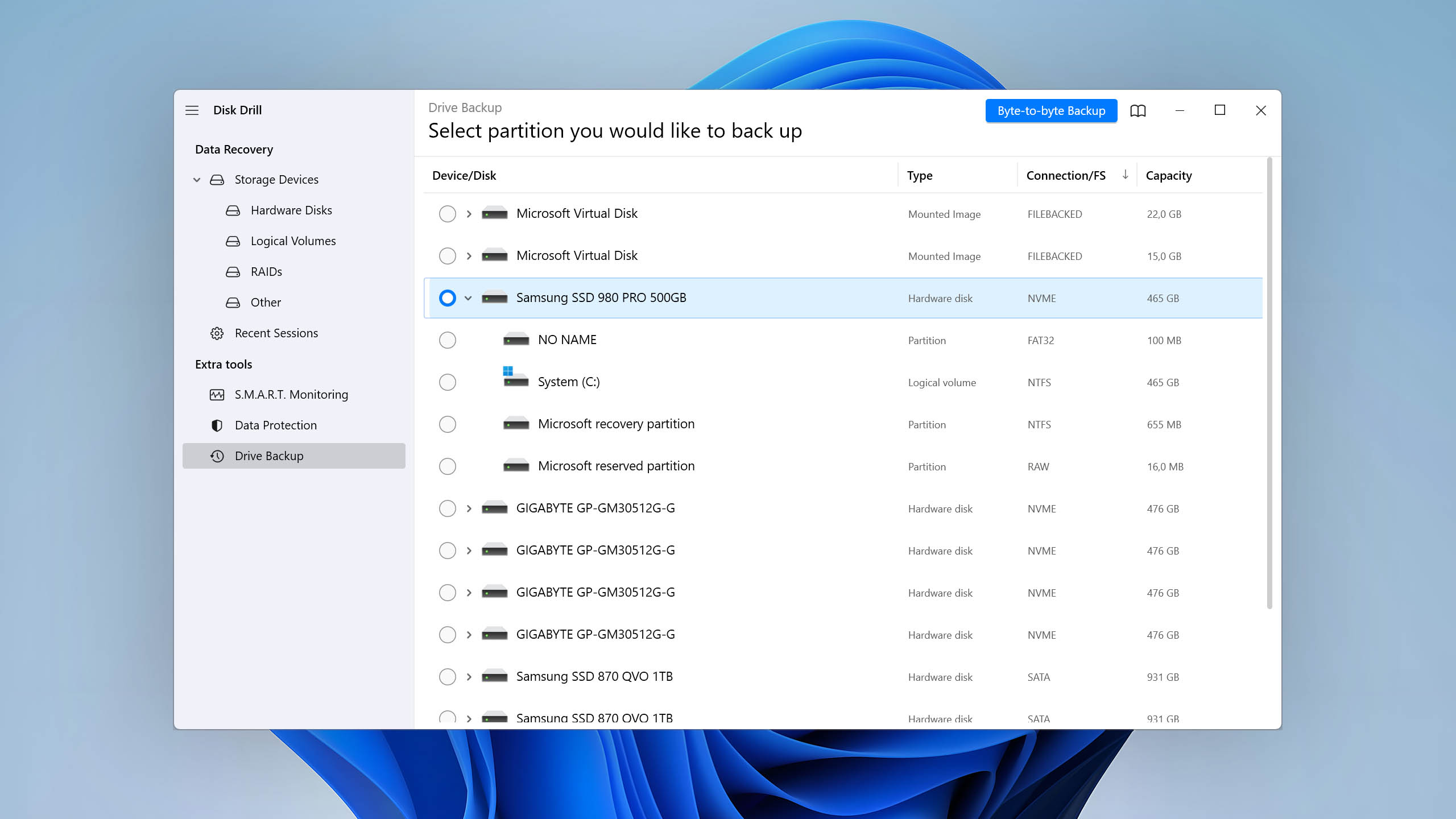
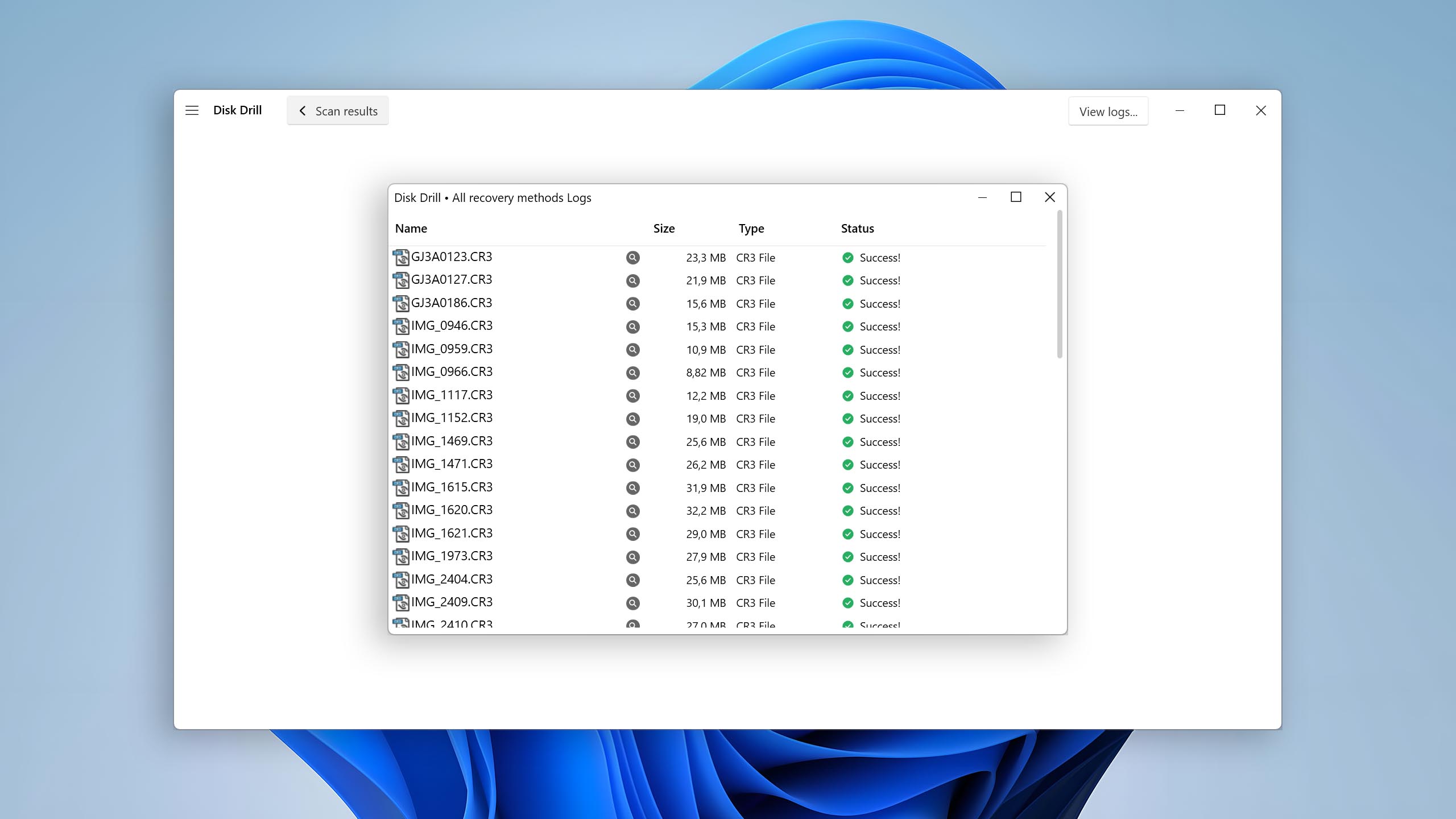
Disk Drill is a data recovery tool, which means that it's not designed to fix logical damage as such. Rather, it's designed to undo its potentially devastating consequences by restoring your lost data and/or access to it. When judged with this in mind, it deserves nothing but praise. From RAW photos to professional video formats, and even Linux file systems, Disk Drill does it all, including performing the role of partition recovery software. Recoverable files are conveniently organized in a hierarchical fashion based on their availability, and most multimedia files can be previewed directly within the app. The Advanced Camera Recovery module is excellent for recovering fragmented videos shot by cameras and drones, something unlike any other software on the market. And, it includes a full byte-to-byte backup feature for preserving your card’s data and structure in case repairs go sideways.
Value
Disk Drill offers tremendous value for your money. The free version allows for unlimited file previews and recovery of up to 100 MB of data on Windows. The lifetime license offers the best value, with a one-time payment unlocking unlimited lifetime access to the software for one user across three devices (plus free upgrades in the future). Or, if you prefer flexibility, the yearly subscription option gives you all the same access with the freedom to cancel anytime. Need something more business-focused? You can reach out to the CleverFiles team for a custom quote based on your unique requirements.

2. TestDisk
WindowsmacOSLinux
Free All features are provided free of charge, and the software can be used, studied, and modified without restriction
None
Free
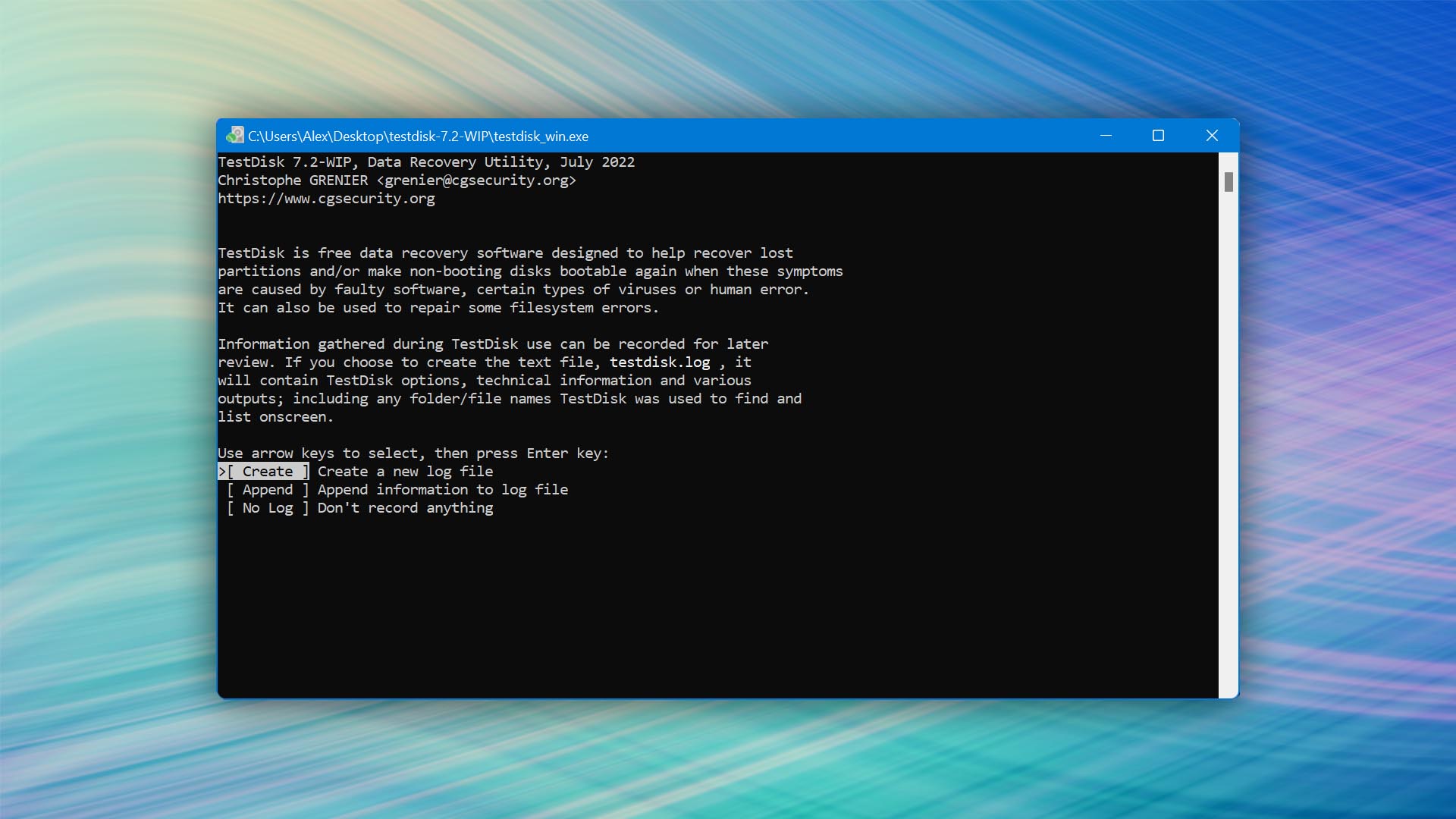
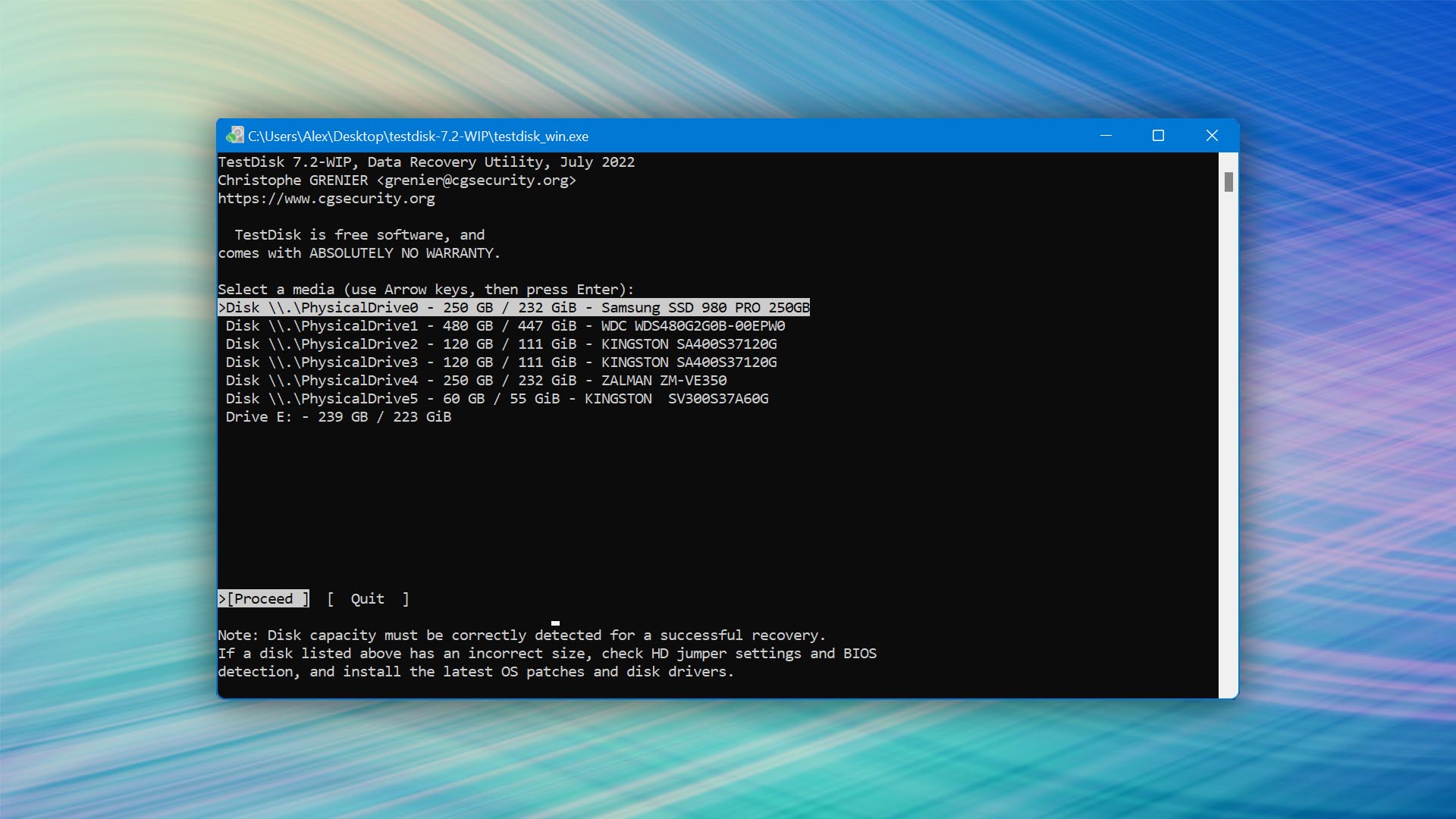
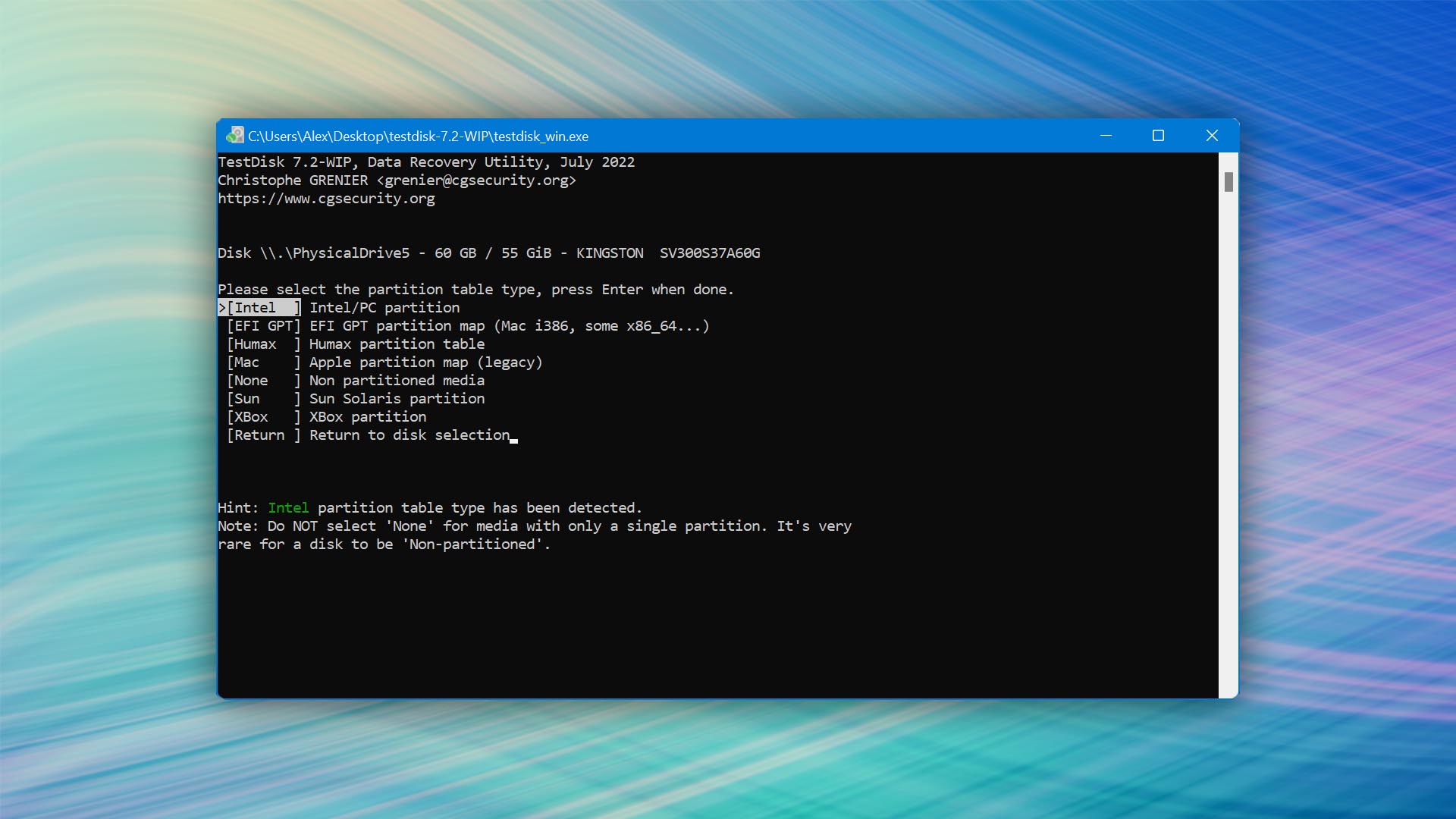
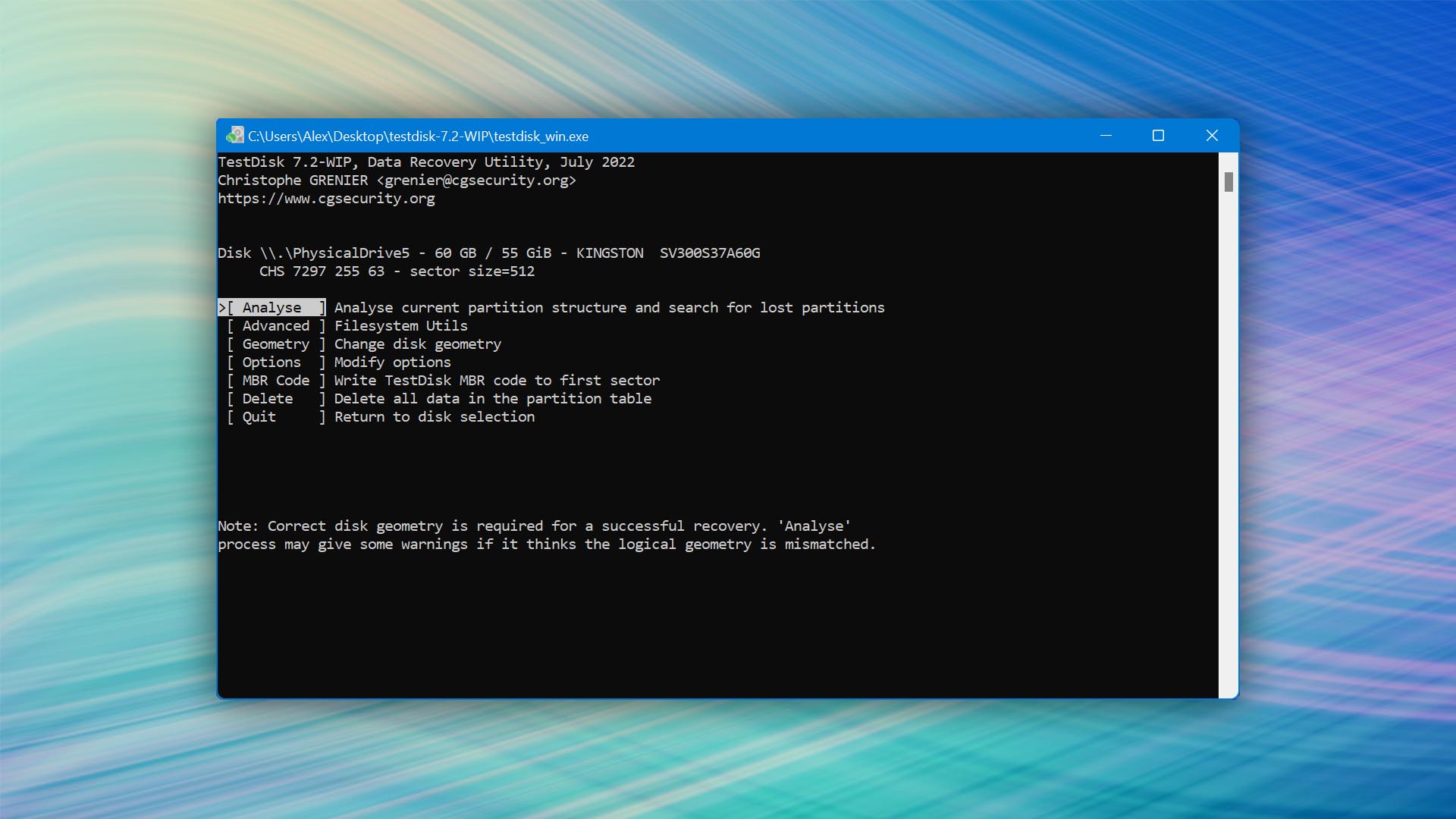
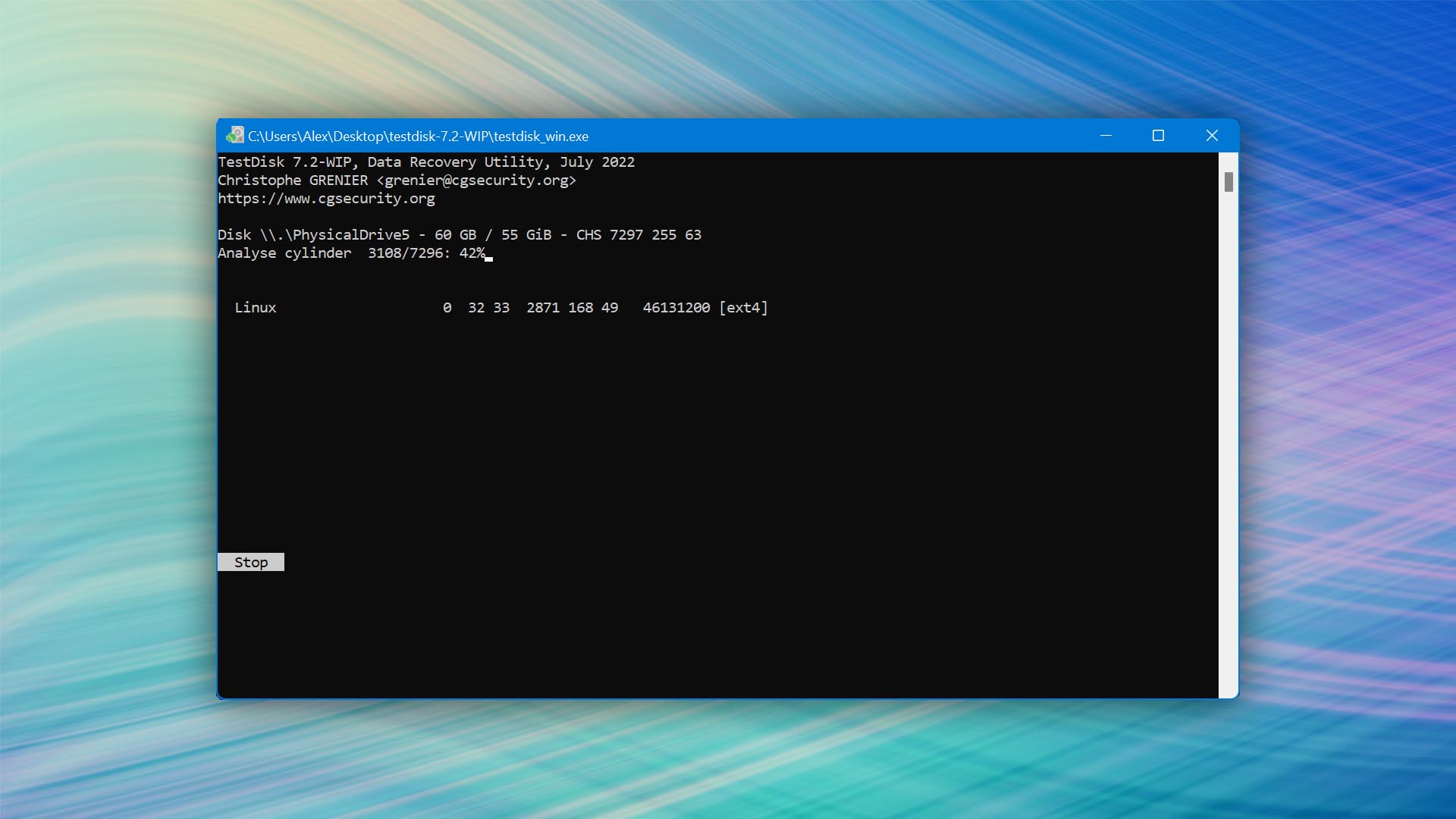
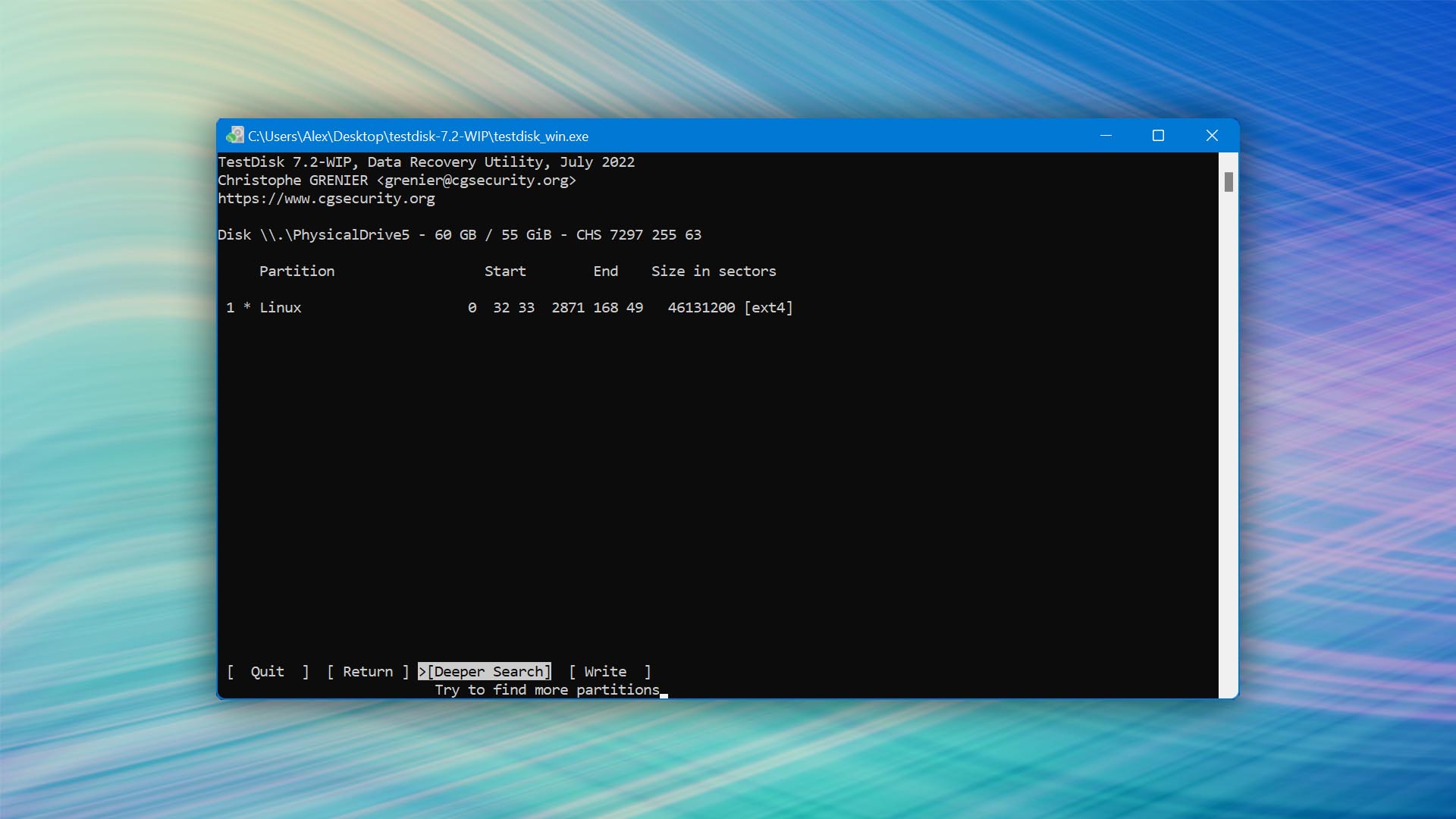
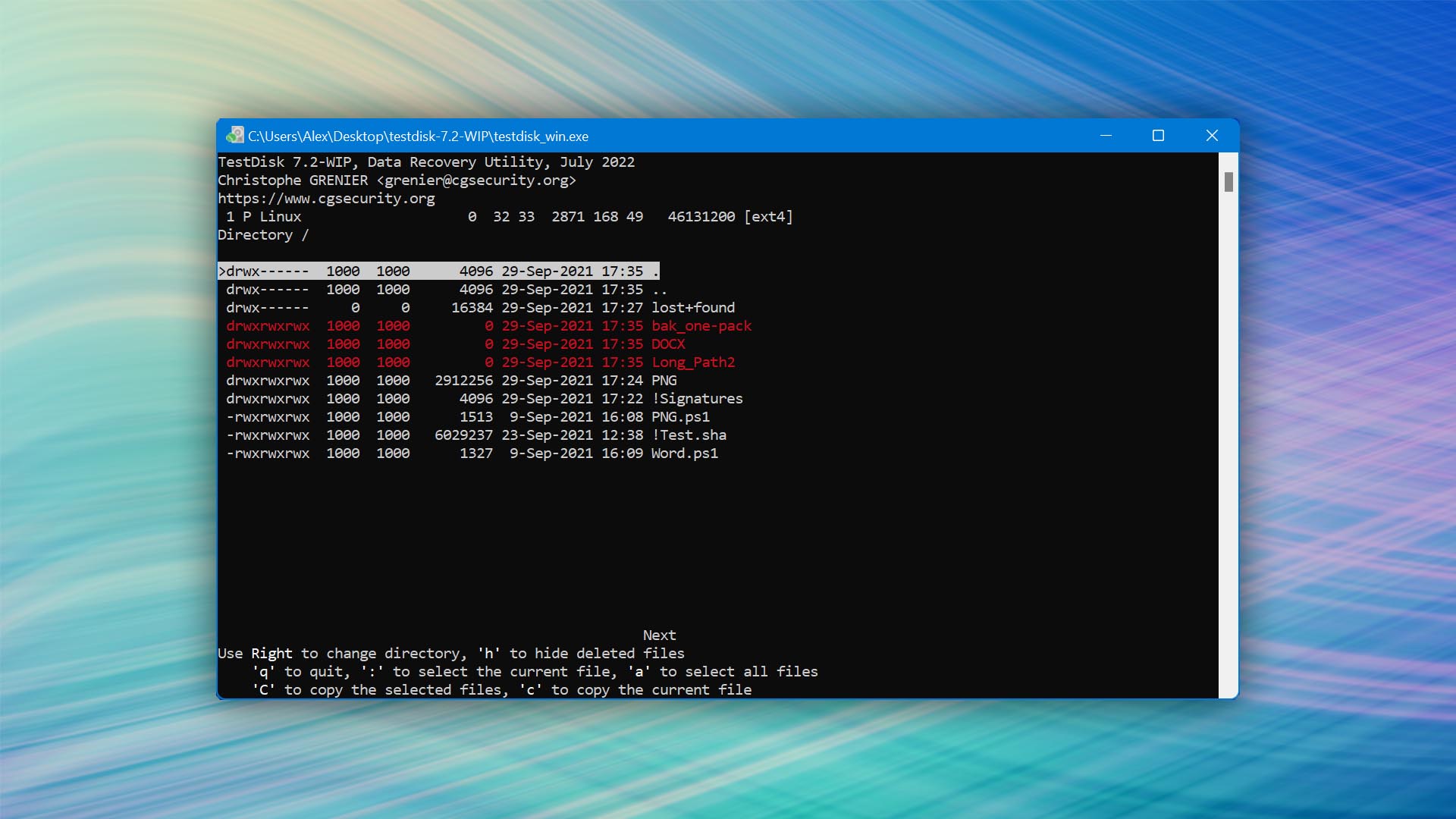
The diamond in the rough of SD card repair tools, TestDisk shines with its powerful capabilities to recover lost partitions and make non-booting disks bootable again. It comes packaged alongside PhotoRec, which offers signature-based file recovery when partition recovery isn’t suitable.

Usability
TestDisk, an open-source software tool, is one of the least user-friendly SD repair tools. Why? Because it relies entirely on a command-line user interface available in English only. What's more, there's no option to resume failed or interrupted scans, so if you're dealing with a large SD card or a particularly complicated recovery process, you might find yourself starting over from scratch more than once. Filtering recoverable items by type or name is not an option either, making it difficult to quickly locate specific files.
Capabilities
When it comes to SD card repair and recovery, TestDisk is best known for its partition repair and reconstruction capabilities, rather than for recovering individual deleted files. It can work miracles in fixing partition tables, recovering lost partitions, and rewriting the Master Boot Record (MBR). Its data recovery capabilities cover FAT, exFAT, NTFS, and ext2 file systems, but they don't include signature-based recovery, which makes it impossible to achieve good results if the file system is no longer available.
Value
Despite its limitations, TestDisk's overall value cannot be overstated. As an open-source SD card repair tool, it is completely free and offers unlimited usage. It may not be the best tool for beginners, but for those experienced in data recovery, TestDisk offers a set of powerful features to repair and recover data from SD cards and other storage devices.
3. DiskGenius
Windows
Freemium Some features are provided free of charge, but money is required to unlock the rest
Free version limited to files 64 KB or smaller
$69.9...$699.9
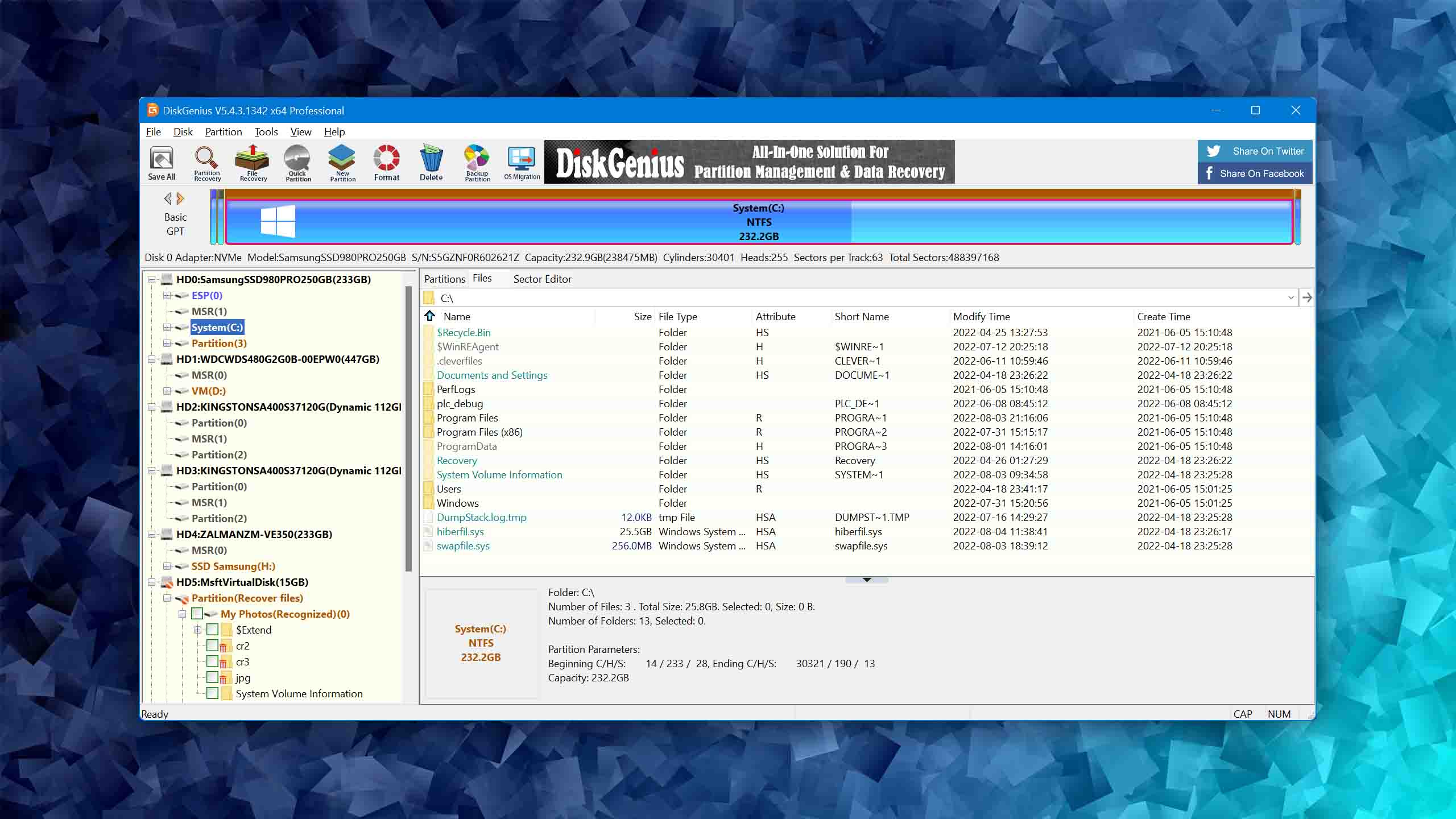
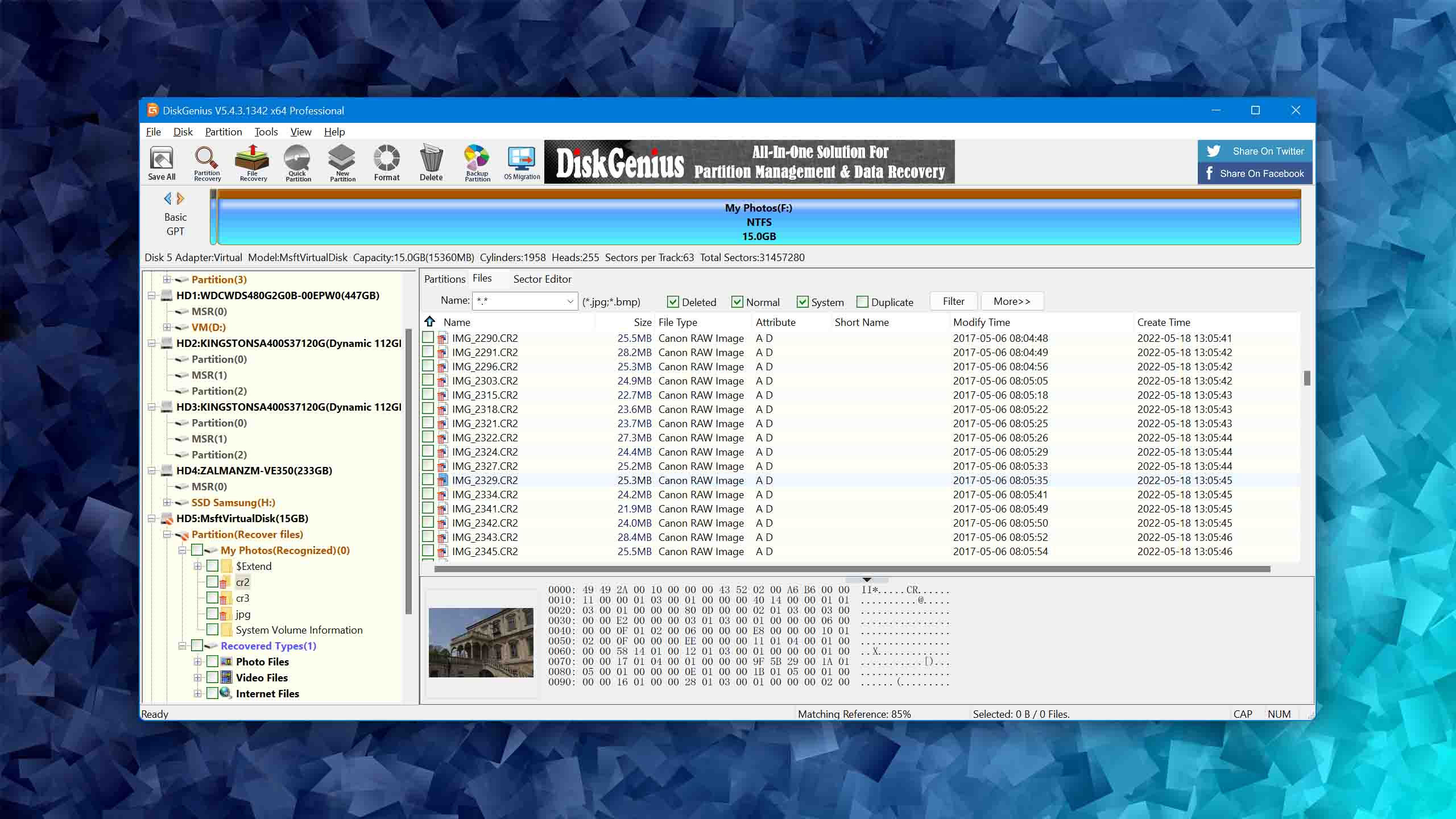
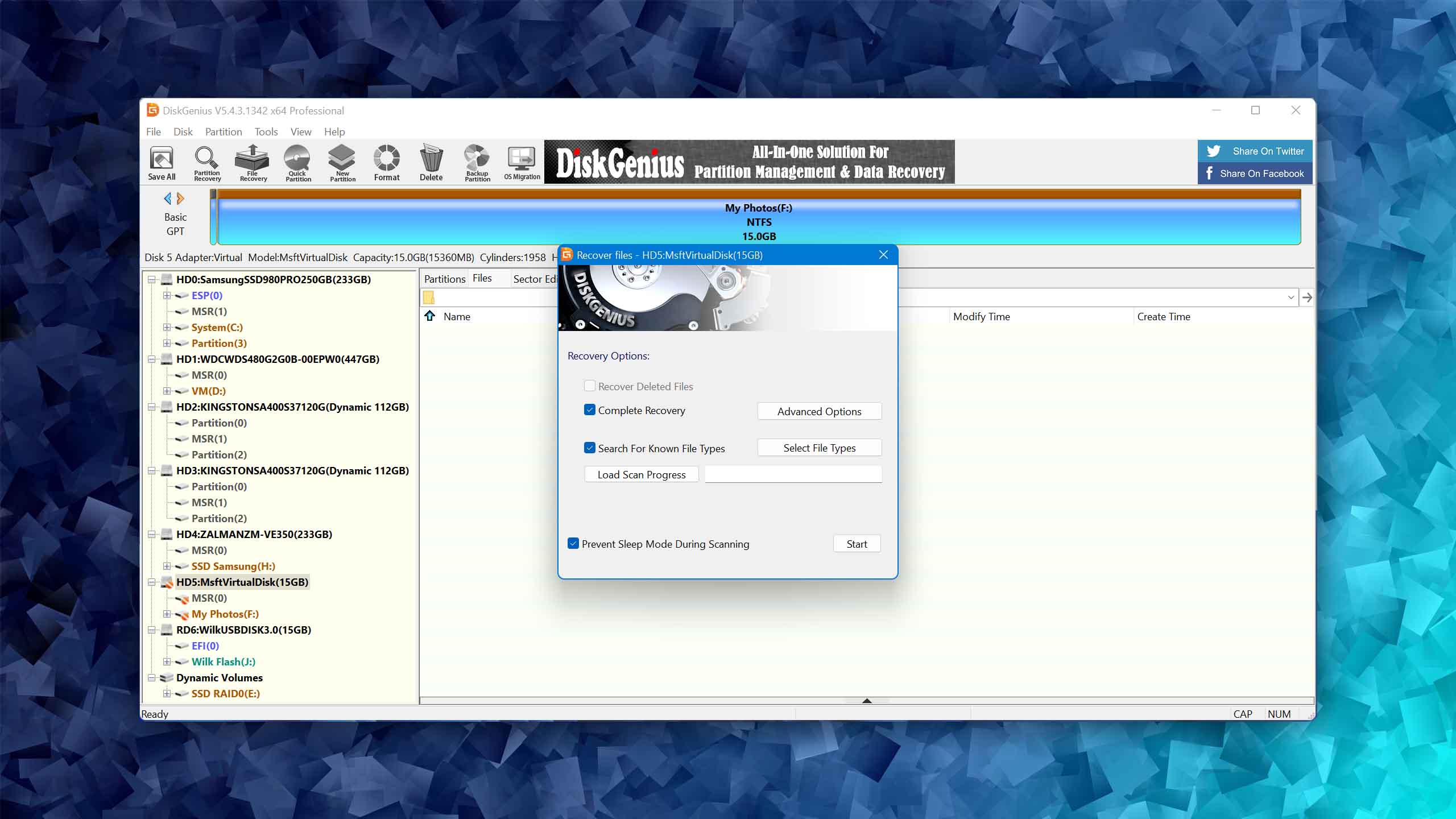
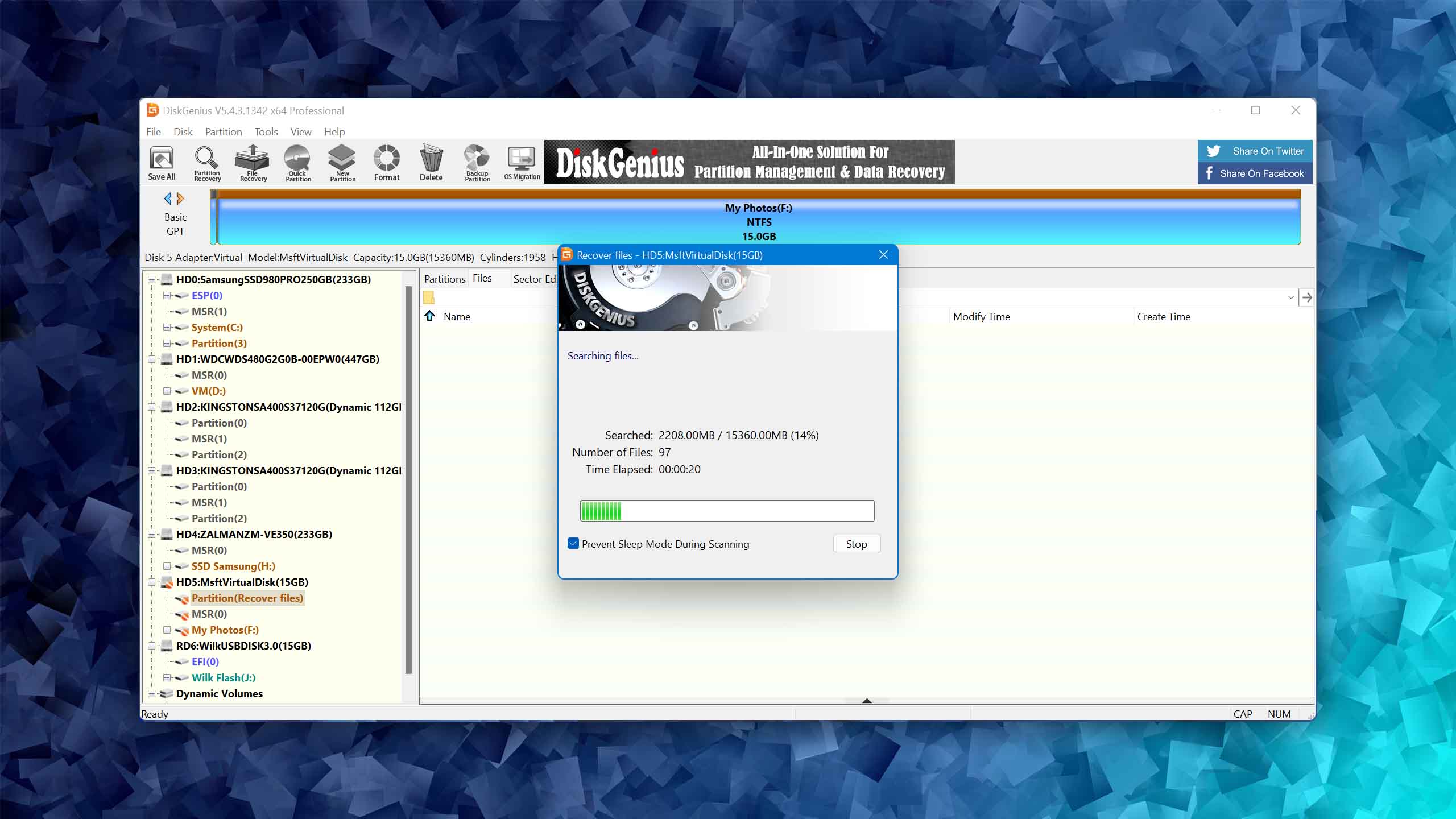
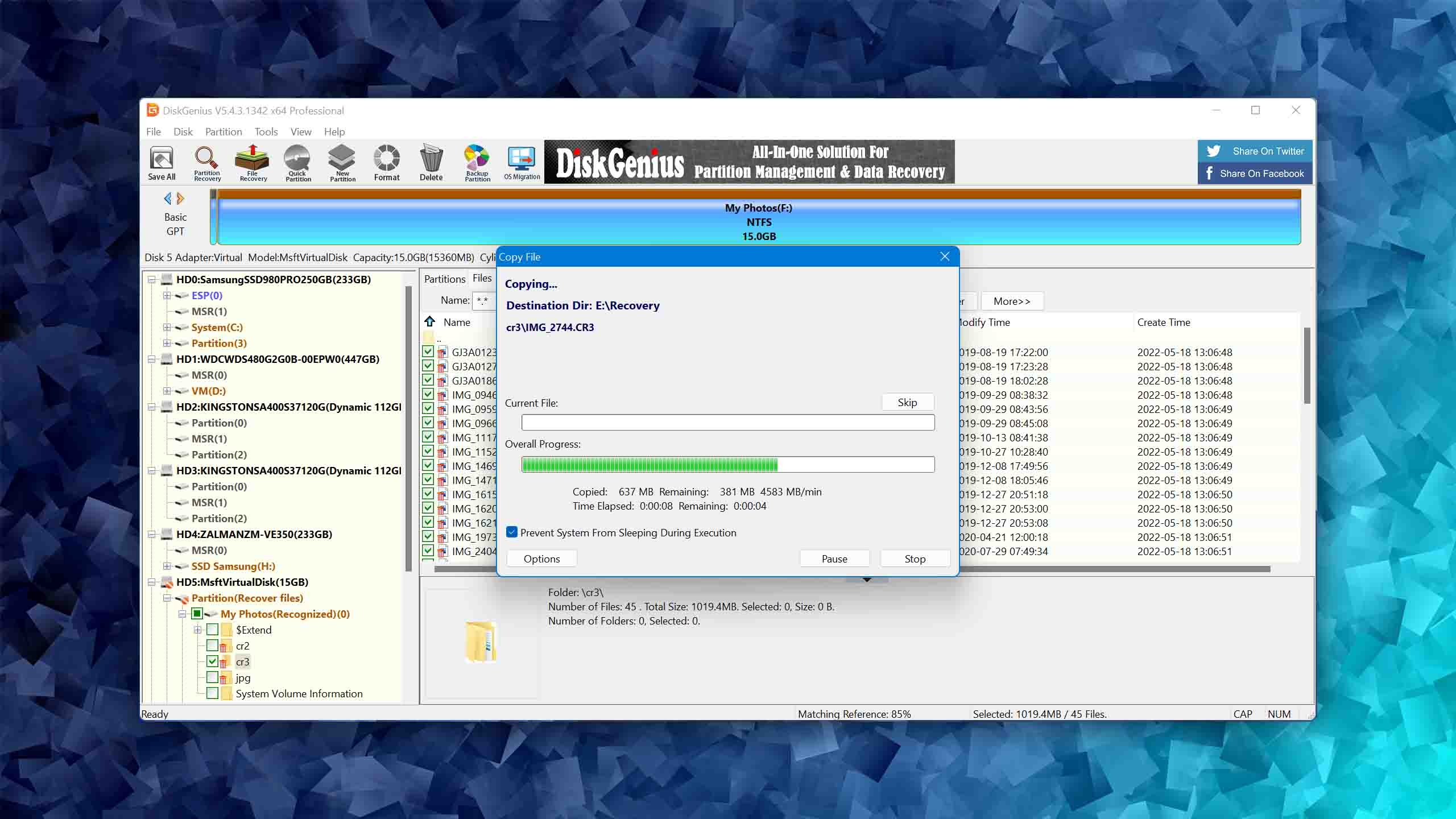
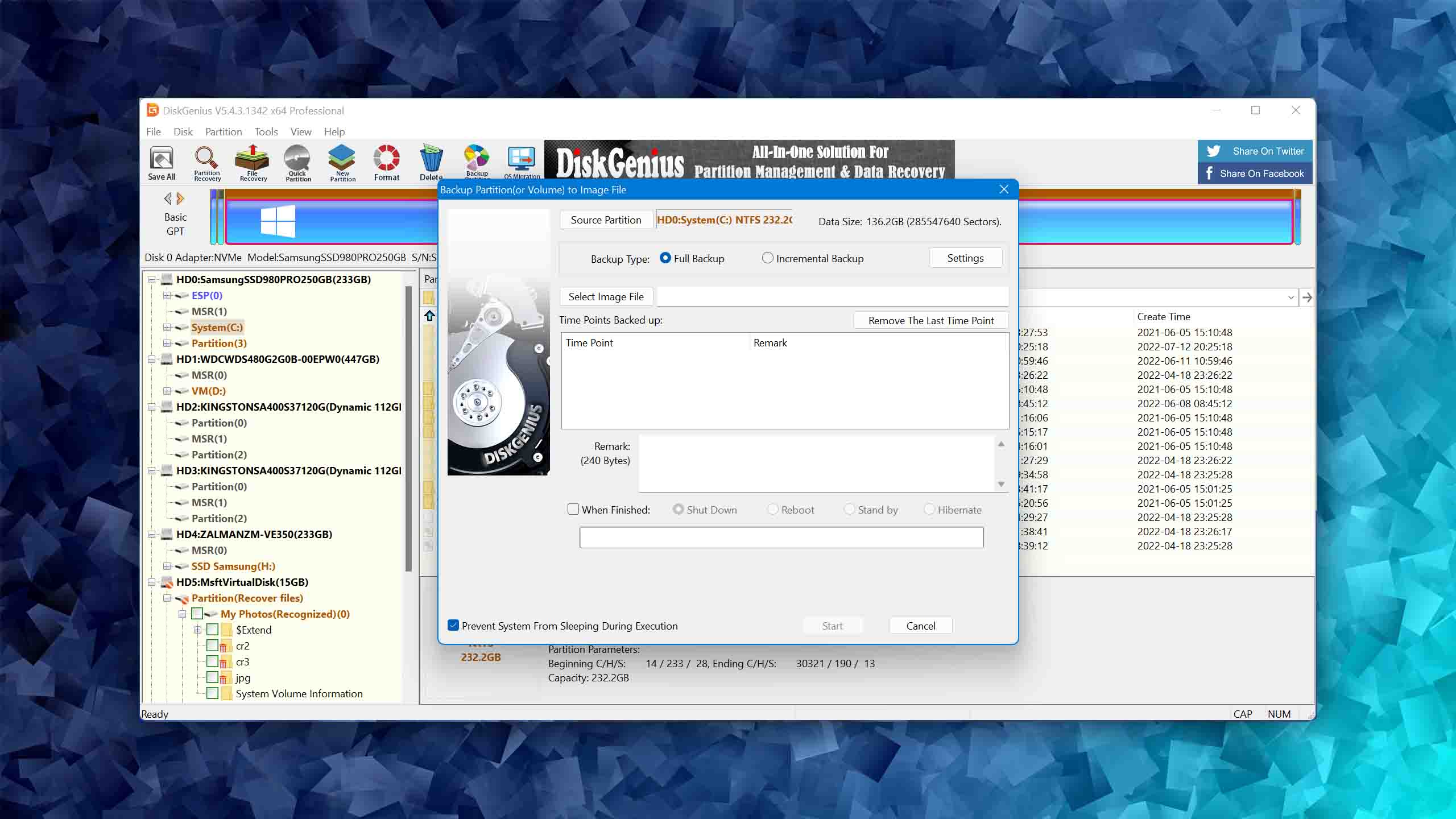
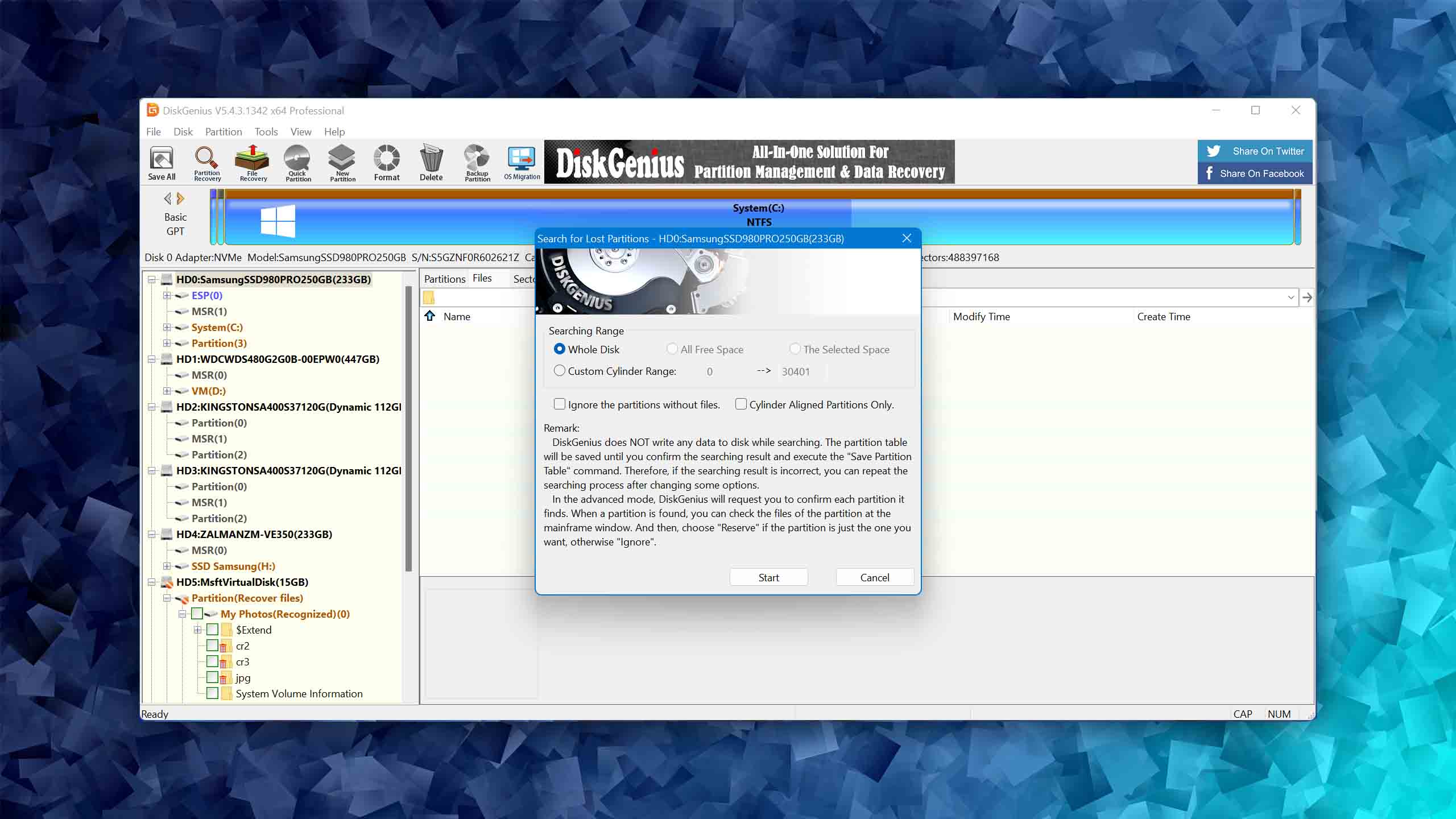
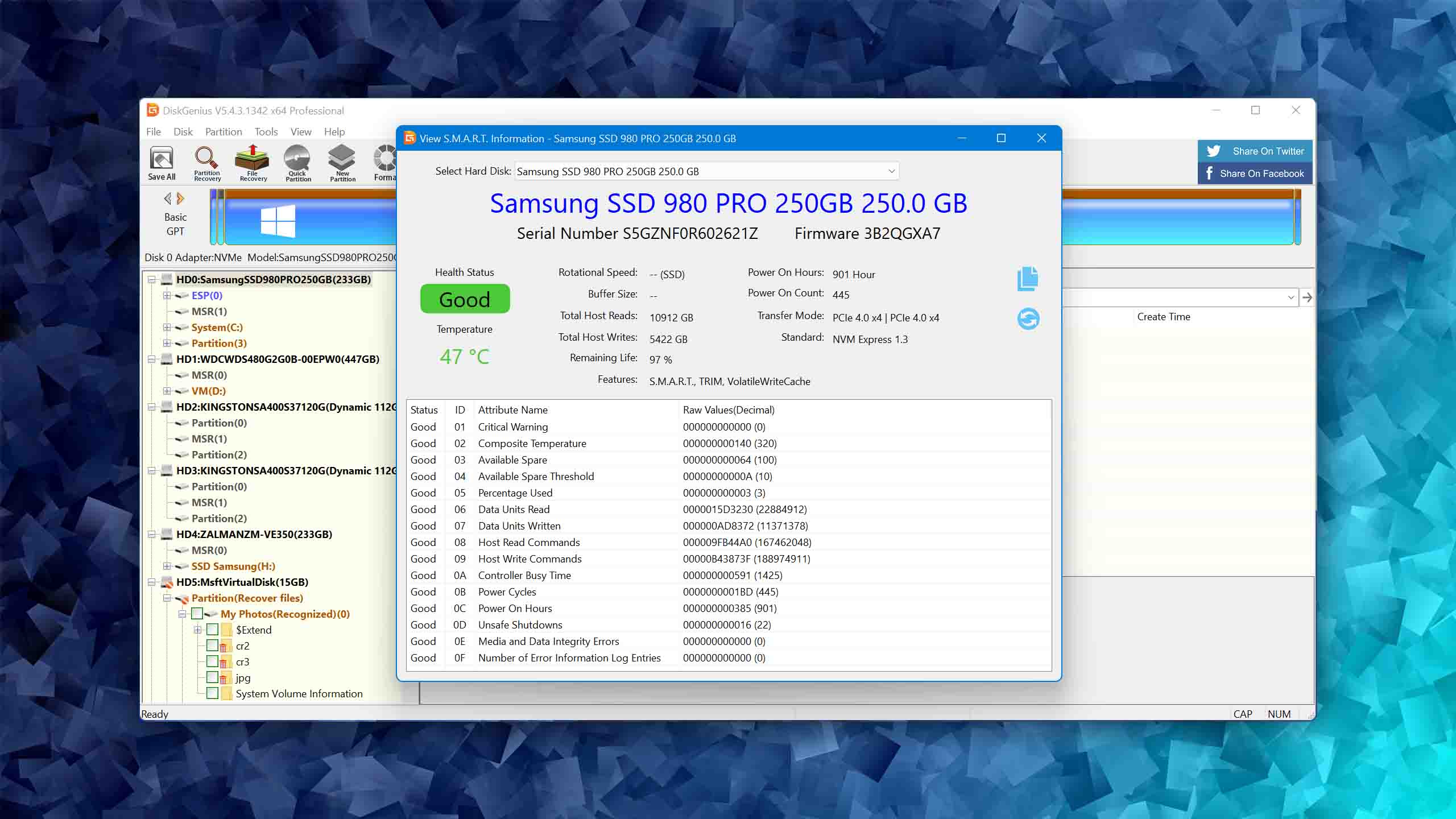
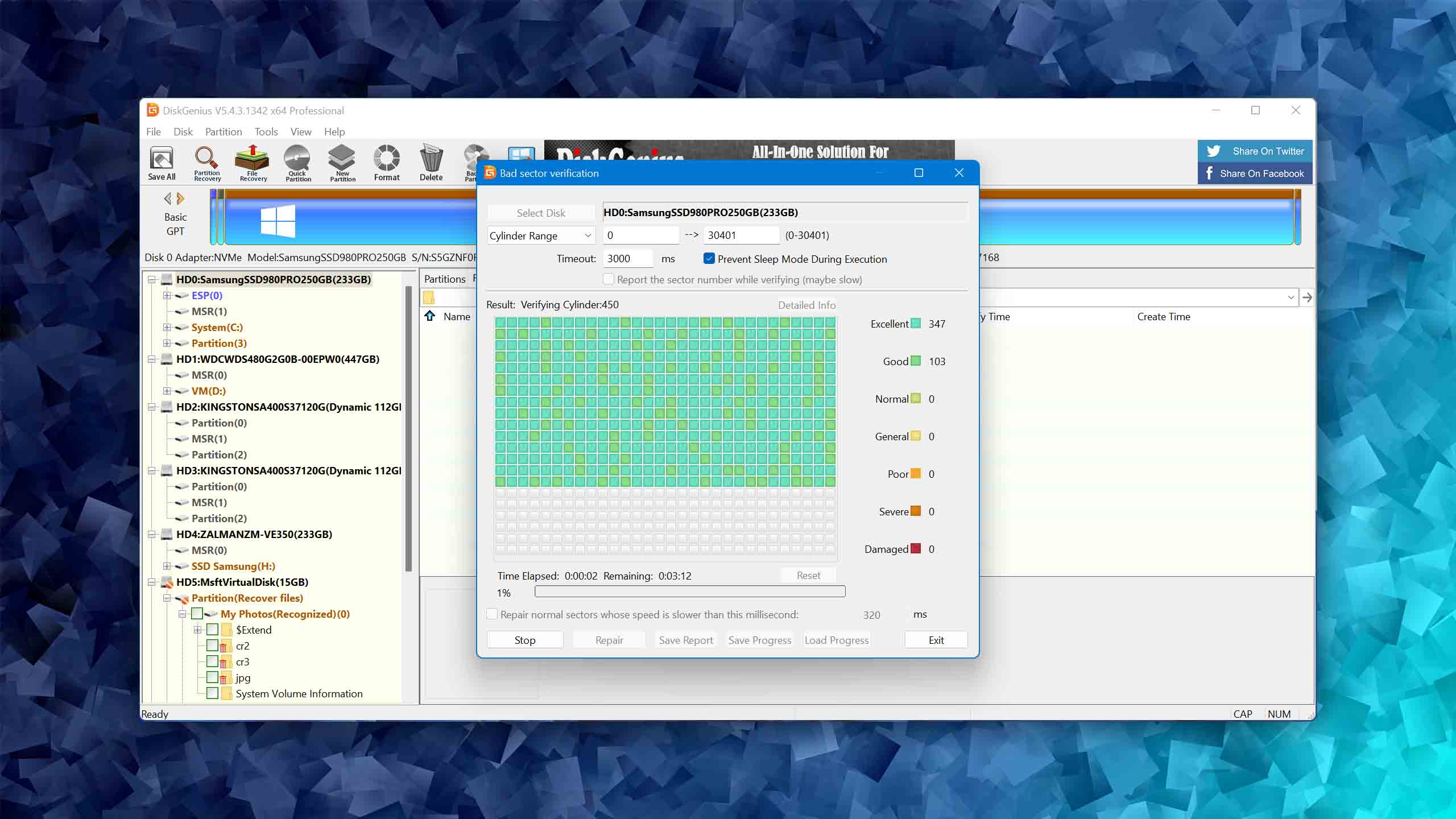
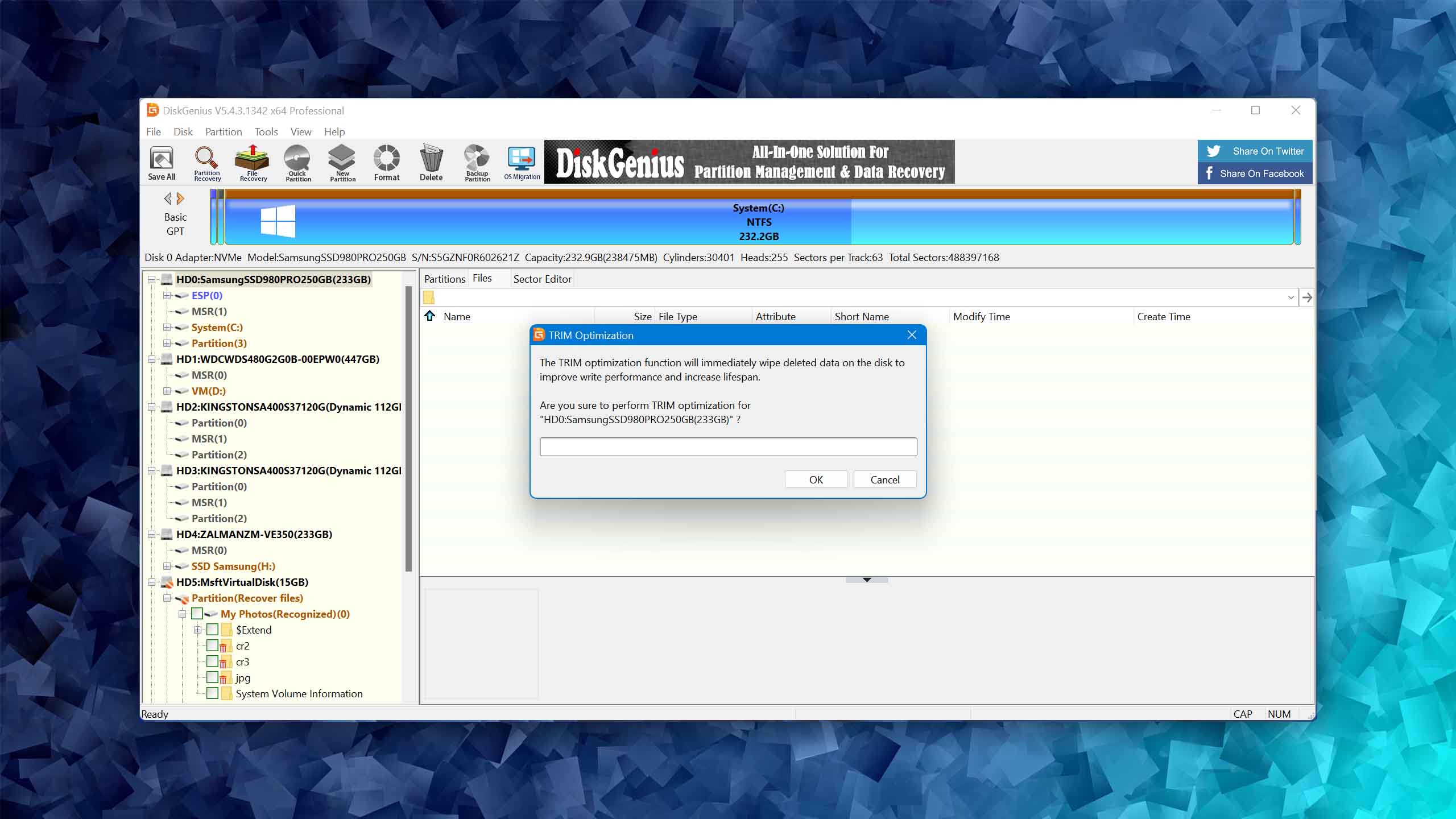
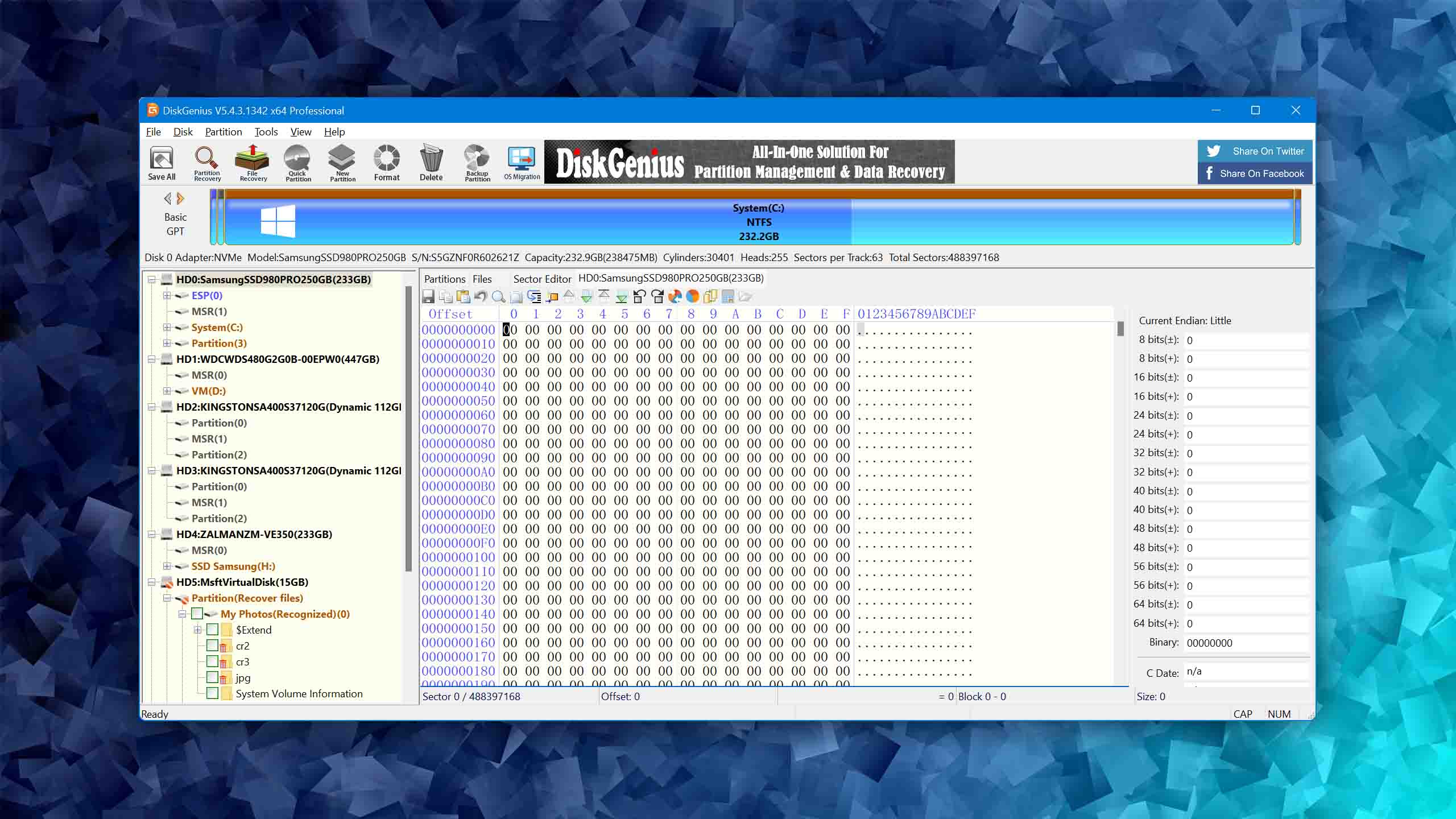
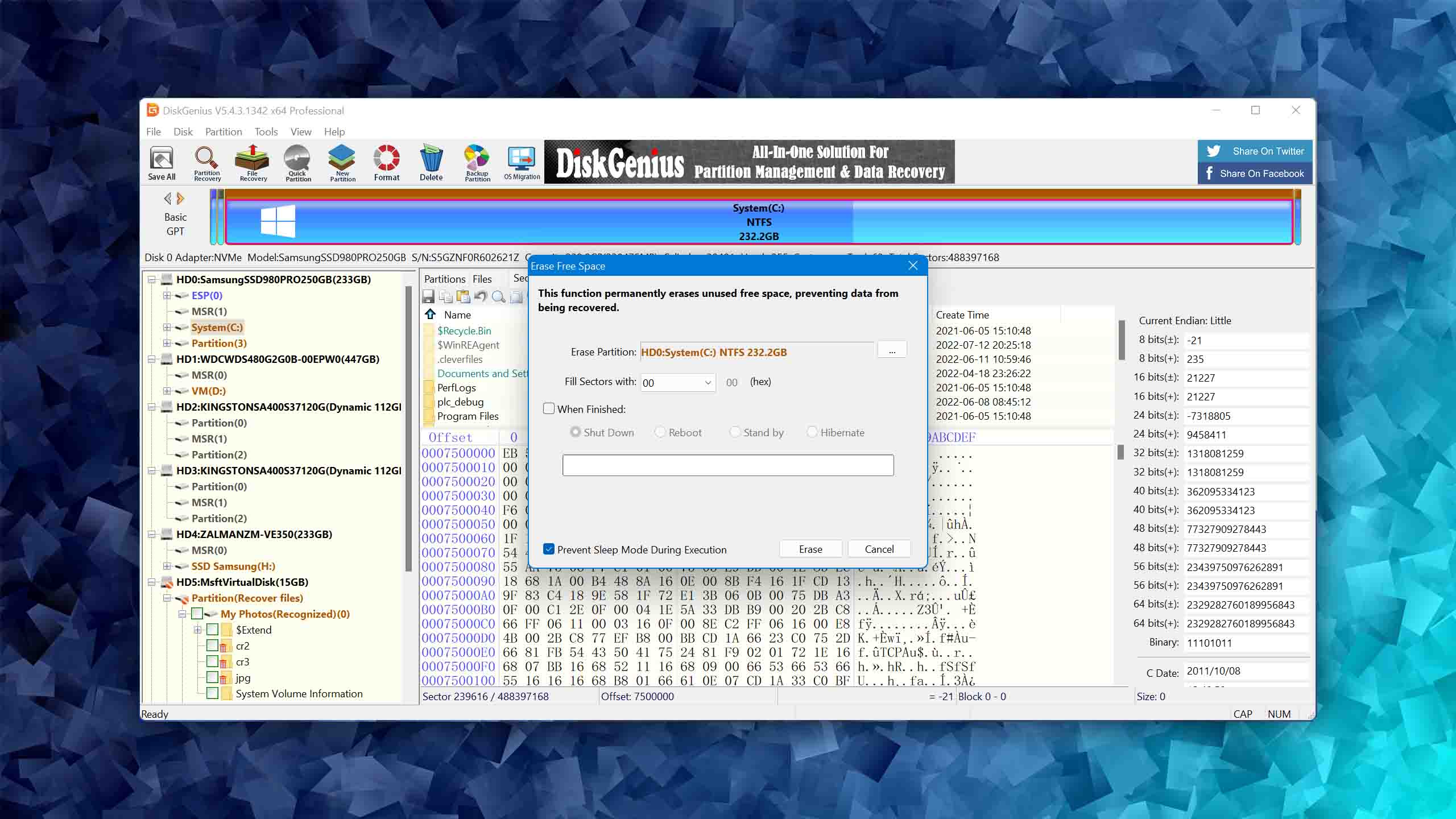
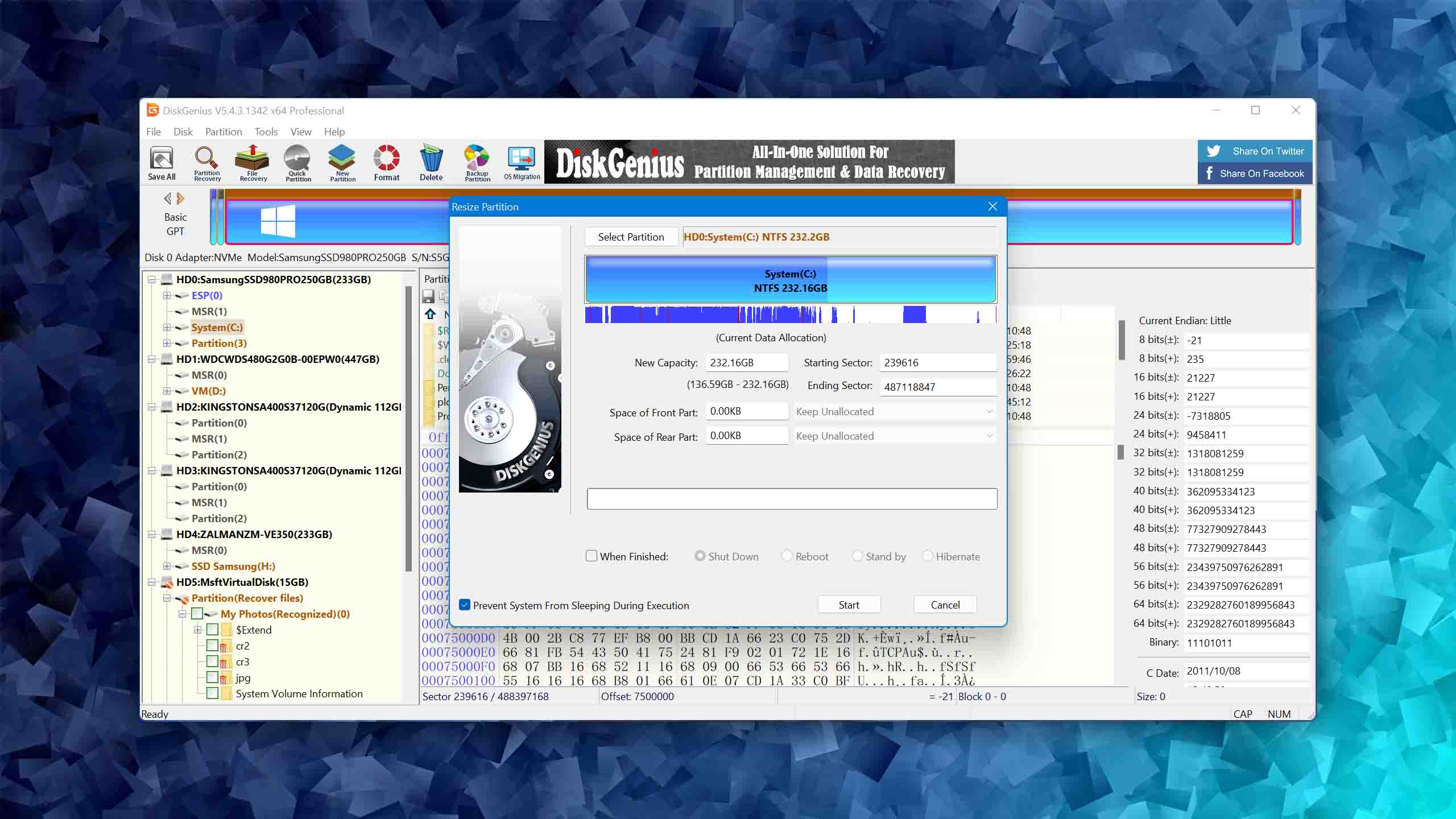
DiskGenius remains a powerful disk management and repair toolkit that, in addition to basic recovery, offers hands-on control over partition tables, bad sectors, and RAW volume recovery, making it a strong choice for deep SD card corruption.
Usability
With a lack of auto-resume features for scans or backups and a less-than-ideal file-by-file preview function, DiskGenius clearly doesn't focus too much on usability. Instead, the software is geared toward tech-savvy users who are used to reading long manuals and taking their time to figure out how a piece of software works. If you're a beginner or someone looking for an easy and quick solution to fix your SD card and recover your data, you might want to explore other more intuitive options.
Capabilities
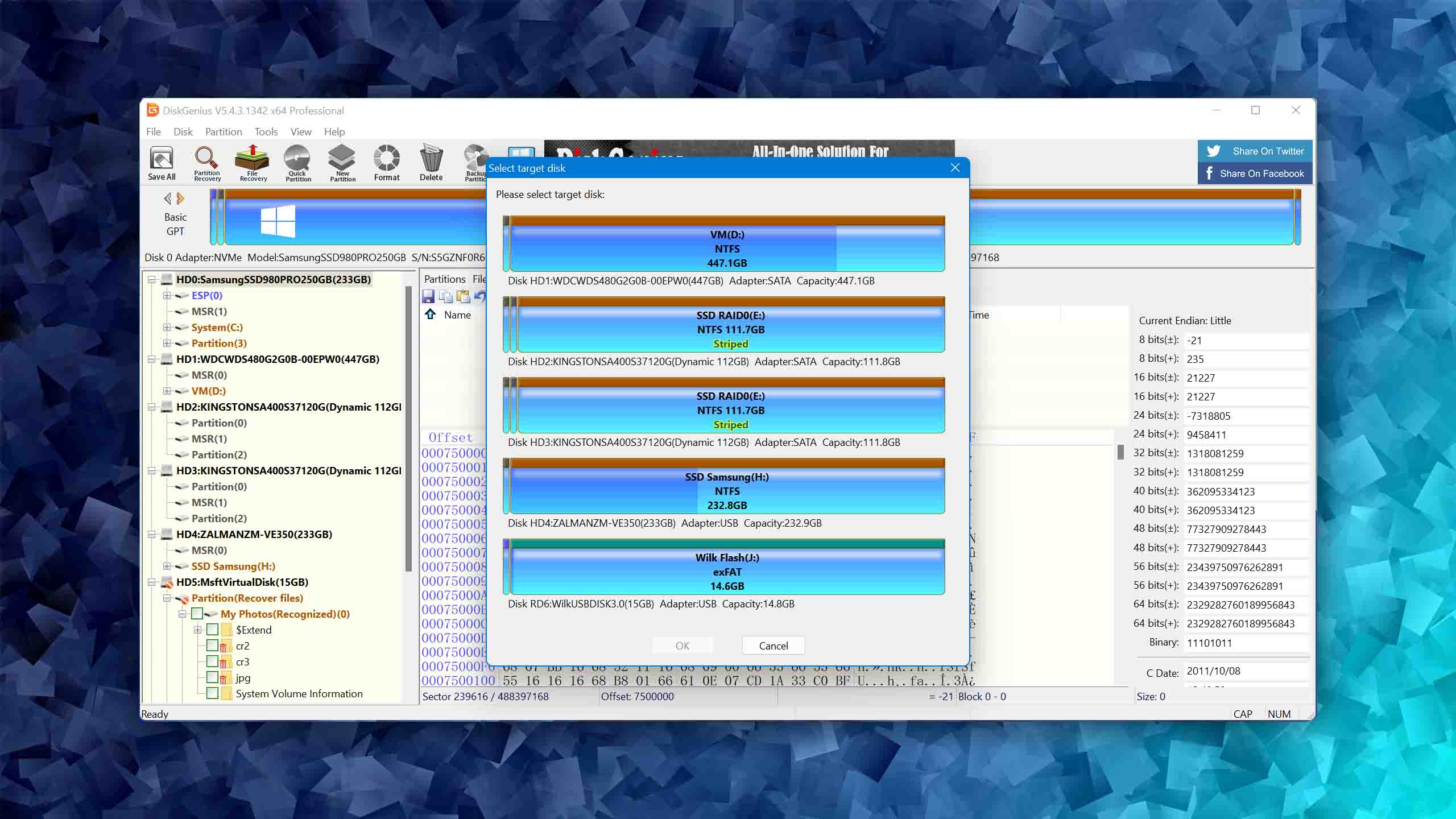
Where DiskGenius really earns its place in this ranking is on the repair side. It supports soft bad sector detection and repair, partition table reconstruction, and disk imaging to give experienced users precise control over how a damaged SD card is diagnosed and treated. RAW volume recovery is also handled well, making it a practical option when a card’s file system becomes unreadable. File recovery is available, but not its strongest suit, considering the signature scanner underperforms compared to dedicated recovery tools, and in some cases even falls short of free alternatives like PhotoRec.
Value
DiskGenius provides a generous selection of features even in its free version, such as viewing drive sector data and system migration to a new disk. Of course, to unlock the more advanced features, you’ll want to upgrade. Paid licences are available on a monthly, annual, or lifetime basis, giving users flexibility depending on how frequently they need the tool.

4. AOMEI Partition Assistant
Windows
Freeware and Freemium Absolutely free for personal and home use. If you need more functions to manage your partitions and hard drives, you can upgrade PA Standard to PA Professional Edition
Basic disk management
$0...$799
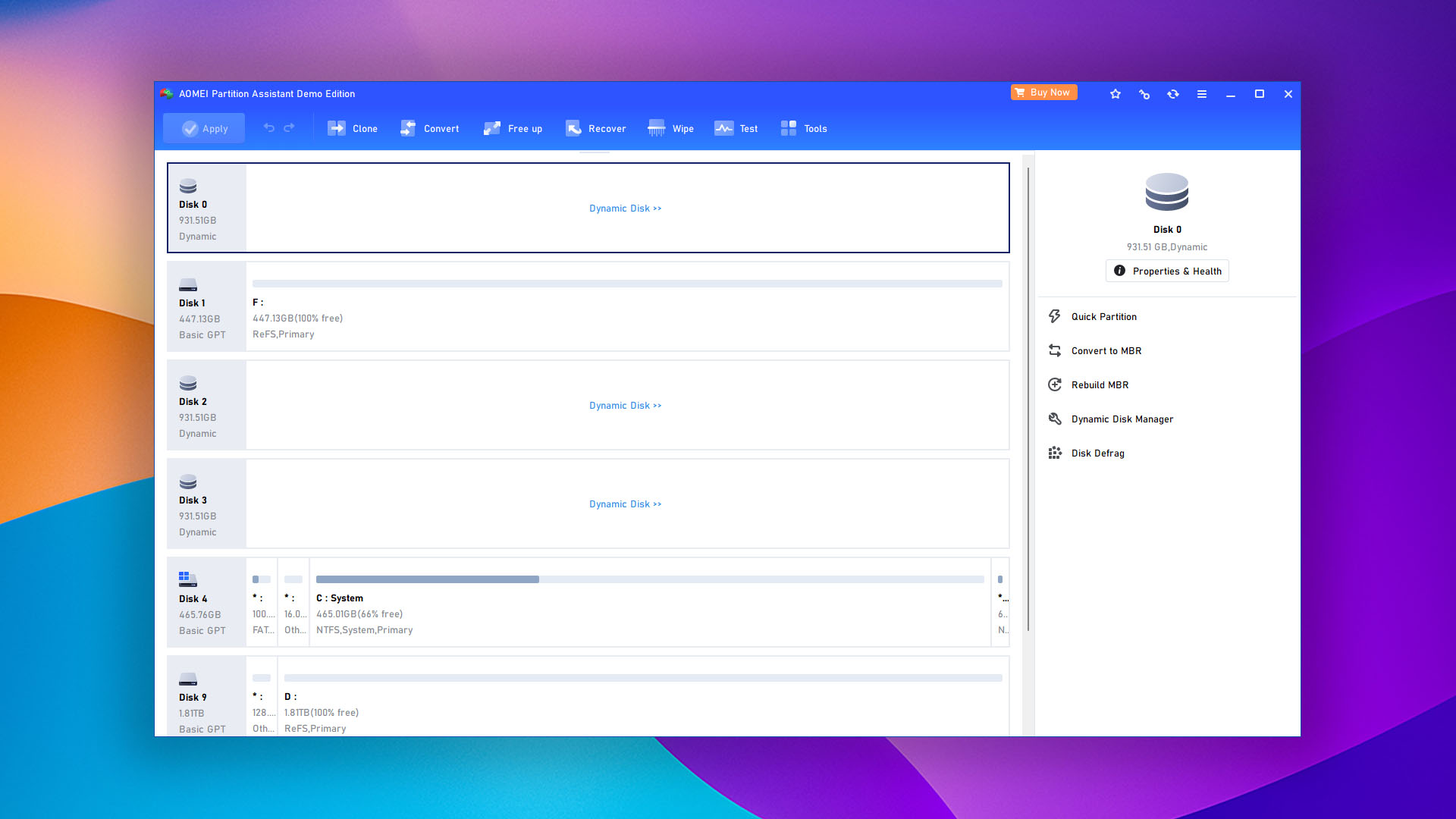
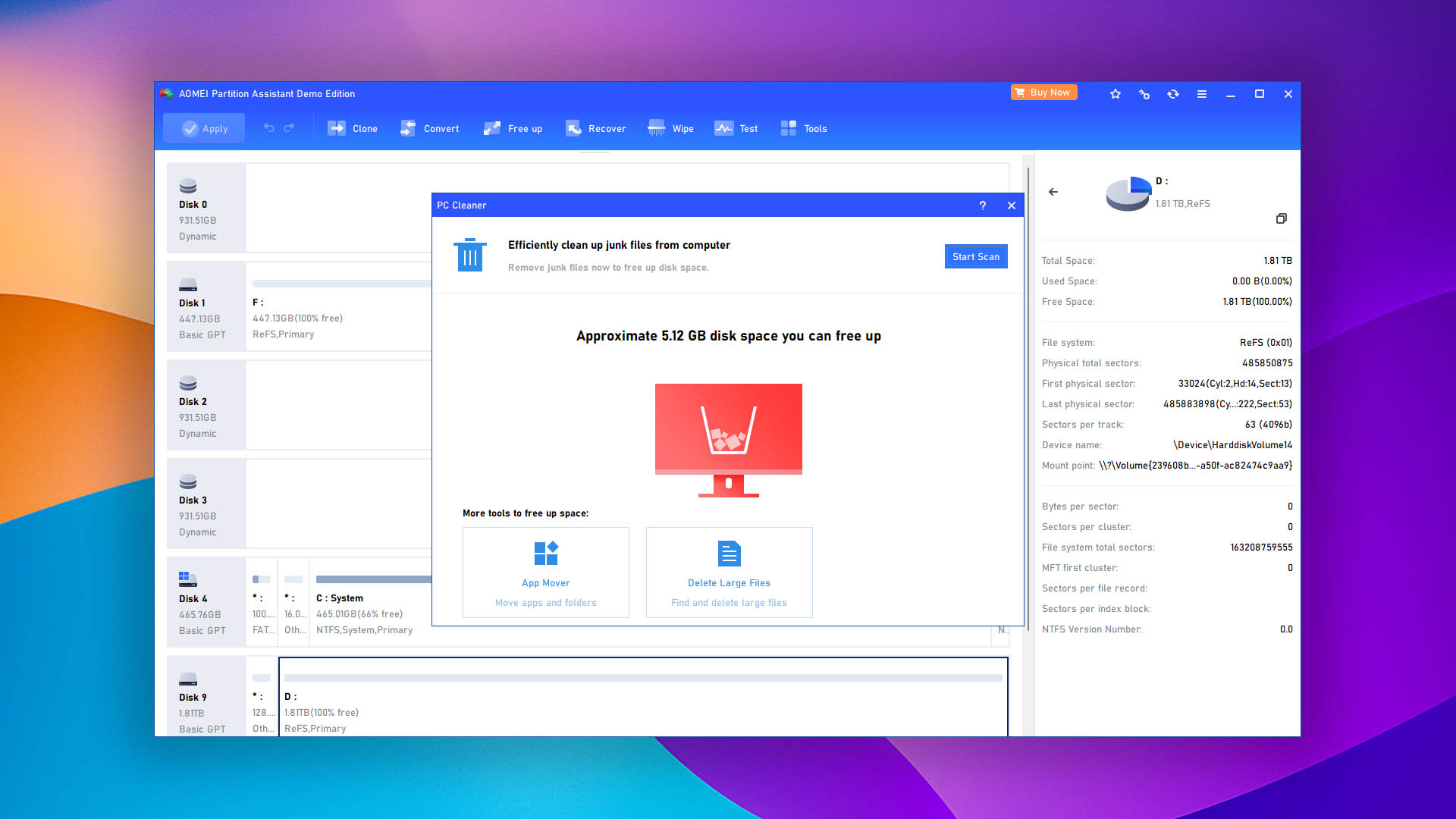
AOMEI Partition Assistant is a capable partition management tool that’s geared toward those who appreciate simplicity and step-by-step wizards.
Usability
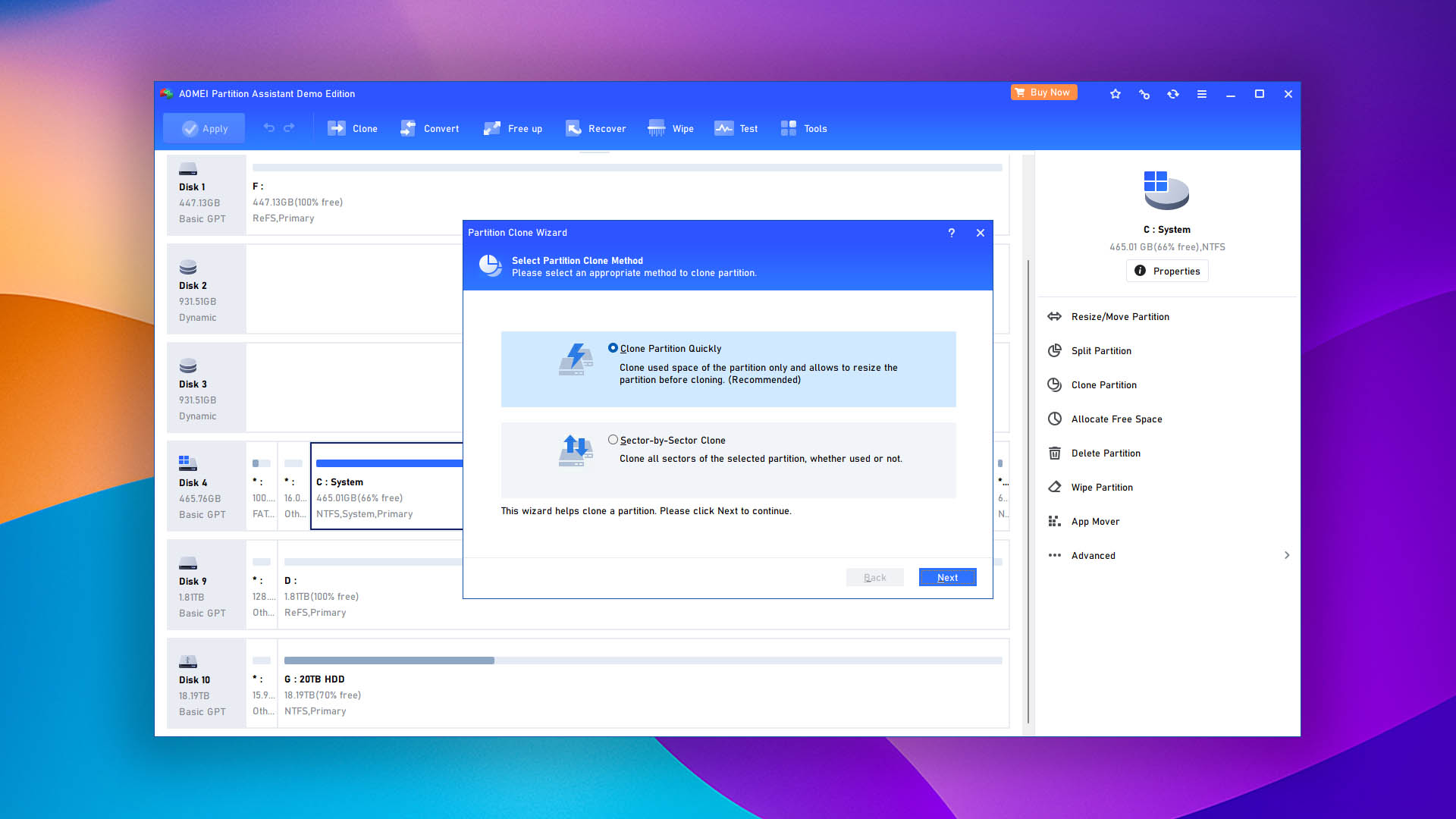
AOMEI Partition Assistant boasts a user-friendly interface that makes the application more accessible for novices. Its step-by-step wizards make quick work of partition management tasks, while the ability to queue multiple operations for simultaneous execution enhances efficiency. It's also worth mentioning that the application is available in multiple languages.
Capabilities
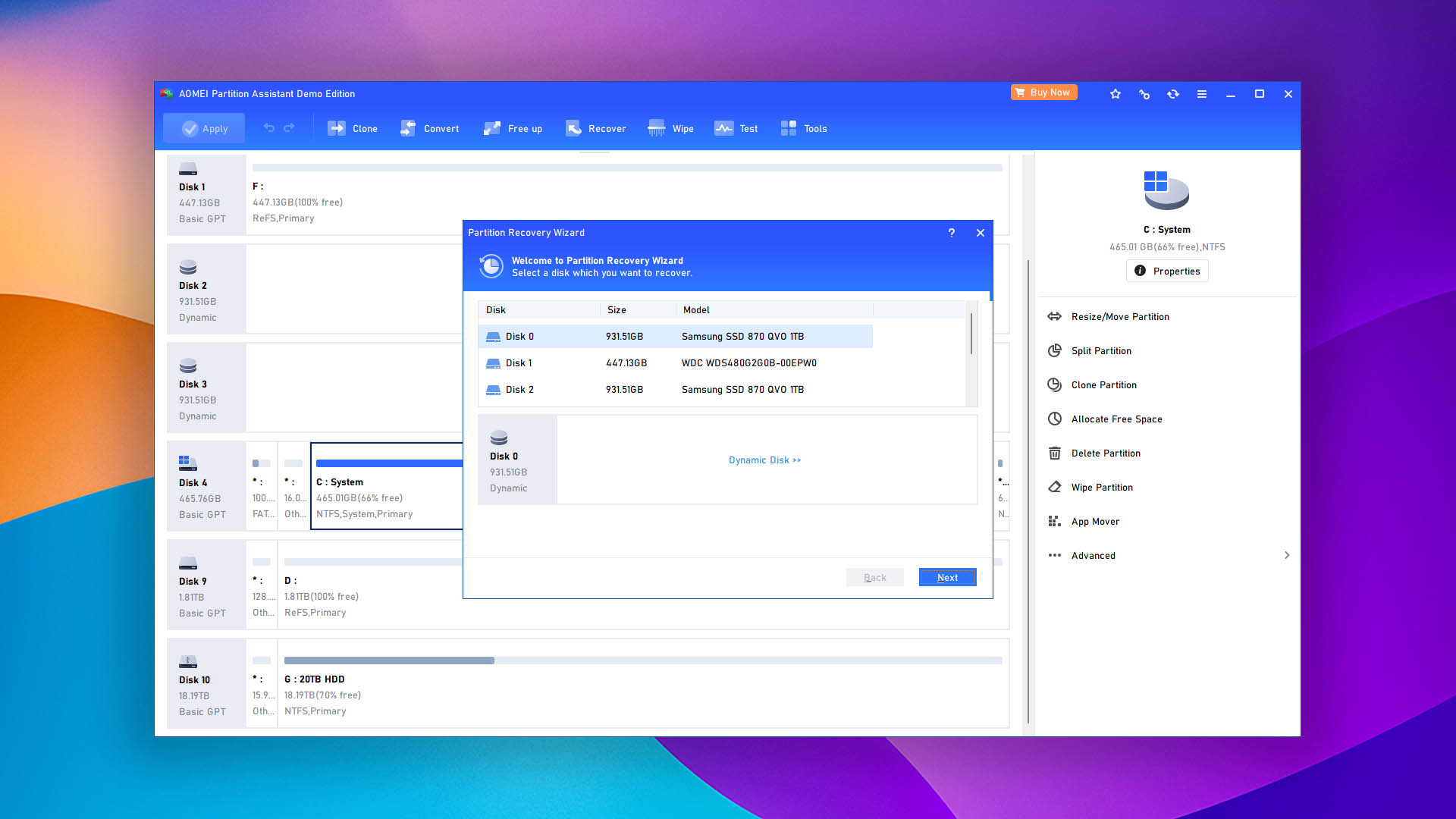
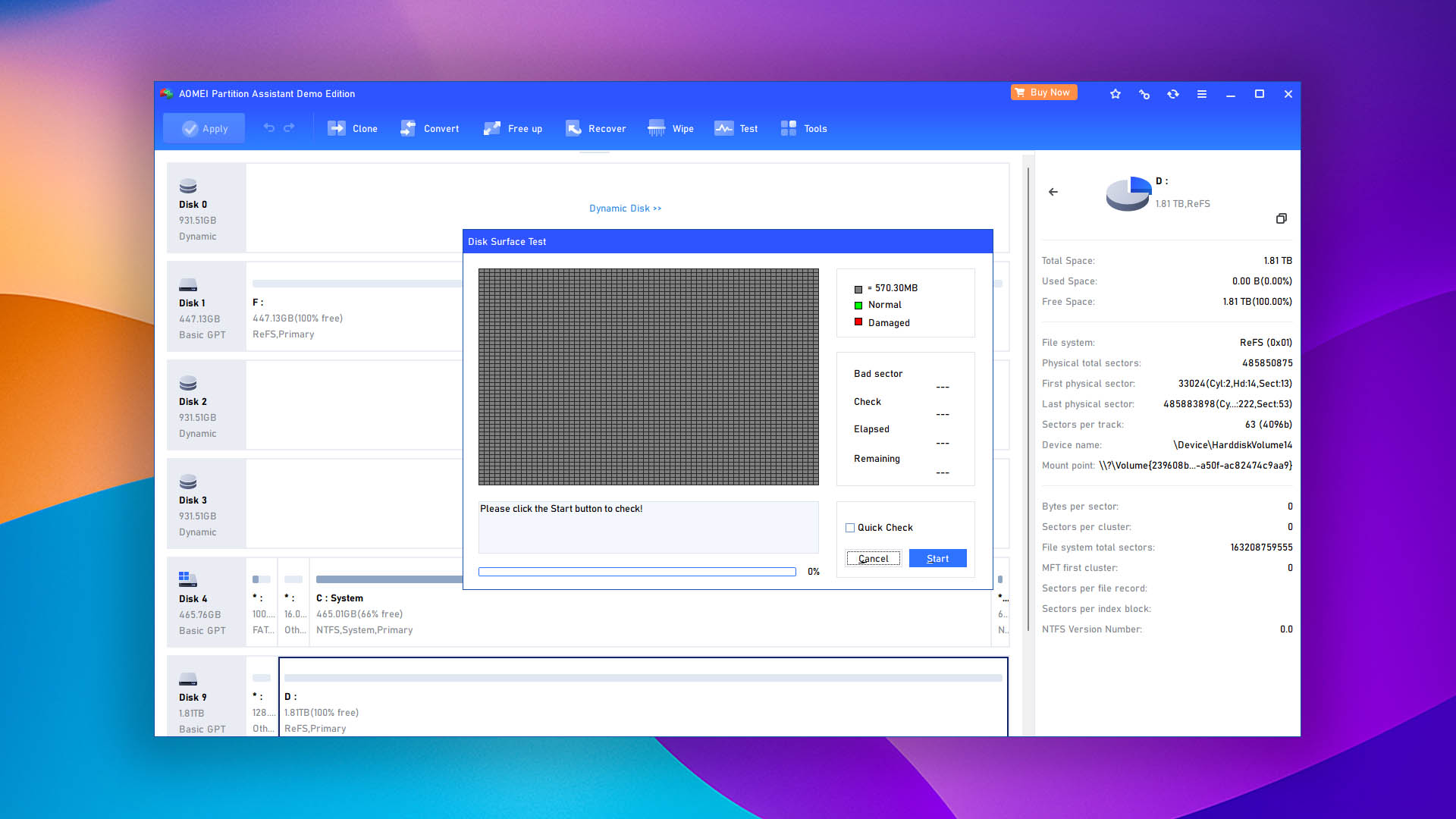
As a partition management tool, AOMEI Partition Assistant boasts an impressive suite of features designed to handle most, if not all, partition-related tasks with ease. Crucially for SD card repair, AOMEI Partition Assistant incorporates the Partition Recovery Wizard, a powerful feature that can restore lost or deleted partitions. The software's ability to effortlessly convert file systems between NTFS and FAT32 without data loss is another huge advantage. For exFAT volumes that are commonly used on larger SD cards in cameras (>32 GB), repair options are more limited compared to NTFS. As is typical with many other repair tools, exFAT is one of the least supported file systems, only allowing you to format, delete, or wipe rather than perform a full repair.
Value
The overall value proposition of AOMEI Partition Assistant is fairly impressive, especially considering its ease of use and broad range of capabilities. The free version delivers more than enough for basic partition management and SD repair tasks, like repairing the MBR, checking for bad sectors, cloning disks, and converting file systems from NTFS to FAT32. For those seeking more advanced features, the Pro version (available on an annual or lifetime basis) may be a worthwhile investment as it unlocks file recovery, OS migration from HDD to SSD, and boot repair.
5. SD Memory Card Formatter
WindowsmacOS
Freeware All features are provided free of charge without any limitations
None
Free
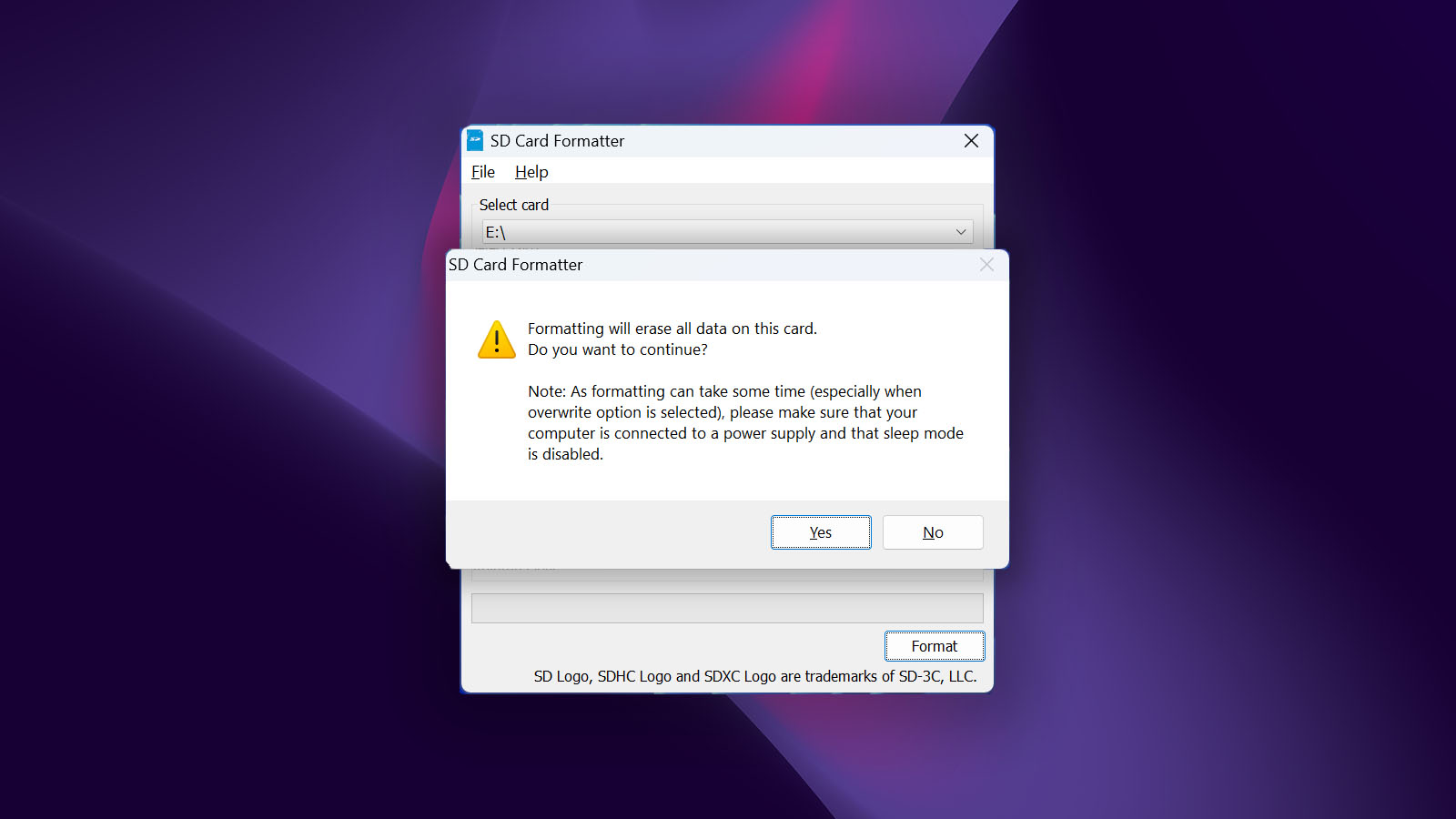
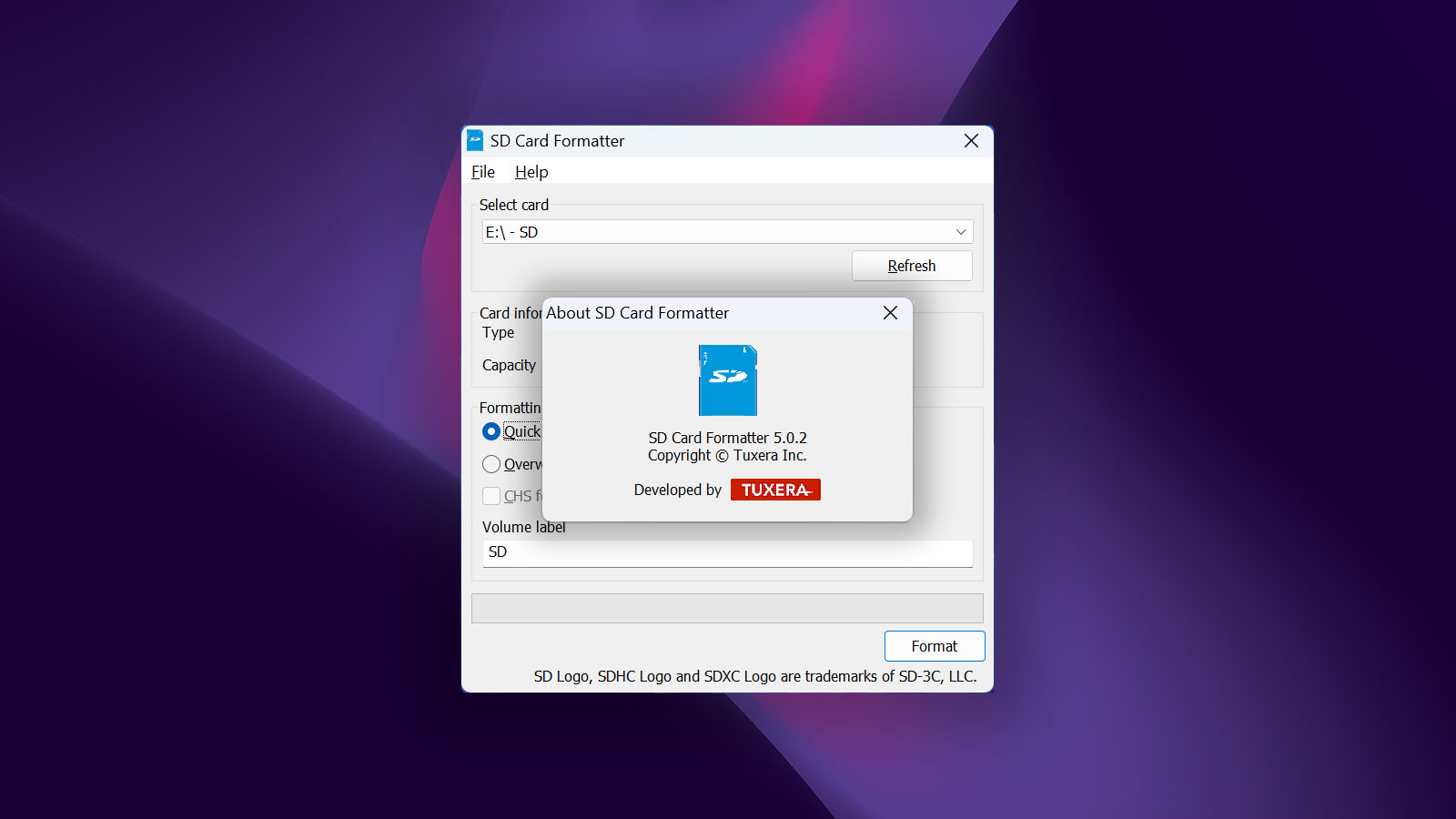
Developed by SD Association, SD Memory Card Formatter is an officially endorsed tool for formatting SD, SDHC, and SDXC memory cards. Bear in mind that this tool should only be used as a last step, after the data has already been recovered. Premature use will result in irreversible loss.
Usability
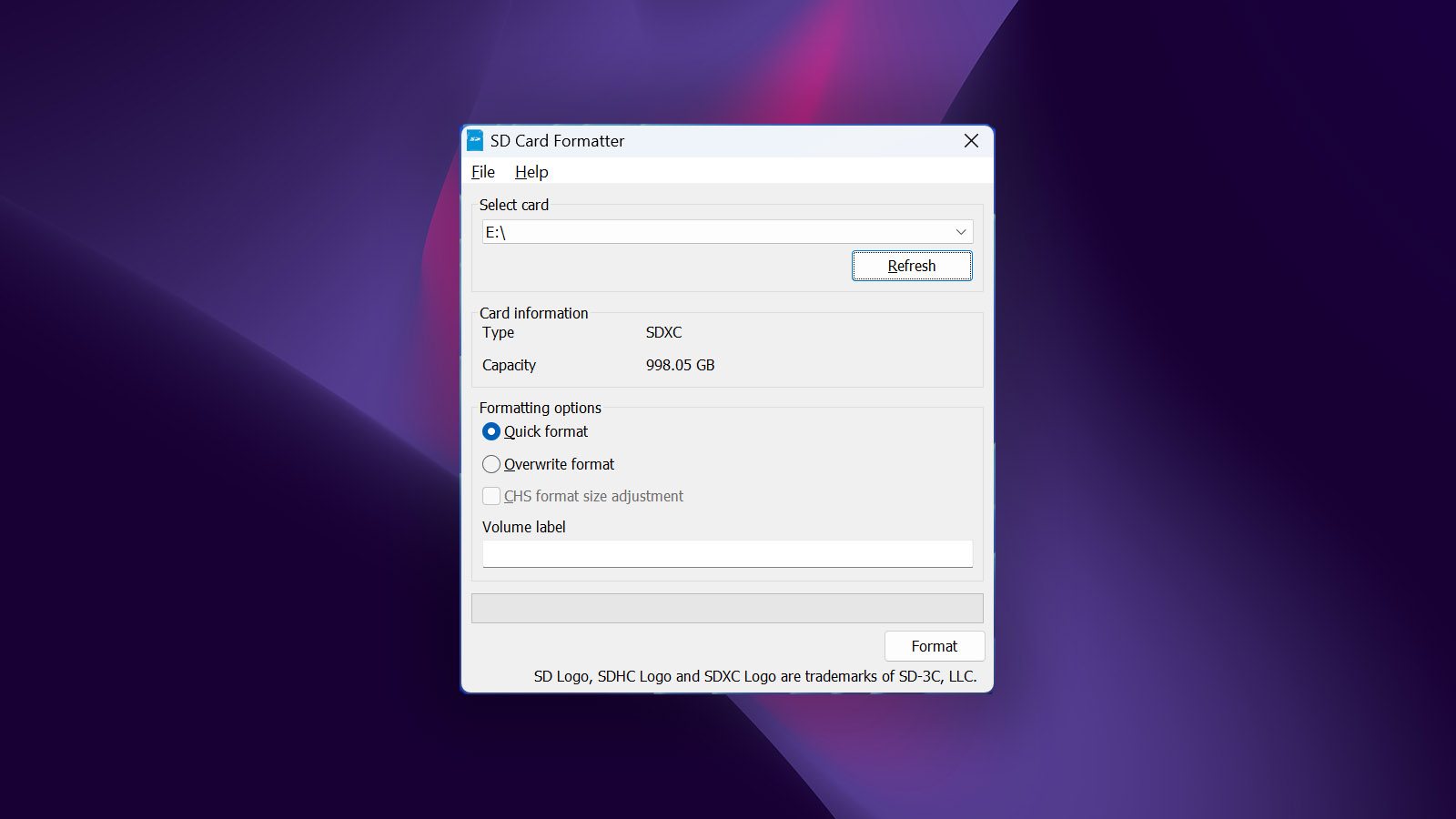
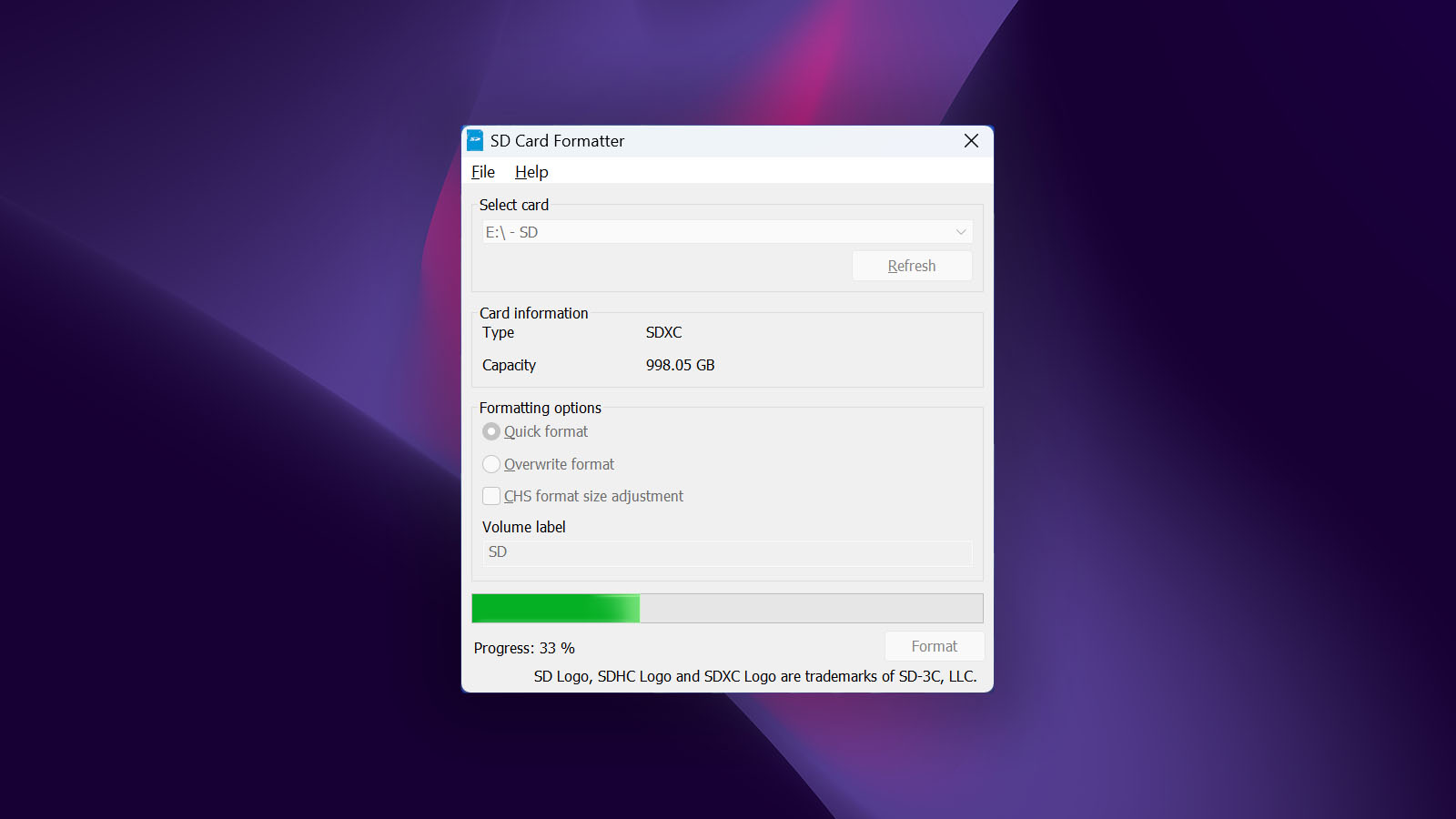
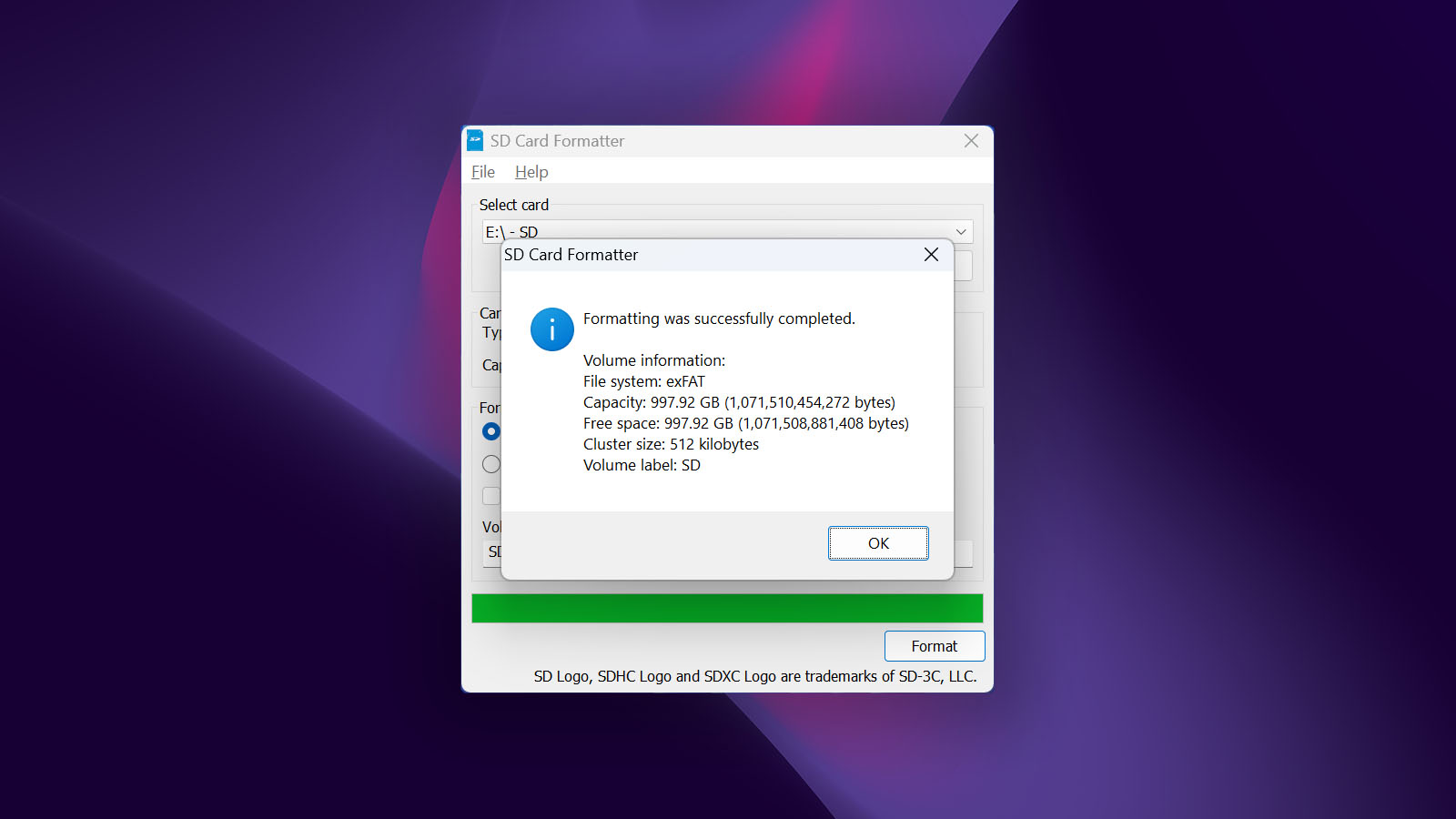
Operating SD Memory Card Formatter is as straightforward as it gets. Once your SD card is inserted into the appropriate interface device, such as a PC card slot or USB card reader, a few simple clicks are all that stand between you and a freshly formatted card. Because the tool is designed to be compatible with all SD card brands, including Lexar, Samsung, SanDisk, and others, it nicely complements the SD card diagnostics and SD card recovery tools listed earlier in this article.
Capabilities
SD Memory Card Formatter stands out for its efficient and reliable formatting capabilities. It offers both "Fast format" for quick and easy formatting, and "Overwrite format" attempts to overwrite all addressable blocks of the memory card, ensuring secure erasure of sensitive data. A separate version is available for Linux, setting it apart from most tools in this category which tend to stick with Windows and/or macOS. However, it's essential to remember that this tool doesn't offer data repair and recovery functions — it focuses solely on card formatting.
Value
SD Memory Card Formatter is a completely free tool developed by SD Association. The tool is available on the official website. Whether you're an individual with a need for frequent formatting or an organization dealing with a large number of cards, SD Memory Card Formatter is an excellent choice.
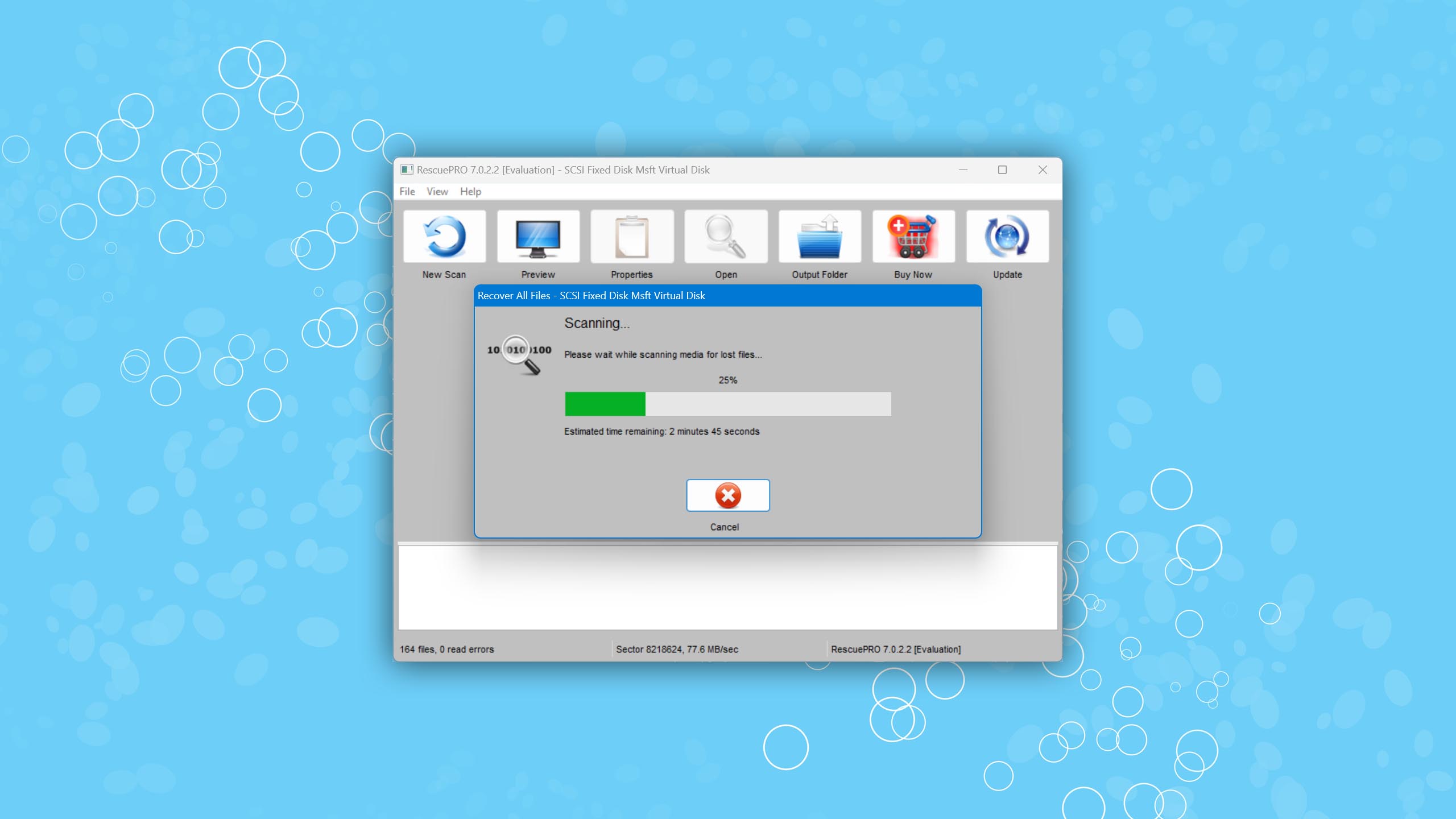
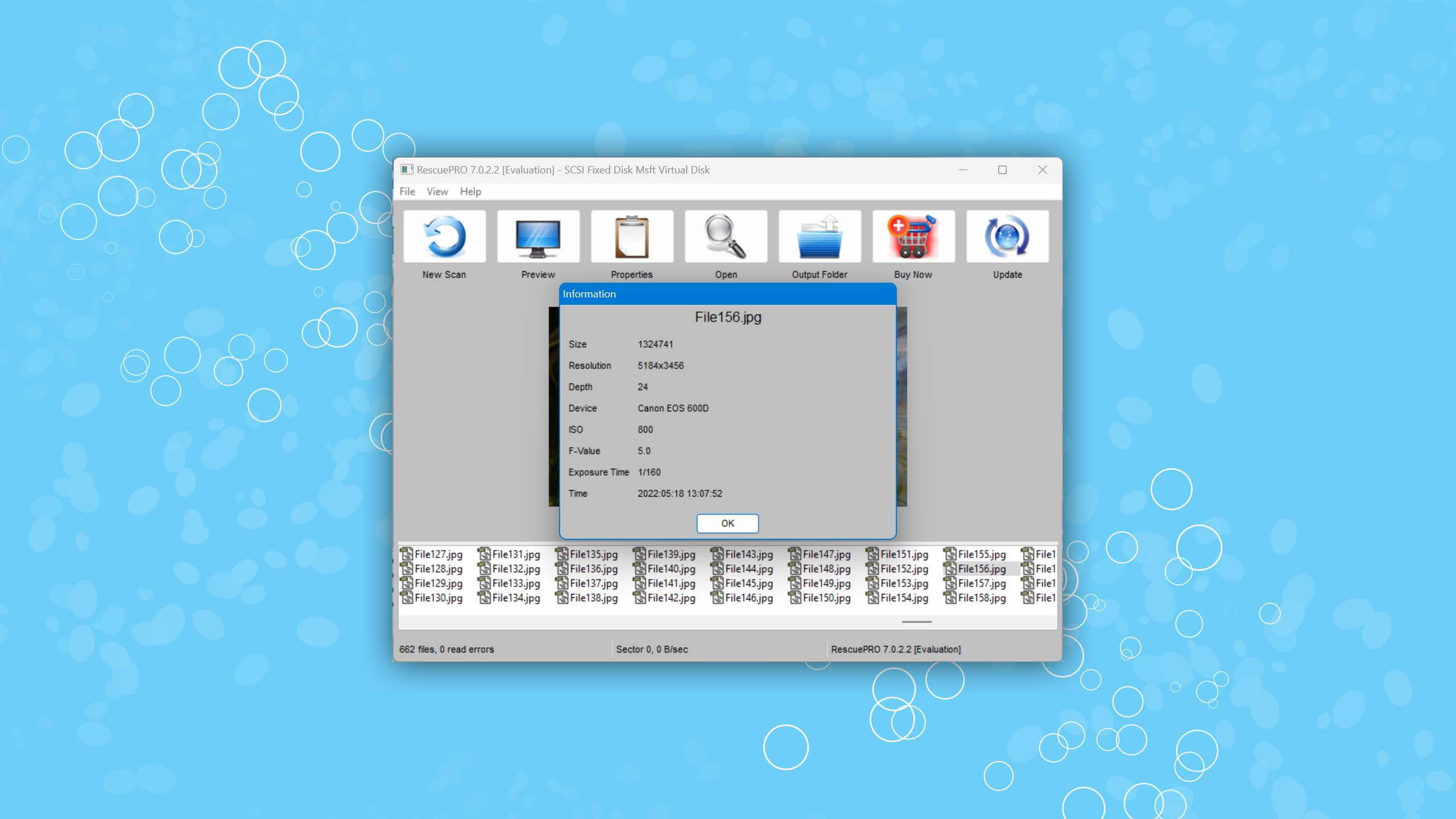
SanDisk RescuePRO is a data recovery tool developed by the Florida-based company LC Technology International (the same crowd behind FILERECOVERY Professional) rather than SanDisk directly. Although designed primarily for SanDisk memory cards, it also supports cards from other manufacturers. As a recovery-focused tool, it doesn’t include any repair-centric functionality.
6. SanDisk RescuePRO®
Windows
Freemium Some features are provided free of charge, but money is required to unlock the rest.
Preview only
$39.99...$249.99
Usability
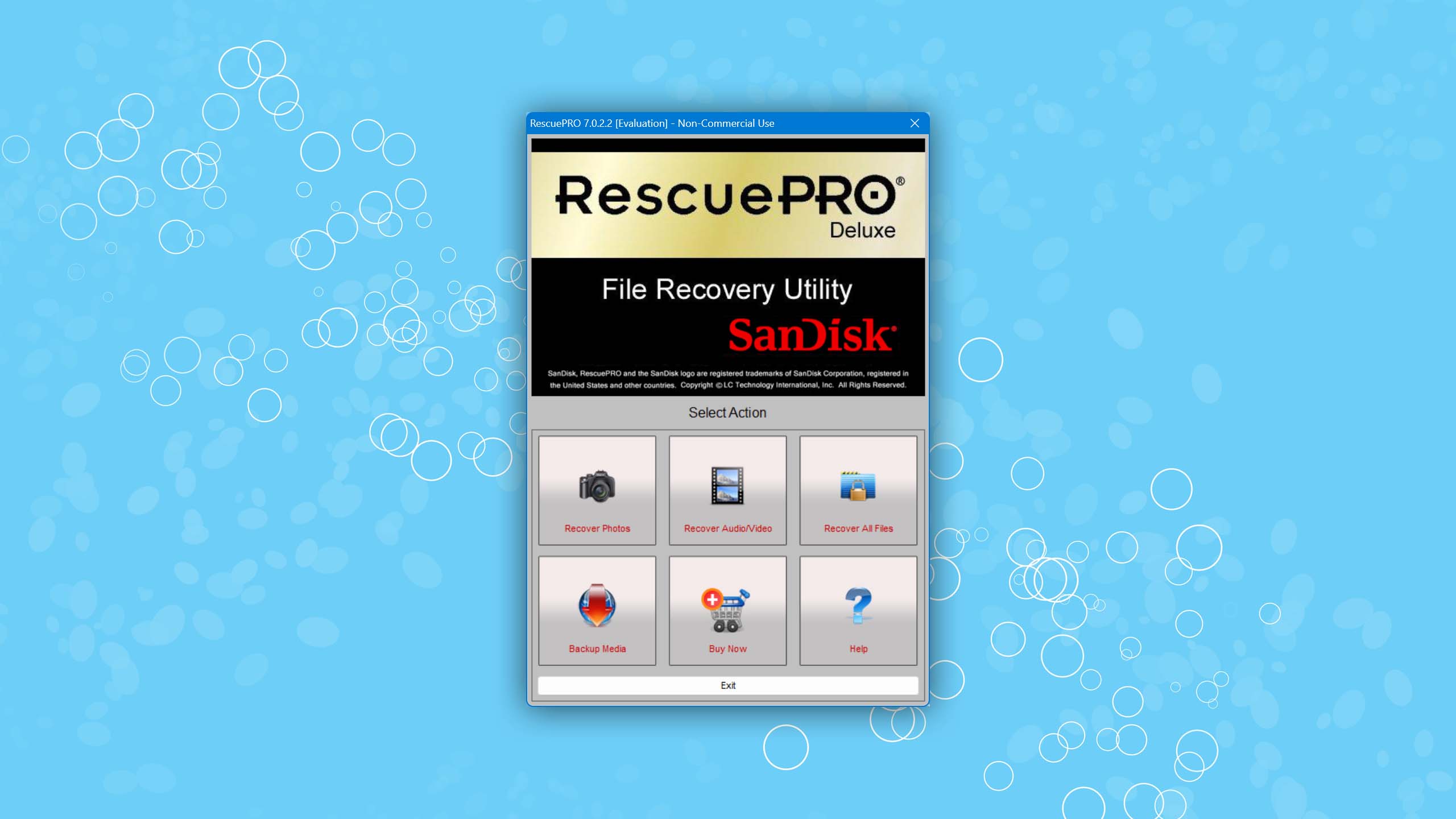
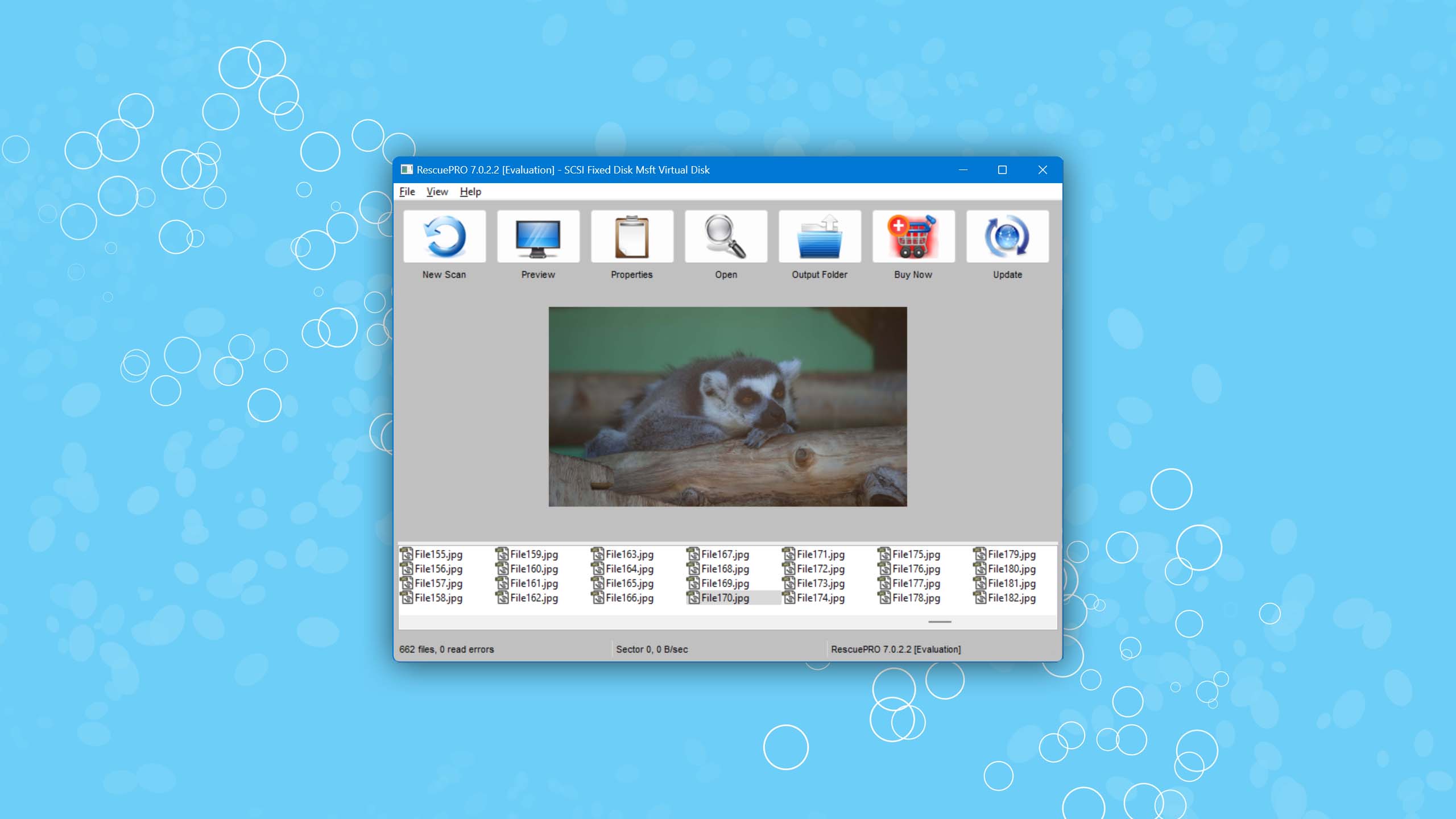
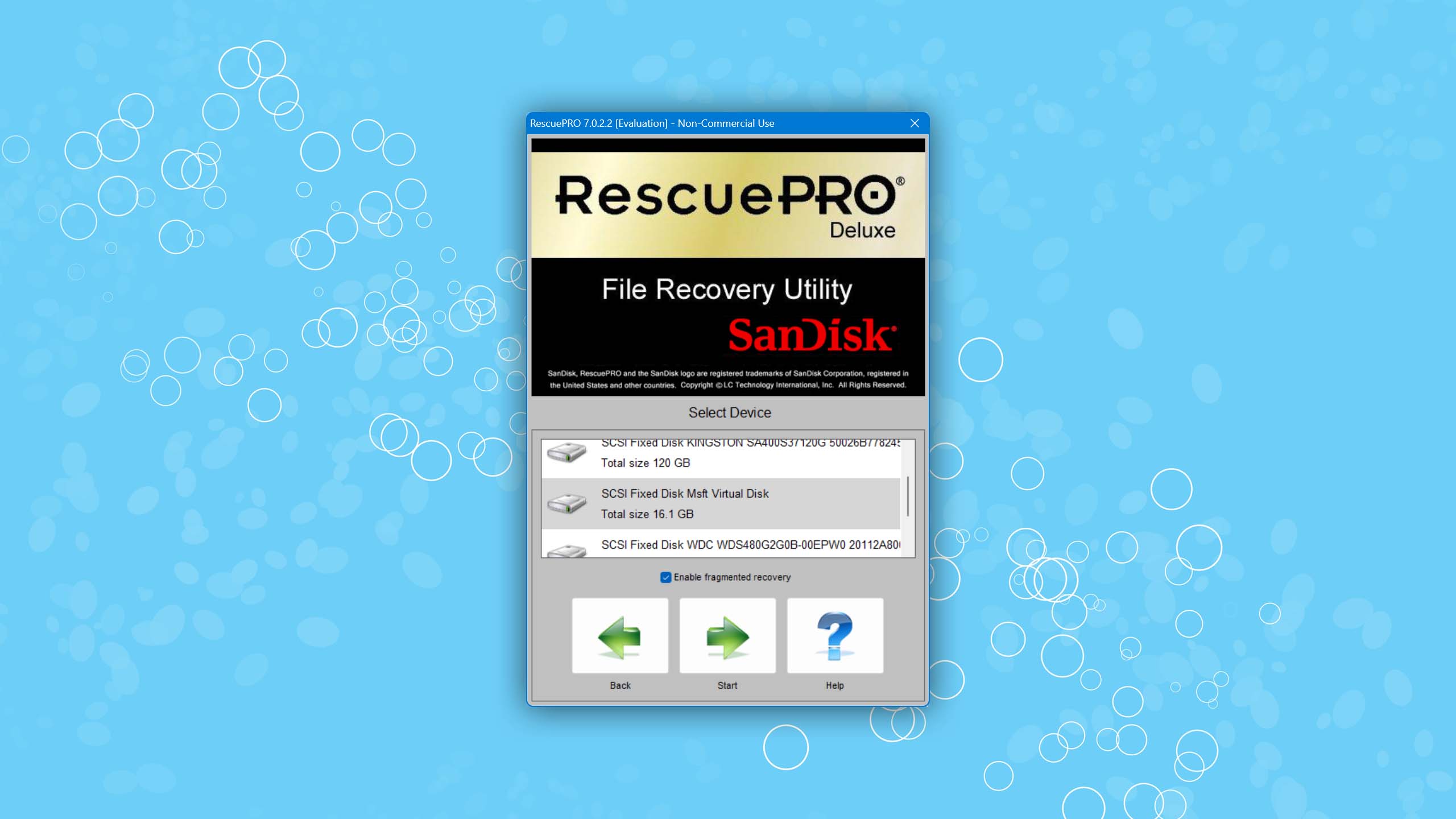
SanDisk RescuePRO keeps things super simple and function-first. The straightforward interface is aimed at everyday users rather than technical specialists. The recovery process is guided and requires little to no configuration, making it ideal for users who are new to data recovery. However, its simplicity also means fewer options for advanced users who may seek more control over the scanning and recovery process.
Capabilities
RescuePRO and its Deluxe counterpart are built around one core function: recovering lost or deleted files from memory cards. It’s useful for recovering data from accidental deletion, card formatting, and file corruption. However, critically, it cannot rebuild partition tables or repair file system structure. Therefore, users dealing with RAW drives or severe logical damage will need to repair it with a dedicated repair tool. Despite being designed primarily for SanDisk cards, it works just as well for cards from other manufacturers as well.
Value
The software can be downloaded for free on a trial basis. Full access will require a RescuePRO or RescuePRO Deluxe license, which you can either purchase online or sometimes find inside the physical packaging of new, qualifying SanDisk memory cards. With the standard version of RescuePRO, you unlock unlimited recovery, secure media wiping, and the ability to back up failing drives. RescuePRO Deluxe takes it a step further by offering support for more RAW image formats, HD video formats, and support for fragmented videos from varying camera brands.
Was the provided information useful? Your vote is important to use!
Built-In SD Card Repair Tools Worth Knowing
#The third-party options mentioned so far are excellent for repairing the spectrum of logical issues that plague SD cards, but did you know your operating system comes with its own native tools for troubleshooting? Some of which are capable enough to solve basic problems.
Here are some built-in tools to check out on Windows, macOS, and Linux:
- CHKDSK/error check for Windows
CHKDSK is a file system repair tool that can scan your SD card’s file system for errors and correct them. It operates through a command-line interface (CLI), but the same results can be achieved with the error-checking tool which includes a GUI.
- Diskpart for Windows
Diskpart is a Windows utility that runs through the command-line to resolve write-protected or read-only SD card issues by clearing the read-only attribute, allowing you to write to and format the card again.
- First Aid for macOS
First Aid is a feature included in Disk Utility that is designed to find and repair SD card issues. It works similarly to CHKDSK by scanning the file system for problems and attempting to correct them.
- Fsck for Linux
Fsck stands for File System Check, and it’s a Linux command designed to check and repair file systems. Typically used after a system crash, it’s also useful when you need to repair any logical problems your SD card is facing.
Note: As always, we highly encourage you to recover the data from your card with recovery software like Disk Drill before attempting any repairs, as some of these fixes do have a chance of irreversibly destroying your data in the process. CHKDSK is particularly dangerous with how it renames, truncates, or removes damaged file entries.
How to Fix an SD Card Without Software
A lot of the time, the issue affecting your SD card can be resolved without downloading any third-party software. Below are the most common problems that can be addressed manually or through your operating system’s built-in tools.
| Common problems | Solutions |
| Card is write-protected or rejects write attempts | Start by checking the small plastic switch on the left edge of the card. If it has slid down into the locked position, push it up toward the label end of the card. If the switch is already in the unlocked position but the card still won’t accept writes, the read-only attribute may be set in software. In this case, use Diskpart to remove it (see the Built-In Tools section above). |
| Card shows in Disk Management but is missing from File Explorer | Open Disk Management, locate the SD card volume, right-click it, and choose Change Drive Letter and Paths, then assign a letter that isn’t currently in use. Windows sometimes fails to do this automatically, which is why the card doesn’t appear in File Explorer. |
| Card shows as Unallocated in Disk Management | Right-click the unallocated space and choose New Simple Volume to get the card recognized again. Be aware that this process requires formatting the card, so make sure any recoverable data has been retrieved beforehand. |
Which SD Card Repair Tool Should You Choose?
The right tool entirely depends on what’s wrong with your card. For file recovery, Disk Drill is the strongest all-round option. For partition and file system repair, DiskGenius or TestDisk are better suited. AOMEI Partition Assistant covers partition management with a gentler learning curve, and SD Memory Card Formatter is the right call once your data is already safe.
Whichever tool you choose, always recover your data before attempting any repairs. Most repair operations modify the card in place, which will almost always make recovery harder, if not impossible.
Frequently Asked Questions
Are there any open-source SD card repair tools available for free?
Absolutely! There are several open-source SD card repair tools available. A popular one is TestDisk, a powerful free data recovery software designed to help recover lost partitions or make non-booting disks bootable again. However, repairing the SD card directly comes with its own risks. If you’d rather play it safe and recover the files first, PhotoRec is a file-level recovery tool packaged alongside TestDisk that’s ideal for when partition repair or recovery is too drastic or risky a solution.
Are there any SD card repair tools for Android?
Yes, there are SD card repair tools available for Android devices. Format SD Card and Repair SD Card are two such applications available on the Google Play Store. Both applications can help users identify and rectify common SD card issues directly from their Android devices. However, it’s important to keep in mind that Android apps like Repair SD Card have limited functionality and typically rely on Android’s built-in formatter. For more reliable repair or recovery, connecting the SD card to a computer with a card reader and using a desktop tool is much better.
What is the best SD card diagnostic tool?
The best SD card diagnostic tool can vary depending on user needs, but one standout option is H2testw, a free tool highly regarded for its ability to test the actual capacity and performance of SD cards, identifying fake or faulty cards effectively. Another useful tool is CrystalDiskMark, which can test the SD card’s read/write speeds. If you want to see how many bad blocks the card has accrued, DiskGenius is a great option that’s capable of scanning all of the blocks on the card to see which ones are functional and which ones aren’t.
What is the best tool to repair SD card bad sectors?
For bad sector scanning and repair (soft bad sectors only), DiskGenius is our primary recommendation. It can detect bad sectors, attempt to repair logical ones, and create a disk image before any changes are made, which is the safest way to approach a degrading card. If you’re looking for a more specialized option, Victoria SSD/HDD is a solid free alternative with robust diagnostic and minor repair capabilities across hard drives, SSDs, and memory cards. For a no-install solution, Windows’ built-in CHKDSK can identify and mark bad sectors to prevent further writes to damaged areas, though its repair capabilities are more limited than dedicated third-party tools.
Note that when a bad sector or block is marked, it’s done at the file system level. The file system remembers which blocks are bad until the card is formatted. After formatting, it’s possible that data may be written to those same blocks, in which case you will need to locate and mark them again.
What are the main reasons for SD card corruption?
SD card corruption has many causes. The most common is removing the memory card before ejecting it safely, which usually interrupts write operations. Exposure to excessive heat or moisture is also something to keep in mind, as this is often the slow killer that leads to degradation over time. Although more uncommon, you do still need to worry about exposure to malware or viruses, especially in smartphones. Be sure to make sure your SD card is legitimate by testing it with a tool like H2testw, and only buy from trusted brands like SanDisk or Lexar.
What is the difference between SD card repair and recovery?
These are two distinct processes that are often confused. Recovery specifically refers to the extraction of your files from an inaccessible damaged, or corrupted card. Repair means fixing the card’s underlying structure, such as its file system or partition table. The critical distinction is the order: you should always run data recovery before attempting any repair. Repairs modify the card in place and can very often overwrite the very data you’re trying to save. If your card is corrupted, start with corrupted card recovery before looking at any repair tools.
How to prevent SD card from corruption?
Preventing SD card corruption is entirely possible, but it’s not 100% guaranteed. You can implement simple habits to avoid common causes of corruption, like always safely ejecting your SD card before removal and keeping it in a protective case when it’s not in use. Make use of the physical write-lock when you’re not transferring files, and always invest in cards from reputable manufacturers. However, even doing all this doesn’t mean the card is impervious to corruption, and you should keep a regular backup of your most important files.
How to repair my SD card without losing data on it?
Yes, it’s possible to repair an SD card without losing data in many cases. It all comes down to the order of operations. Before opening any repair tool, create a byte-to-byte backup of the card using a tool like Disk Drill, then recover data from the image rather than the memory card directly. Only once your data is secured should you proceed with structural repairs like rebuilding the partition table or reformatting. See our guide on how to fix an SD card without formatting for the most reliable methods.
Is repairing an SD card with software safe?
Yes, so long as the data is recovered first. Because software tools modify the card directly, it can overwrite recoverable data if repairs are attempted first. To minimize risk, always image the card and recover the data from the image. Tools like Disk Drill and DiskGenius support disk imaging precisely for this reason. It’s also worth noting that software repair can only address logical damage. Physical damage is often irreversible, or at least not worth the time. At the first sign of physical damage, the contents of the card must be recovered with a professional recovery service and the card replaced.

David Morelo is a professional content writer with a specialization in data recovery. He spends his days helping users from around the world recover from data loss and address the numerous issues associated with it.
When not writing about data recovery techniques and solutions, he enjoys tinkering with new technology, working on personal projects, exploring the world on his bike, and, above all else, spending time with his family.
- Klennet Recovery Review (Formerly Zero Assumption Recovery)
- iBeesoft Data Recovery Review – A Likable Clone With Limited Features
- DMDE Review – A Data Recovery Powerhouse or a Usability Nightmare?
- Cisdem Data Recovery for Mac Review – A Clone in Disguise
- Tenorshare 4DDiG Review – All That Glitters Is Not Gold

- 48 publishings
- Auckland, New Zealand
Jordan Jamieson-Mane is a content writer with a focus on technology-related content. He has spent much of his life studying and working with all types of technology. During his time as a writer, he has written countless articles in the field of data recovery, breaking down complex topics into articles that are easy to understand. When he's not writing articles on data recovery, Jordan enjoys traveling the world, reading books, and building websites.

- Houston, Texas, United States
Nikolay Lankevich has over 15 years of strong experience in various fields and platform includes Disaster Recovery, Windows XP/7. System analysis, design, application (Inter/Intranet) development, and testing. Provided technical supports on desktop and laptops on Win-XP and Macintosh for about 2000 employees.