
8 Best Data Recovery Apps for Mac in 2026, Ranked by Real Recovery Tests


Data recovery software for Mac can often save the day, but, as we’ve probably discovered, choosing the best one can be difficult. The large number of solutions available is one problem, but there’s also the fact that many popular recovery tools are Windows-only, outdated for modern macOS versions, or simply not designed for APFS/HFS+ and Apple Silicon Macs. Others look promising but fail in real-world recovery scenarios, especially on M-series devices, where built-in security features and hardware-level changes limit what software can realistically do.
We spent weeks testing real Mac data loss scenarios like accidental deletions, corrupted drives, and formatted partitions to see which tools actually deliver. This ranking covers apps that work with modern macOS, support Apple Silicon, and handle APFS and HFS+ properly. You’ll get honest breakdowns of what each tool does well, where it fails, and whether it’s worth your money.


How We Tested and Ranked Mac Data Recovery Software
We’ve been testing data recovery software across different operating systems and data loss scenarios for years. Through all that testing, we learned what separates the tools that actually work from the ones that just look good in screenshots.
For this project, we built a scoring system around the following set of criteria:
- Our Inner Score
Each tool in our ranking starts with the overall score it received in our Mac recovery software catalog. That score already factors in recovery performance, speed, features, pricing, and more through extensive hands-on testing. We used it as our reference point because it condenses all of that into a single, comparable value. From there, we evaluated each app against the specific criteria below.
- Safety
Data recovery software needs deep system access to work, which makes safety critical. We evaluated each tool for malware, privacy practices, data integrity (does it actually preserve your files without altering them?), and developer trustworthiness. Apps that operate in read-only mode, don't share data with third parties, and come from established developers received the highest scores. For a detailed breakdown of what makes recovery software safe, check out our guide on Disk Drill's safety.
- Usability
We prioritized apps that were easy to use for beginners and got the job done with a few clicks.
- Recovery Performance
We tested how each app solves common data loss scenarios, such as RAW drives, corrupted partitions, emptied Trash, system errors, etc. The apps on this list are either really good at solving one problem or useful for every scenario.
- System Compatibility
We made sure our top picks work with the latest macOS versions, Apple Silicon M-series chips, and modern file systems like APFS and HFS+. We also gave extra weight to tools that support exFAT and FAT32, since these are the most common file systems on external drives, SD cards, and USB sticks. Some apps specialize in only a few file systems, while others handle everything.
- Scan Speed
We gave preference to apps that had a fast scanning speed in consideration of users who need to recover massive amounts of data quickly.
- Extra Features
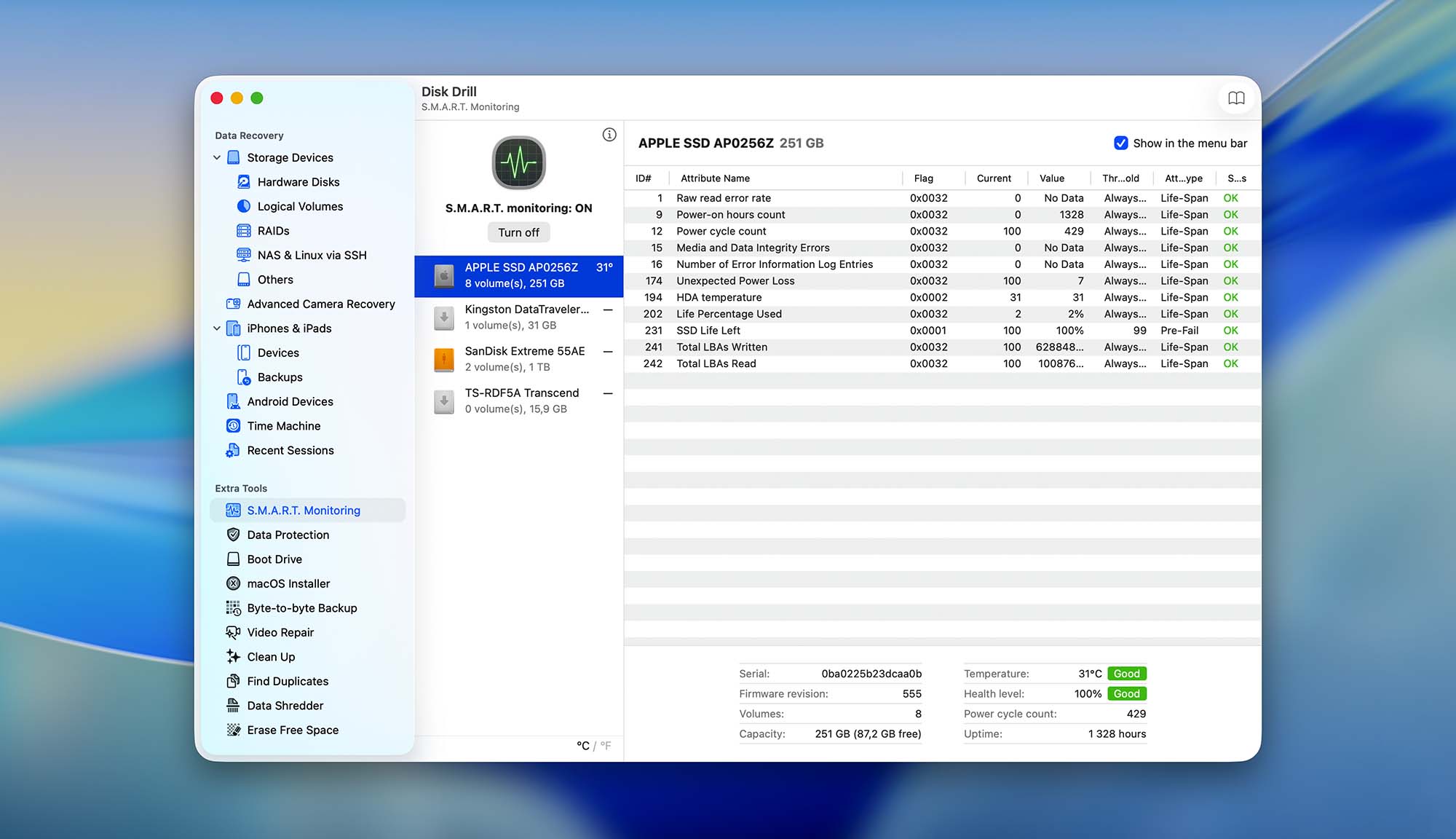
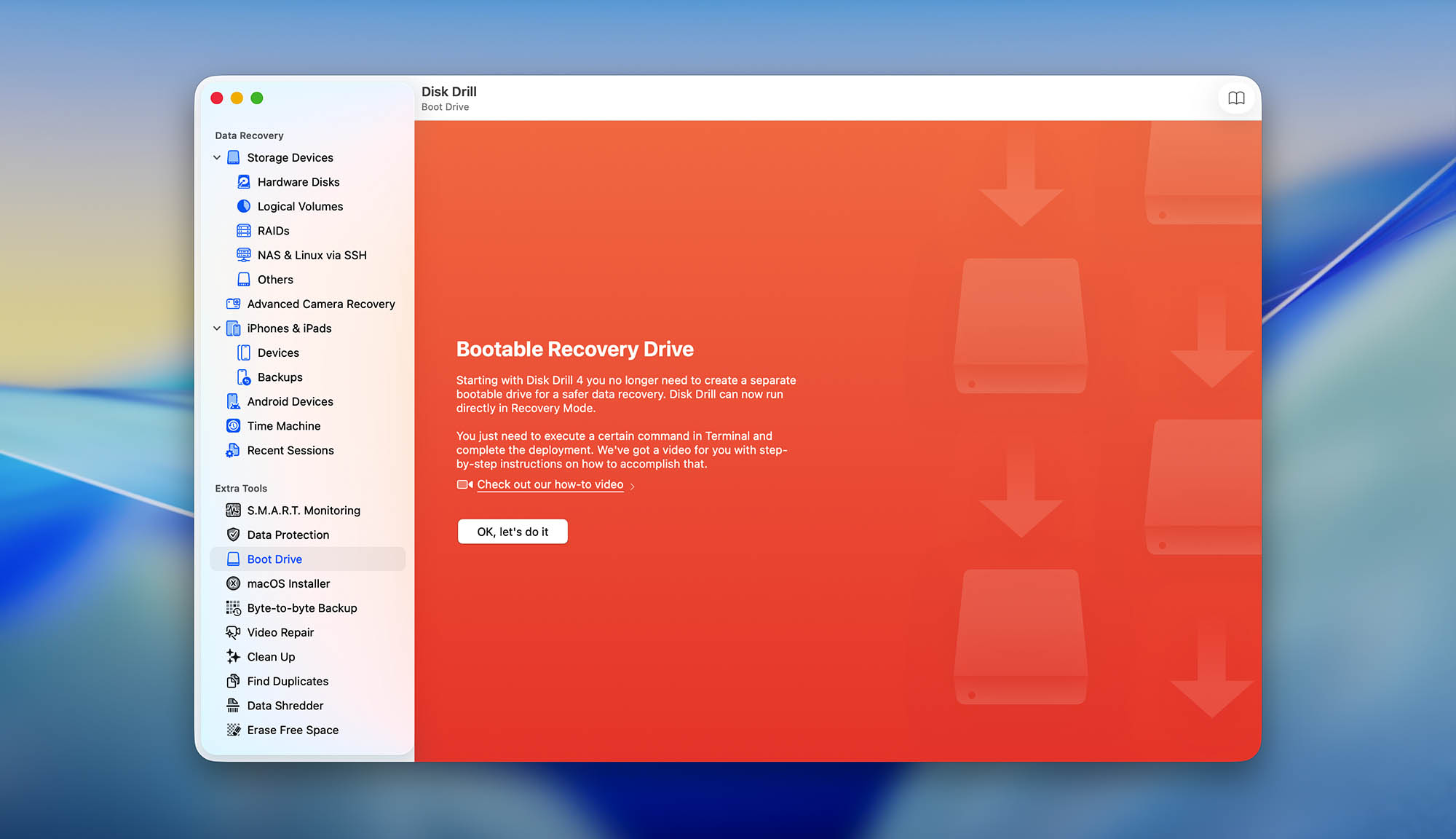
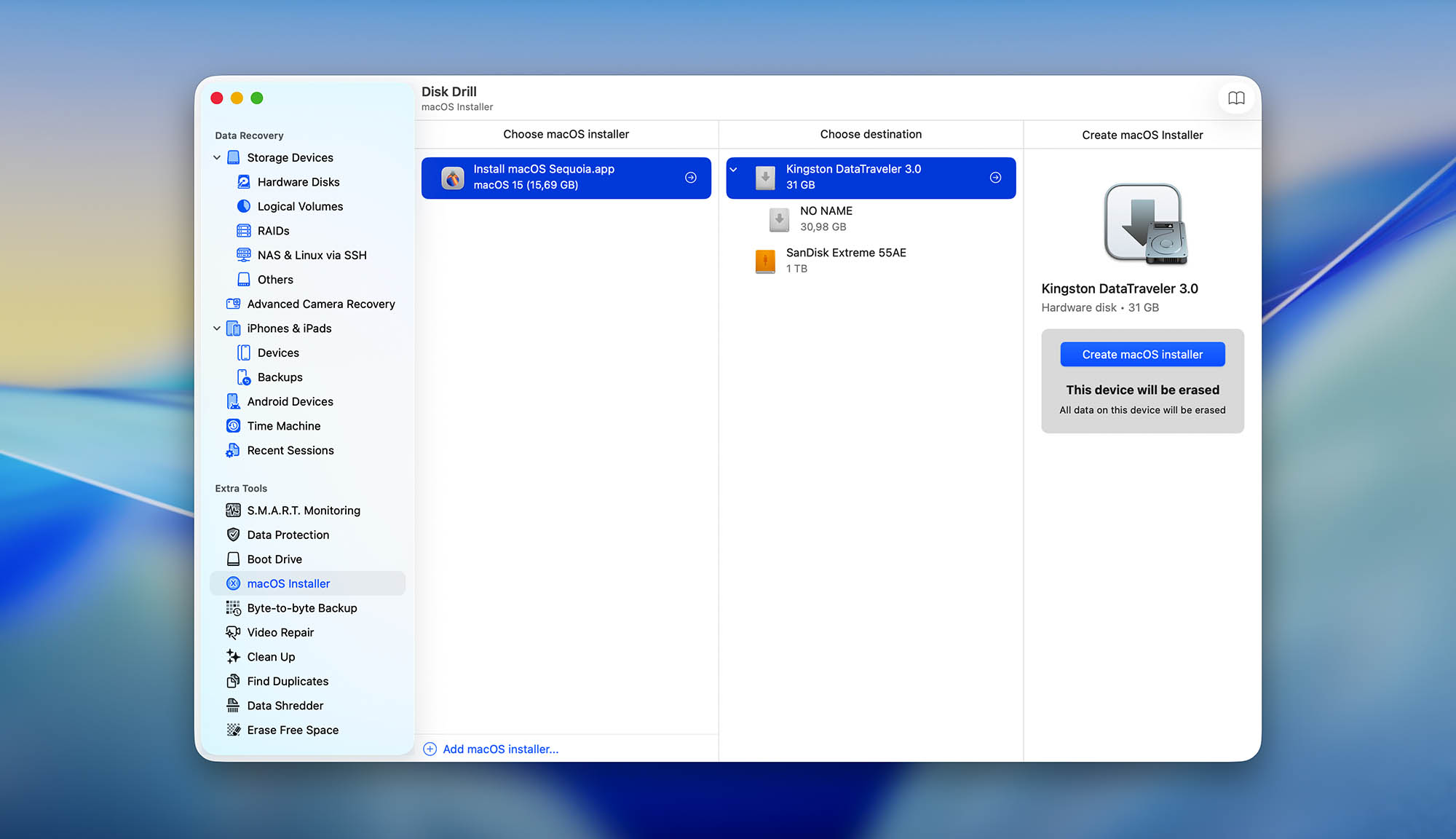
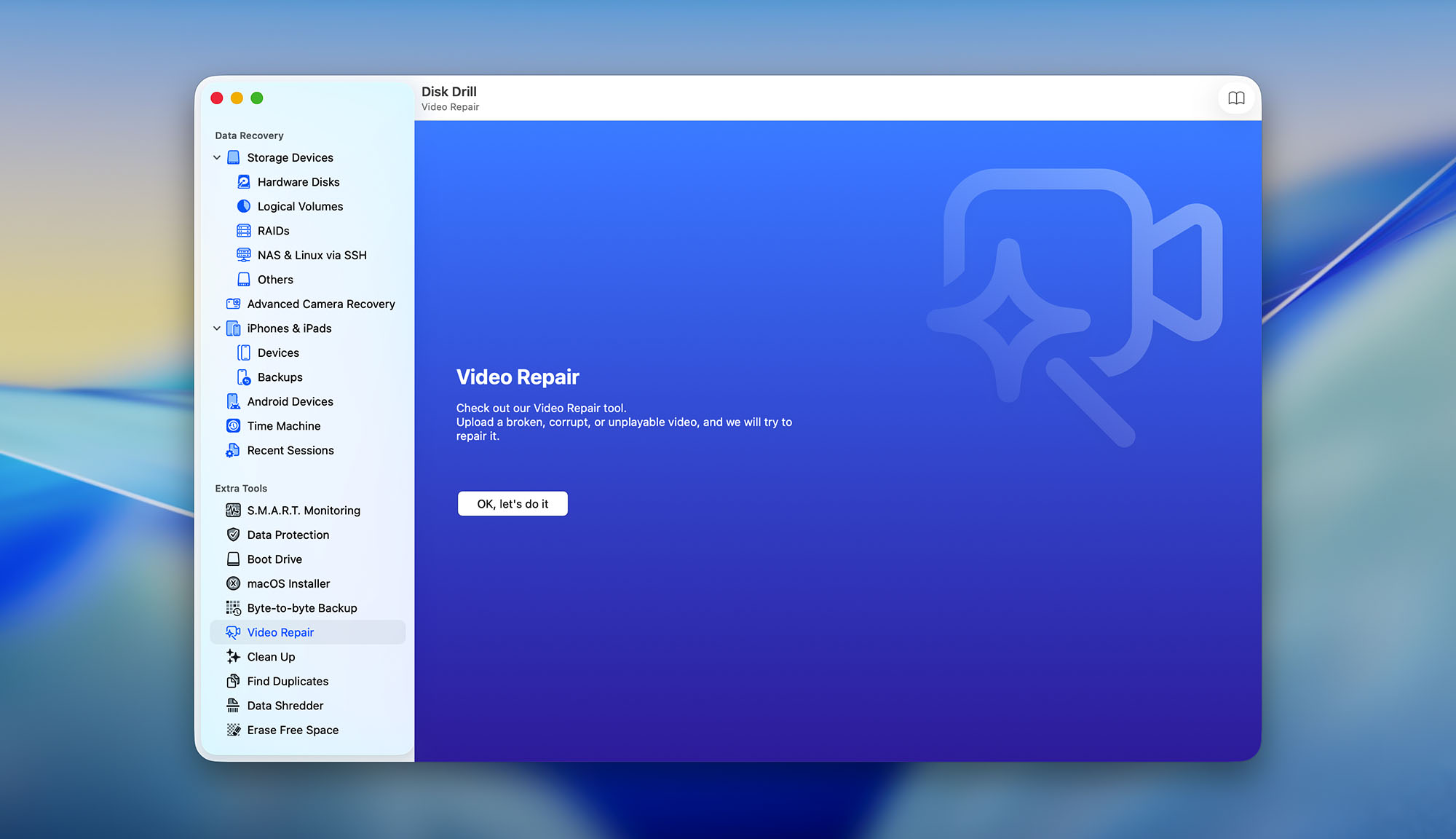
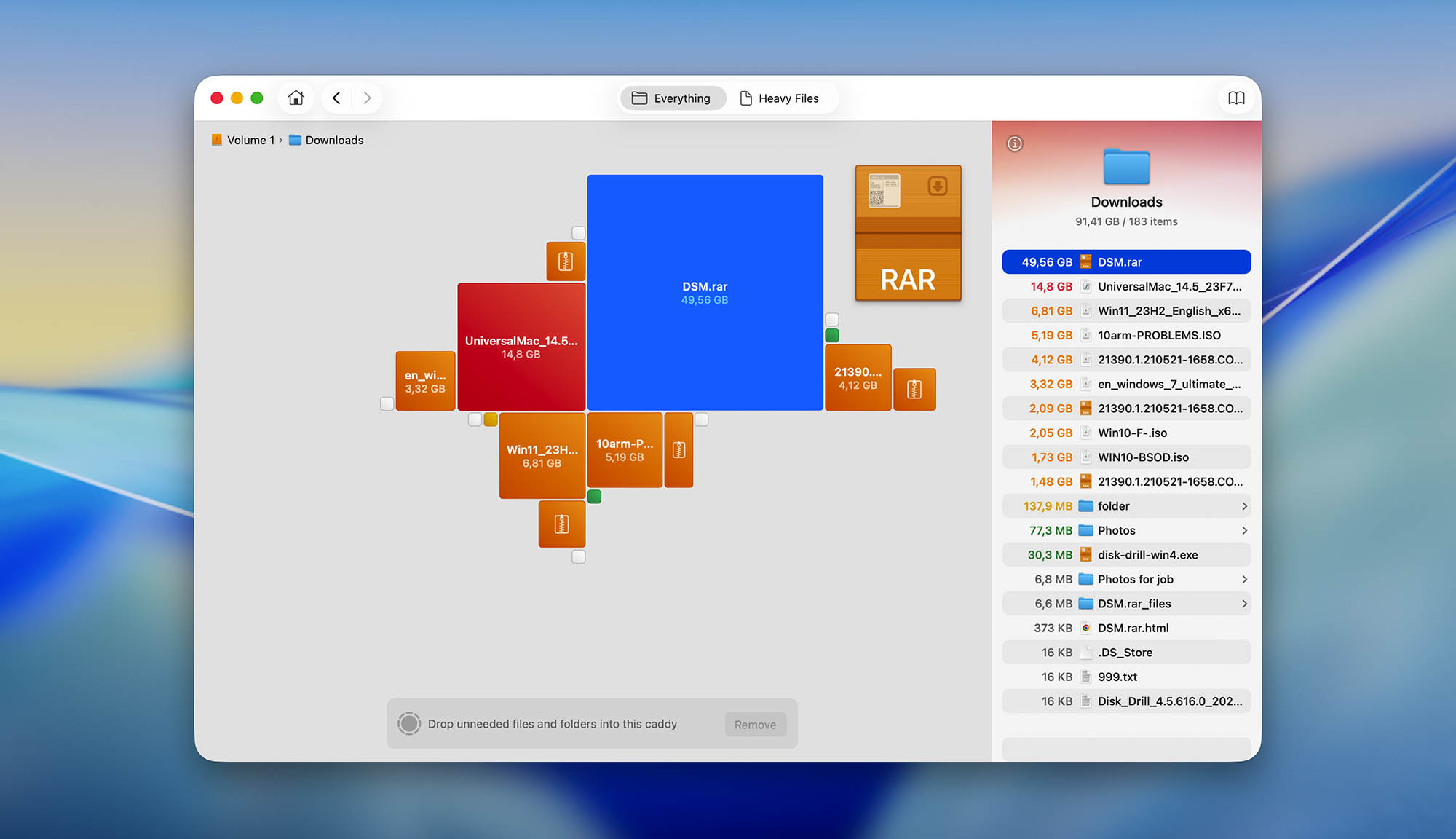
We selected apps with useful bonus tools that help prevent or handle data loss scenarios, like S.M.A.R.T. monitoring, disk imaging, and creating a bootable USB installer. We ignored gimmicky features that sound impressive but don't actually help.
- Price
We recommended the most cost-effective apps that can justify their value to certain users (either they were super good at one thing or great at everything).
Want to learn more about the dozens of Windows and Mac file recovery software we tested? Maybe you already have an app in mind and want to see how it performs in real life.
Check out our in-depth data recovery software reviews for Mac and Windows, where we publish our test results! We provide detailed breakdowns in each article, similar to the content you'll find below.
Top 8 Data Recovery Software for Mac
#What follows is a head-to-head breakdown of the best Mac data recovery software in 2026. We ranked these apps based on usability, performance, and value, using real-world recovery challenges performed this year on the latest macOS version and Apple Silicon hardware to test what actually works.

1. Disk Drill for Mac
4.84 • Best choice for Mac users – Disk Drill for Mac combines ease of use with excellent data recovery capabilities and many extra features that greatly increase its overall value.
macOSWindows
Freemium Some features are provided free of charge, but money is required to unlock the rest
Free preview
$89...$149
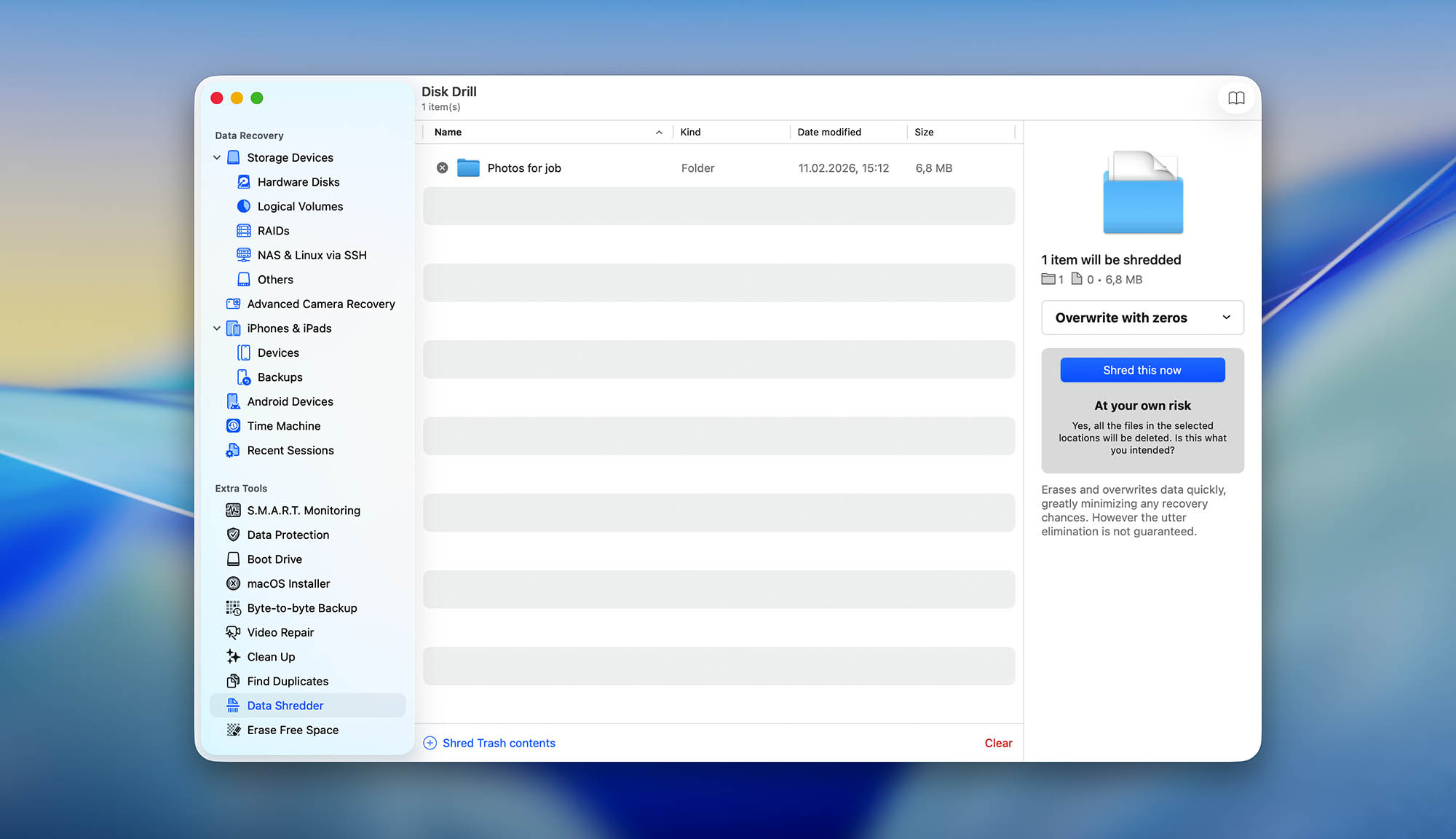
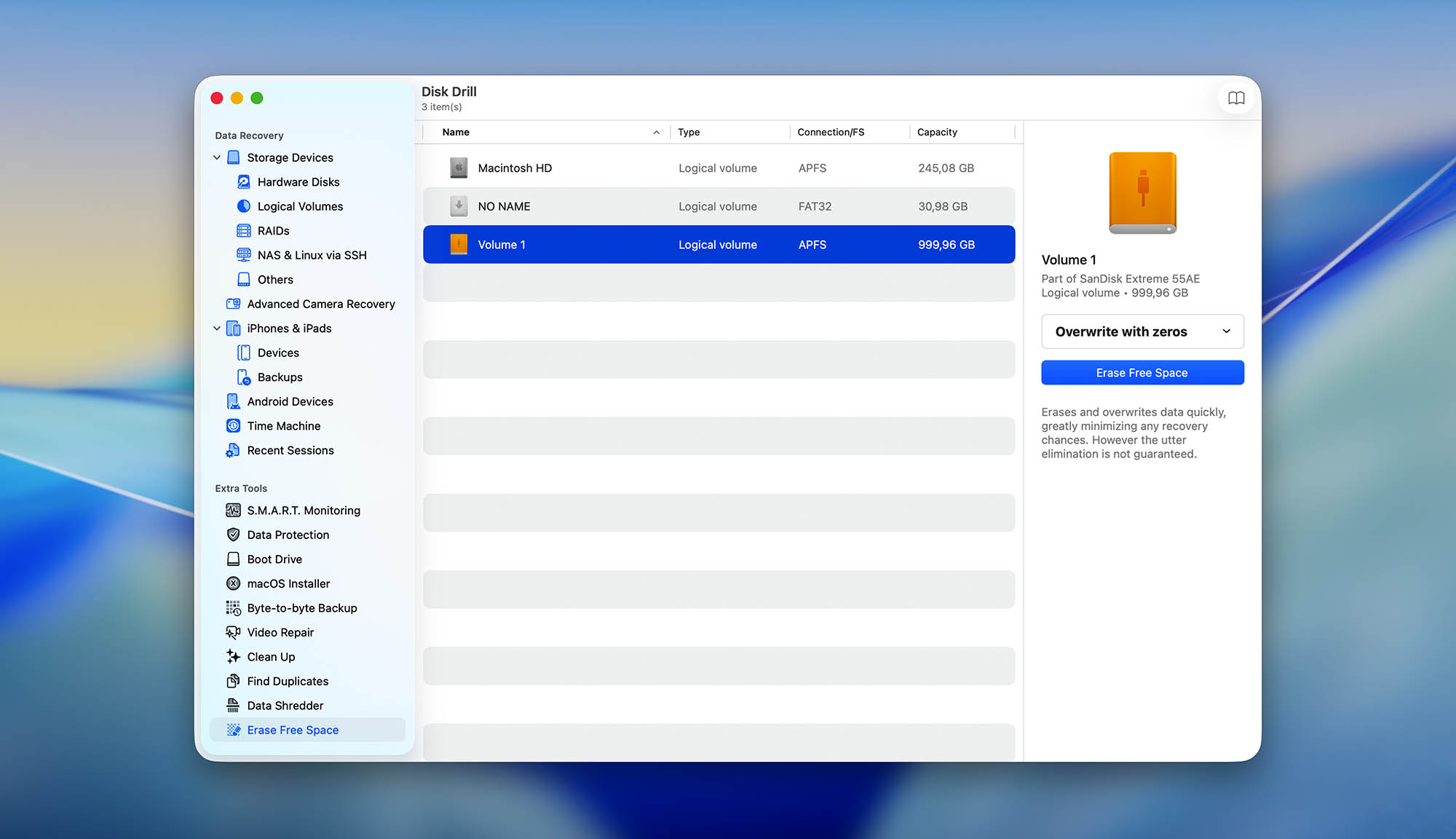
Disk Drill is a highly popular data recovery software for Mac that we’ve covered a lot on this website. It provides a ton of tools that can help users solve almost any data loss scenario. Disk Drill is comprehensive but accessible, and it’s one of our team’s absolute favorites.
Usability
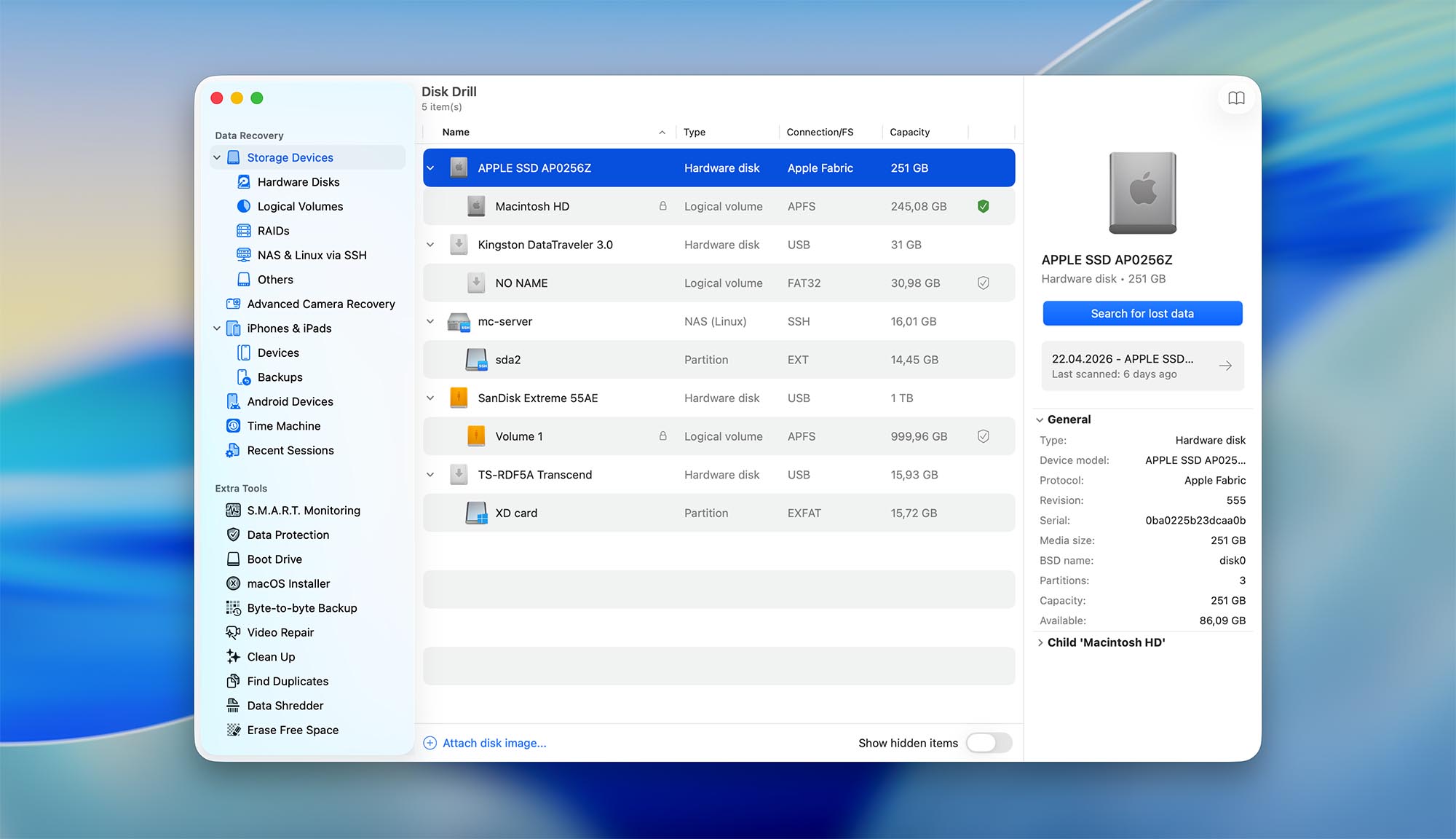
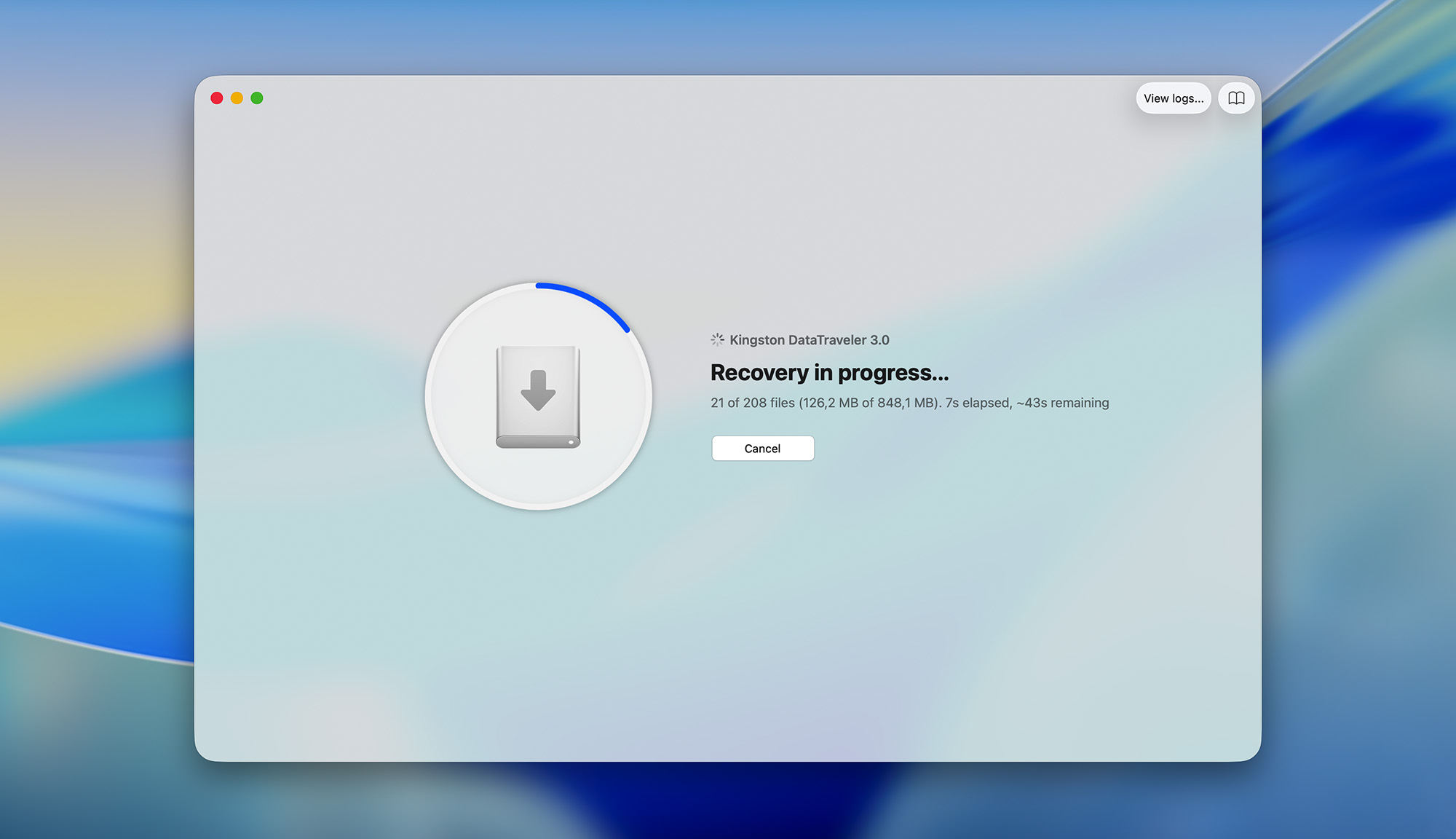
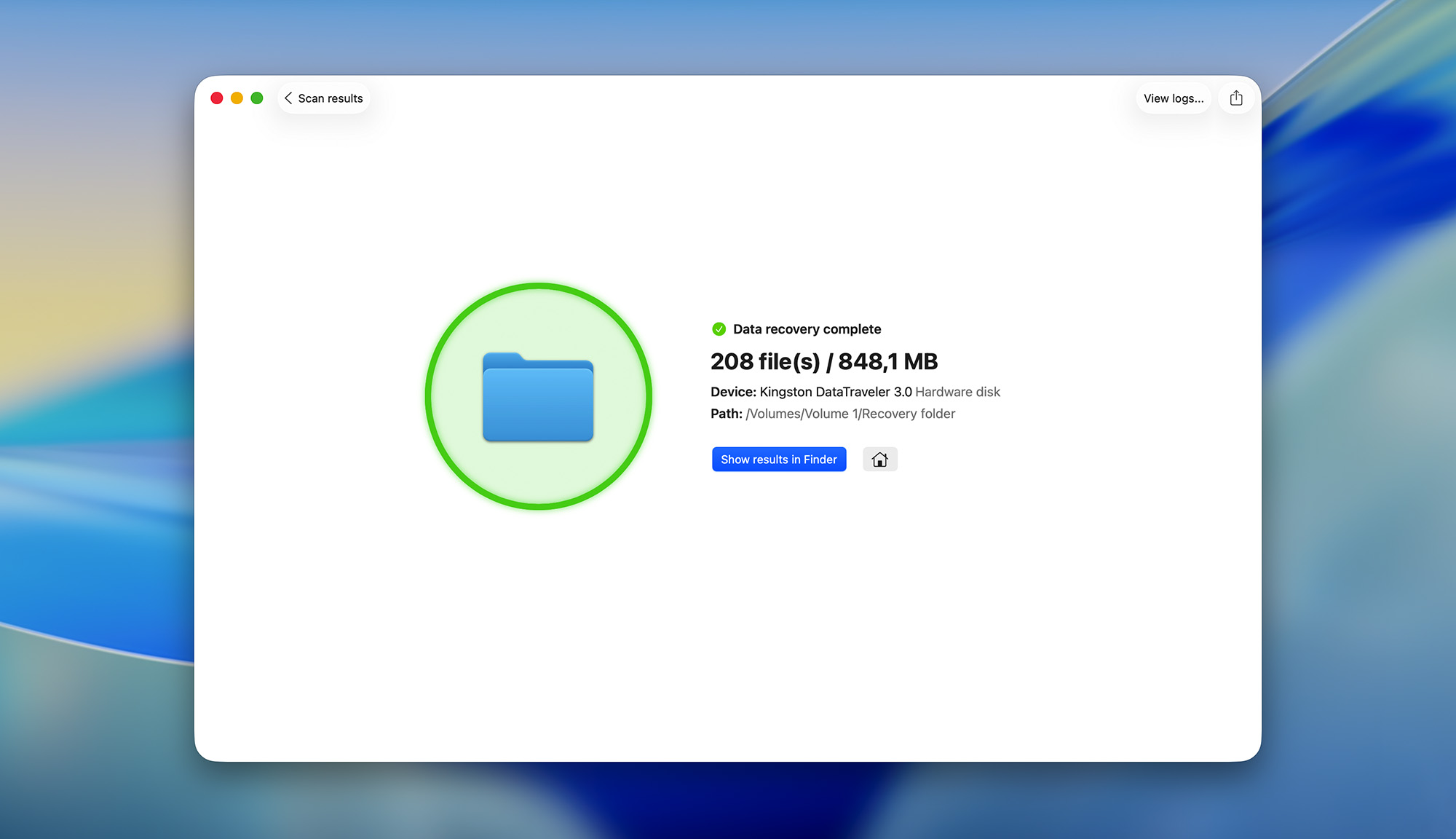
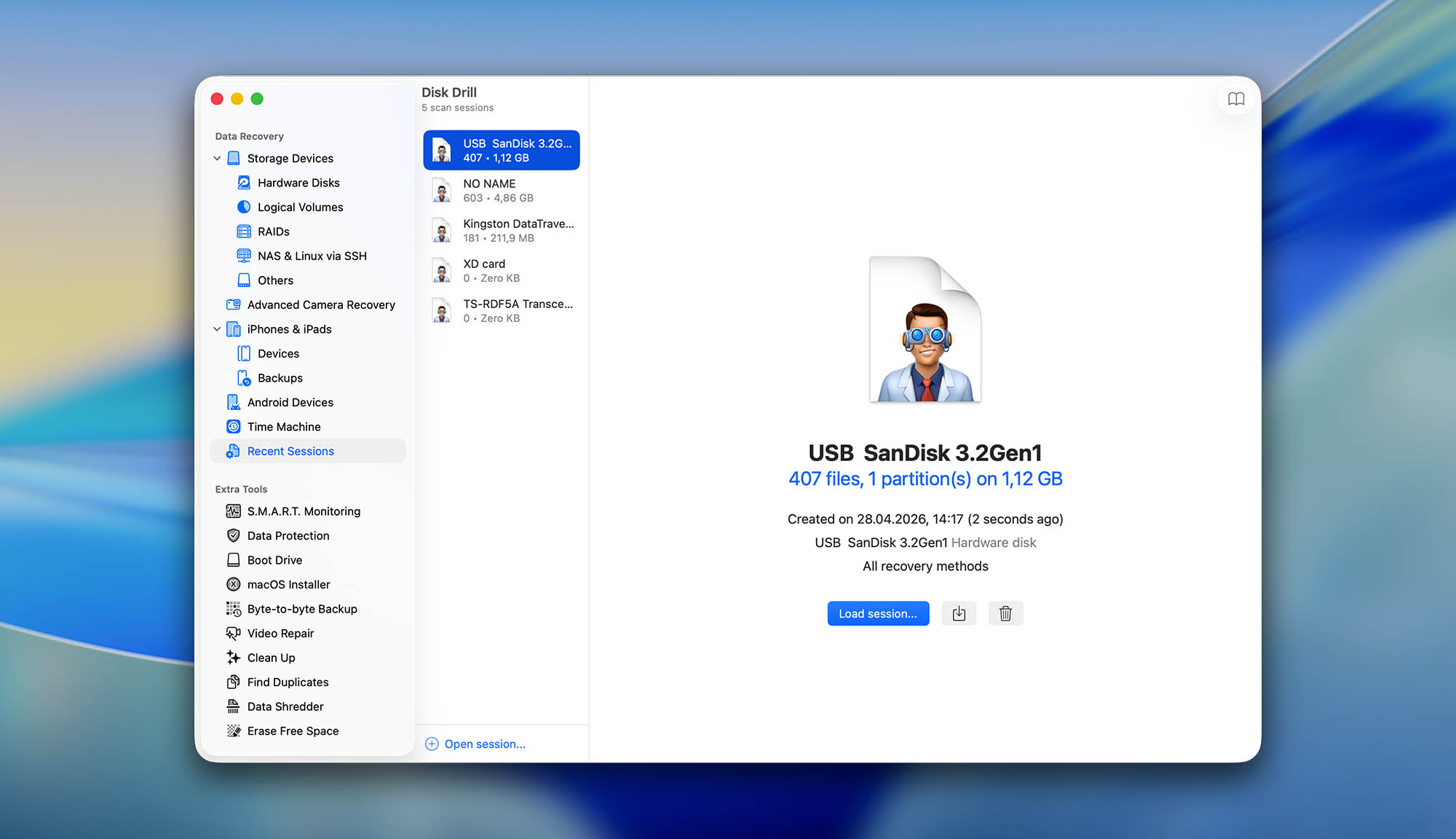
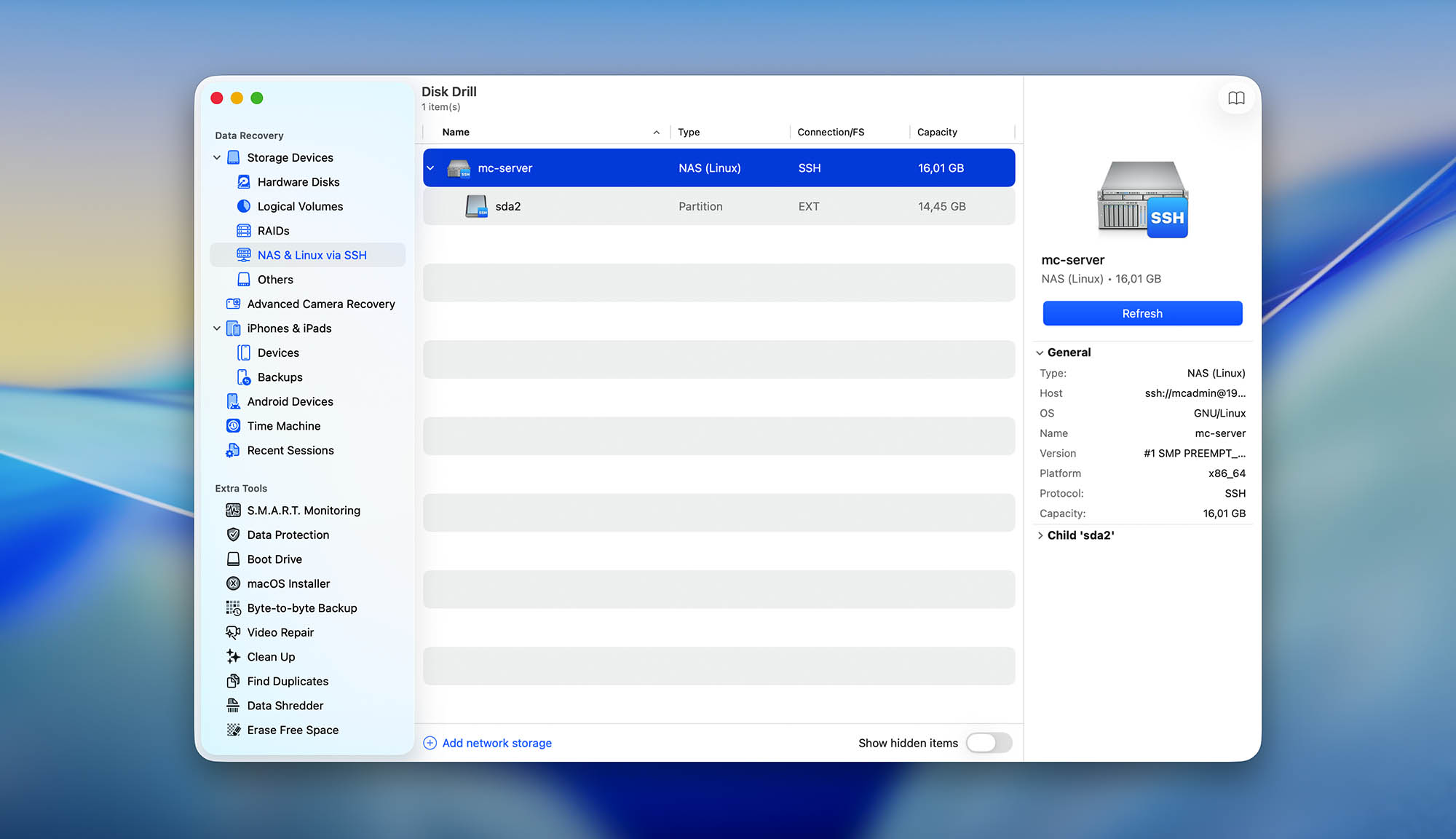
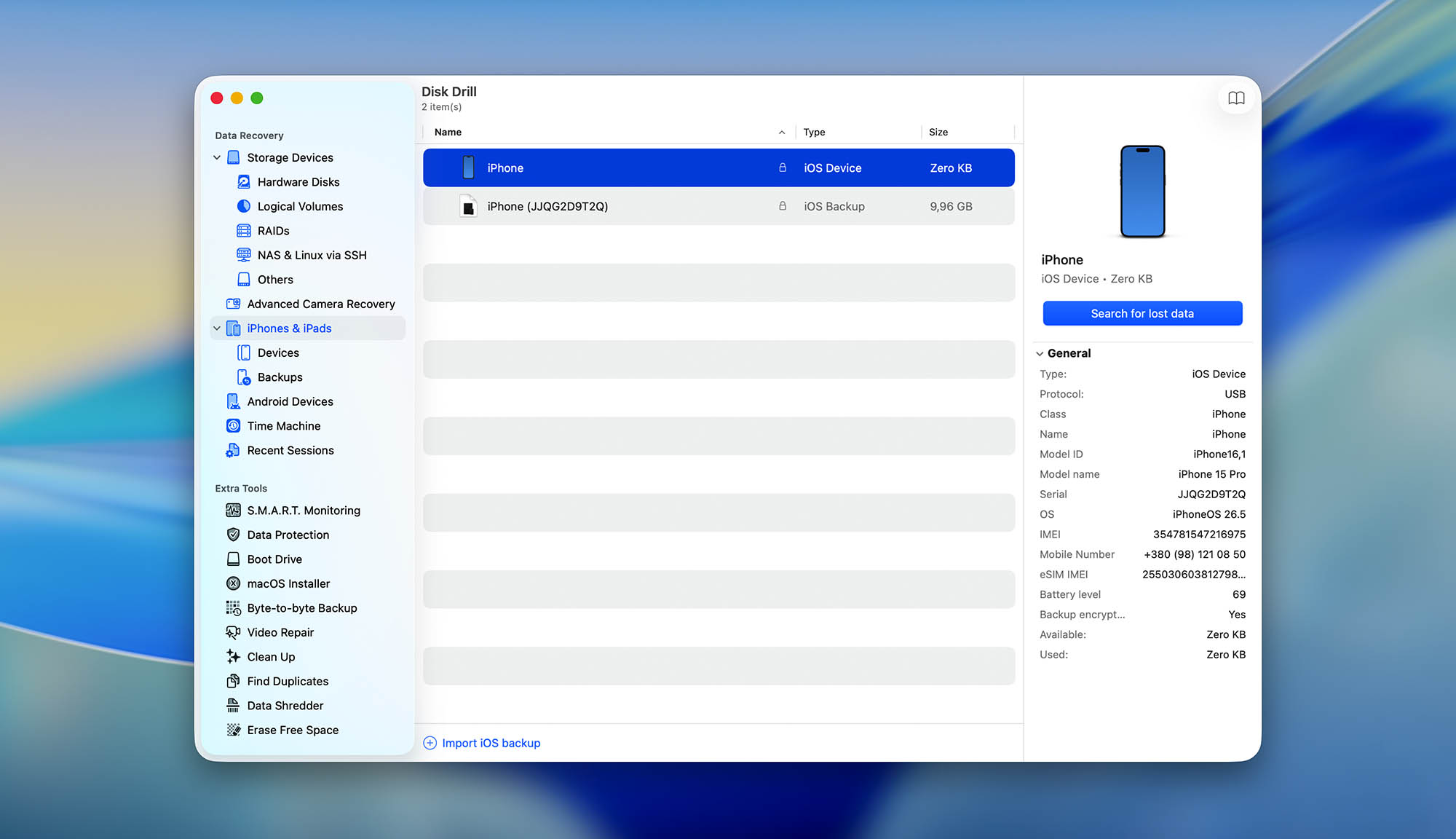
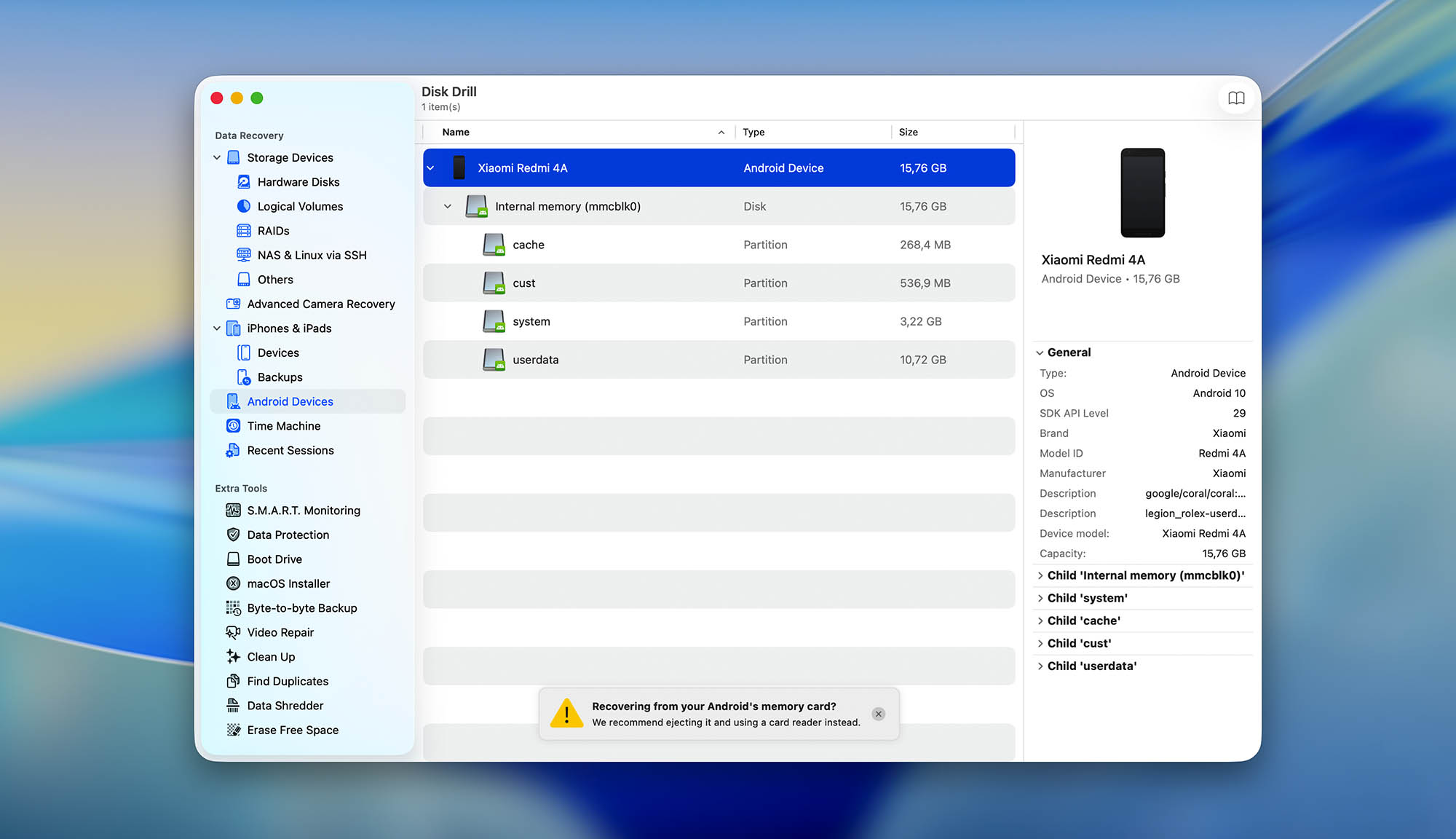
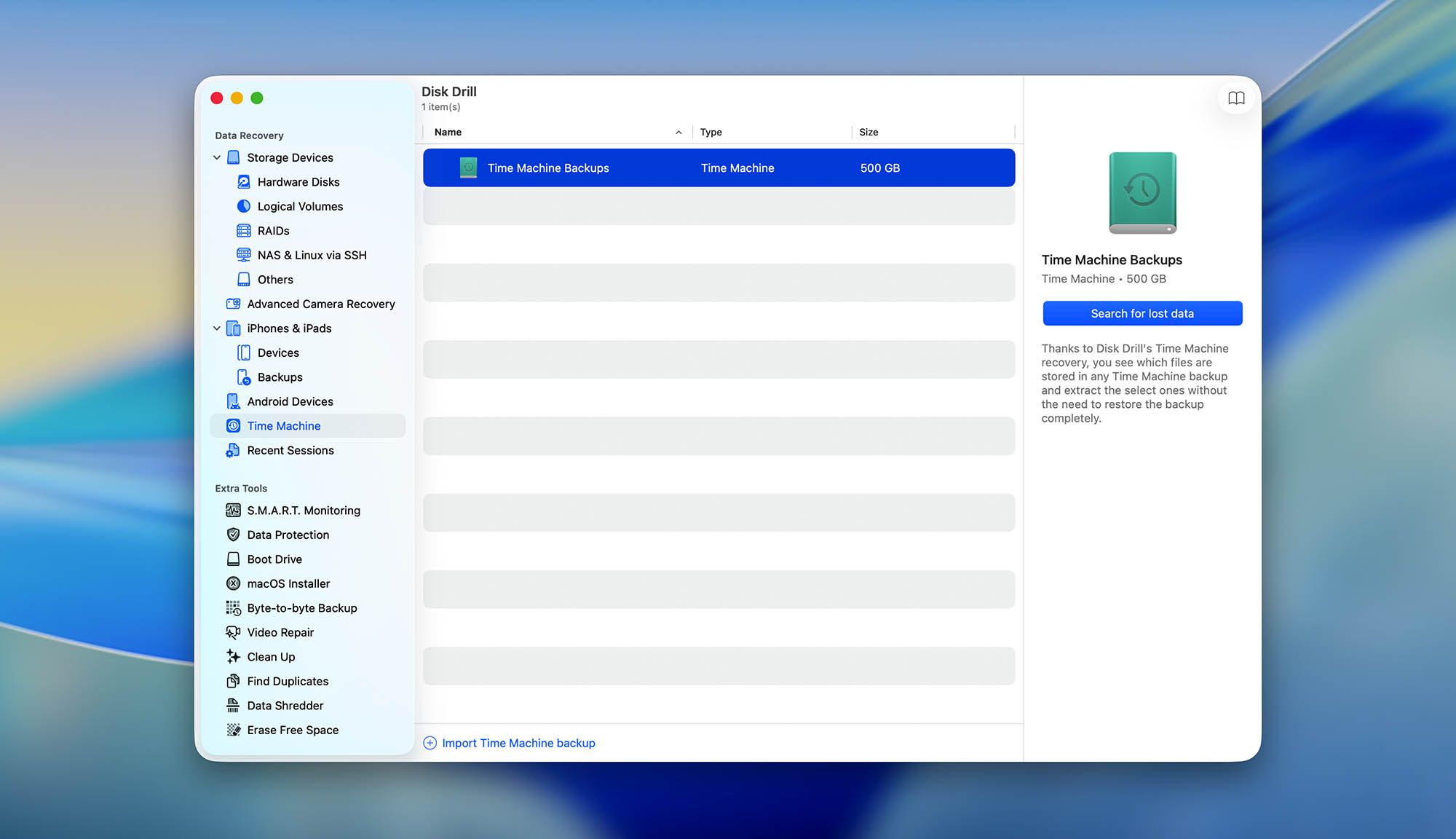
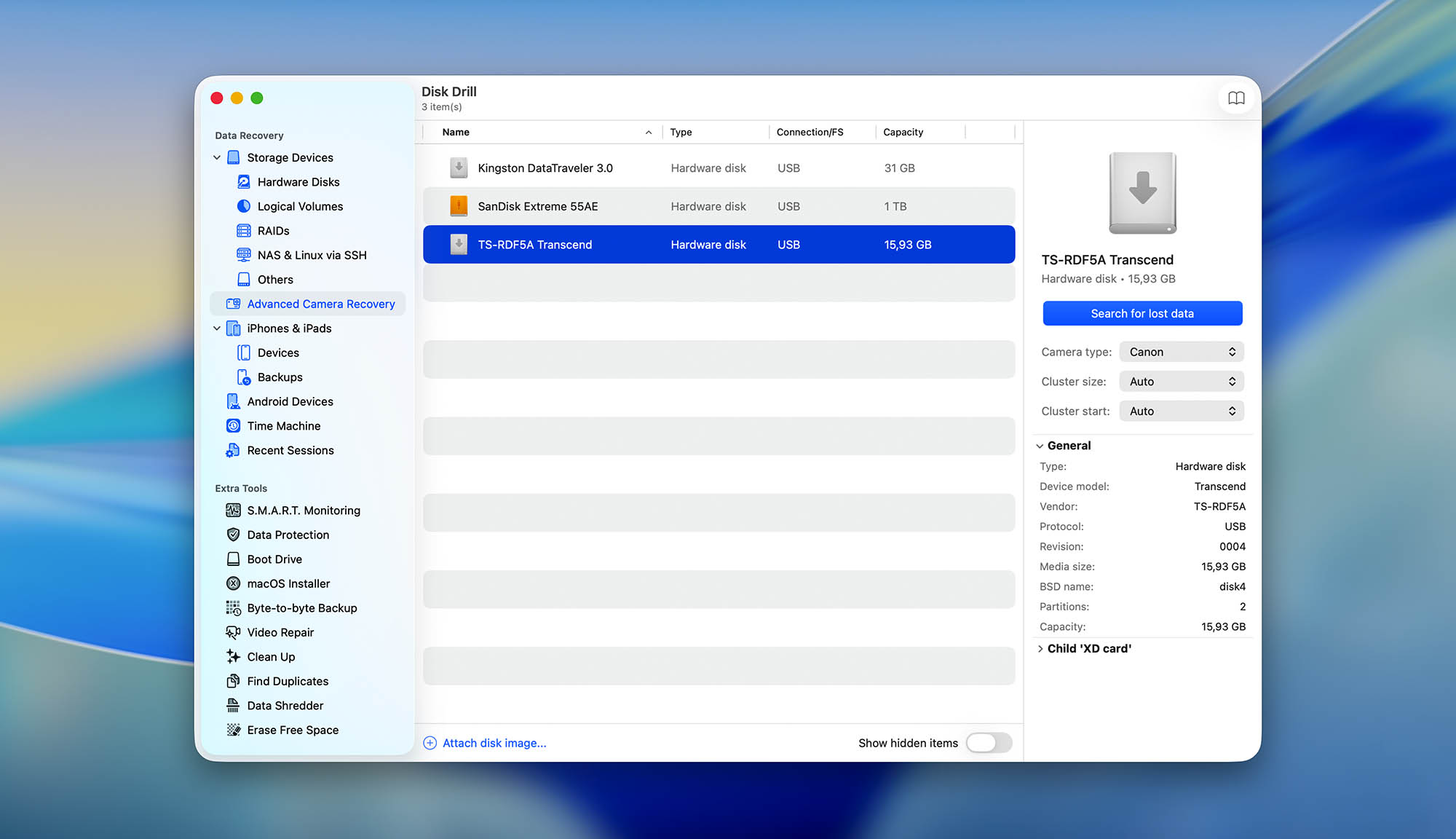
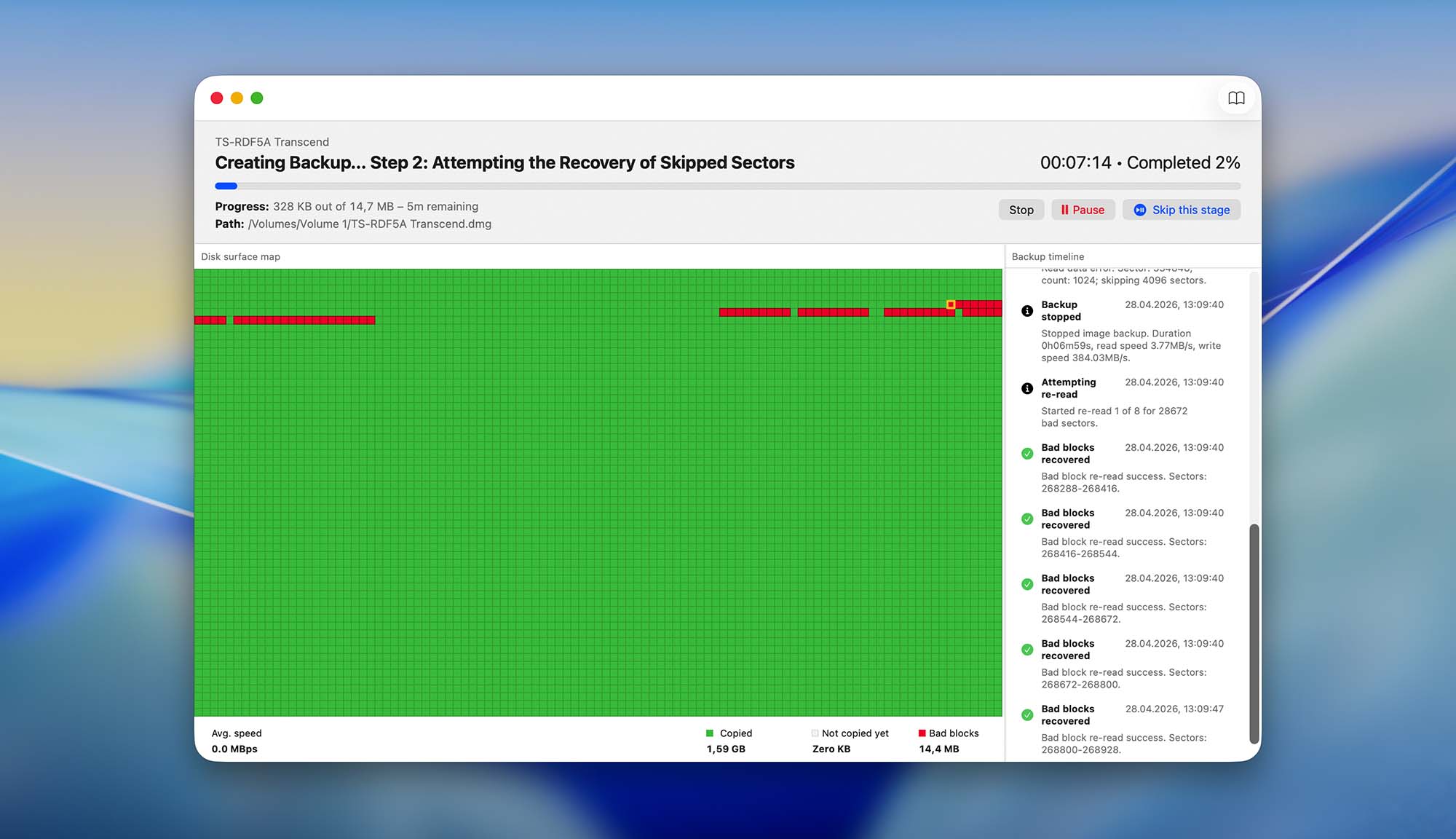
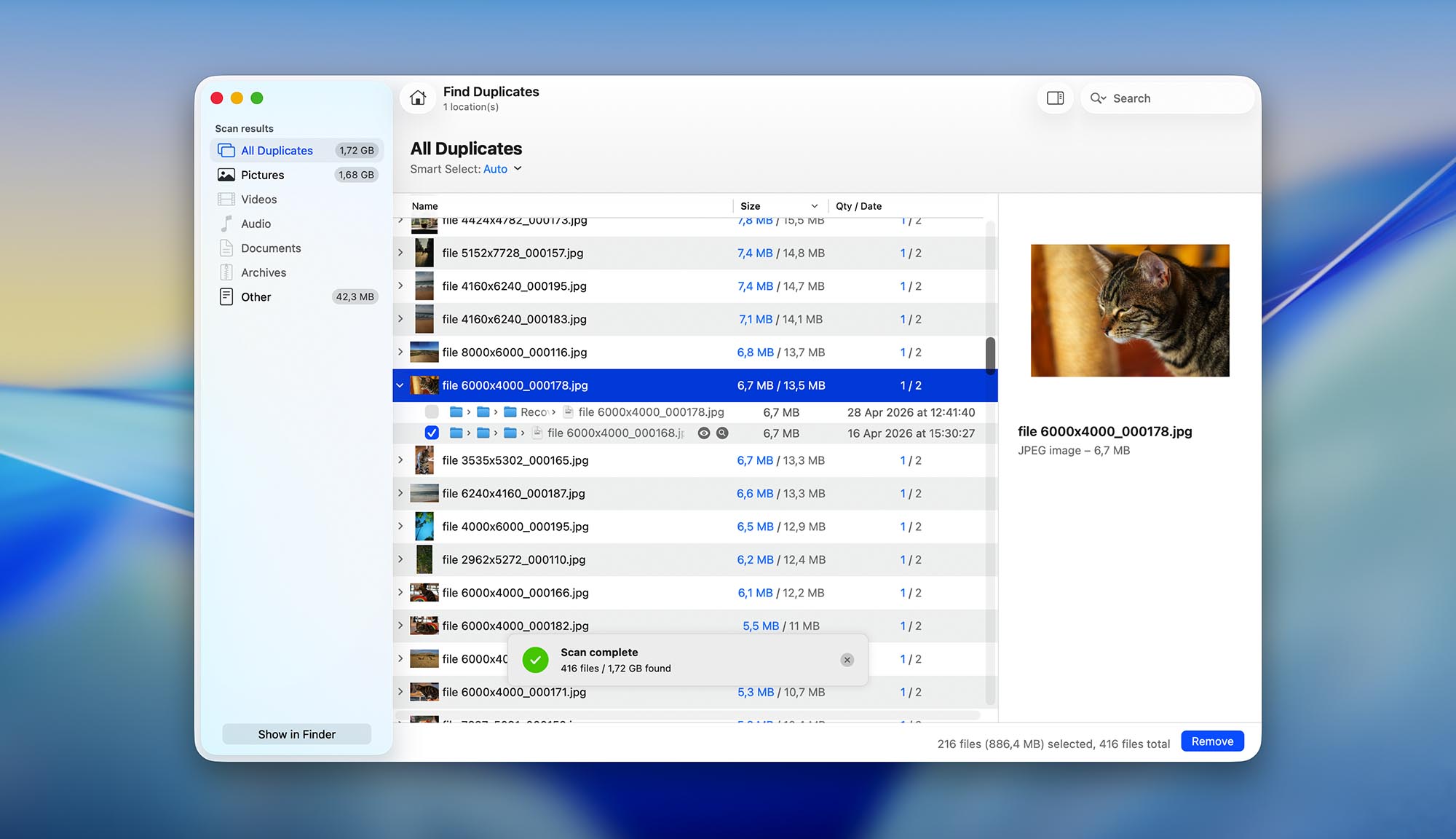
Disk Drill’s interface is clean and modern, with a well-designed user experience so you always know what to do next. Simple tasks just “work” – such as selecting your drive or partition, accessing Disk Drill’s extra features, and organizing your recovered data.
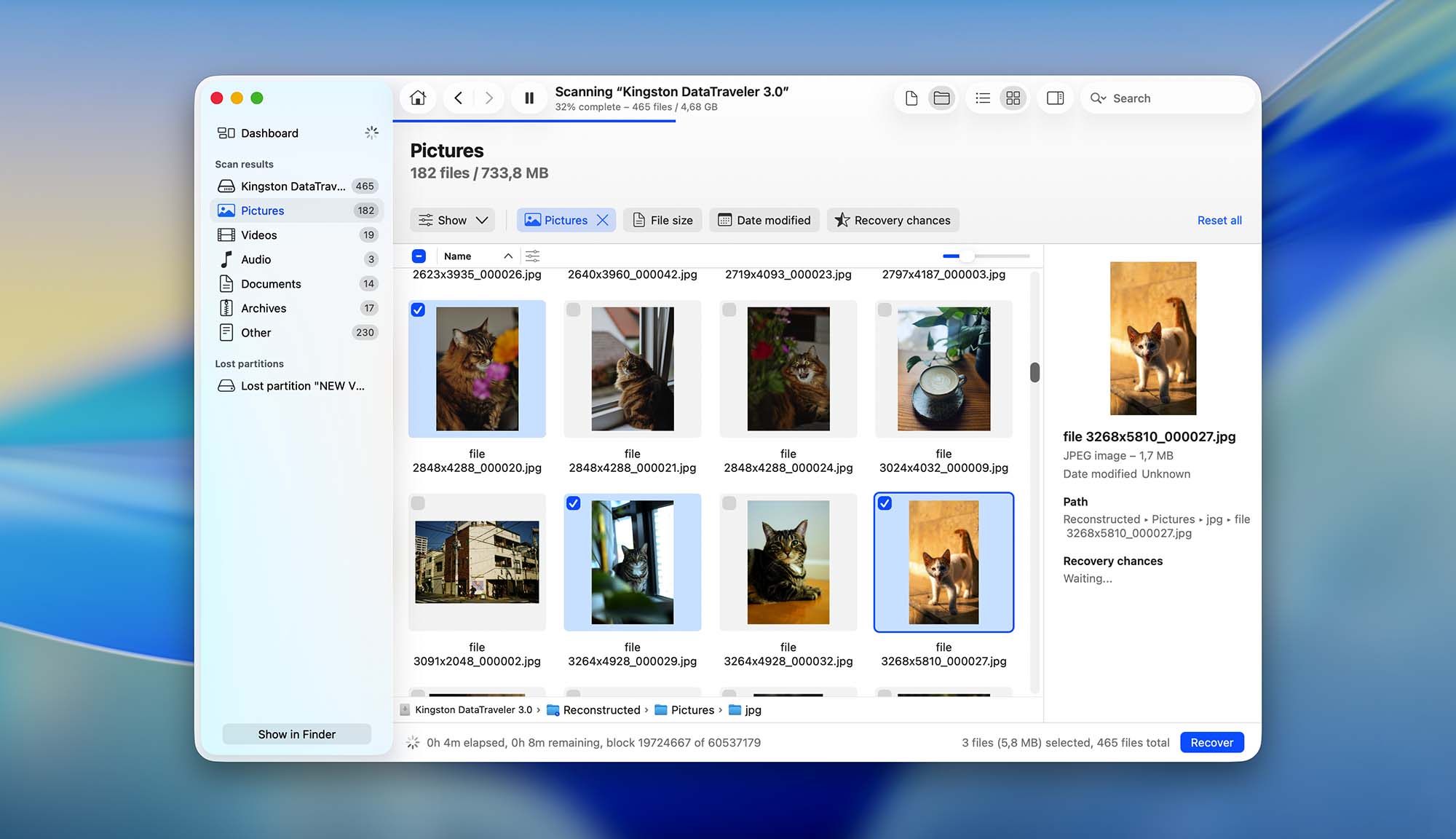
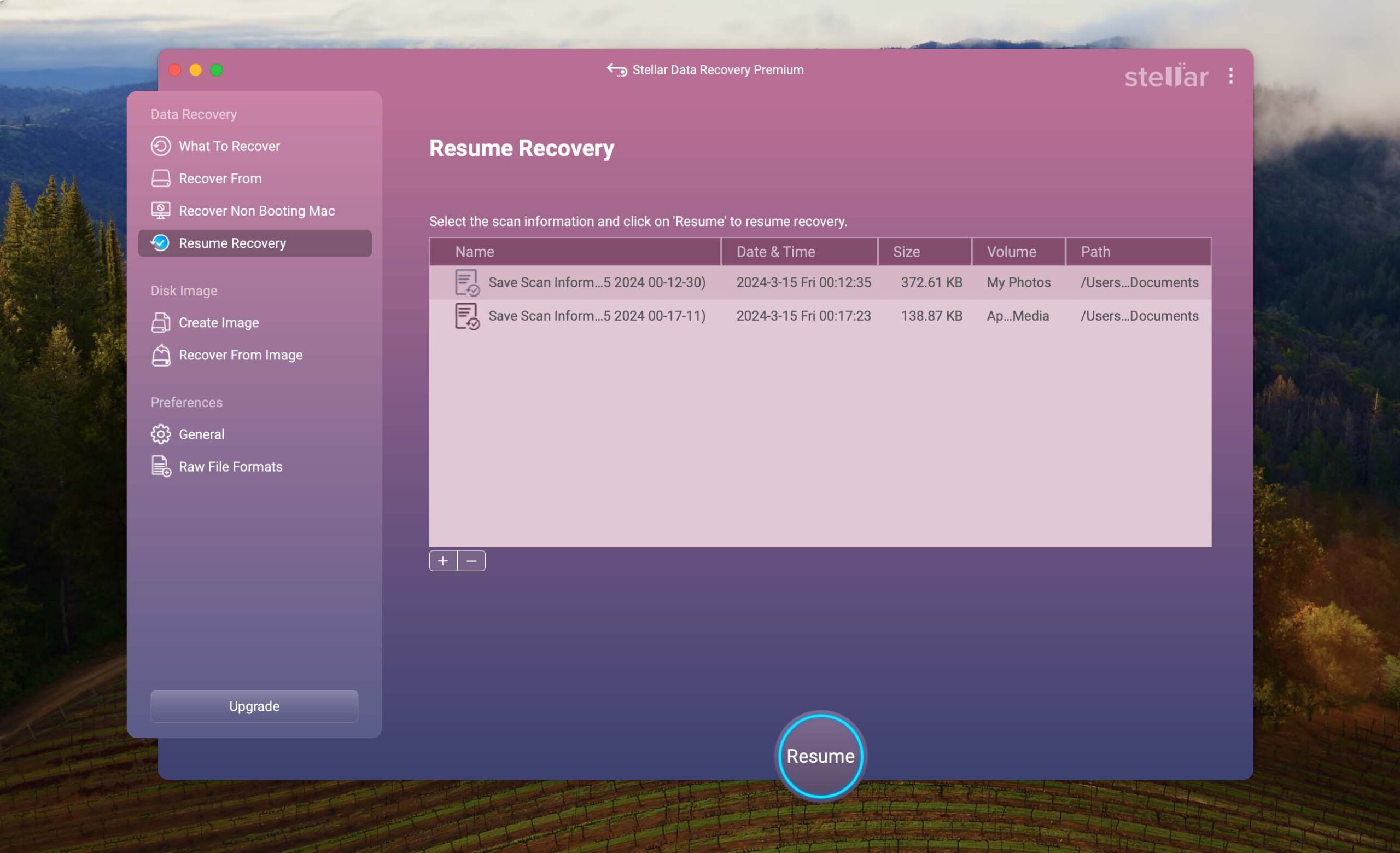
To expand on that, Disk Drill allows users to search, filter, and sort found data. Its preview tool also works really well – most file types are supported and you can even play videos to test their recoverability. Finally, Disk Drill’s excellent session management means that you can always resume your scanning and recovery process, even with a faulty drive that keeps disconnecting itself.
Recovery Performance
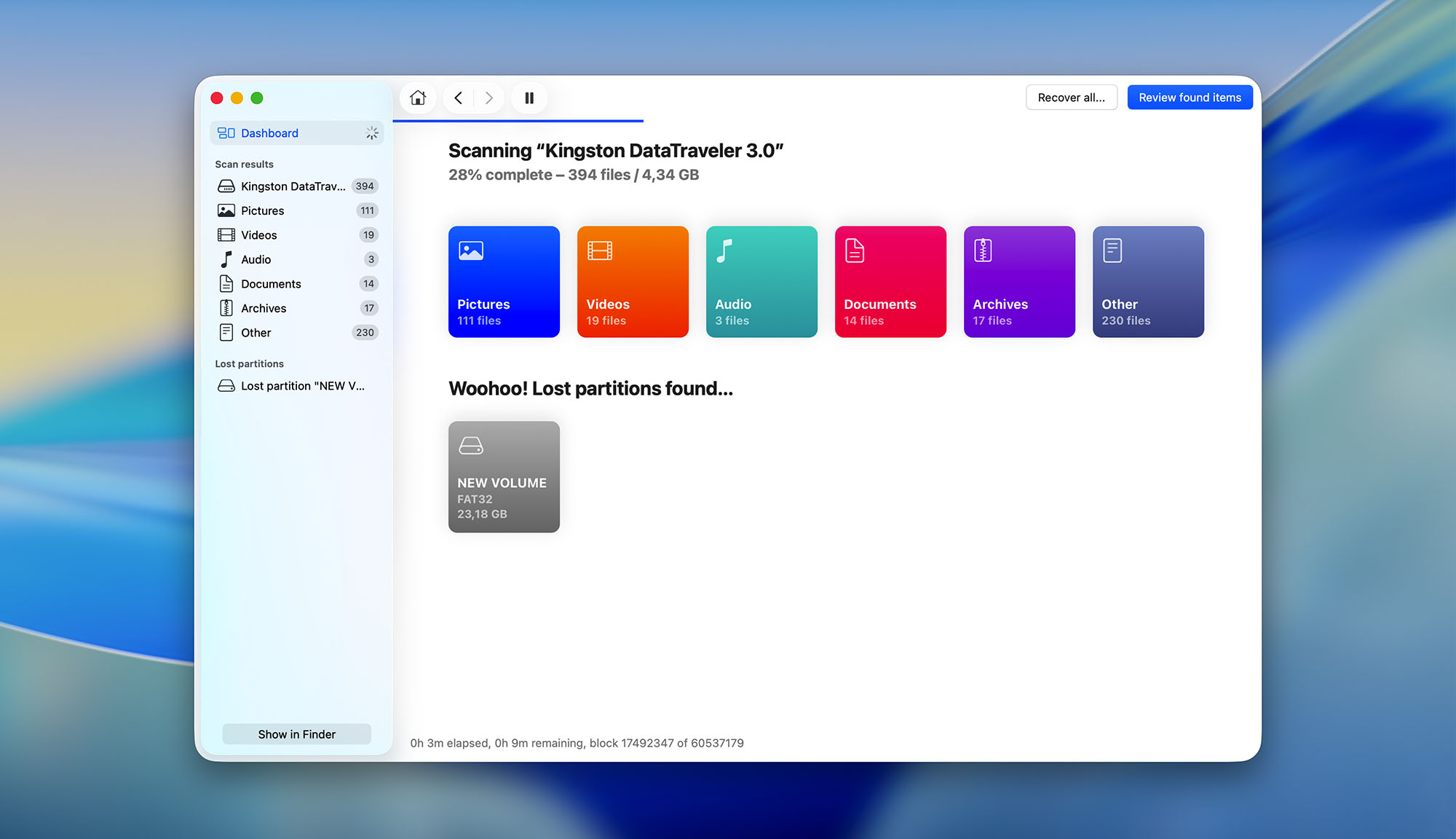
We'll start this section by saying Disk Drill has the highest recovery rate among all the software we've tested so far in terms of performance, recovery features, and compatibility. Here's why. Disk Drill combines Quick Scan, Deep Scan, File Signature Scan, and Lost Partition search into a single Universal scan that runs automatically with one click. There's also a separate Advanced Camera Recovery (ACR) mode for recovering fragmented video files from memory cards. You don't often see this level of comprehensive scanning in one tool, but Disk Drill makes it all accessible from a single interface.
This makes it suitable for almost any data loss scenario users may encounter, such as RAW disks and dead or non-booting drives. Its file signature scan recognizes about 400 file types – which is a lot, even for paid software.
We were also impressed with Disk Drill's ability to keep the original folder structure and files from all the file systems we tested – FAT32, ExFAT, NTFS, HFS+, APFS, and ext2/3/4. We saw similar results when testing its ability to restore recently deleted data.
Value
Disk Drill’s lifetime license (as in you can use it forever for a one-time payment) is $89, which is a strong value. Most data recovery software charges $40 - $60 for a monthly subscription, and their lifetime licenses easily go over a few hundred dollars. It’s also common for other developers to separate mobile data recovery from the “main” app, but Disk Drill lets you recover pretty much any storage device.
And as of this writing, Disk Drill is offering both the Mac and Windows versions of their app for the price of one. You’ll get to keep those licenses forever.

2. EaseUS Data Recovery Wizard for Mac
3.82 • Respectable free data recovery limit – Thanks to its generous free data recovery limit, EaseUS Data Recovery Wizard for Mac is worth trying despite its shortcomings.
macOSWindows
Freemium Some features are provided free of charge, but money is required to unlock the rest
Recover up to 2 GB for free
$89.95...$499
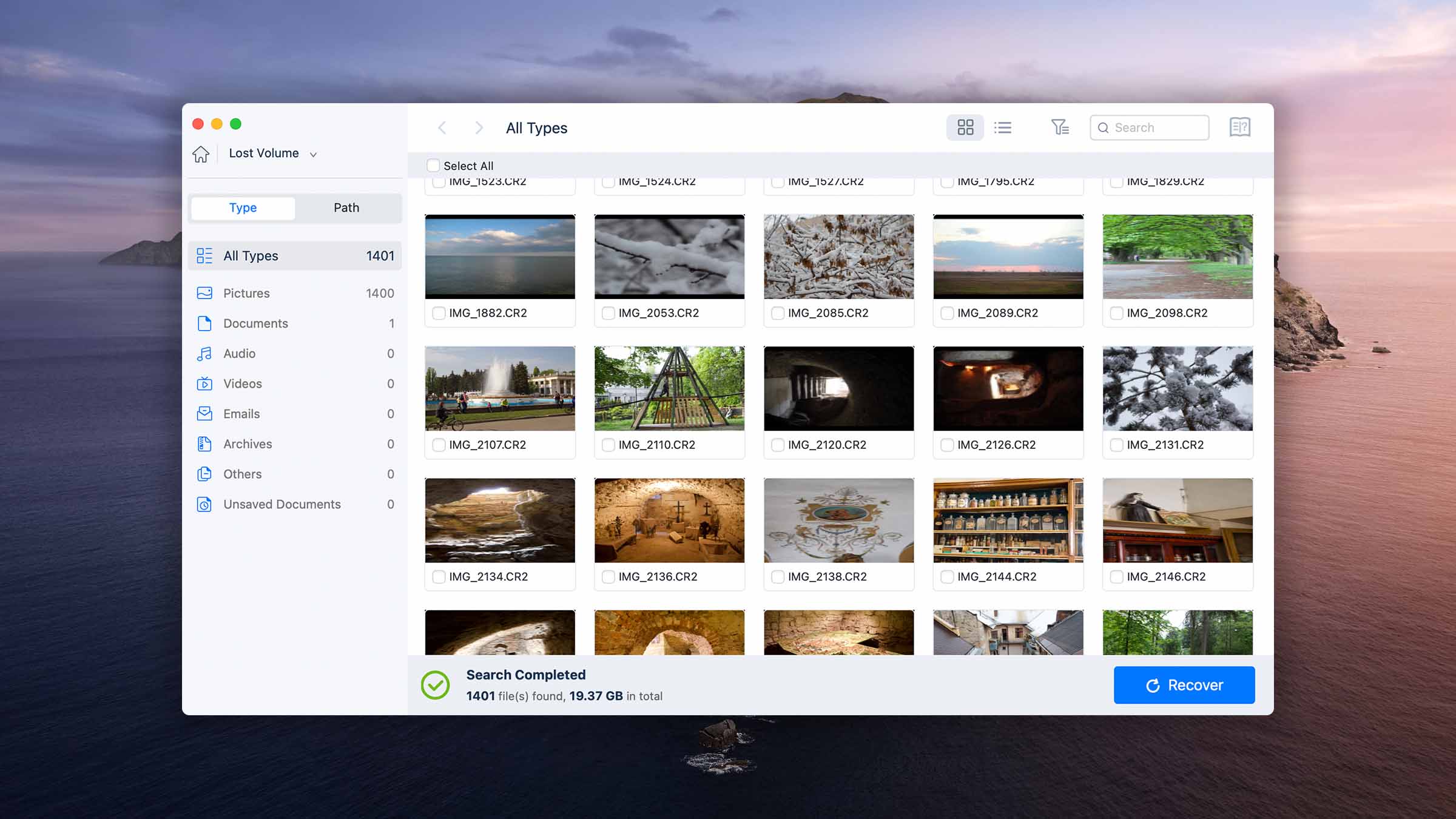
If you’ve been searching for data recovery, there’s a 90% chance you’ve encountered EaseUS Data Recovery Wizard. There are a few deal-breakers when it comes to this app, but its generous amount of free recovery and its respectable performance make it a strong option to consider.


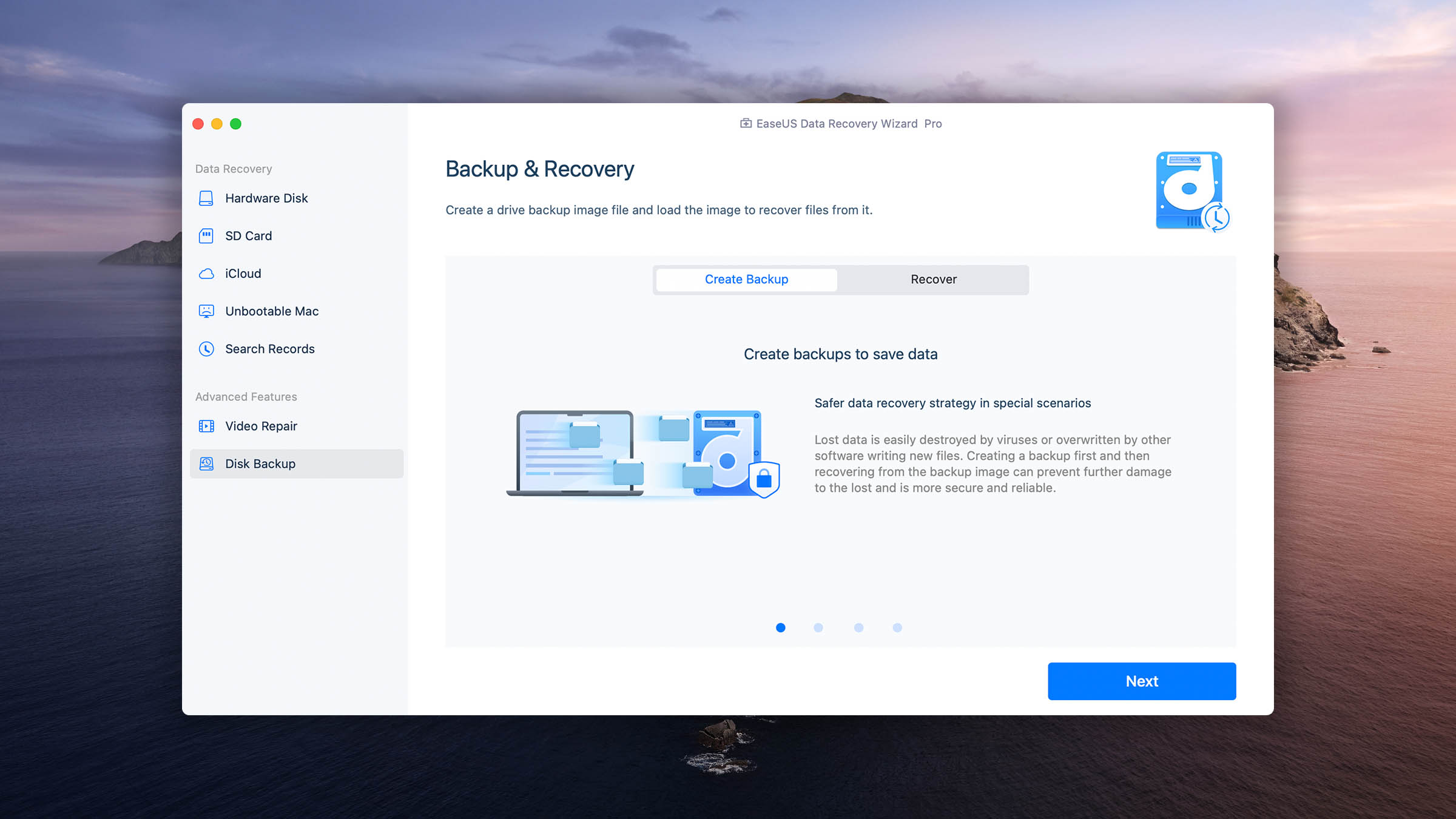
Usability
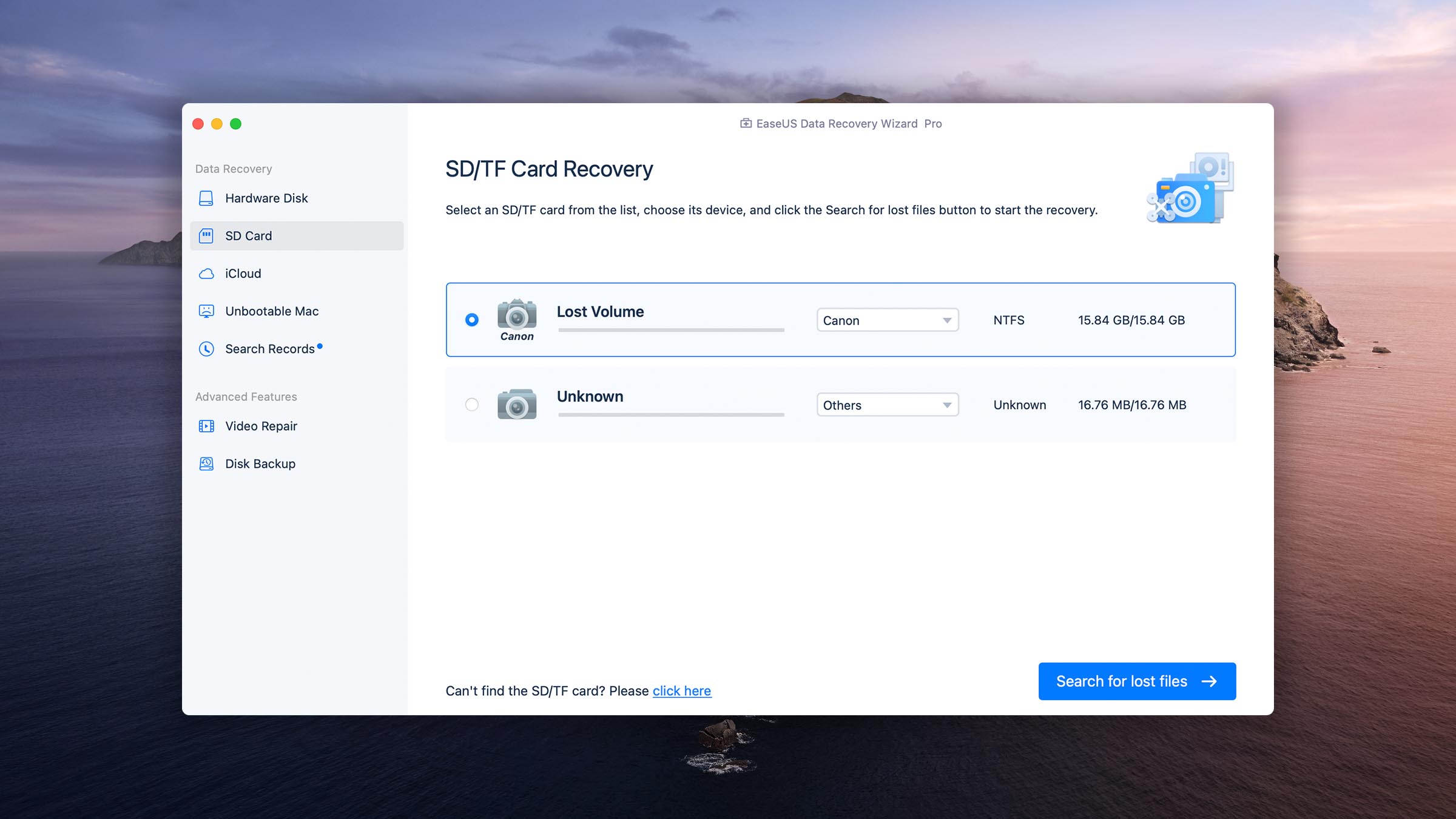
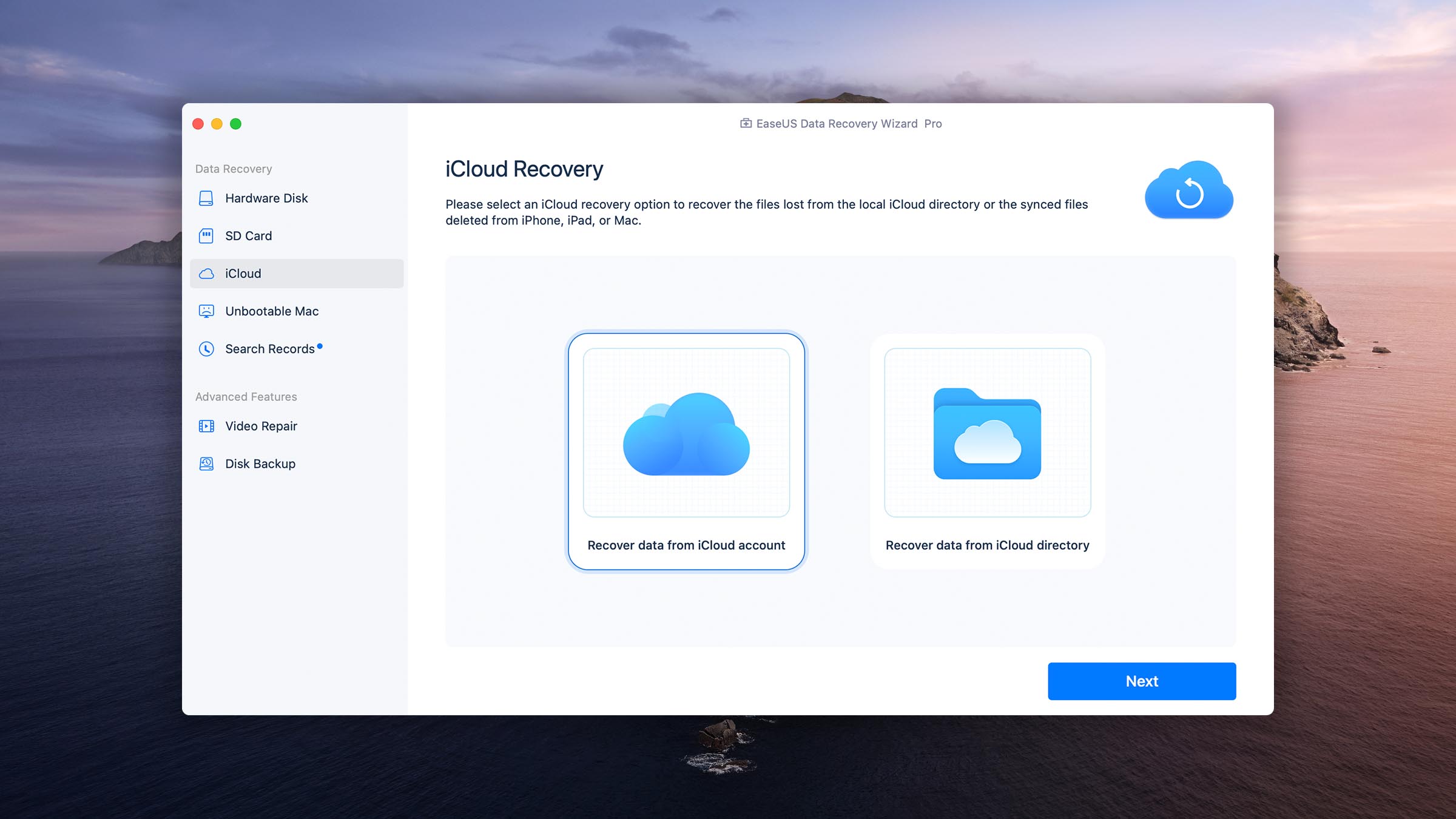
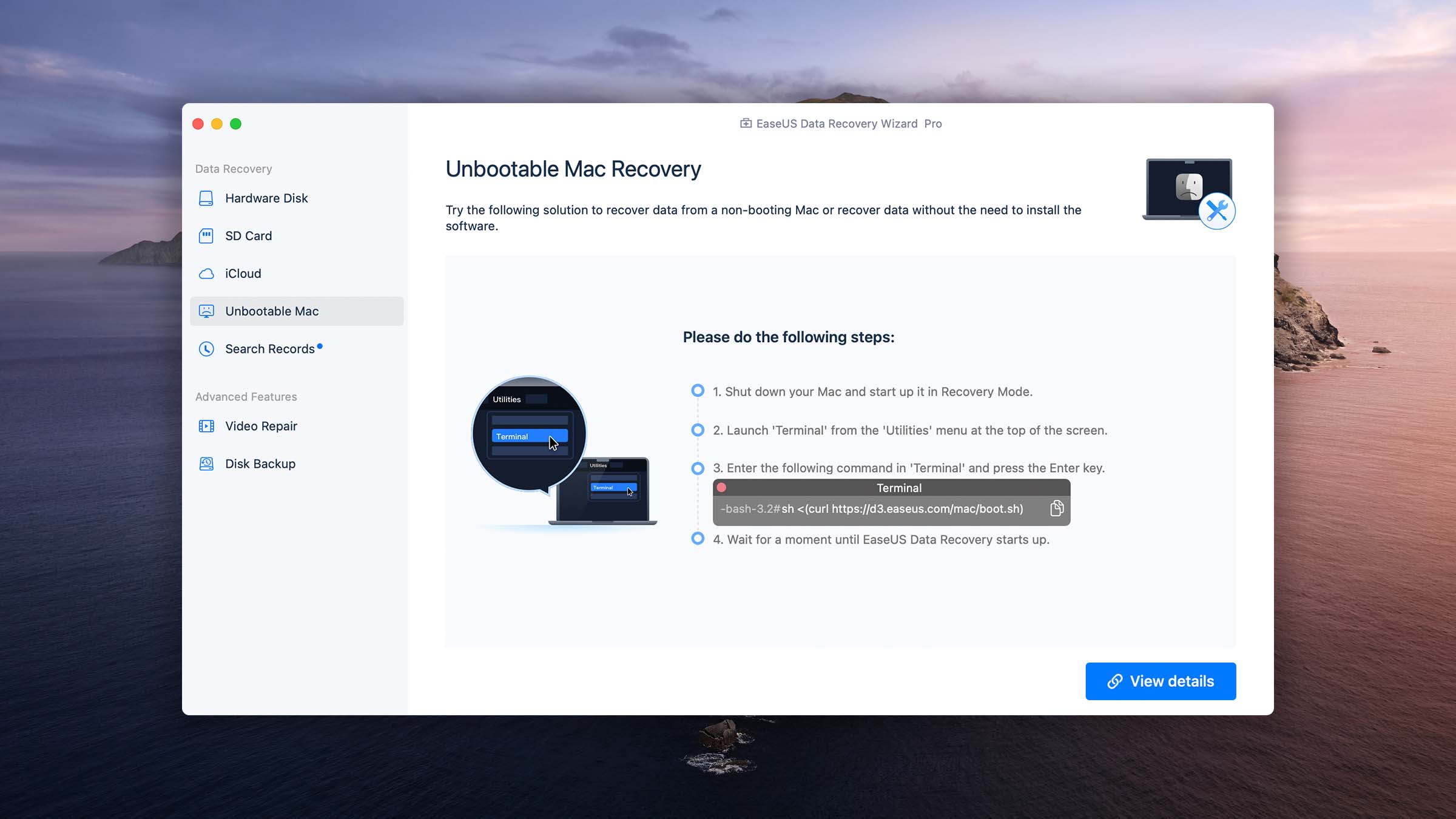
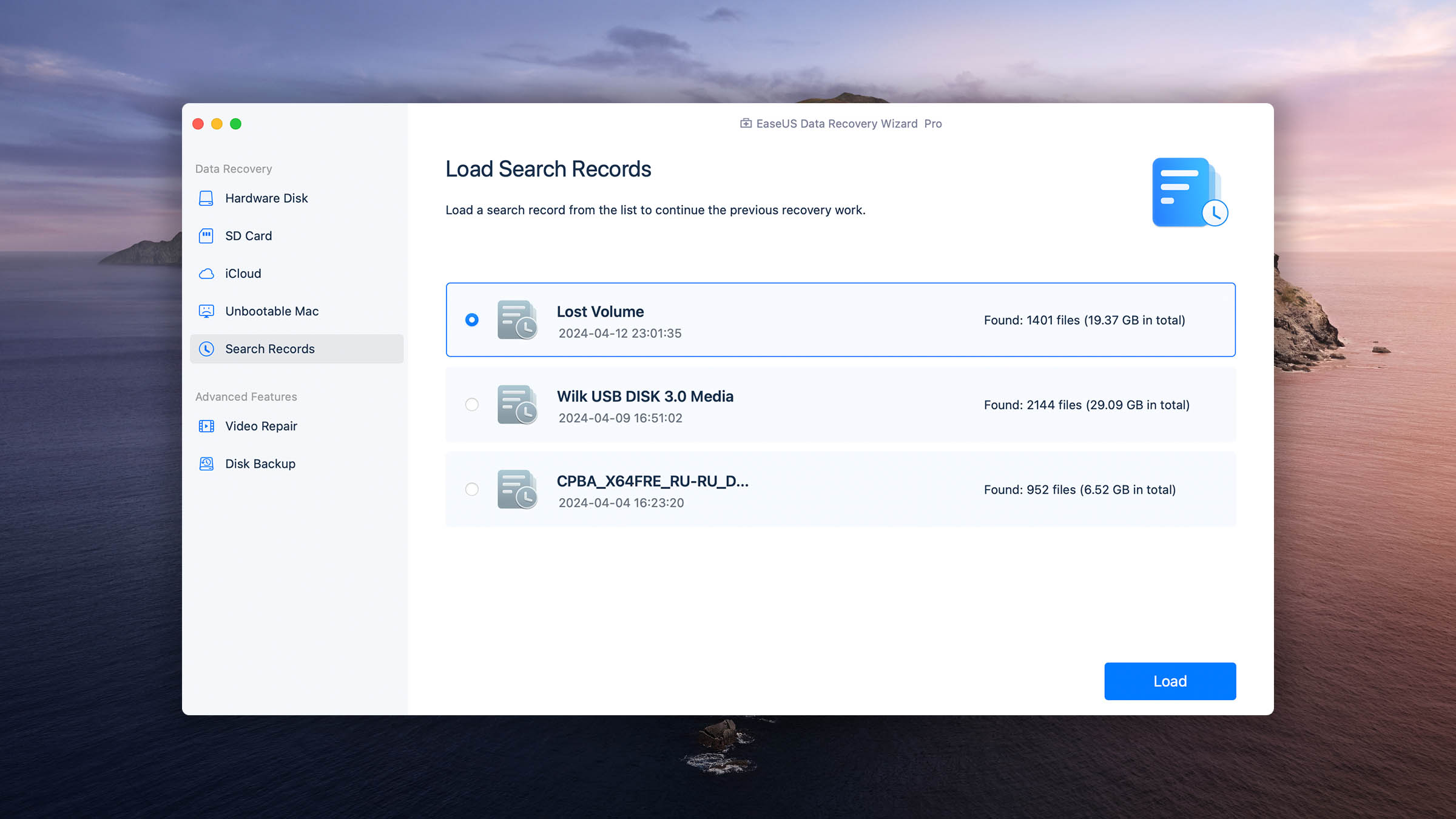
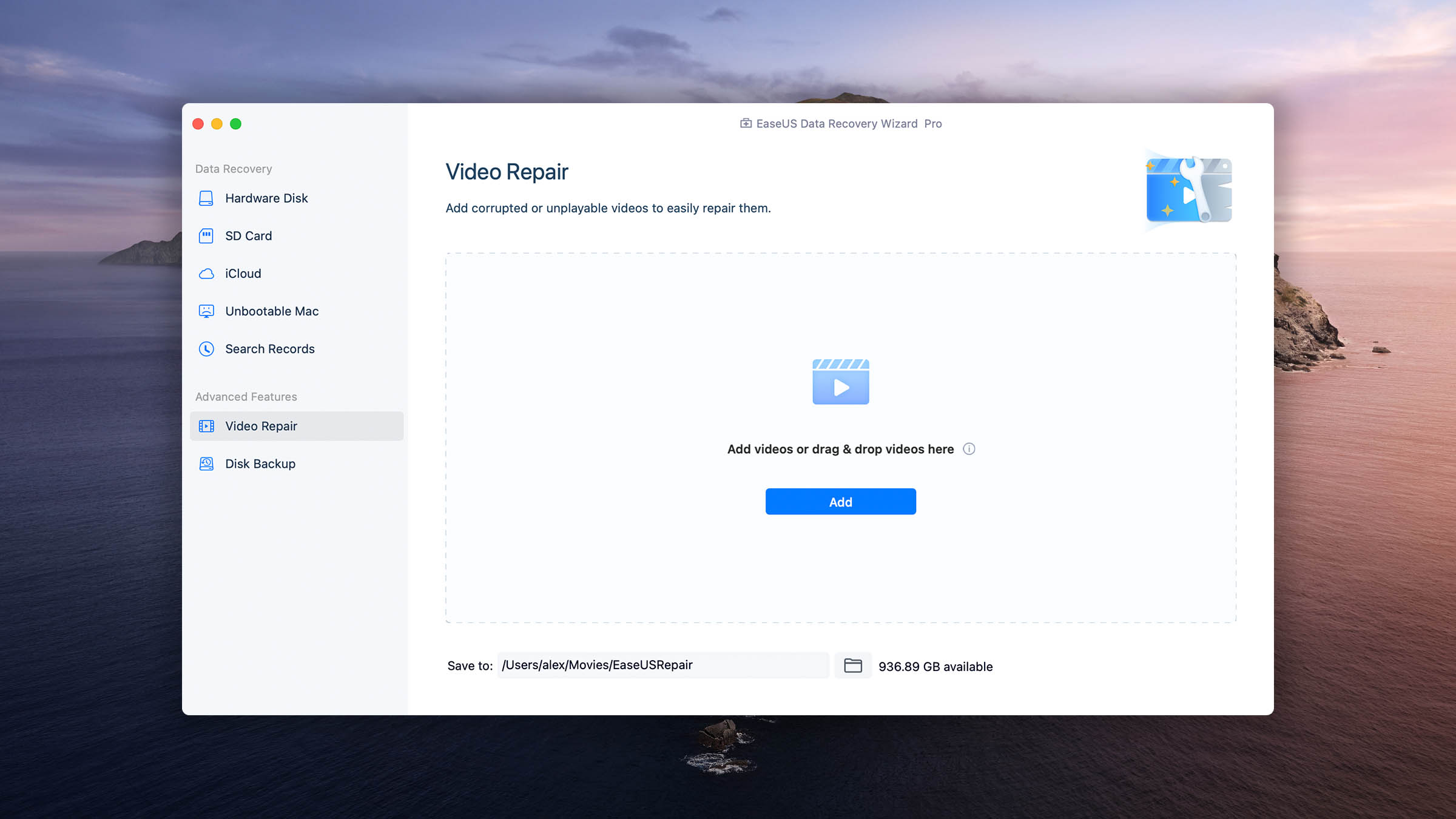
EaseUS is known for its user-friendly interface. Like Disk Drill, it makes recovering data a simpler process. Source selection is very straightforward and the app automatically chooses the best scan depending on the scenario. It also provides users with tools to filter, sort, and search their data.
Unfortunately, it can’t auto-resume scans, which can be a pain if you have a faulty drive that tends to get disconnected randomly.
Recovery Performance
EaseUS was able to restore the original folder structure and file names of our HFS+, APFS, and NTFS partitions. Its Quick scan results (recovery of recently deleted files) were good, but it struggled a bit with our FAT32 and ExFAT partitions.
The app proved useful for common data loss scenarios and is capable of recovering RAW files, but we found that it recognized fewer file types (almost twice less) than Disk Drill.
Value
EaseUS is pricey. It’s $89.95 per month, $119.95 per year, and $169.95 for a lifetime license. As of this writing, you can purchase a Windows and Mac license for a discounted price ($153 annually or $219.90 perpetually). However, EaseUS is generous with its free data recovery, offering an additional 1.5GB (over the free 500MB) for posting on social media (check the website and app for details).
3. R-Studio for Mac
3.68 • Capable but potentially intimidating – There’s a good reason why R-Studio for Mac is loved by professionals, but regular home users have different priorities.
macOSWindowsLinux
Freemium Some features are provided free of charge, but money is required to unlock the rest
Recover files smaller than 1024KB
$79.99...$899
R-Studio is one of the most powerful tools available for consumers… In the right hands. However, it can be intimidating and even frustrating for users who want a simple data recovery solution. We like it and technicians love it – but is it the right tool for you?


Usability
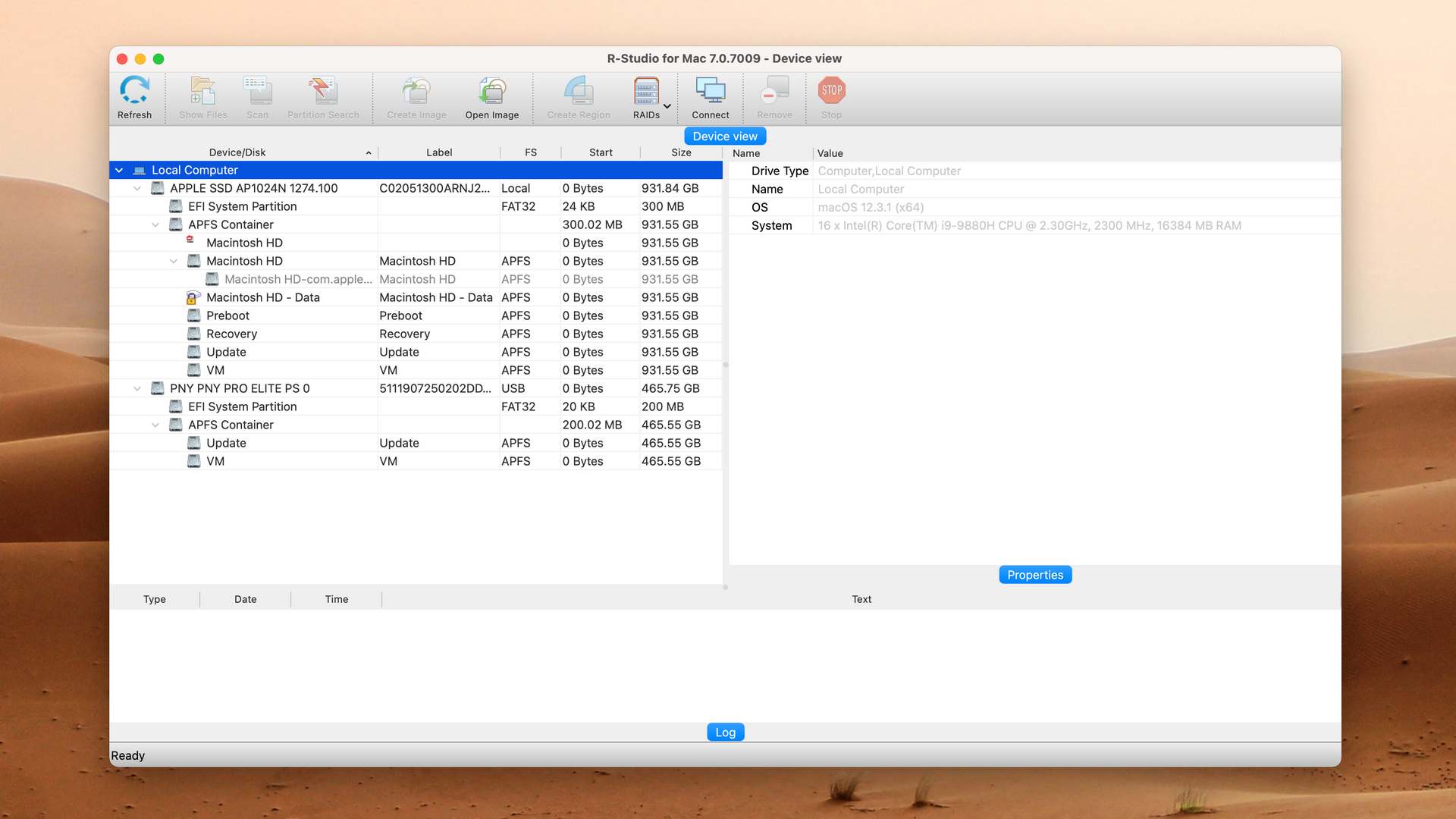
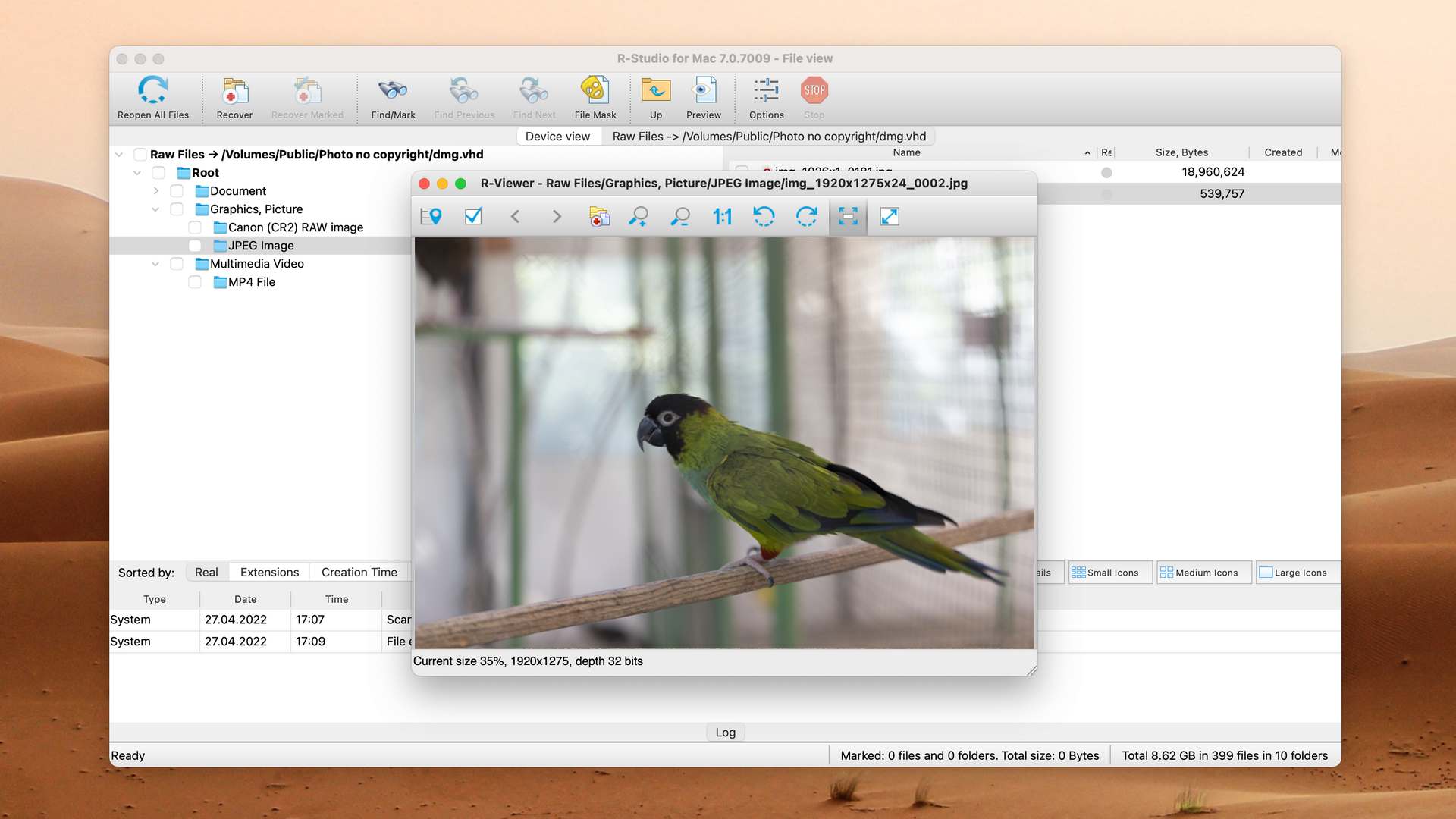
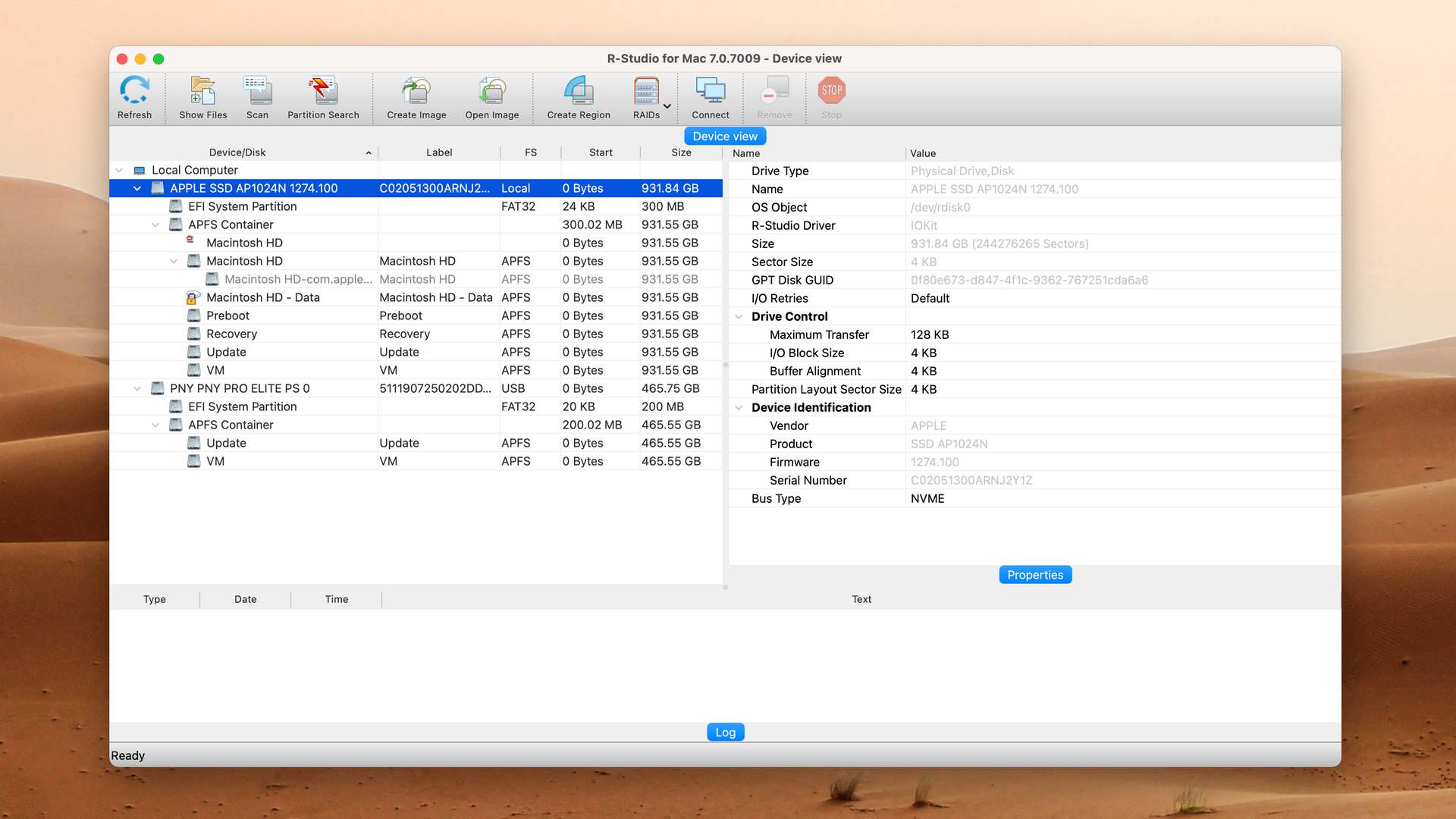
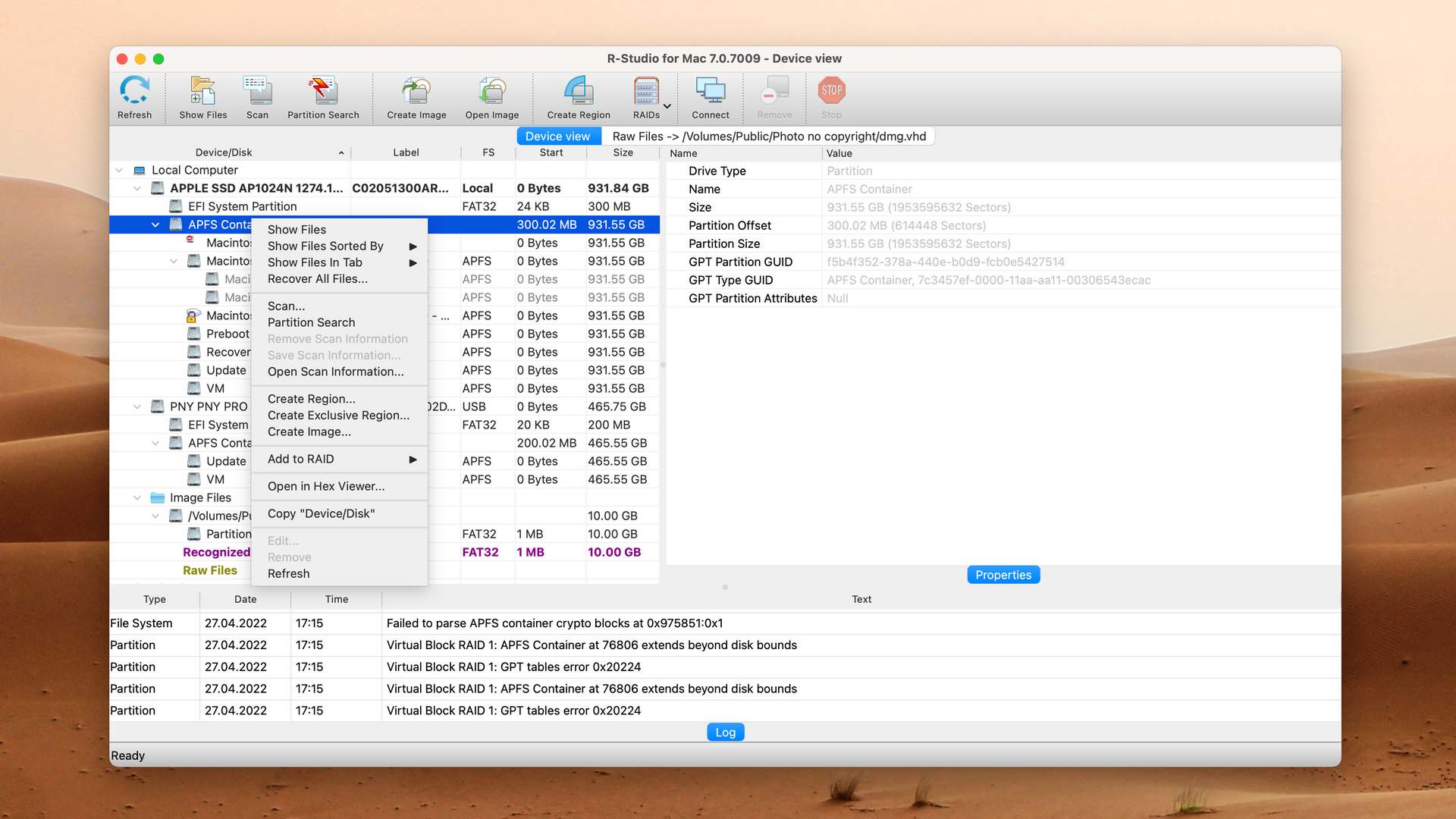
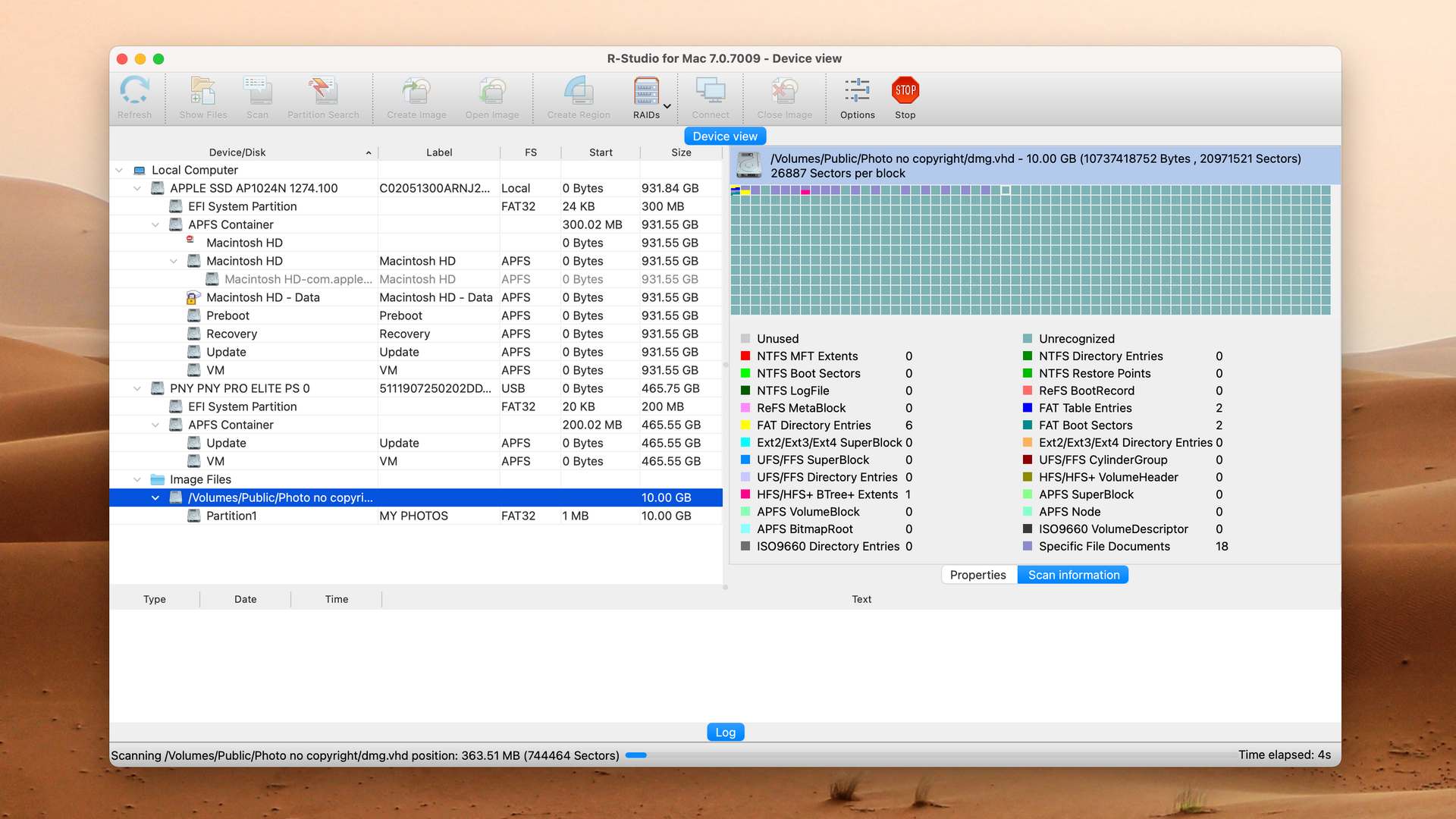
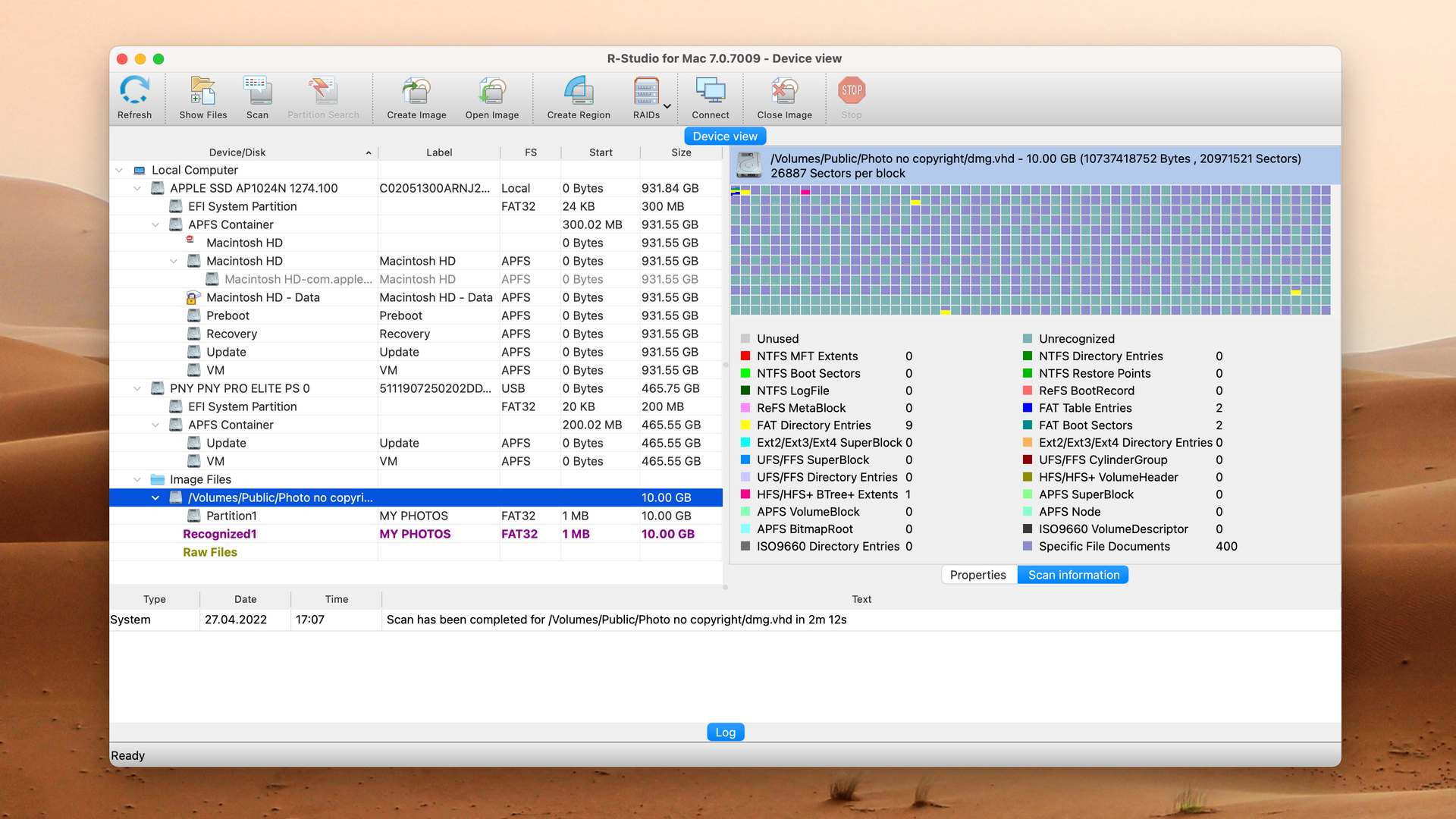
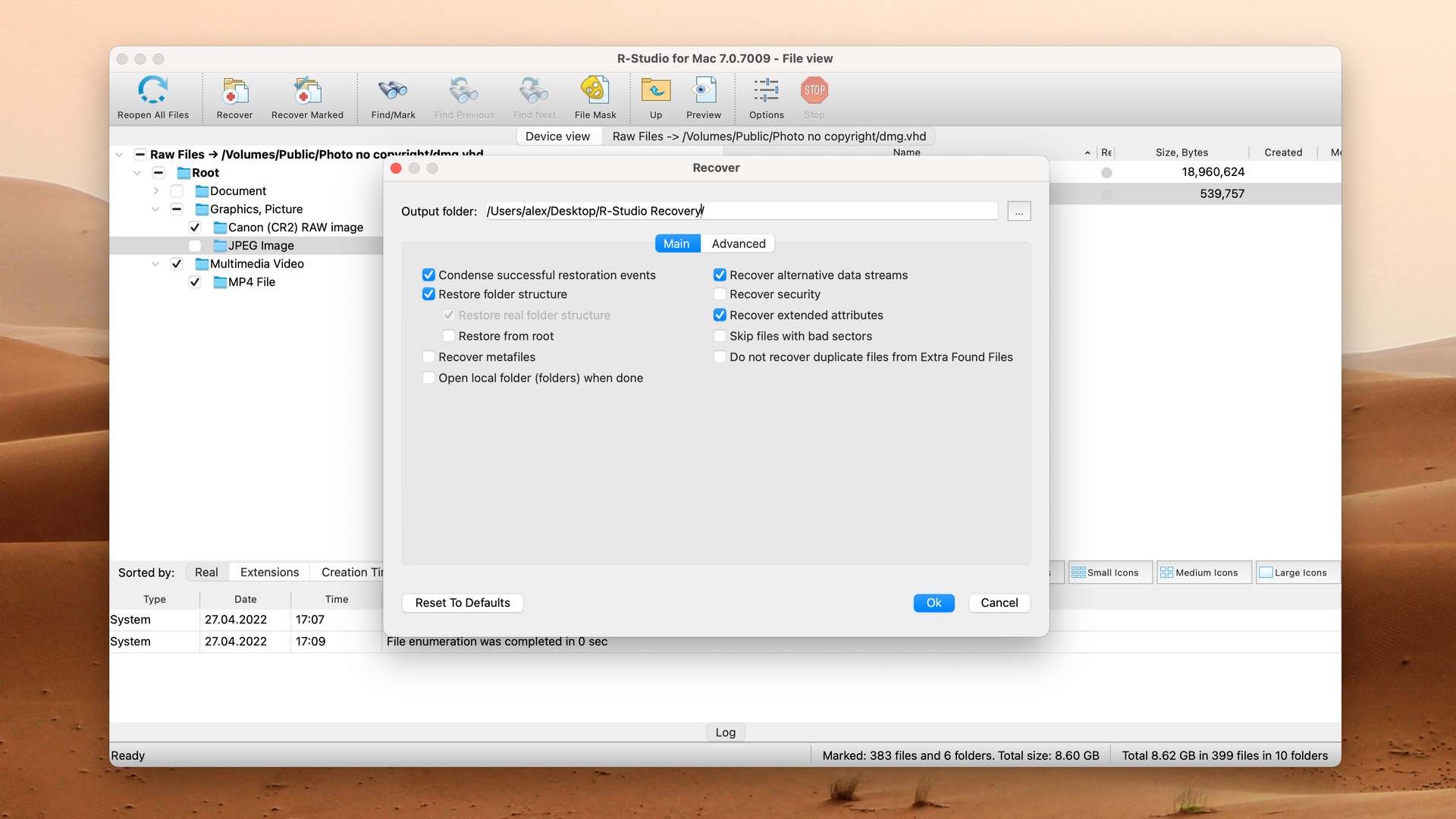
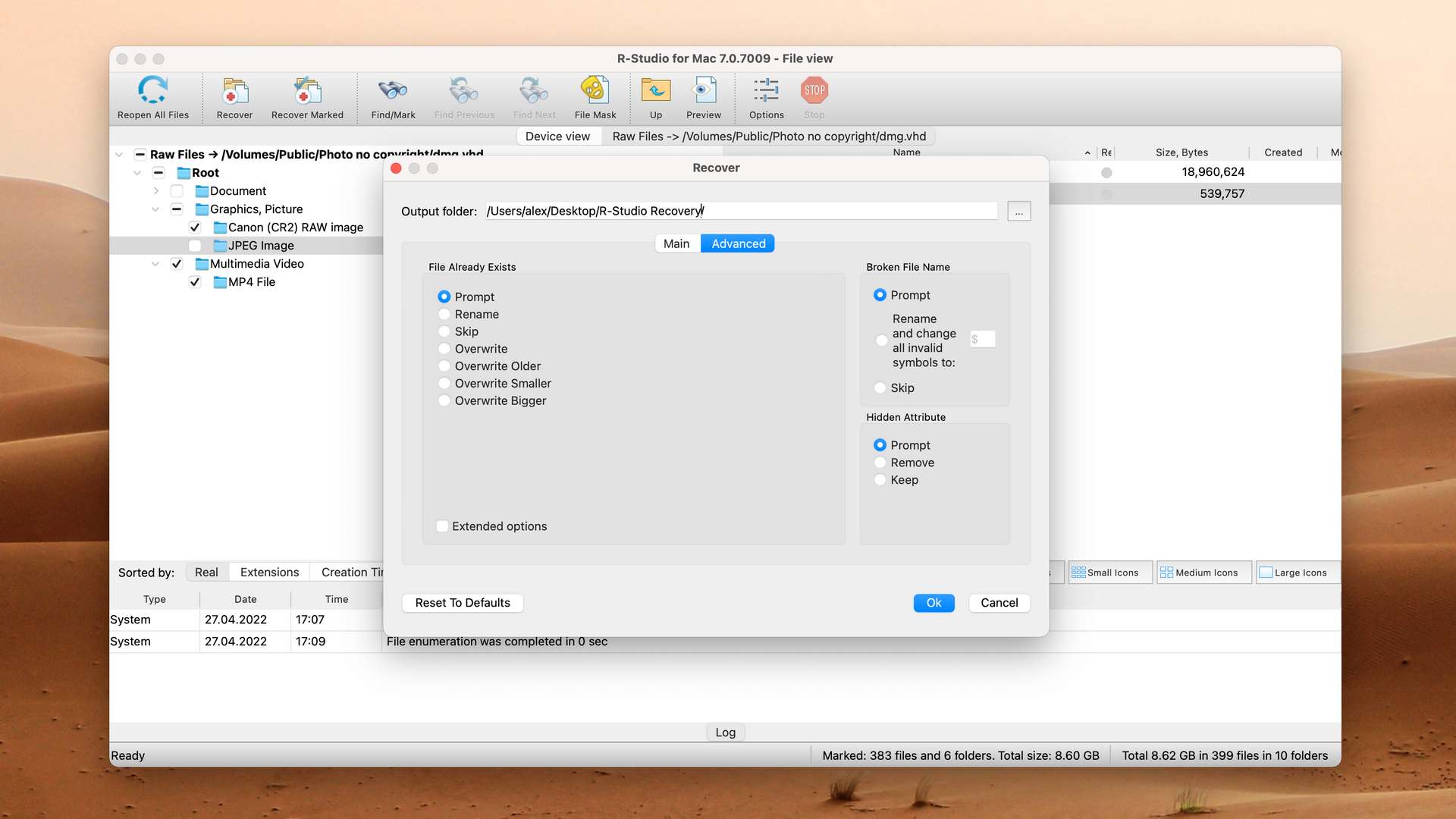
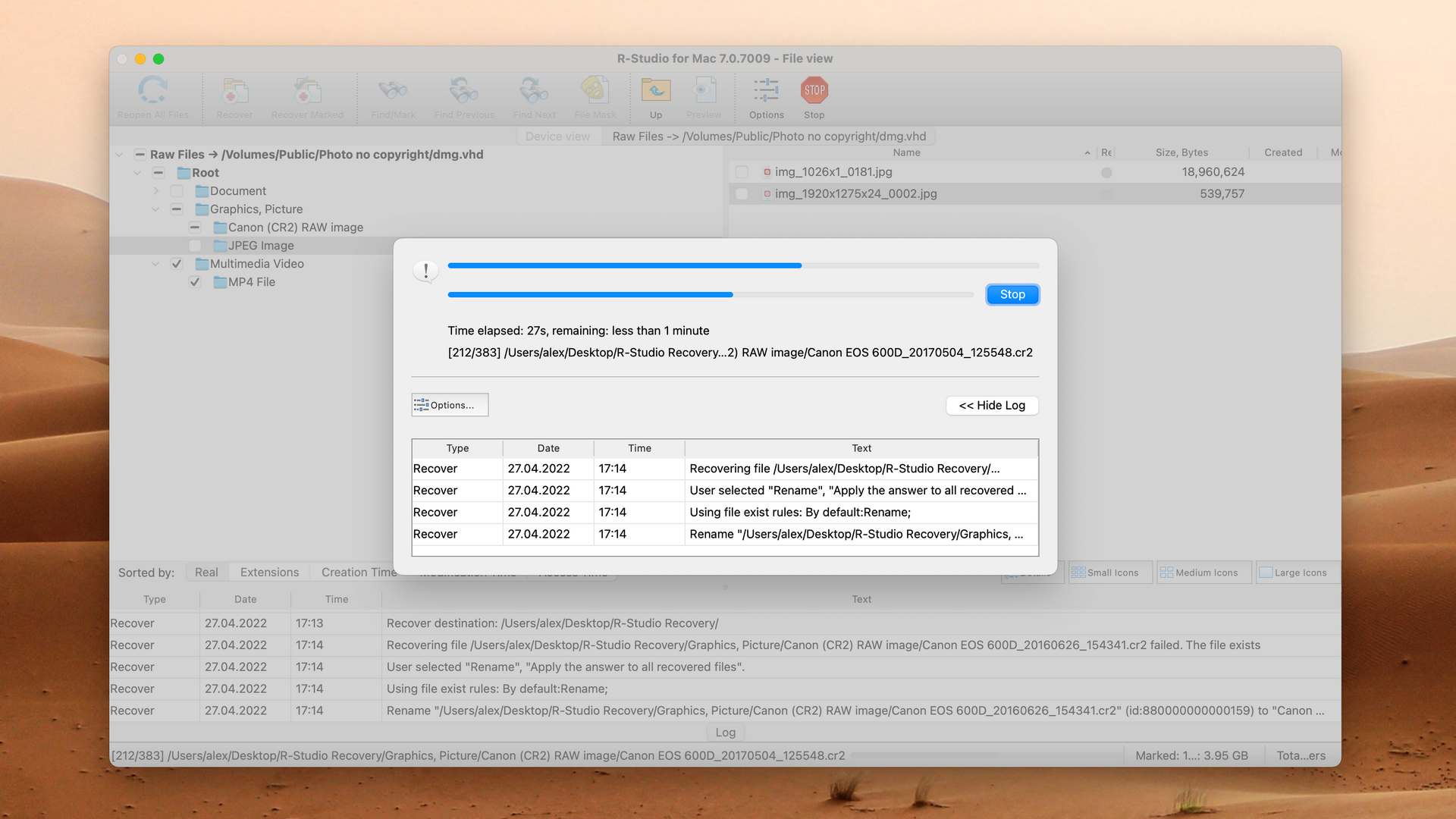
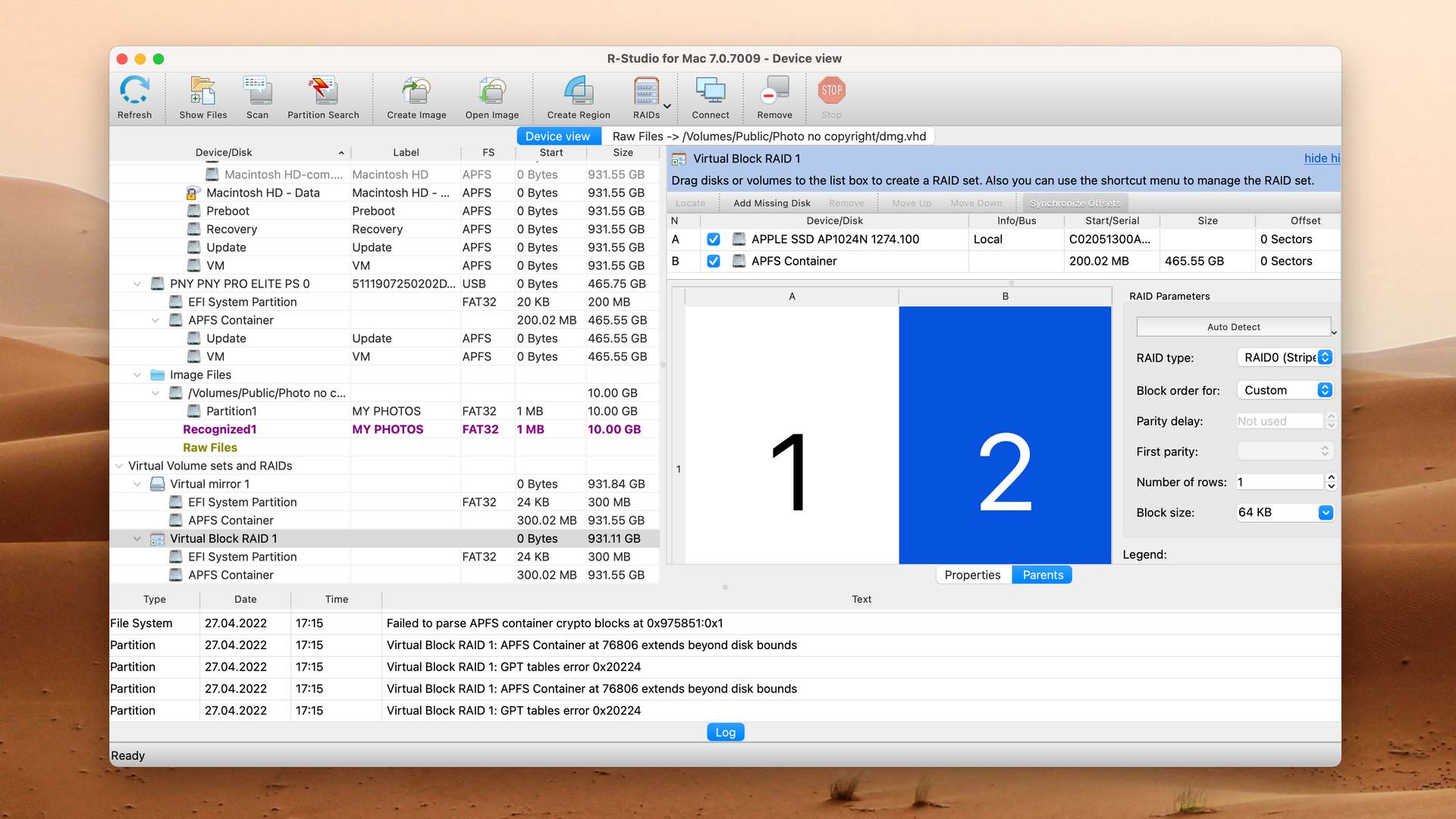
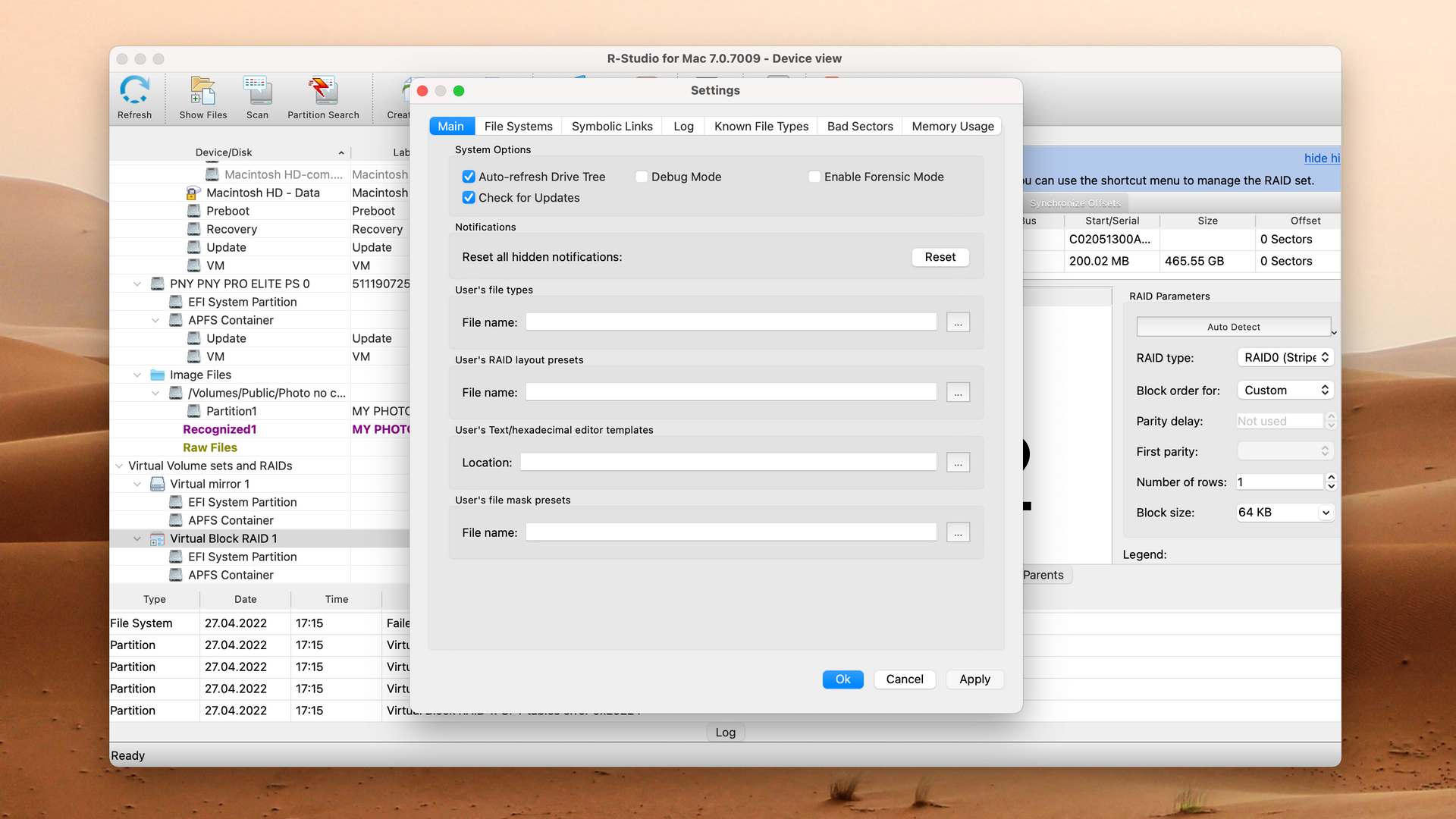
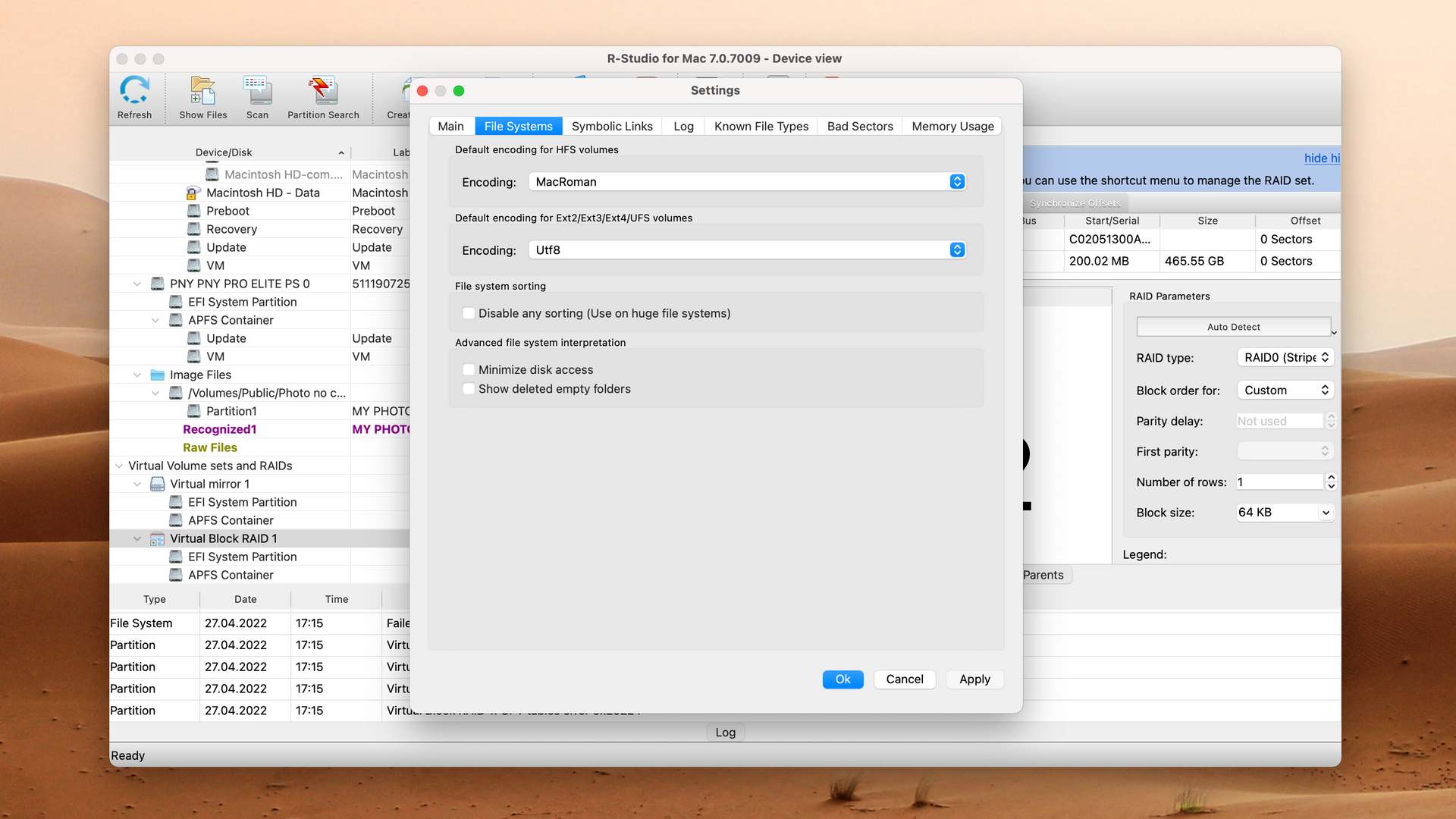
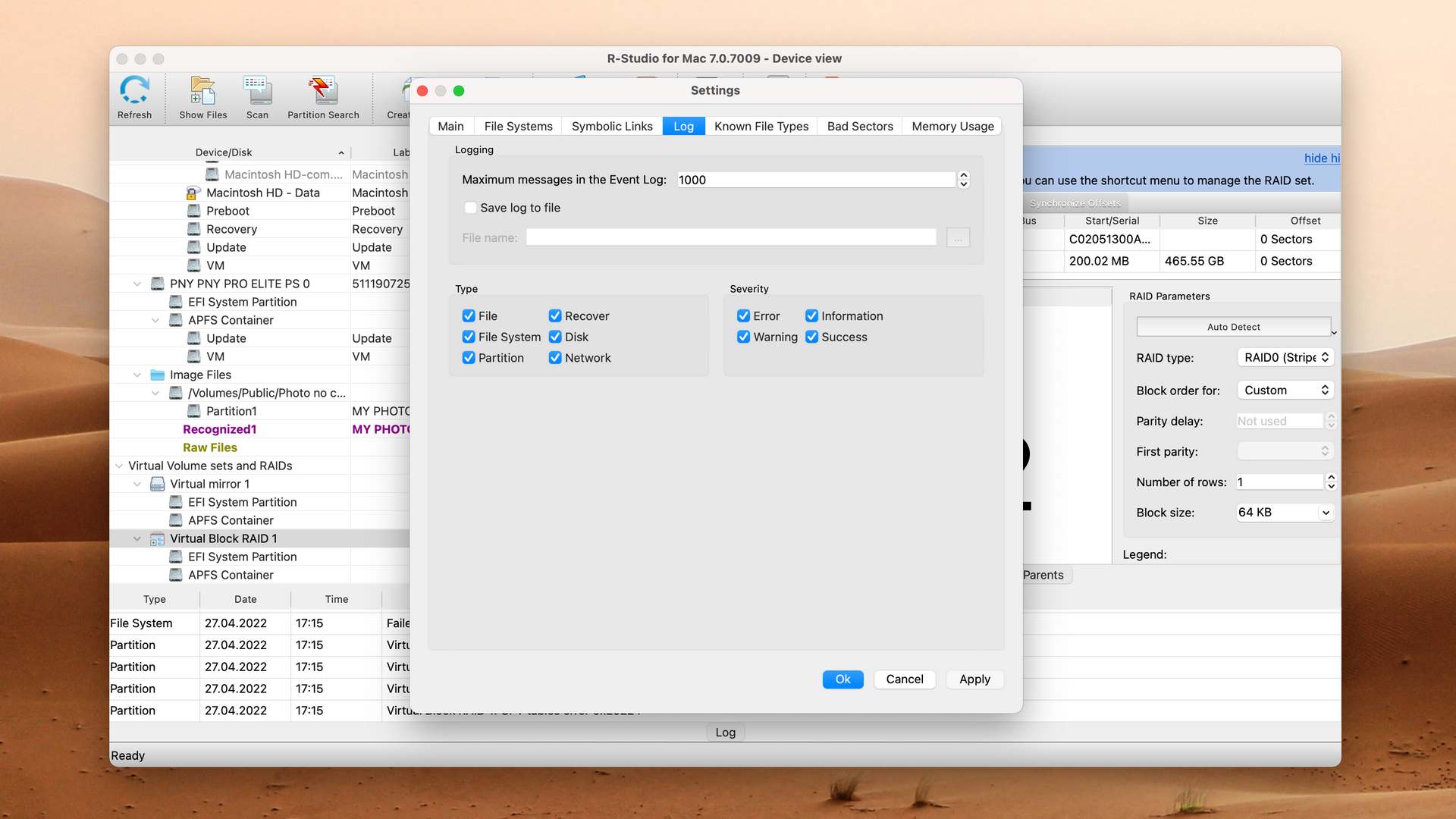
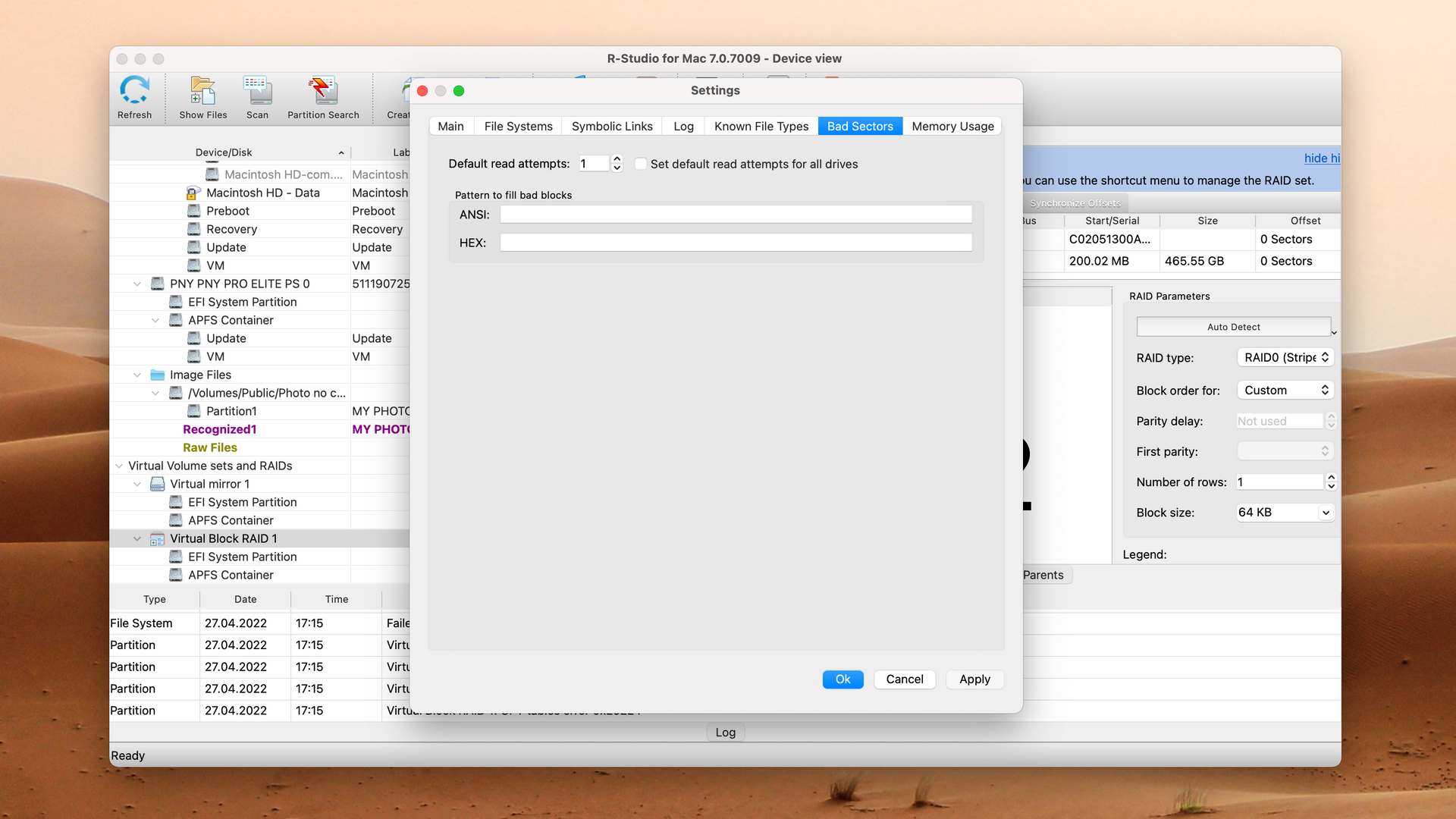
R-Studio is a technician’s tool and its unforgiving interface reflects that. Source selection is cluttered, you are constantly prompted to configure the recovery process, and the app is not as visual as the more beginner-friendly tools on this list. However, what makes it inconvenient for the regular user makes it a powerful and highly customizable tool for technicians.
Recovery Performance
What R-Studio lacks in usability, it makes up for in performance. It was able to restore our data’s original folder structure and file names, as well as recover recently deleted files. It successfully recovered our HFS+, NTFS, and EXT4 partitions and produced decent results with our FAT32 and ExFAT partitions.
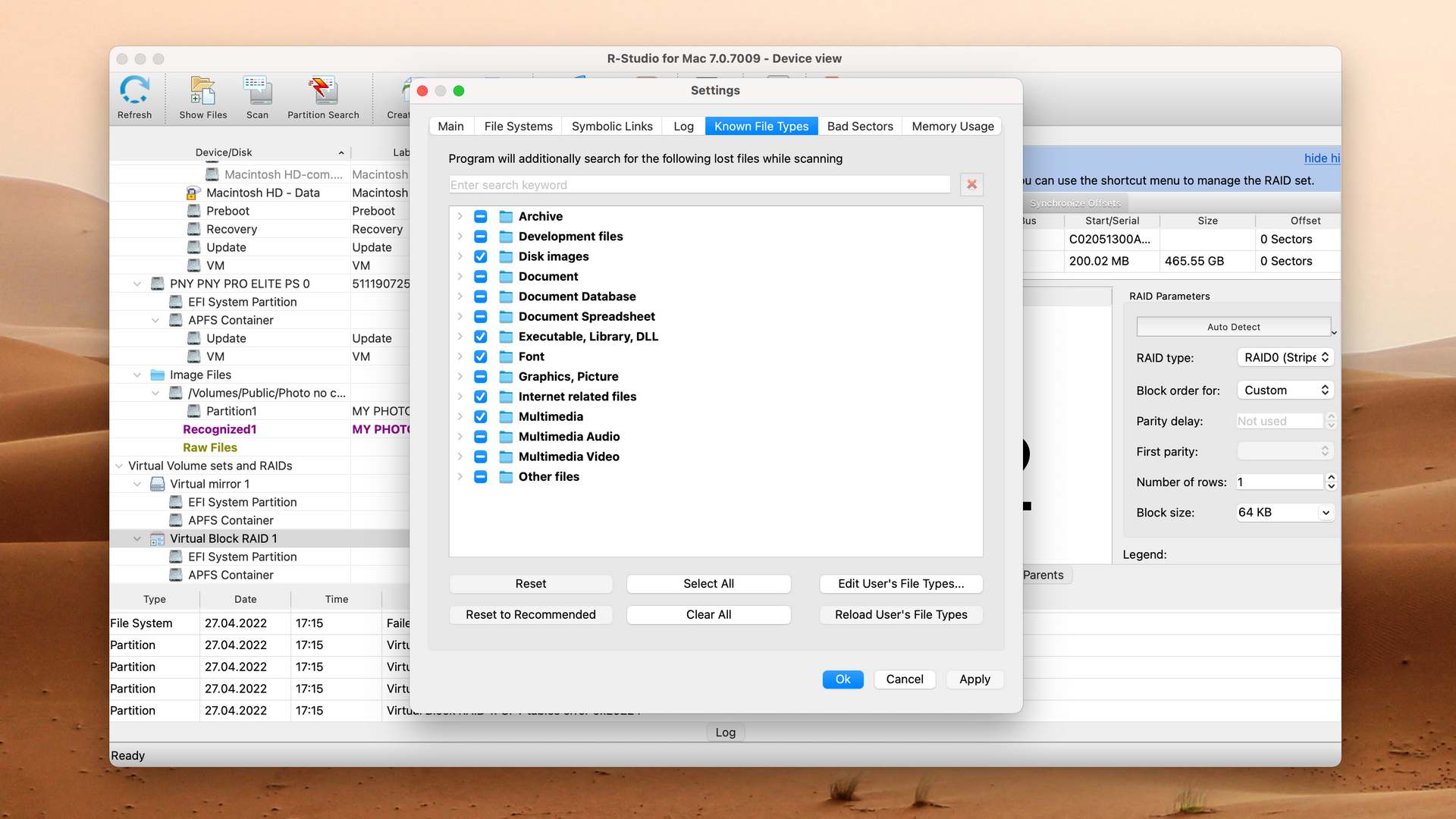
R-Studio is also capable of scanning lost partitions and recognizing most of the popular file types we tested, but we noticed it struggled with some of the common ones like KEY, PPT, and even DOCX. However, note that you can add your own custom file types.
Value
R-Studio’s least expensive subscription ($79.99) already provides an amazing tool for various recovery tasks. However, its advanced features (like network recovery and bootable recovery) are locked behind the Technician license, which costs $899 for Mac, Windows, and Linux combined.
R-Studio also offers the T80+ license ($80), which gives users access to all the features in the Technician’s version for 80 days.

4. UFS Explorer for Mac
3.63 • Powerful but technical – UFS Explorer for Mac provides professional-grade recovery features and excellent file system support, but its technical interface makes it better suited for experts than casual users.
macOSWindowsLinux
Freemium Some features are provided free of charge, but money is required to unlock the rest.
Recover files smaller than 256 KB
$64.95...$699.95
UFS Explorer is a professional-grade data recovery solution that’s been around since 2004. It’s built mainly for technicians and data recovery specialists, but the Mac version can also be a good choice for home users who don’t mind a learning curve, as it supports an unusually wide range of file systems and storage devices.
Usability
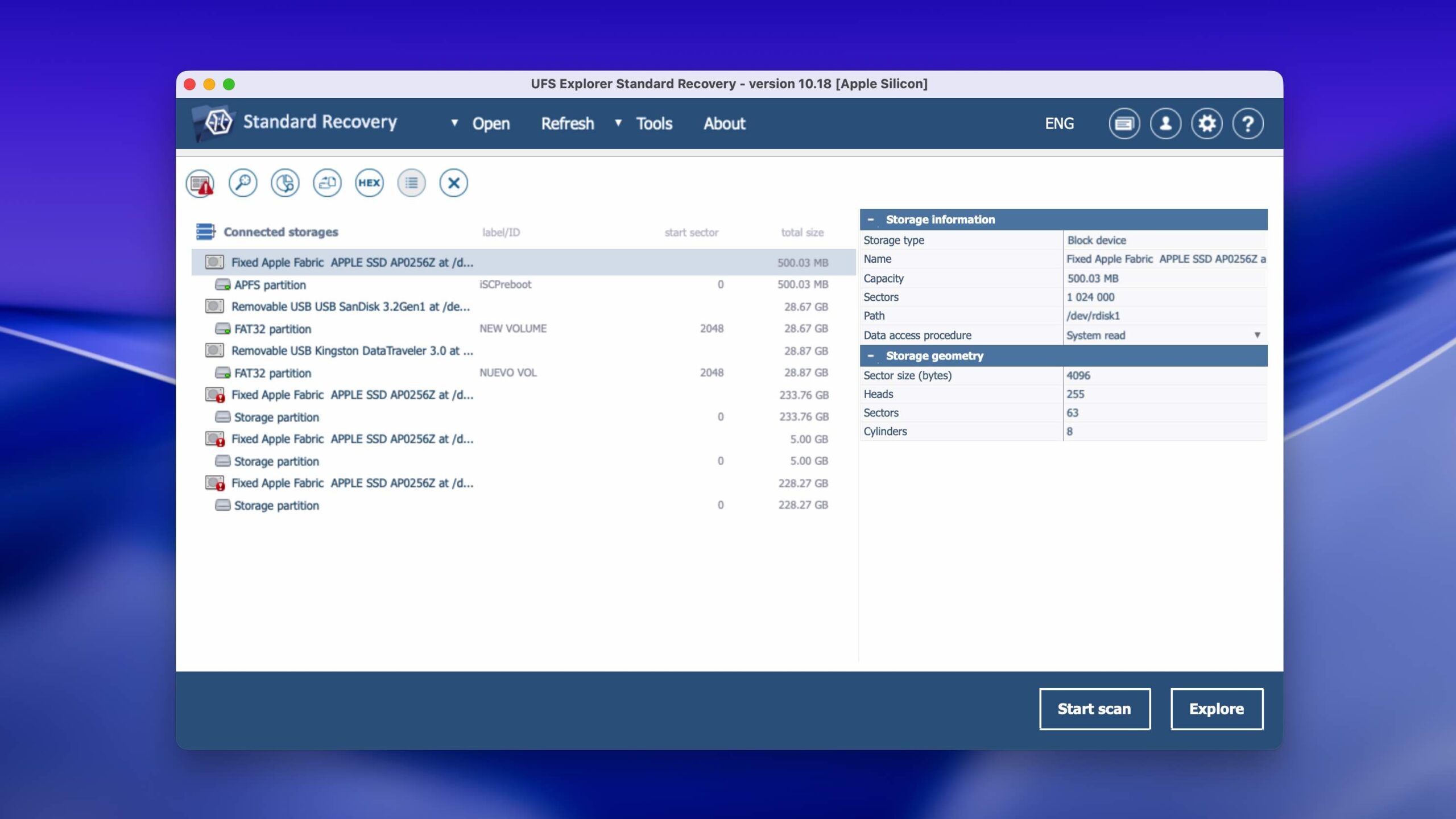
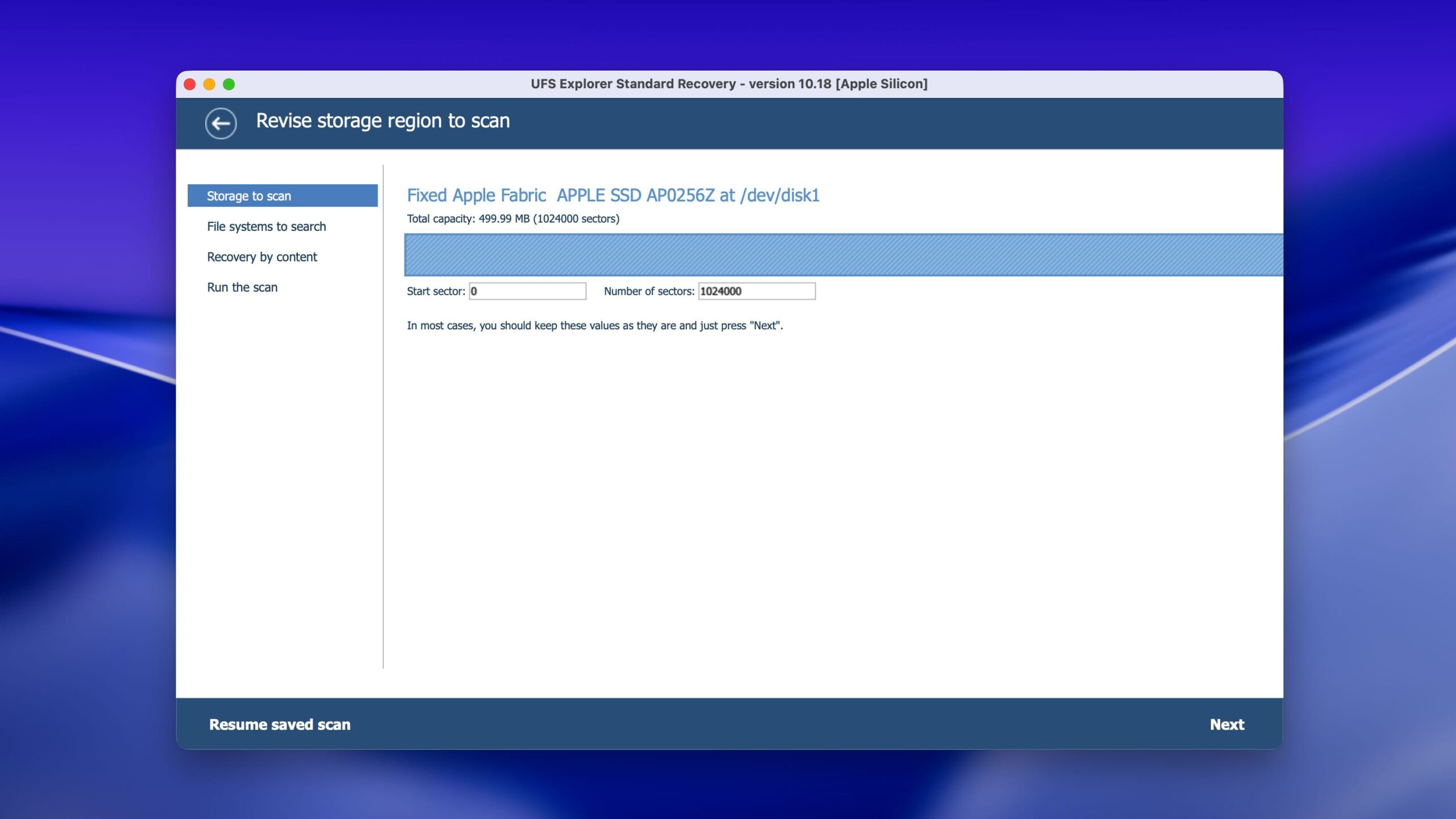
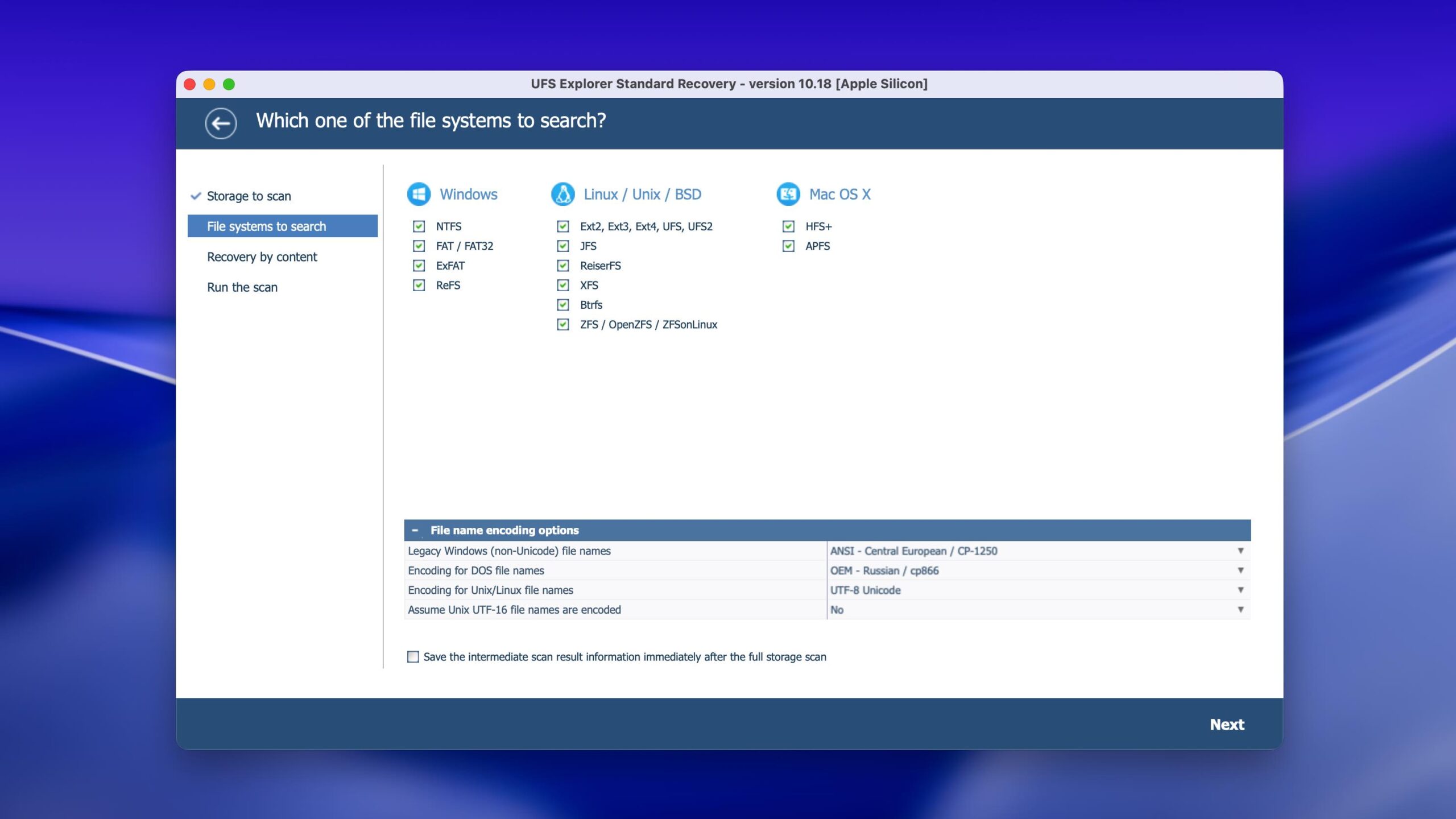
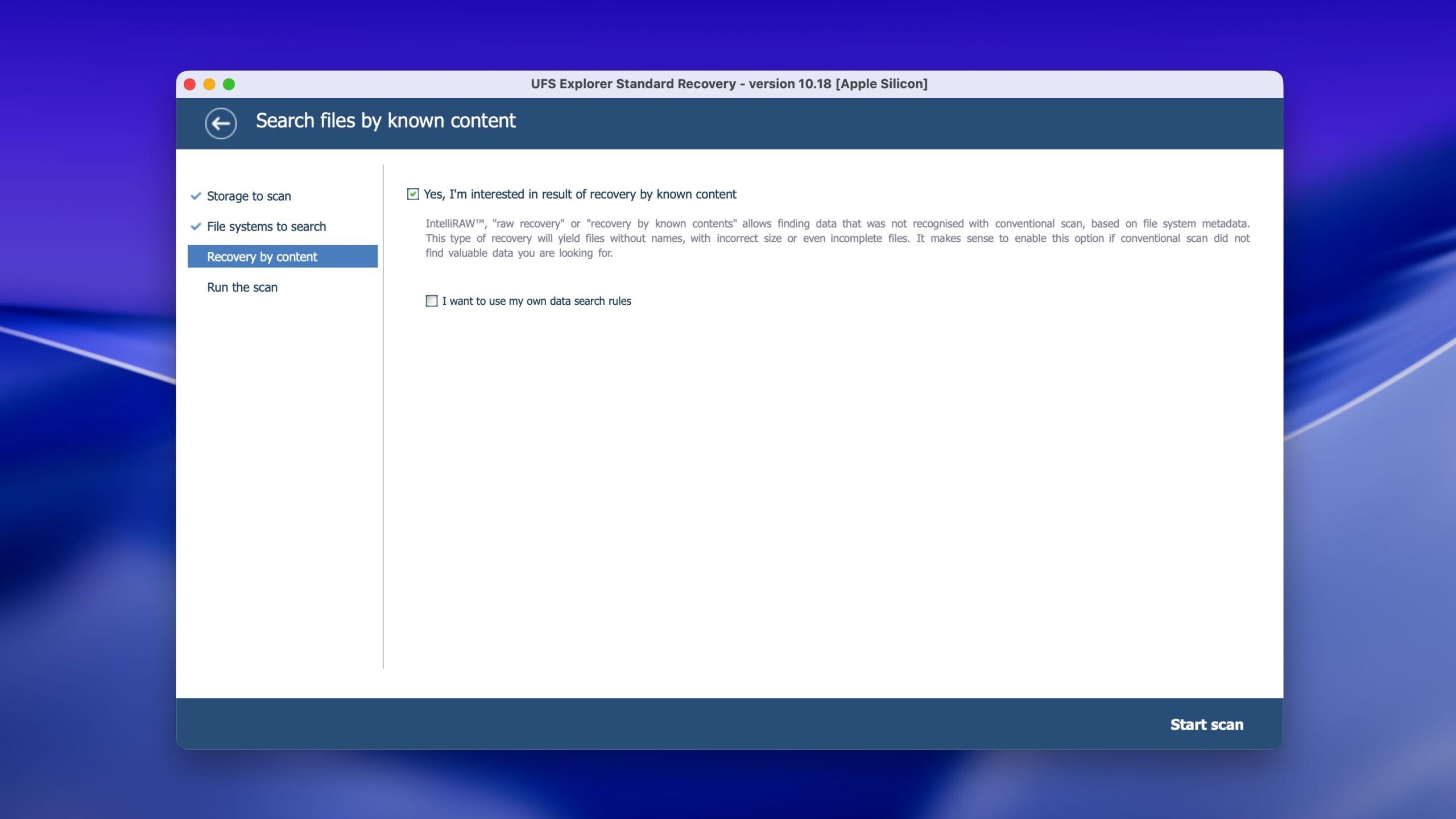
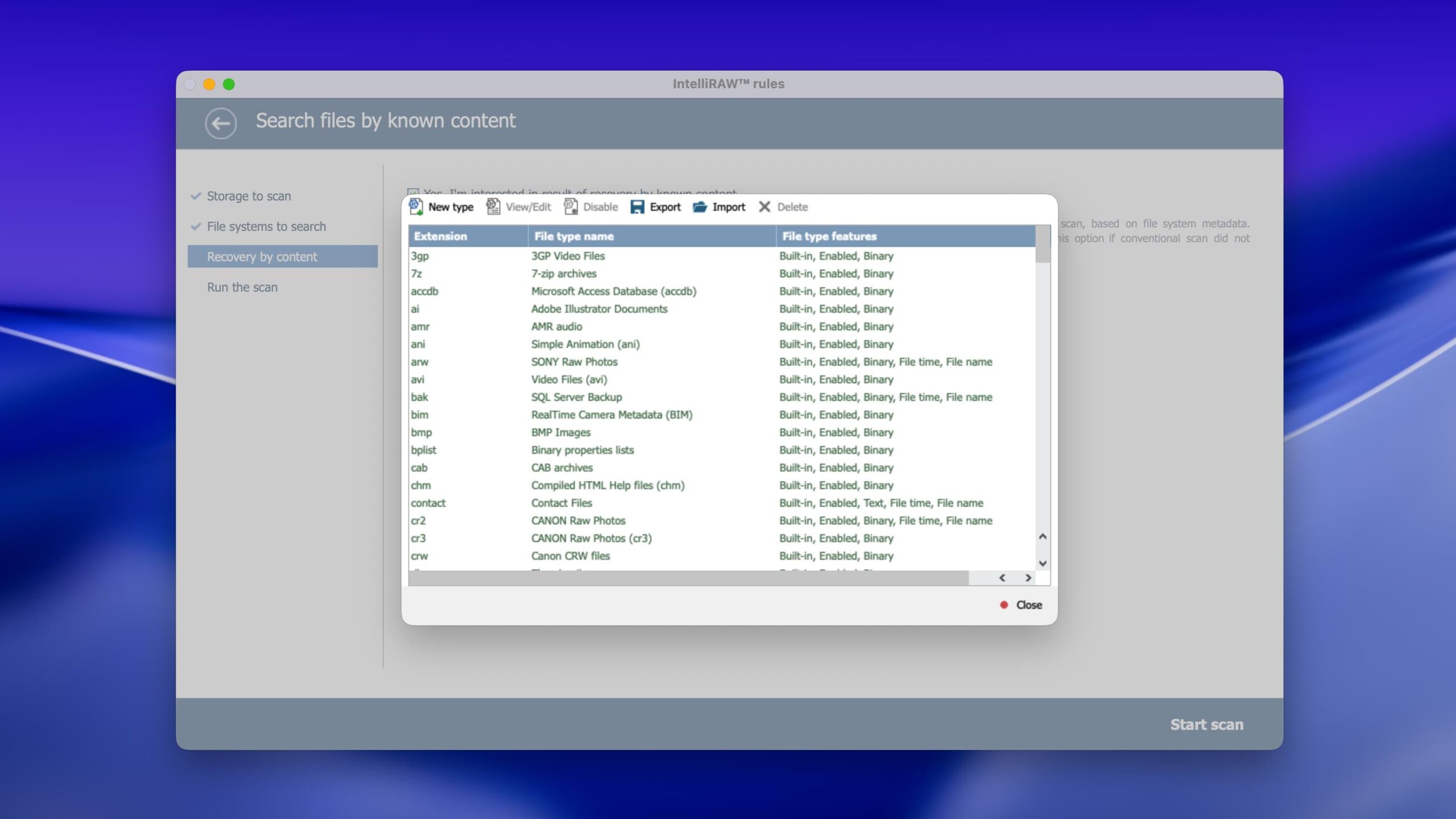
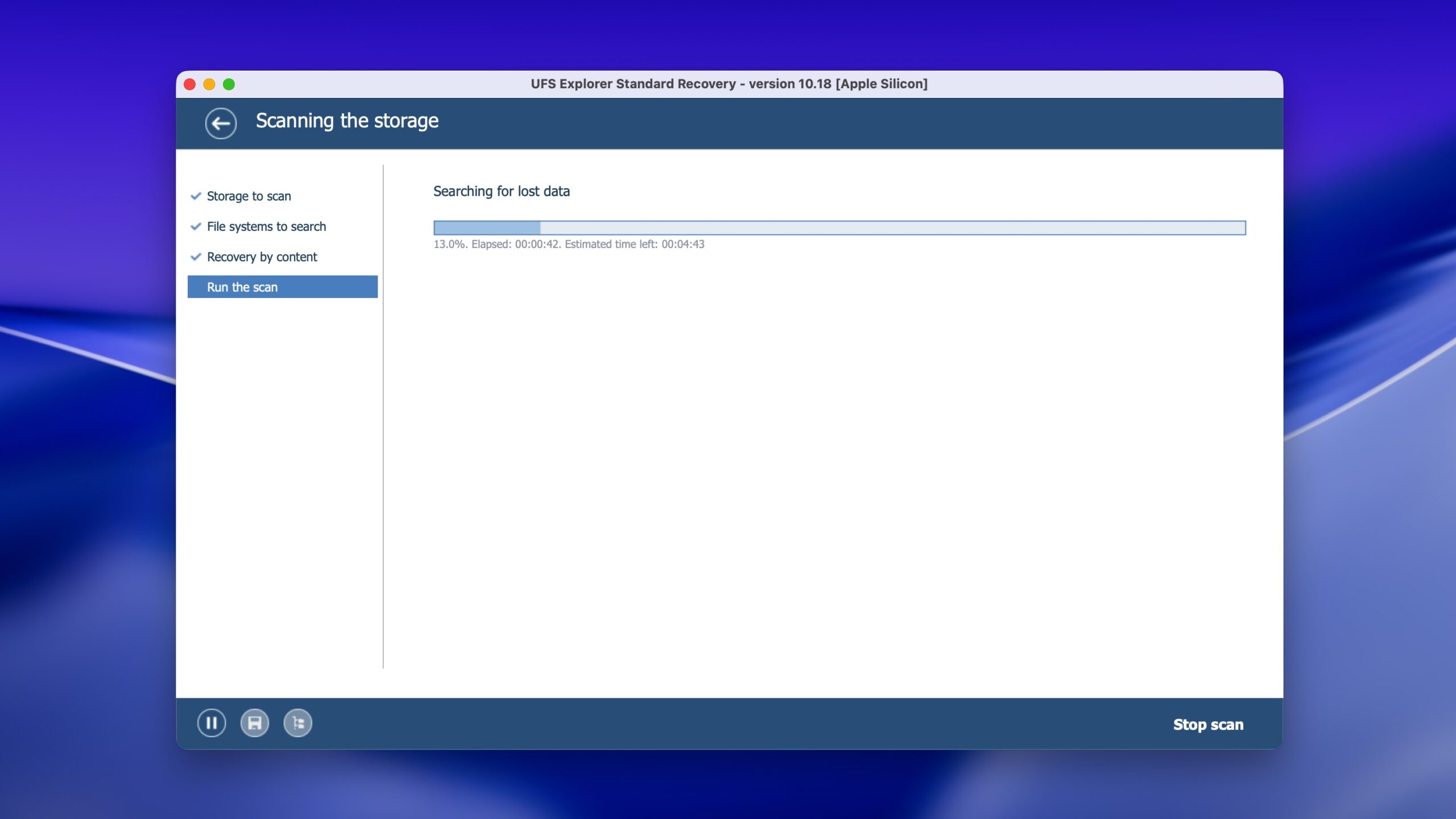
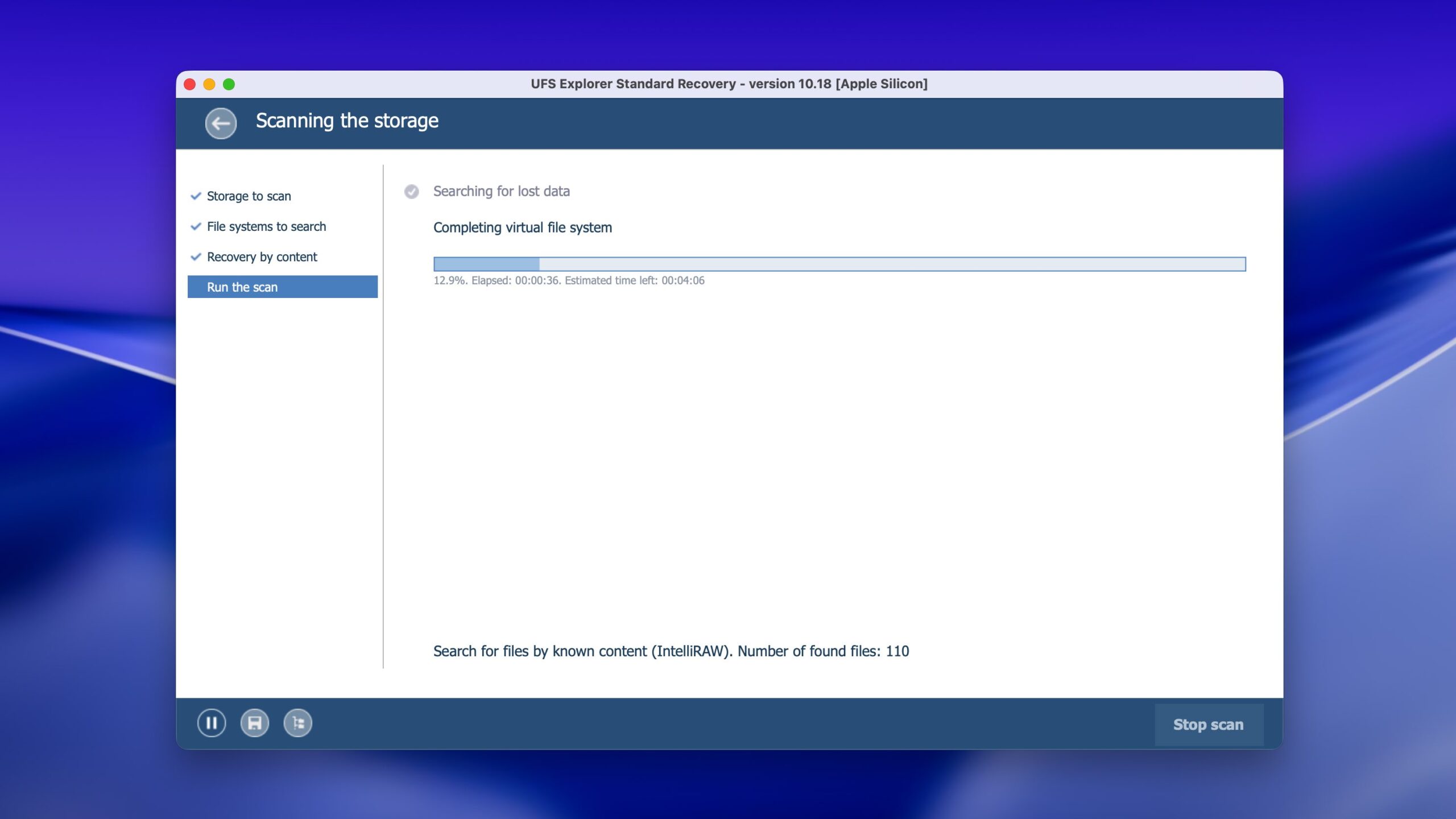
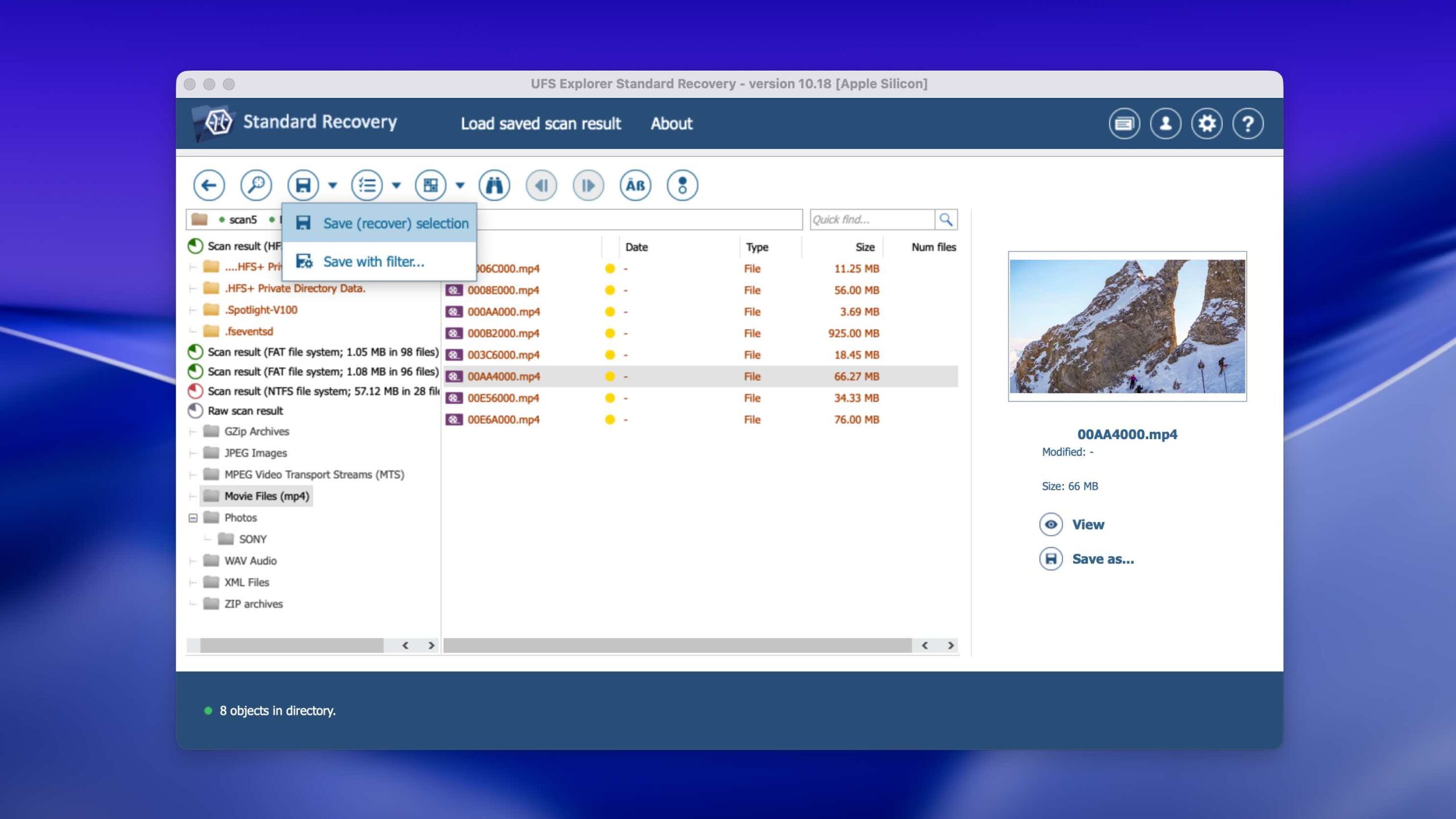
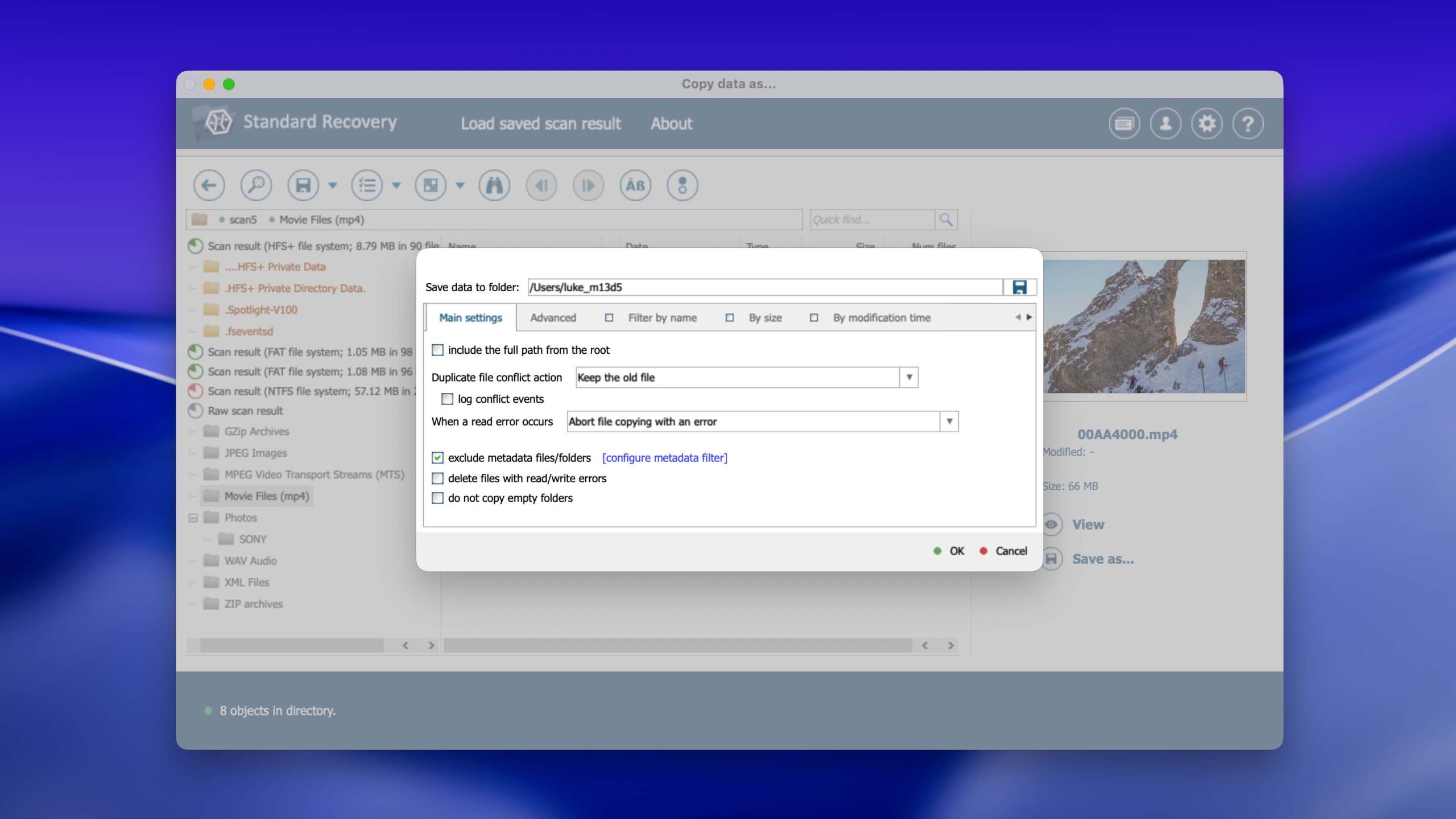
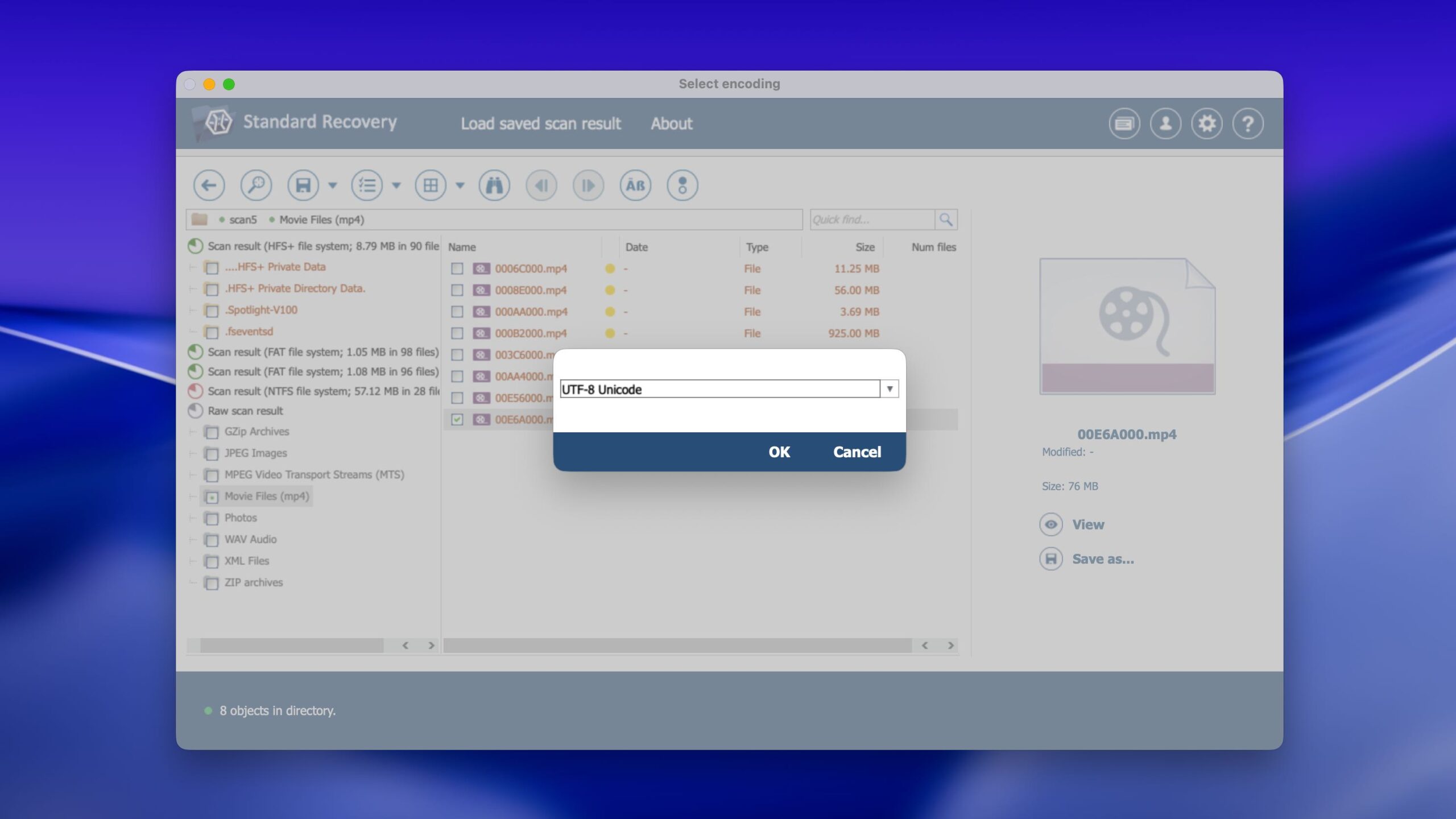
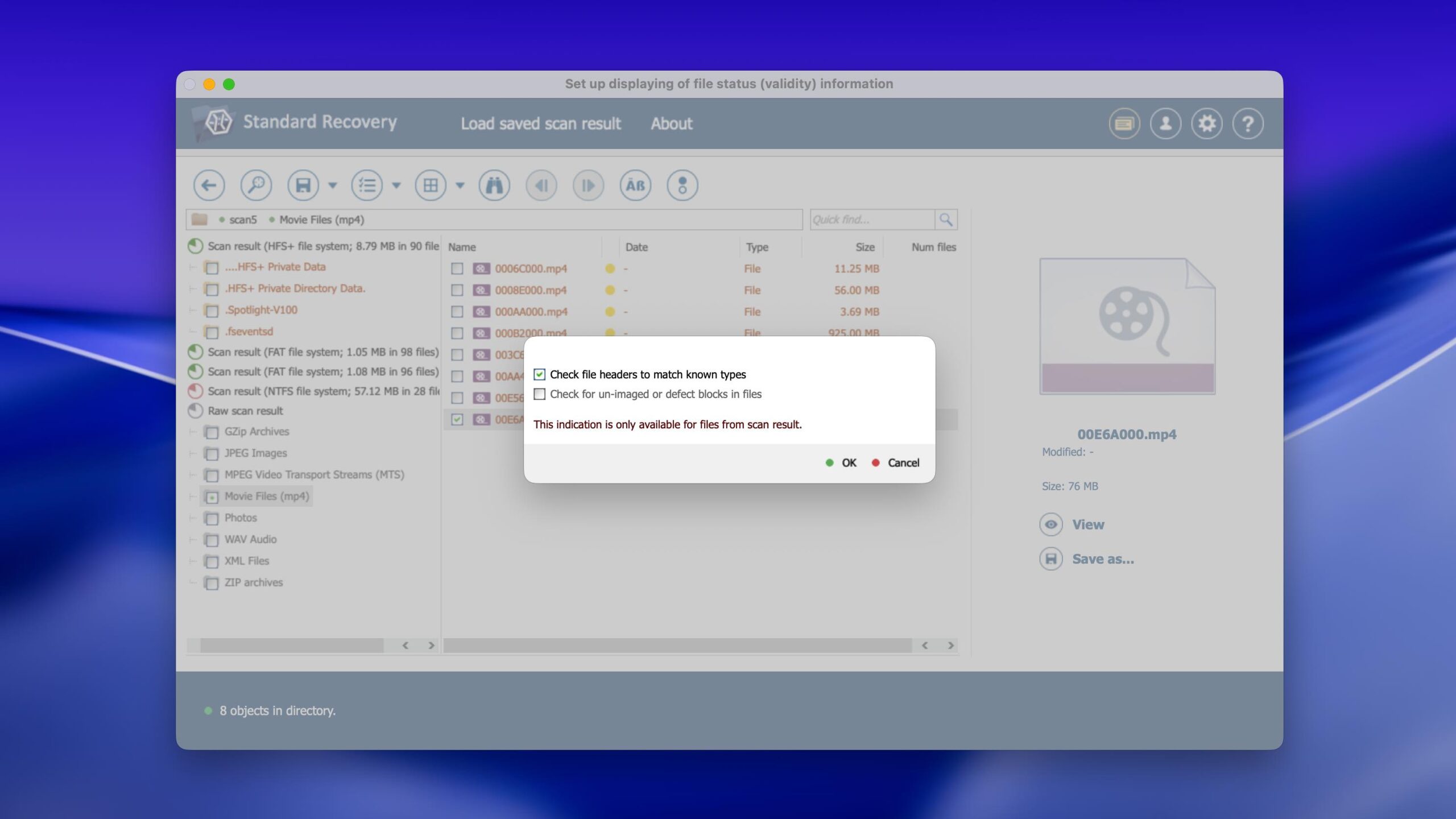
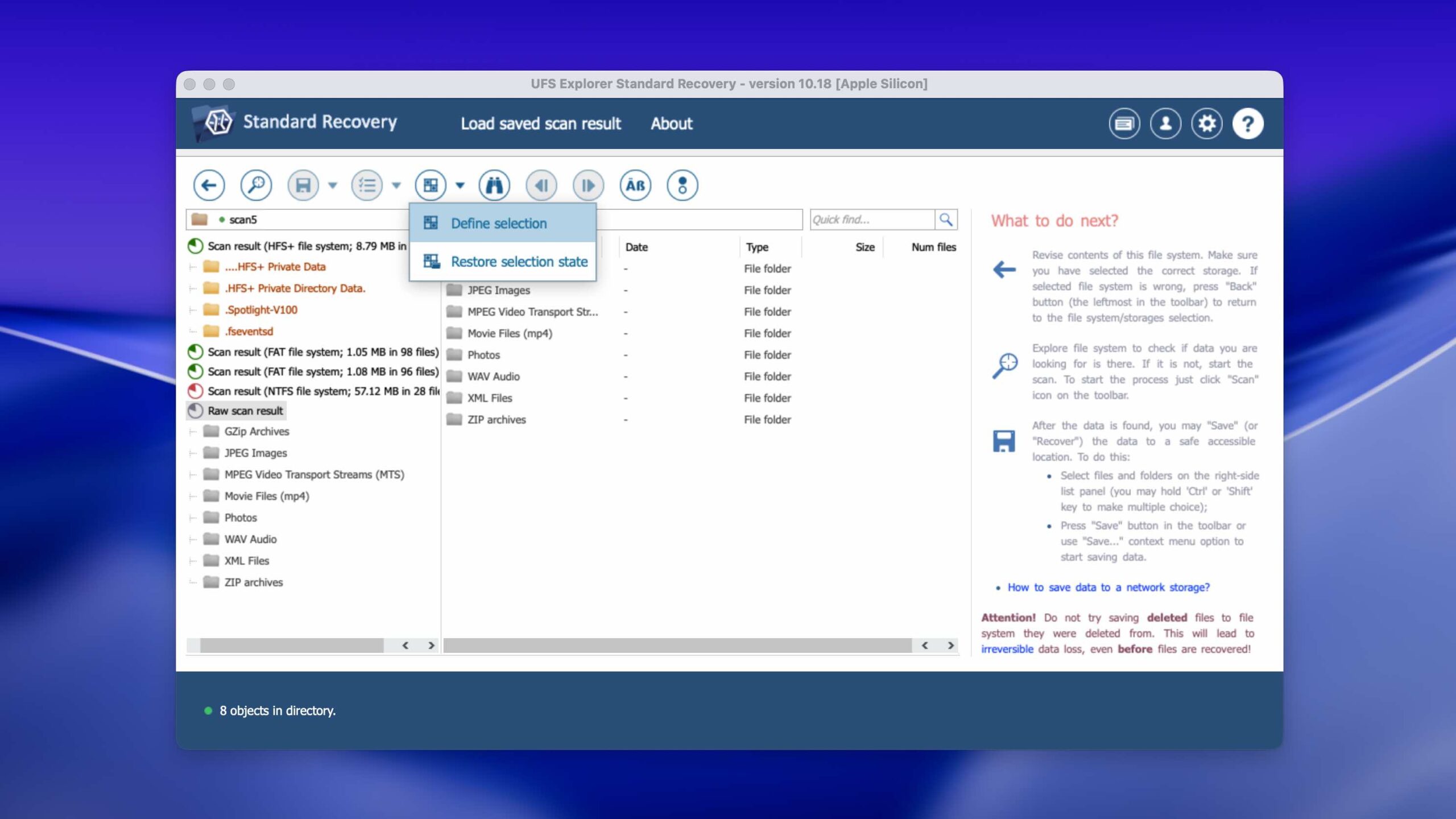
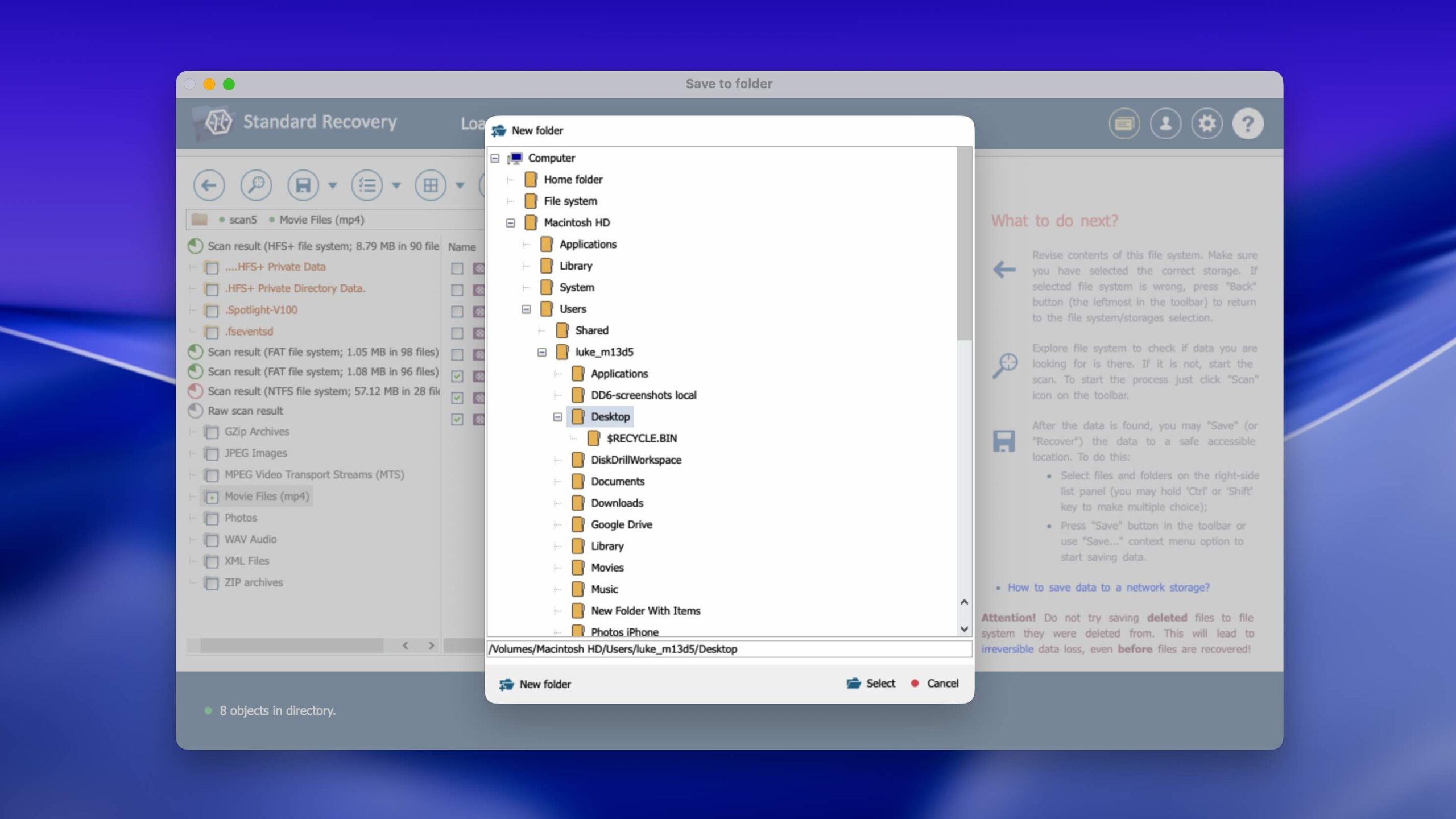
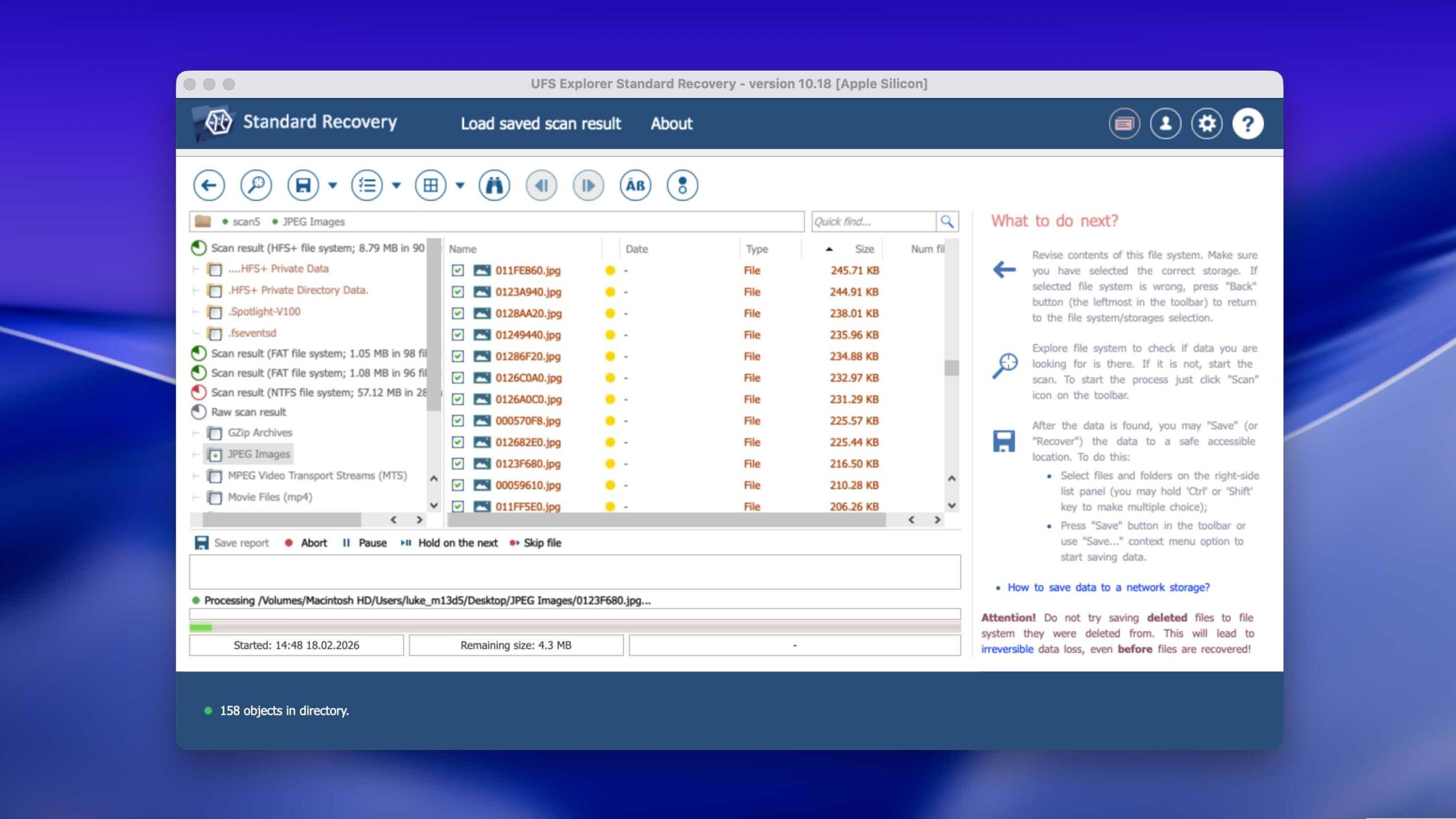
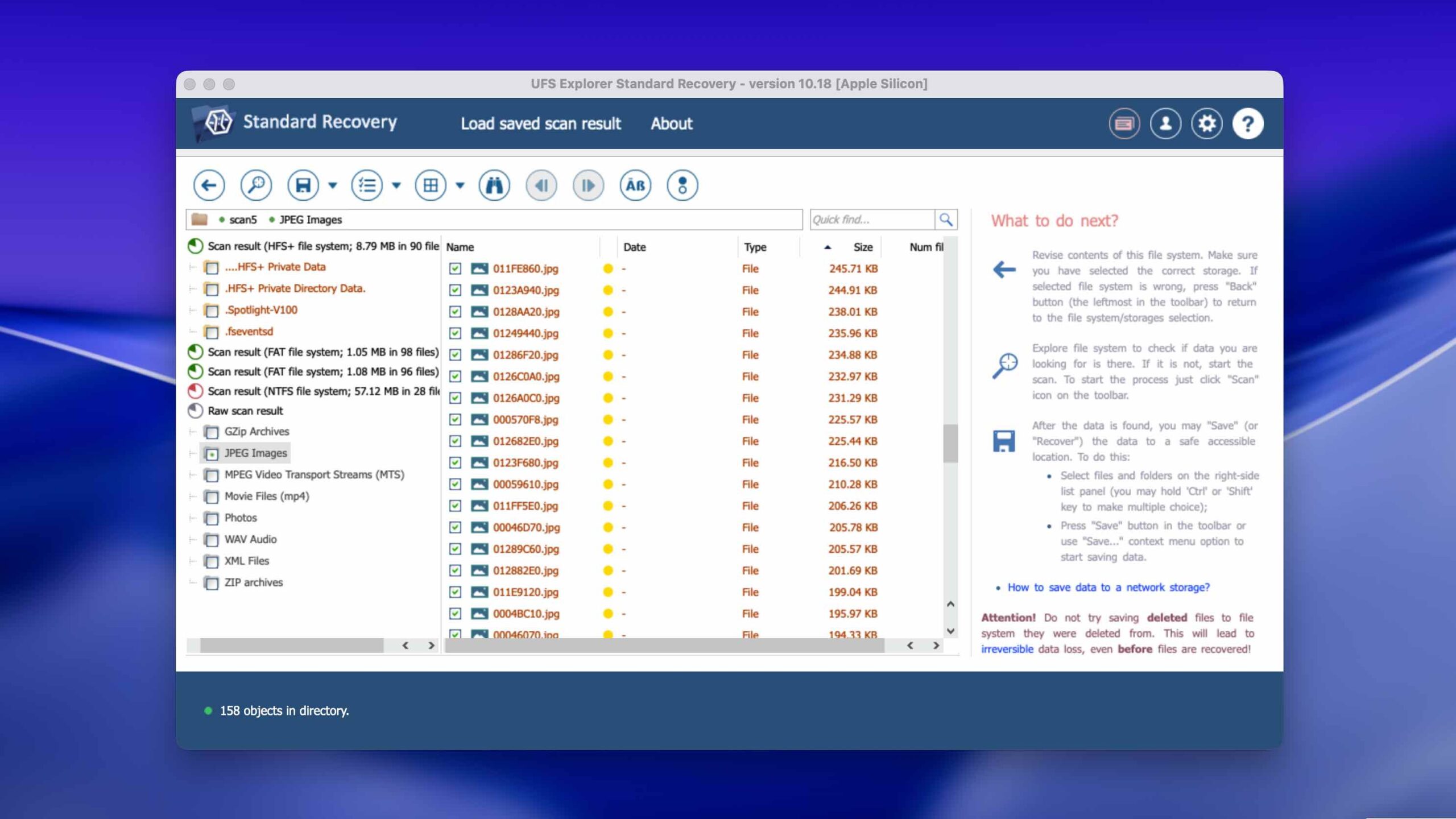
UFS Explorer's interface clearly looks like it was built for technicians instead of everyday users. The source selection screen is full of technical information about each drive, which can be overwhelming for newbies. Before you can even start scanning, you're presented with multiple configuration screens asking about file systems to search for, scan areas, and custom recovery rules.
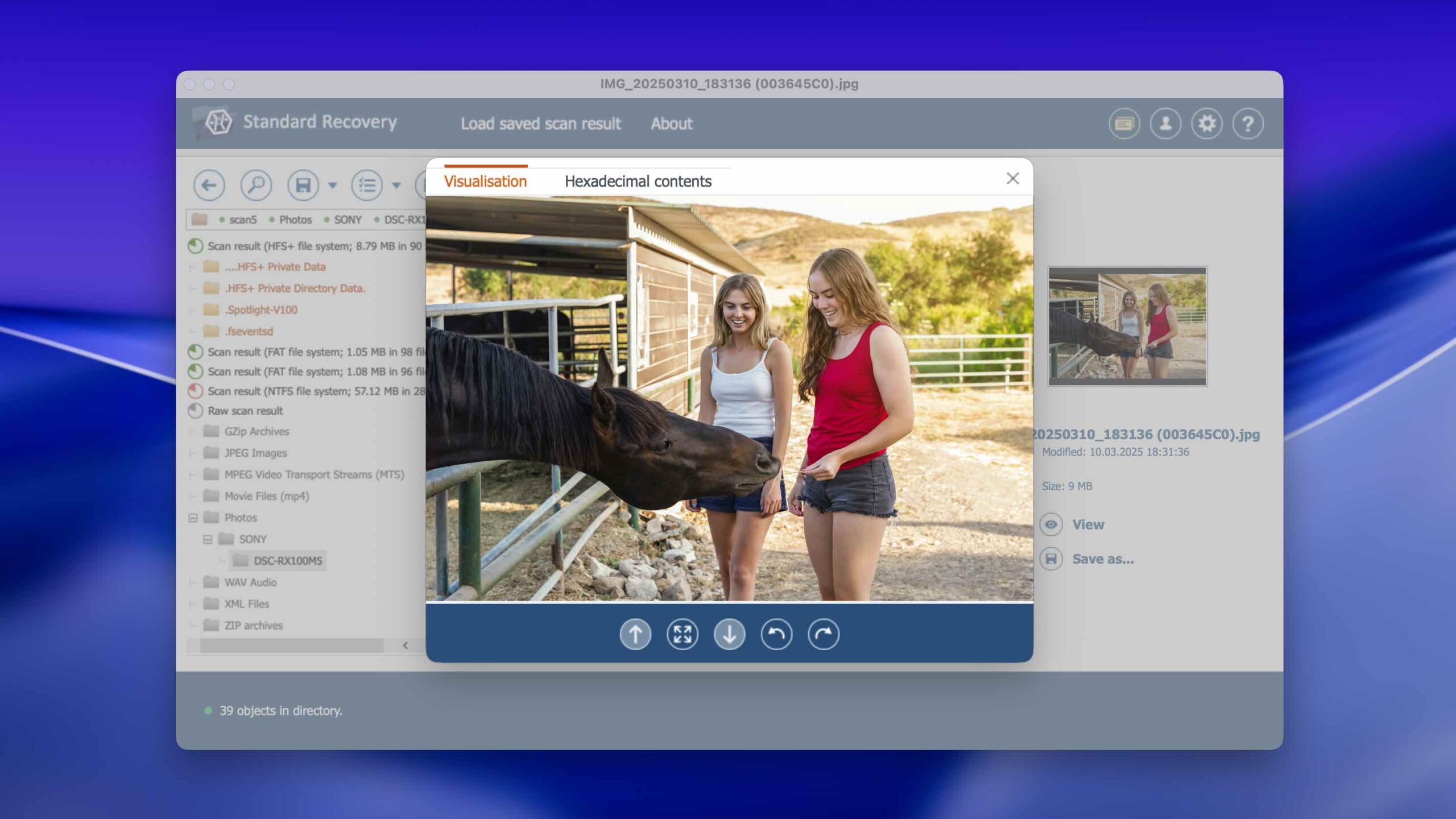
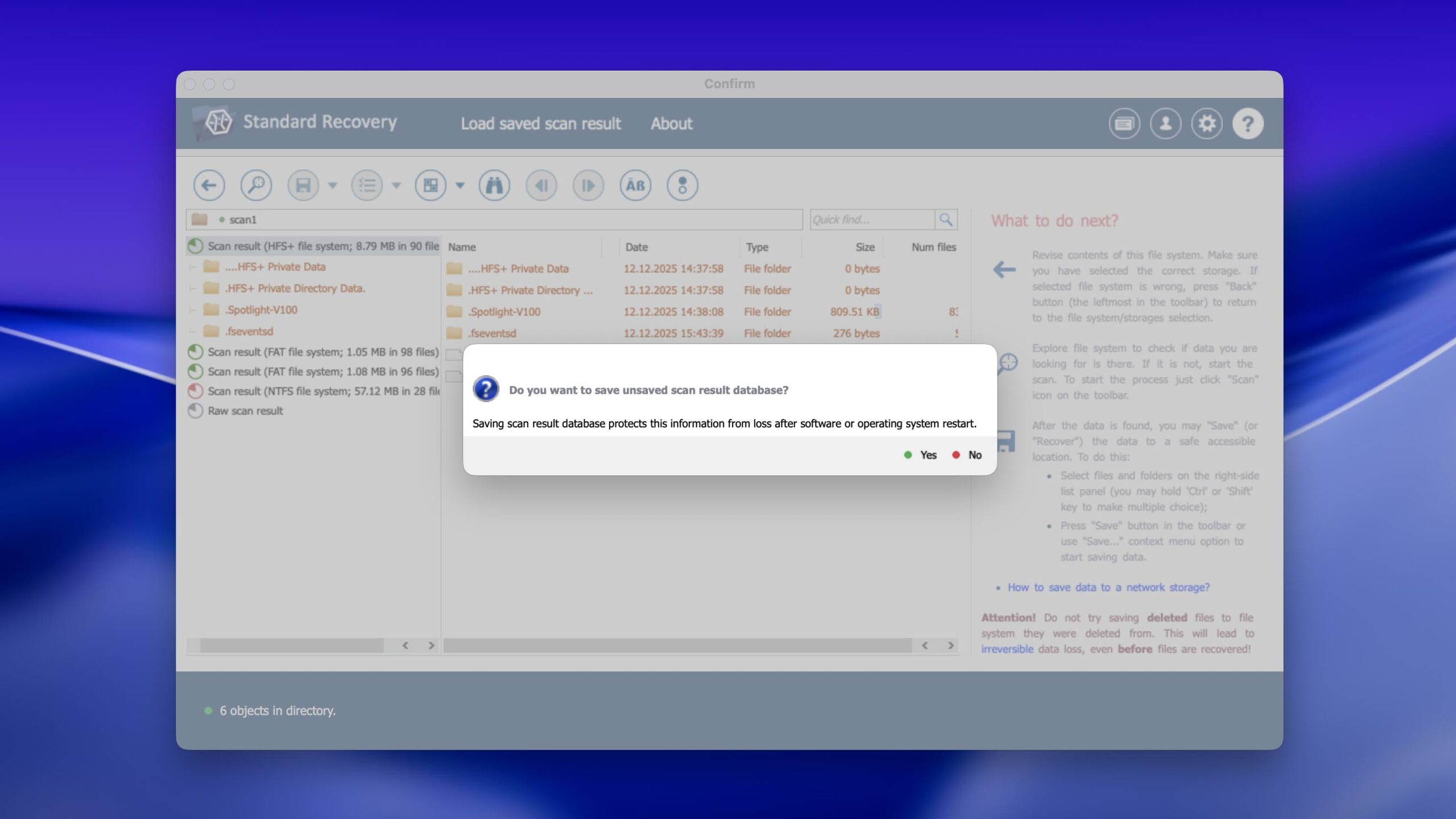
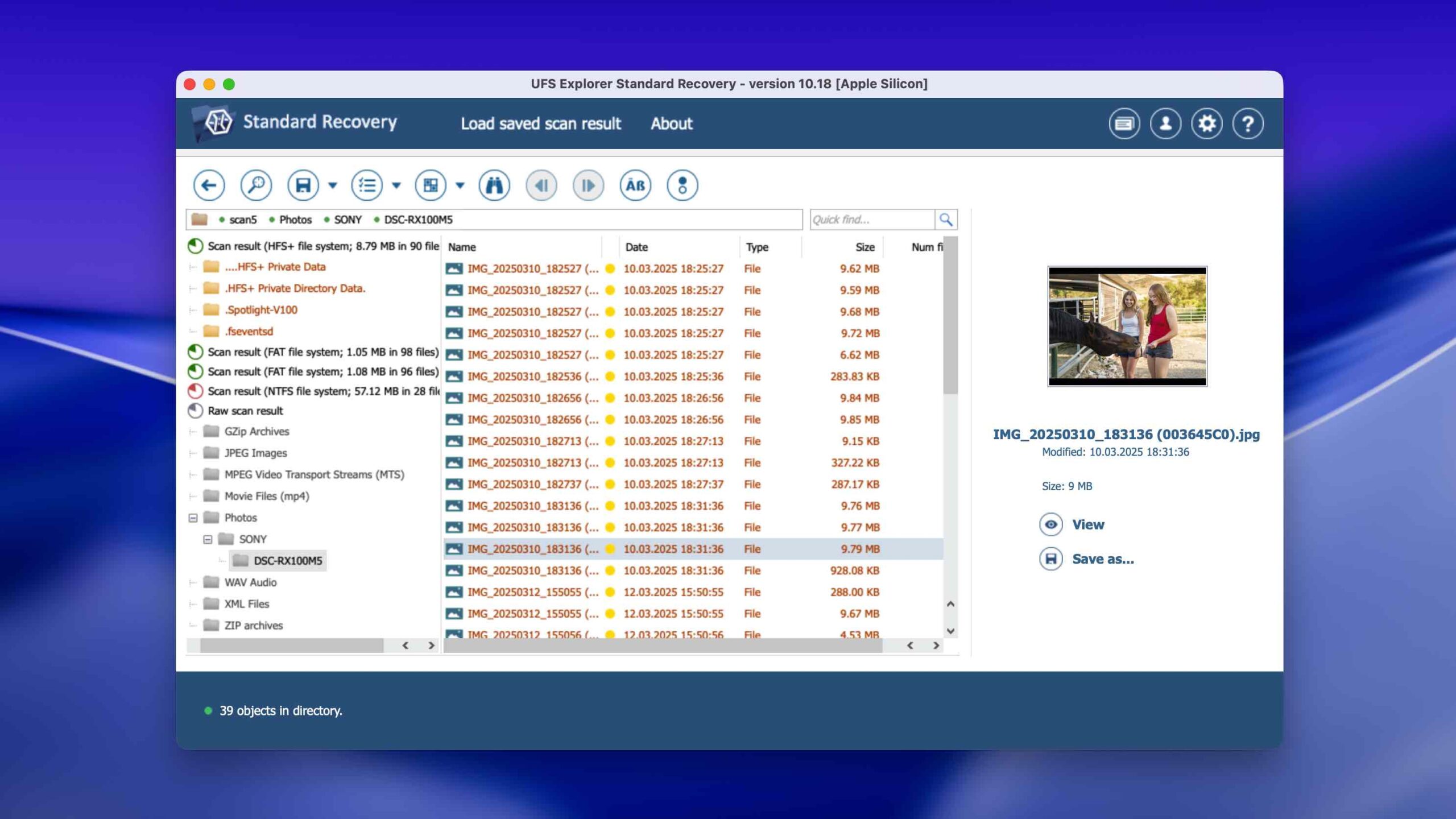
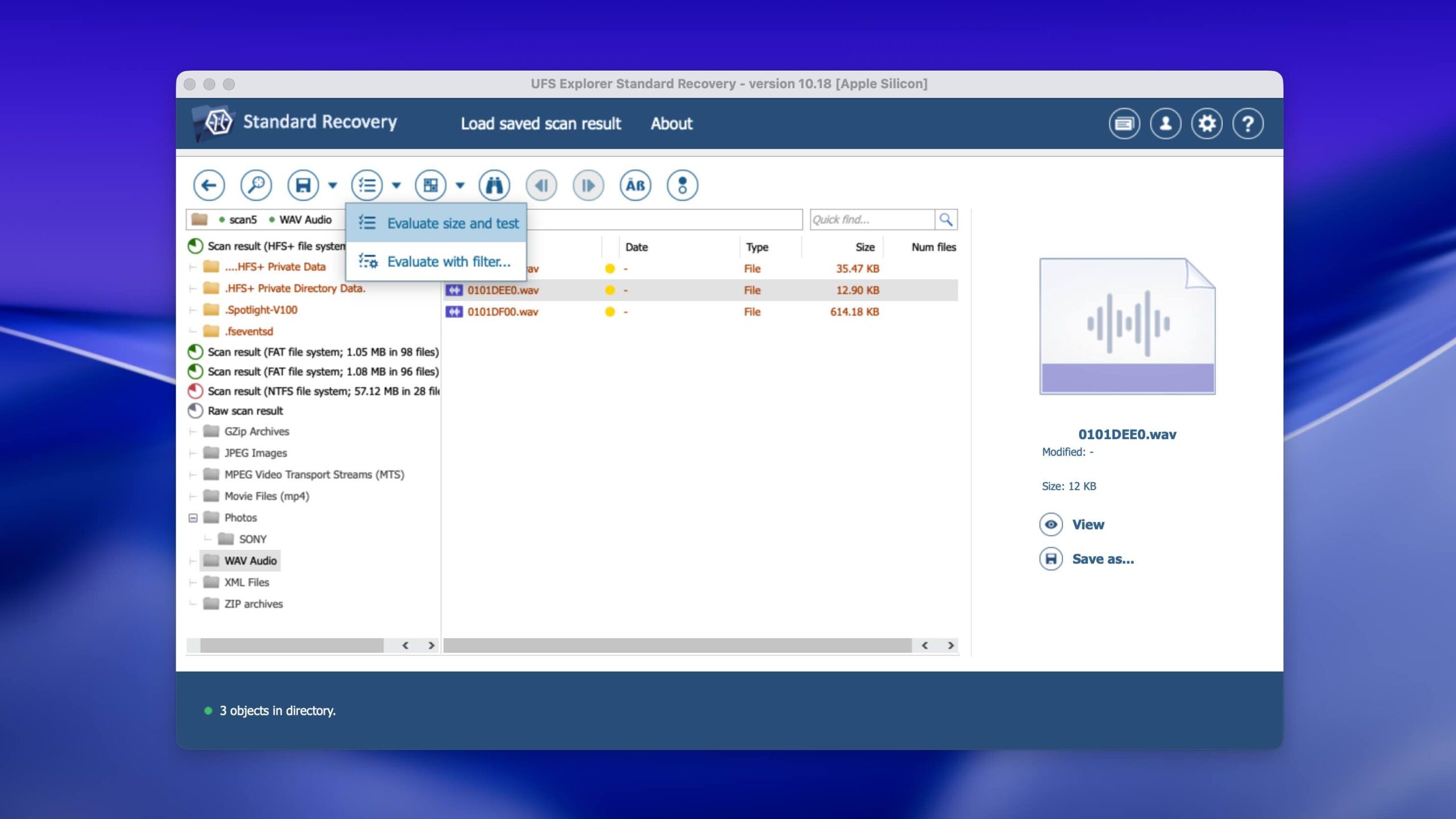
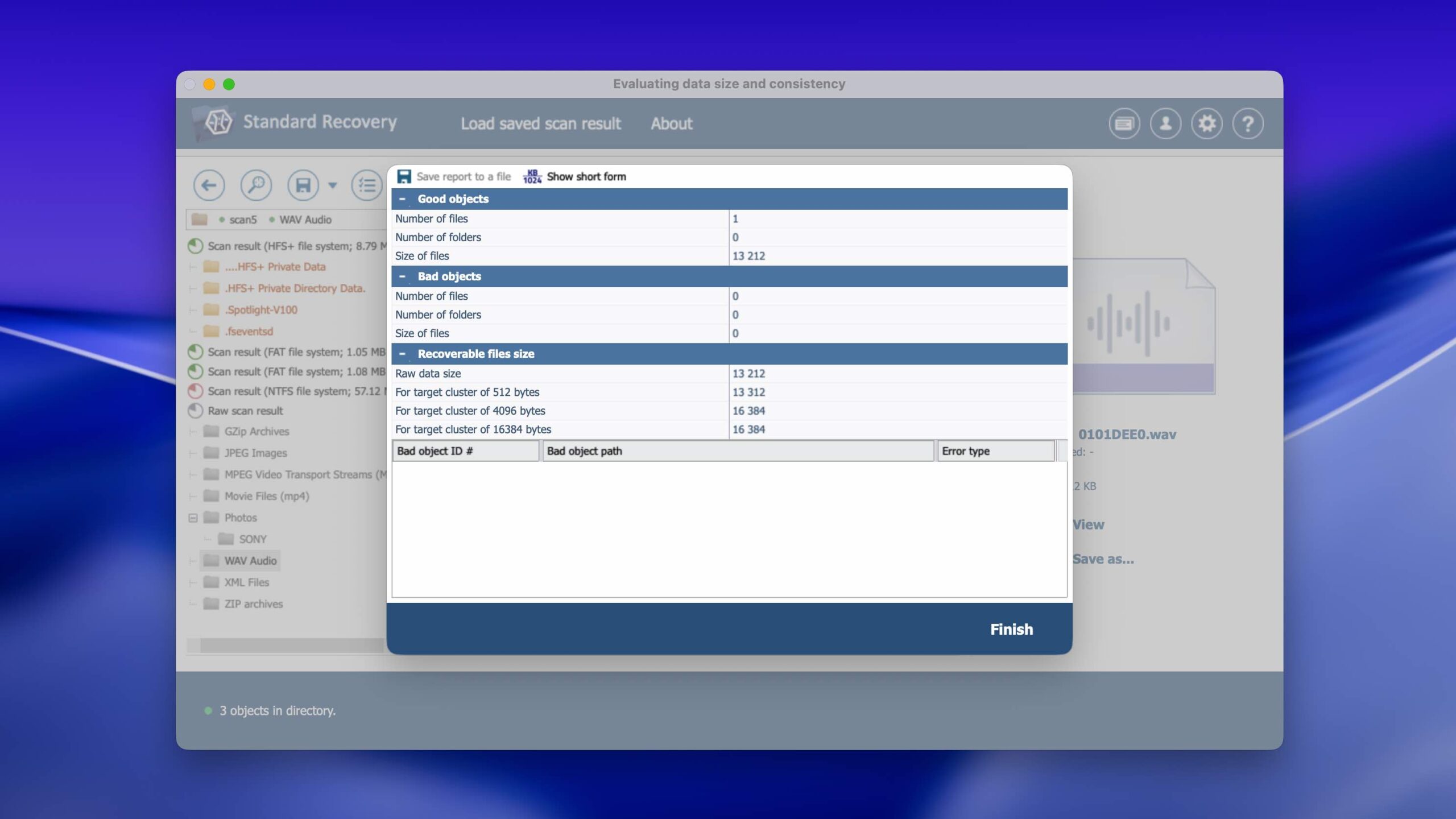
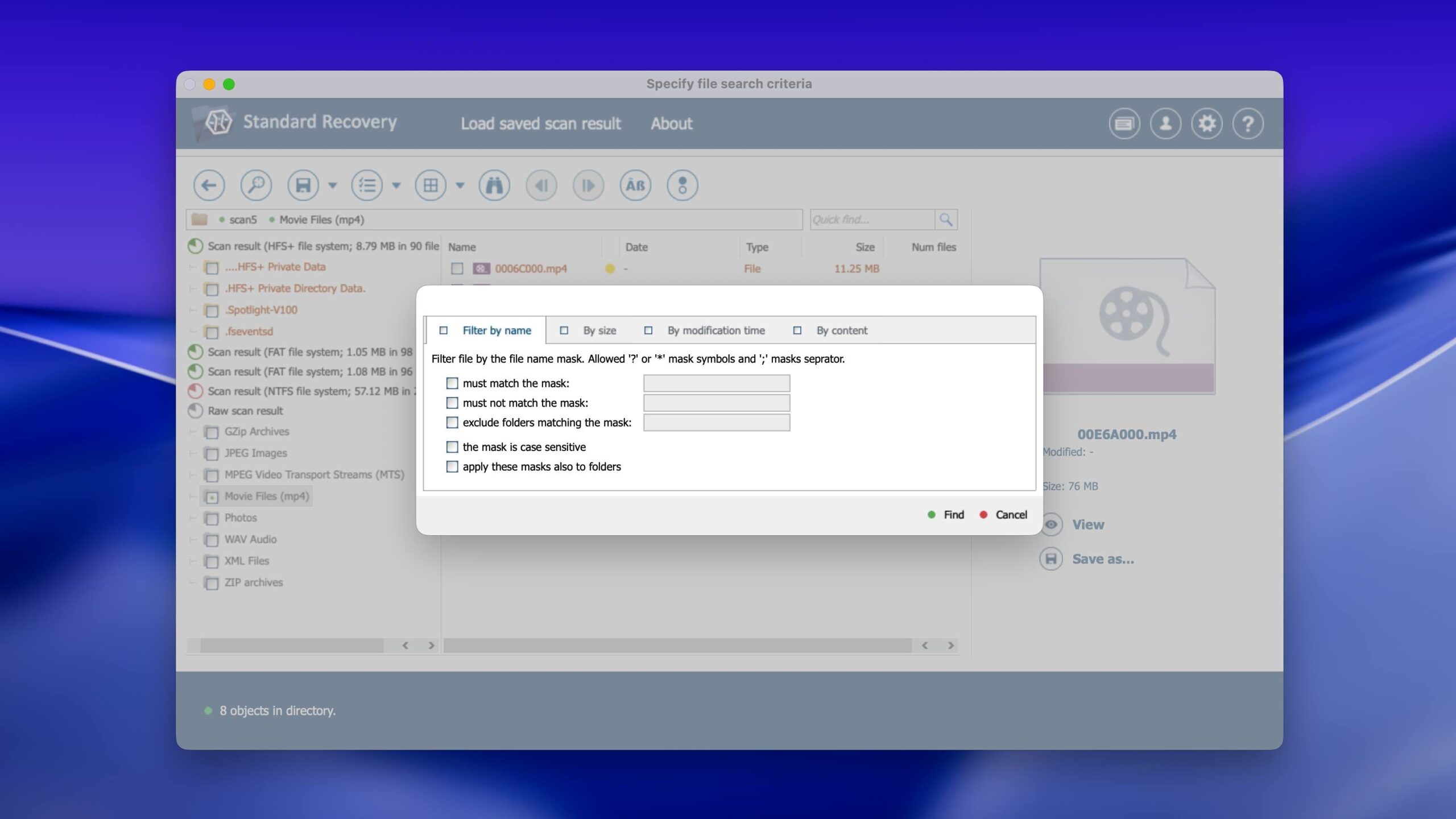
That said, if you just keep clicking "Next" and accept the defaults, it works fine, so at least that’s good. The real problem comes after the scan when you're trying to find your files. There's no way to filter results, no thumbnail view, and the tree structure can be confusing. The preview tool is also painfully slow.
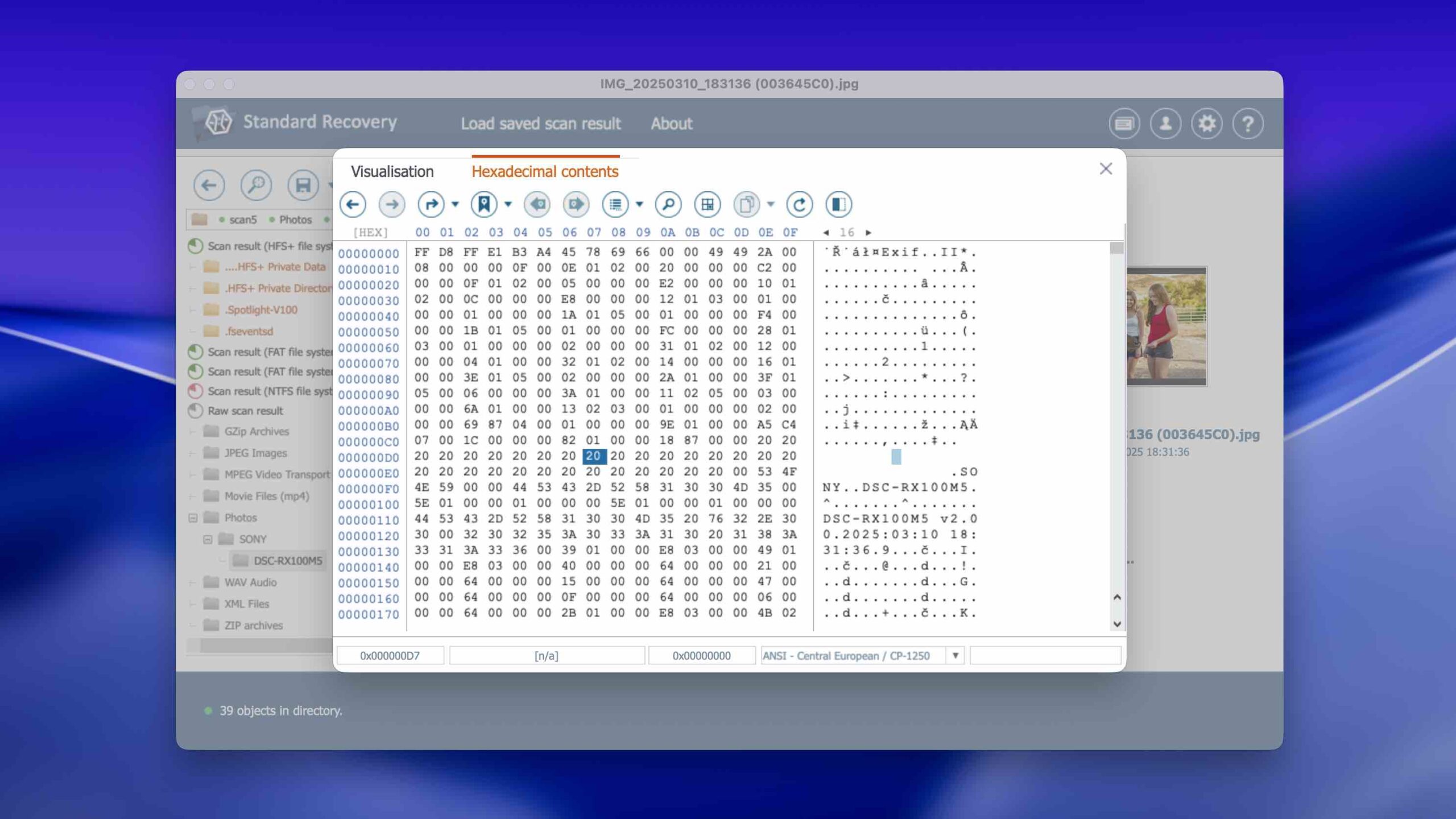
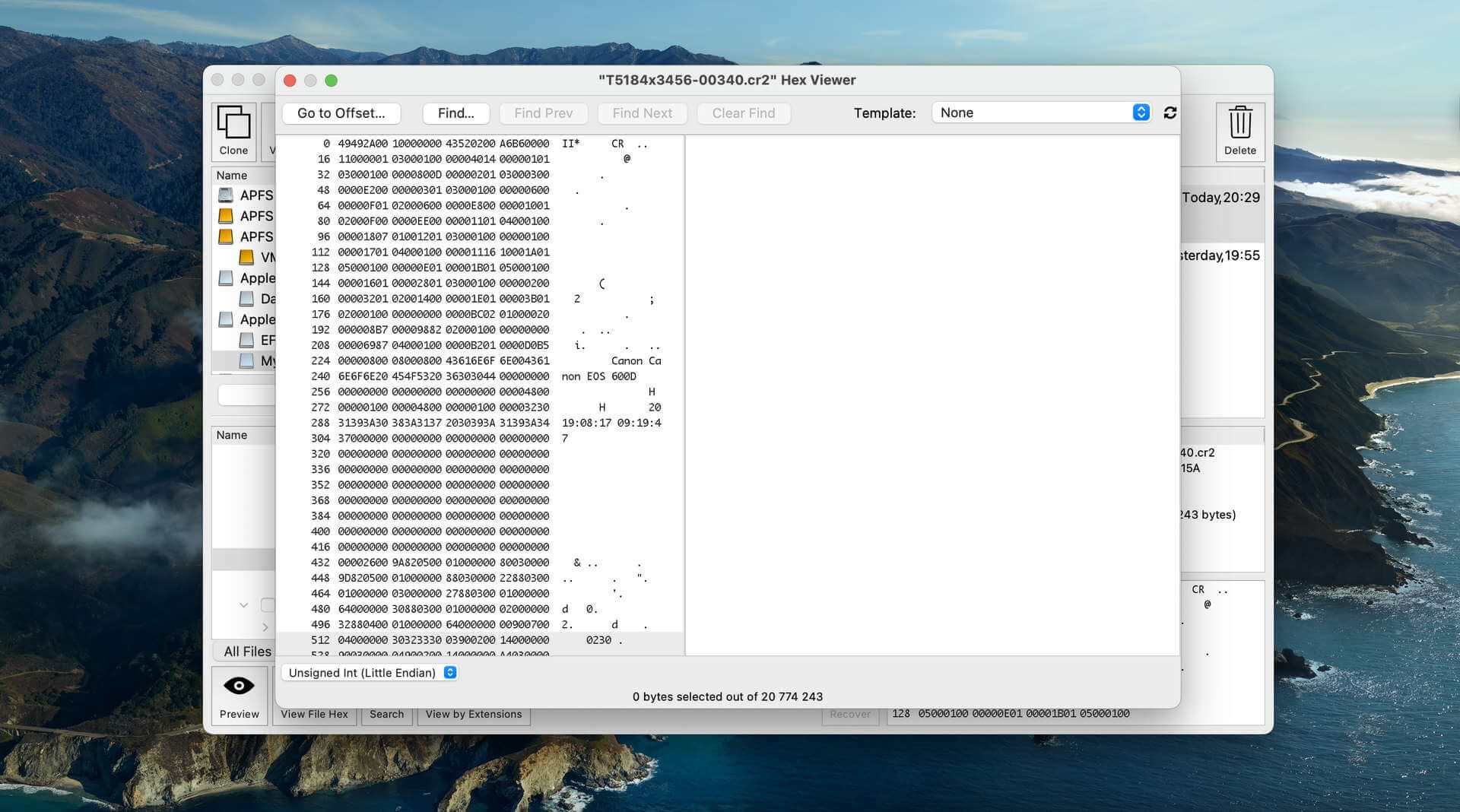
On the plus side, the software does what it's supposed to do without crashing, and the hex editor is genuinely useful for advanced recovery tasks (but mostly useless for regular home users, of course).
Recovery Performance
During our testing, it consistently recovered data across all major Mac file systems. It restored the original folder structure and file names from HFS+ and APFS partitions without issue. Quick scan results (recently deleted files) were excellent across NTFS, HFS+, and APFS. It struggled a bit with FAT32 and exFAT but still delivered usable results.
The signature scanner is solid. It recognized most RAW photo formats we tested, and the same goes for video formats as well as document formats. That's on par with the best tools we've tested.
UFS Explorer also handled some scenarios that stumped other tools. It successfully reconstructed a broken LVM volume and recovered data from a corrupted APFS container, and this kind of versatility is hard to find elsewhere.
Value
UFS Explorer Standard Recovery starts at $64.95, which is competitive for what you get. The license is perpetual, so no subscription that would continuously drain your bank account is necessary. Higher-tier versions add features like network recovery and advanced RAID support, with prices going up to $699.95 per seat for the Professional Recovery package.
The free trial lets you scan and recover any file under 256 KB, which is enough to test whether it can find your data. For a one-time payment, you get a tool that supports more file systems than almost anything else on Mac, plus professional features that most consumer tools don't offer.
If you're comfortable with technical software and need broad file system support or RAID recovery, UFS Explorer is worth the price. For simpler recovery jobs, the interface might be more trouble than it's worth.

5. Wondershare Recoverit for Mac
3.52 • Not as wonderful as it may seem at first. – Even though the software doesn’t look like it, it’s actually a one-trick pony that can be recommended mainly to those who want to recover damaged video files.
macOSWindows
Freemium Some features are provided free of charge, but money is required to unlock the rest
Recover up to 500 MB for free
$76.49...$599.96
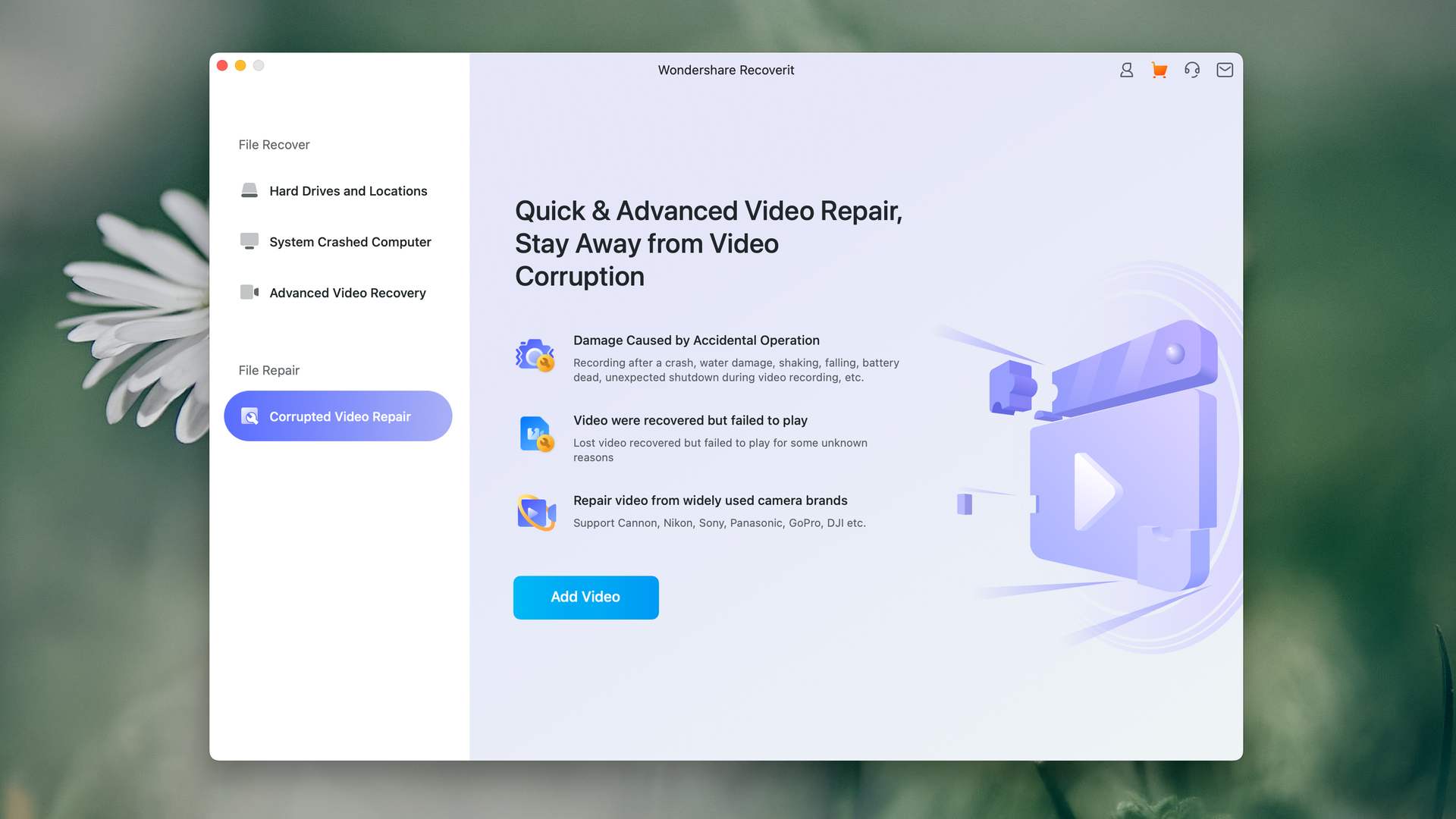
Wondershare Recoverit is a peculiar data recovery software from the makers of the popular video editing app Filmora. It has a specific set of strengths and weaknesses that make it a lifesaver for some users but somewhat useless to others.

Usability
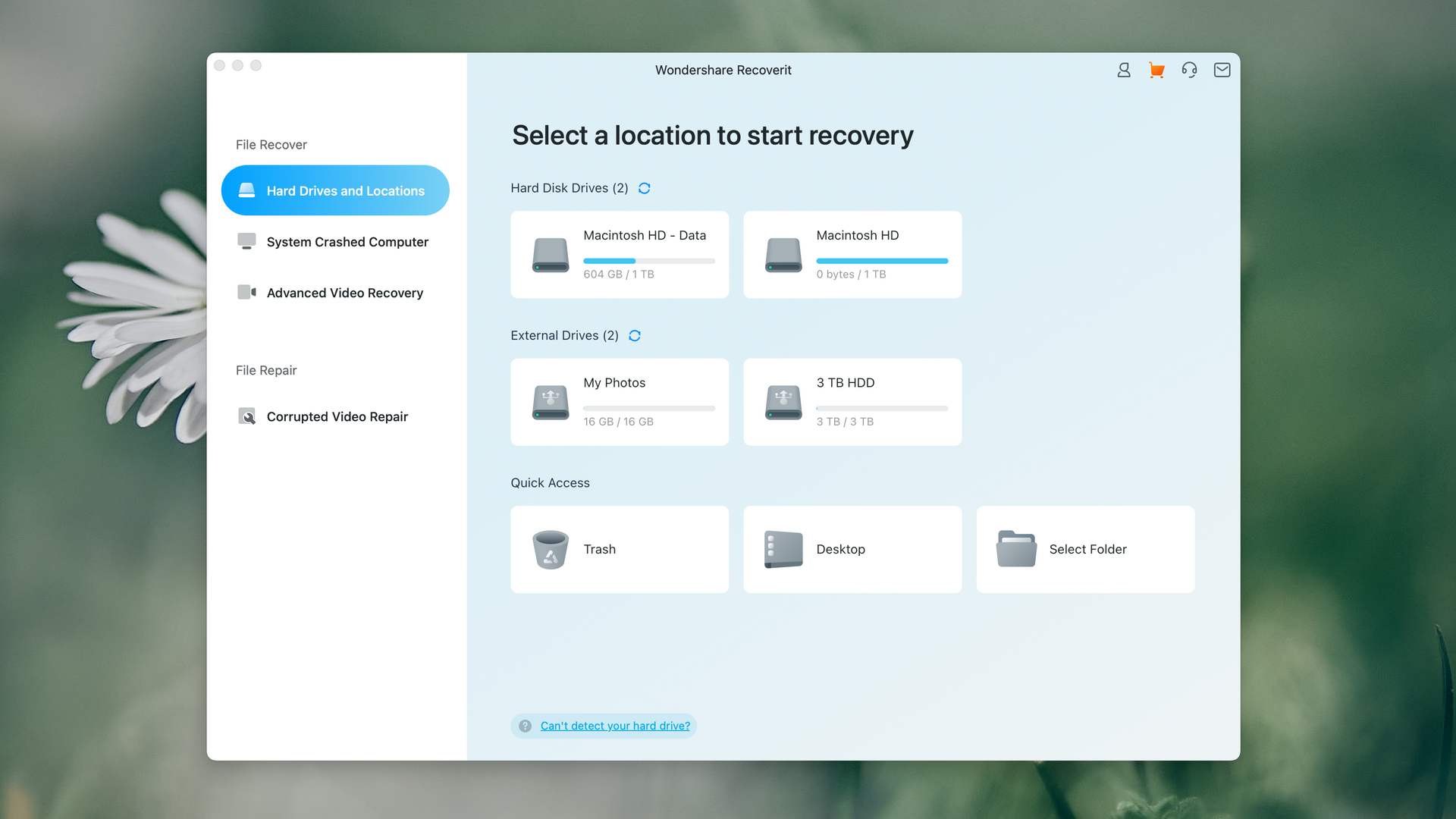
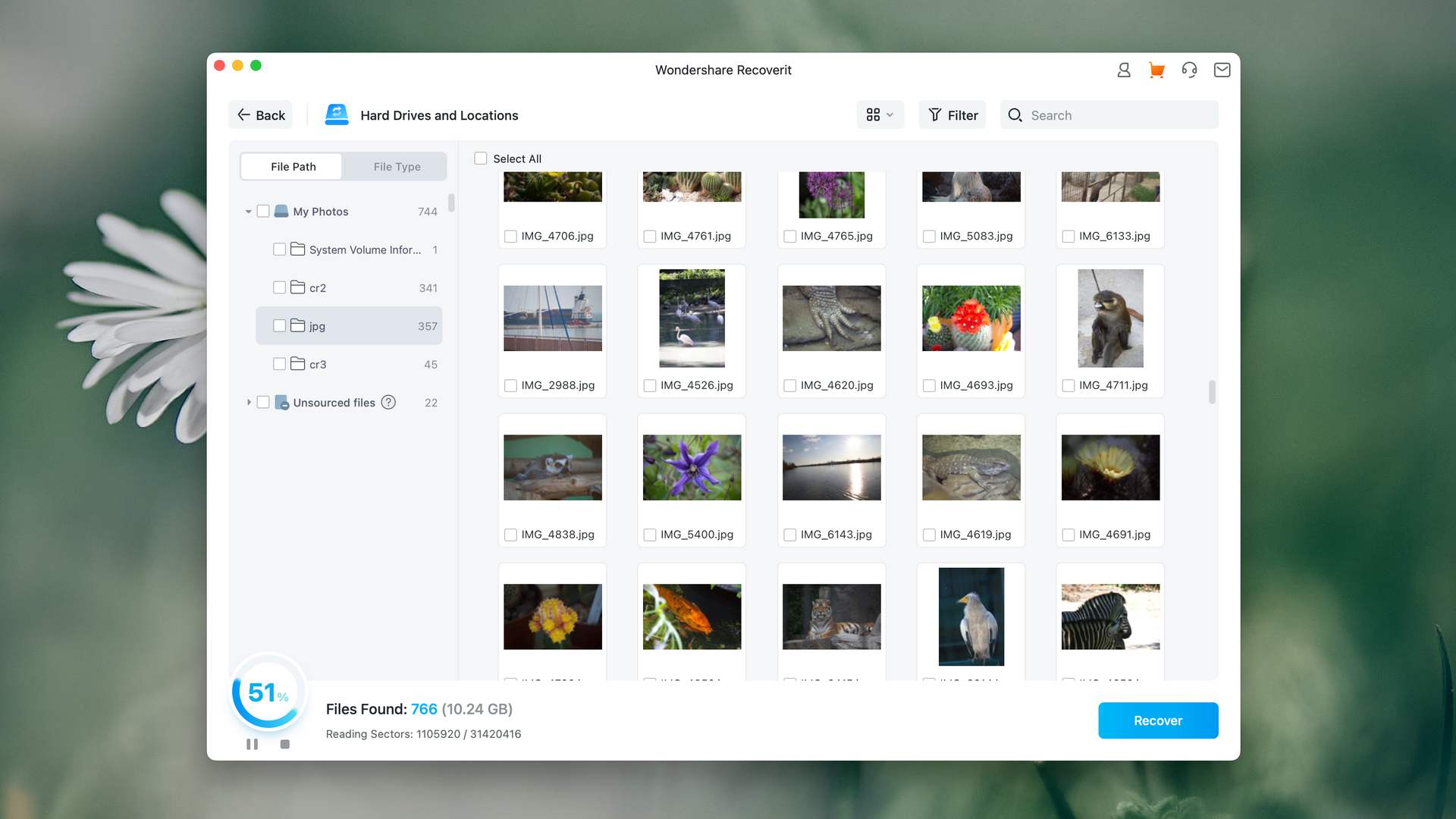
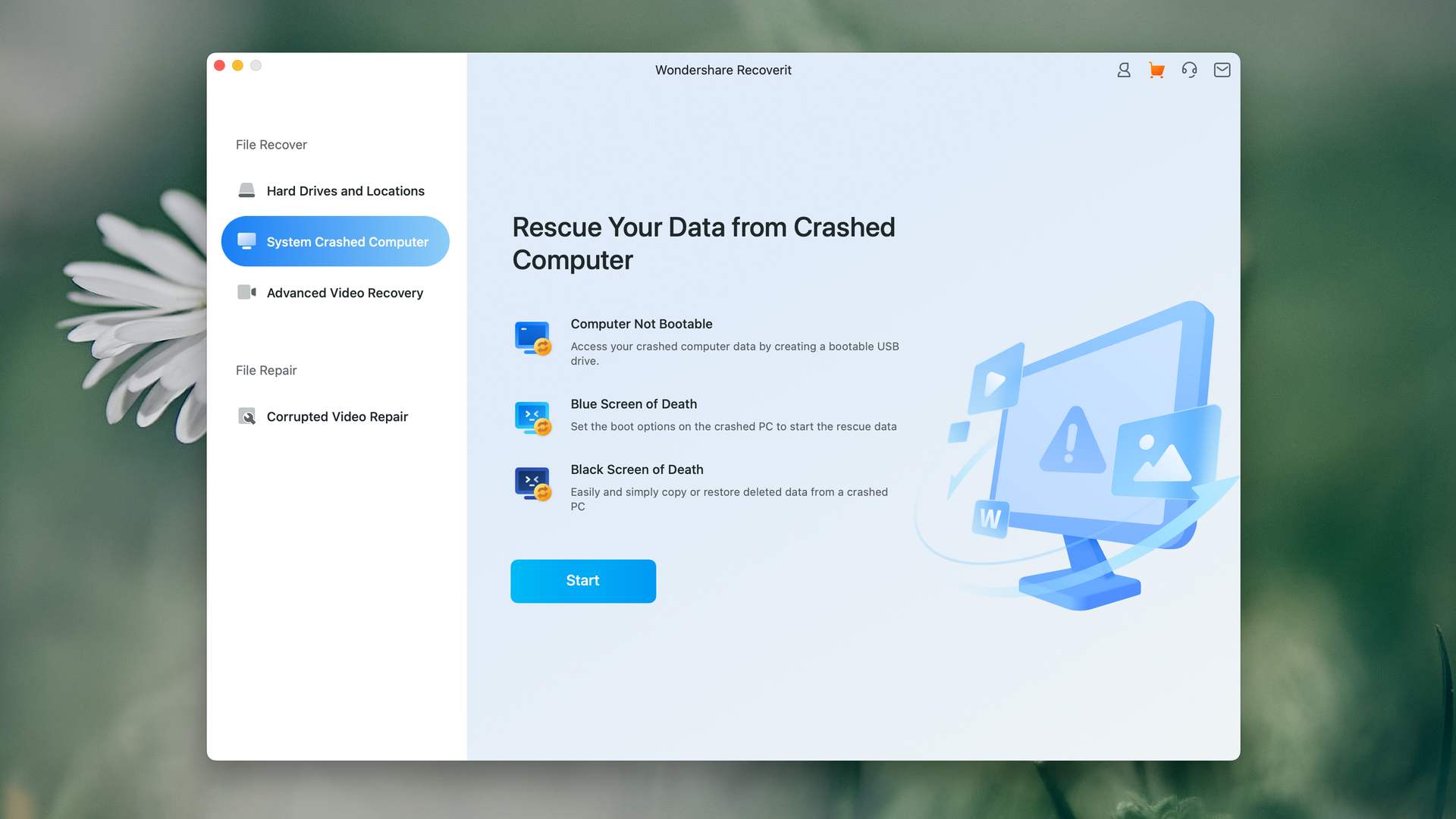
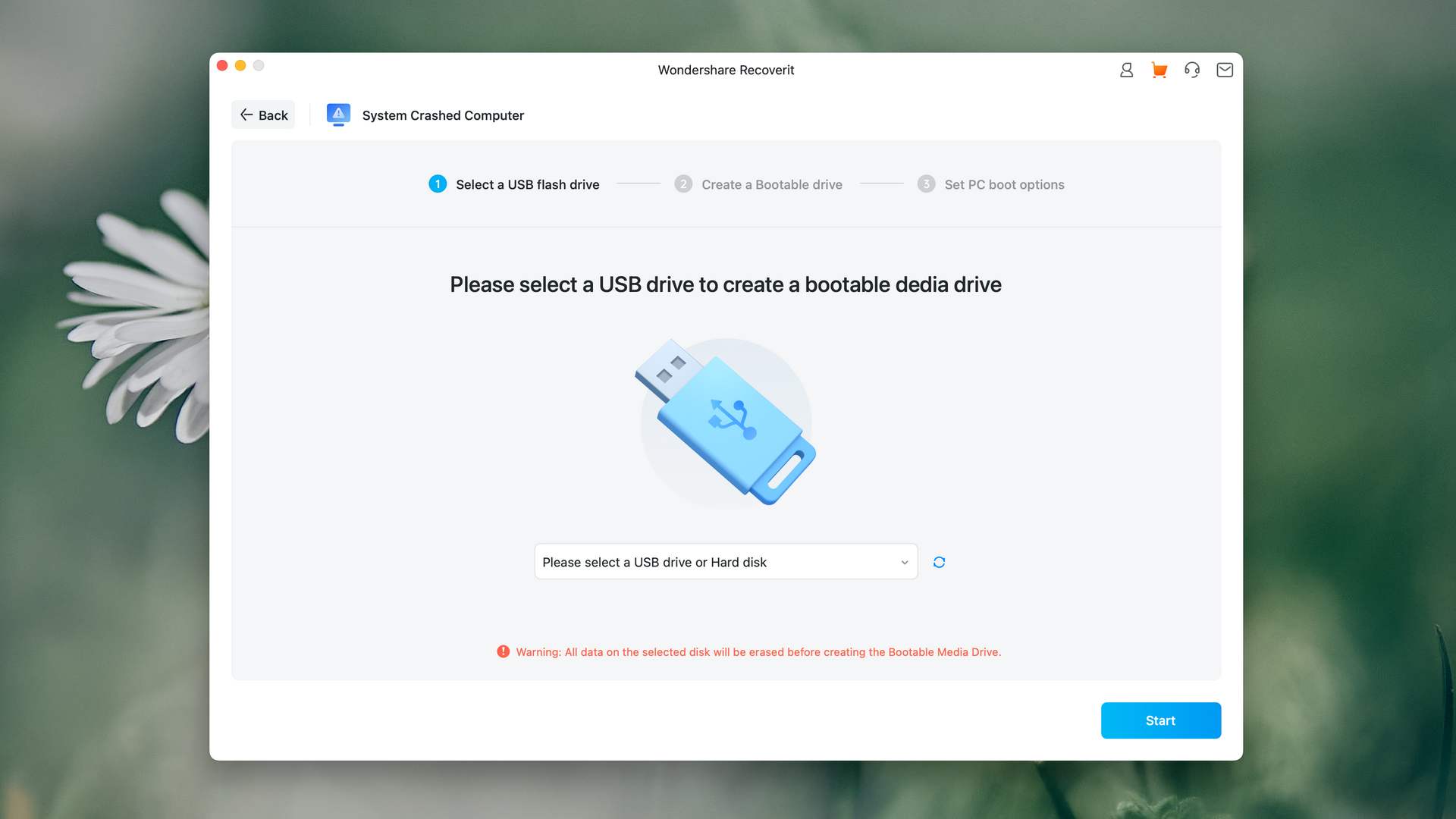
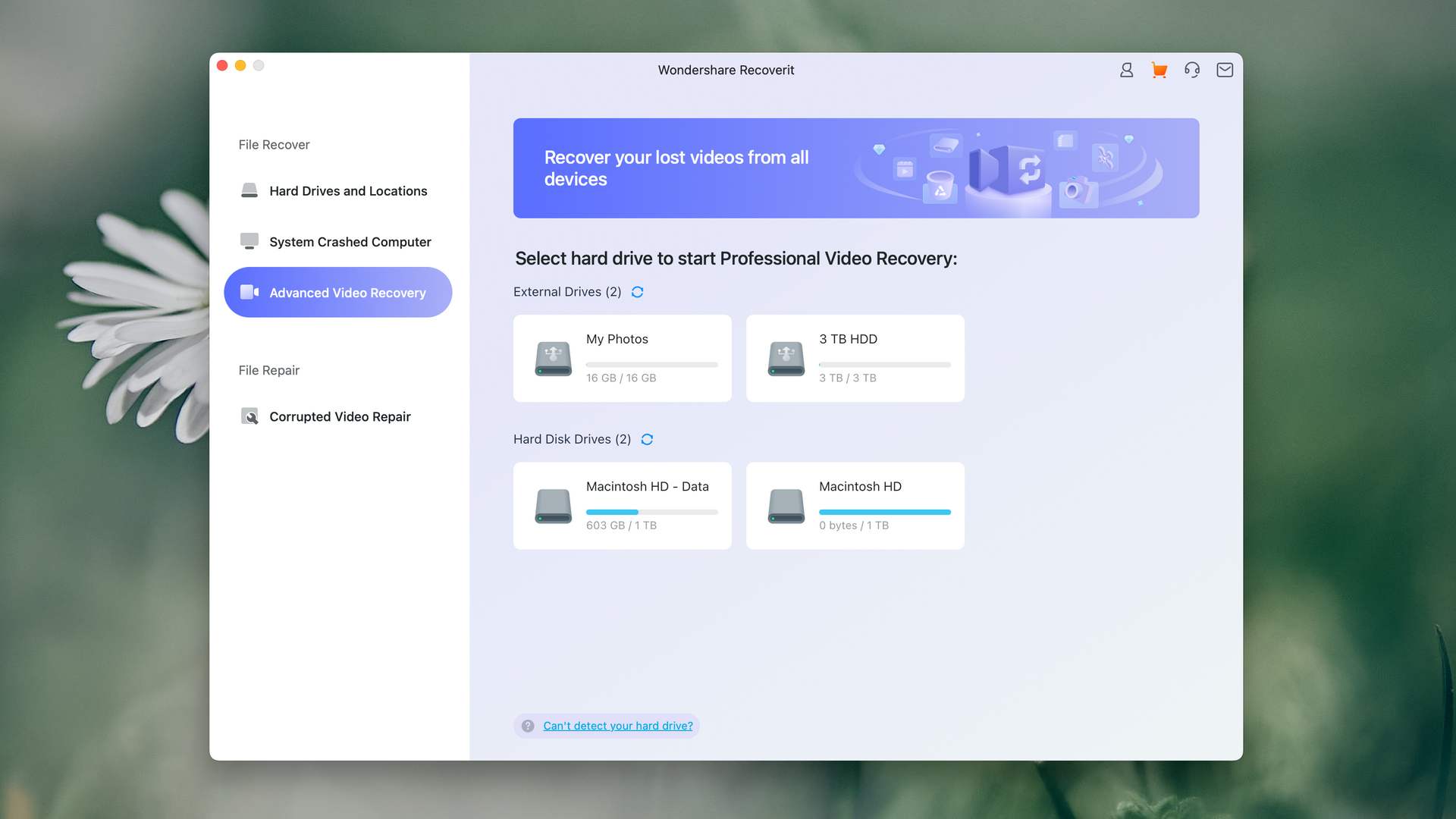
Visually, Wondershare Recoverit is gorgeous and its tools and features are labeled clearly so users won’t get confused about what to do next.
However, its usability features fall short – Recoverit often struggles with previewing certain files and you also can’t sort the scan results. Fortunately, you can filter found data and search them by file name, which are good workarounds.
Recovery Performance
When put to the test, Recoverit struggled with recovering the original folder structure and file names of our HFS+ and APFS partitions. Its Quick Scan produced average results. It also struggled to recognize some common video and photo file types – it couldn’t recognize our RAW files at all (despite claiming to recognize 1000+ file types).
One of Recoverit’s biggest flaws is its inability to scan full drives – it can only scan volumes. It won’t work if you need to recover fragmented files scattered across different parts of the drive, which is a common data loss scenario.
Value
Wondershare Recoverit costs $76.49 per month, $94.99 per year, or $144.99 as a one-time payment. All individual plans include data recovery, a bootable toolkit, and repair for corrupted video, photos, and documents. For small and medium-sized businesses, Wondershare provides dedicated SMB plans ranging from $159.99 to $599.96 per year, with the Premium package covering up to five devices.
A massive point in Recoverit’s favor is its video repair tool. We tested it with our own videos that refused to play and it works! Pretty cool – but that’s the best that this app offers.
If you’re focused on recovering videos, Recoverit’s worth a shot. For a general data recovery solution, skip this app.

6. PhotoRec for Mac
3.30 • Excellent value in a not-so-appealing package – PhotoRec for Mac delivers decent data recovery performance, but the lack of a graphical user interface makes it more difficult to take advantage of it.
macOSWindowsLinux
Free All features are provided free of charge, and the software can be used, studied, and modified without restriction
None
Free
PhotoRec is a well-respected open-source data recovery tool that is 100% free forever. For the right user, it’s one of the best tools out there despite its (forgivable) limitations. We actually think it’s the best free data recovery software for Mac. Keep reading to learn why.
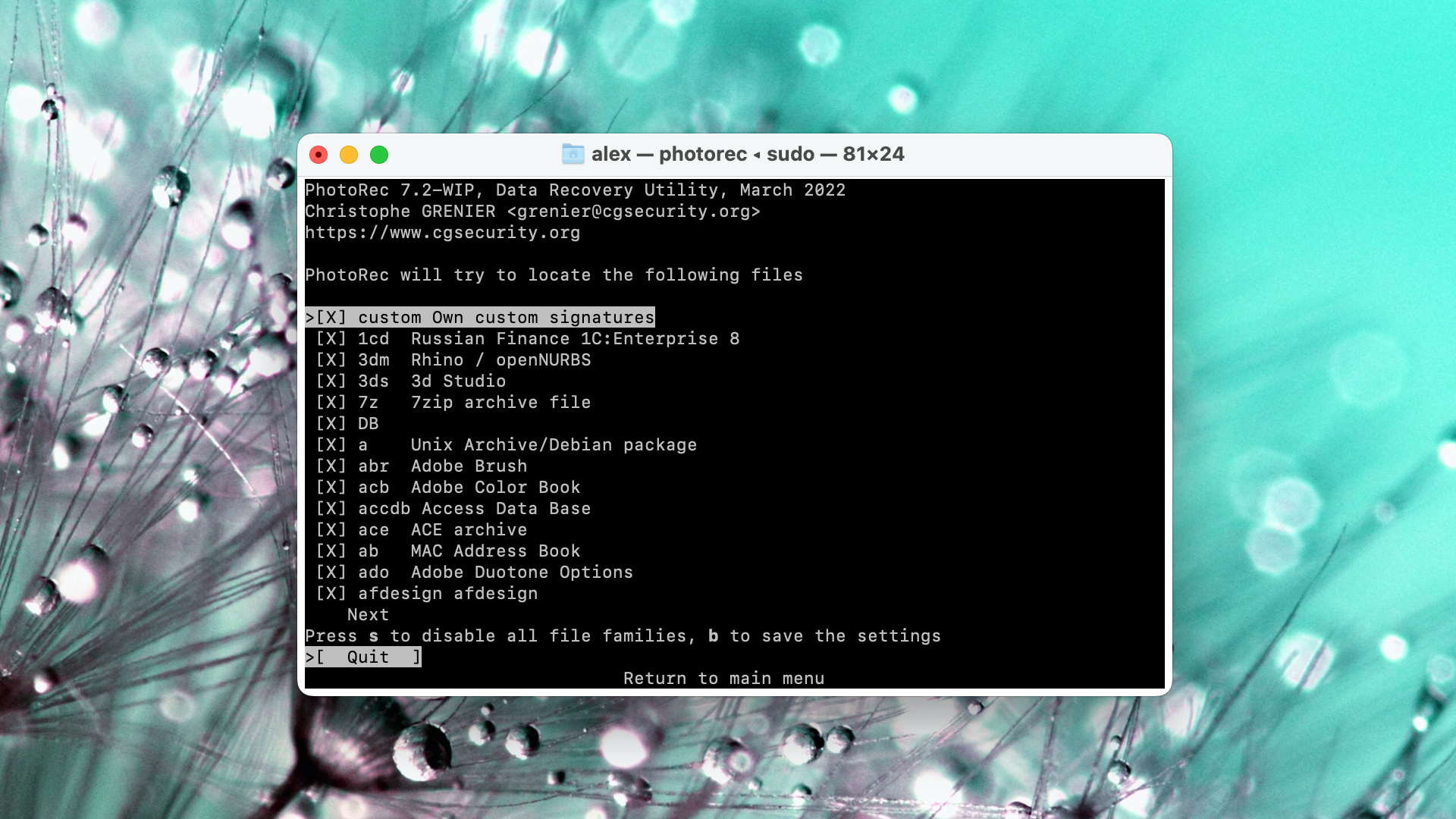
Usability
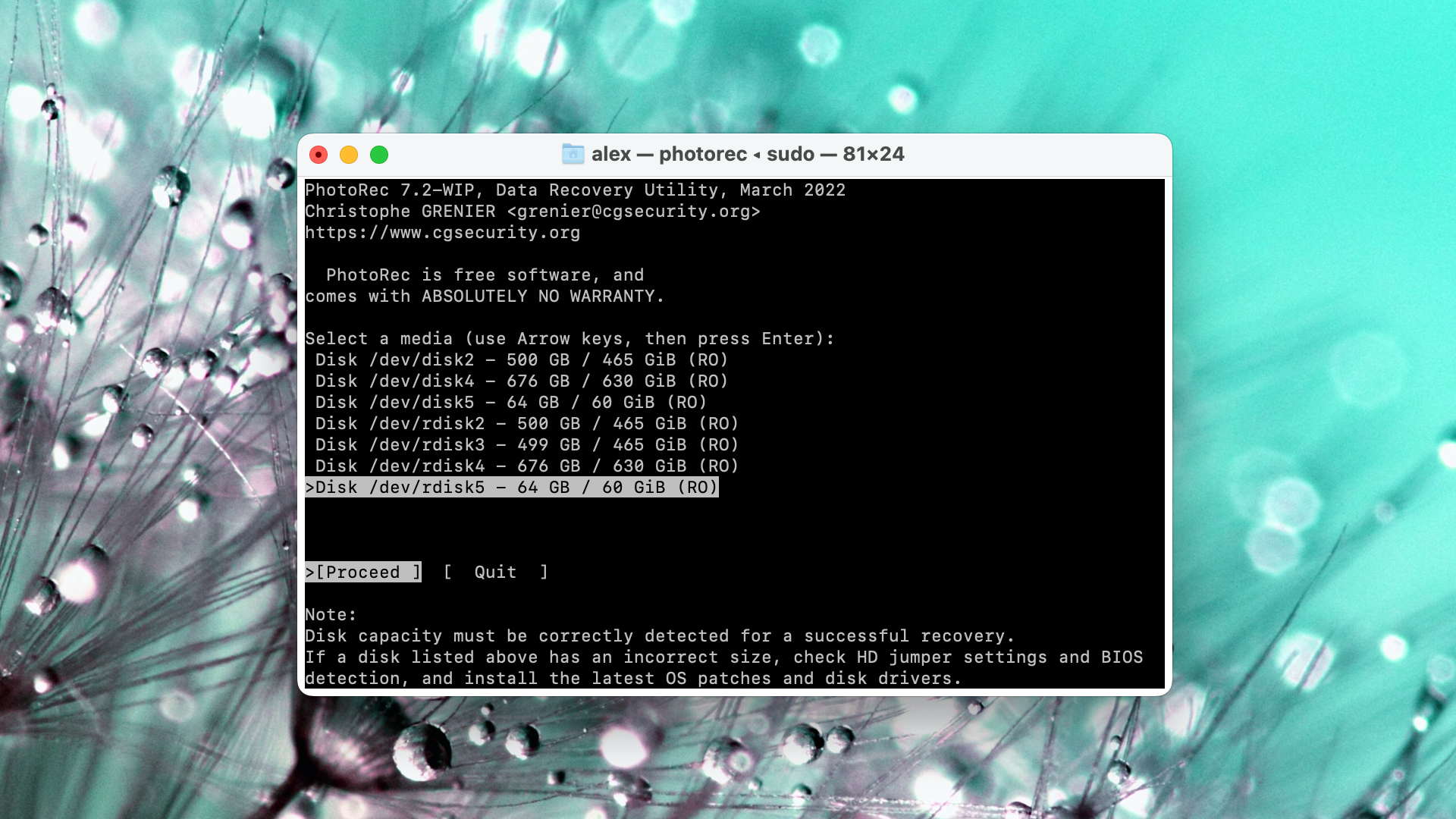
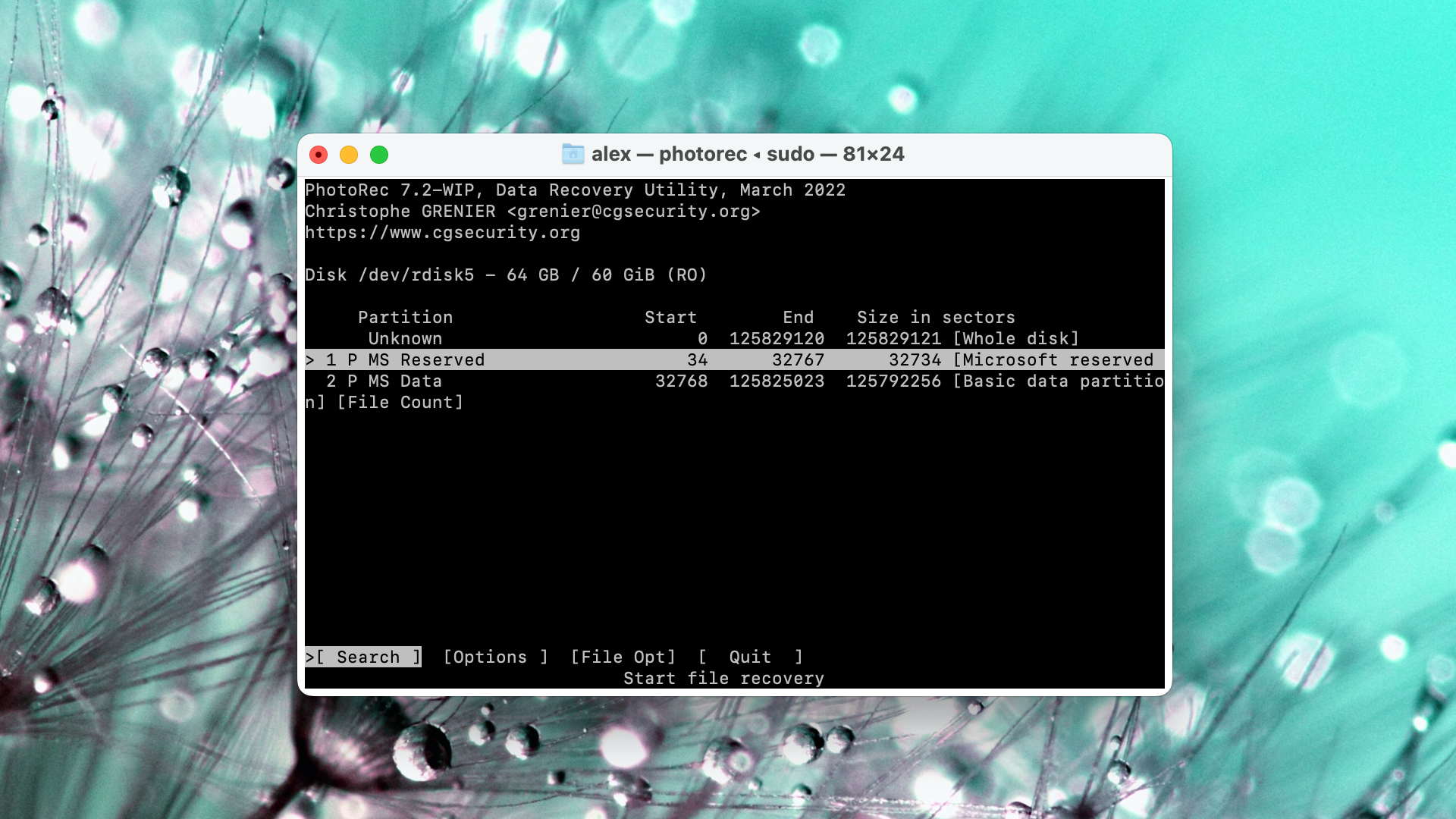
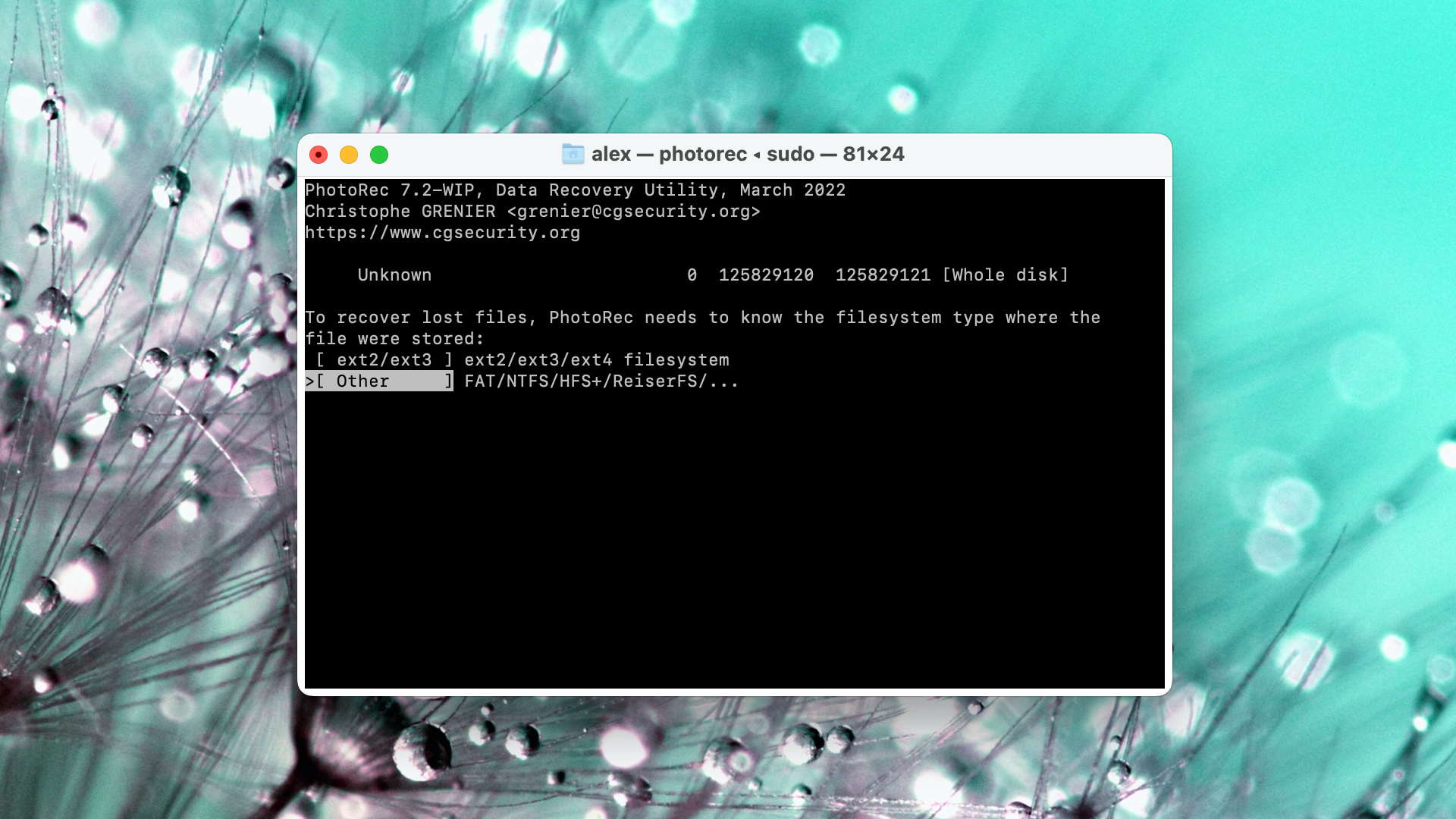
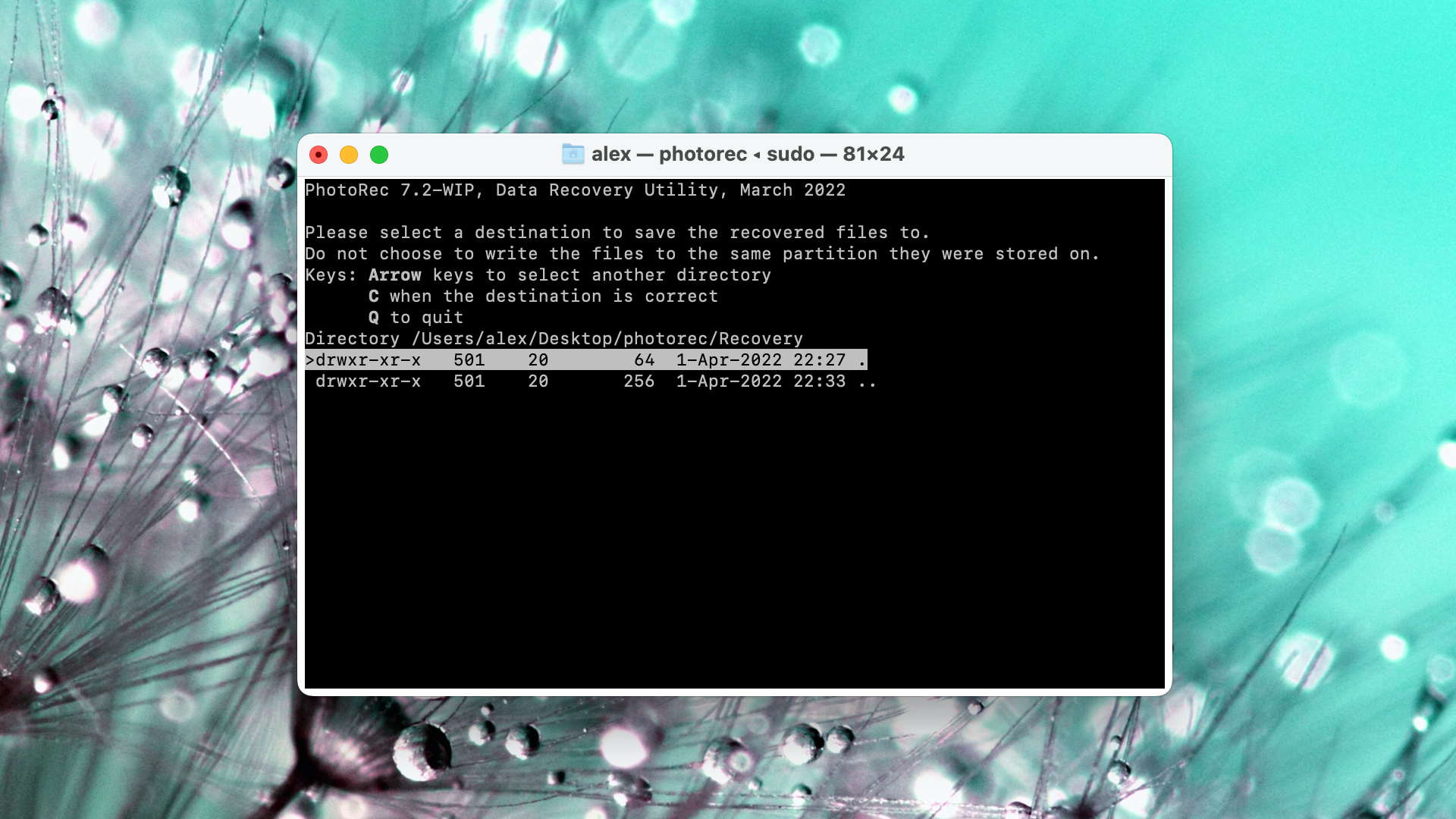
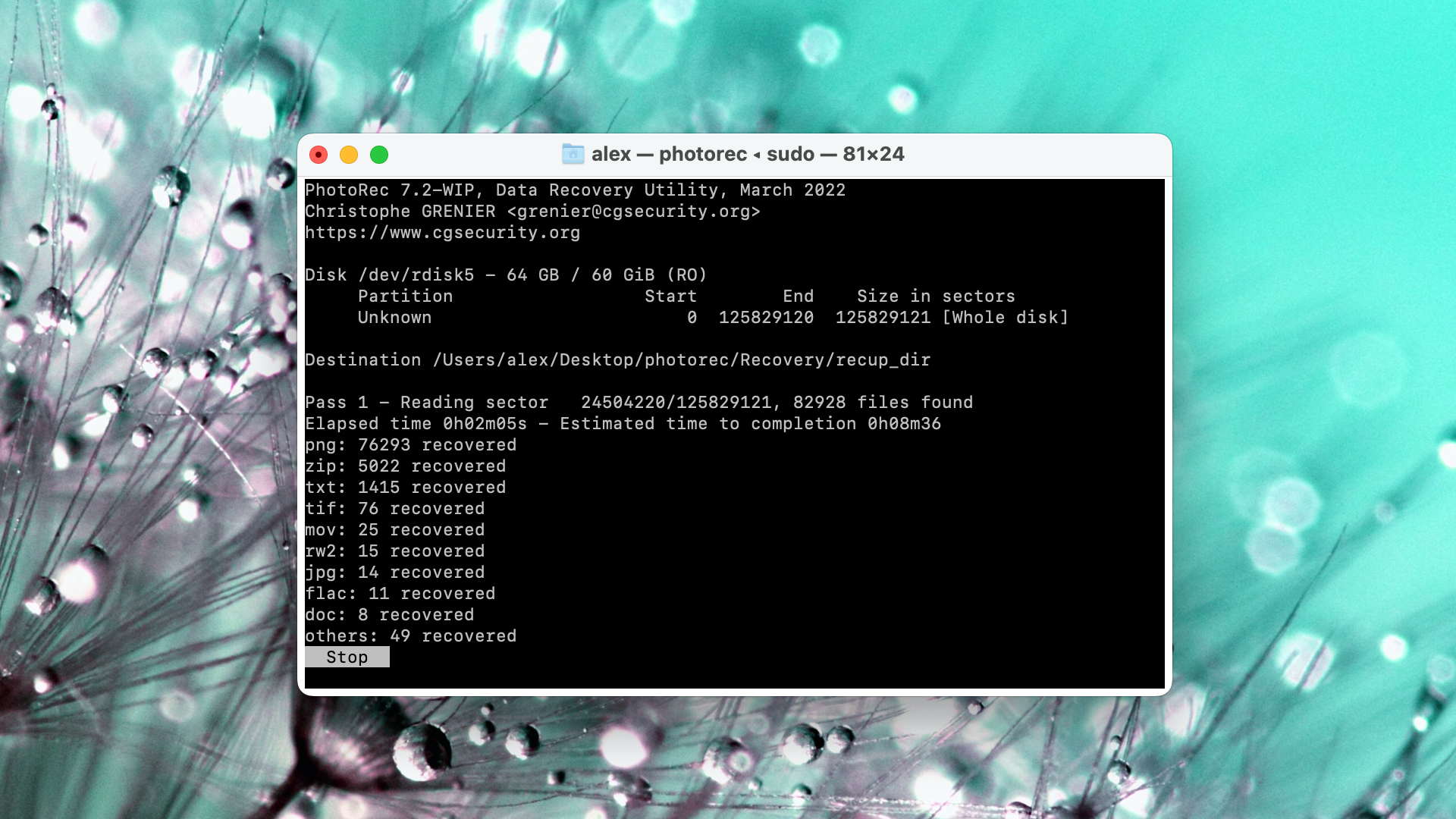
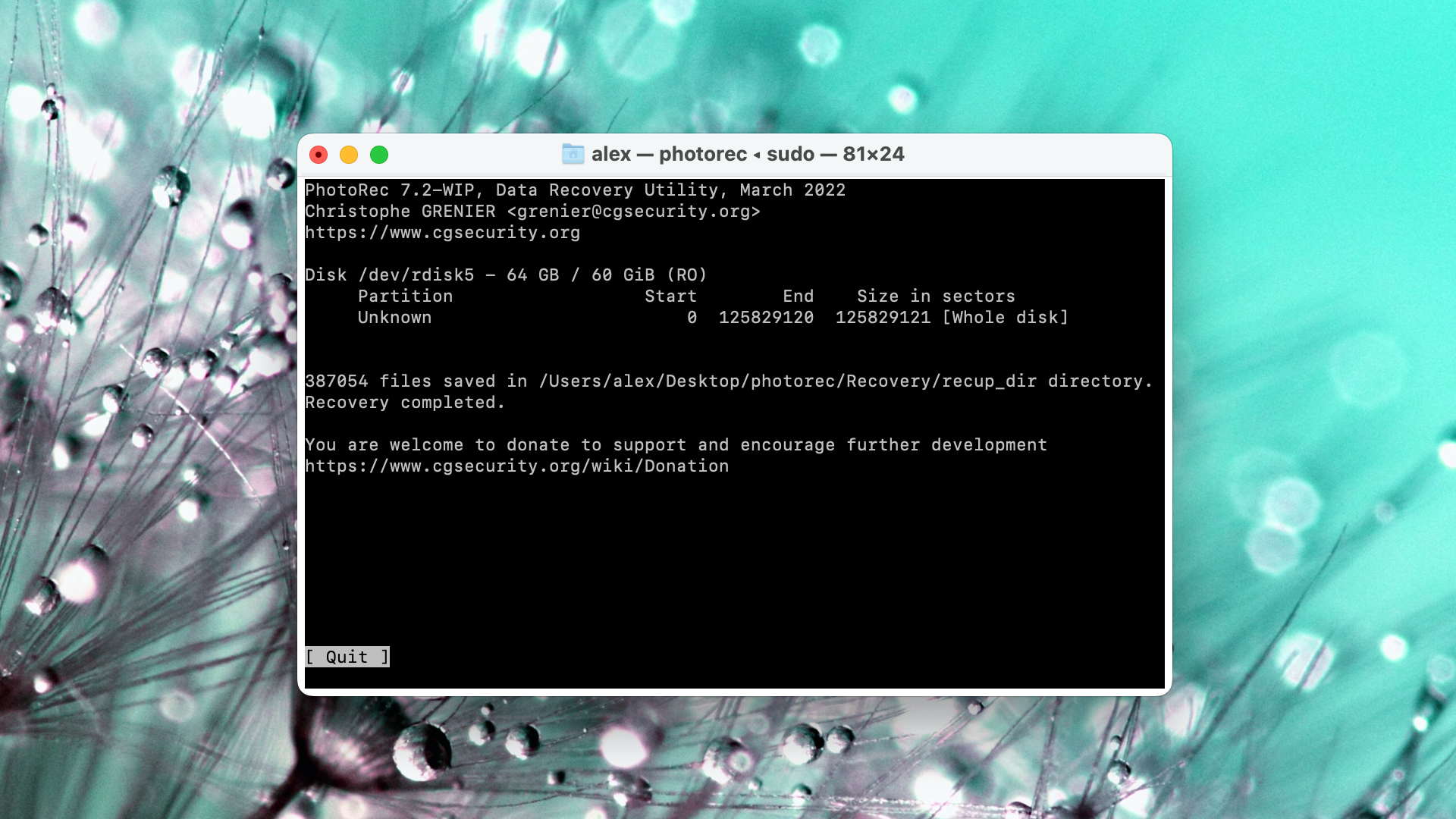
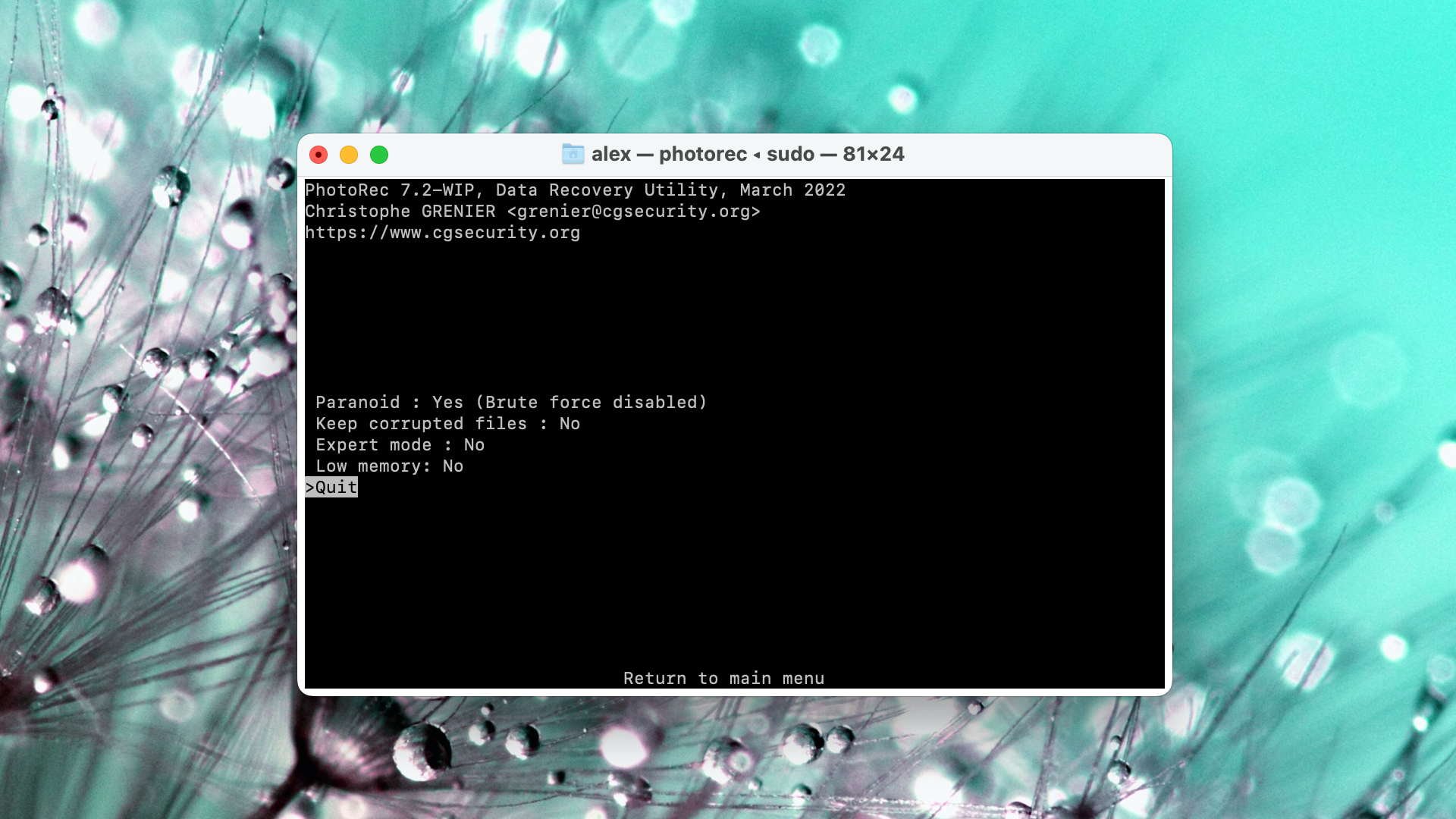
As we mentioned in the Pros and Cons section, PhotoRec’s original interface resembles a command line and you can only use your keyboard to navigate the app. It’s tedious, but the instructions make it clear enough to understand as long as you read them carefully.
QPhotoRec is a version with a clickable GUI that's much more accessible, but, unfortunately, it's only available for Windows. Mac users are stuck with the command-line version. There is no session management, no preview tool, and no tools to search, filter, or sort scan results.
Recovery Performance
PhotoRec’s only recovery tool is the signature scanner. Don’t expect to restore your data’s original folder structure and file names. It can’t undelete recently deleted files either. Further, PhotoRec doesn’t support RAID arrays, encrypted drives (you need to unlock your drive manually), or mobile devices.
That said, PhotoRec’s signature scan is truly impressive. During our real-life recovery challenge, it recognized 34 out of 37 RAW photo file types, 20 out of 21 video formats, and 18 out of 18 document file types. Recovery performance for each category ranged from average to very good.
Value
PhotoRec is easily one of the best signature scanners on the market… and it's free. That translates into insane value. But for more complex data loss problems, there are better options on this list.

7. Stellar Data Recovery Professional for Mac
3.31 • Not as stellar as its name suggests – Stellar Data Recovery for Mac may be one of the most popular data recovery applications for Mac, but it’s certainly not the best one.
macOSWindows
Freemium Some features are provided free of charge, but money is required to unlock the rest
Recover up to 1 GB for free
$69.99...$399
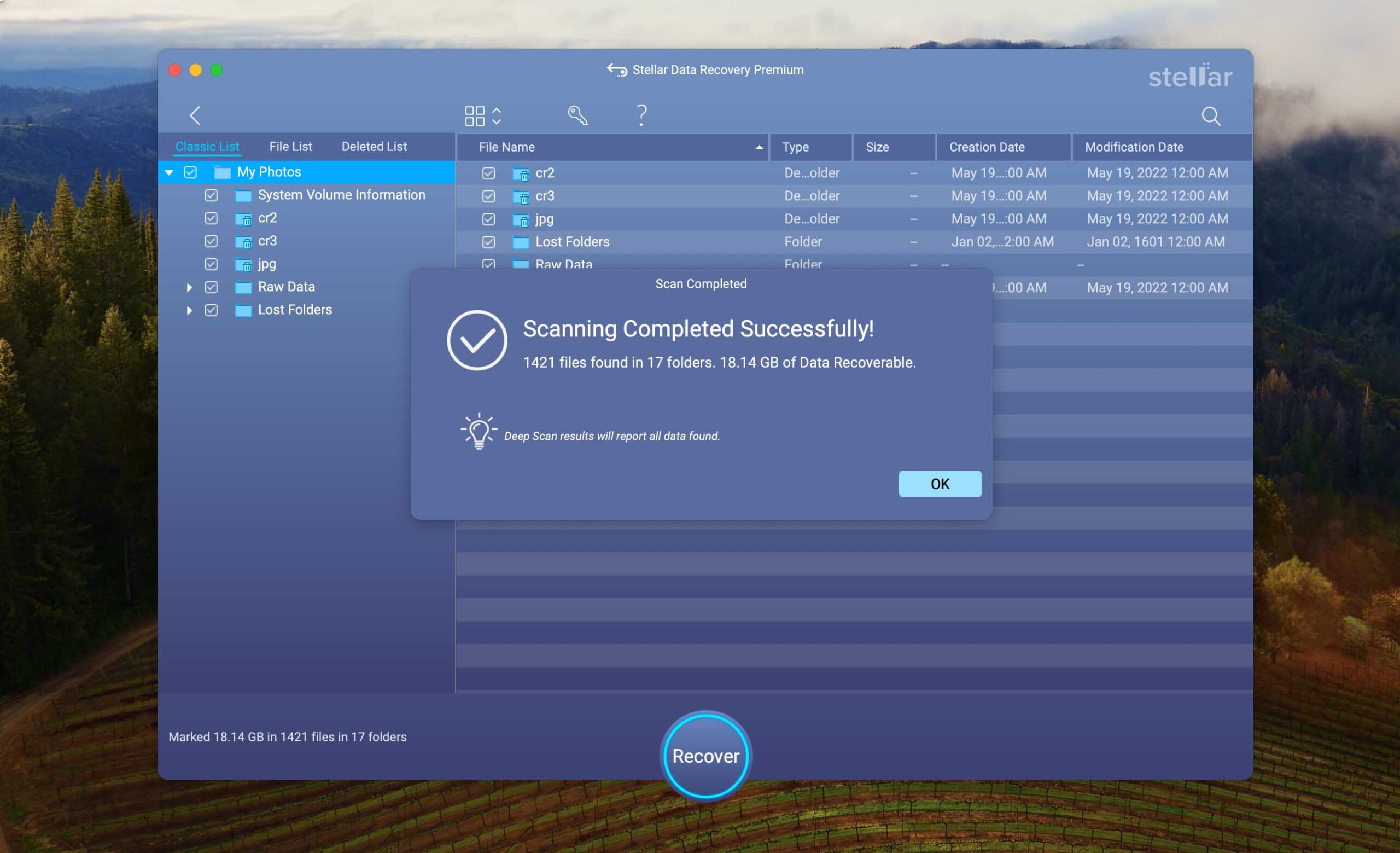
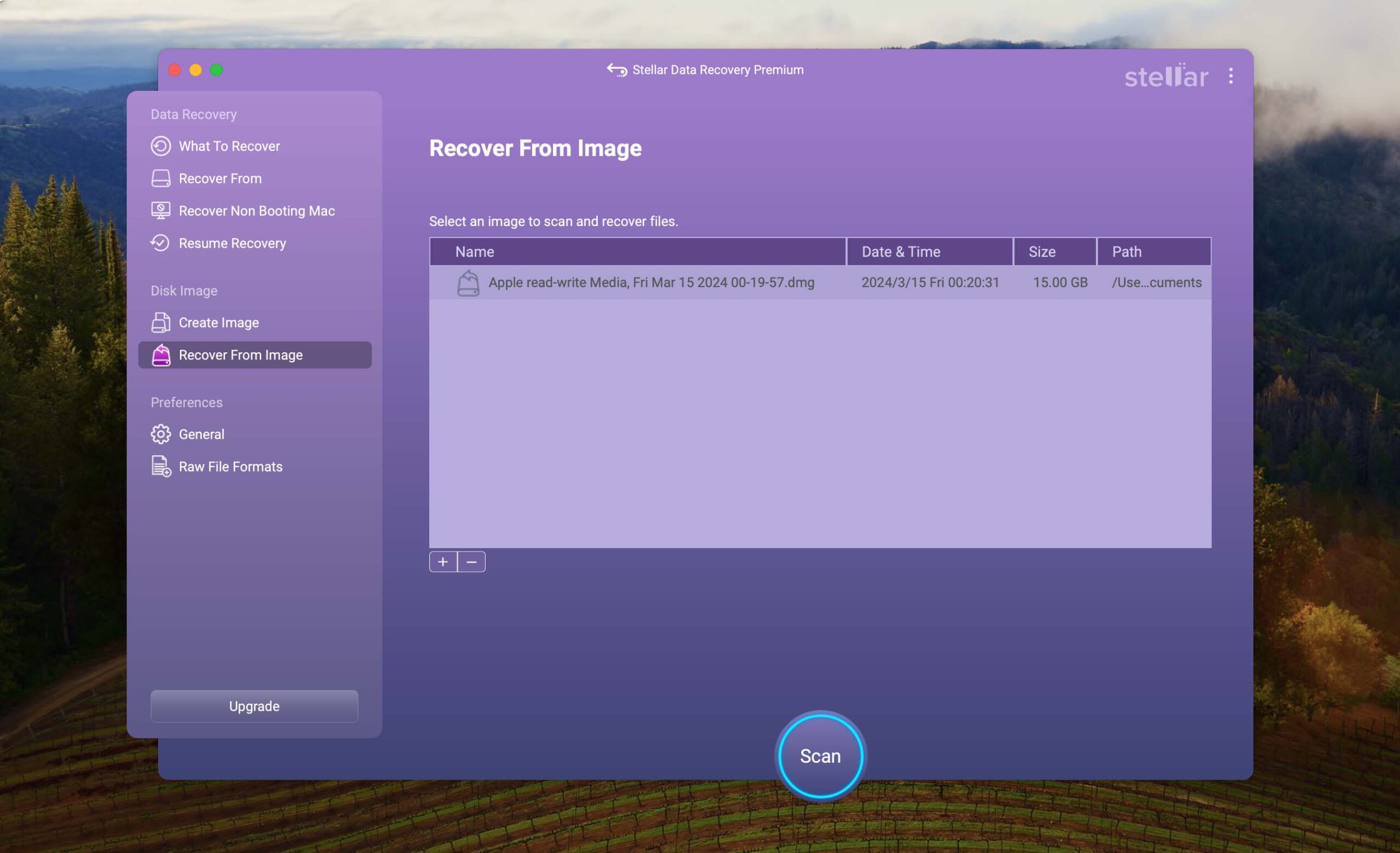
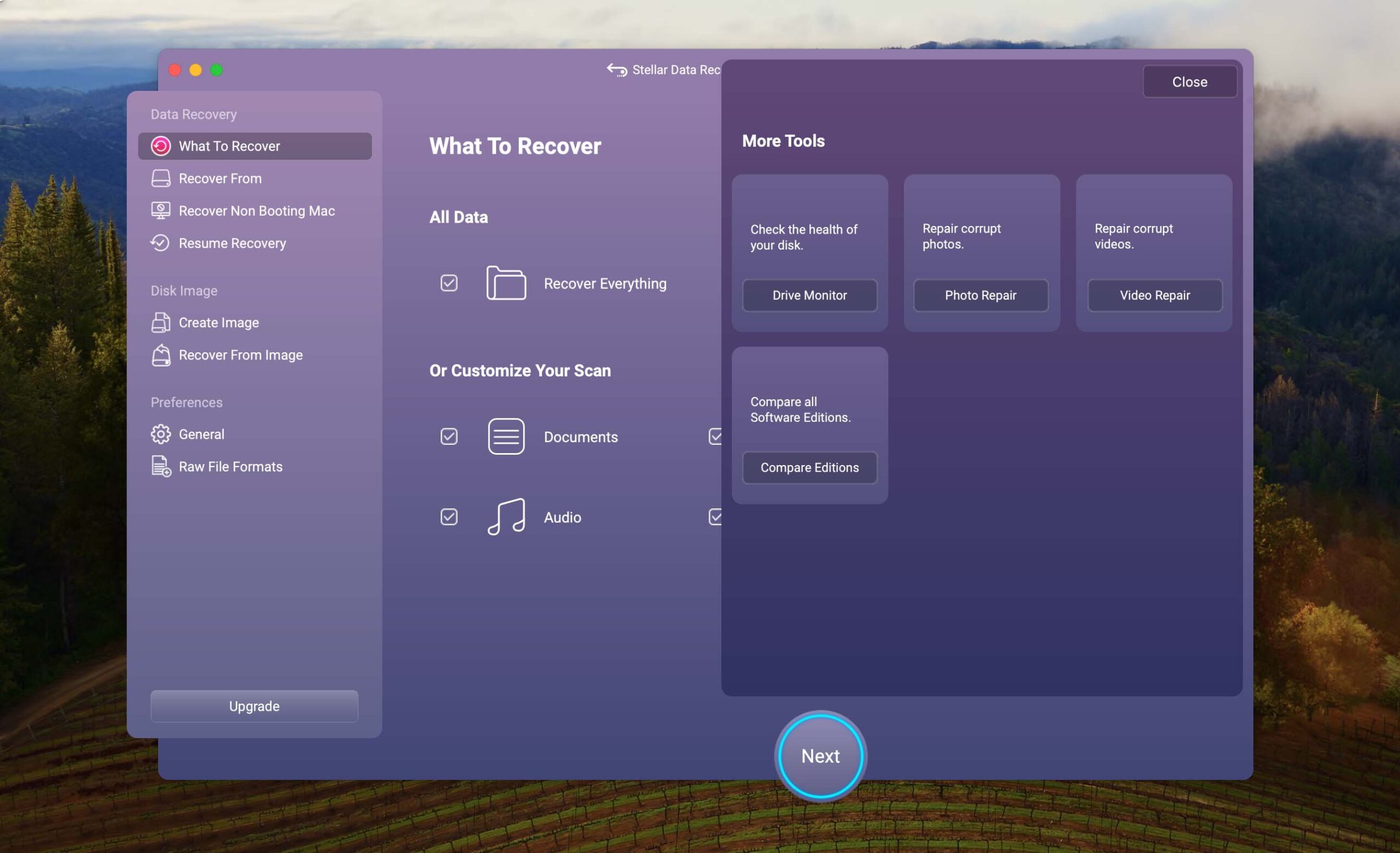
Stellar Data Recovery is a well-known name in the data recovery software market. It has a nice interface and useful image and video repair tools that actually work. However, it has some major issues that you should know before downloading it yourself.

Usability
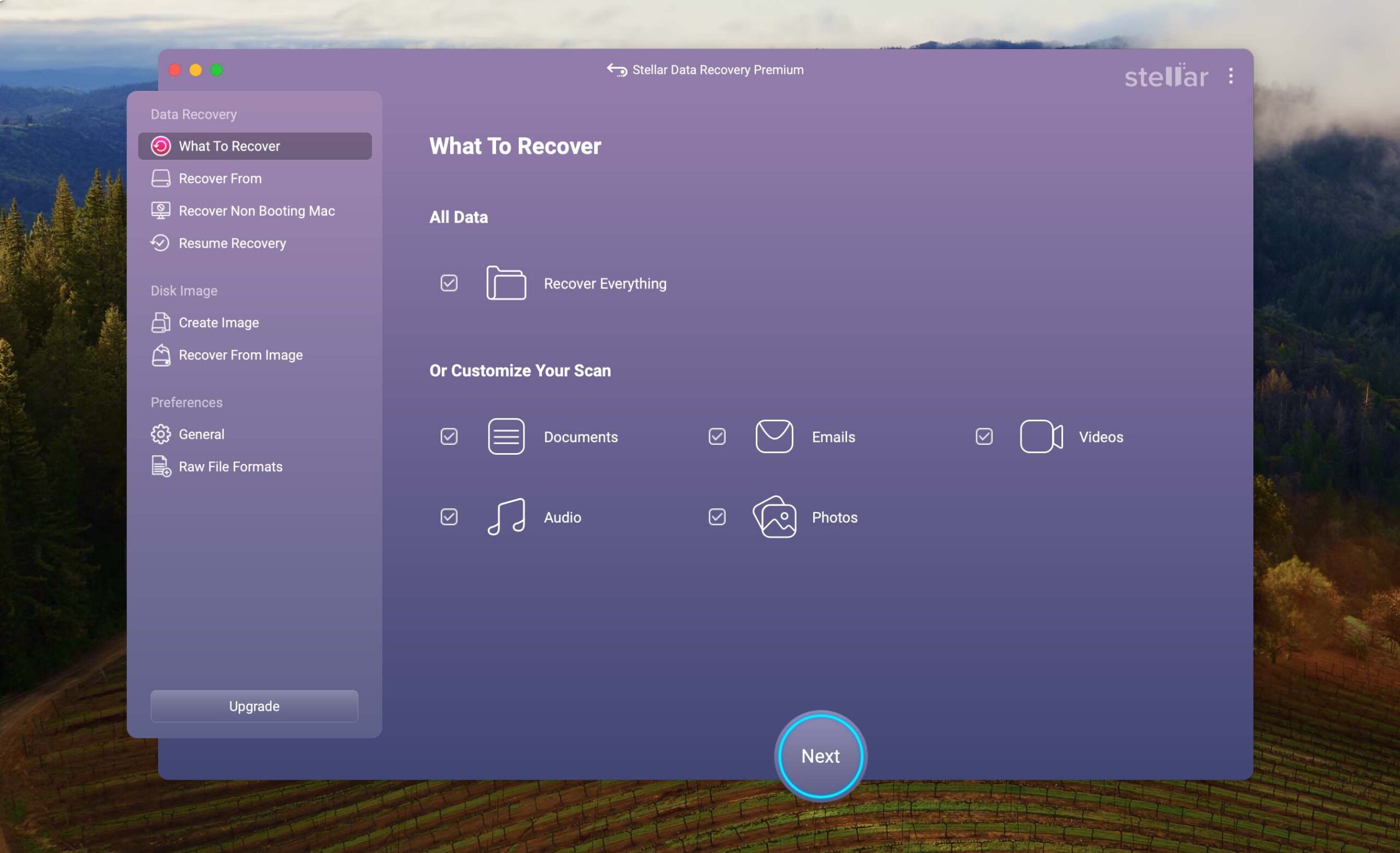
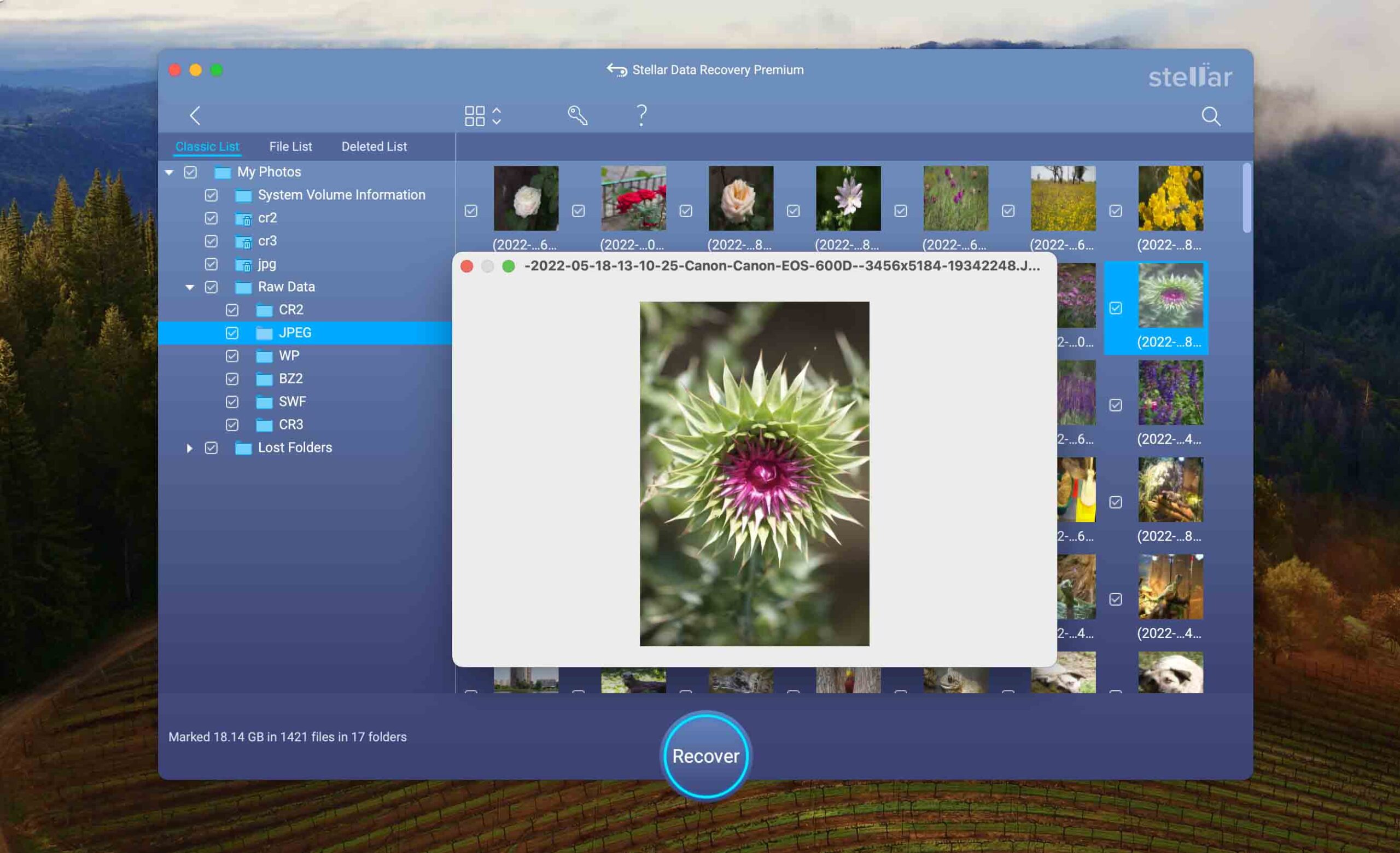
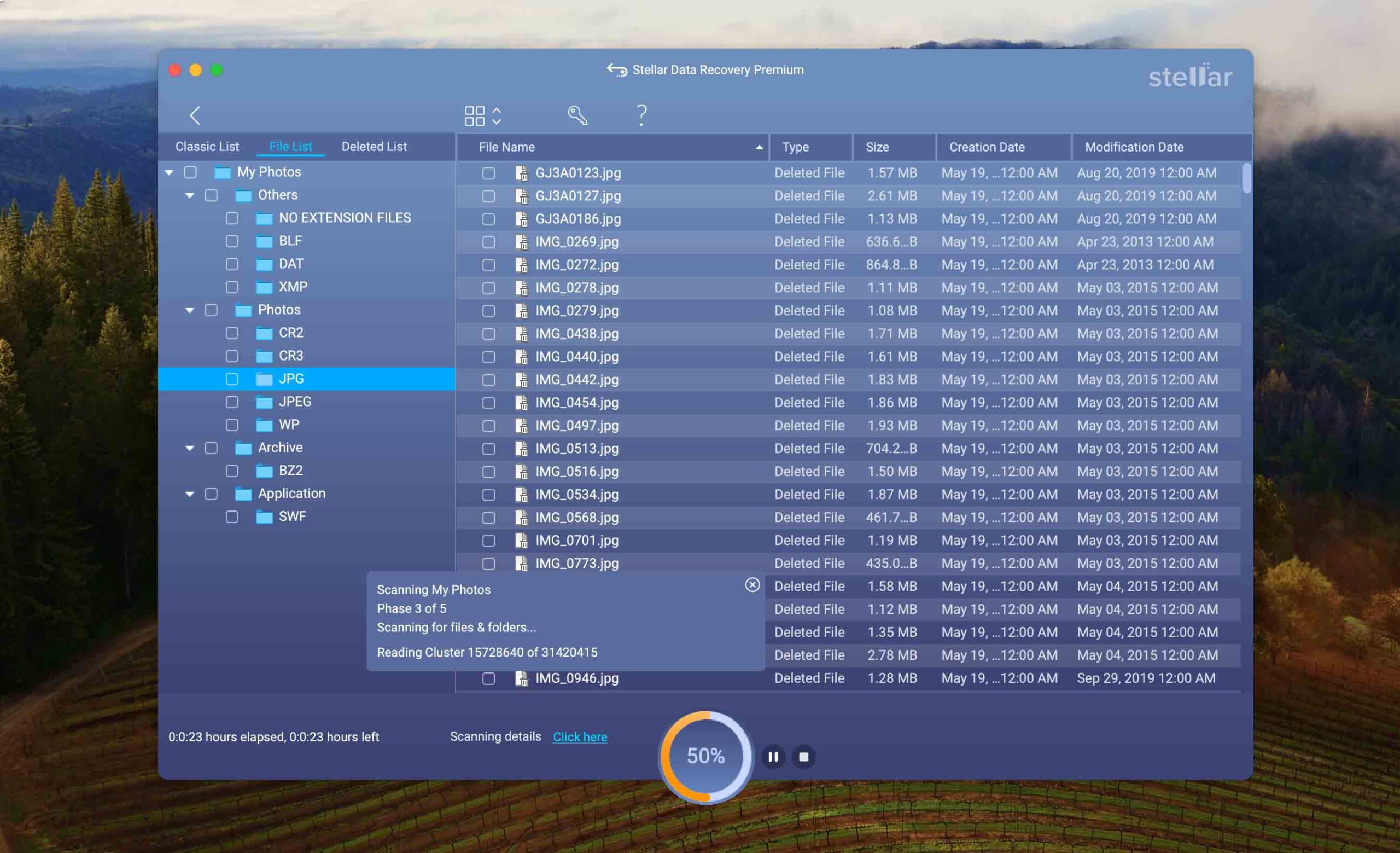
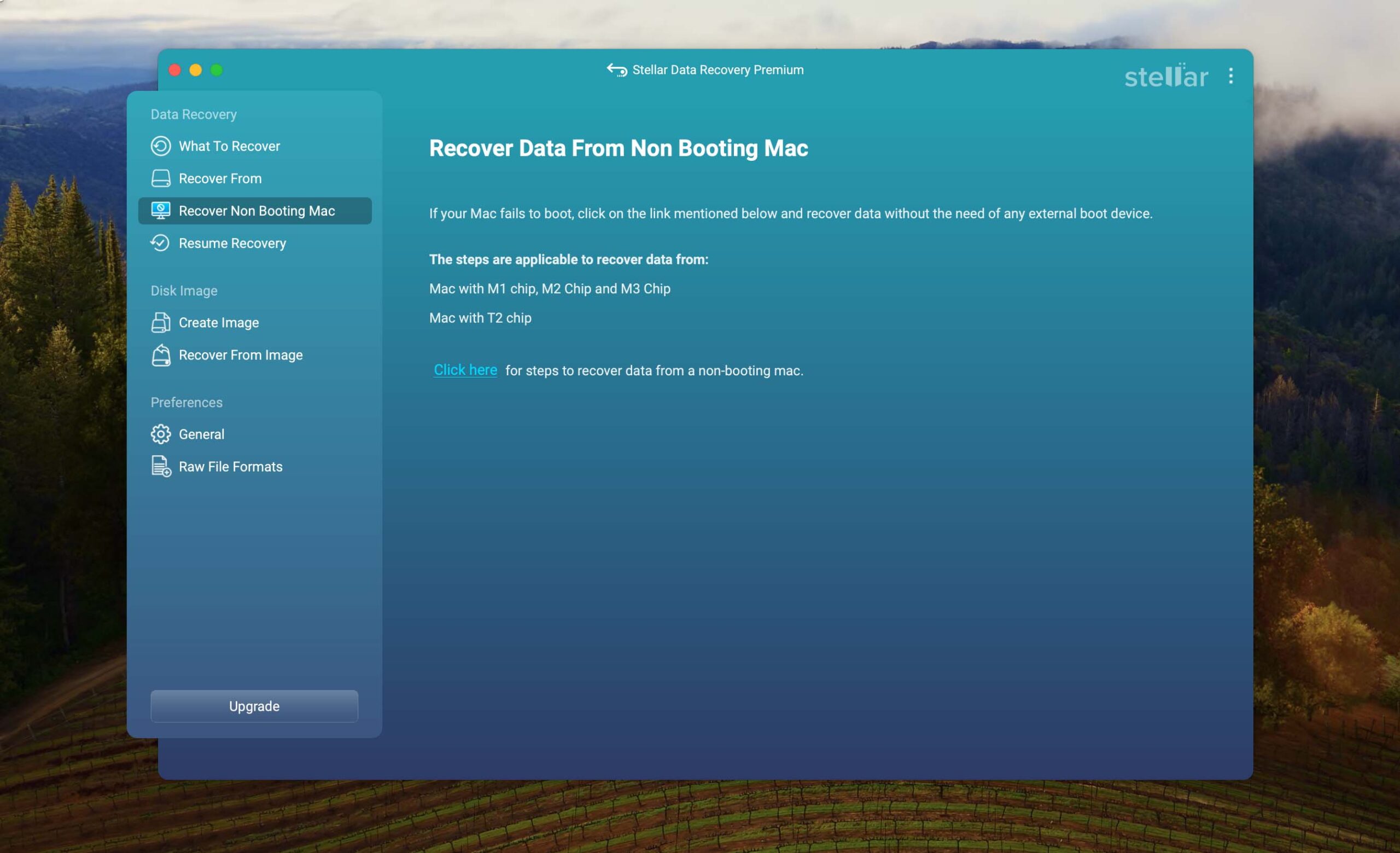
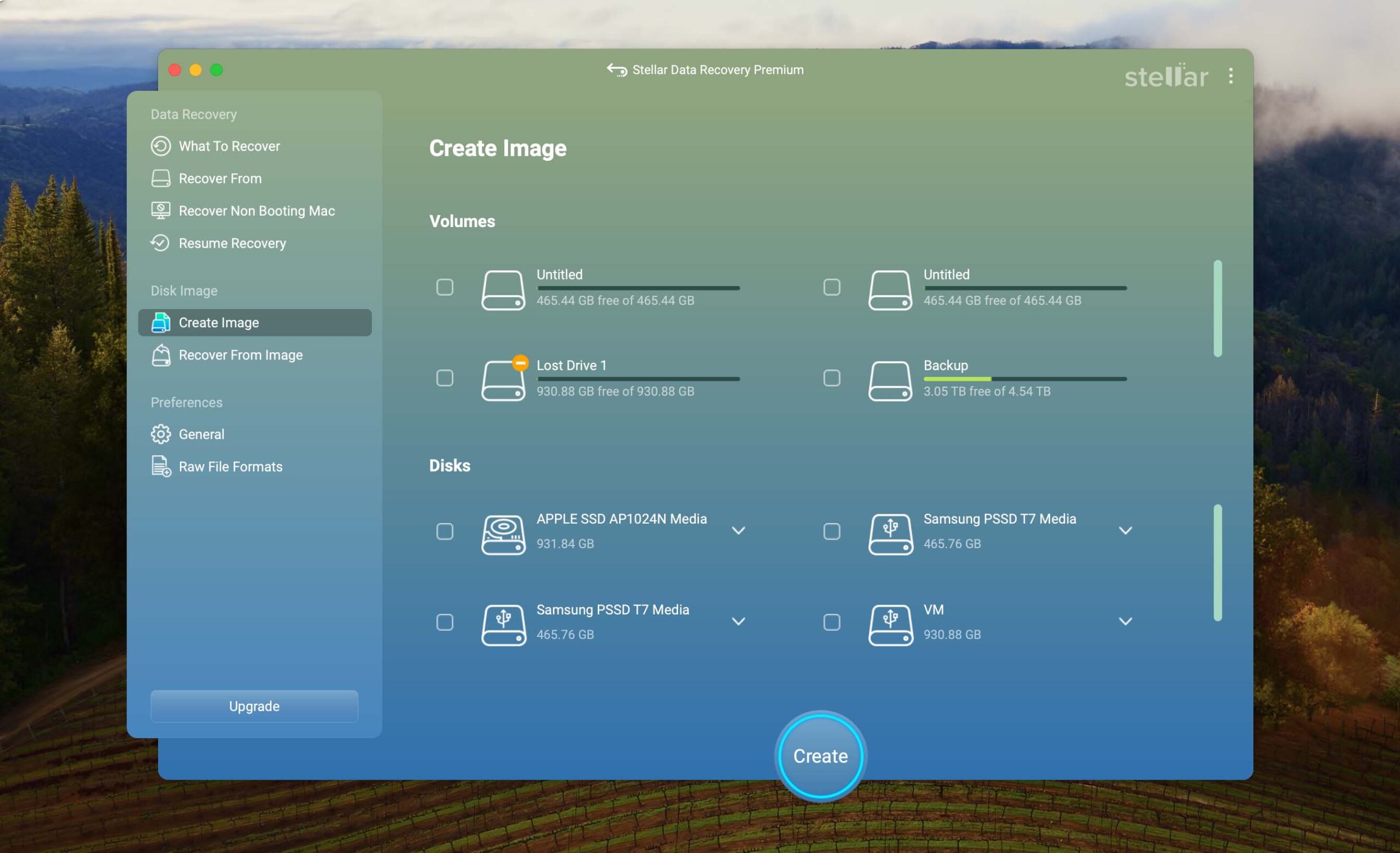
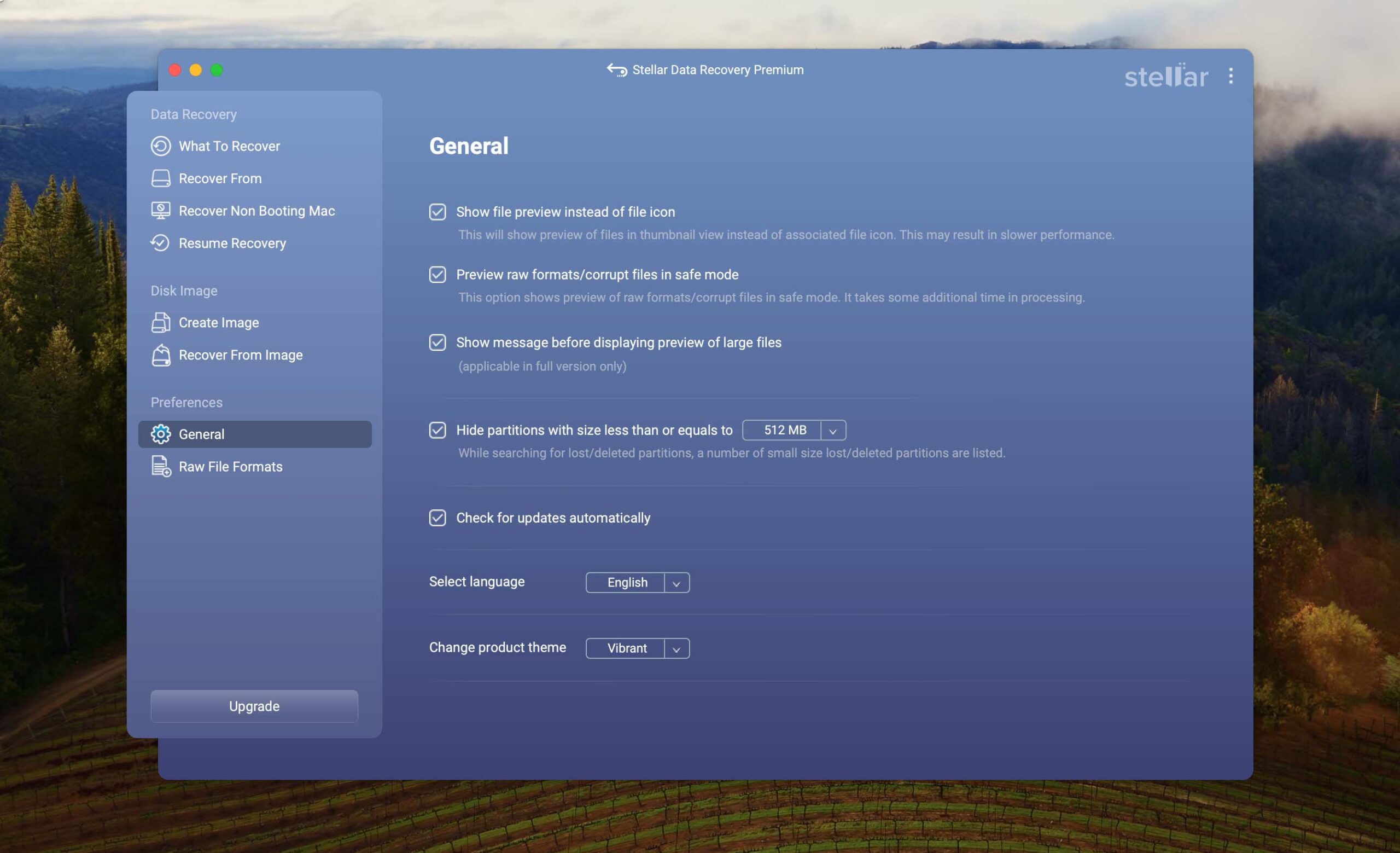
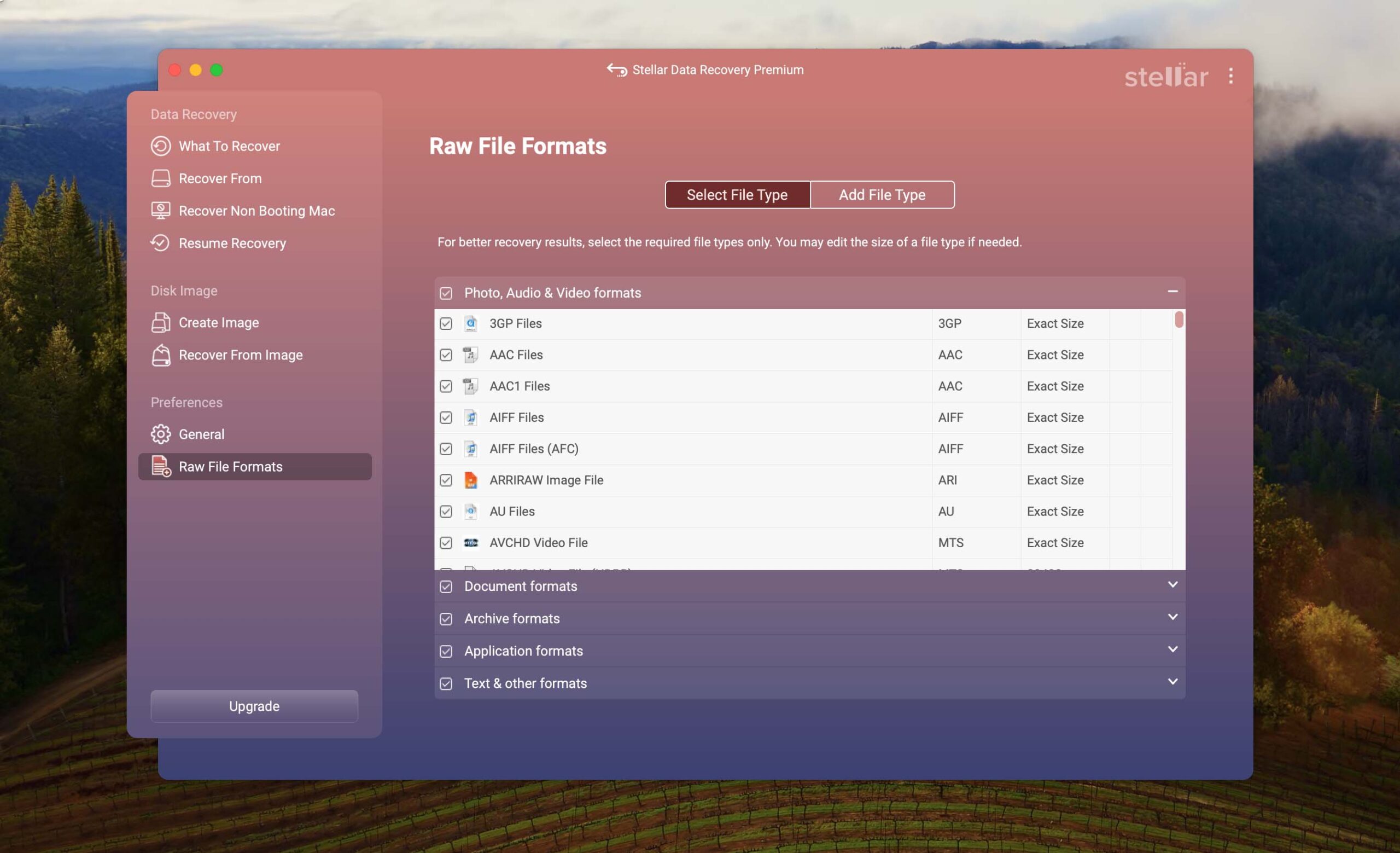
Stellar’s interface is good. It’s clean and modern and has a bunch of cool graphics accompanying the scanning process. Most importantly, users can easily find the tools and features they need at a glance.
The user experience is decent. Stellar automatically implements a Quick Scan first and only suggests the Deep Scan if it fails to find any data. Scan results are organized neatly in folders and can be filtered. However, it can’t auto-resume scans, so recovering a faulty drive can be tricky.
Recovery Performance
As much as we love how Stellar looks and enjoy some of its unique features, we were lukewarm with the constant crashes and average performance.
The recovery of our data’s original folder structure and file names was hit-or-miss. Stellar restored a modest 21 out of 37 RAW photo file types, albeit with a high success rate for the file types it does recognize. Stellar recognized most of our video files, but the recovery rate was below average to average. It fared best when attempting to restore documents.
Stellar’s unique selling point is its corrupted photo and video repair tool. We were able to open photo and video files that refused to work earlier.
Value
Stellar Data Recovery for Mac starts at $69.99 per year for the Standard plan, which covers lost and deleted data only. To unlock partition recovery and crashed system recovery, you'll need the Professional plan, priced at $89.99 per year. If you also want the photo and video repair tools, the Premium plan runs $99.99 annually. We think Stellar's price tag makes the most sense for users who need its repair tool and support for certain file types.

8. Data Rescue for Mac
3.26 • Oldie but not goodie – Data Rescue for Mac is among the oldest applications of its kind, but its age is starting to show in multiple not-so-favorable ways.
macOSWindows
Freemium Some features are provided free of charge, but money is required to unlock the rest
Recover up to 1 GB for free
$79...$399
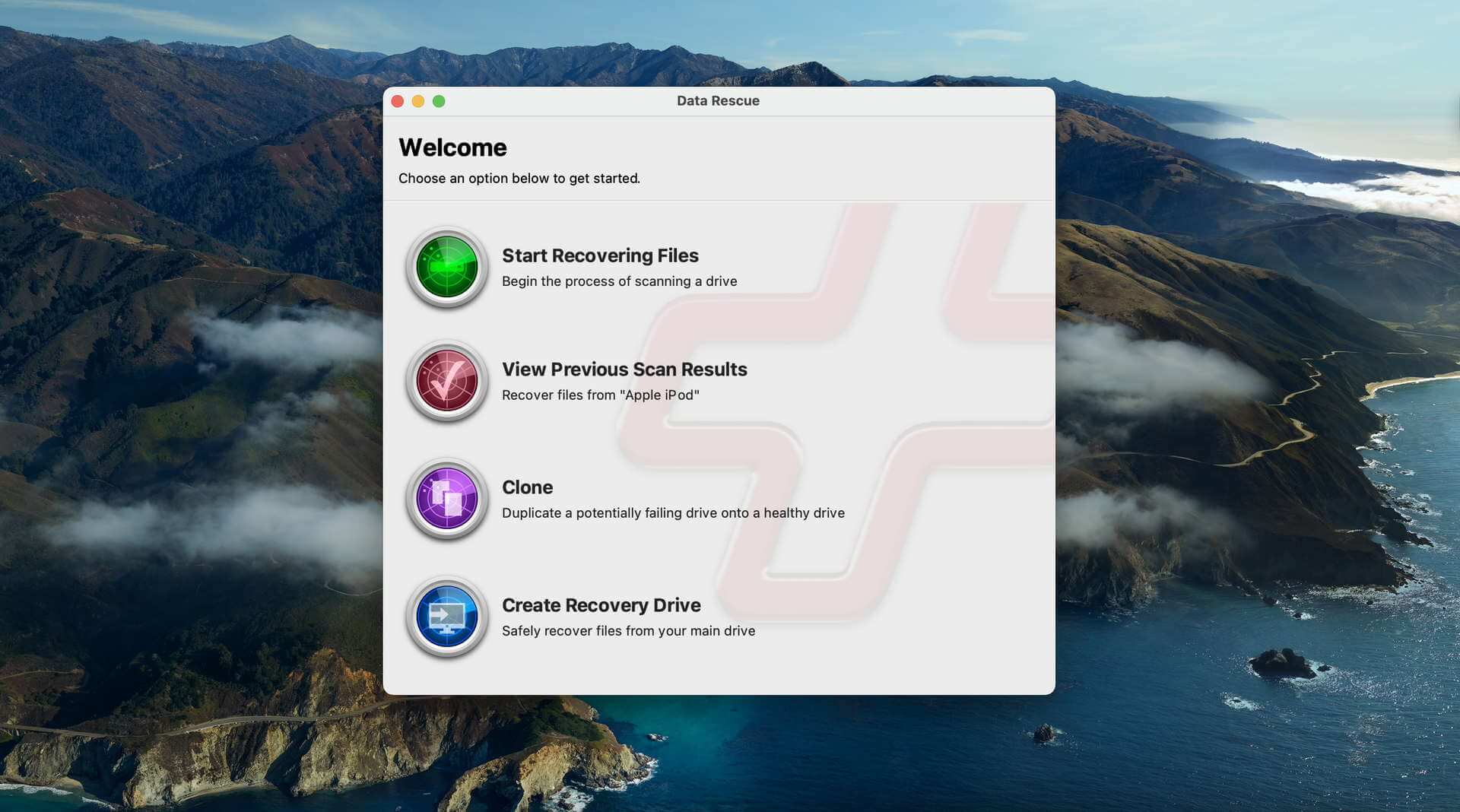
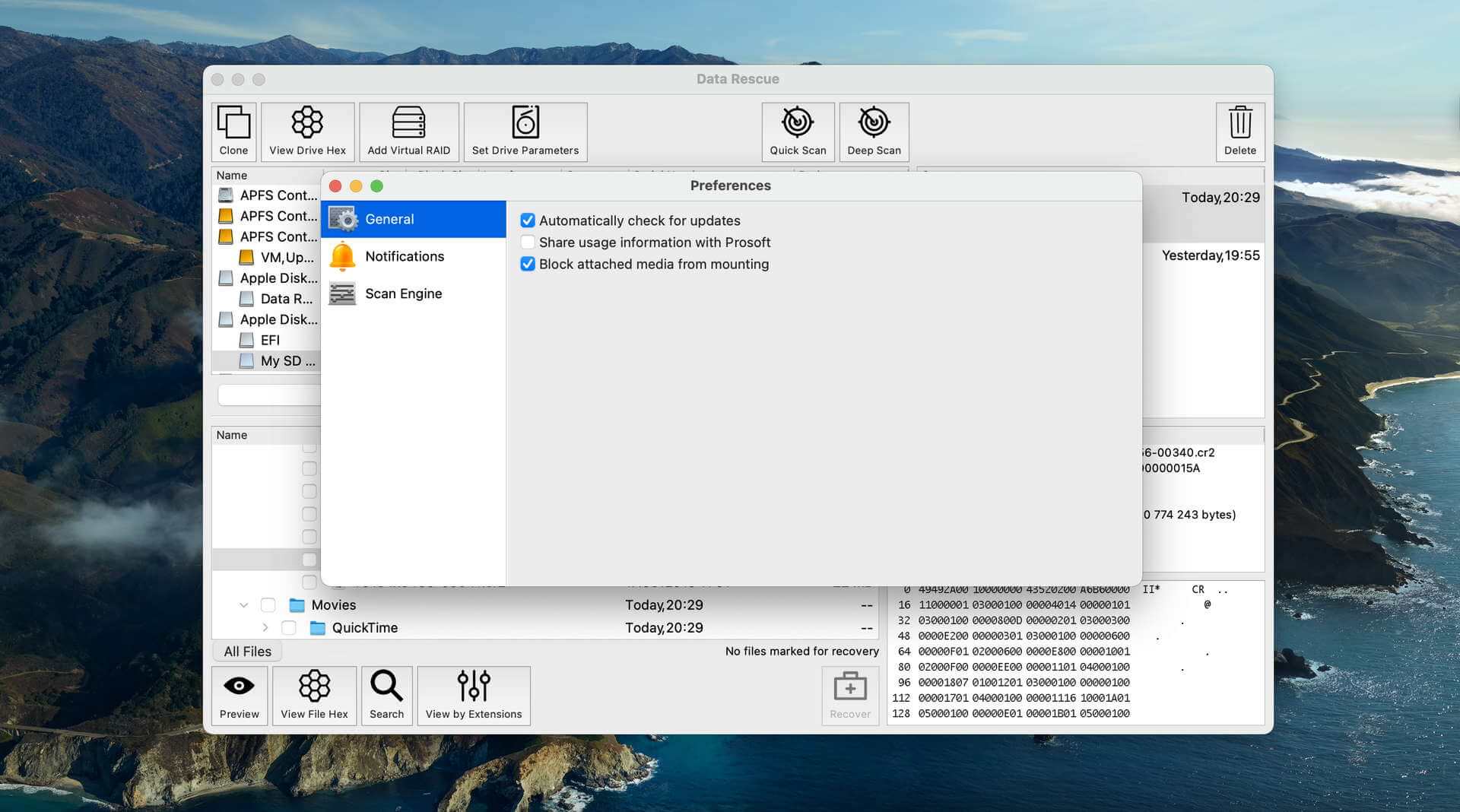
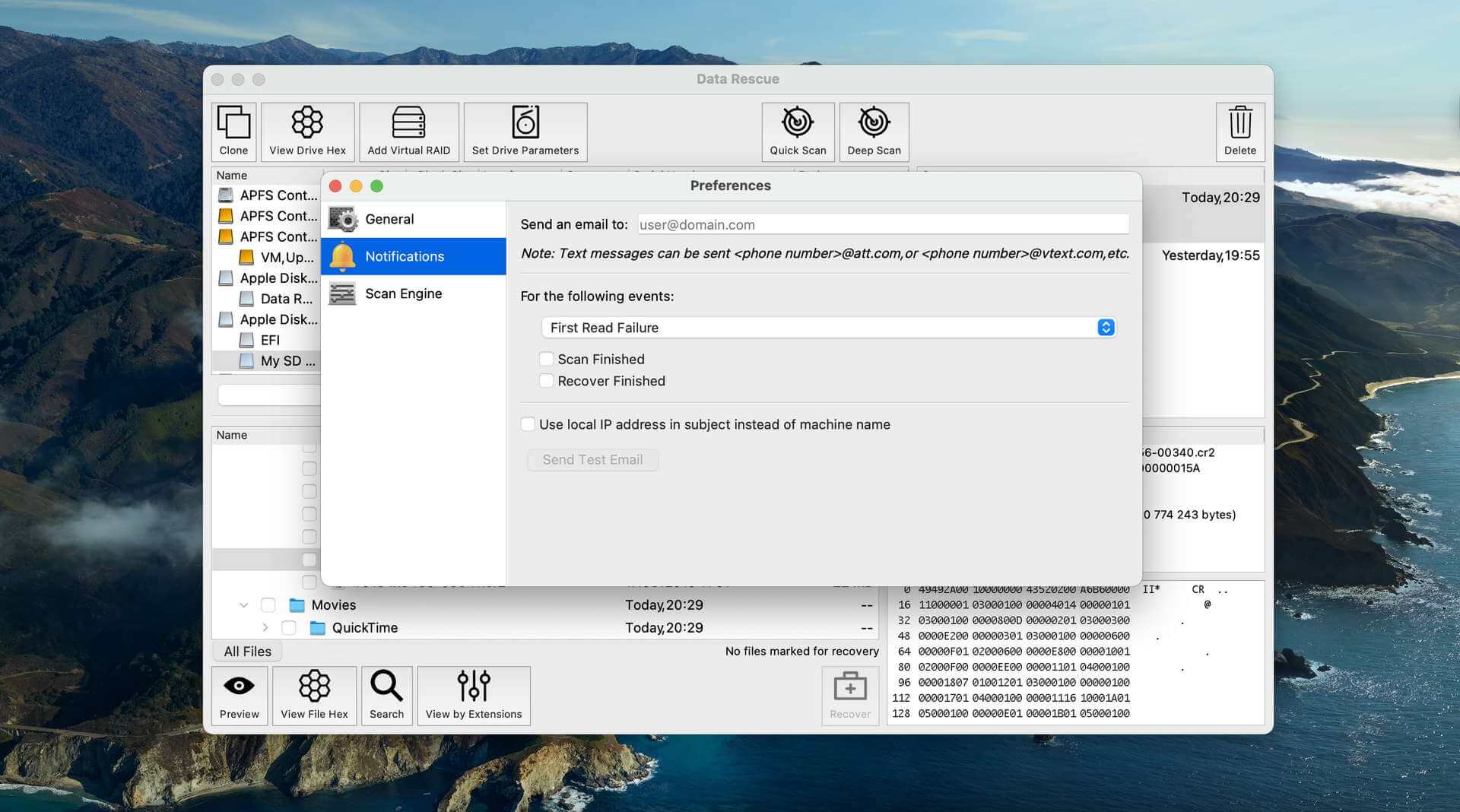
Data Rescue is a living dinosaur among data recovery software. While some of its aspects have been left behind by the times, it still offers some value to certain users. For those specific users, even the software’s weird pricing model will work to their advantage.


Usability
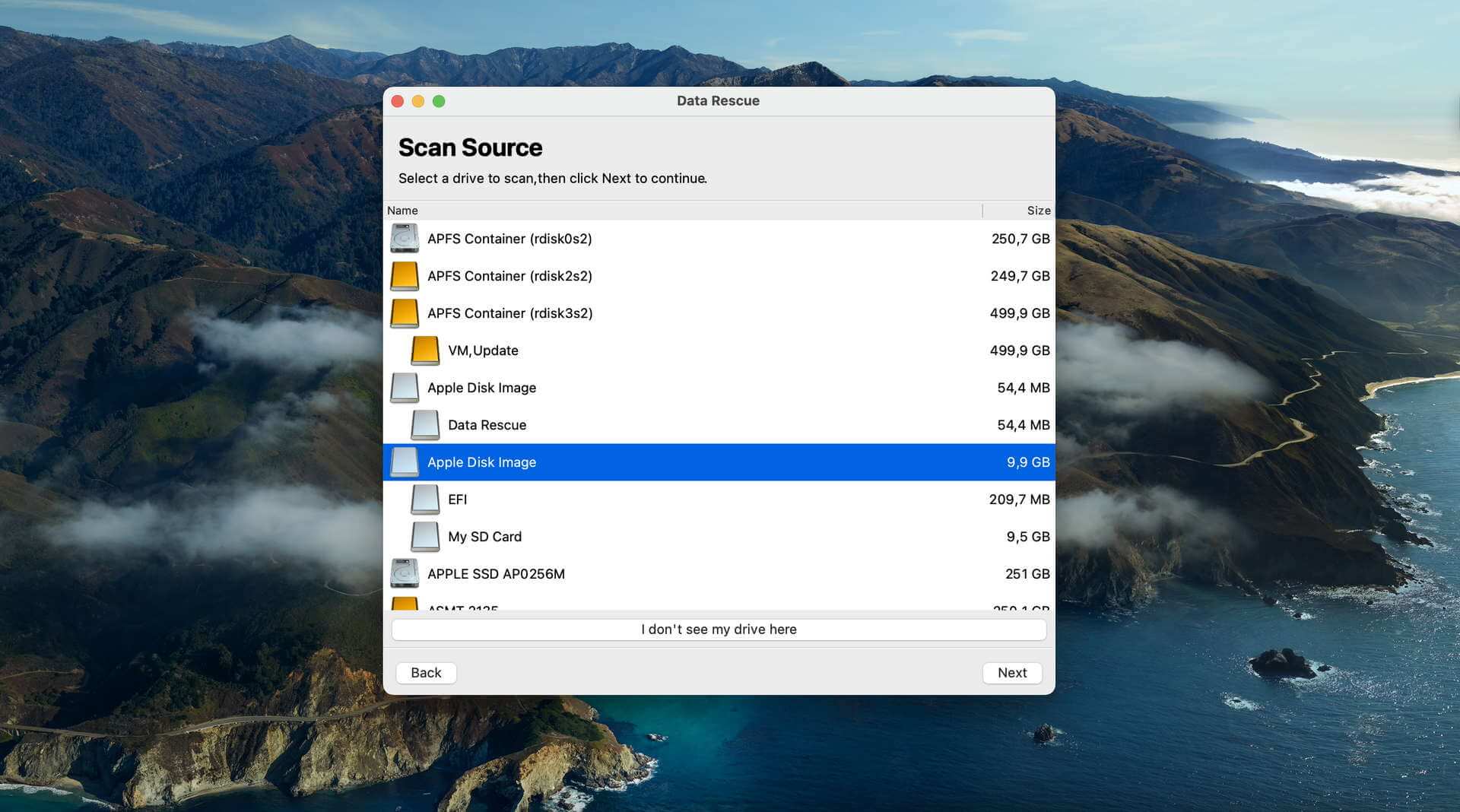
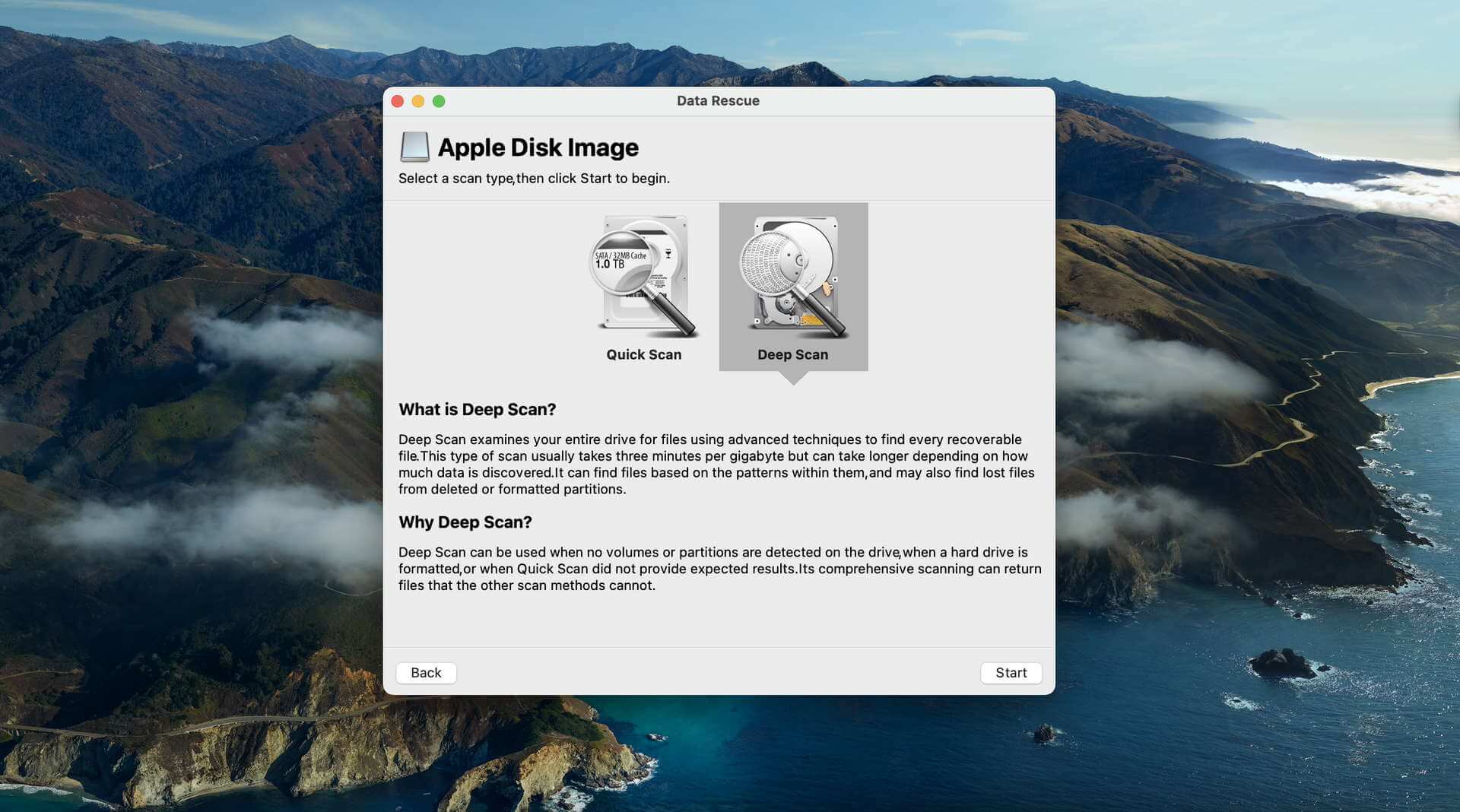
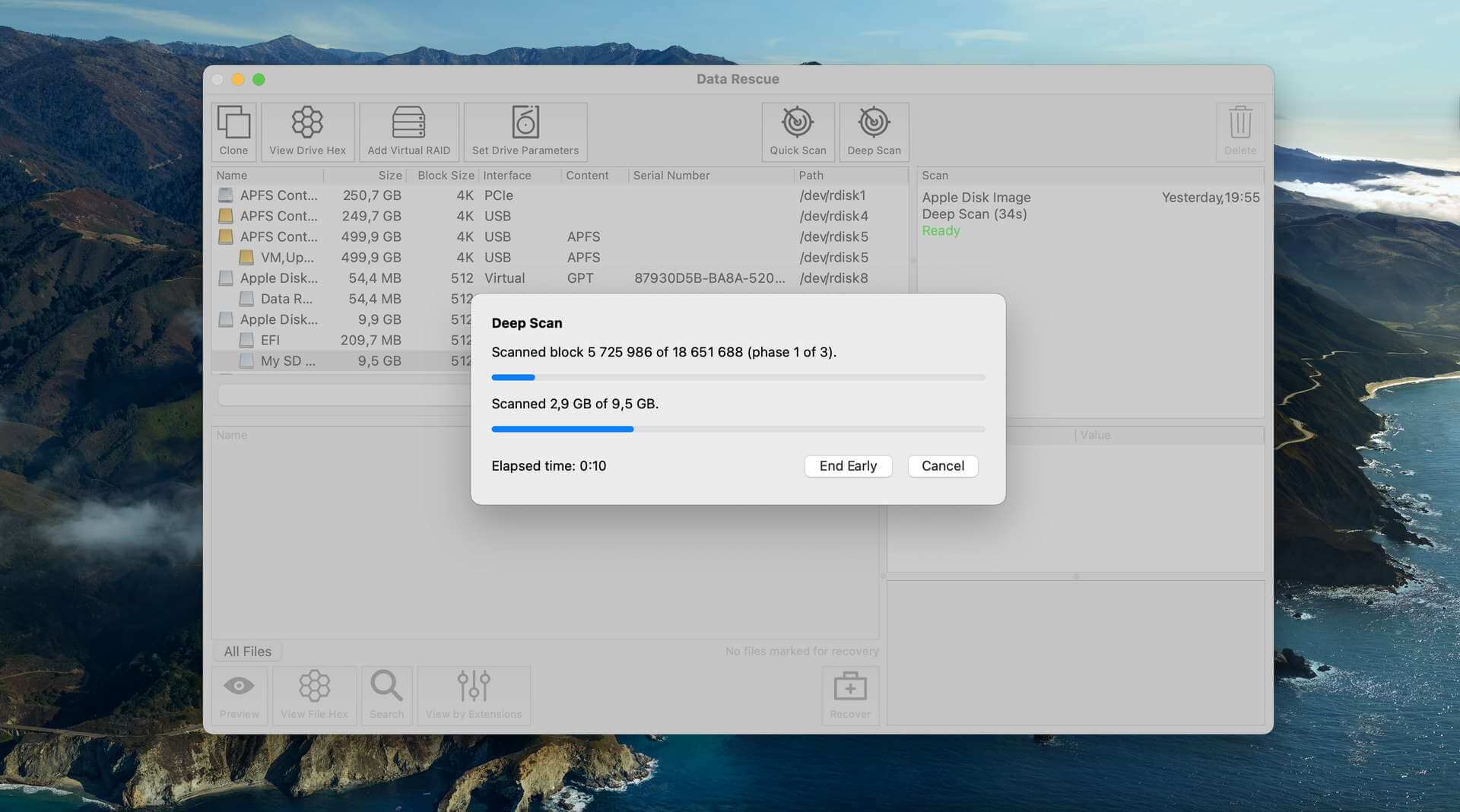
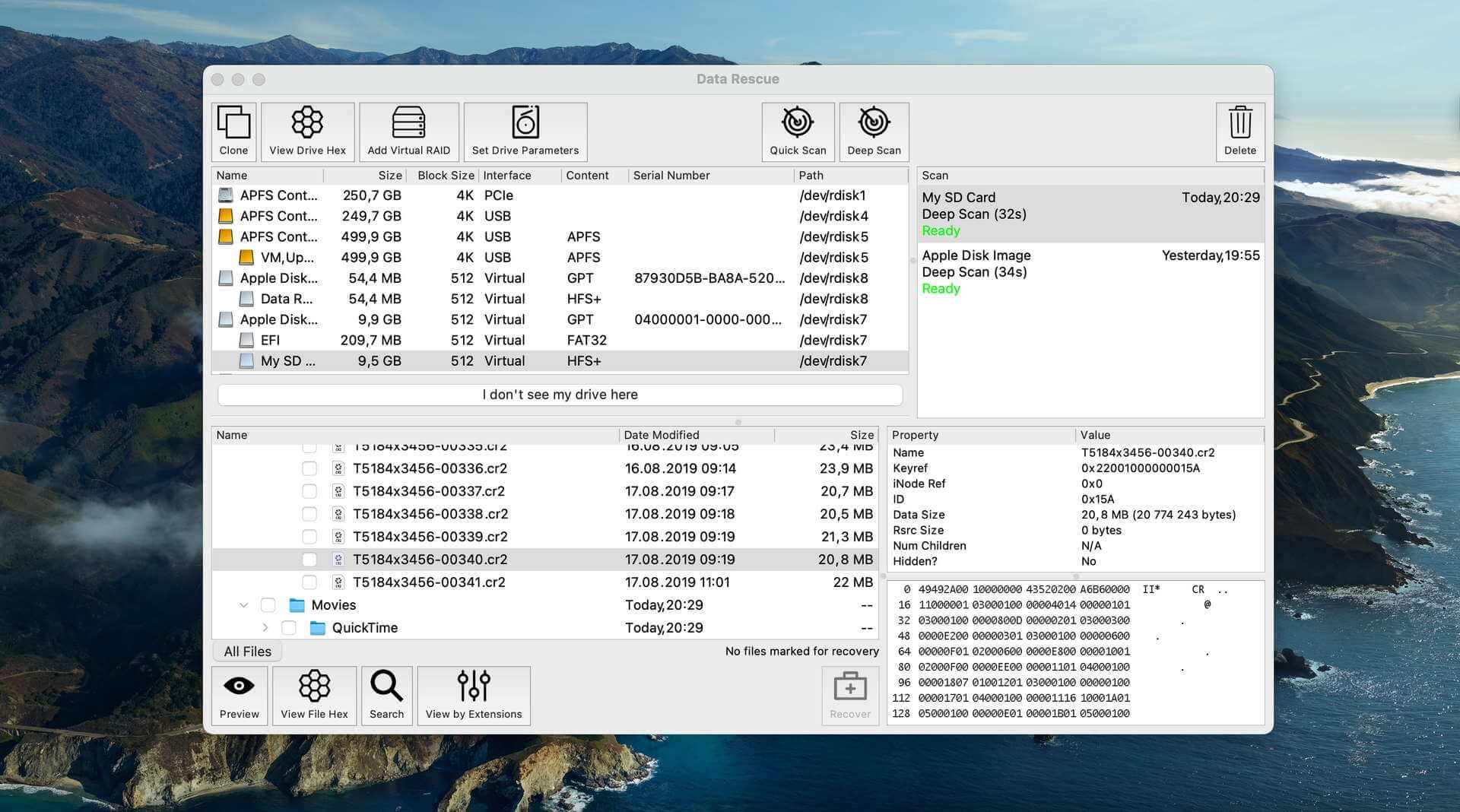
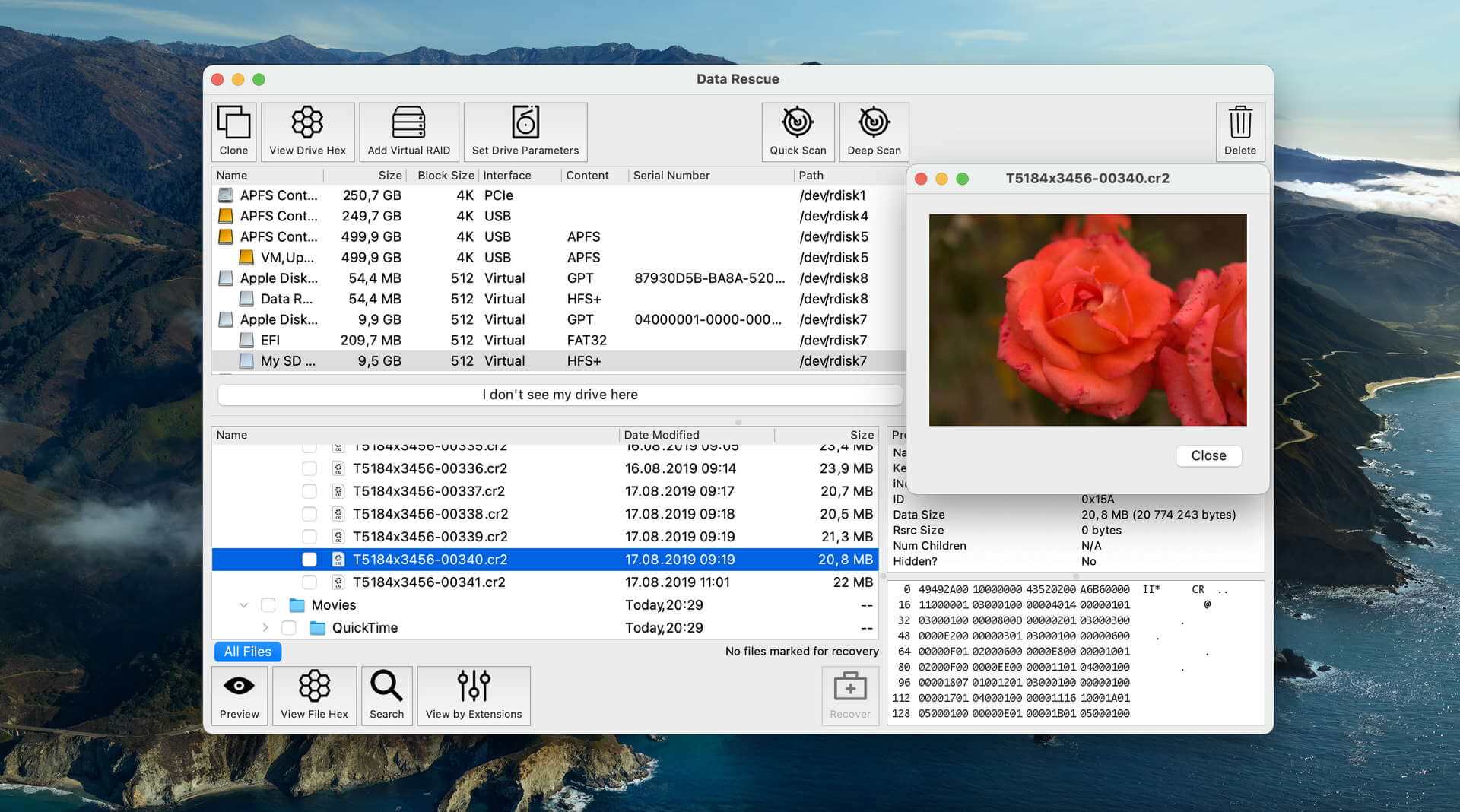
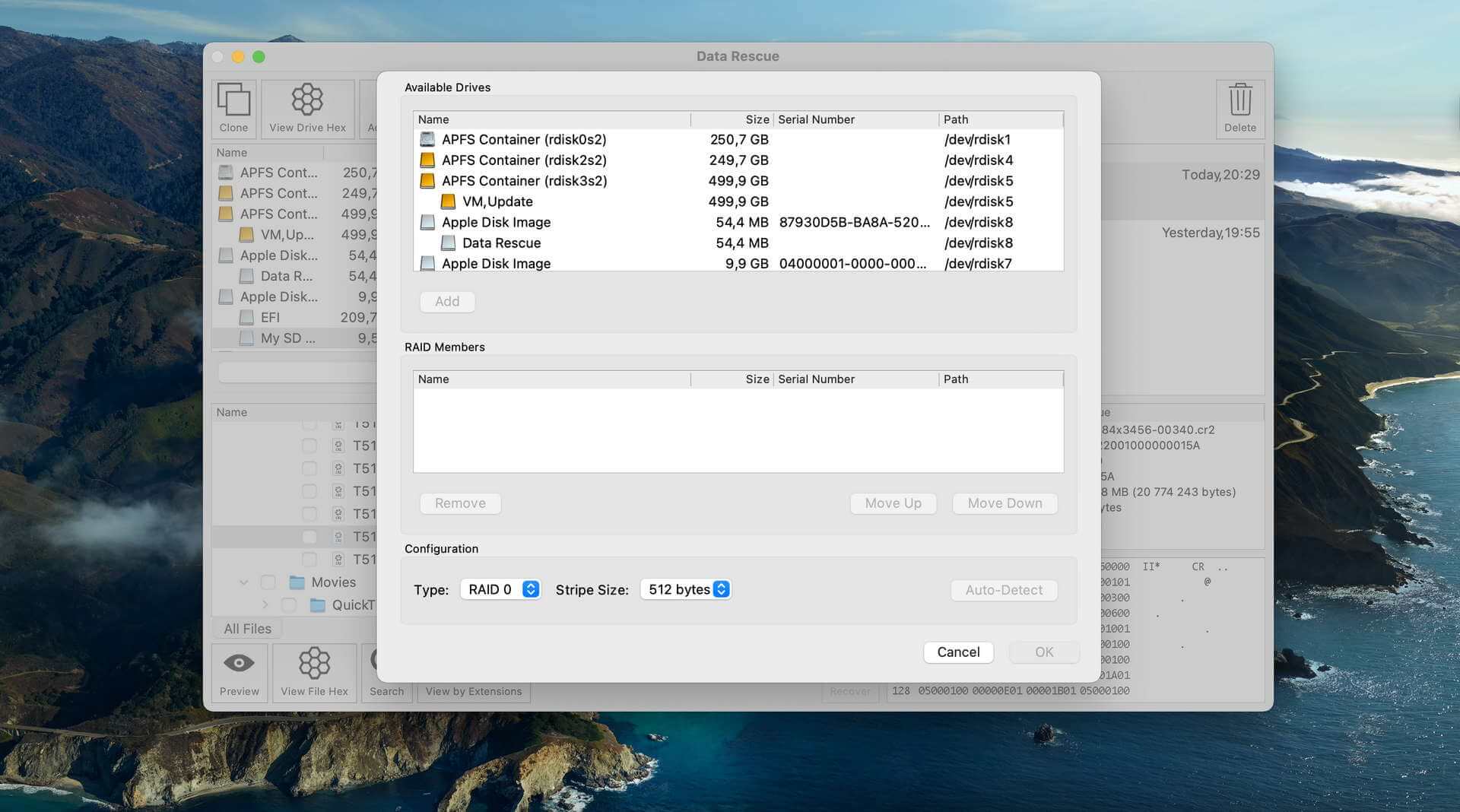
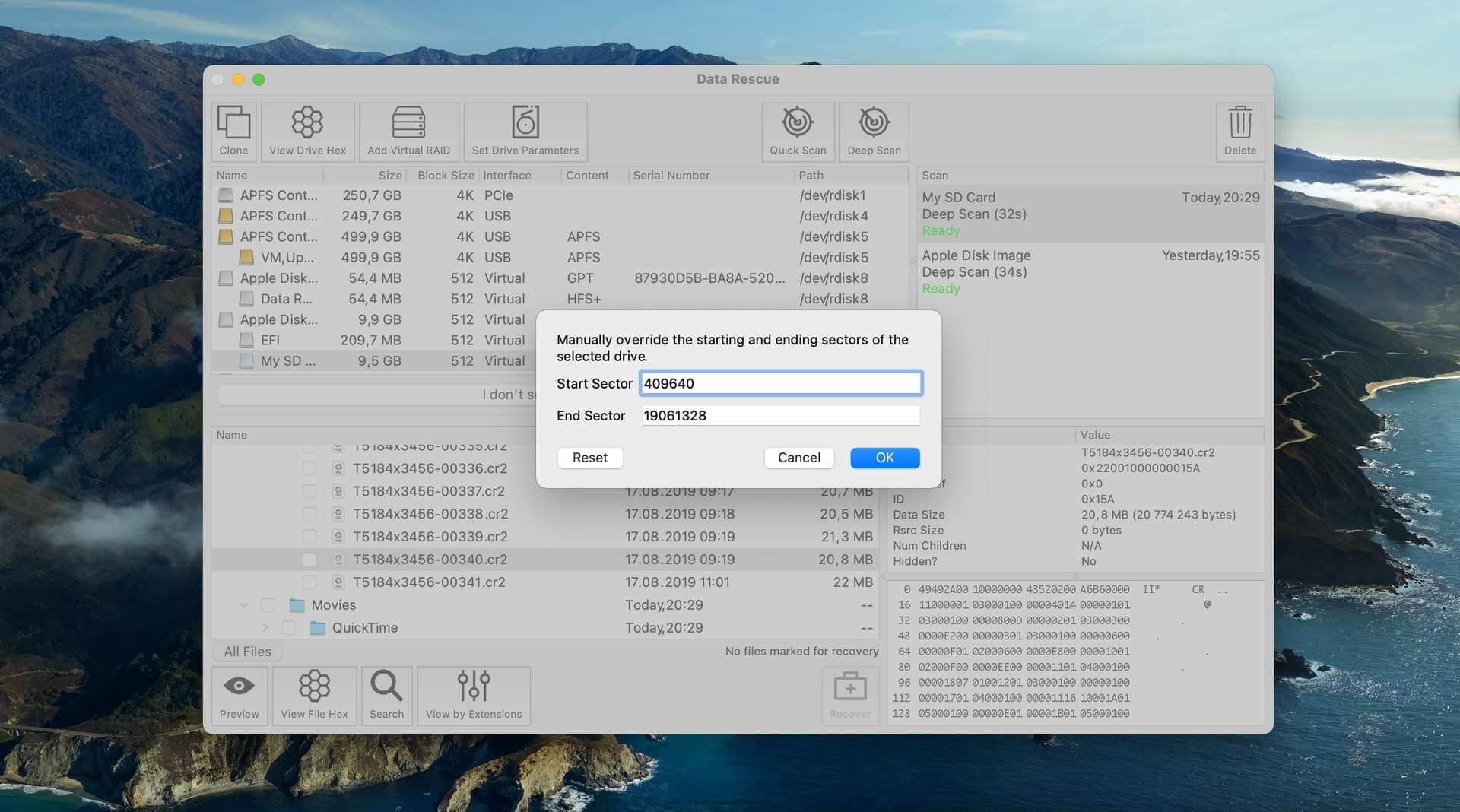
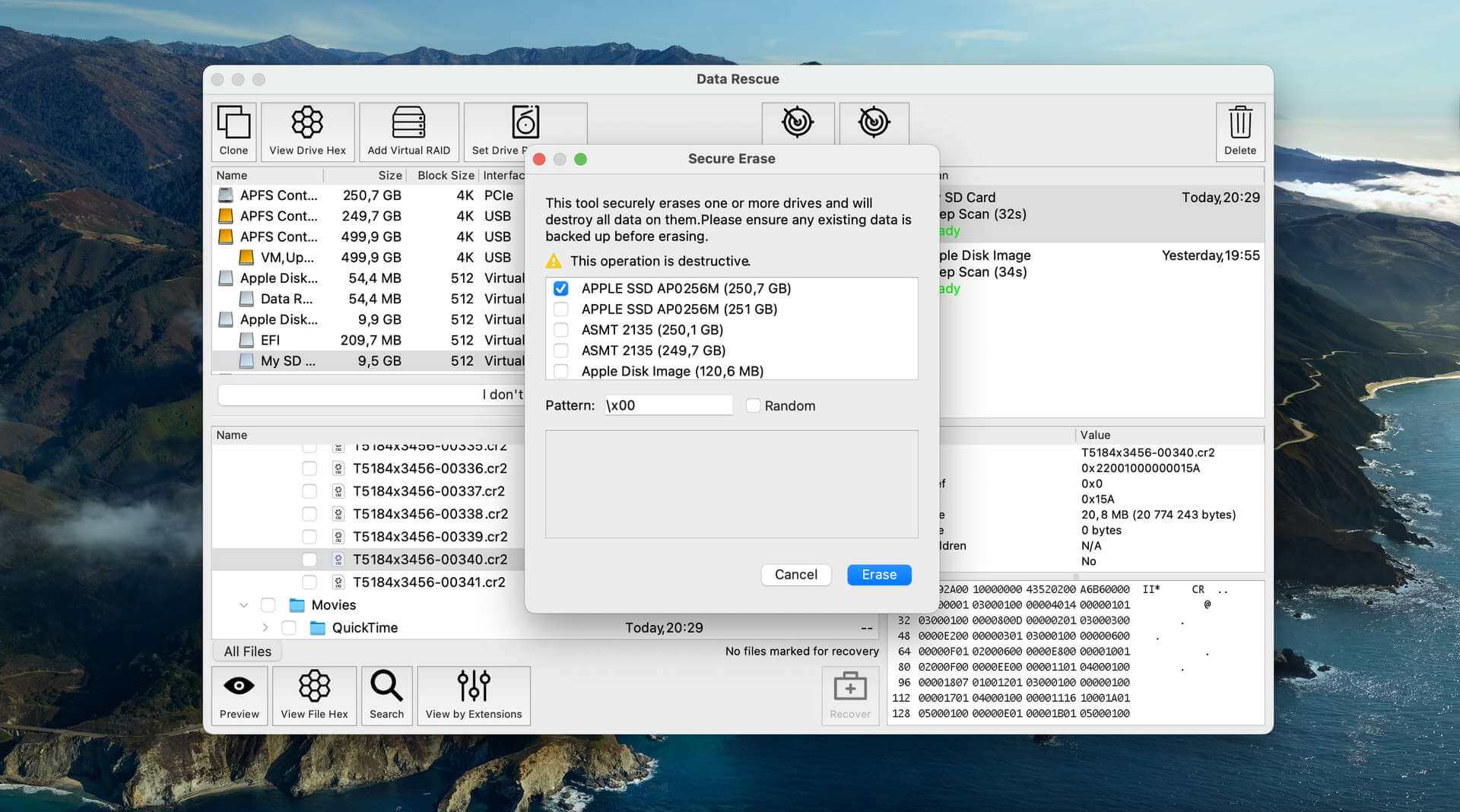
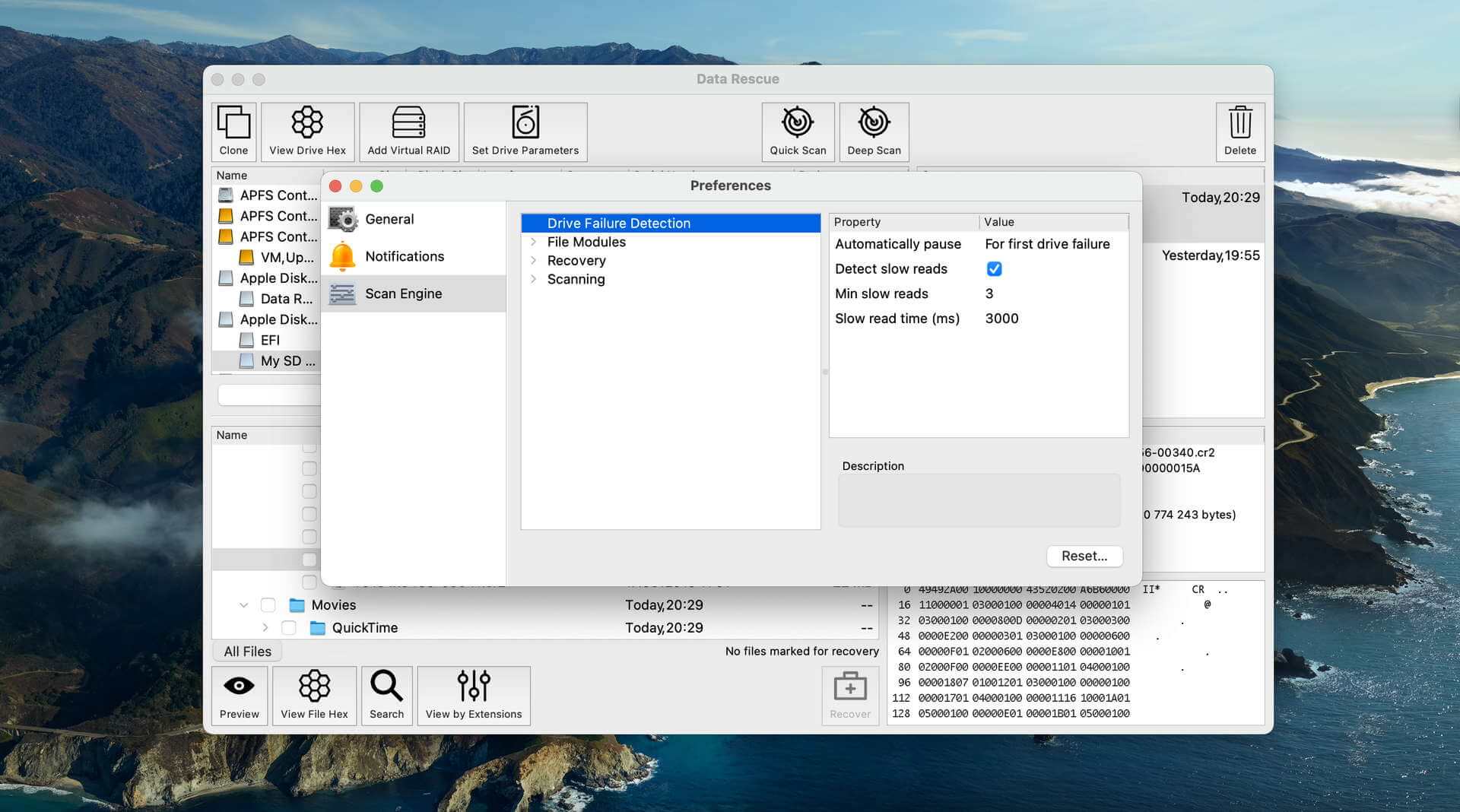
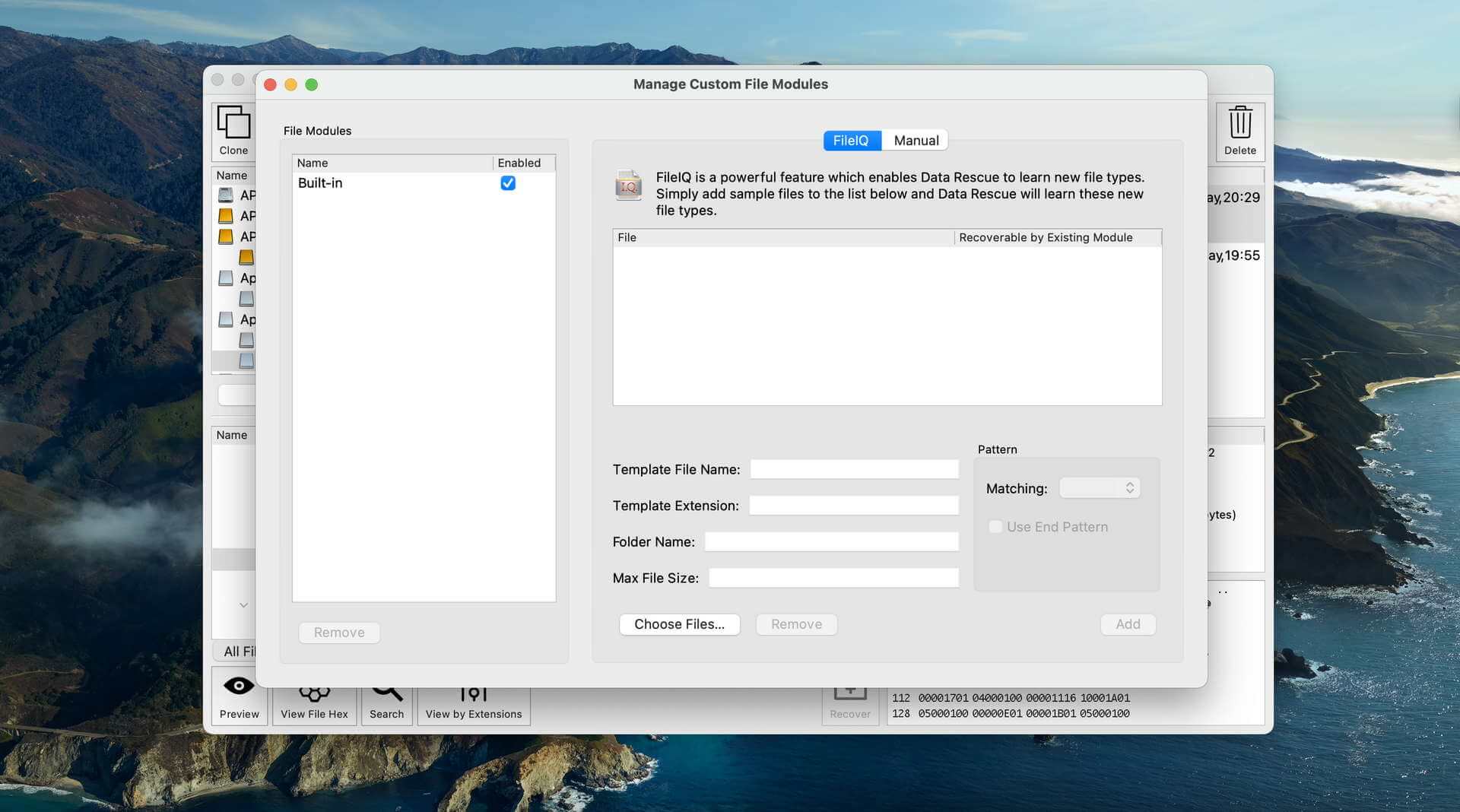
Data Rescue’s Beginner Mode and Professional Mode are a double-edged sword. Beginner Mode guides the user step-by-step using a simplistic interface, while its advanced tools are hidden behind Professional Mode in an effort to be less intimidating.
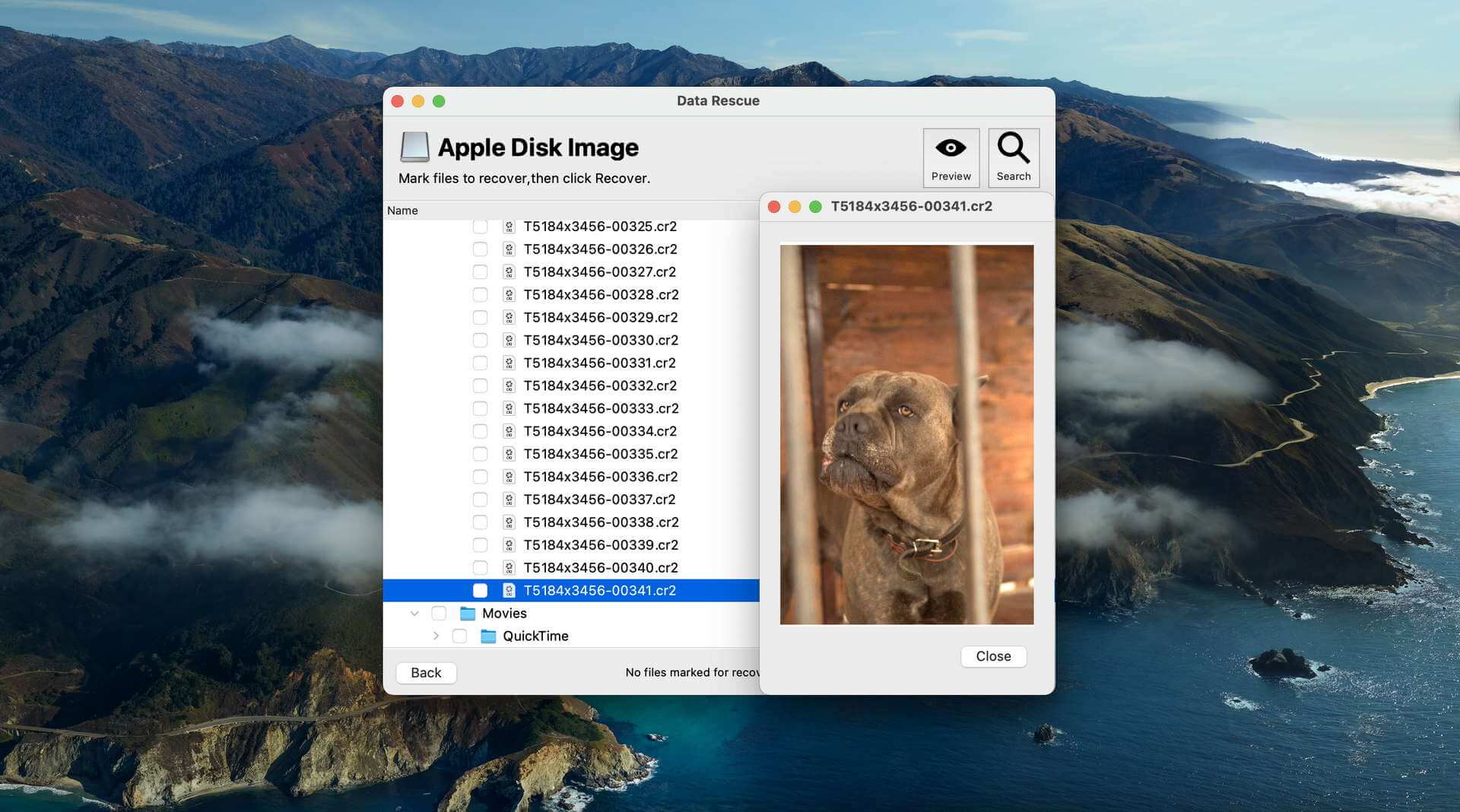
While that’s a good idea in theory, other data recovery software succeeds in giving the user access to every feature while remaining beginner-friendly. Data Rescue also lacks the basic quality-of-life features we expect from paid software, such as sorting and filtering tools for the scan results.
Recovery Performance
Data Rescue is really good at a select few things, but disappointing for others. Its Clever scan (recovery tool for original folder structure and file names) technically supports HFS+, FAT32, exFAT, and NTFS, but only HFS+ delivers good results. The other file systems produce poor outcomes, so don't count on restoring your folder structure from anything but an HFS+ partition.
Its Quick scan (recovery tool for recently deleted files) does a lot better and works with HFS+, APFS, and NTFS really well. The quick scan also worked with our ExFAT partition, but the results were below average. Data Rescue’s signature scanner was also hit-or-miss, favoring video and document recovery over photo recovery.
Value
Data Rescue offers a free trial with up to 1 GB of recovery for new users. Beyond that, the Standard License costs $79 for 30 days of unlimited recovery, while the Professional License costs $399 per year. We can potentially see Data Rescue being a good choice for users dealing with a one-time data loss event who only need that 30-day window.
Overall, Data Rescue is a good choice for a certain set of users and a non-starter for the rest. Do your research before deciding to buy it.
Honorable Mentions
There is a lot of “decent” data recovery software that didn’t make it to the main list not because they were bad, but because their overall score simply didn’t match up. Here are the runners-up that didn’t quite make the cut but are worth considering for some users:
TestDisk
TestDisk is a 100% free, open-source data recovery tool that can recover and fix lost partitions. It doesn’t have a graphical user interface, but its command-line interface has step-by-step instructions so it’s easy to follow along. It lacks certain recovery features like preview and organization tools and session management, but it does its job (partition recovery) extremely well.
iBoysoft Data Recovery
iBoysoft is a semi-popular data recovery software for Mac that caught our attention thanks to its extensive help documentation. It’s really good at (1) restoring the original folder structure and file names and (2) recovering recently deleted data from ExFAT and NTFS partitions. For Mac software, we wish it provided better support for HFS+ and APFS partitions, but it’s a solid choice for recovering external storage devices.
Lazesoft Mac Data Recovery
Lazesoft is a lesser-known data recovery software from, as our review put it, a “bygone era.” Its last update was released in 2015 and it only runs for macOS Mojave 10.14 at the latest. Why are we recommending it? Because it’s 100% free. And it’s pretty good at restoring our data’s original folder structure and file names as well as recently deleted files from NTFS partitions.
Techtool Pro
Techtool Pro is one of the best disk repair tools for Mac. Its name may have faded in popularity, but it’s still on the recommendation list of many Mac veterans today. Data recovery is limited to deleted APFS files, but it can also rebuild volumes, conduct comprehensive diagnostics, and run from boot on FAT32 and ExFAT volumes.
Tenorshare 4DDiG Mac
Tenorshare 4DDiG is a well-known and well-reviewed data recovery software with a polished interface and average recovery performance. It’s good at recovering your original folder structure and file names from FAT32 and NTFS partitions, and restoring recently deleted files from NTFS, ExFAT, and FAT32 partitions. It also works with basic RAID arrays and non-mounting partitions.
DMDE
DMDE is a hidden gem that rewards users willing to manage a steep learning curve for cost-effective data recovery. While its usability leaves much to be desired and its signature scanner is below average at best, everything else about DMDE is solid. Its file system scanner is highly effective, it’s compatible with all the main file systems, and it provides a lot of useful tools that are available even during the free trial.
Was the provided information useful? Your vote is important to use!
Comparison table
#The comparison table below provides an overview of all data recovery software applications that have made our list.







| Feature | Disk Drill | EaseUS Data Recovery Wizard | R-Studio | UFS Explorer | Wondershare Recoverit | PhotoRec | Stellar Data Recovery | Data Rescue |
|---|---|---|---|---|---|---|---|---|
| Total Score | 100% | 79% | 76% | 75% | 73% | 68% | 68% | 67% |
| Requirements | macOS 10.15-26.x | macOS 10.9-26.0 | macOS 10.5-15.0 | macOS 10.9 - 26.0 | macOS 10.13-26.0 | macOS 10.6-26.0 | macOS 10.13-26.0 | macOS 10.12-15.0 |
| APFS/HFS+ support | Full support | Full support | Full support | Full support | Limited | Basic | Full support | HFS+ only |
| Apple Silicon compatibility | Native | Native | Native | Native | Native | Native (Terminal) | Rosetta | Rosetta |
| Clever in-depth scan | good | fine | good | good | fine | bad | bad | fine |
| Quick scan | good | good | good | good | fine | bad | bad | fine |
| Ease of use | Excellent | Very good | Technical | Technical | Good | Technical | Good | Fair |
| Distributed as | Freemium | Freemium | Freemium | Freemium | Freemium | Free | Freemium | Freemium |
| Free recovery limit | Free preview | Recover up to 2 GB for free | Recover files smaller than 1024KB | Recover files smaller than 256 KB | Recover up to 500 MB for free | Freeware. No limits | Recover up to 1 GB for free | Recover up to 1 GB for free |
| Trial version available | 1 | 1 | 1 | 1 | 1 | 1 | 1 | 1 |
| Starting price | $89.00 / Annual | $89.95/ 1 month | $79.99 / Permanent | $64.95 / Permanent | $76.49/ 1 month | Free | $69.99/ 1 year | $79.00 / month |
| Raw photo recovery | good | good | fine | good | fine | good | fine | fine |
| Video formats recovery | good | good | fine | good | fine | good | fine | fine |
| Document formats recovery | good | good | good | good | good | good | fine | good |
| S.M.A.R.T. | good | bad | fine | bad | bad | bad | fine | bad |
| Helpdesk support | good | good | good | fine | good | bad | good | good |
| Live chat | good | good | bad | bad | good | bad | good | good |
| Phone support | bad | good | good | good | good | bad | good | good |
Best Practices for Successful Mac Data Recovery
Successful data recovery is never 100% guaranteed, but there are ways you can greatly improve your chances. Here are some tips:
- Stop using the device immediately:
The moment you realize data is missing, stop using that storage device because every file you save, every app you launch, and even normal system operations can permanently overwrite the deleted data you're trying to recover. If you have an SSDs with TRIM enabled, you better turn off your computer immediately because you don't want TRIM to wipe your data and recovery chances with it.
- Install recovery software on a different drive:
Never install data recovery software on the same drive you're trying to recover from for the same reason why you should stop using the device immediately. If you're recovering from your Mac's internal drive, install the recovery software on an external drive or USB stick instead.
- Save recovered files to a different location:
Yes, you've guessed it. By saving your files to the same location you're recovering them from, you could overwrite them during their recovery, so don't do that. The good news is that the best data recovery software for Mac warns users when they're about to make this mistake.
- Create a disk image first:
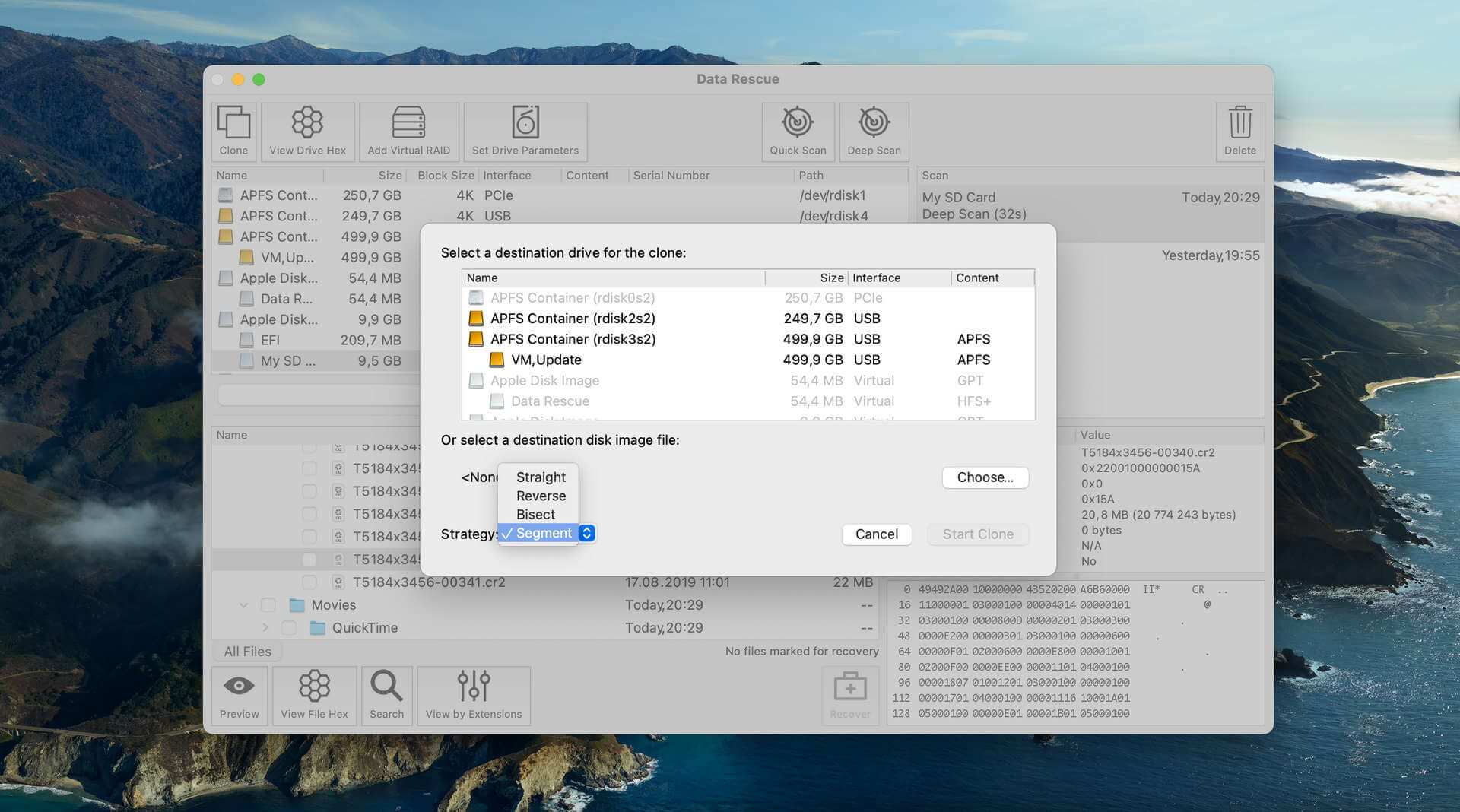
Before attempting any recovery on a failing or damaged drive, create a byte-to-byte disk image using data recovery software, imaging software, or macOS Disk Utility. This way, you'll have an exact copy of your drive that you can scan repeatedly without risking further damage to the original.
- Choose the right data recovery software:
Consider your specific situation when choosing software. Need to recover from APFS? Make sure the tool supports it. Dealing with a physically failing drive? Look for tools with robust disk imaging features. Check our comparison table above to match your needs with the right tool.
- Repair or replace the device:
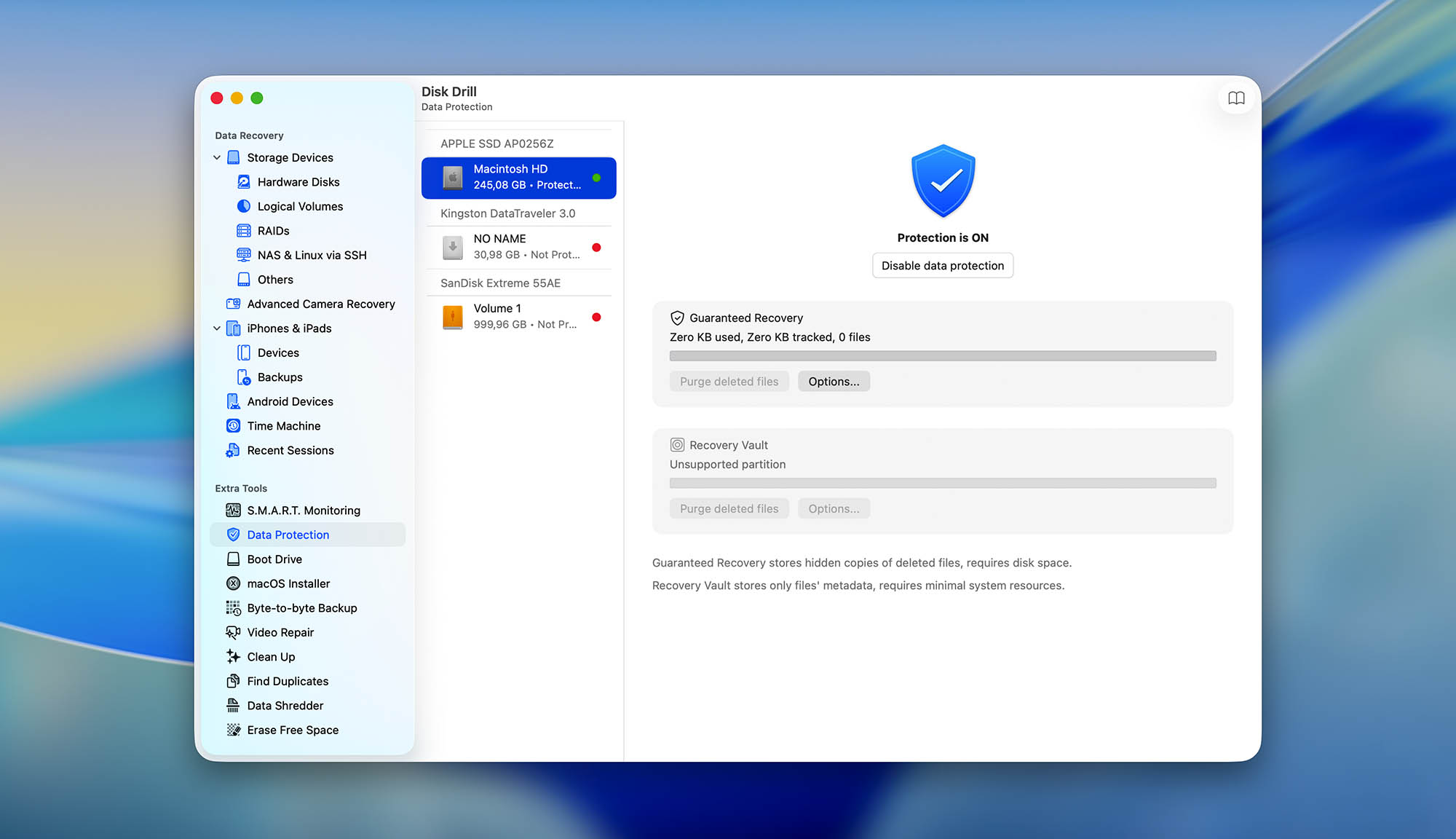
Data loss happens for a reason, such as a failing drive, file system corruption, or physical damage, and you should always attempt to address the root cause after recovery (check S.M.A.R.T. status using diagnostics tool or Disk Utility). For example, you can run First Aid to fix file system errors, or you can replace the drive if it's showing signs of hardware failure. Continuing to use a failing drive risks losing your data again.
Our Verdict: Which Mac Data Recovery Tool to Choose
After testing the above-recommended tools across various Mac data loss scenarios, we’ve identified the best options for different user needs.
- Best overall:
In our opinion, Disk Drill is the best Mac data recovery software overall because it pairs powerful recovery capabilities with an interface that actually makes sense. What’s more, it supports all modern Mac file systems (including APFS), works flawlessly on Apple Silicon, and comes with useful extras like S.M.A.R.T. monitoring and disk imaging. The $89 annual license covers both Mac and Windows, so its value is hard to beat.
- Best for professionals:
R-Studio delivers the raw power and flexibility that data recovery technicians need. It handles advanced RAID configurations, supports custom file signatures, and works with practically any file system you throw at it. The interface is technical and unforgiving, but if you know what you're doing, R-Studio gives you complete control over the recovery process.
- Best free option:
PhotoRec proves you don't need to pay for effective data recovery. Yes, the interface looks like it's from 1995, and you won't get your folder structure back, but its signature scanner is genuinely impressive. It recognized more file types than some paid tools we tested and recovered them successfully. If you can handle the bare-bones interface and don't need fancy features, PhotoRec gets the job done without costing a cent.
- Best budget power tool:
DMDE from the honorable mentions rewards users willing to climb a learning curve. At around $20, it's significantly cheaper than mainstream tools while offering professional-grade file system scanning. The interface won't win any design awards and the signature scanner is weak, but DMDE punches way above its price point when it comes to recovering folder structures and file names from corrupted partitions.
If you’re still not sure which tool fits your specific data loss scenario, then you can use our Software Picker to get a personalized recommendation based on your exact situation, file system, and recovery needs.
Frequently Asked Questions
What is the best data recovery software for Mac external hard drive?
Our top recommendations are Disk Drill, R-Studio, and PhotoRec. Disk Drill is our number one choice because it handles all the common Mac file systems, provides excellent results, and is exceptionally intuitive. For a detailed walkthrough of recovering files from an external hard drive on Mac using Disk Drill, check out our step-by-step guide.
Is there truly free data recovery software for Mac?
Yes. PhotoRec is completely free and open-source, developed by volunteers worldwide. Despite its dated interface, it’s compatible with modern macOS versions, and its signature scanner outperforms many paid tools. If you need to recover lost partitions, TestDisk (PhotoRec’s companion tool) is also free and excellent at partition recovery. For users willing to work in batches, DMDE offers essentially free recovery with a limitation of recovering files in smaller batches at a time.
Can you recover data from a formatted Mac hard drive?
Yes, you can recover data from a formatted hard drive using data recovery software, but success depends heavily on your hardware. Most modern MacBooks with Apple Silicon (M1, M2, M3, M4, M5 chips) use NVMe SSDs with TRIM and hardware encryption enabled on a system level. TRIM tells the SSD to immediately erase cells marked as deleted, while hardware encryption (which can’t be disabled on Apple Silicon and T2 Macs) makes data inaccessible if encryption keys are lost. This means formatted data gets wiped almost instantly rather than just being marked for deletion. On older Macs with traditional hard drives or SSDs without TRIM, recovery chances are much better if you act quickly and stop using the drive immediately after formatting.
Does Mac data recovery software work on Apple Silicon Macs?
Yes, but with significant limitations you need to understand. All the tools in our ranking support Apple Silicon (M1, M2, M3, M4, and M5 chips), but the hardware itself creates recovery challenges that didn’t exist on Intel Macs. Apple Silicon Macs use NVMe SSDs with TRIM enabled by default, which means deleted files get permanently erased almost immediately instead of just being marked as deleted. The APFS file system on these drives also uses strong encryption, and if FileVault is enabled, recovering data becomes nearly impossible without the encryption key.
Does Apple have data recovery software?
Apple doesn’t have its own “traditional” data recovery software. It has a Time Machine, which is an excellent backup and recovery tool. However, recovering data relies on creating backups of that data in the first place. If you don’t have any, then Time Machine won’t help you.
Can data recovery software for Mac restore data from iPhone or iPad?
Yes, some Mac data recovery software can recover data from an iPhone or iPad. While iOS and iPadOS do impose limitations on device scanning and what data can actually be extracted, recovery of photos, messages, contacts, and other data is possible when the device is connected to your Mac. Disk Drill is the only tool in our ranking that provides native support for both Mac and iOS data recovery under a single license, while most other software treats Mac and mobile recovery as separate products requiring separate purchases.

- 23 publishings
Alejandro is a veteran writer with a rich background in technology. He worked part-time in his uncle’s repair and recovery shop as a young boy, and now uses his experience and writing skills to produce content for multiple tech websites – specifically on the topic of data recovery. As an author for Pandora Data Recovery Mentor, he is constantly testing and experimenting with new tools and technology to help his readers find the best software for their needs.

David Morelo is a professional content writer with a specialization in data recovery. He spends his days helping users from around the world recover from data loss and address the numerous issues associated with it. When not writing about data recovery techniques and solutions, he enjoys tinkering with new technology, working on personal projects, exploring the world on his bike, and, above all else, spending time with his family.

- Frisco, Texas, United States
Yevgeniy Tolkunov is Hardware Engineer at ACE Data Recovery. Yevgeniy has a Master's Degree in Physics, Information Technology; 15+ years of experience.