
8 Best USB Repair Tools (Tested & Reviewed)

Do you have a USB flash drive that stopped working and now shows up as RAW, asks to be formatted, displays the wrong capacity, or is otherwise making it impossible for you to use it and/or access the data stored on it?
Unless the flash drive isn’t recognized by your computer at all (which can indicate physical damage), the problem is most likely logical. In other words, you’re dealing with a corrupted file system, a messed-up partition, or some other “software-level” error that keeps the drive from mounting properly.
We put a range of popular USB repair utilities through real-world failure scenarios to see which can actually repair logically damaged USB flash drives. Based on our tests, we narrowed our selection down to the eight best options and broke down what each one actually handles, where it falls short, and which type of problem it’s best suited for.
How to Identify USB Flash Drive Problems
USB flash drives typically fail either because of logical corruption or physical damage.
Logical damage is the more common scenario, and it’s the one where software tools can actually help.
- Symptoms: your drive shows up in Windows but asks to be formatted, the file system appears as RAW in Disk Management, files or folders become inaccessible or disappear, you get errors during file transfers, or the drive is detected but isn’t recognized.
- Causes: typically caused by improper ejection, interrupted transfers, power loss during a write operation, virus infections, or general file system corruption.
- What to do: if you have files on the drive you care about, recover them first before attempting any repair. Tools like Disk Drill can scan and retrieve data even from corrupted or RAW drives. Once your files are safe, you can try fixing the file system with built-in utilities like chkdsk, or use a dedicated repair tool like TestDisk or DiskGenius to rebuild the partition table. If nothing works, reformatting the drive with USB Disk Storage Format Tool will usually get it working again, but all data stored on it will be erased.
Physical damage is a different situation. No software tool can fix broken hardware, so recognizing it early can save you from wasting time on the wrong approach.
- Symptoms: your computer doesn’t detect the drive at all (not even in Disk Management or BIOS), the USB connector is visibly bent or cracked, the drive overheats when plugged in, or it keeps connecting and disconnecting on its own.
- Causes: physical impact or a bent connector, worn-out NAND flash memory, electrical damage from power surges or faulty USB ports, or manufacturing defects (common with cheap or counterfeit drives).
- What to do: Firmware-level problems may require specialized controller tools (like MPTool), while drives with actual hardware failure should go to a professional data recovery service.
Quick Tool Recommendations
| Scenario | Recommended Tool |
| Recover deleted files | Disk Drill |
| RAW USB drive | TestDisk / DiskGenius |
| Reformat corrupted drive | USB Disk Storage Format Tool |
| Diagnose bad sectors | Victoria / HDDScan |
| Check USB capacity | H2testw |
Depending on your specific flash drive issue, check which of the USB repair tools below would be the best fit for your situation.
What to Look for in a USB Repair Tool
Some USB repair tools specialize in file system errors, others focus on formatting, partition recovery, or hardware-level diagnostics. A tool that’s perfect for rebuilding a corrupted partition table won’t help much if you need to verify whether your flash drive has bad sectors.
Rather than ranking everything on the same generic scale, we evaluated each tool based on how well it handles the specific problems USB drives actually run into. Below are the criteria we used when selecting and ranking the tools in this list:
- File system repair
Based on our experience, most corrupted USB problems come down to a corrupted file system, so we prioritized tools that can repair logical issues like those described above without forcing you to wipe the entire drive, which can destroy any chance of recovering files from a corrupted USB later on.
- Bad sector scanning
Flash drives wear out over time, and bad sectors are often the first sign of trouble. We looked for tools that provide meaningful diagnostics with features like surface scans that map out problematic areas, read/write verification, and capacity testing to catch counterfeit drives.
- Data recovery options
When you care mainly about getting your files back, you need data recovery software that supports disk imaging and cloning. That way, you can create a safe copy of the drive before attempting the actual recovery and, optionally, any subsequent repair. Working directly on a failing USB stick without a backup is risky, so tools that include this workflow scored higher in our ranking.
- Partition management
We ranked partition management tools higher if they can safely rebuild or recover partition structures without overwriting the underlying data. It's important to note that partition recovery and file recovery are two different sets of capabilities, which is why the next criterion exists.
- Cross-platform compatibility
The more operating systems a tool supports, the better your chances of finding a machine that can actually run it when you need it most. We considered support for Windows, macOS, and Linux, as well as file system coverage (NTFS, FAT32, exFAT, EXT, and others).
- Value for money
Some of the best options here are completely free and open source, while others charge a reasonable fee for features you won't find elsewhere. What we looked for was whether the tool in question can deliver enough capability to justify what it costs. For paid tools specifically, we also paid attention to licensing terms, whether you're getting a one-time purchase or a recurring subscription, and how many devices a single license covers.
Would you like to explore even more USB repair tools? Then dive into our detailed reviews, tailored for both Windows and Mac users. If you're still unsure, our data recovery software picker can guide you to the ideal tool.
Top 8 USB Flash Drive Repair Tools
#Now that we’ve laid out what we considered when selecting the best USB repair tools, it’s time to unveil our top 8 picks.

1. Disk Drill
WindowsmacOS
Freemium Some features are provided free of charge, but money is required to unlock the rest
Recover up to 100 MB for free (Windows); preview only on macOS
$89...$149
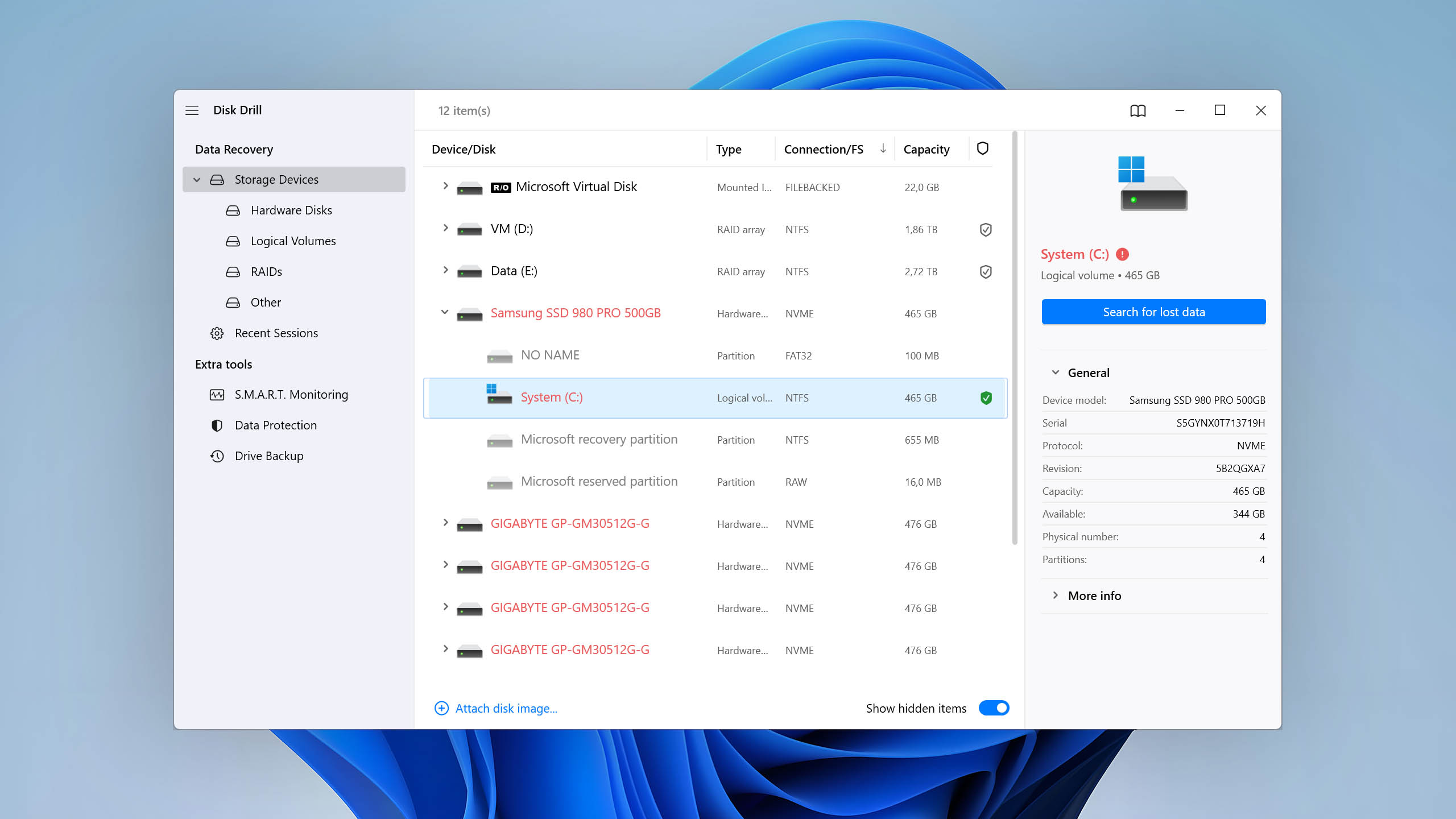
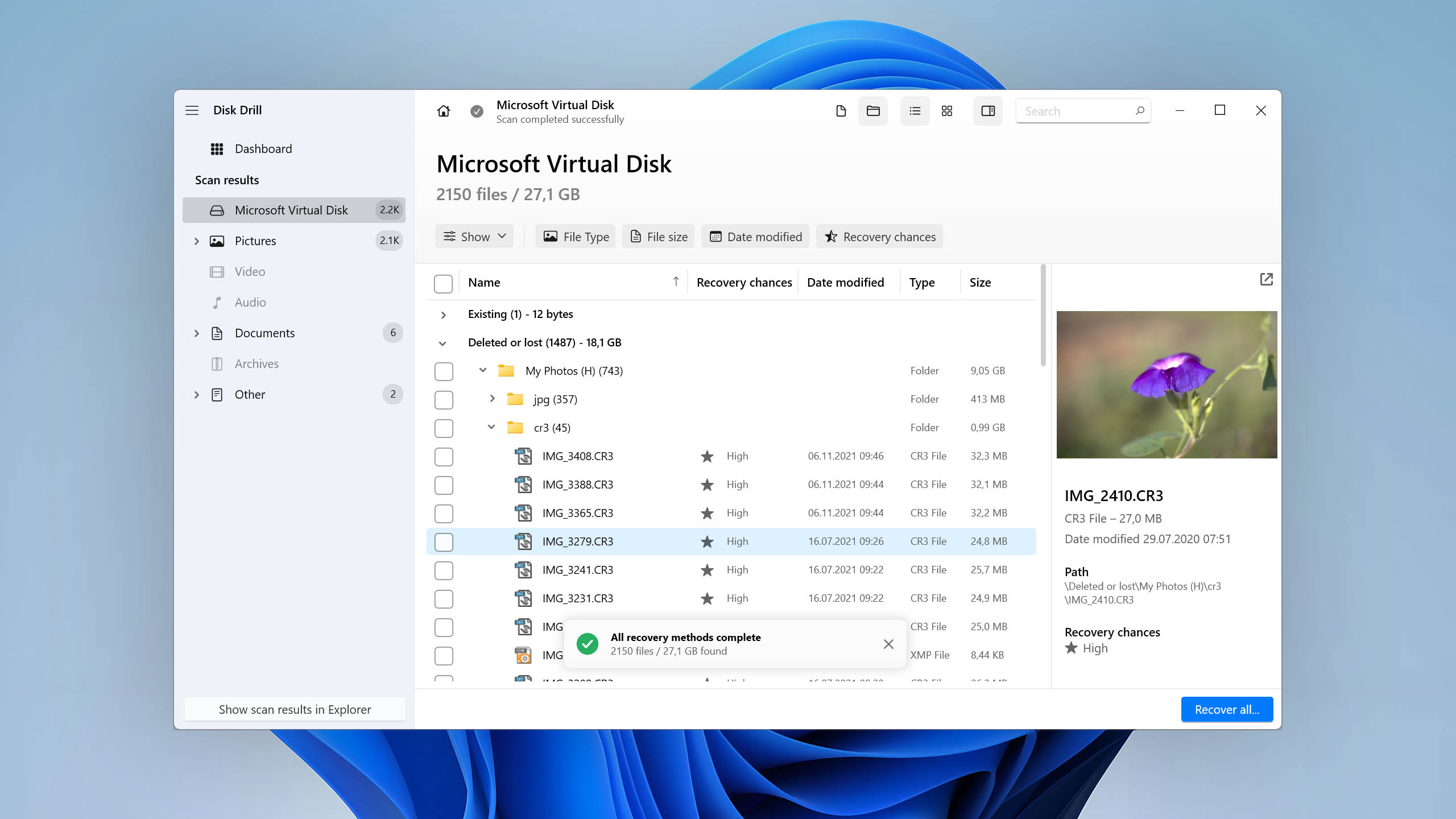
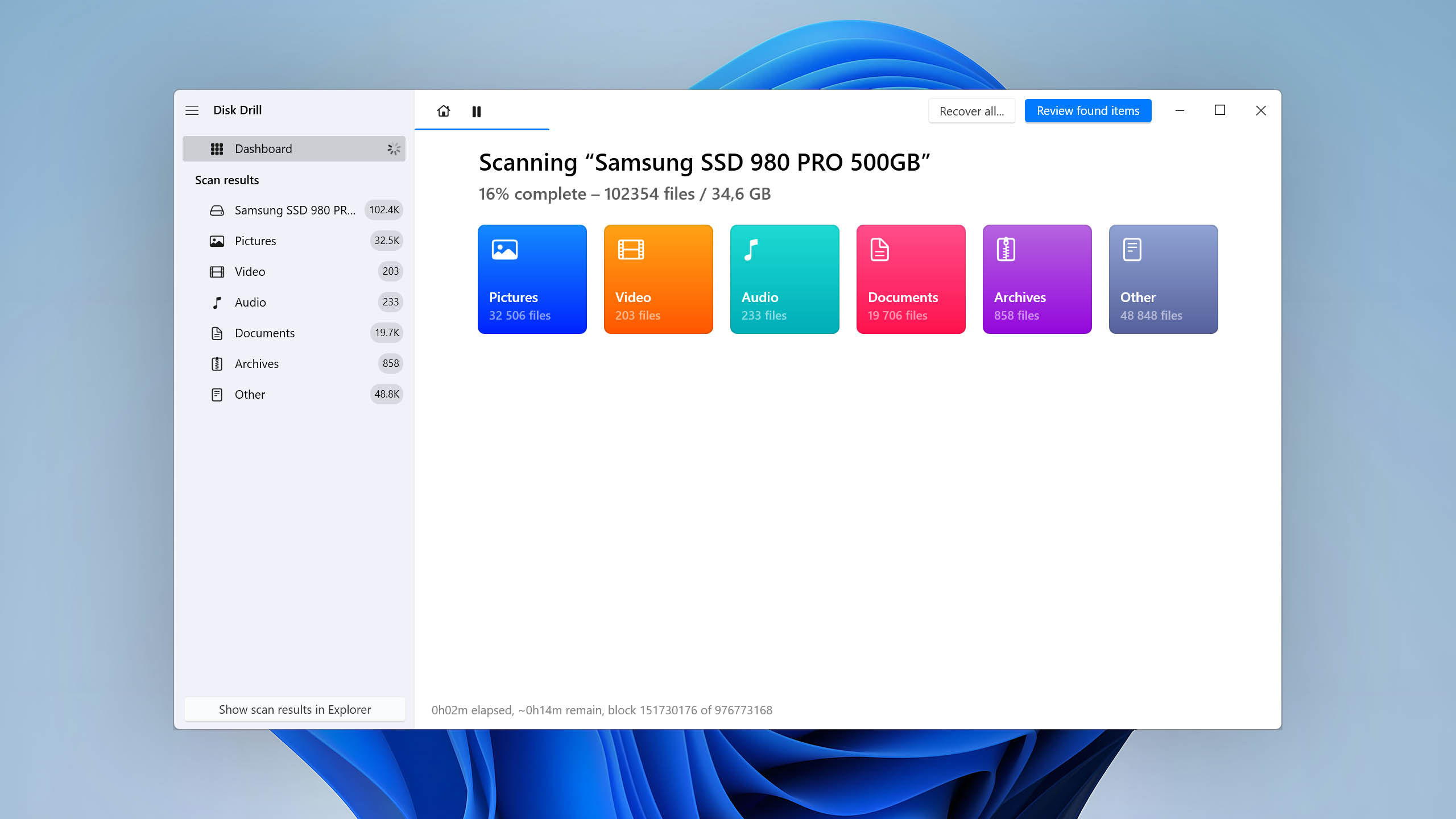
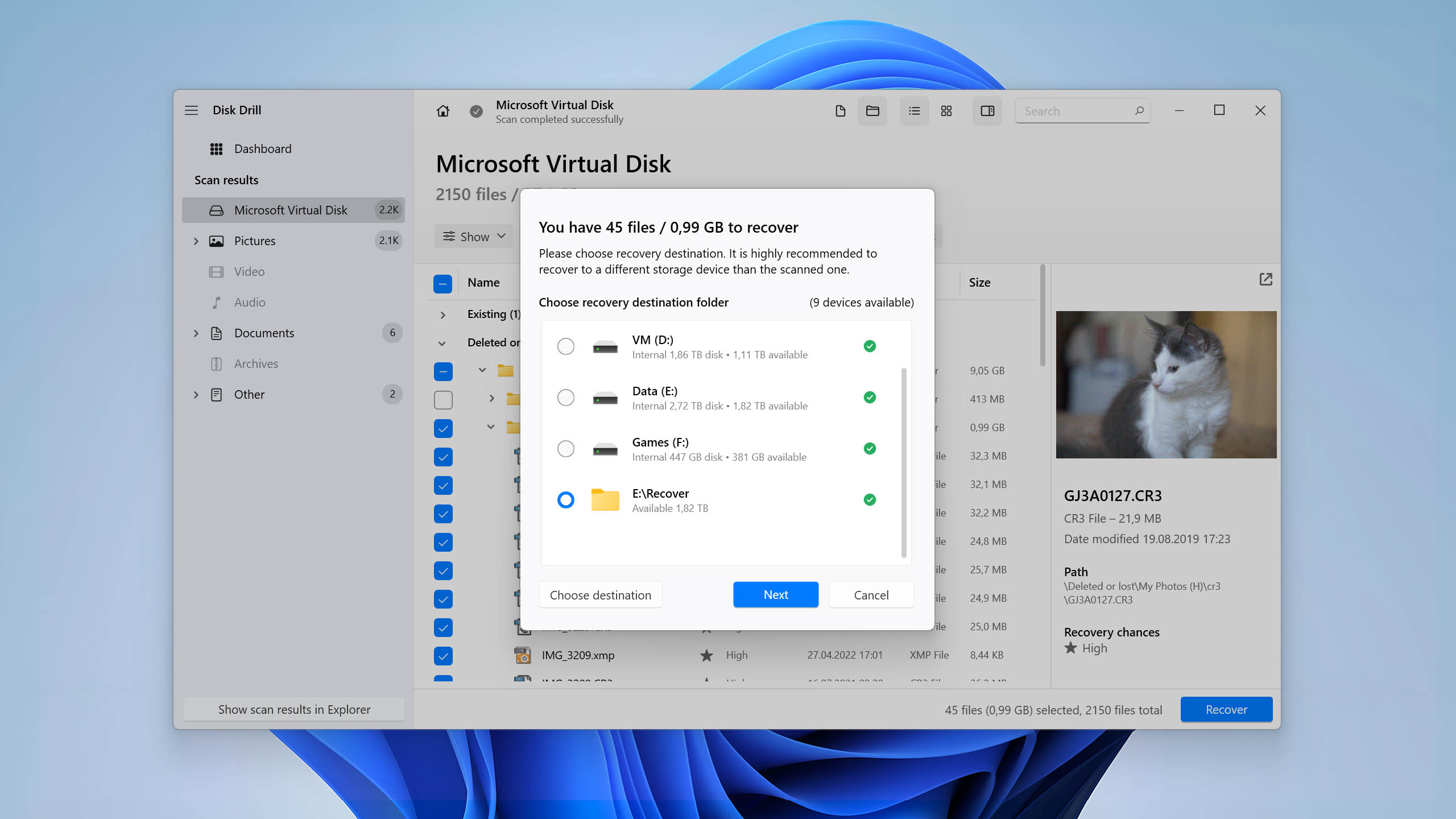
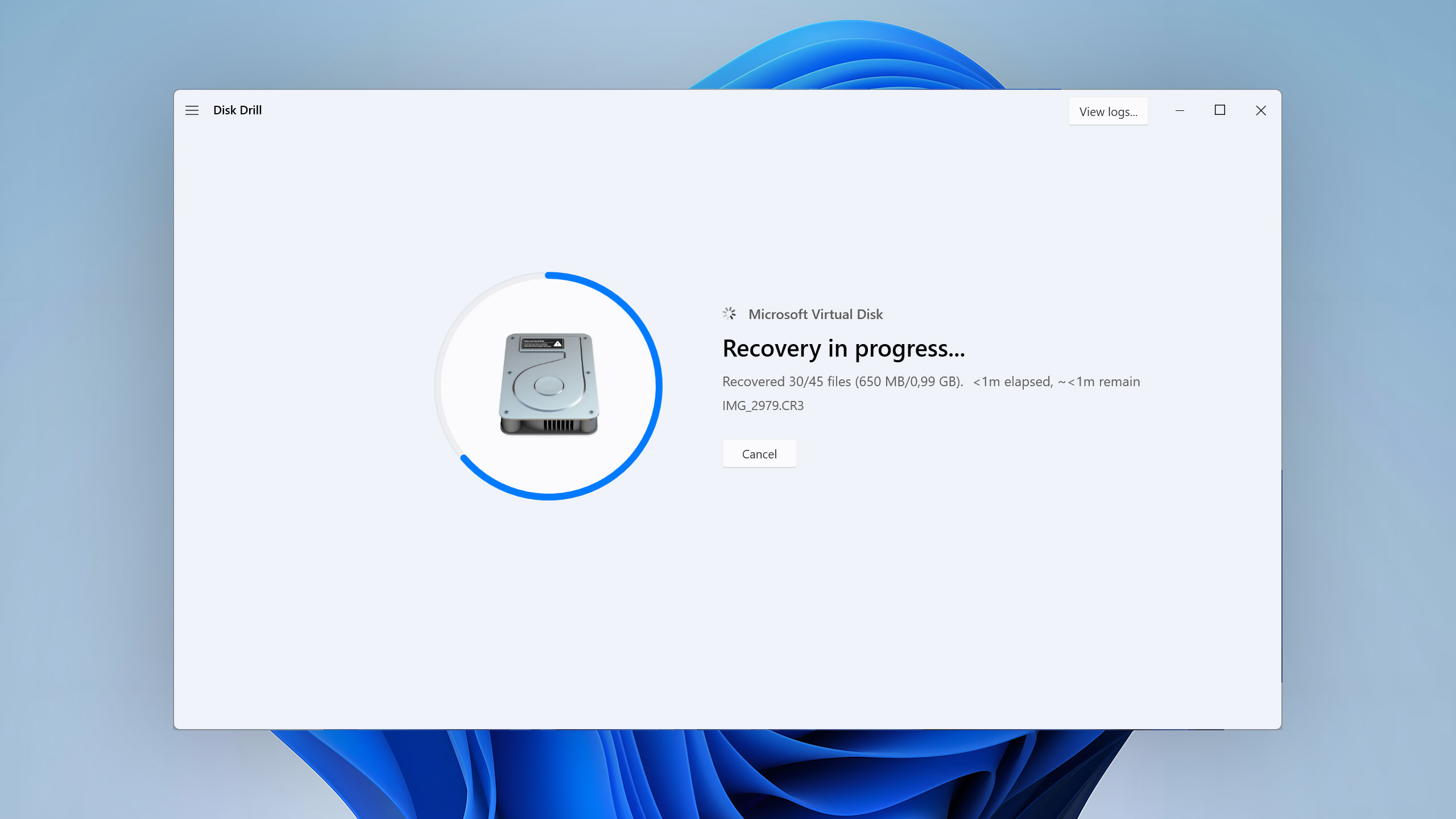
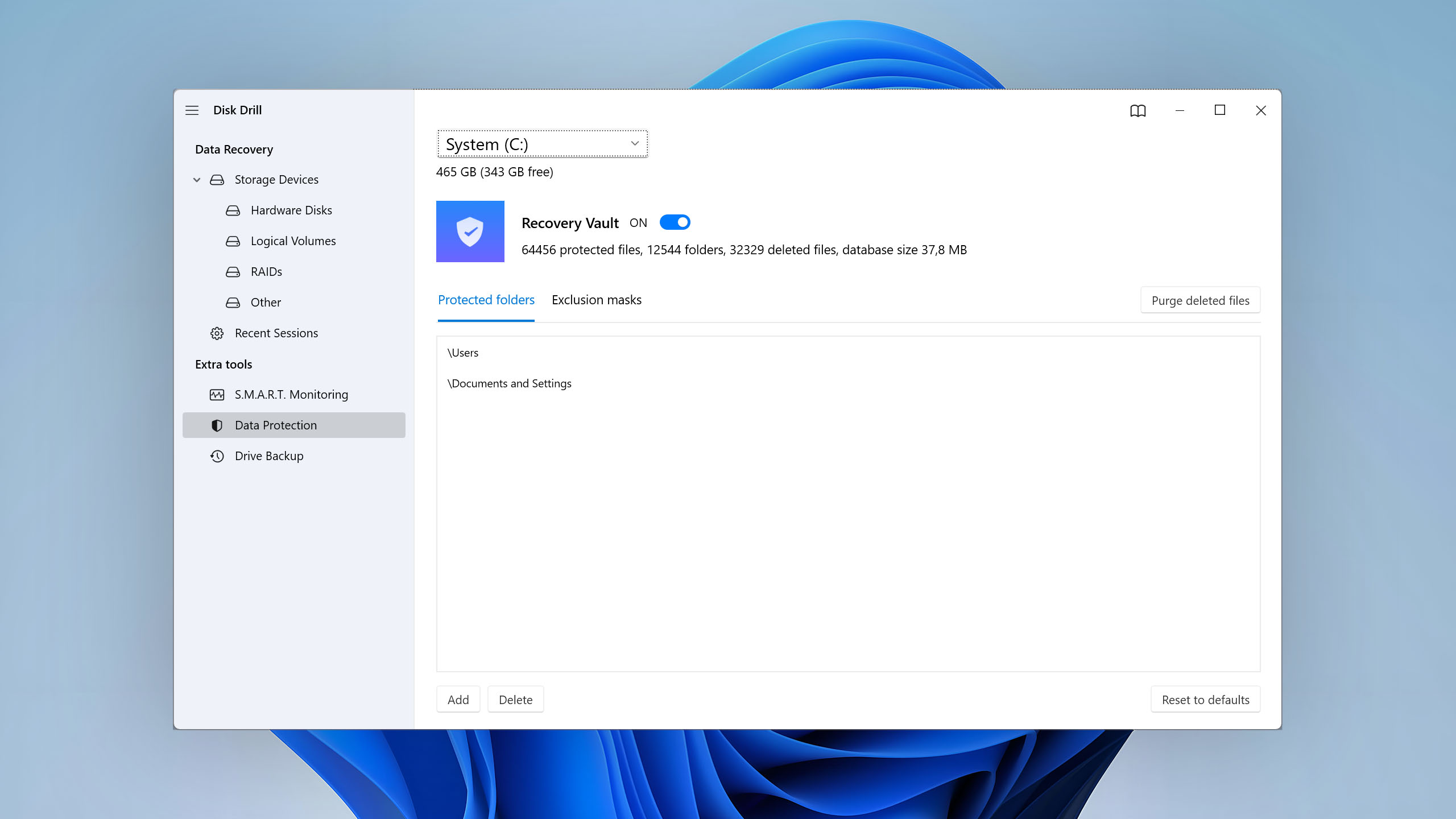
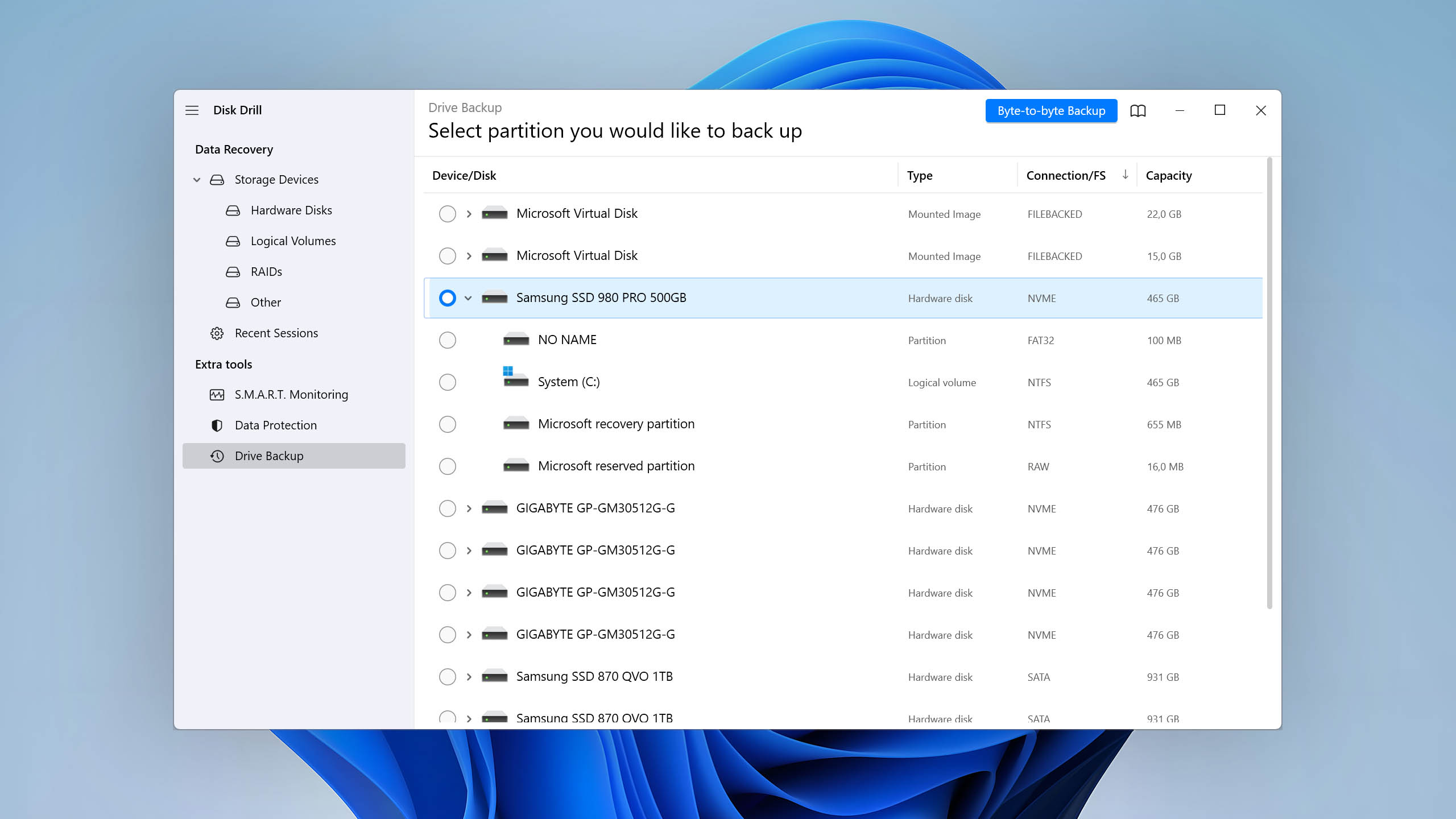
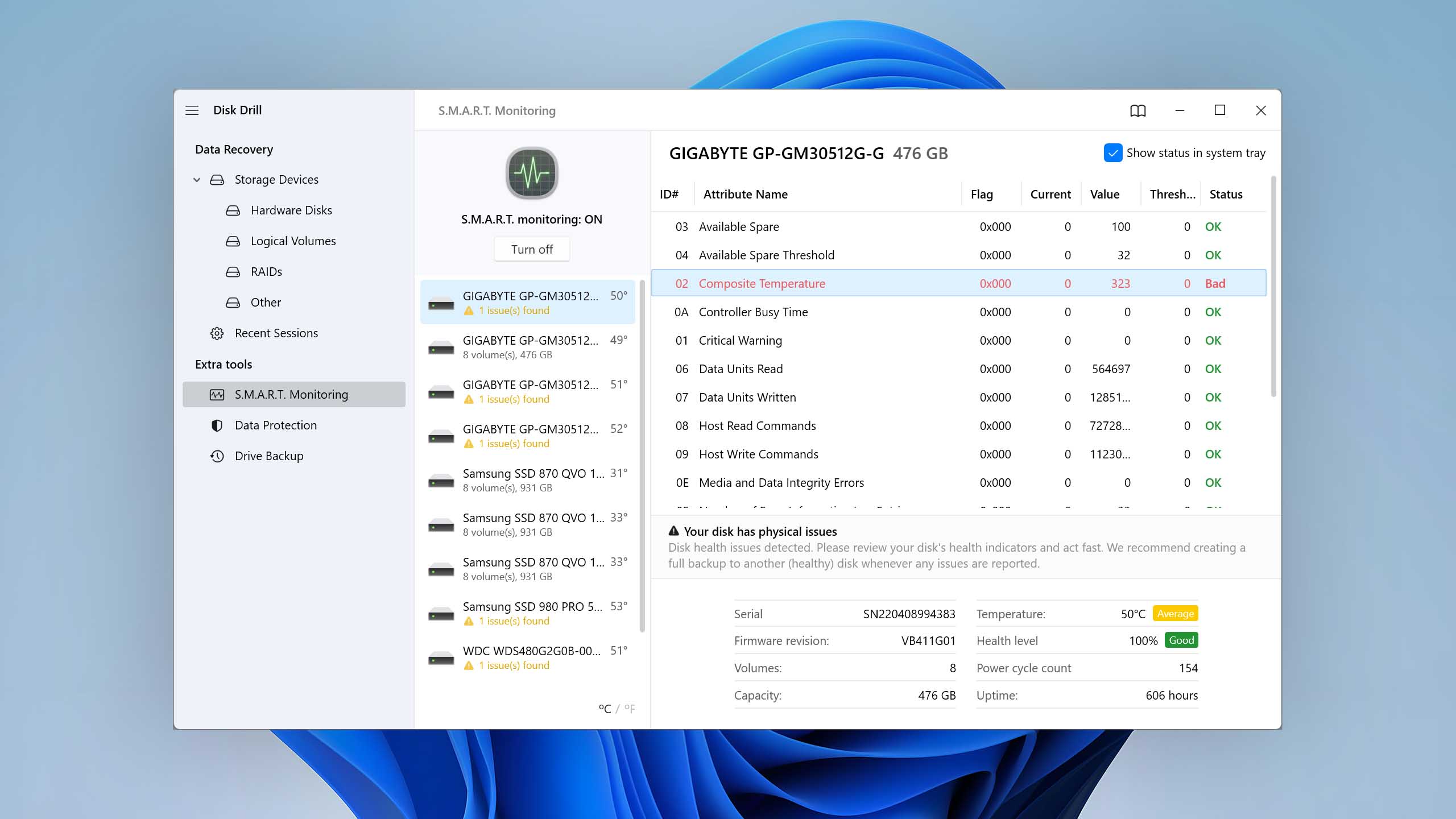
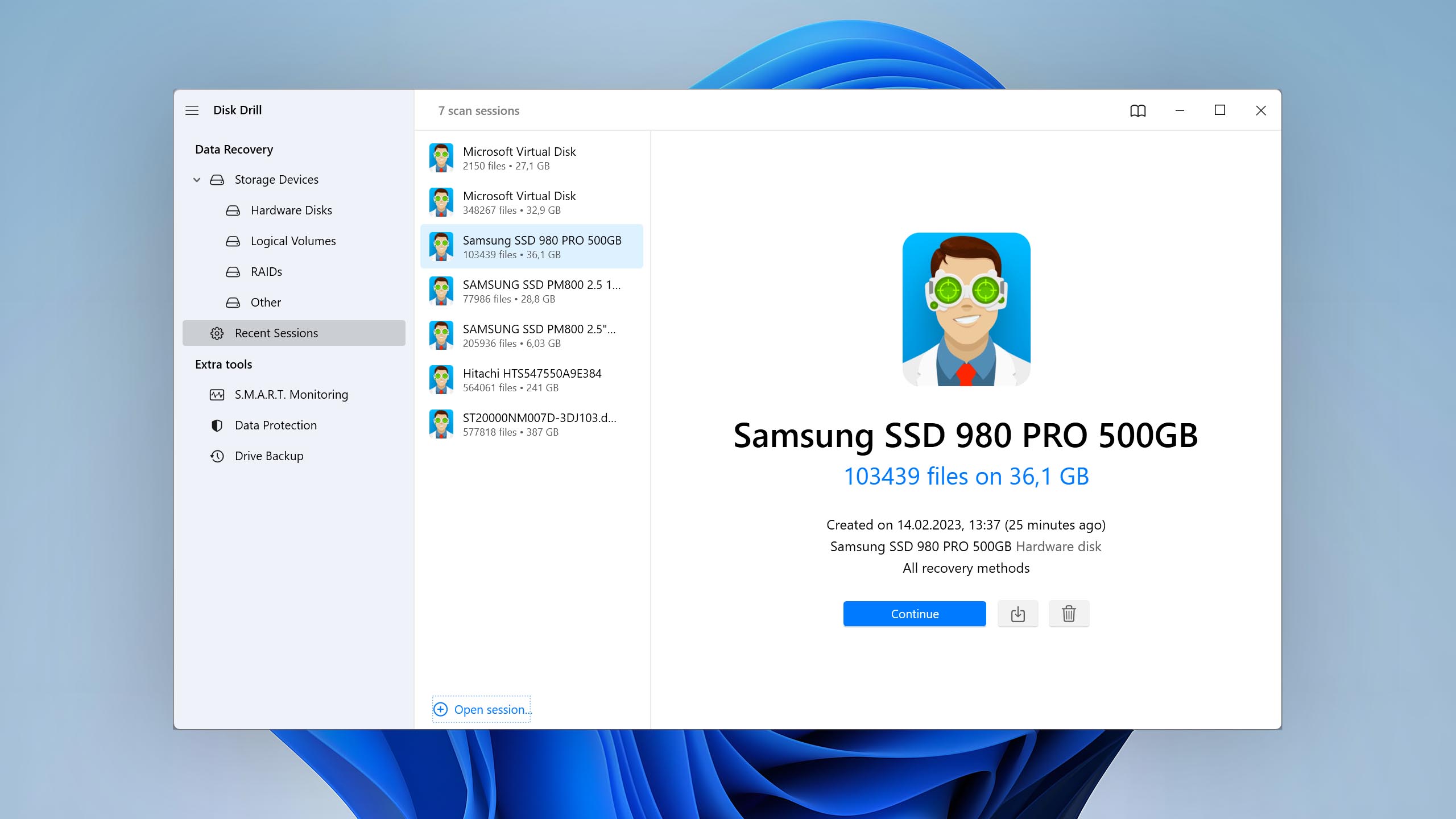
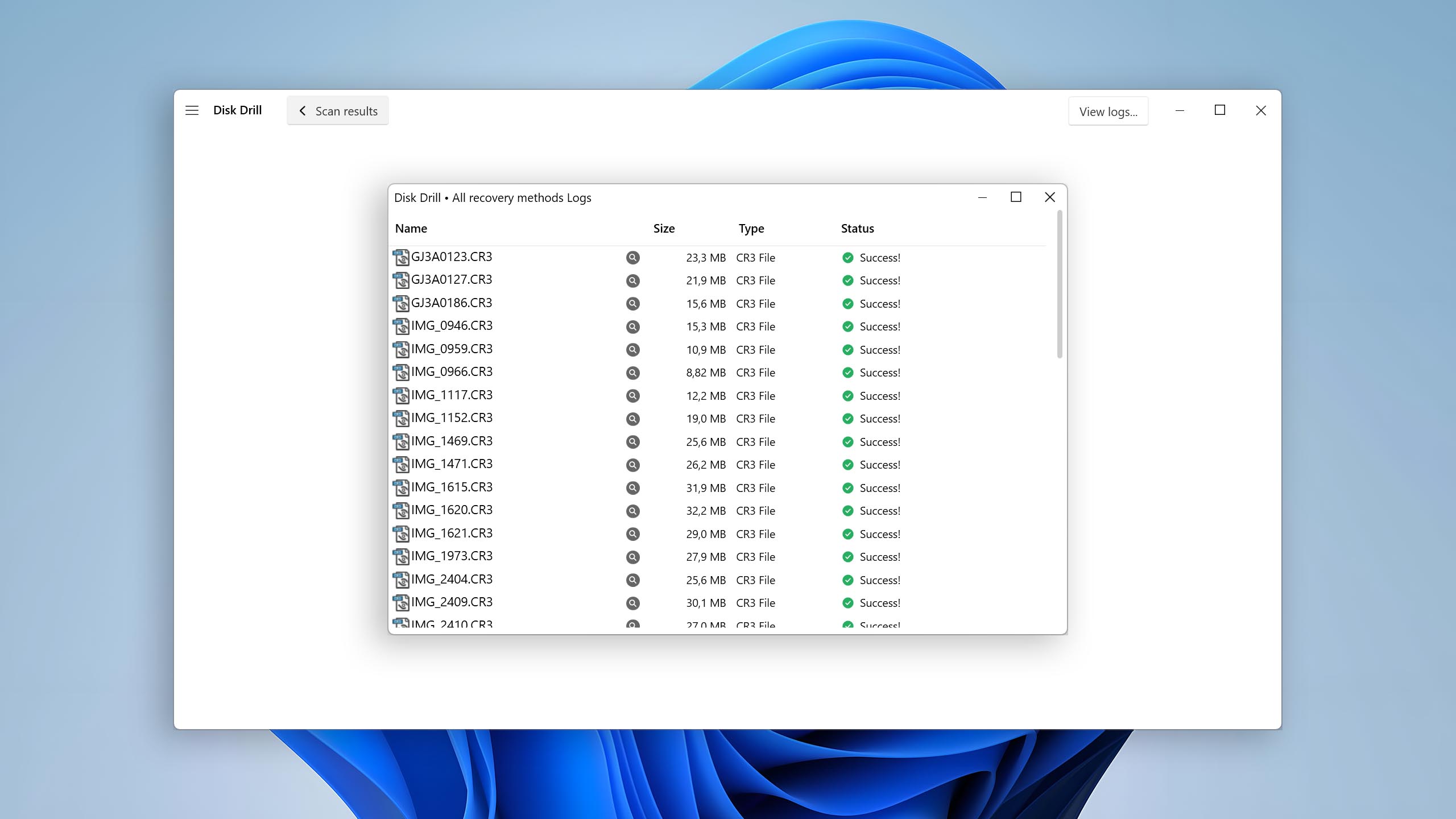
Disk Drill can effectively solve one of the worst possible consequences of logical USB flash drive damage, and that consequence is, of course, data loss. With a few clicks, it can recover any type of data and do so both directly from the flash drive itself or from a backup image that it lets you create and mount with the same ease.

Usability
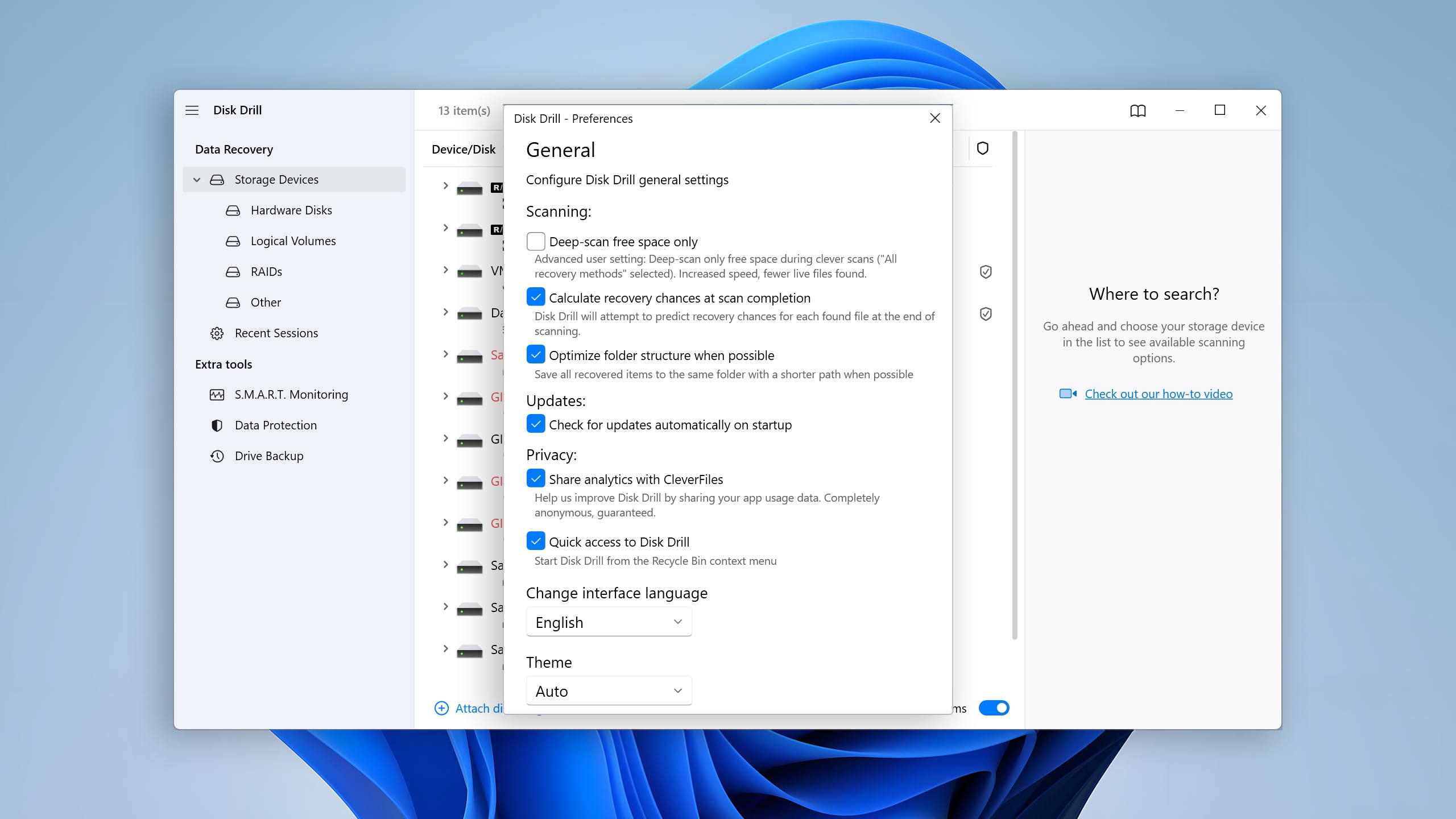
Disk Drill's user-friendly interface makes data recovery a breeze even for regular home users. It doesn't matter if you're a tech guru or a beginner; the software guides you through the recovery process with intuitive options that are virtually always self-explanatory. The newest release also includes a video repair tool, which can fix corrupted video files directly within the app. Those who need even more guidance can rely on a wealth of step-by-step guides created by the CleverFiles team, such as the one that specifically targets the recovery of deleted files from USB flash drives.
Performance
Disk Drill shines in the performance department. Because it supports all major file systems, including FAT, FAT32, exFAT, NTFS, EXT, and even APFS and HFS+ (Mac version only), it can scan just about any USB flash drive. In fact, it excels at scanning and retrieving data from corrupted USB drives, including those prompting to be formatted. It can also scan flash drives with unallocated space or without a file system, thanks to its signature scanning capabilities. The recovery results include deleted and lost files, reconstructed files, as well as existing files, and the availability of extensive filters ensures that you can always quickly find what you're looking for and recover it to a safe destination.
Value
Disk Drill PRO offers two purchase options: a $89/year subscription and a $149 one-time lifetime license. The lifetime license is a strong deal since it includes perpetual access plus lifetime updates, while the subscription option can save you money if you don't anticipate a similar data loss problem in the future. Both options cover Windows and macOS under a single license with up to 3 device activations. The free version of Disk Drill for Windows can recover up to 100 MB of data, while the free version for macOS lets you preview an unlimited number of files.

2. TestDisk
WindowsmacOS
Free All features are provided free of charge, and the software can be used, studied, and modified without restriction
None
Free
TestDisk is a powerful free USB drive repair tool specifically tailored for partition repair and reconstruction. Its remarkable ability to recover lost partitions in particular places it among the best USB repair tools available.
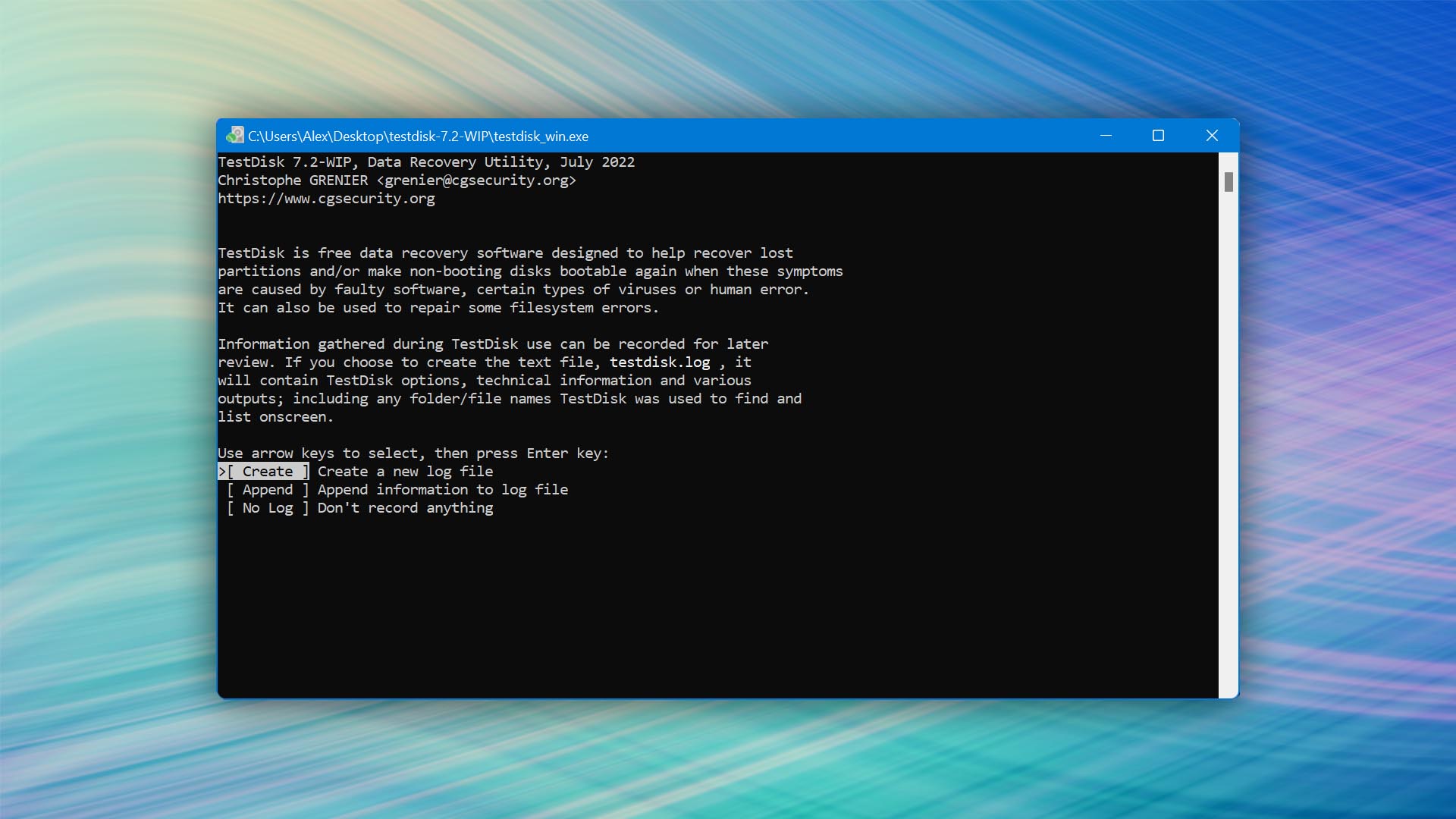
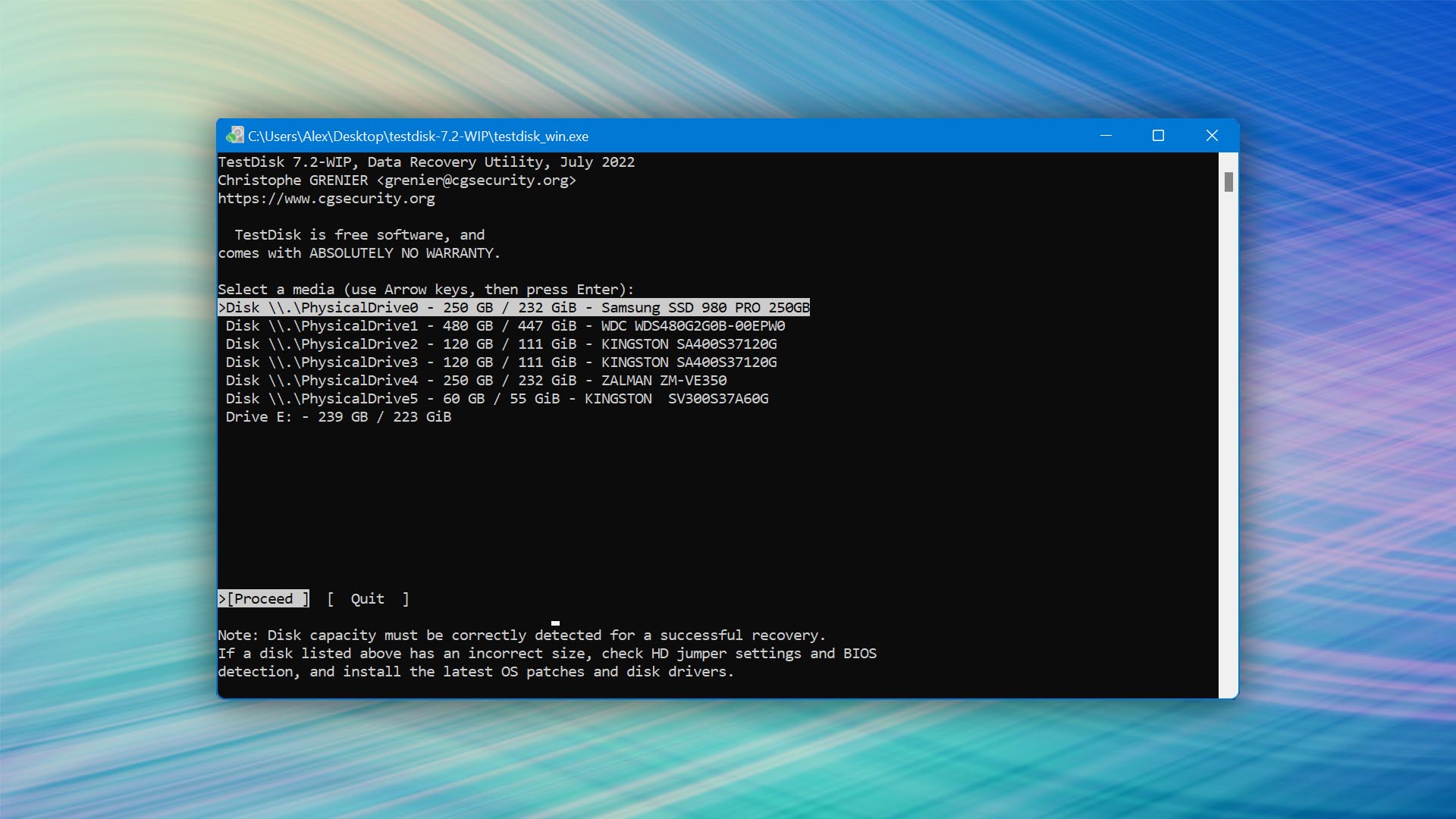
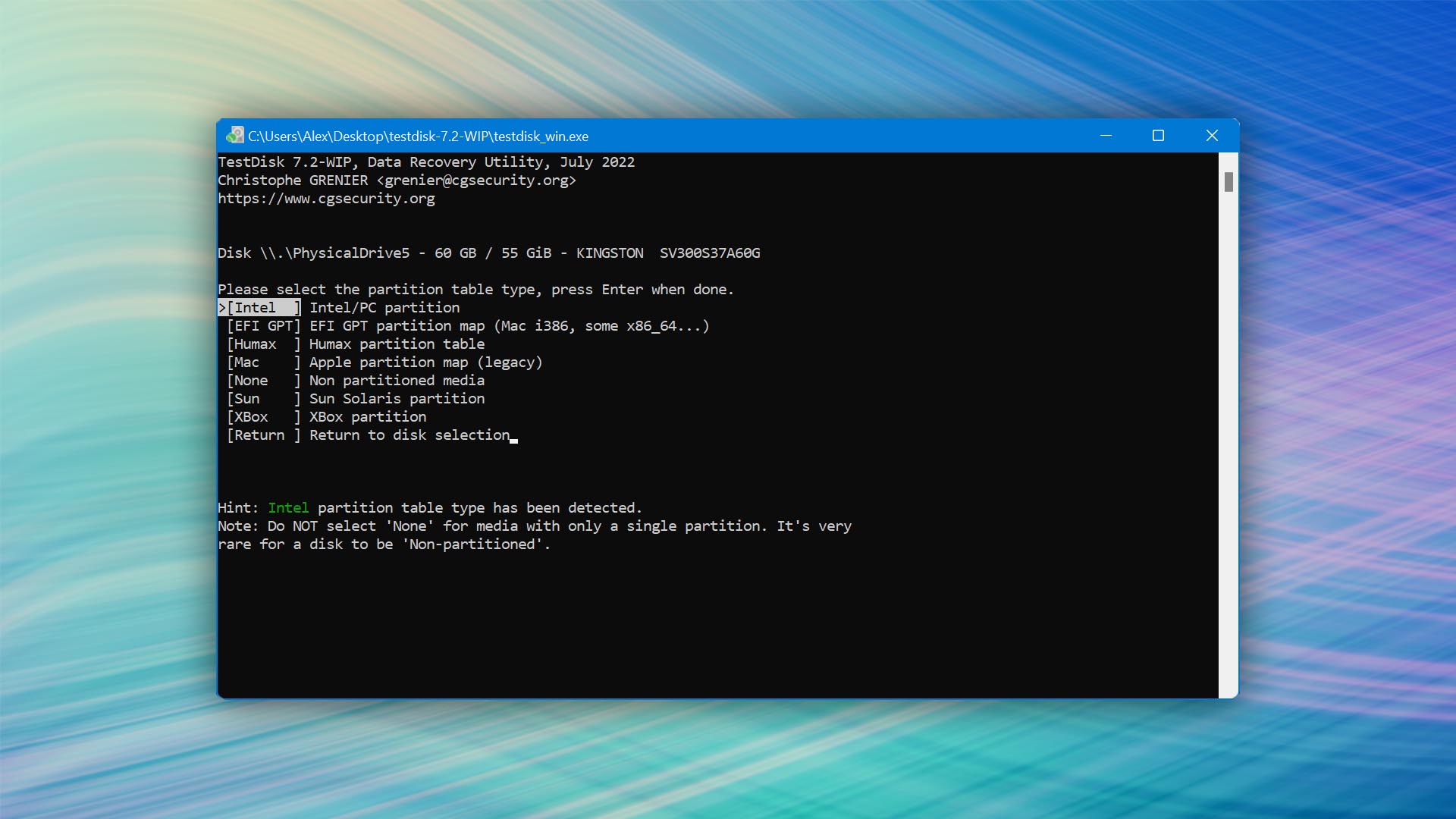
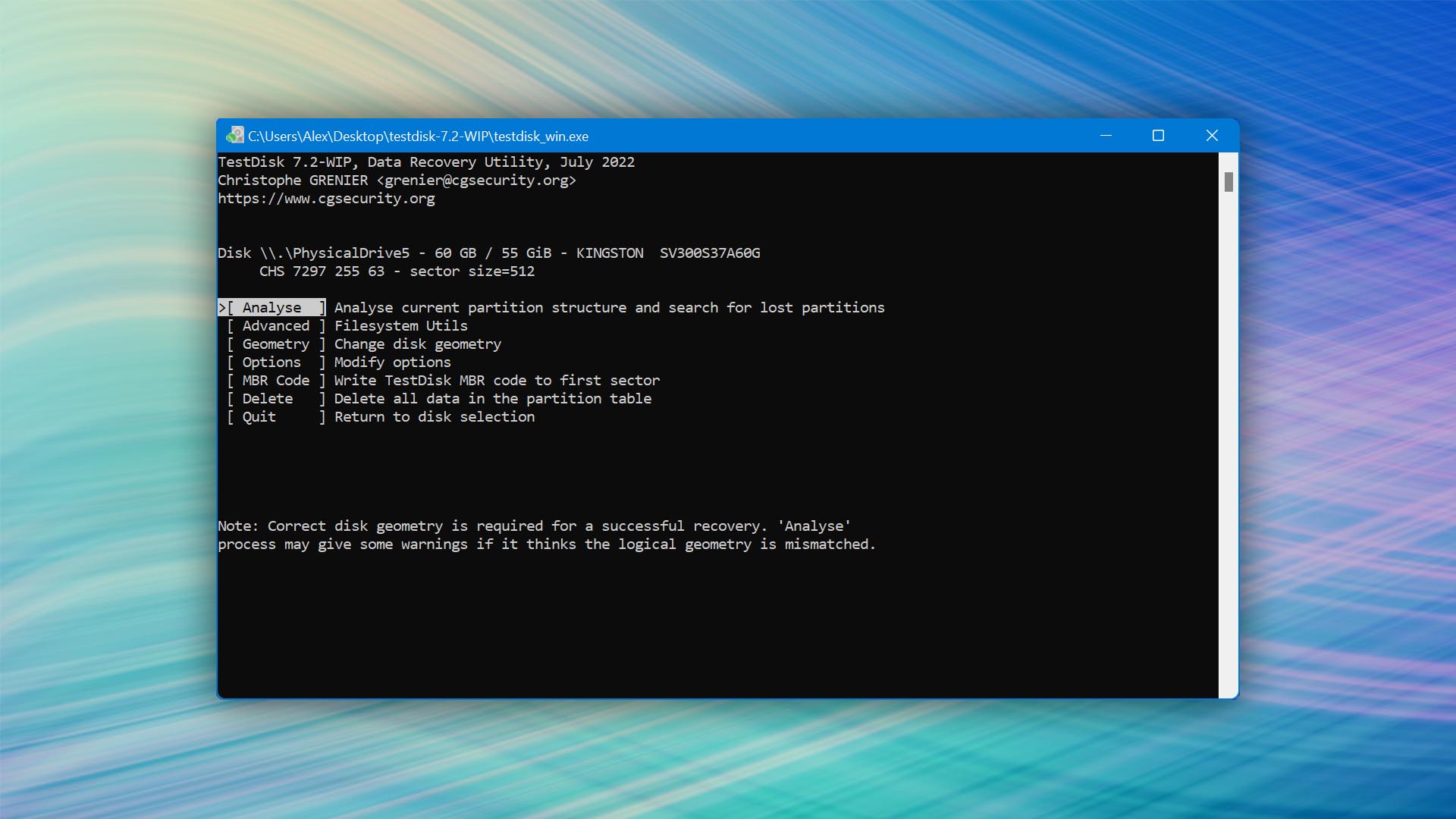
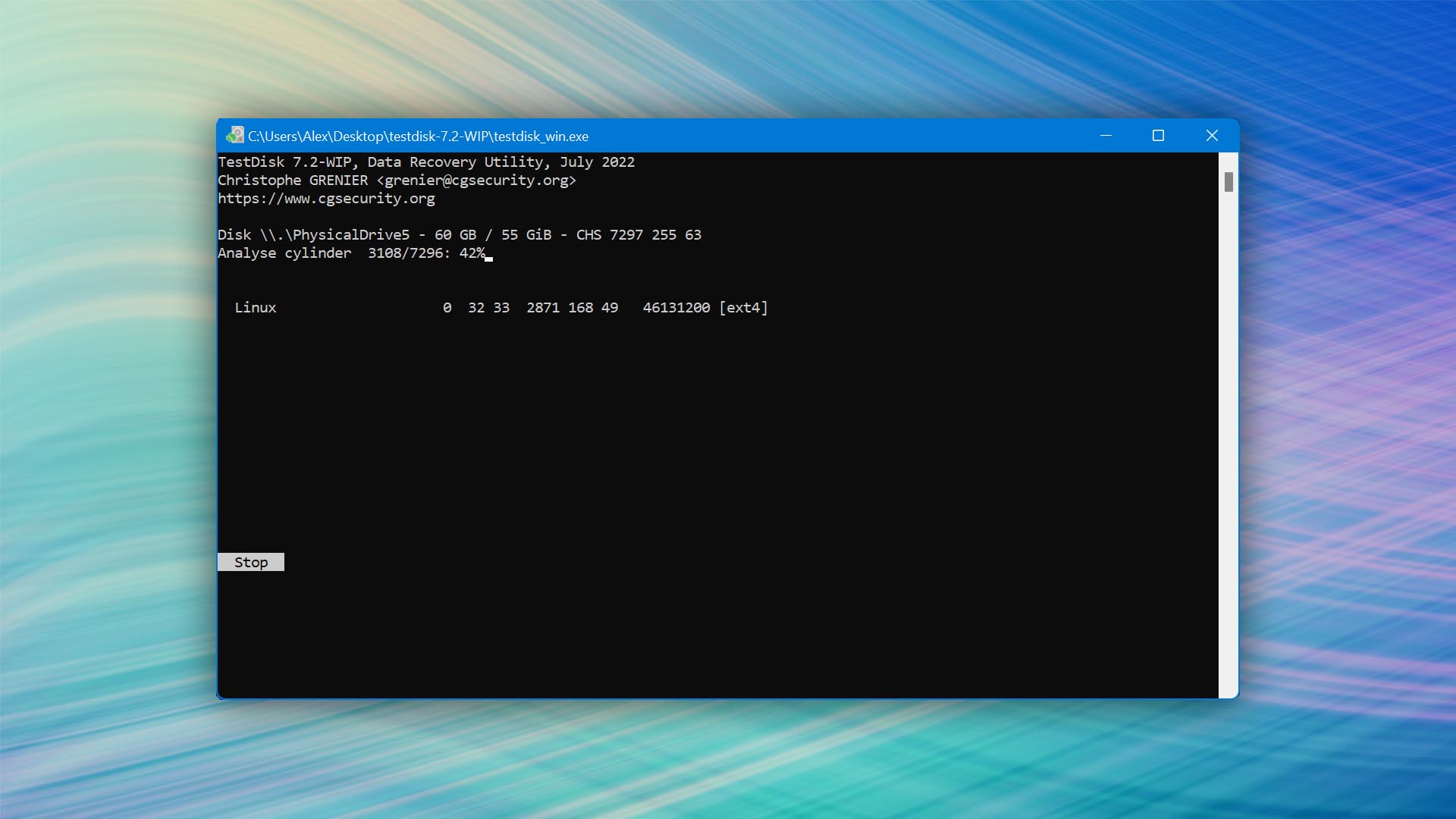
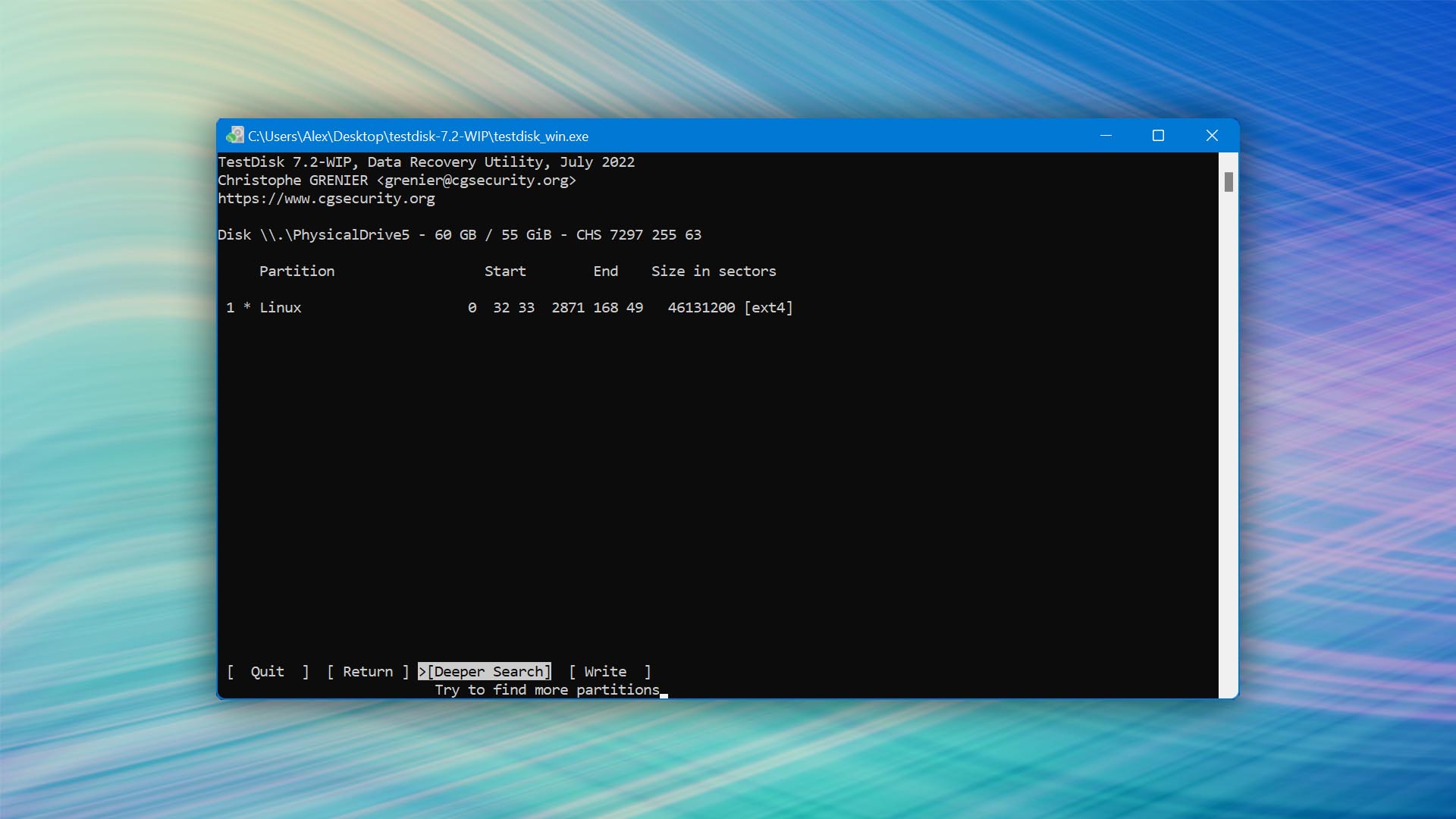
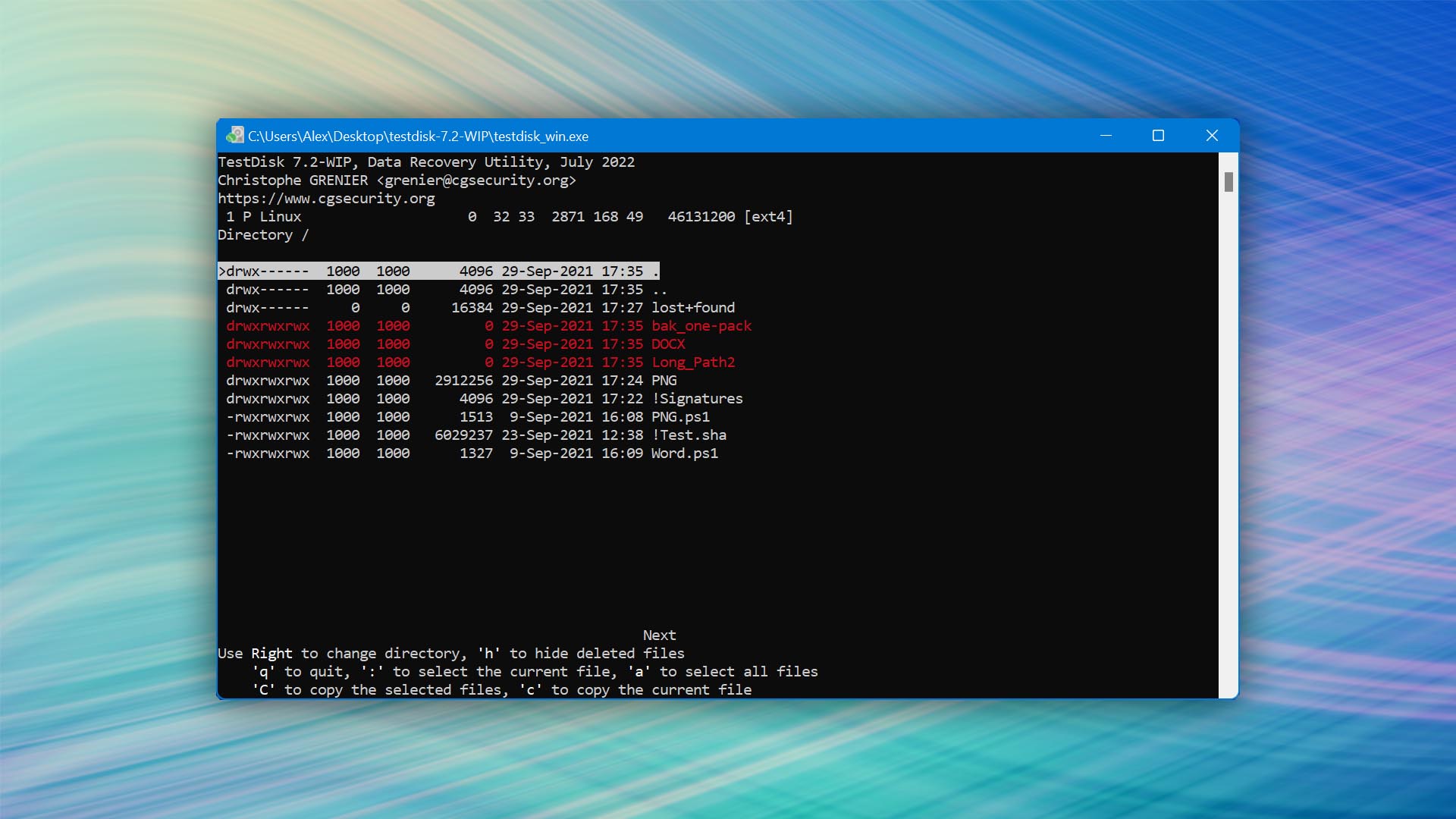

Usability
Just look at the screenshots above and compare them with those that show our top pick (Disk Drill) in action. Can you see the difference? Of course, you can. That's because TestDisk doesn't have a graphical user interface. Instead, it relies on a barebones command-line interface that can be intimidating and challenging to navigate, so usability clearly isn't a reason to use the software.
Performance
As a standout USB repair software, TestDisk excels in partition recovery and repair, fixing partition tables, and rewriting the Master Boot Record (MBR). Although not primarily designed for individual file recovery, it can recover recently deleted or disappeared files from various file systems like NTFS, exFAT, and EXT4. Its capabilities in recovering FAT32 partitions are less impressive, but when used for partition-related issues, TestDisk's performance is unparalleled.
Value
TestDisk offers an excellent value proposition because it's completely free and also one of the best open-source data recovery software applications. Its ability to function across all major operating systems without the need for installation add to its appeal. It's one of those USB repair software tools that are almost always worth trying.

3. DiskGenius
Windows
Freemium Some features are provided free of charge, but money is required to unlock the rest
Free version limited to files 64 KB or smaller
$69.9...$699.9
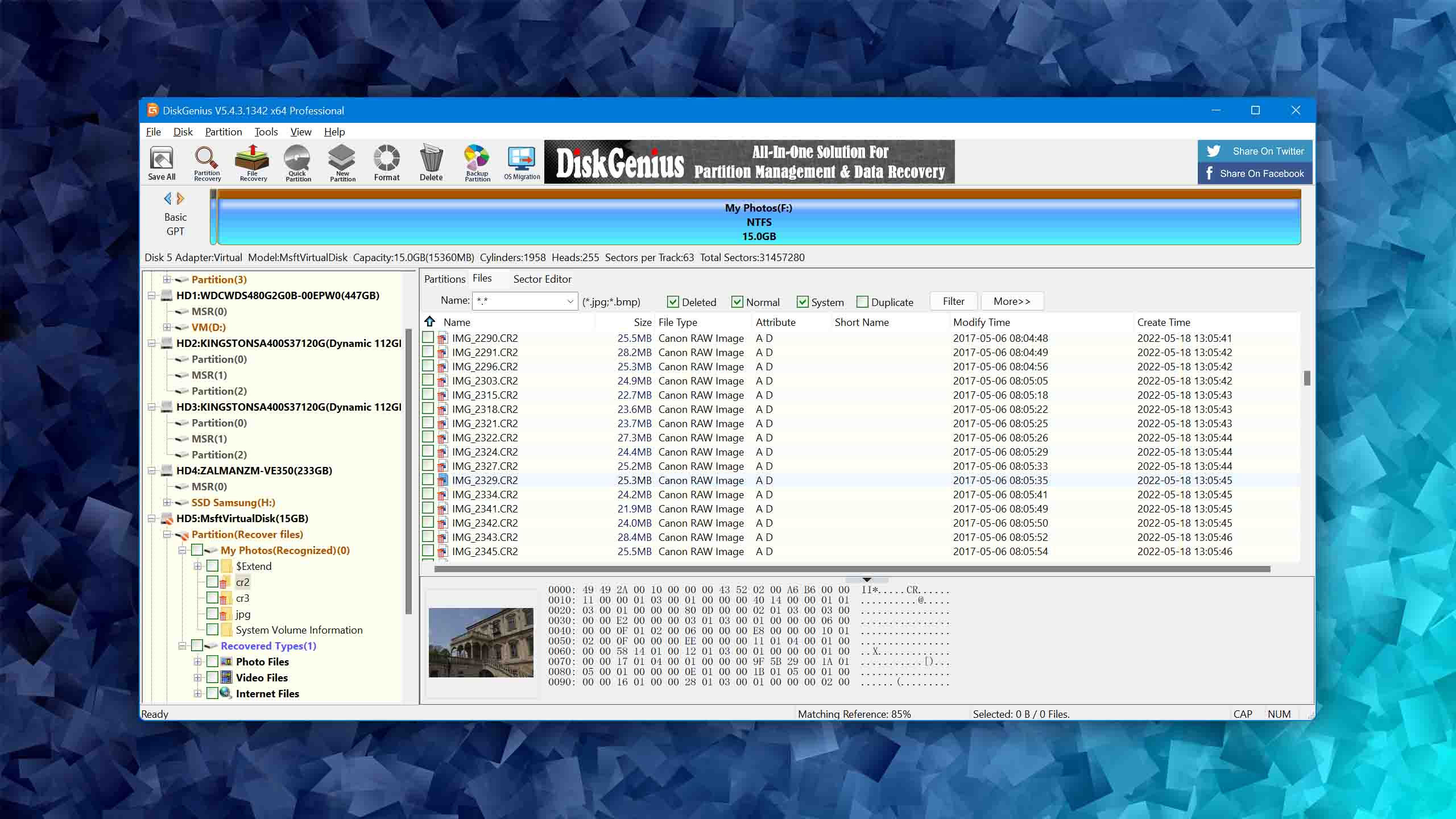
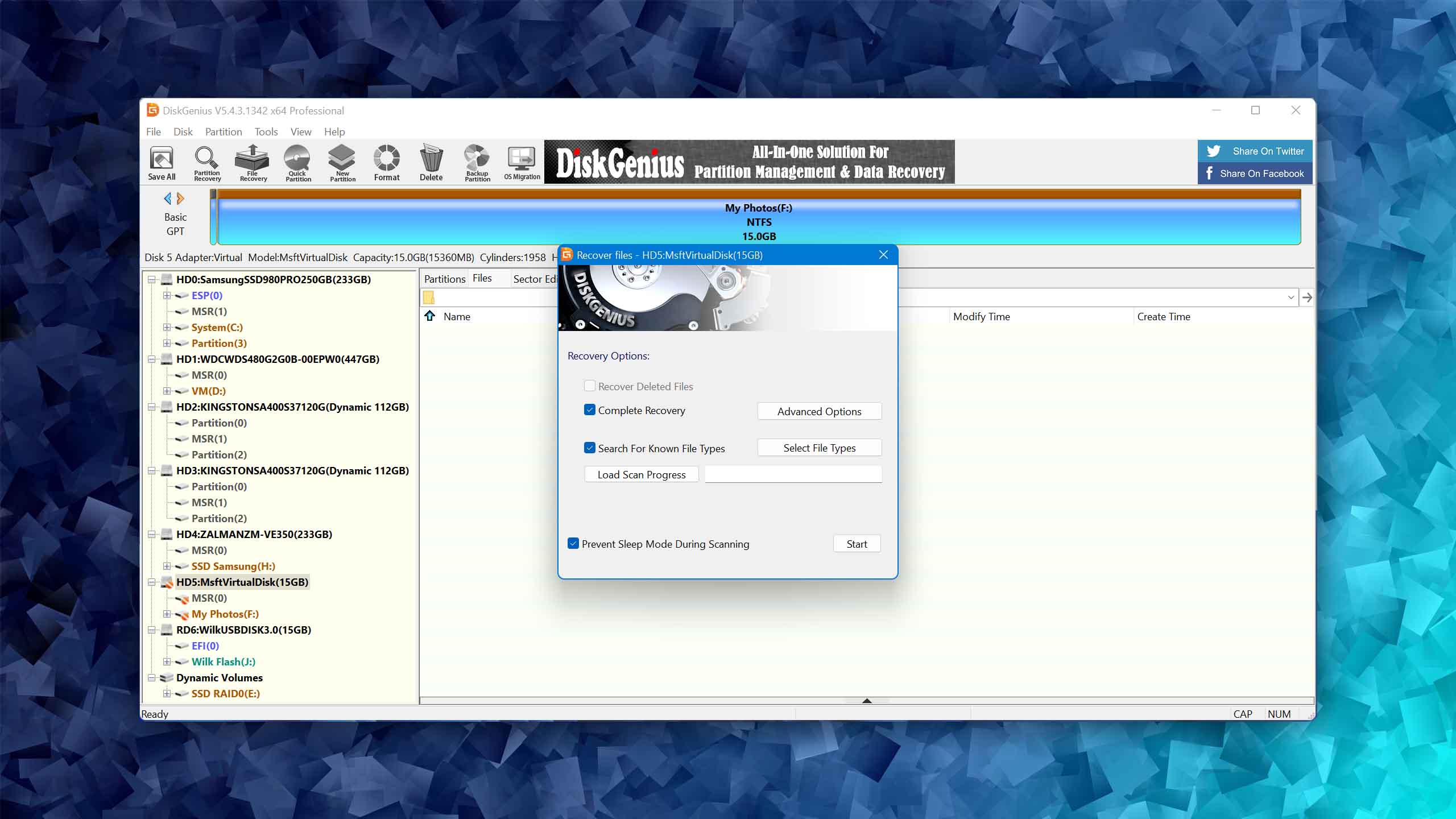
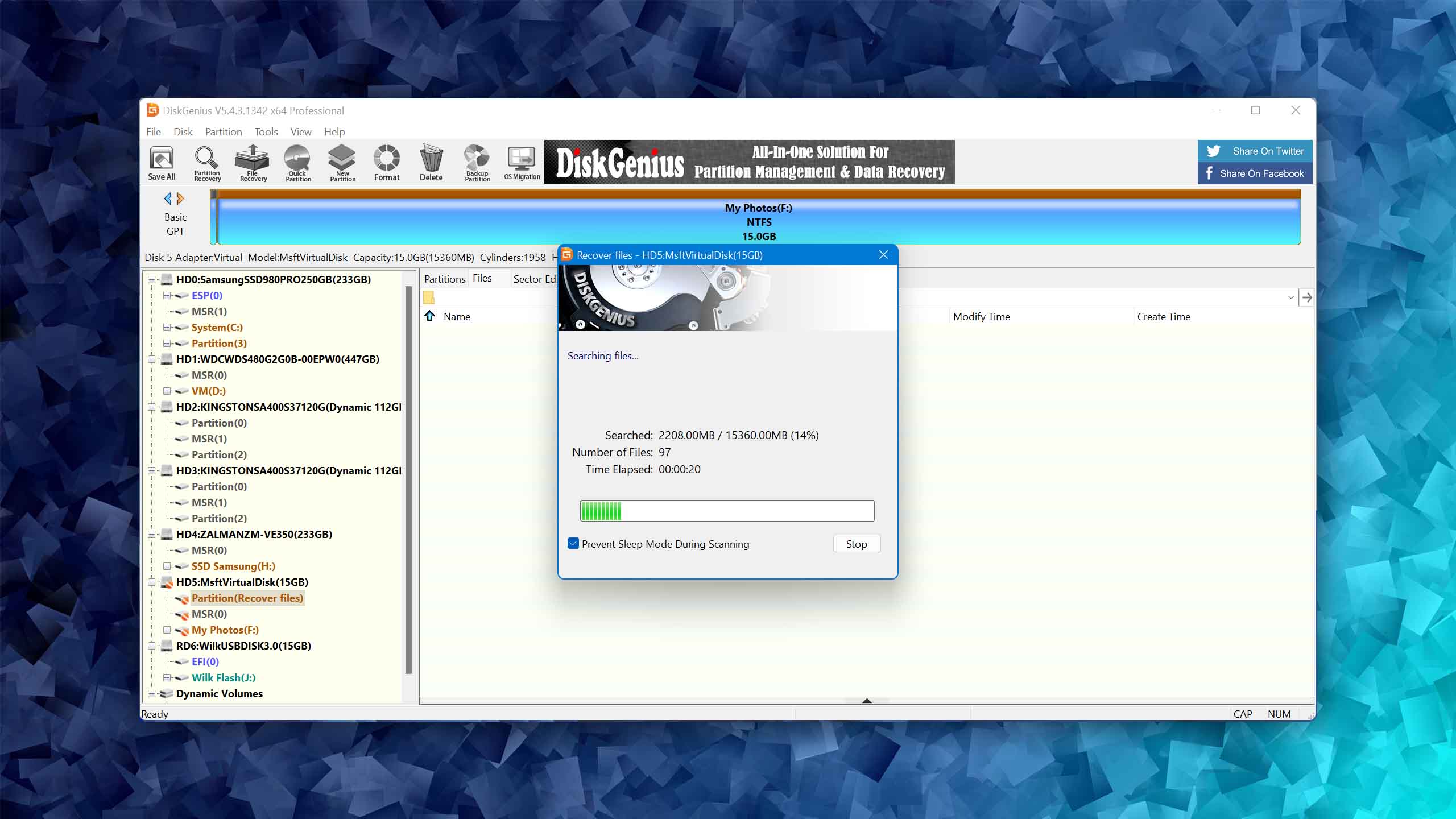
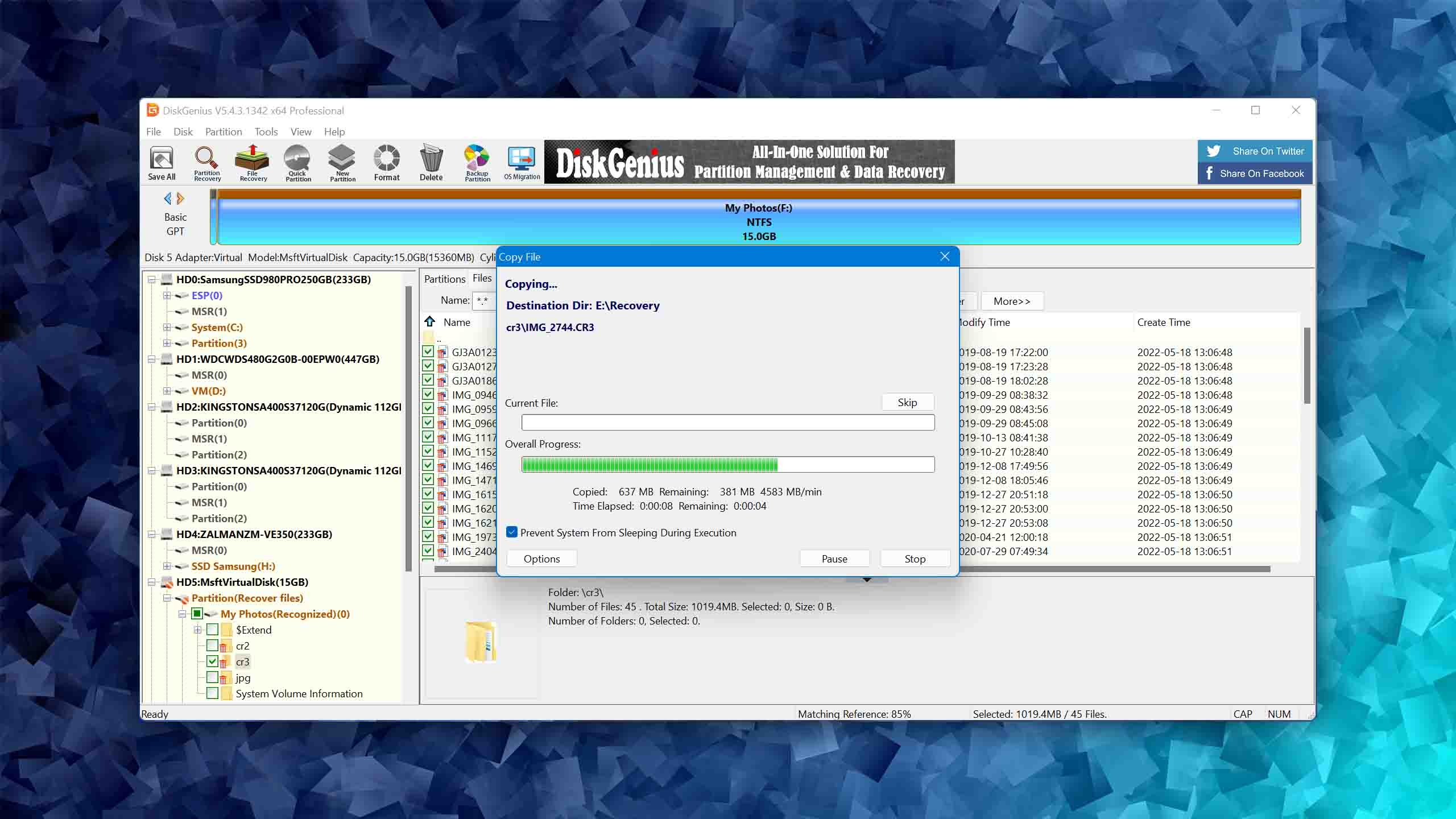
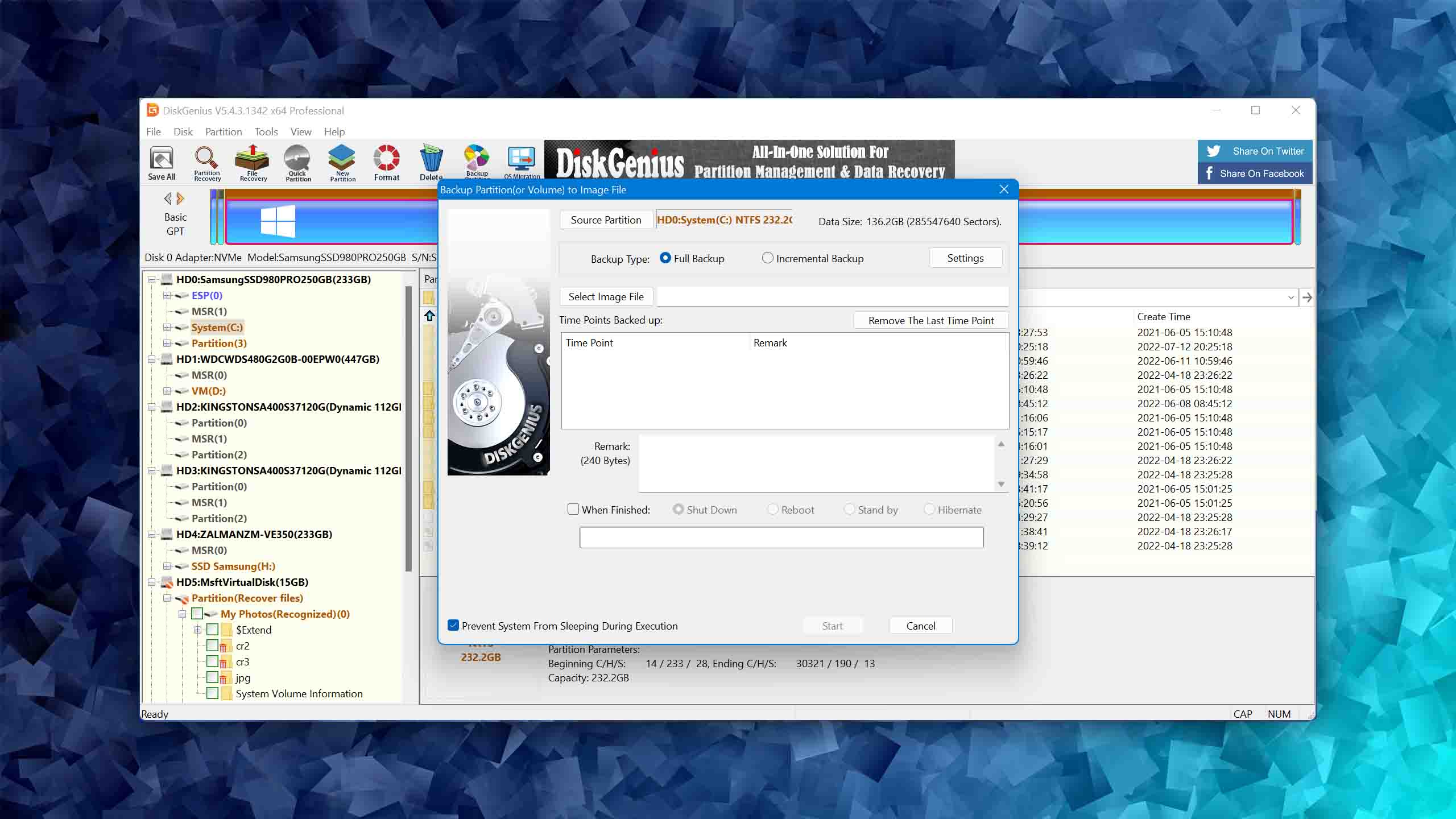
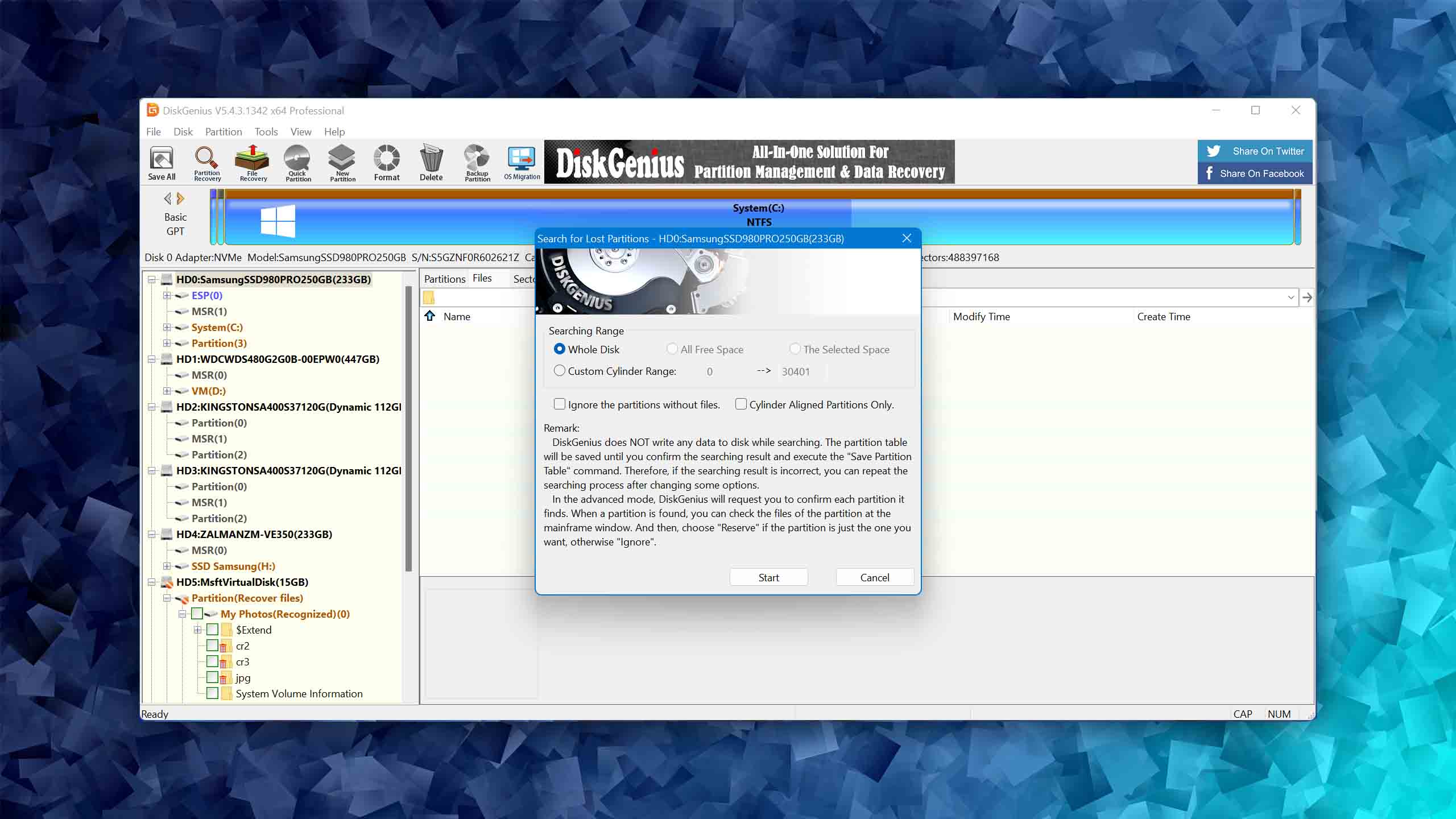
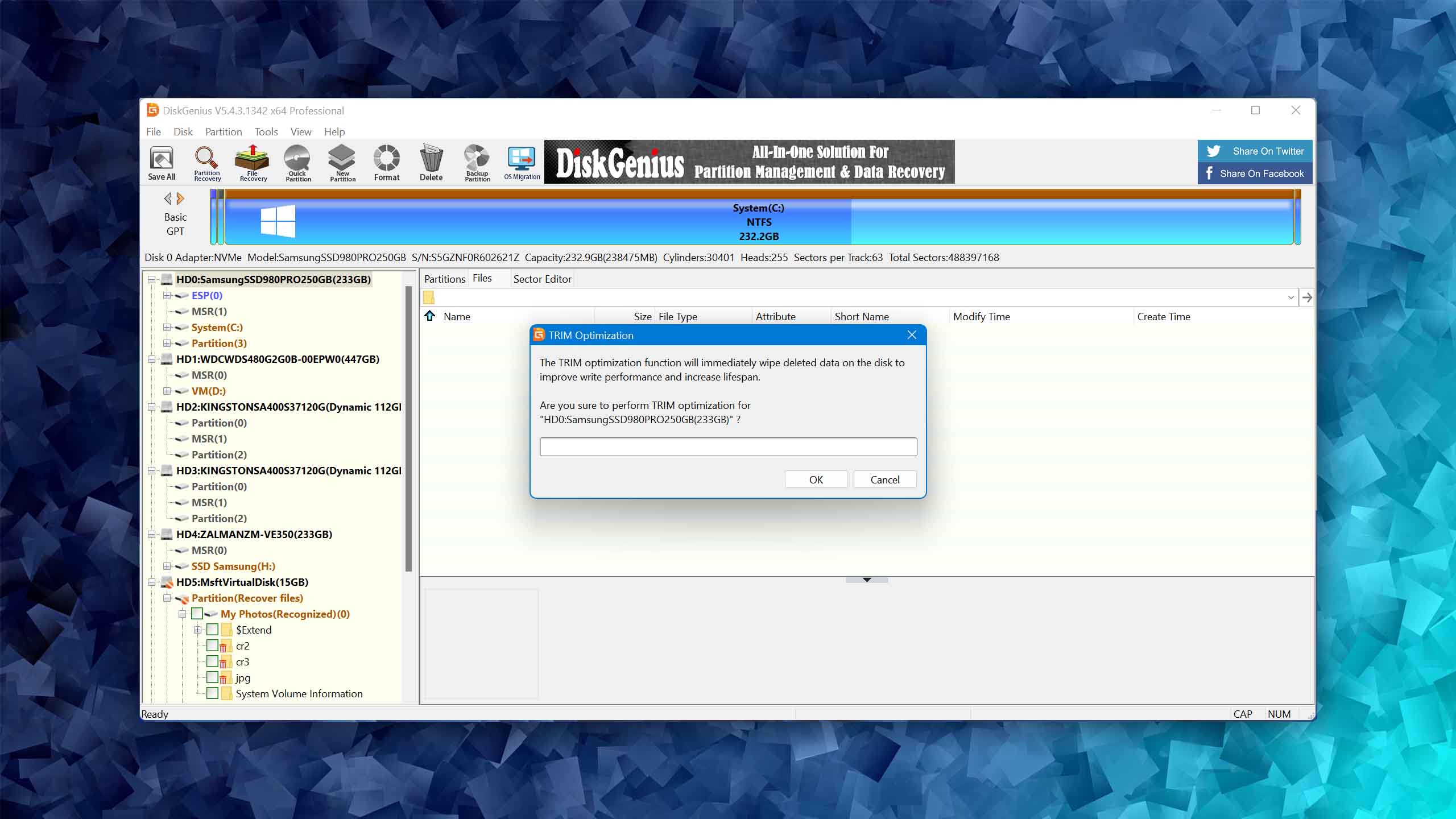
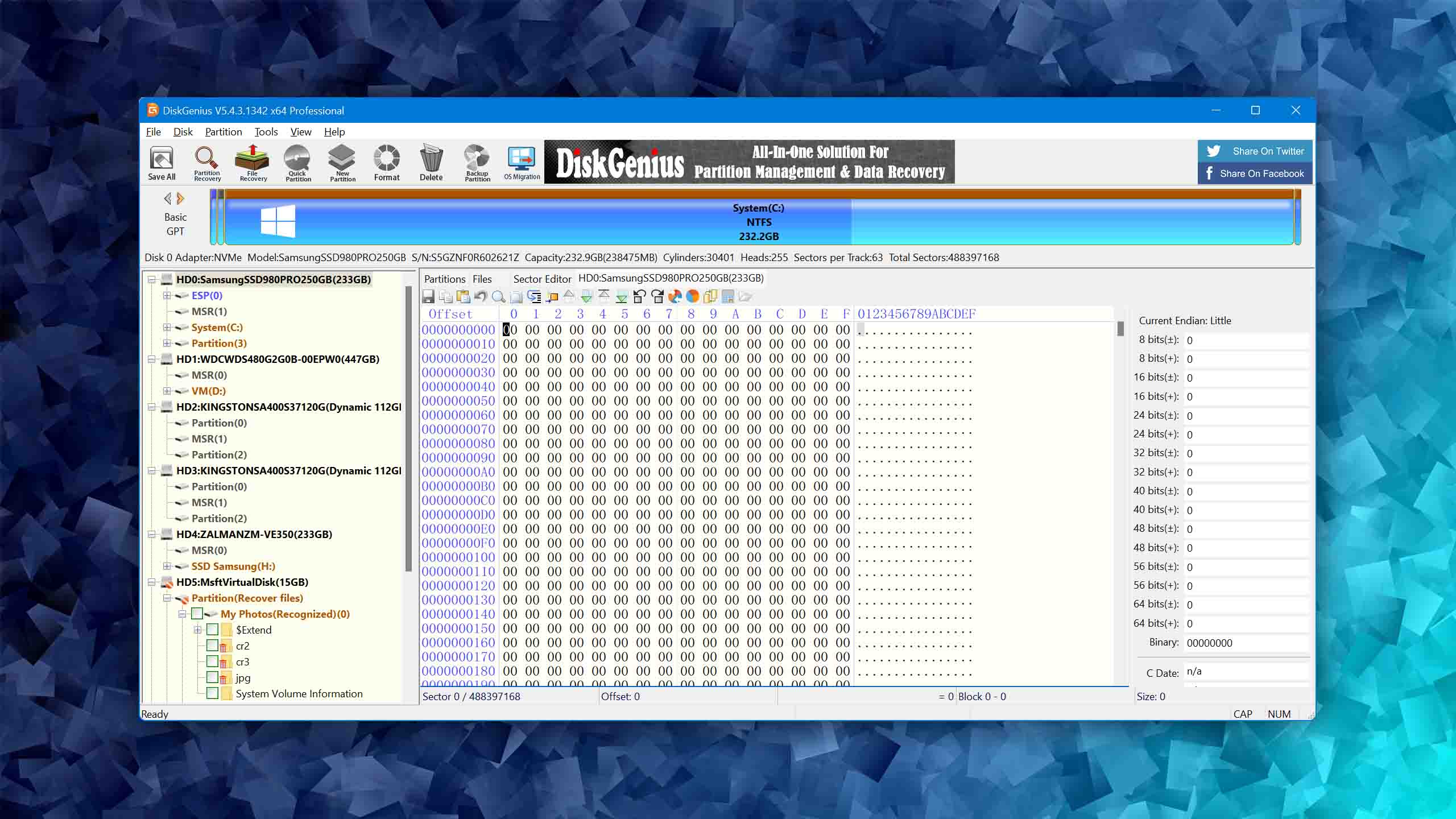
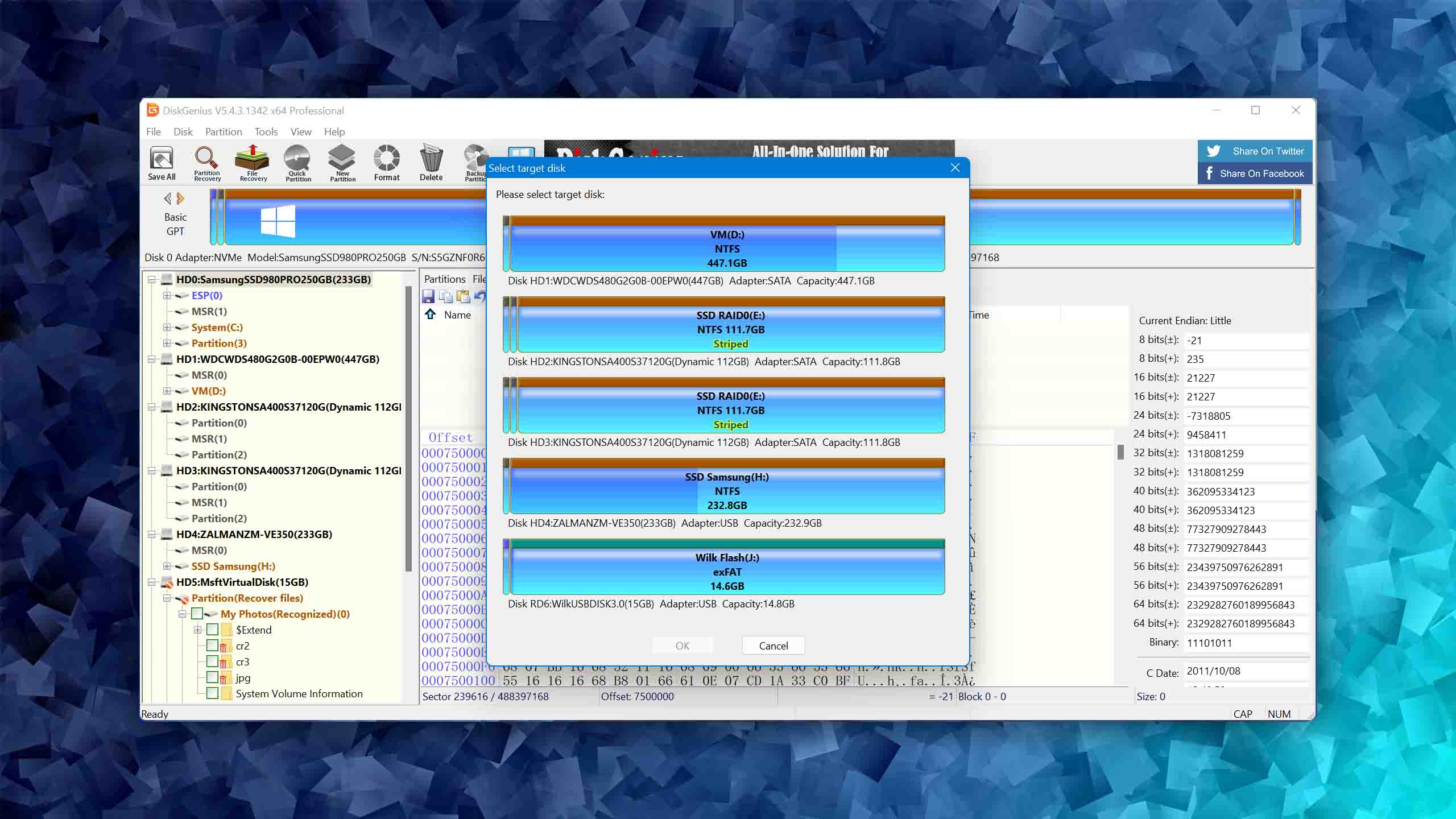
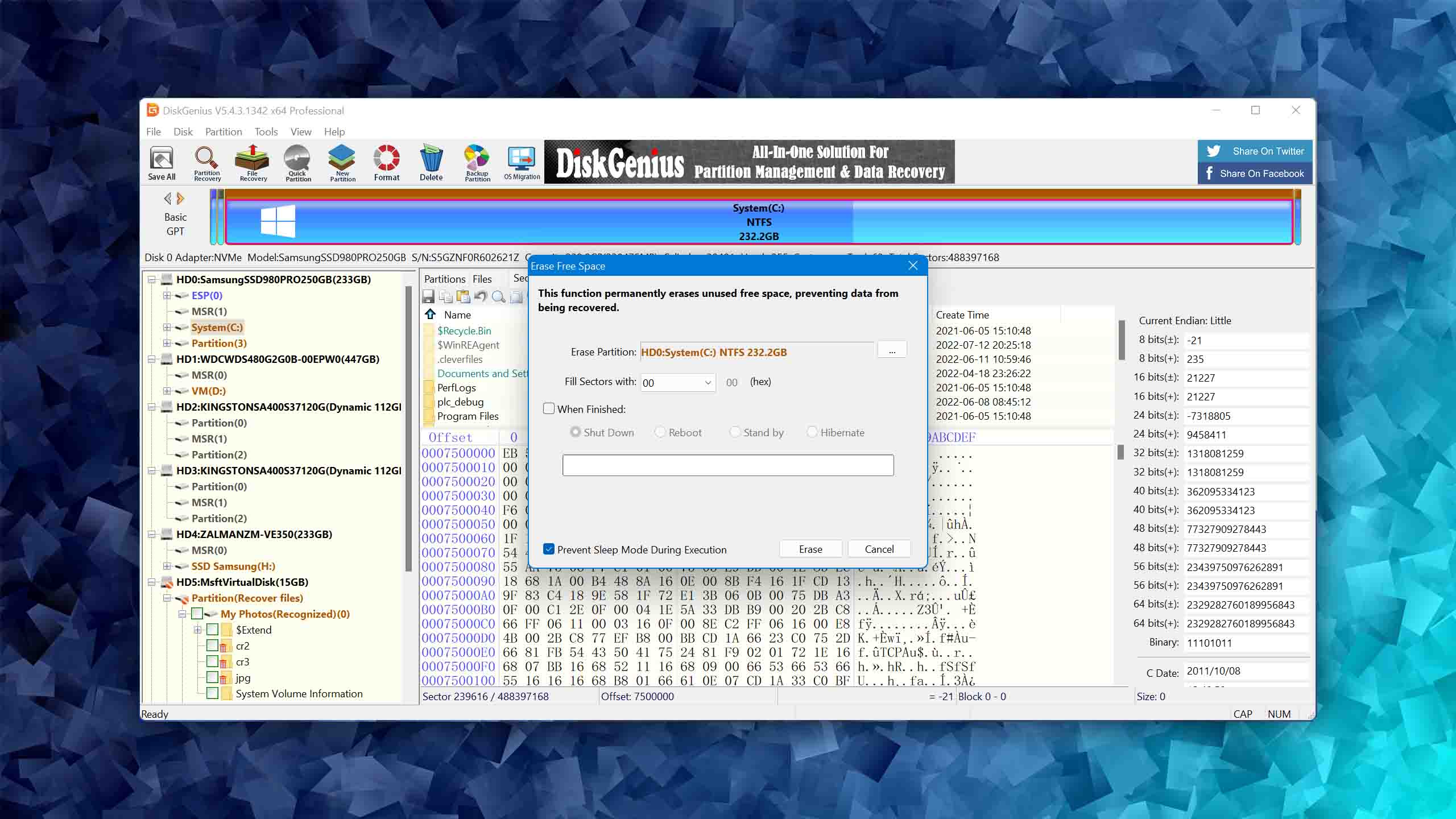
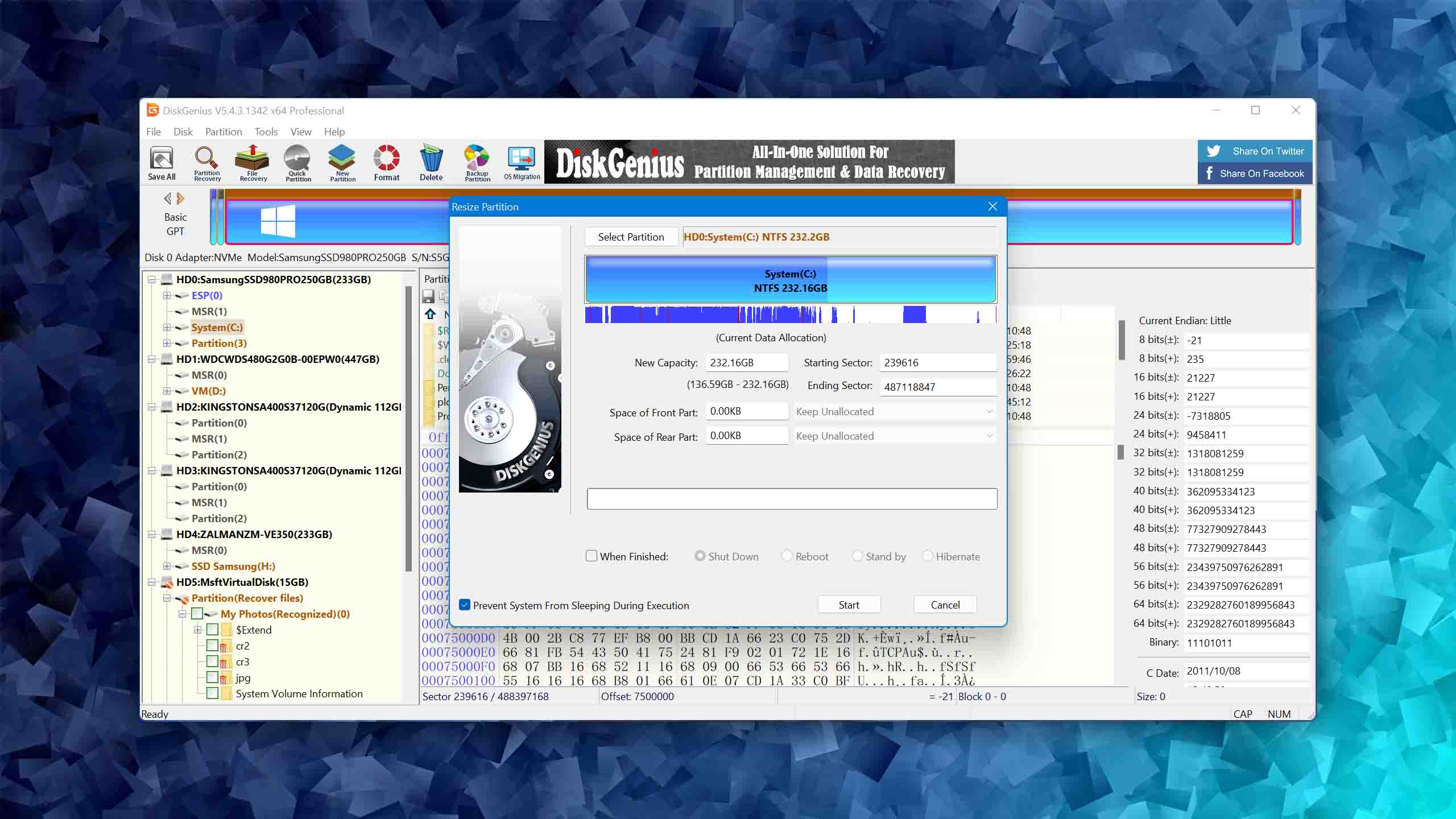
DiskGenius is a powerful utility that combines data recovery, partition repair, RAW drive recovery, and built-in disk imaging in a single package. This combination makes it particularly useful for damaged USB drives where you may need to back up the drive, recover partitions, and retrieve files all within one tool.
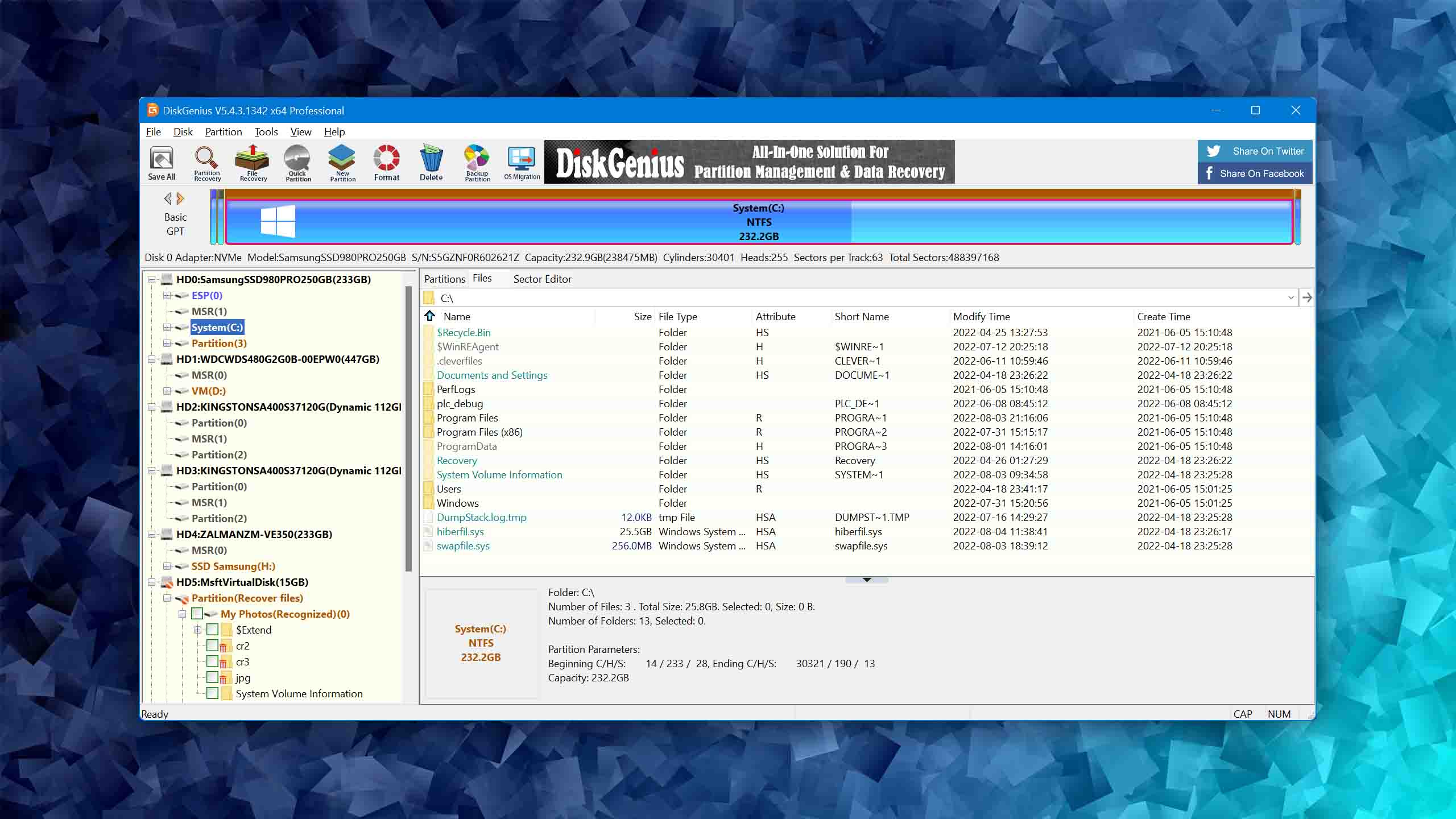
Usability
DiskGenius is a capable tool with many features, and it's not easy for software developers to strike a balance between offering a comprehensive set of tools and maintaining an intuitive interface. This is where DiskGenius's usability suffers. For advanced users, the plethora of features may be a treasure trove, offering deep customization and control over data recovery and disk management. However, for beginners or even intermediate users, the crowded interface and complex terminology can be overwhelming. The lack of guided tutorials or tooltips further amplifies the steep learning curve.
Performance
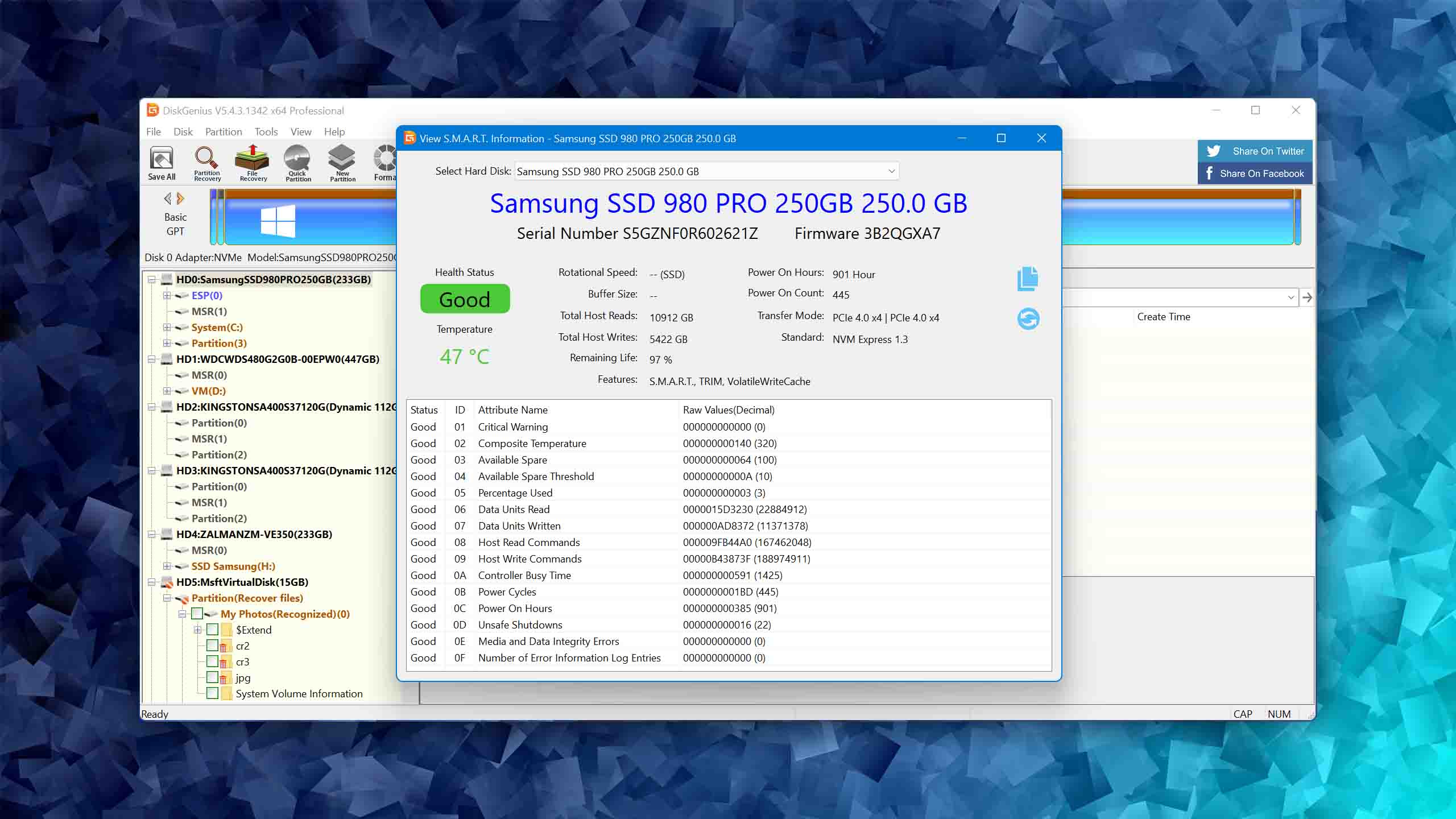
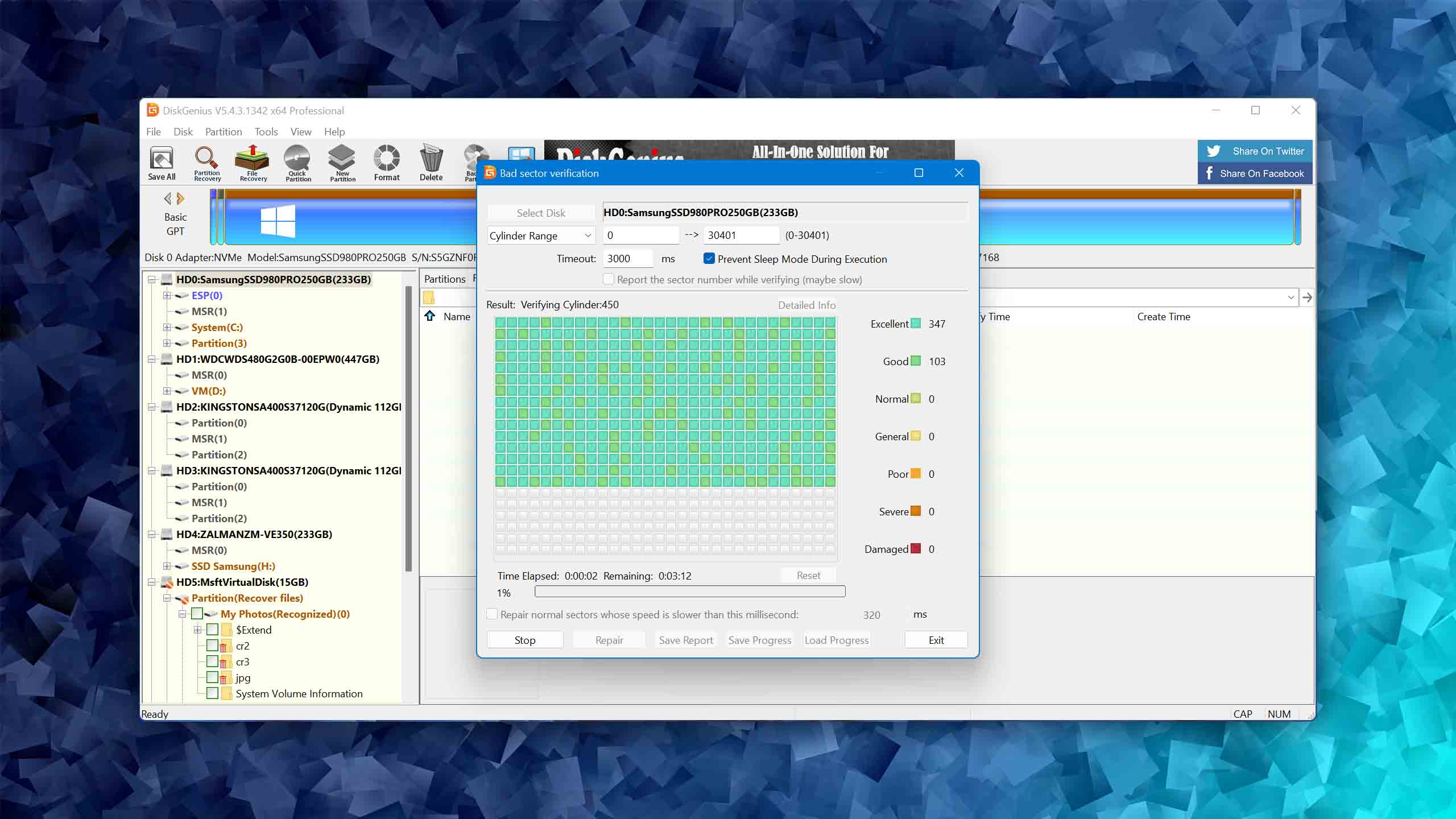
DiskGenius exhibits above-average recovery performance across various tests, including deep and quick scans. It shows particular success with Windows and Linux-based file systems, but its lack of support for Apple file systems is a drawback. While its signature scanner isn't the best, the software makes up for it with its partition recovery capabilities, support for the creation of byte-to-byte backups, and built-in surface scanning that can identify bad sectors on a USB drive before you commit to a repair strategy. Its ability to recover data from RAW USB drives (those where the file system is corrupted beyond recognition) is a real strength.
Value
DiskGenius Professional offers three licensing tiers (a one-month license at $69.90, a one-year license at $99.90, and a lifetime license at $129.90). All are one-time payments (no auto-renewal). The Free edition generously provides features like partition management and disk cloning, though file recovery is limited to 64 KB per file. To remove this limit, you can upgrade to any of the available plans.
4. HDDScan
Windows
Freeware All features are provided free of charge without any limitations
None
Free
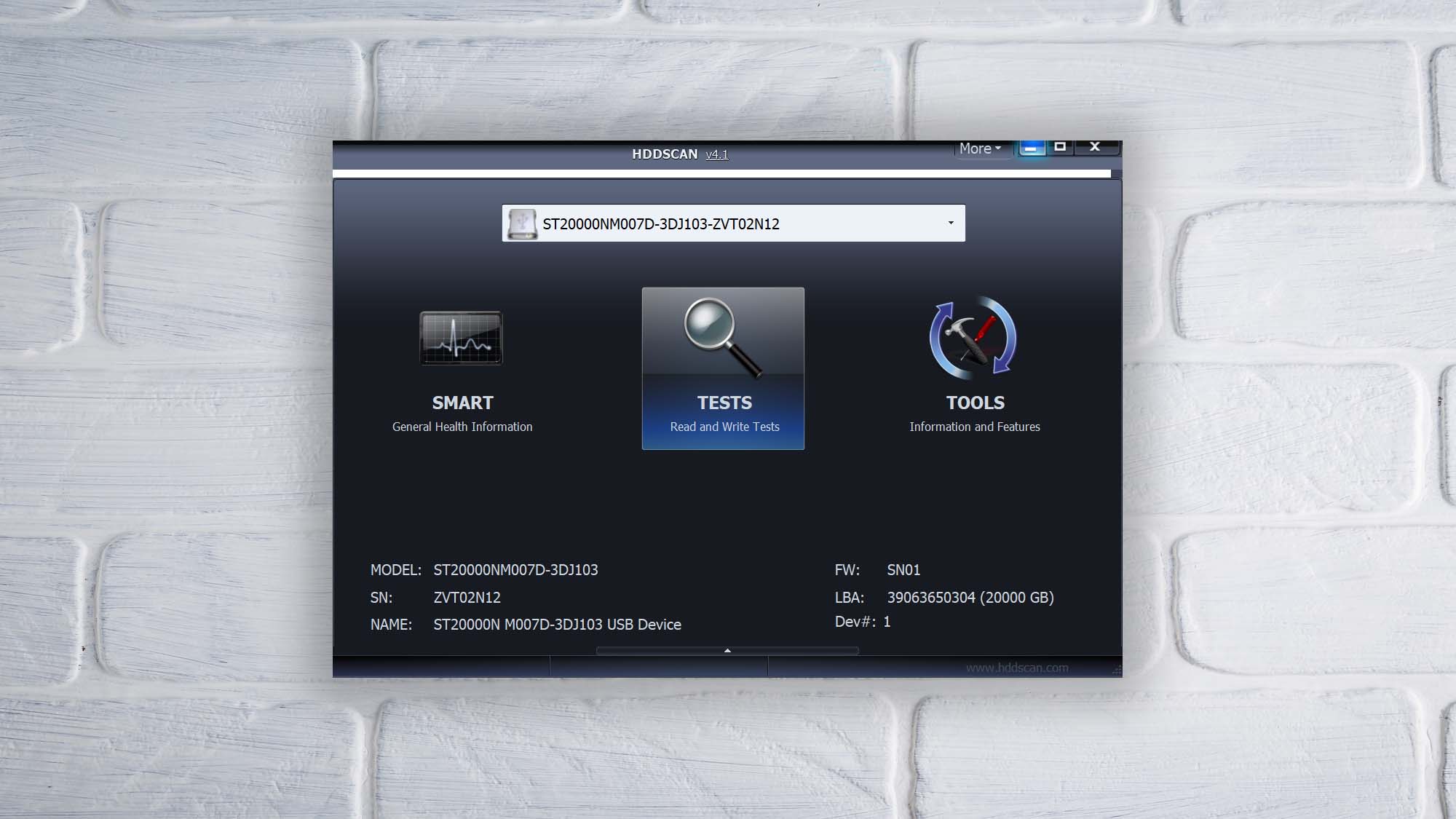
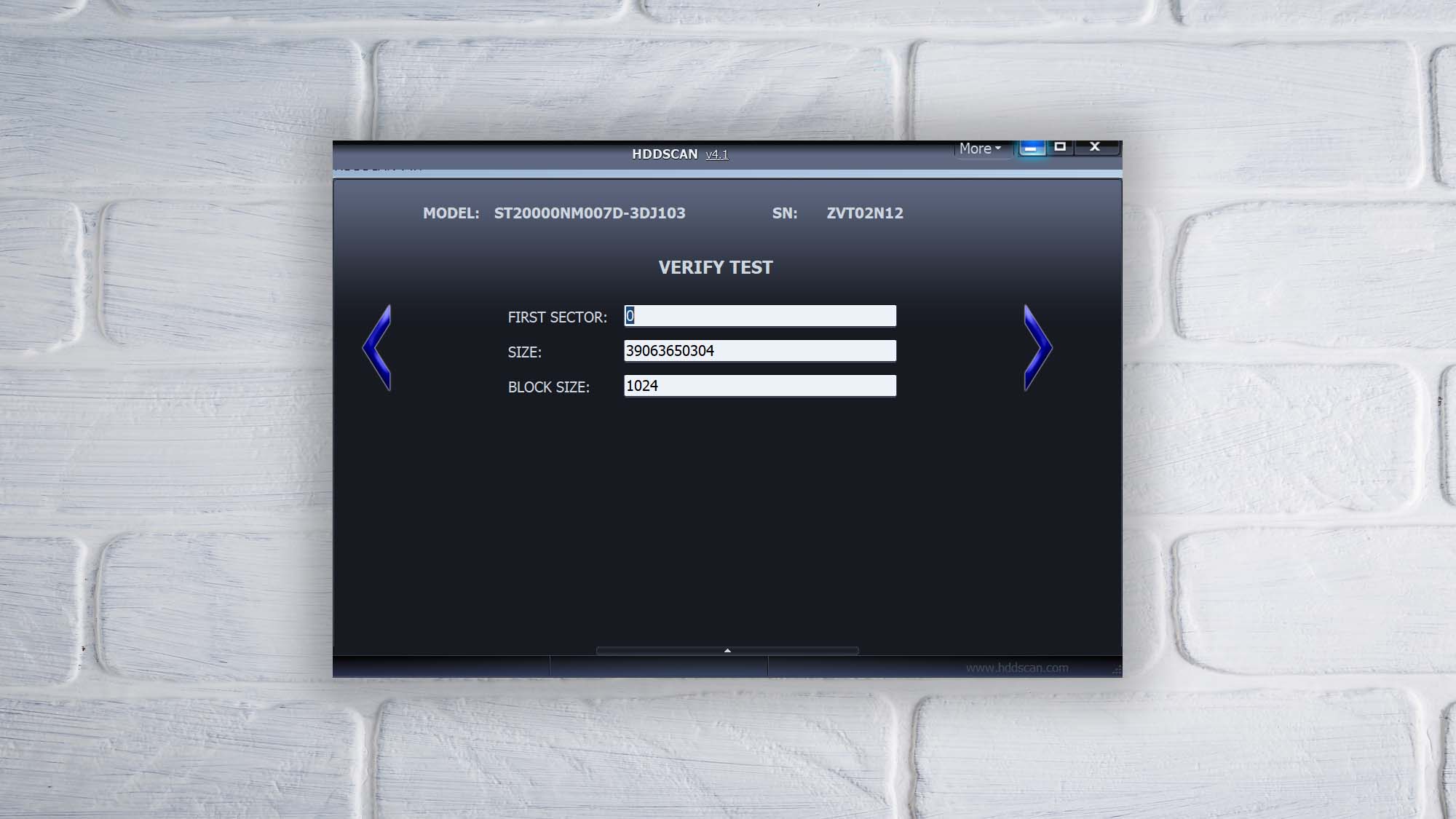
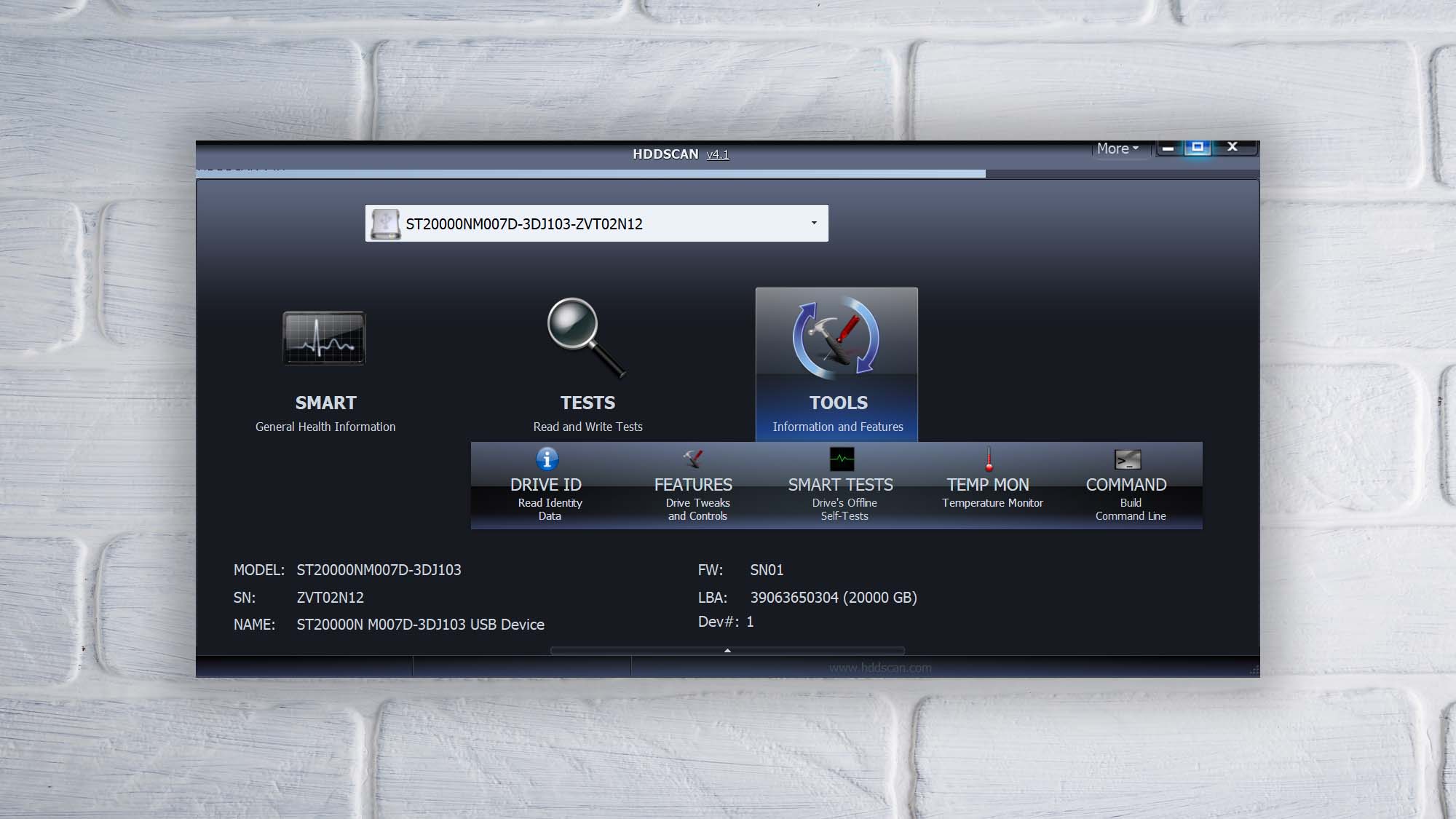
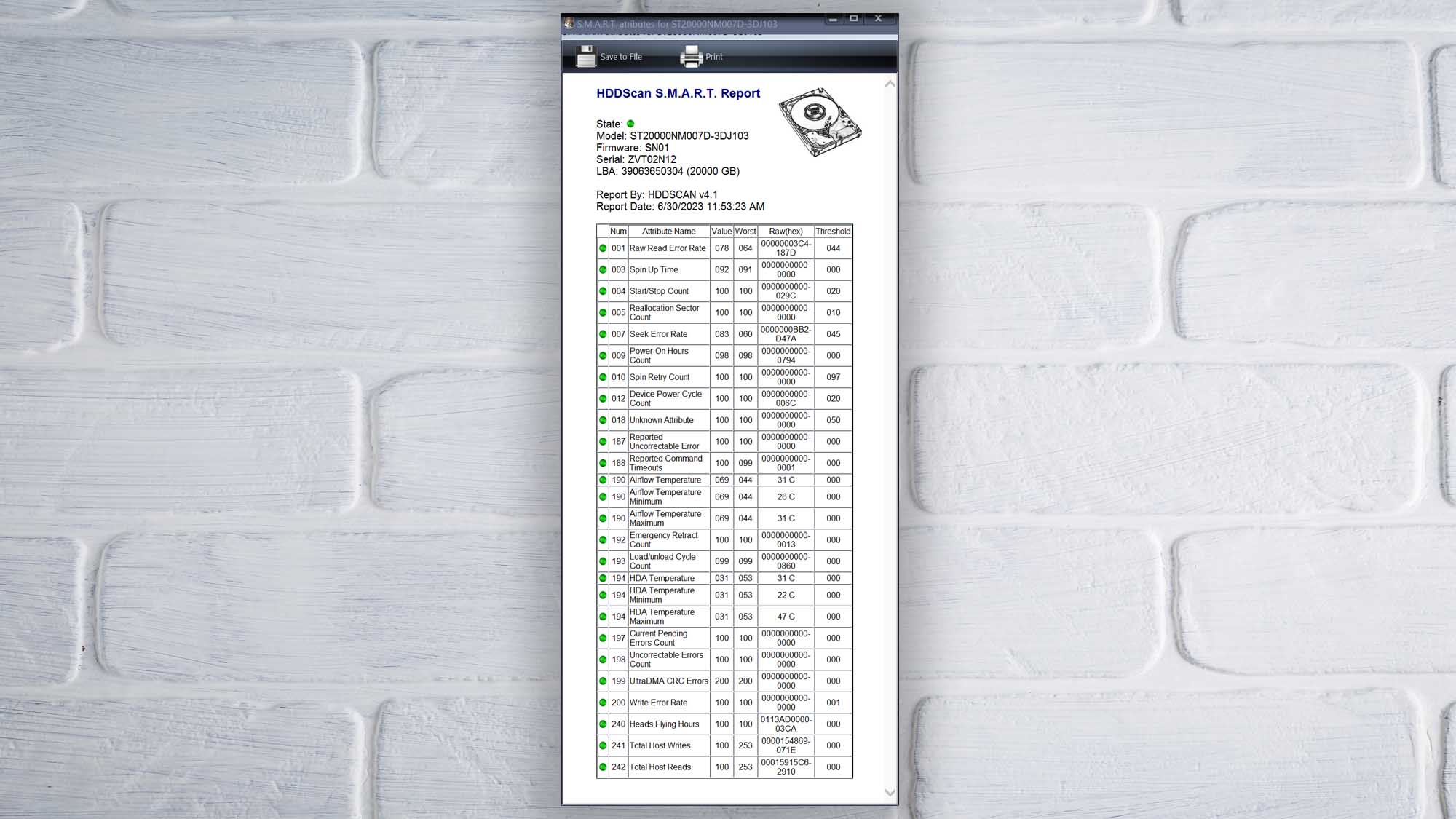
HDDScan is a comprehensive and 100% free diagnostic tool for hard drives and other storage devices, including USB flash drives. It helps identify surface errors and unstable sectors that may indicate a failing USB drive, but it won’t fix file system corruption or recover lost data because it’s primarily a diagnostic tool rather than a repair utility. It’s also a Windows-only application, so it won’t help you if you’re a macOS or Linux user.
Usability
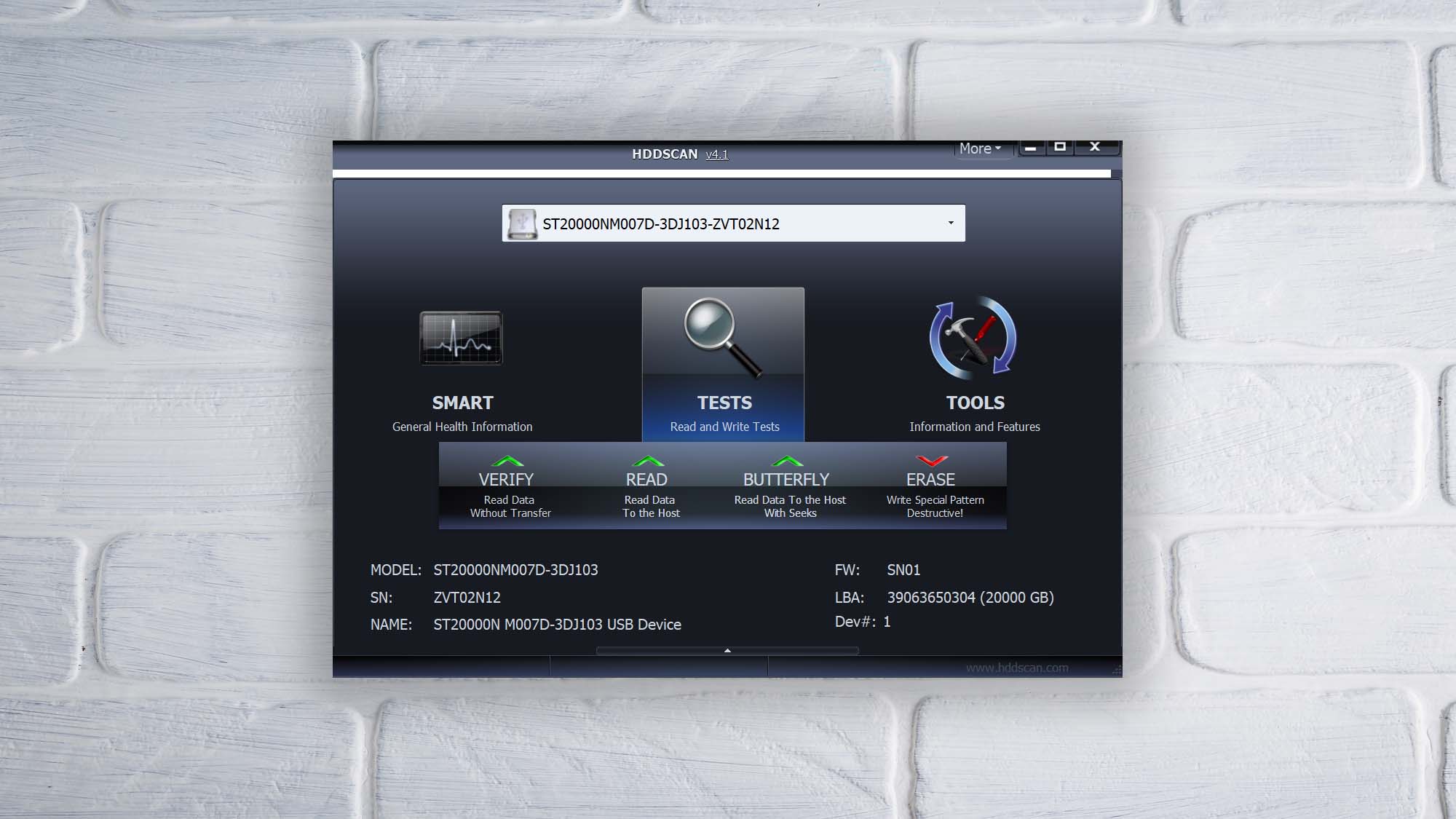
HDDScan's usability suffers from a user interface reminiscent of the Windows 7 era (the tool only runs on Windows). While this doesn't make the tool unusable, it does make it less enjoyable to use, which is a minor drawback for those accustomed to more modern and intuitive interfaces. However, all the features are clearly labeled, allowing users to navigate HDDScan's features with relative ease.
Performance
HDDScan is a diagnostic tool, not a recovery or repair solution. Its strength lies in testing storage devices for errors like bad blocks or sectors, reading and analyzing S.M.A.R.T. attributes, and monitoring the device's temperature. If your USB drive is acting strangely (slow transfers, random disconnects, corrupted files), HDDScan can help you determine whether the underlying hardware is failing. What it does, it does well, but keep its purpose in mind: once HDDScan identifies a problem, you'll need a different tool to act on the results.
Value
HDDScan offers remarkable value because it's a freeware tool. Considering its extensive storage device support and comprehensive diagnostic tests, the fact that it provides everything at absolutely no cost makes it worth keeping in your toolkit. Just remember it's Windows-only, so don't waste your money on it if you're using macOS or Linux.
5. HDD LLF Low Level Format Tool
Windows
Free Some features are provided free of charge, but money is required to unlock the rest
None
Free
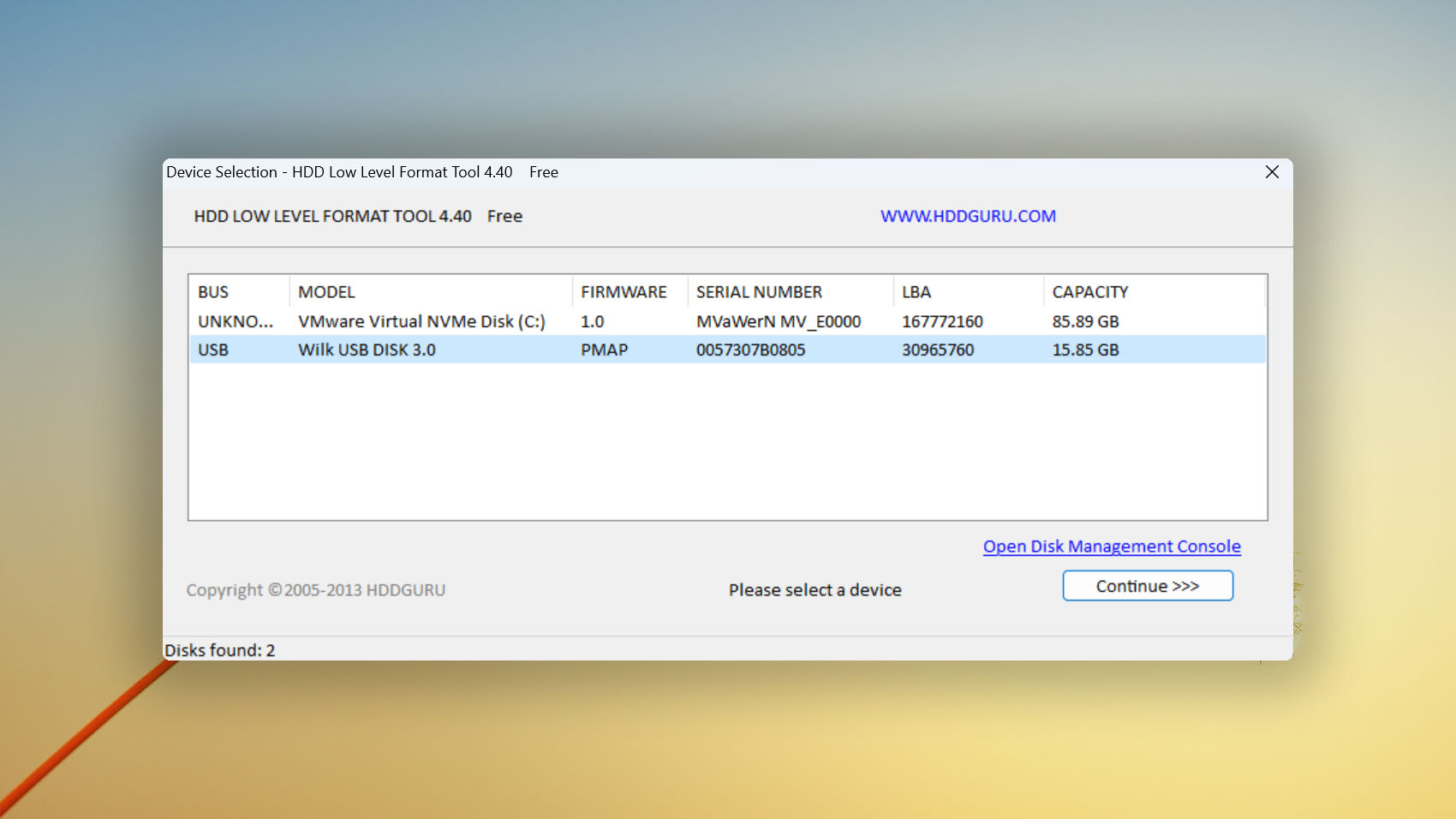
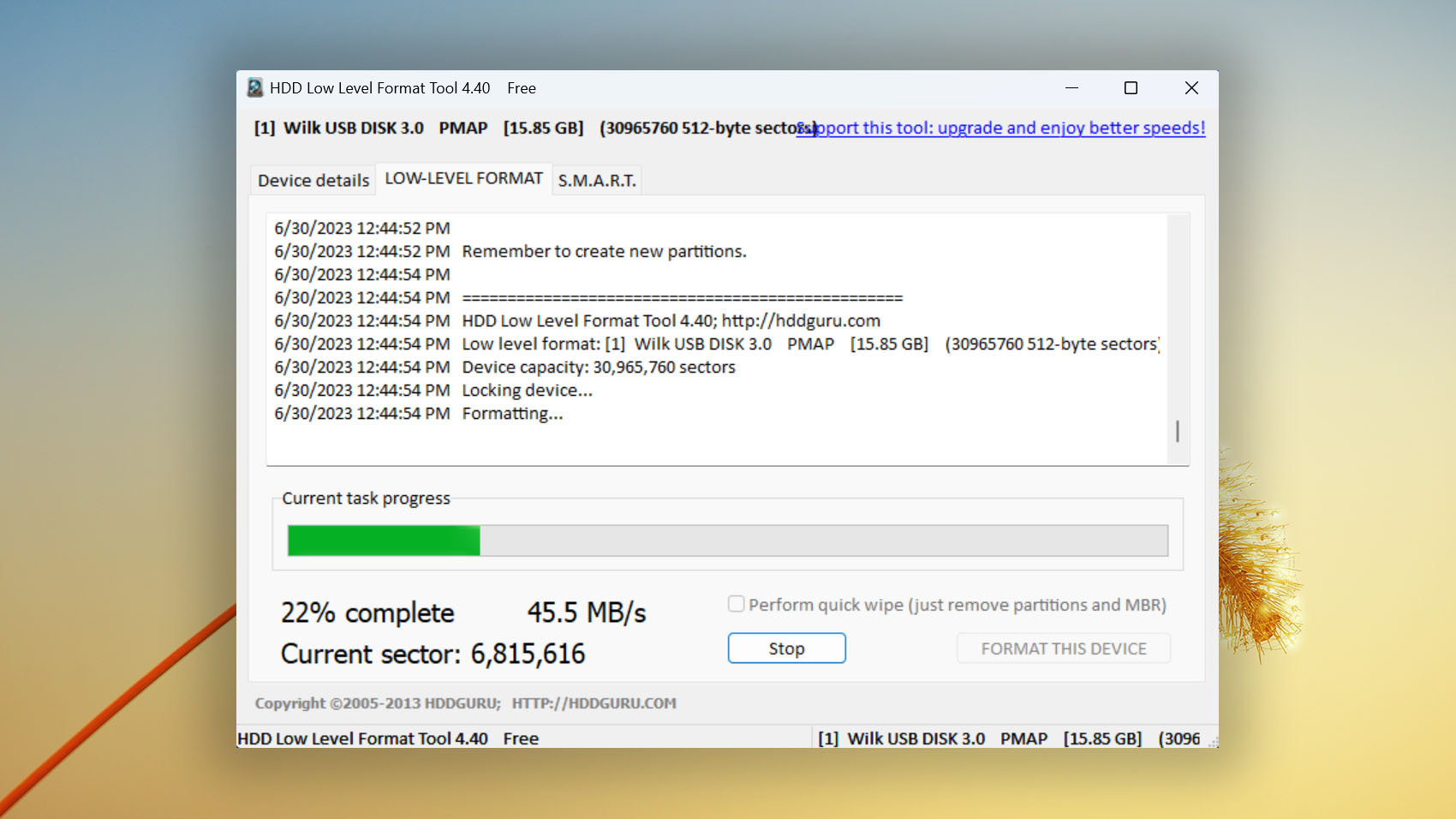
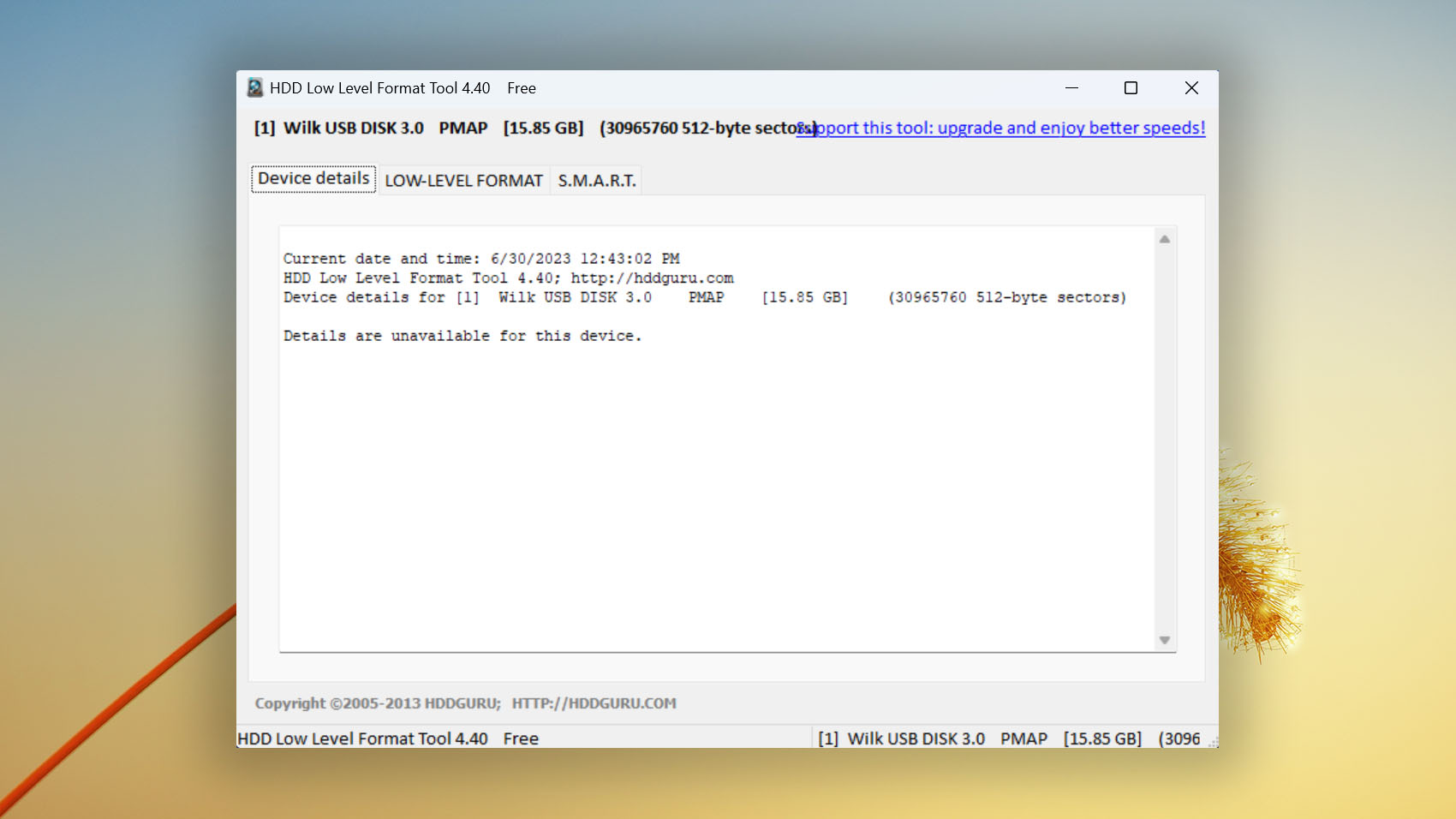
HDD LLF Low Level Format Tool is a freeware utility from HDDGURU that provides low-level formatting for various storage devices, including USB flash drives, HDDs, and SSDs.
Usability
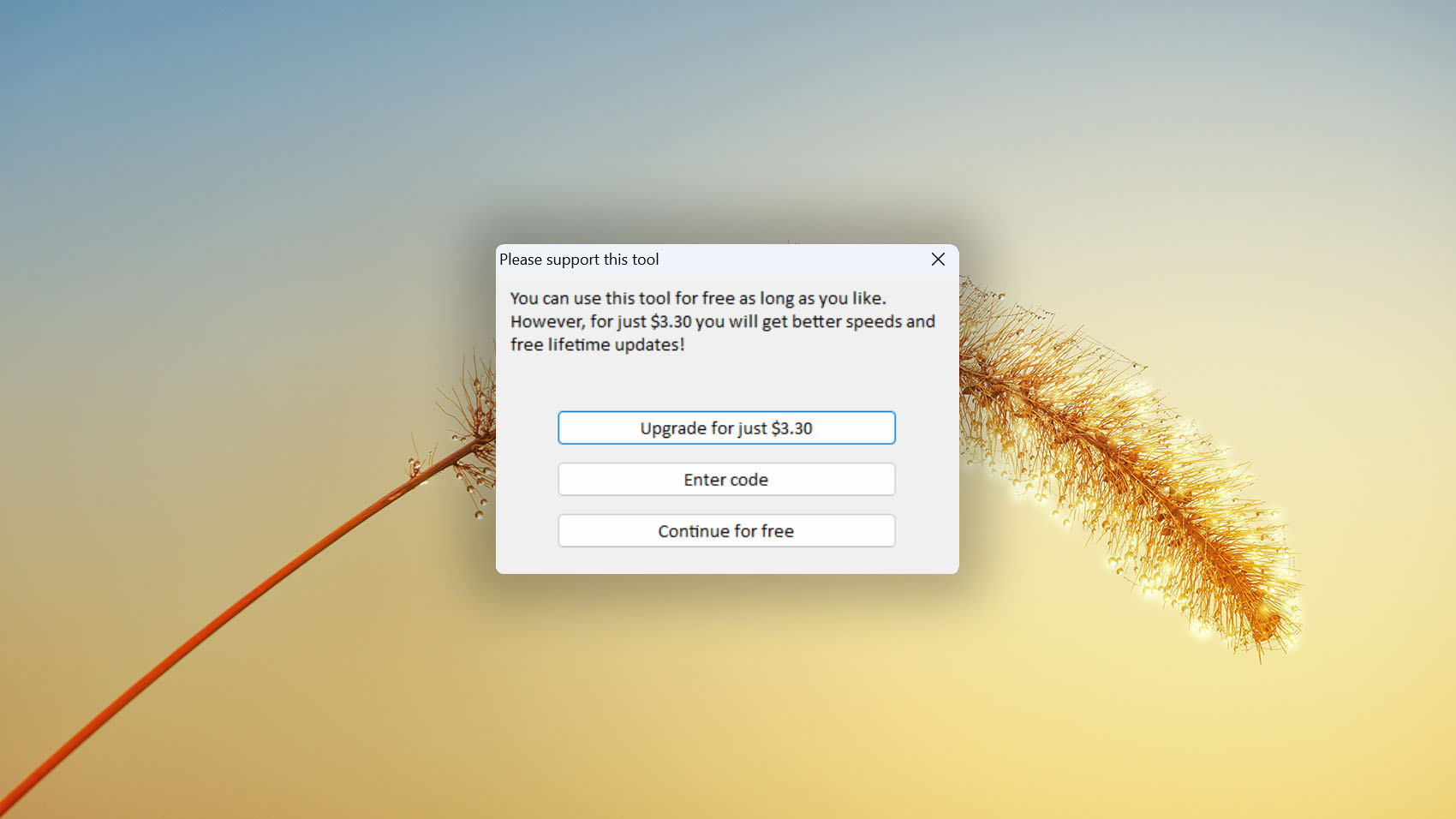
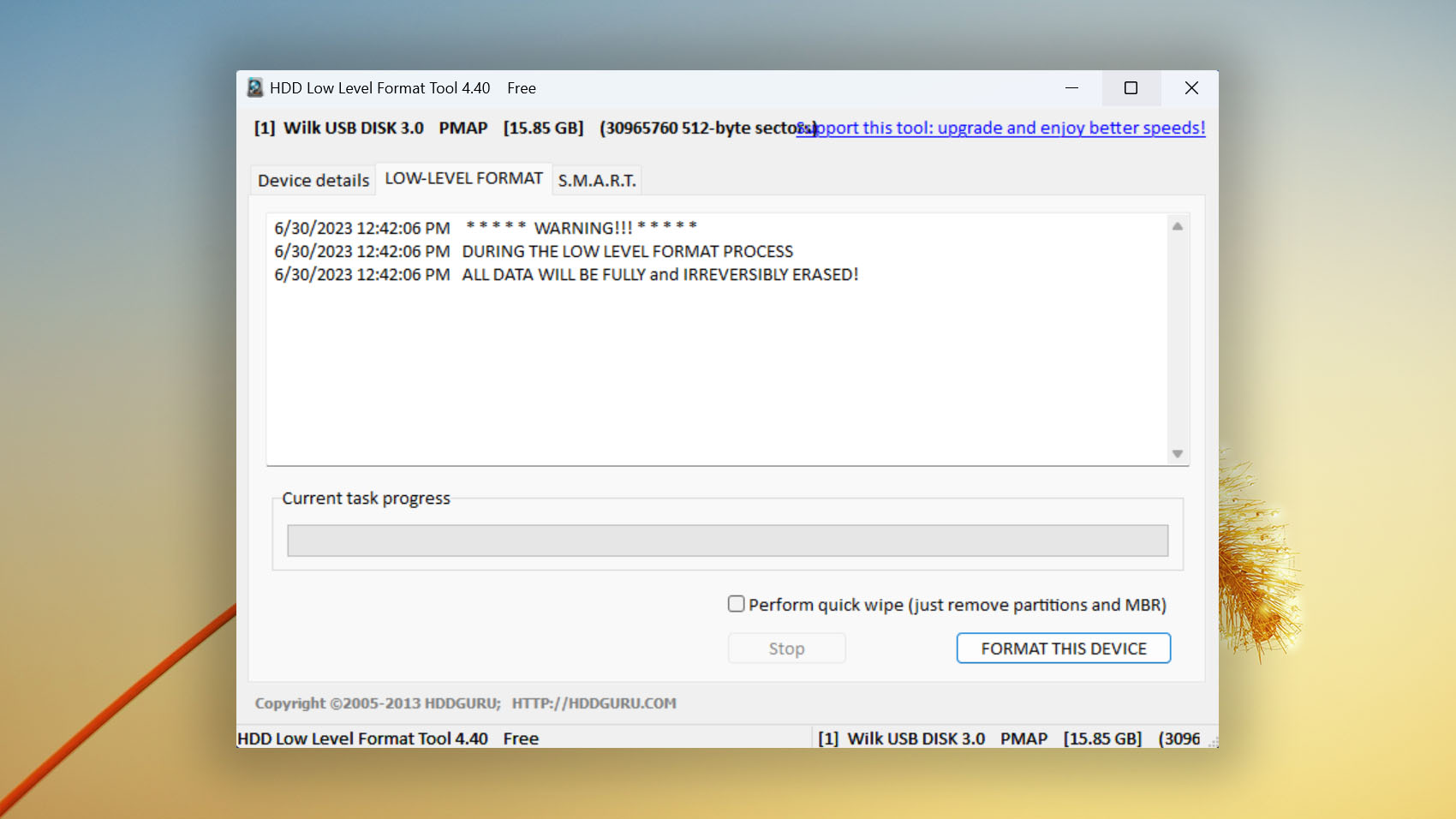
HDD LLF Low Level Format Tool offers an effortless step-by-step process for low-level formatting. The interface is designed with user-friendliness in mind, providing a simple path for formatting various drives, whether you're a seasoned technician or a casual user. You can either install it on your computer or download the portable version and run it from any location without installation.
Performance
HDD LLF Low Level Format Tool specializes in low-level hard disk drive formatting, supporting a broad array of interfaces and manufacturers. It can handle NVMe, SATA, IDE, SCSI, SAS, USB, and FireWire, among others, covering most brands in the market. The latest version also includes a Read Verify mode that scans the device without writing anything, which is useful for checking drive health before committing to a destructive format. While formatting can effectively solve many issues, such as those caused by file system corruption, it's a destructive process that erases all data on the drive, making it essential to approach with caution.
Value
HDD LLF Low Level Format Tool v5.6 is entirely free for both personal and commercial use. There are no paid tiers, no speed caps, and no feature restrictions. If you've seen reviews mentioning a 50 MB/s speed limit or personal-use-only restrictions, those applied to the older v4.x releases that still circulate on third-party download sites. The current version has none of that, which makes it one of the most straightforward value propositions on this list.

6. USB Disk Storage Format Tool
Windows
Freeware Some features are provided free of charge, but money is required to unlock the rest
None
$0...$9.95
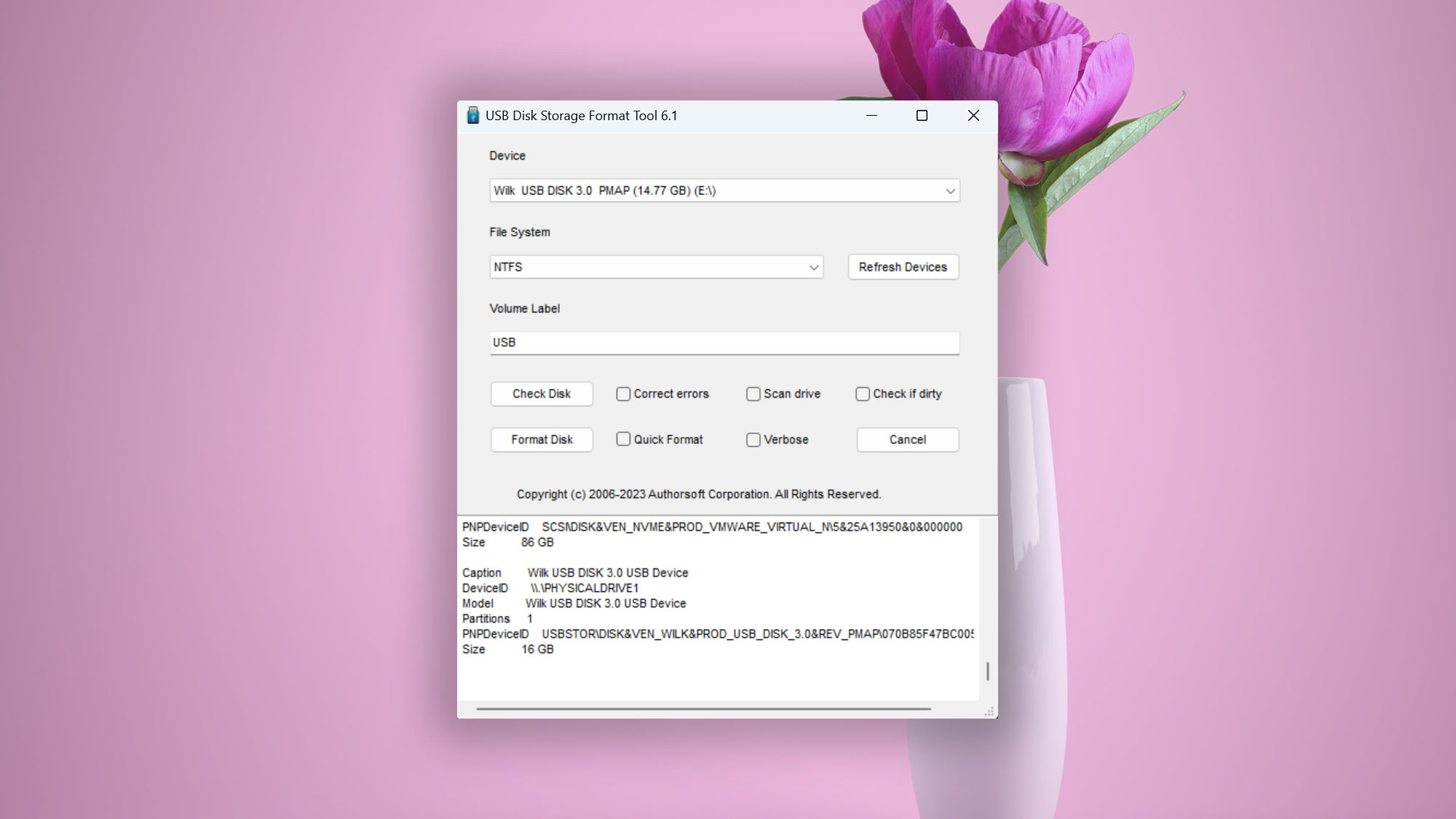
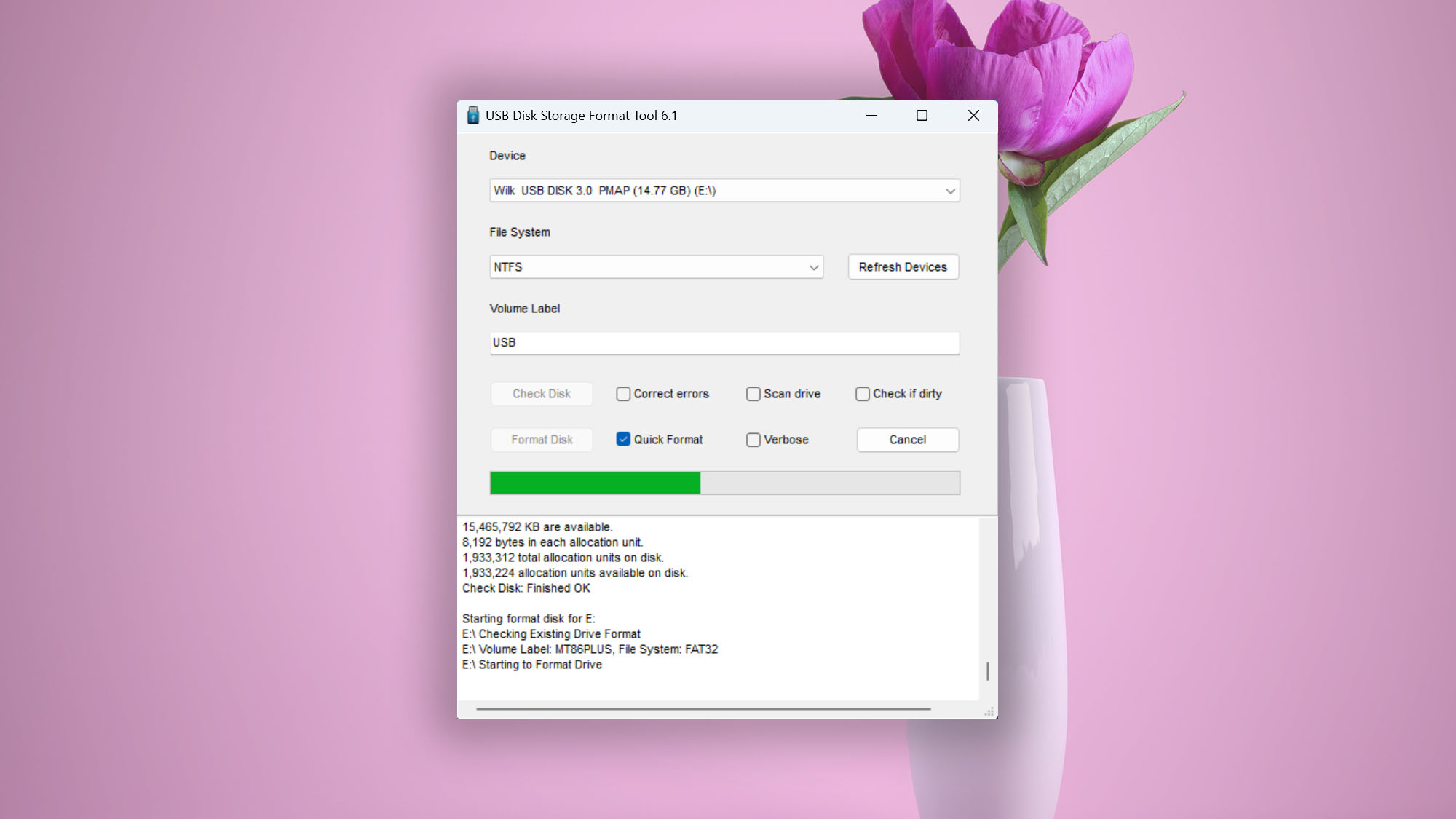
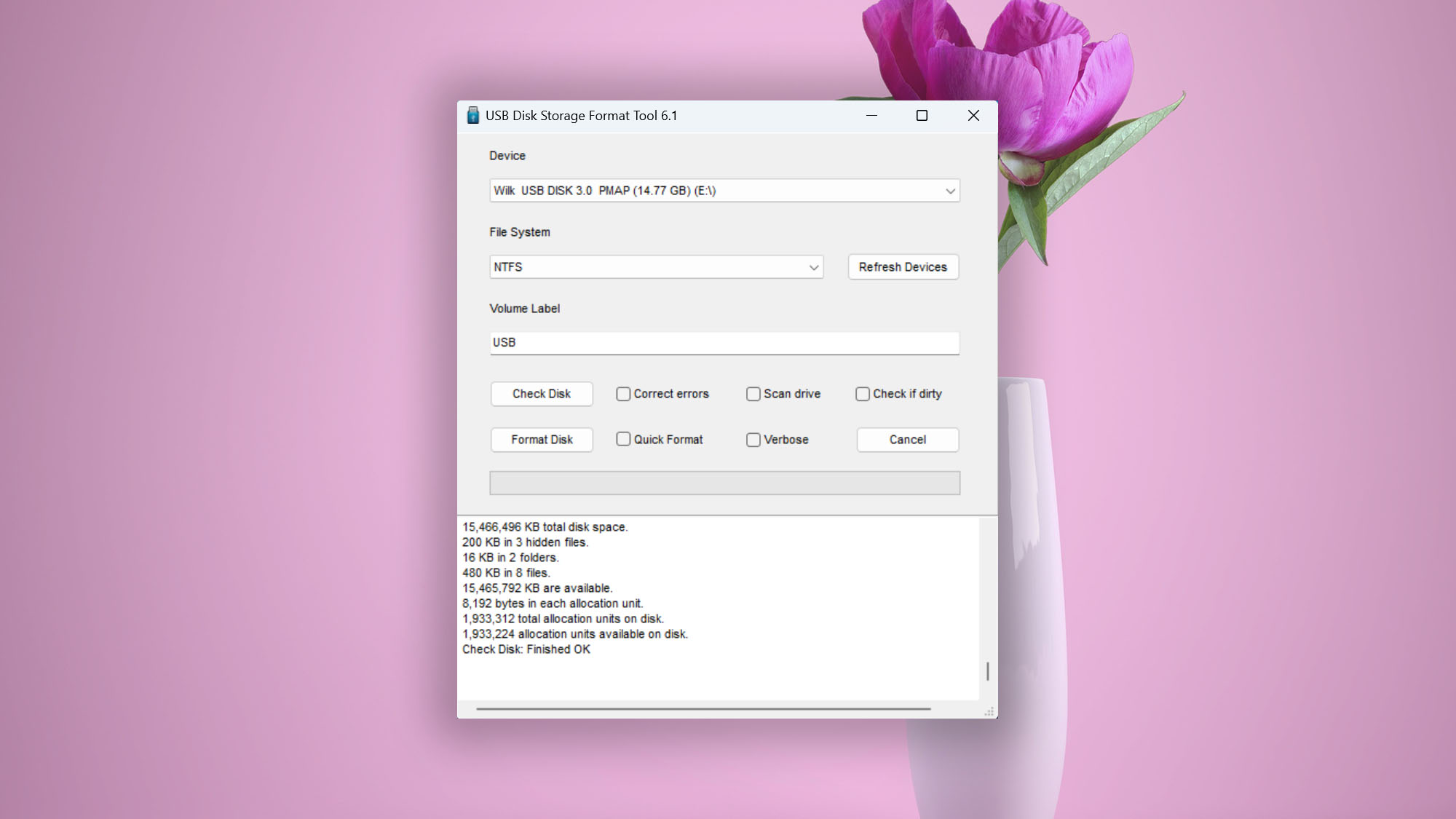
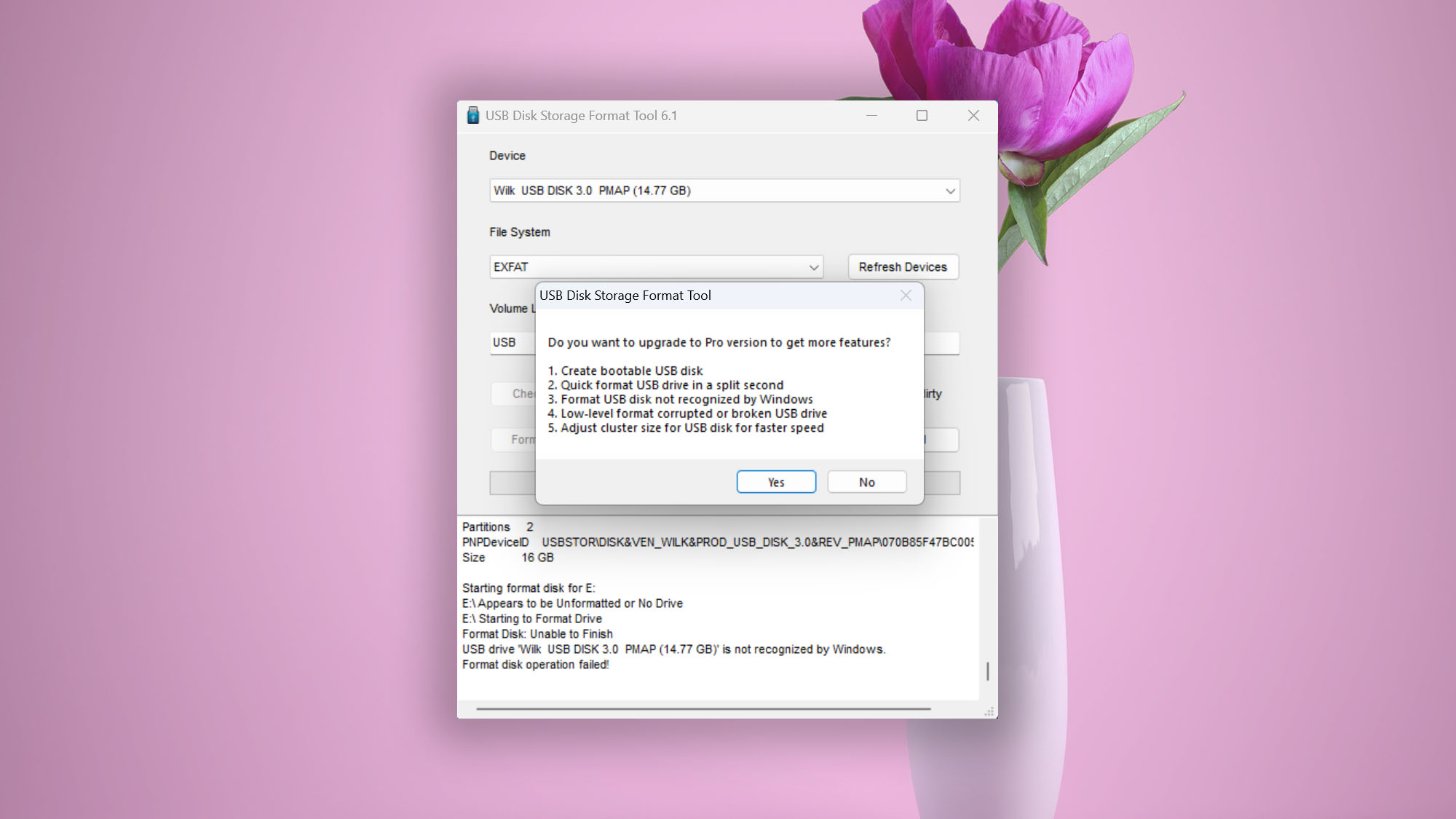
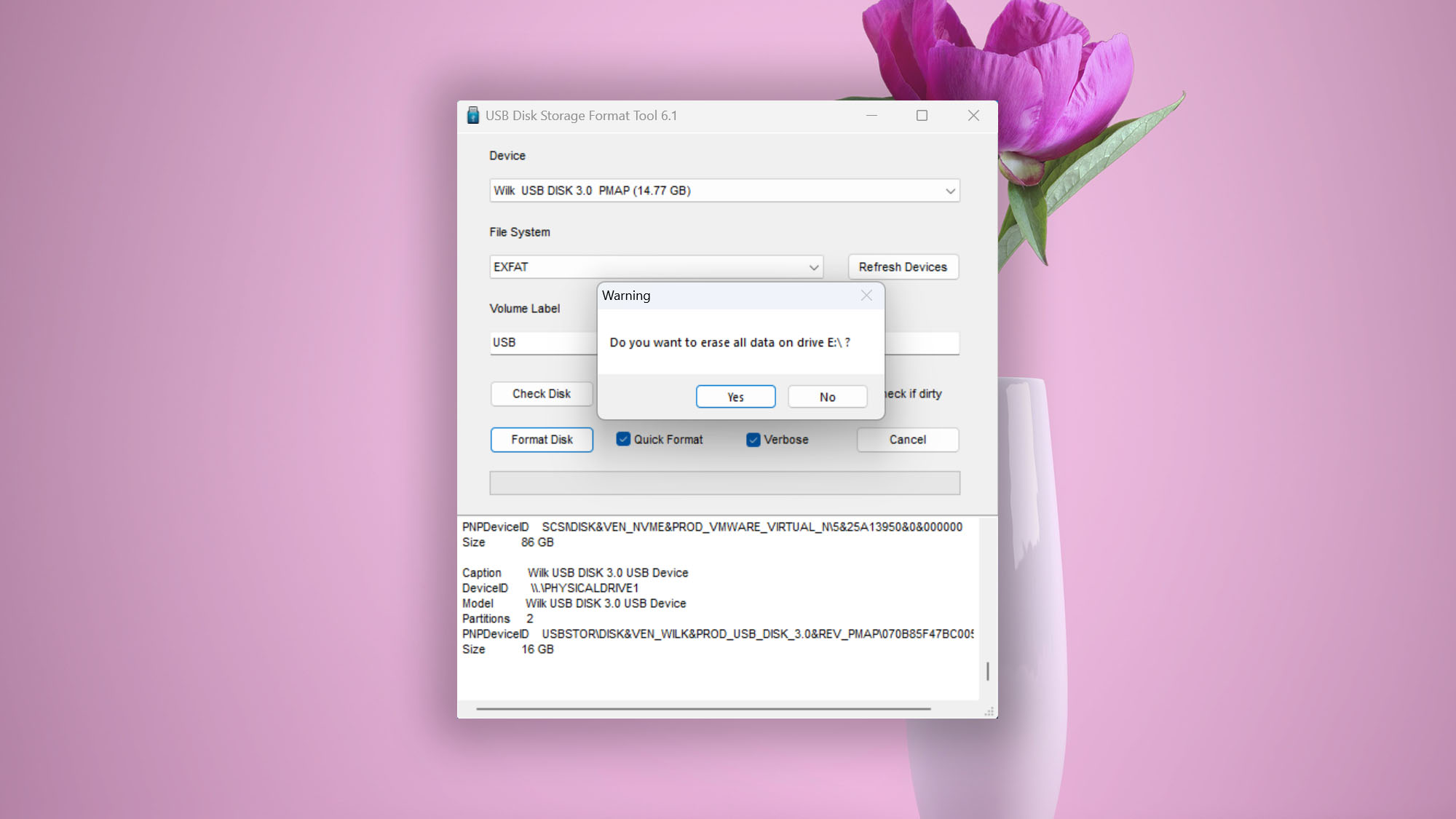
The USB Disk Storage Format Tool is free with an optional Pro upgrade, and it can be used by those who need to format a USB flash drive and, in the process, fix file system errors. No registration, no premium tiers. Just download and use it.
Usability
With a user interface that closely resembles the built-in formatting tool in Windows, the USB Disk Storage Format Tool offers an intuitive and familiar experience. This makes it a great solution for anyone who needs to quickly format a USB flash drive or fix errors without delving into complex settings or procedures.
Performance
While its strengths lie in formatting and error correction, the USB Disk Storage Format Tool won't assist with data recovery. Its capabilities include quick and safe formatting, erasing intractable data, correcting partition errors, and more. But if you are looking to recover deleted files or corrupted data, you will need to look for other tools.
Value
The free version covers quick and safe formatting (FAT, FAT32, exFAT, NTFS), erasing intractable data, and correcting partition errors. The $9.95 Pro upgrade adds low-level formatting and the ability to create bootable USB drives. Its accessible features and compatibility with various USB drive brands make it a solid tool for anyone in need of formatting or error correction without spending a cent.

7. Victoria HDD/SSD
Windows
Freeware All features are provided free of charge without any limitations
None
Free
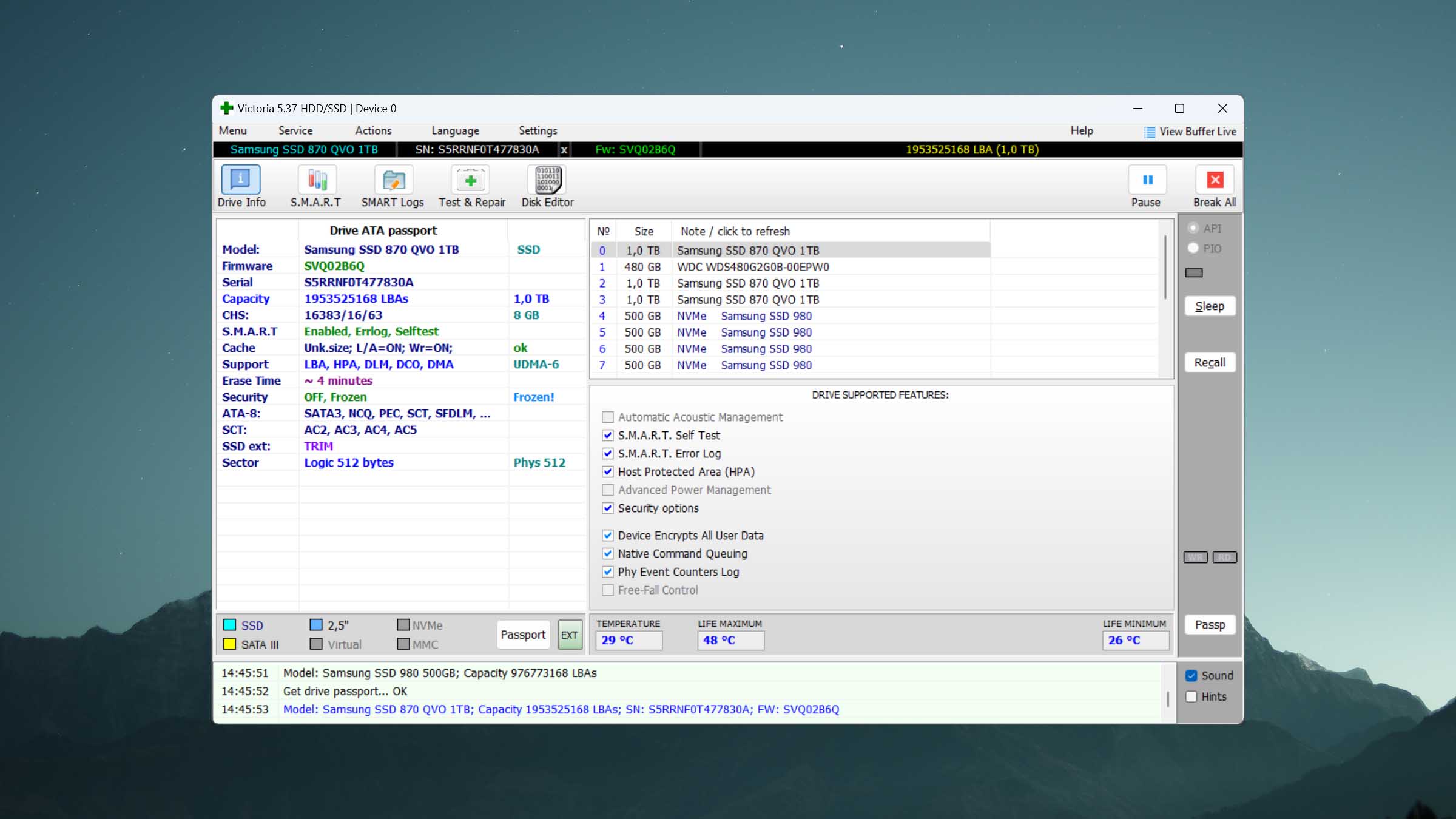
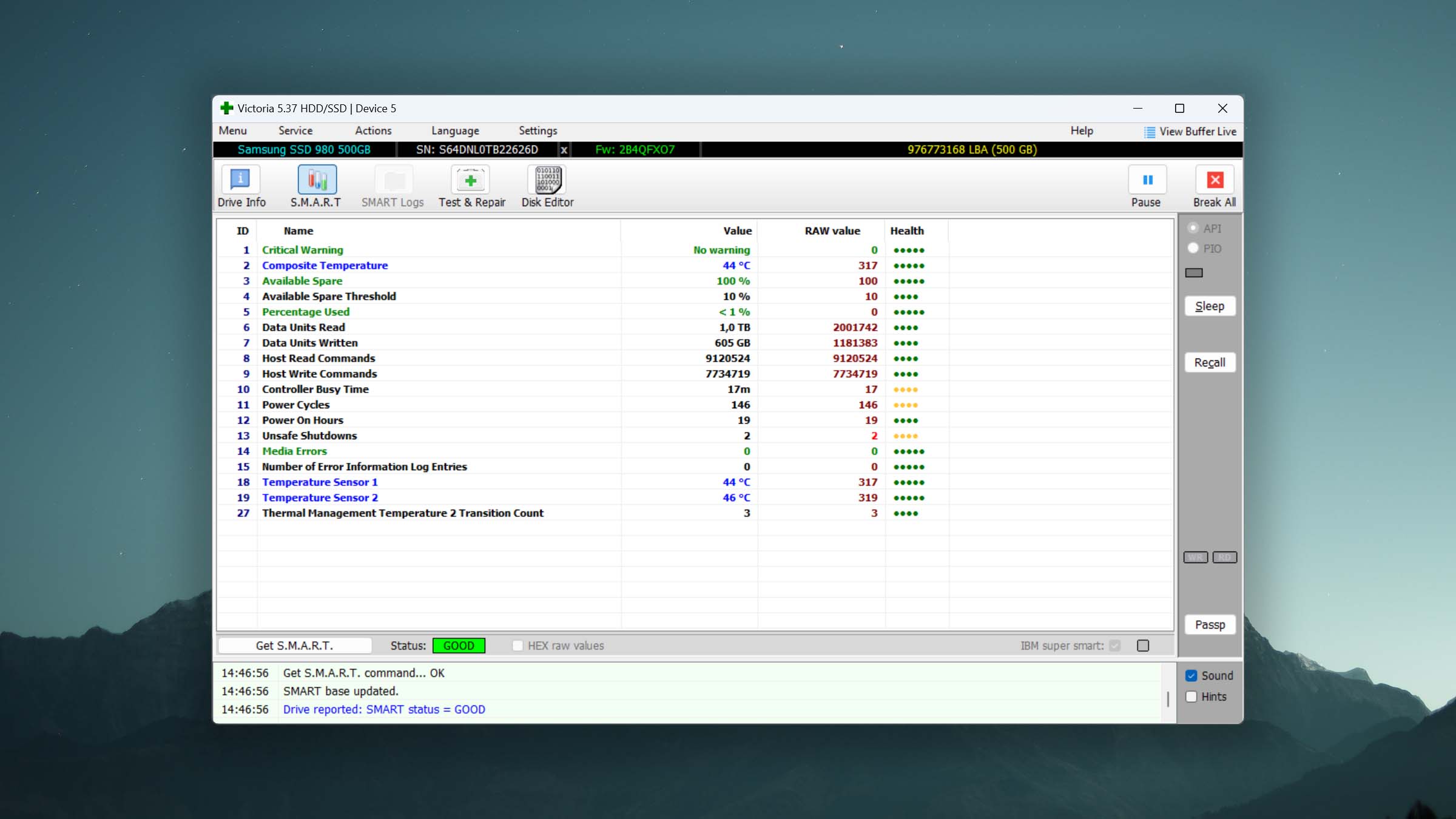
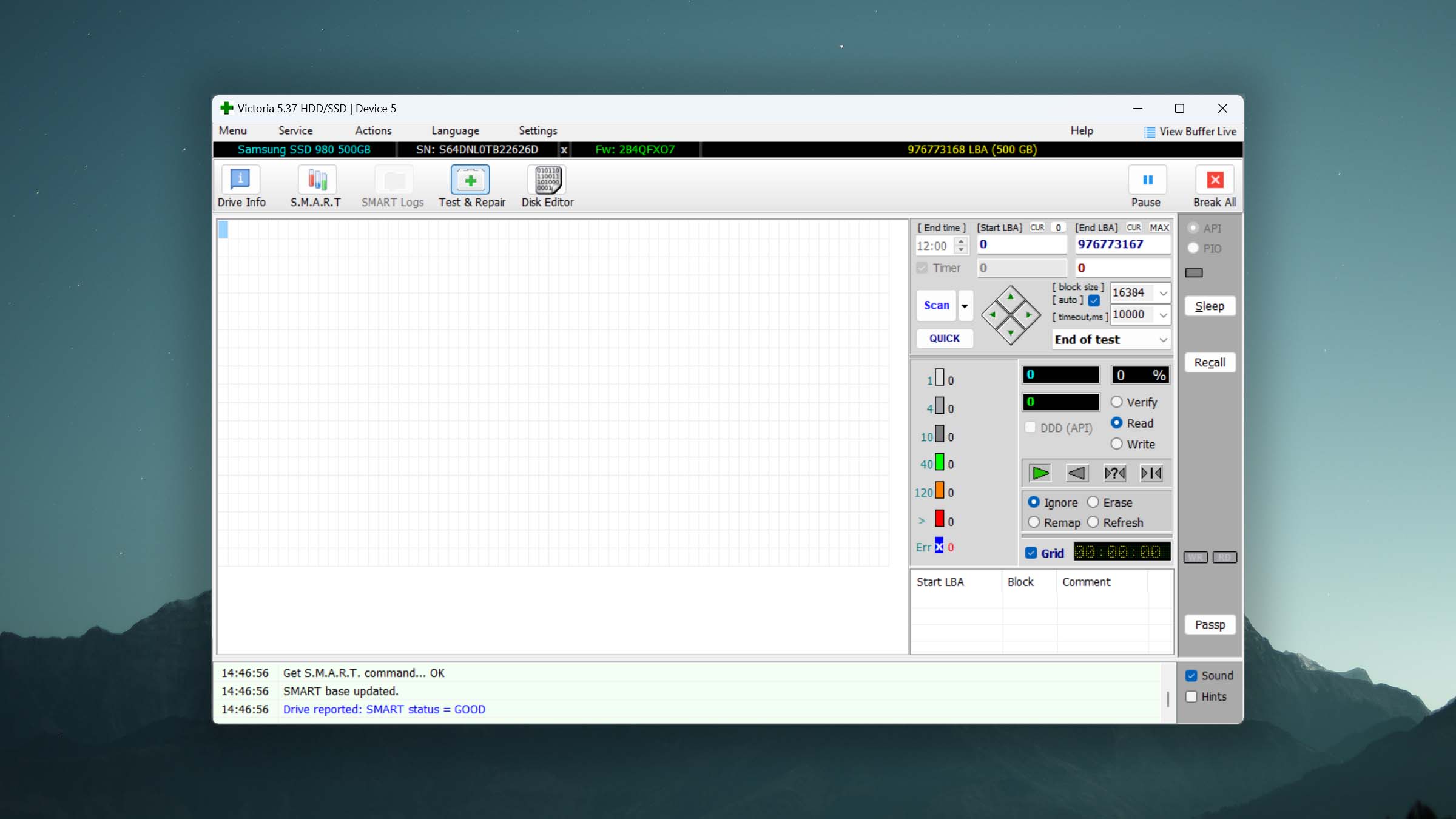
Victoria is a freeware diagnostic utility for HDDs, SSDs, and USB drives. It started as a DOS tool, and the current Windows version brings low-level surface scanning and bad sector detection to a modern interface.
Usability
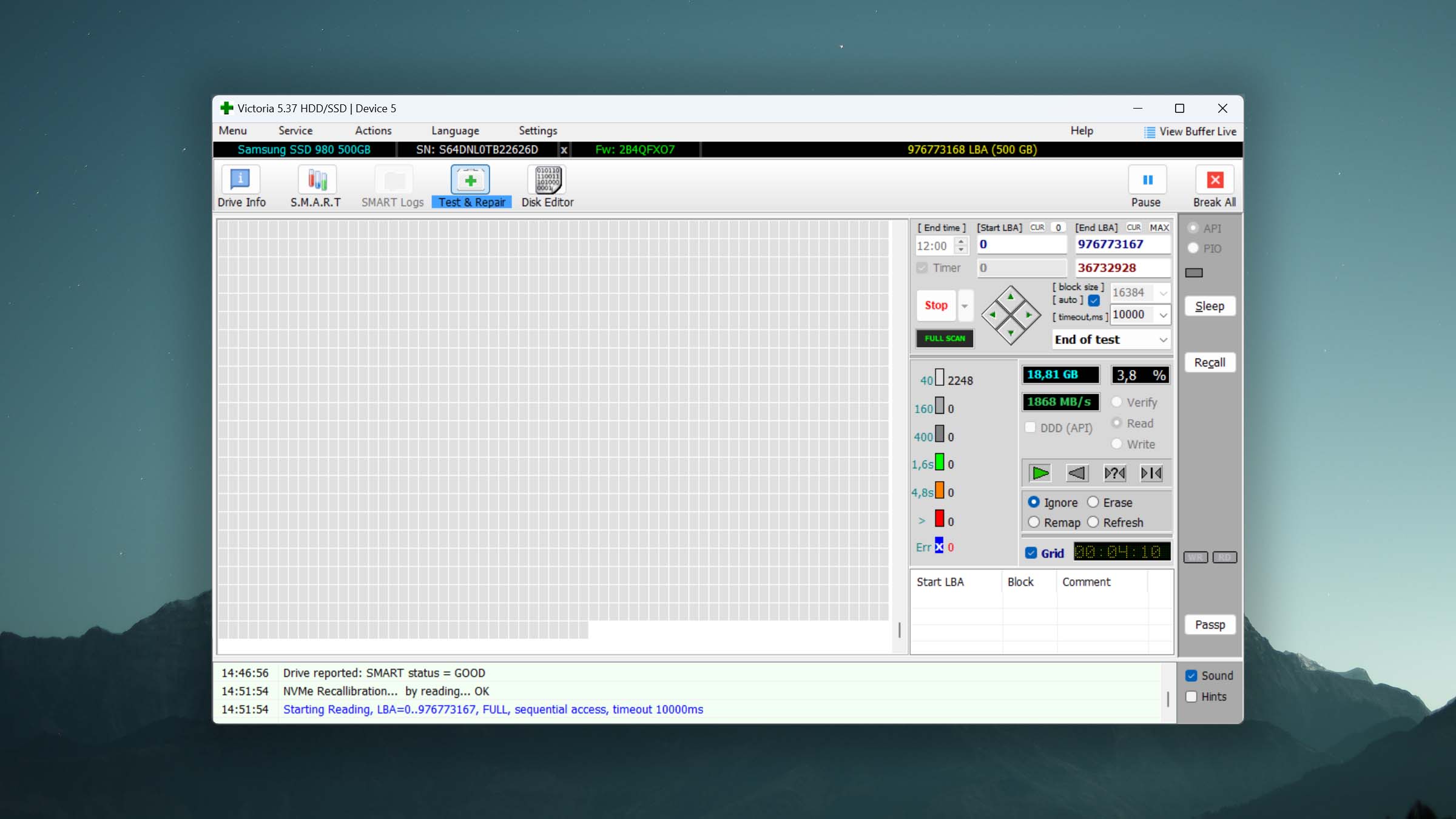
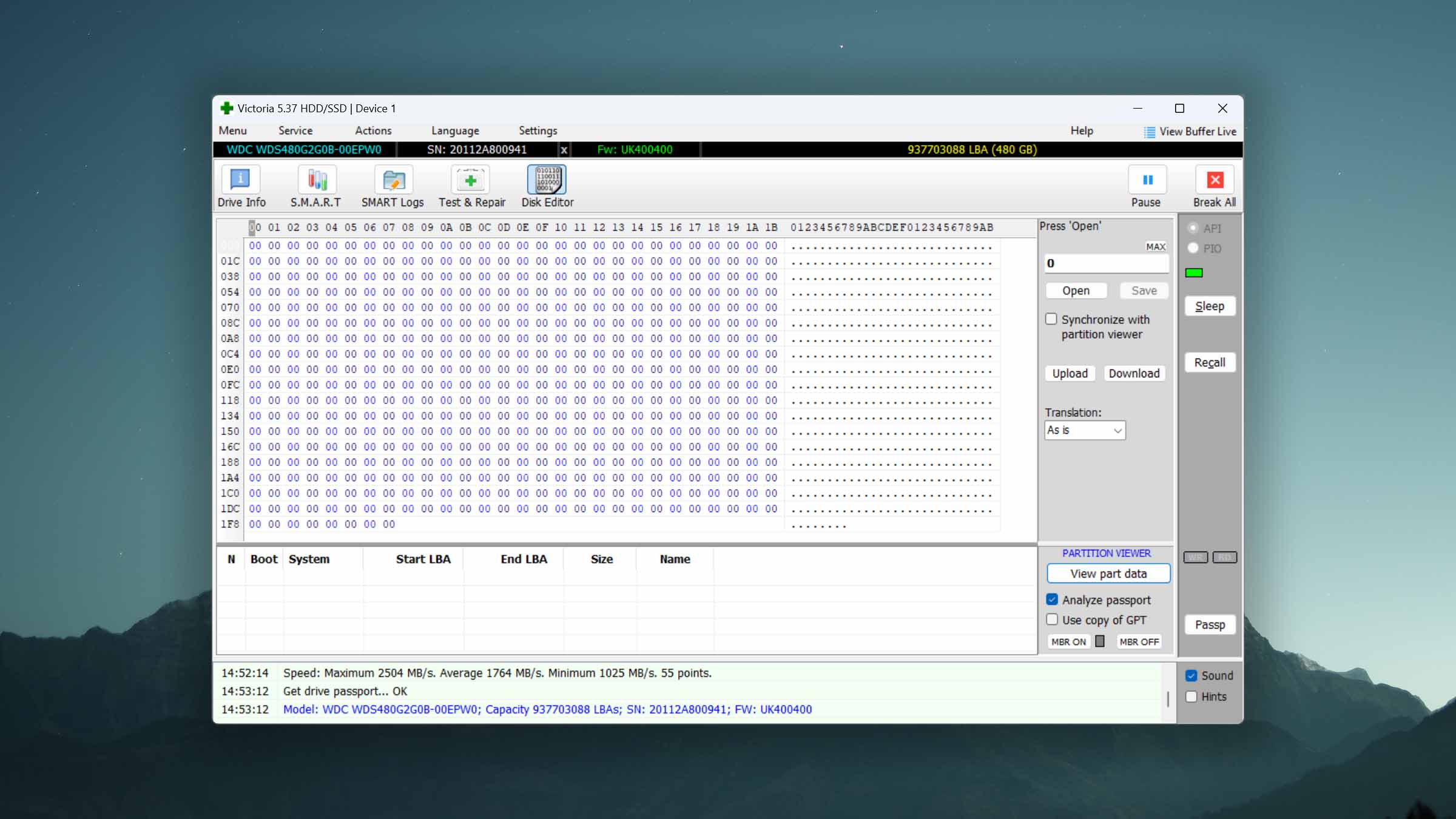
Victoria's interface looks like it was built for hardware engineers, and that's because it was. The setup screen alone presents ATA protocol settings, multiple timeout sliders, passport options, PIO/API mode toggles, timer configurations, and a raw event log at the bottom. Checkboxes and abbreviations fill every corner of the window. If you know what "RDTSC" and "LBA" mean, you'll feel at home. If you don't, expect to spend time with a search engine. The basic operations (like starting a surface scan) are accessible through clearly labeled tabs at the top. But everything beyond that assumes you already understand low-level drive diagnostics.
Performance
Victoria's surface scan reads every sector of the device and color-codes the results by response time, giving you a visual map of the drive's health. Sectors that respond slowly or not at all are flagged, and you can choose to remap, restore, ignore, or erase them. With this feature, you can extend the life of a failing USB flash drive by a few years, and that makes it worth learning. What the software won't do is recover files or fix logical file system problems because it operates at the hardware level.
Value
Victoria is free, portable, and does not require installation. At roughly 1.5 MB as a ZIP file, it's one of the lightest diagnostic tools available. For IT professionals and technically inclined users who need to assess the physical health of USB flash drives (or any other storage device), it's hard to beat.
8. H2testw
Windows
Free Some features are provided free of charge, but money is required to unlock the rest
None
Free
H2testw is a small, free utility designed to verify the actual storage capacity of USB flash drives, SD cards, and other flash memory devices, which makes it useful for detecting fake flash drive.
Usability
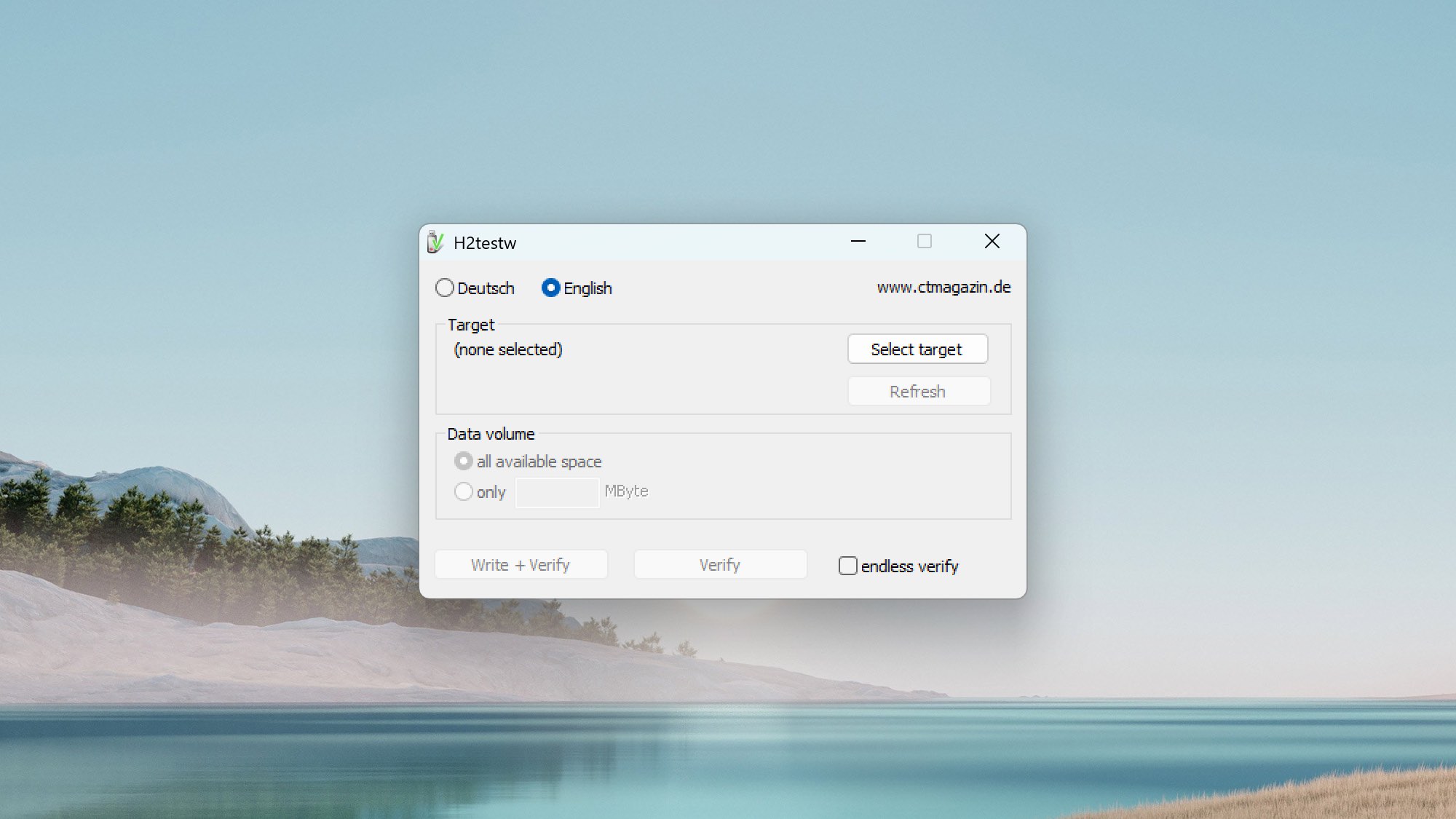
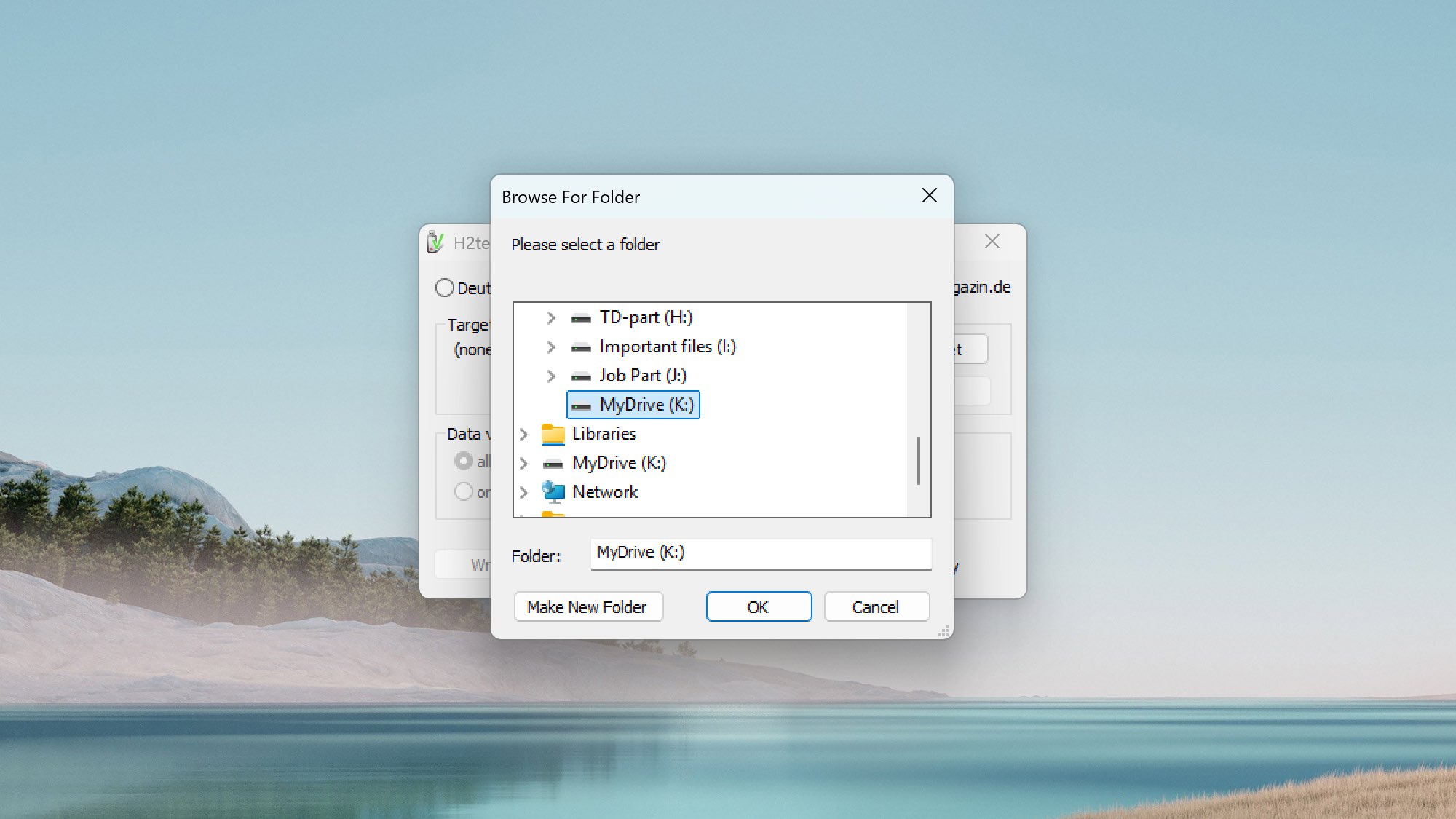
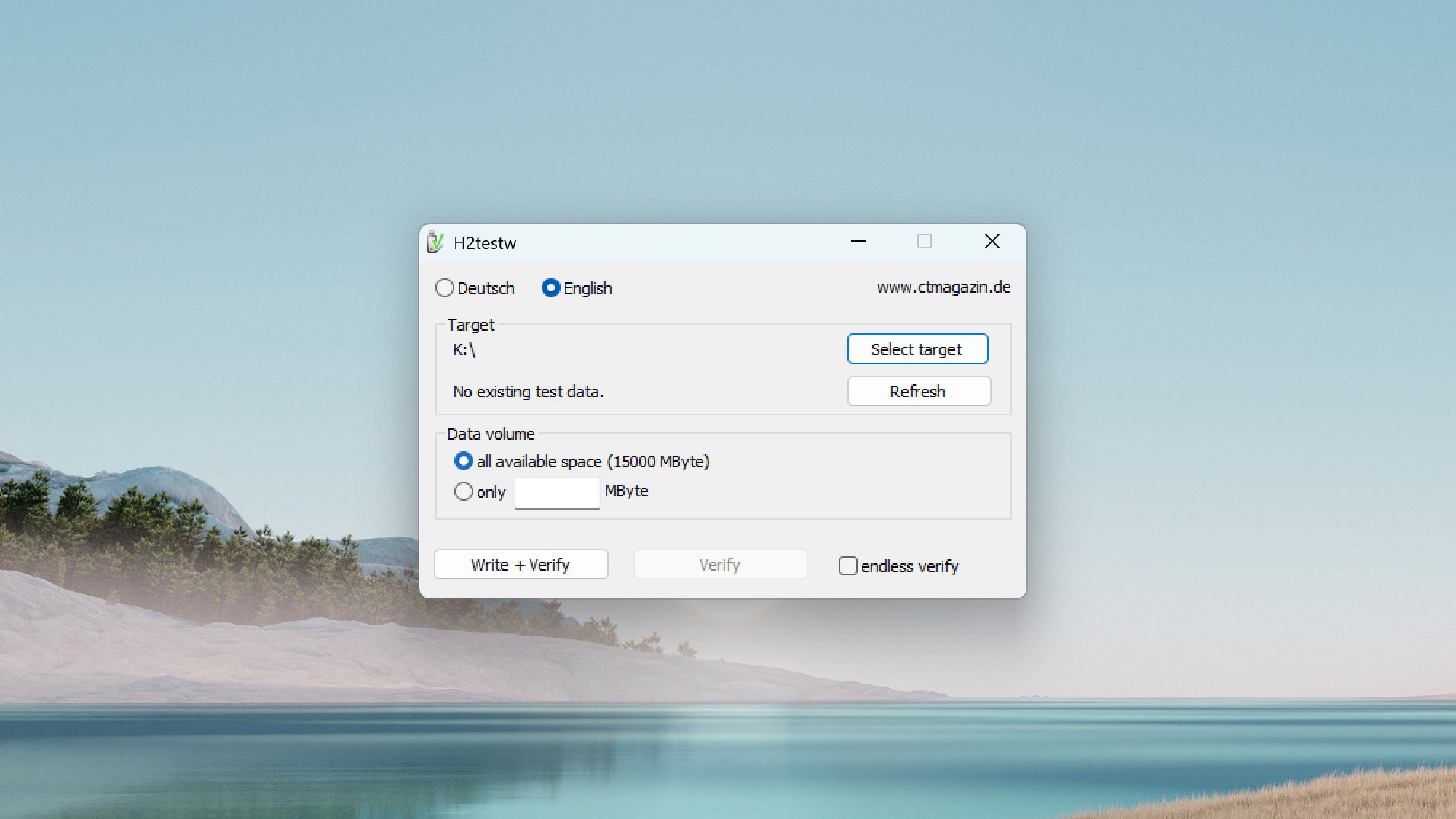
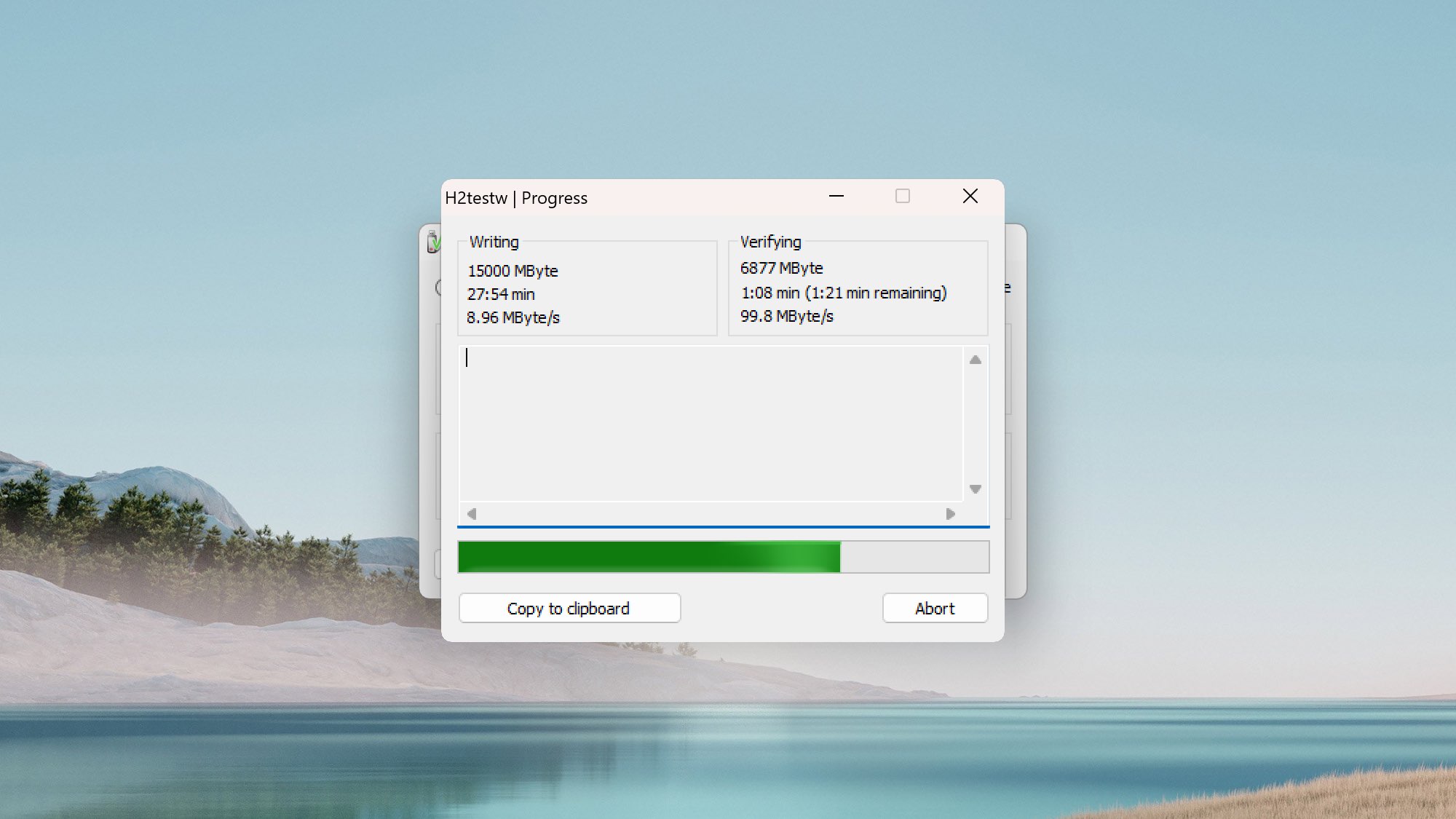
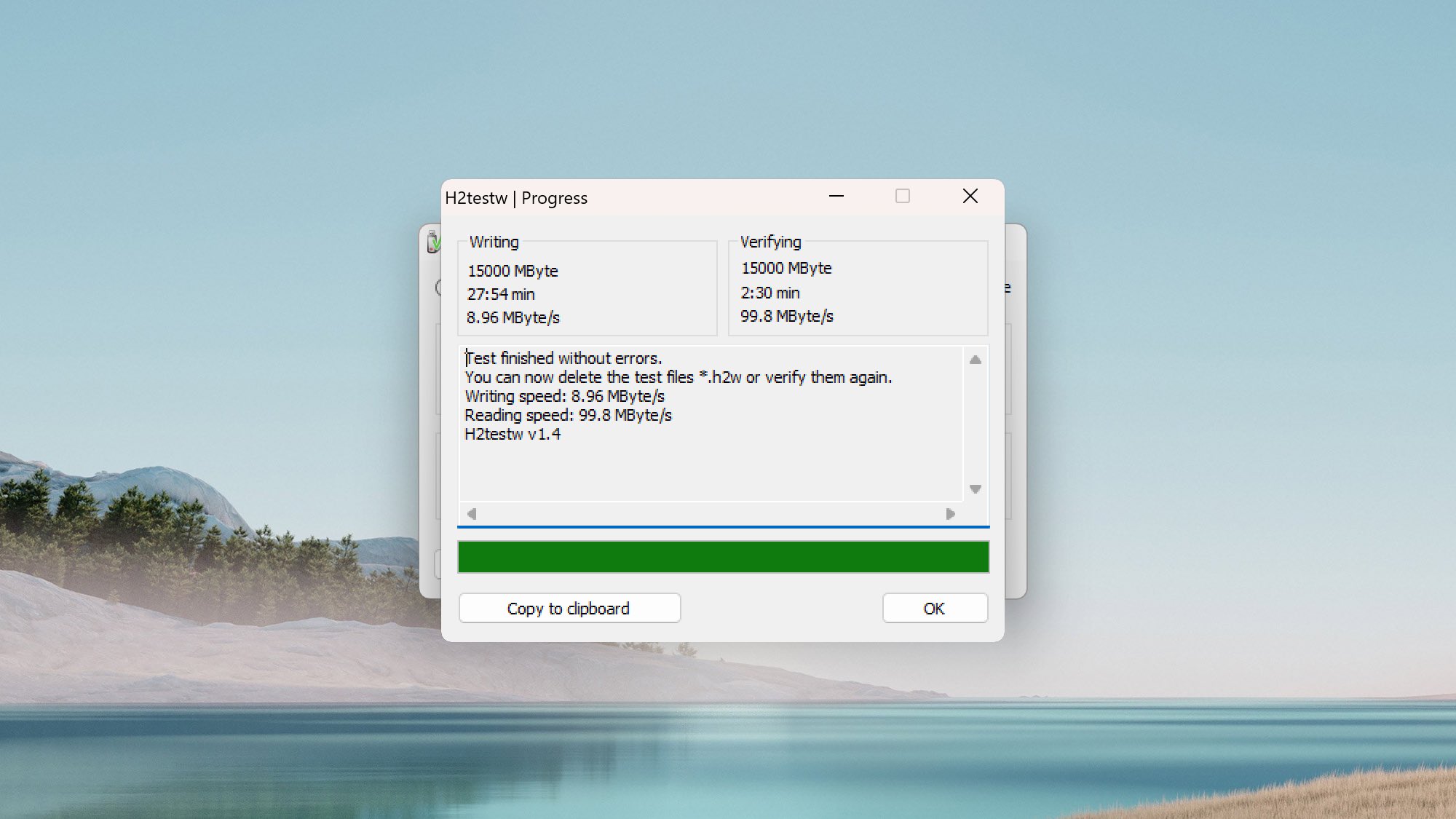
H2testw's interface is minimal because the software doesn't have many features. The main window has a Deutsch/English toggle at the top, a "Select target" button to pick your drive, a radio button to choose between testing all available space or a specific amount, and two action buttons: "Write + Verify" and "Verify." When the test finishes, the results window shows writing and reading speeds, the total data tested, elapsed time, and a plain-text verdict ("Test finished without errors" or a list of what went wrong). There's a "Copy to clipboard" button so you can save the report.
Performance
H2testw can catch fake drives that less exhaustive tests might miss by writing and verifying every available byte. A counterfeit flash drive typically uses a small, cheap memory chip but has its firmware modified to report a much larger size to the operating system. Data written beyond the real capacity is either silently lost or overwritten by earlier data. H2testw catches both scenarios. The only problem with this approach is that a full write-and-verify cycle on a large drive can take hours, especially over slower USB connections.
Value
H2testw costs nothing and does its one job well. If you buy USB drives or SD cards online, running H2testw before trusting the drive with real data is a smart habit. I personally have a whole collection of 64 GB flash drives from AliExpress for free thanks to this tool. The flash drives pretend to be 256 GB drives, and the data obtained by H2testw allowed me to get a full refund for them.
Advanced and Specialized USB Repair Tools
The tools below are not part of the main ranking because they serve specialized use cases but they’re still worth knowing about despite requiring more technical knowledge and carrying a higher risk if used incorrectly.
- Clonezilla (Creating a Backup Image Before Repair)
Clonezilla is a free, open-source disk imaging and cloning utility that boots from a USB drive or CD and creates sector-level copies of entire drives or partitions. So why mention it in an article about USB repair? Because cloning a failing USB drive before attempting any repair is one of the smartest things you can do.
When a USB flash drive starts showing signs of trouble (slow transfers, read errors, files that won't open), every additional read/write operation risks making things worse. Clonezilla lets you create an exact byte-level image of the drive and save it to another disk. Once you have that image, you can run repair tools, recovery scans, or formatting operations against the copy instead of the original. If something goes wrong during repair, you still have the image to fall back on.
Clonezilla supports FAT32, NTFS, ext4, HFS+, and many other file systems. Its interface is entirely text-based and menu-driven, so it's not the most inviting tool for beginners, but the guided wizard mode walks you through each step.
- MPTools (Firmware and Controller Tools)
Mass Production Tools (MPTools) are factory-level utilities designed to reprogram the firmware on a USB flash drive's controller chip. Tools like FC MpTool target specific controller families (in this case, Alcor and FirstChip controllers) and can perform low-level operations that no standard formatting tool can touch, such as rebuilding the flash translation layer, remapping bad NAND blocks, resetting reported drive capacity to its true value, and reflashing corrupted firmware.
The process starts with identifying the controller chip inside your USB drive using a utility like ChipGenius, which reports the controller vendor, part number, and NAND flash ID. You then need to find the correct MPTool version that matches your exact controller. Using the wrong version, or the wrong settings, can permanently brick the drive. That's why you should never use an MPTool on a drive that still contains data you haven't backed up.
Built-In USB Repair Tools You Should Try
In addition to third-party repair software, you can also use the built-in disk repair tools included with your operating system.
Built-in USB repair tools can sometimes resolve common logical errors, such as file system corruption, directory inconsistencies, or access errors that occur after improper device removal. However, don’t expect any miracles from them.
| OS | Tool | Purpose | Example |
| Windows | Error Checking | GUI scan for file system errors and bad sectors | Properties → Tools → Check |
| Windows | chkdsk | Command-line file system repair with recovery | chkdsk X: /f /r |
| Windows | diskpart | Partition management, clean & recreate volumes | diskpart → clean → create partition |
| Windows | format | Full reformat — wipes data, removes corruption | format X: /fs:FAT32 |
| macOS | First Aid | Verify & repair directory structure and metadata | Disk Utility → First Aid → Run |
| macOS | fsck | Low-level consistency check via Terminal | fsck_hfs -fy /dev/diskNsN |
| Linux | fsck | File system check & repair (ext, FAT, NTFS) | fsck /dev/sdX1 |
| Linux | badblocks | Surface scan for bad sectors (diagnostic only) | badblocks -sv /dev/sdX |
Choosing the Right USB Repair Tool
Which tool you need depends on what’s actually wrong with your flash drive. Here’s a quick breakdown by scenario:
- If you need to recover files from a formatted or corrupted flash drive, start with a recovery-first tool like Disk Drill. Scan the drive, preview what’s recoverable, and save your files to a different disk before doing anything else.
- If the USB shows up as RAW or has partition errors, try TestDisk or DiskGenius. Both can rebuild damaged partition tables and restore access to drives that Windows refuses to mount.
- If you just need to reformat a problematic drive, the USB Disk Storage Format Tool or HDD LLF Low Level Format Tool may be enough. The USB Disk Storage Format Tool handles standard formatting and error correction, while HDD LLF goes deeper with a zero-write pass across the entire device.
- If you suspect hardware degradation, run diagnostics with HDDScan or Victoria before attempting any repair to determine whether the drive has bad sectors, unstable read times, or other signs of physical wear. If the diagnostics look bad, recovery or cloning should come before any repair attempt.
- If the drive capacity looks suspicious, verify it with H2testw. This is especially relevant for drives purchased from online marketplaces, where counterfeit flash drives with inflated capacity reports are common.
Before you do anything, keep three things in mind:
- Image the drive. Create a byte-level backup using Disk Drill or Clonezilla before running any repair or formatting tool. If something goes wrong, you can always go back to the image.
- Don’t write new data to the drive. Every write operation to a damaged flash drive risks overwriting recoverable files. Recover first, repair second.
- Be realistic about what software can fix. All the tools on this list address logical problems (corrupted file systems, broken partitions, bad sectors that can be remapped). If the drive has physical damage (a cracked connector, dead NAND chips, a fried controller), no software will bring it back and you need to contact a professional data recovery service.
Was the provided information useful? Your vote is important to use!
Frequently Asked Questions
How to fix a damaged USB for free?
- If the problem is logical (corrupted file system, RAW partition, missing drive letter), you can start with your operating system’s built-in tools: on Windows, run
chkdsk X: /f /rfrom an elevated Command Prompt to scan for file system errors and bad sectors, or usediskpartto clean and repartition the drive. On macOS, open Disk Utility and run First Aid. On Linux, usefsck /dev/sdX1. If built-in tools don’t work, try TestDisk, which is free, open-source, and can rebuild corrupted partition tables and recover lost file systems without wiping the drive. Alternatively, you can reformat the drive using freeware tools like USB Disk Storage Format Tool and HDD LLF Low Level Format Tool.
Can USB repair software fix a RAW drive?
A USB drive showing as RAW in Windows typically means the file system metadata is corrupted or unreadable. If the underlying data is still intact, tools like TestDisk or DiskGenius can often rebuild the partition table and restore the original file system without erasing anything. If the file system is damaged beyond repair, your best bet is to recover the files first using a tool like Disk Drill (which can scan RAW drives directly), and then reformat the drive to create a new file system.
How do I repair bad sectors on a USB?
Bad sectors on a USB flash drive can’t be repaired the way they can on a traditional hard disk. On an HDD, tools like Victoria or chkdsk /r can remap bad sectors to spare areas on the platter, but flash drives work differently. As such, your best bet is low-level formatting with HDD LLF, which can sometimes mark bad areas and make the remaining capacity usable, but this is a temporary fix, not a cure.
What's the difference between CHKDSK and third-party repair tools?
CHKDSK (chkdsk /f /r) is built into Windows and its main purpose is fixing minor file system inconsistencies. It’s not really designed to deal with more serious damage and do things like rebuilding missing or corrupted partition tables or recovering specific deleted files. Third-party tools fill these gaps. For example, TestDisk can reconstruct partition tables that CHKDSK can’t even see, and Disk Drill can scan at the signature level to find files even when the file system is completely gone.
Is low-level formatting a USB drive safe?
Low-level formatting (using a tool like HDD LLF Low Level Format Tool) writes zeros across every sector of the drive. It’s safe in the sense that it won’t physically damage the drive, but it will permanently erase all data on it with no possibility of recovery afterward.

David Morelo is a professional content writer with a specialization in data recovery. He spends his days helping users from around the world recover from data loss and address the numerous issues associated with it.
When not writing about data recovery techniques and solutions, he enjoys tinkering with new technology, working on personal projects, exploring the world on his bike, and, above all else, spending time with his family.
- Klennet Recovery Review (Formerly Zero Assumption Recovery)
- iBeesoft Data Recovery Review – A Likable Clone With Limited Features
- DMDE Review – A Data Recovery Powerhouse or a Usability Nightmare?
- Cisdem Data Recovery for Mac Review – A Clone in Disguise
- Tenorshare 4DDiG Review – All That Glitters Is Not Gold

- Houston, Texas, United States
Nikolay Lankevich has over 15 years of strong experience in various fields and platform includes Disaster Recovery, Windows XP/7. System analysis, design, application (Inter/Intranet) development, and testing. Provided technical supports on desktop and laptops on Win-XP and Macintosh for about 2000 employees.